






Buy the Apple Pencil Pro if you own a compatible iPad, or choose the Apple Pencil (2nd generation) if that is the pressure-capable model your iPad accepts [1], [7]. Skip the Apple Pencil (USB-C) when your fashion brushes depend on pressure because Apple lists it without pressure sensitivity [7]. If you prefer a textured surface, consider Paperlike only after checking its vendor claims and exact-device fit [8].
Pressure sensitivity versus flat lines for croquis sketching
Fashion croquis sketching relies on energetic, expressive lines to capture posture, garment movement, and drape. The pressure response of the stylus determines whether a stroke tapers naturally like an ink pen or stays rigid like a mechanical plotter. The Apple Pencil Pro and Apple Pencil (2nd generation) both capture pressure variations to modulate stroke thickness and opacity dynamically [1]. When you apply gentle pressure, the line remains delicate for underlying body construction. Increasing downward force widens the stroke to define the heavy drop of an overcoat hem or the deep shadow of an armhole [5].
In contrast, the Apple Pencil (USB-C) omits pressure sensitivity entirely [1]. While it supports tilt detection for broad shading, every direct mark maintains uniform line thickness regardless of how hard you press [1]. In fashion design workflows, this limitation disrupts rendering. A designer attempting to sketch a fluid chiffon skirt or a soft gathers detail must manually adjust brush size sliders inside drawing software rather than relying on natural hand pressure. Software tools like Procreate provide extensive brush engines designed to react directly to stylus pressure curves [3], [6]. Using a stylus without pressure capability neutralizes those features and forces an interrupted, mechanical workflow.
If you illustrate garments with varied textures like wool tweed, washed denim, or sheer organza, skip the Apple Pencil (USB-C). Choose the Apple Pencil Pro or Apple Pencil (2nd generation) so your hand pressure translates into organic garment weight [1].
Hover, squeeze, and barrel roll for fabric rendering
Rendering textiles requires nuanced control over brush shapes, color pickup, and blending. The Apple Pencil Pro introduces advanced hardware sensors including barrel roll, squeeze detection, and haptic feedback that streamline fashion coloring [1]. Barrel roll uses an internal gyroscope to rotate shaped brushes as you twist the stylus shaft between your fingers [1]. For fashion artists using flat gouache brushes, chisel markers, or custom textile stamps, barrel roll enables fluid direction changes along collar curves and garment seams without lifting the tip [6].
Apple Pencil hover allows you to preview the exact brush footprint, angle, and opacity over the canvas before the tip touches the display [1], [5]. When positioning complex lace patterns, knit repeats, or delicate topstitching brushes, seeing the active boundary prevents misplaced marks. The squeeze gesture on the Apple Pencil Pro brings up an on-screen tool palette directly at the pen tip, letting you swap from a watercolor wash brush to an outline fineliner instantly [1]. This reduces hand travel to static menus across extended rendering sessions [6].
The Apple Pencil (2nd generation) provides double tap but lacks Pencil Pro's barrel roll, squeeze, and haptics [1], [7]. It remains pressure-sensitive, so it can support pressure-driven fashion brushes on compatible iPads [5], [7]. Pencil Pro adds controls; it does not guarantee that every artist will render faster [7].
Technical flats, seams, and line control on glass
Beyond expressive croquis art, fashion designers must draft precise technical flats and specification sheets. Technical flats demand absolute line consistency, exact seam placement, and crisp geometric callouts for pockets, darts, and zippers. Drawing on bare iPad display glass can feel frictionless, causing the stylus tip to skate across the surface and wobble during straight stitch runs [5].
Paperlike markets its protector as adding a paper-like texture to the iPad surface [8]. That may suit an artist who dislikes bare glass, but it is a preference rather than a guaranteed accuracy improvement. Test a textured surface before making it part of the default kit.
Any protector adds a layer above the display, so compare the result with the bare screen rather than assuming the texture is always better. Paperlike sells model-specific fits and describes its intended drawing feel [8]. Match the protector to the exact iPad before ordering.
Matching your iPad hardware to the right stylus
Your existing or planned iPad model dictates which Apple Pencil you can physically pair and charge [1]. Stylus hardware is strictly segmented across Apple hardware generations, so purchasing decisions must follow device compatibility rather than stylus features alone [1], [2].
Apple Pencil Pro works only with the iPads in Apple's current compatibility list [1]. Check the exact model name in Settings against that list, because a visually similar iPad from another generation may require a different Pencil [1], [7]. If your device supports Pencil Pro, choose it when pressure, barrel roll, squeeze, or haptics serve the drawing app you use [7].
The Apple Pencil (2nd generation) has its own list of compatible iPads [1]. If your present setup runs your Procreate canvases and brushes, there is no reason to replace it only to obtain Pencil Pro controls [3], [4]. Apple lists pressure sensitivity and magnetic pairing and charging for the second-generation Pencil [7].
The Apple Pencil (USB-C) pairs with many recent iPads across standard, Air, and Pro tiers via a sliding USB-C port cap [1]. While it offers the lowest entry price, its missing pressure sensitivity makes it unsuitable as a primary fashion rendering tool [1]. Reserve the USB-C model strictly for note-taking, general navigation, or vector path editing where pressure dynamics are completely unneeded [5].
Bottom line
For fashion brushes that map line weight or opacity to pressure, pressure sensitivity is the key requirement [6], [7]. Buy Apple Pencil Pro when the iPad is compatible and its extra controls suit the app [1], [7]. Keep the second-generation Pencil when it already supports your working setup. Skip the USB-C Pencil for pressure-driven rendering because Apple lists it without pressure sensitivity [7]. Add a textured protector only if you prefer the vendor's claimed paper feel after comparing it with bare glass [8].
Sources
[1] https://support.apple.com/en-us/108937 [2] https://www.apple.com/ipad/compare/ [3] https://apps.apple.com/us/app/procreate/id425073498 [4] https://help.procreate.com/articles/zlexav-ipad-compatibility [5] https://support.apple.com/guide/ipad/draw-with-apple-pencil-ipadc55b6c7a/ipados [6] https://help.procreate.com/procreate/handbook/5.2/interface-gestures/pencil [7] https://www.apple.com/apple-pencil/ [8] https://paperlike.com/products/paperlike-for-ipad
Recommended gear

Apple Pencil Pro
amazon.comThe best Apple stylus for serious digital art workflows. Expensive, but the control upgrades are real.
Pro: Best brush-control and hover workflow
Con: Highest price in the lineup
Works only with newer iPad models. Check compatibility.
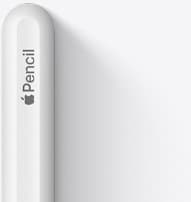
Apple Pencil (2nd generation)
amazon.comStill a strong stylus on compatible iPads. Good pressure control, but compatibility is the main trap.
Pro: Pressure support without Pro pricing
Con: Not compatible with newest Pro-only iPads
Only for iPads that support 2nd generation pairing.
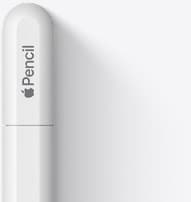
Apple Pencil (USB-C)
amazon.comA practical low-cost Apple stylus with broad compatibility, but limited for advanced art control.
Pro: Lowest official Apple Pencil cost
Con: No pressure sensitivity for brush work
Compatible with many recent iPads. No pressure support.
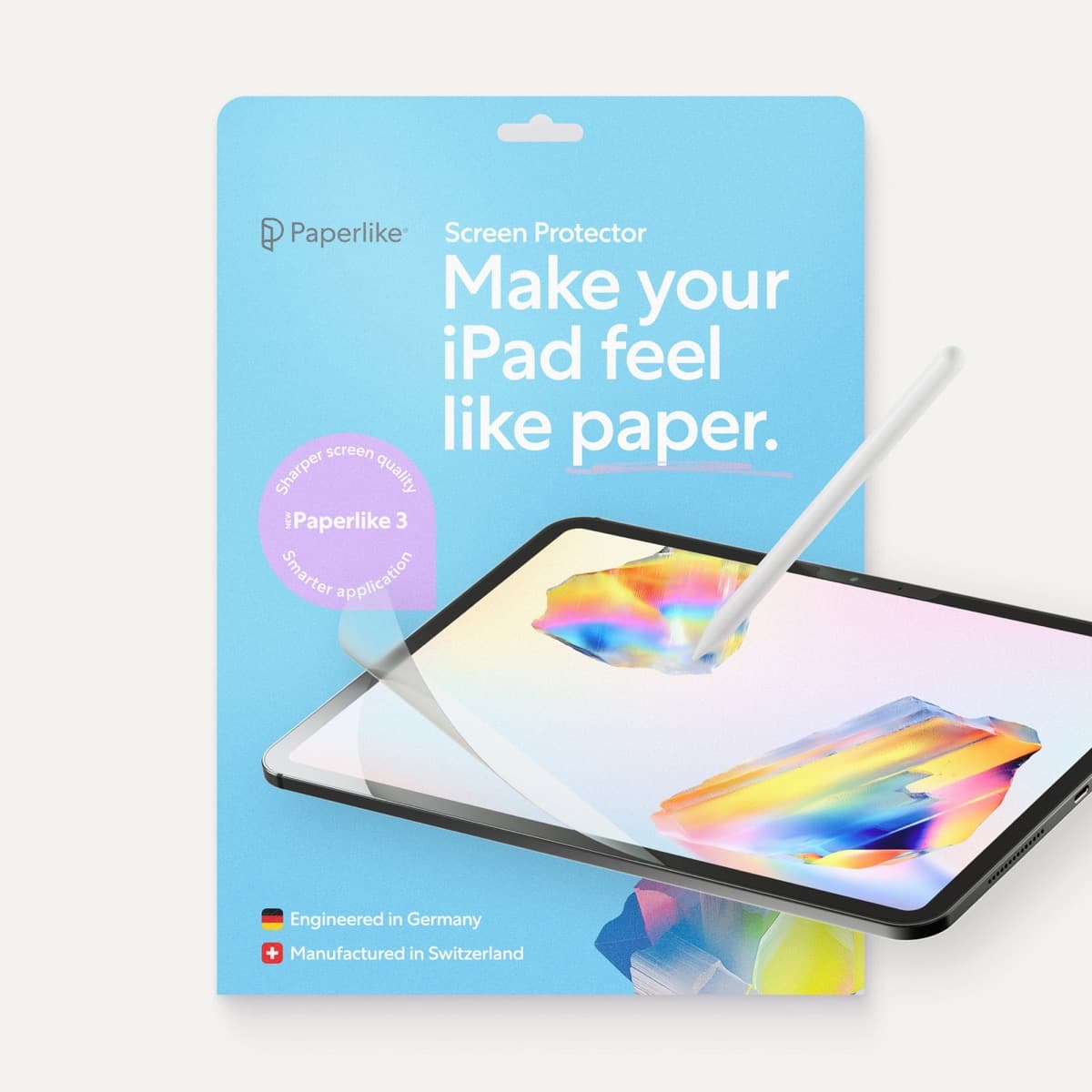
Paperlike 3 (11-inch, 2-pack)
amazon.comA strong surface-feel upgrade for drawing control. Clarity tradeoff is real and should be expected.
Pro: Adds controlled paper-feel friction
Con: Slightly reduces perceived display sharpness
11-inch fit only. Confirm generation before checkout.
Related buying picks
More in this collectionBuyer guide
Best Apple Pencil for manga drawing
Choose an Apple Pencil with pressure sensitivity for manga inking, matching the stylus directly to your iPad model.
Buyer guide
Best Apple Pencil for urban sketching: what to buy and what to skip
Choose the Apple Pencil that matches your sketching style and iPad model without paying for extra features you won't use outdoors.
Buyer guide
Choosing an Apple Pencil for logo design
Compare Apple Pencil models and drawing surfaces to find the right stylus setup for drafting logos and brand marks.
Buyer guide
Best Apple Pencil for tattoo design: which stylus should you buy?
Choose between the Apple Pencil Pro and Apple Pencil 2 based on your iPad model, and skip the USB-C version for tattooing.