





If Apple Pencil hover isn't working, keep your Apple Pencil (2nd generation) before buying a replacement stylus. In most cases, hover fails because your iPad model lacks hover hardware, not because your stylus is broken [1], [2]. If your iPad is an older model that pairs with Apple Pencil (2nd generation) but does not include hover support, skip buying another Apple Pencil [1], [2]. Only upgrade to an Apple Pencil Pro if you own or plan to purchase a newer compatible iPad that explicitly supports it [1], [3]. If you just need general navigation with hover on a compatible tablet at the lowest stylus price, choose Apple Pencil (USB-C), but skip it if you require pressure sensitivity [1].
Why hover fails on Apple Pencil 2 setups
When artists notice that Apple Pencil 2 hover isn't working, the most common reason isn't a dead battery or a broken tip. Apple Pencil hover relies on specific screen digitization hardware built into select iPad tablets [1], [4]. Apple Pencil (2nd generation) supports hover, but it can only project hover signals when paired with an iPad that features hover detection [1], [2]. If you attach an Apple Pencil (2nd generation) to an iPad Air (4th generation) or an older iPad Pro, pressure and tilt work normally, but hover will never activate [1], [3].
Before you spend money replacing a working stylus, confirm whether your specific iPad model actually supports hover [1], [3]. Apple introduced Apple Pencil hover alongside newer iPad Pro hardware [1], [4]. Many artists assume that because their Apple Pencil (2nd generation) attaches magnetically and charges on their iPad frame, every feature in the Apple Pencil catalog will function [1], [2]. That assumption leads people to replace their stylus needlessly when the limitation sits entirely inside the tablet chassis [2], [4].
If you own an iPad model that does support hover, the feature is probably switched off in software [4]. iPadOS contains dedicated toggle switches that control hover preview and brush alignment [4]. When those toggles are switched off, your pencil will draw when touching the screen, but it won't show any floating reticle or preview outline [4].
How iPad hardware dictates hover support
Hardware compatibility is the primary divider across the Apple stylus family [1], [2]. Apple Pencil (2nd generation) supports tilt sensitivity, pressure sensitivity, double tap, and hover [1]. However, that hover feature remains dormant unless the tablet itself has the screen controller needed to read the hovering tip [1], [4]. If you use an iPad that lacks hover hardware, keeping your current Apple Pencil (2nd generation) is the right choice, because buying another pencil will yield the exact same result [1], [2].
If your iPad hardware does not support hover and you decide you cannot work without hover previews, you must look at a full setup upgrade [1], [3]. The newest iPad models that require Apple Pencil Pro feature hover, squeeze gestures, barrel roll, and haptic feedback [1], [3]. However, Apple Pencil Pro works only with newer iPad models and will not pair with older iPads designed for Apple Pencil (2nd generation) [1], [2]. That means upgrading to Apple Pencil Pro requires buying both a new tablet and a new stylus [1], [3].
For creators on a strict budget who already own a hover-compatible iPad, Apple Pencil (USB-C) offers an entry point [1]. Apple Pencil (USB-C) includes hover support and tilt sensitivity at the lowest official cost in the lineup [1]. The major tradeoff is that Apple Pencil (USB-C) completely lacks pressure sensitivity [1]. If your drawing workflow relies on varying line width through physical hand pressure, skip Apple Pencil (USB-C) and stick with Apple Pencil (2nd generation) or Apple Pencil Pro [1].
Settings checks and app adjustments in Procreate
If you have confirmed that your iPad model officially supports hover, but your Apple Pencil hovering cursor is still missing, check your iPadOS system settings first [4]. Open Settings, navigate to the Apple Pencil menu, and look for the hover controls [4]. iPadOS provides toggles such as Show Effects when using Pencil and see your mark before you make it [4]. If these toggles are switched off, the hover cursor disappears across your entire system, including native Markup and third-party drawing tools [4].
App-level settings can also disguise hover functionality [4], [5]. In Procreate, you can customize cursor visibility when the stylus floats above the digital canvas [5]. If the brush cursor preview is toggled off in Procreate preferences, the app will not display the brush shape while hovering, even if iPadOS hover is running properly in the background [4], [5]. Checking your gesture controls and brush cursor options inside Procreate ensures your canvas responds to the hovering tip as intended [5].
Physical maintenance also plays a role in consistent pencil tracking [4]. A loose Apple Pencil tip can introduce intermittent signal drops, causing hover previews to flicker or vanish right before touching down [4]. Firmly screw the tip clockwise onto the stylus body to ensure solid internal contact [4]. Additionally, check that your stylus holds an active Bluetooth connection and sufficient battery charge, as weak pairing states can interrupt advanced tracking signals [2], [4].
Deciding whether to keep your pencil or upgrade
Troubleshooting your hover issue should lead directly to a sensible buying or keeping decision [1], [2]. If you discover that your Apple Pencil (2nd generation) is functioning properly on an iPad model that simply lacks hover support, the best move for most artists is to keep your present setup [1], [2]. Apple Pencil (2nd generation) delivers full pressure sensitivity and tilt control, which are the fundamental requirements for digital drawing and painting [1]. Skipping an upgrade saves you the cost of both a new tablet and an Apple Pencil Pro [1], [3].
Buy an Apple Pencil Pro only if you have already decided to purchase a newer iPad model that exclusively supports it [1], [3]. Apple Pencil Pro offers the best brush-control and hover workflow in Apple's catalog, adding squeeze and barrel roll to its hover capabilities [1]. But because Apple Pencil Pro will not pair with iPads built for Apple Pencil (2nd generation), buying it without a tablet upgrade leaves you with an unusable stylus [1], [2].
Choose Apple Pencil (USB-C) only if you own a hover-ready iPad and prioritize general navigation, note-taking, or vector work where pressure sensitivity is unnecessary [1]. It gives you hover at the lowest price, but fine-art painters should skip it due to the absence of pressure response [1]. Meanwhile, if you want more friction on your display glass during hover-guided drawing, adding a textured screen protector like Paperlike can provide paper-feel resistance without altering hover signals [4].
Bottom line
Apple Pencil 2 hover failure is almost always an iPad hardware mismatch rather than a broken stylus [1], [2]. If your iPad model does not feature hover hardware, do not buy a replacement Apple Pencil (2nd generation), because the new stylus will behave identically [1], [2]. Keep your existing Apple Pencil (2nd generation) and continue drawing with full pressure and tilt sensitivity [1]. Only consider upgrading if you are ready to invest in a newer iPad model alongside the Apple Pencil Pro to gain hover, barrel roll, and squeeze features [1], [3].
Sources
[1] https://www.apple.com/apple-pencil/ [2] https://support.apple.com/en-us/108937 [3] https://www.apple.com/ipad/compare/ [4] https://support.apple.com/guide/ipad/draw-with-apple-pencil-ipadc55b6c7a/ipados [5] https://help.procreate.com/procreate/handbook/5.2/interface-gestures/pencil
Recommended gear
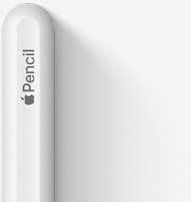
Apple Pencil (2nd generation)
amazon.comStill a strong stylus on compatible iPads. Good pressure control, but compatibility is the main trap.
Pro: Pressure support without Pro pricing
Con: Not compatible with newest Pro-only iPads
Only for iPads that support 2nd generation pairing.

Apple Pencil Pro
amazon.comThe best Apple stylus for serious digital art workflows. Expensive, but the control upgrades are real.
Pro: Best brush-control and hover workflow
Con: Highest price in the lineup
Works only with newer iPad models. Check compatibility.
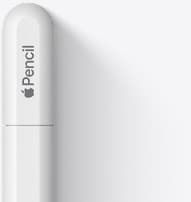
Apple Pencil (USB-C)
amazon.comA practical low-cost Apple stylus with broad compatibility, but limited for advanced art control.
Pro: Lowest official Apple Pencil cost
Con: No pressure sensitivity for brush work
Compatible with many recent iPads. No pressure support.
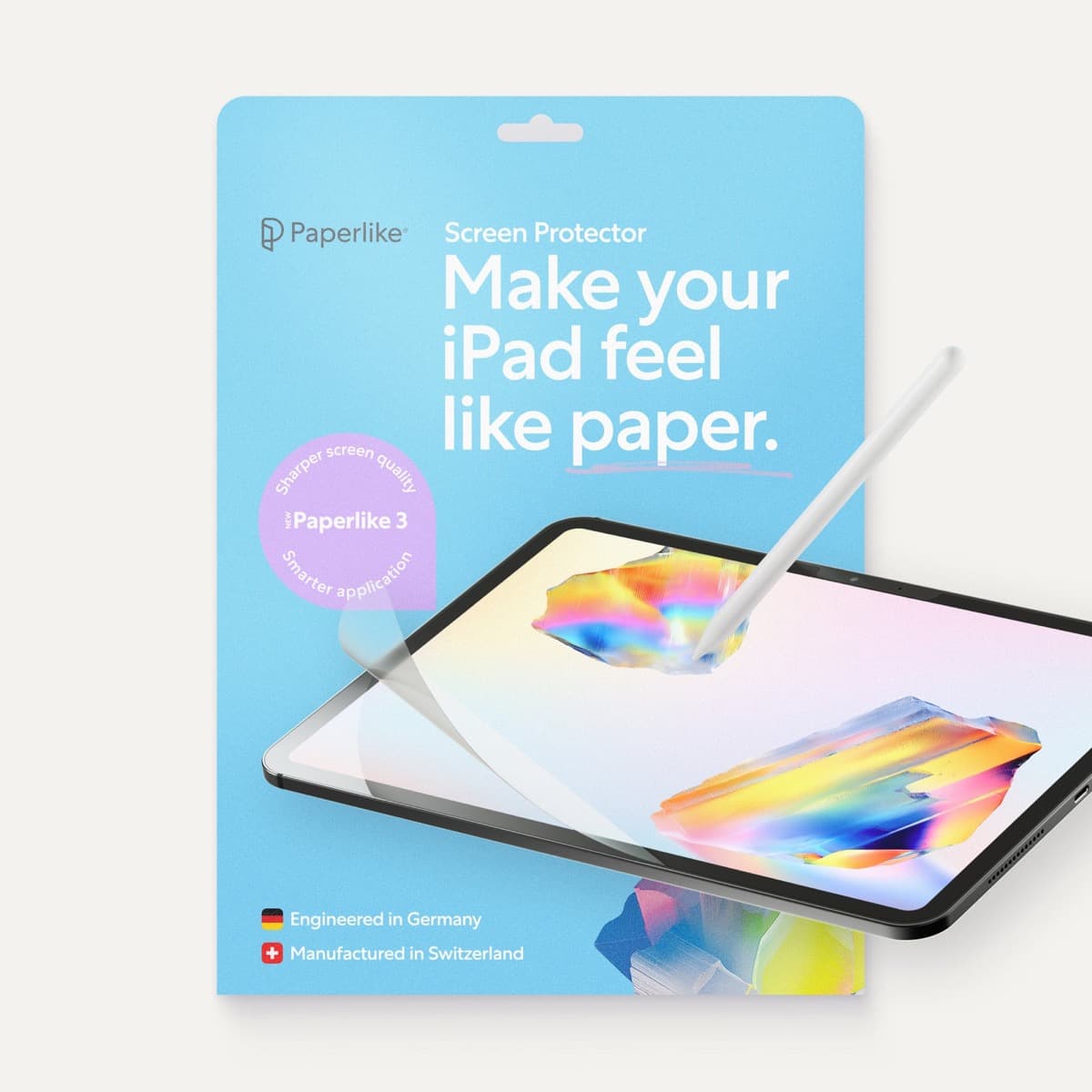
Paperlike 3 (11-inch, 2-pack)
amazon.comA strong surface-feel upgrade for drawing control. Clarity tradeoff is real and should be expected.
Pro: Adds controlled paper-feel friction
Con: Slightly reduces perceived display sharpness
11-inch fit only. Confirm generation before checkout.
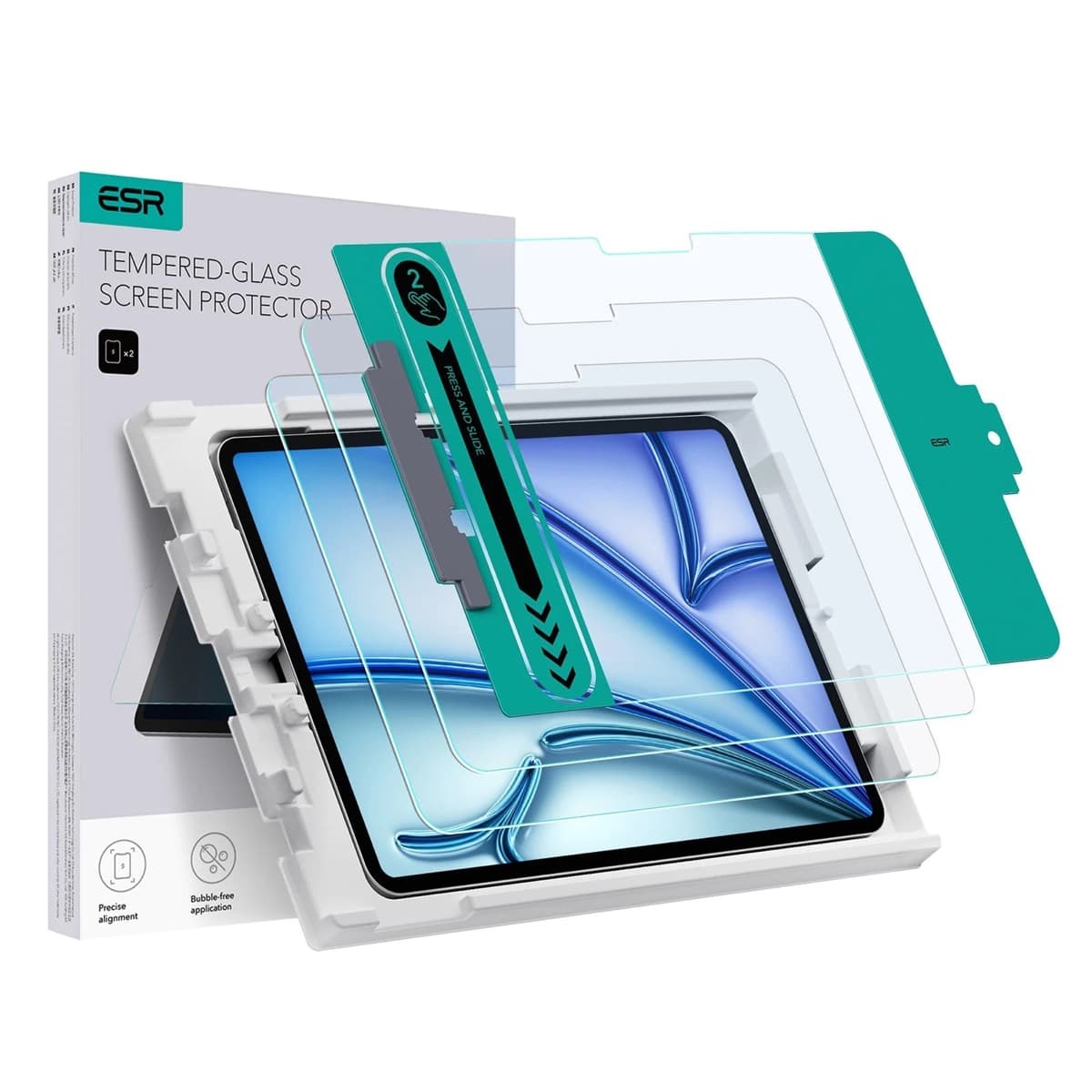
ESR Armorite Tempered Glass (11-inch)
amazon.comHigh-clarity protector with strong value. Great for visibility, less ideal for friction-seeking artists.
Pro: Very clear image with strong scratch resistance
Con: Minimal drawing friction compared with matte films
11-inch fit only. Verify exact iPad generation.
Related buying picks
More in this collectionBuyer guide
Best Apple Pencil for urban sketching: what to buy and what to skip
Choose the Apple Pencil that matches your sketching style and iPad model without paying for extra features you won't use outdoors.
Buyer guide
Best Apple Pencil for fashion illustration: Stylus guide for designers
Choose the right Apple Pencil for fashion illustration based on pressure sensitivity, barrel roll, iPad compatibility, and screen texture.
Buyer guide
Best Apple Pencil for figure drawing: how to choose your stylus
Figure drawing demands reliable pressure sensitivity and stroke control, making Apple Pencil Pro or Apple Pencil 2nd generation the right choice over the USB-C model.
Buyer guide
Best Apple Pencil for lettering and calligraphy
Choose between Apple Pencil Pro, Apple Pencil 2, and Apple Pencil USB-C based on pressure sensitivity, barrel roll, and iPad compatibility.