





If you need dedicated graphic design on iPadOS rather than freeform digital painting, choose Affinity Designer 2 for vector projects or Adobe Illustrator if your workflow ties directly into desktop Creative Cloud assets [1], [3]. If your design work consists mainly of raster illustration and texture painting, keep Procreate, which remains an iPad-only one-time purchase centered on raster canvases [5], [6]. Linearity Curve is a practical vector choice for people who work across both iPhone and iPad screens, while Concepts provides an infinite vector workspace for early ideation [2], [4]. Do not buy a raster painting app expecting precise vector typography [5].
Graphic design on an iPad requires a clear distinction between vector tools and raster painting. Vector apps construct shapes using math so you can scale logos, typography, and marketing layouts to any dimension without losing crisp edges [1], [2]. Raster apps build images out of fixed pixel grids, making them great for painted shading but limiting when you must export scalable assets [5], [6]. Picking the best app comes down to which type of file you need to deliver to clients, printers, or web developers [1], [3].
Dedicated vector design with Affinity Designer 2 and Linearity Curve
Affinity Designer 2 for iPad by Serif stands out as a full-featured vector environment in the Graphics and Design category, carrying an App Store rating of 4.7 out of 5 across thousands of reviews [1]. The developer built it around the precision of its desktop application and adapted the toolset into a touch-focused interface for iPadOS [1]. If you produce print layouts, brand marks, and complex vector illustrations requiring precise shapes, Affinity Designer 2 gives you that desktop-grade depth directly on a tablet [1]. You should choose this app if you want to complete entire vector projects on your iPad without renting your software through a monthly fee [1].
Linearity Curve Graphic Design by Linearity GmbH provides another dedicated vector path, holding a 4.5 out of 5 rating from over 14,000 App Store reviews [2]. The app listing highlights professional vector art and graphic design software that runs across both iPad and iPhone [2]. That dual-platform support makes Linearity Curve an appealing download if you want to start a logo concept or tweak layout curves on your phone while traveling before refining them on your tablet [2]. You should pick Linearity Curve if cross-device mobility between iOS and iPadOS matters most, but choose Affinity Designer 2 if you want the deeper creative toolset adapted from traditional desktop design [1], [2].
Logo creation and brand assets with Adobe Illustrator
Adobe Illustrator: Graphic Art is tailored specifically for creating logos, illustrations, graphics, and brand collateral on iPadOS, holding a 4.5 out of 5 rating across more than 38,000 App Store reviews [3]. If you already run a commercial design practice that relies on Adobe Creative Cloud, downloading Illustrator on your iPad allows you to begin vector paths with touch control and send them downstream to other Adobe applications [3]. The listing is categorized under Graphics and Design and provides direct vector creation focused on scalable graphic assets [3].
You should choose Adobe Illustrator on iPad if your existing team, client roster, or agency uses Creative Cloud services for file sharing and shared libraries [3]. If you do not already pay for an Adobe subscription or do not need Creative Cloud integration, paying into that system for iPad-only work can feel cumbersome [1], [3]. In that situation, standalone vector apps like Affinity Designer 2 or Linearity Curve deliver dedicated vector environments without tethering your files to an ongoing Adobe subscription [1], [2], [3].
Flexible sketching and layout planning with Concepts
Concepts by TopHatch is a distinct entry in the Graphics and Design category, earning a 4.7 out of 5 rating across more than 26,000 user reviews [4]. TopHatch describes Concepts as a flexible vector-based sketchbook designed to take ideas from concept to reality [4]. Because the underlying engine uses vector data, every stroke you lay down remains editable and resolution-independent, even though the interface feels like an open-ended sketchpad [4].
Concepts is the ideal choice for designers who brainstorm visual systems, map out wireframes, or sketch product concepts before building finalized artwork [4]. Designers who need rigid layout grids, print pre-press controls, and precise typographic typesetting should skip using Concepts as their final production tool and rely on Affinity Designer 2 instead [1], [4]. Concepts excels at the messy, freeform thinking phase of graphic design, whereas dedicated vector editors excel at production output [1], [4].
Raster illustration versus graphic design in Procreate and Clip Studio Paint
Many creators look to Procreate as the premier creative tool on iPadOS, but it is important to recognize that Procreate is built fundamentally for raster art [5], [6]. Procreate is an iPad-only application sold as a one-time purchase, making it accessible and popular for digital drawing [5]. However, because Procreate operates on fixed pixel grids, your canvas size and layer limits depend directly on your iPad model's available device memory [6]. If you stretch or upscale a logo created in Procreate, the artwork pixelates because it lacks mathematical vector scalability [5], [6]. Keep Procreate if your design style relies on painterly textures, editorial illustration, and hand lettering, but do not buy it expecting a vector layout engine [5], [6].
Clip Studio Paint offers another option when your visual design includes multi-page projects, comics, rulers, and animation [6], [7]. Clip Studio Paint includes vector layers and specialized ruler toolsets alongside deep drawing engines, but its ongoing plan structure on iPadOS is less simple than Procreate's one-time purchase model [5]. Choose Clip Studio Paint if you want integrated vector line correction alongside deep comics tools, but stick with Affinity Designer 2 if your core goal is traditional corporate graphic design, icon creation, and vector branding [1].
Hardware pairings with iPad Air and Apple Pencil
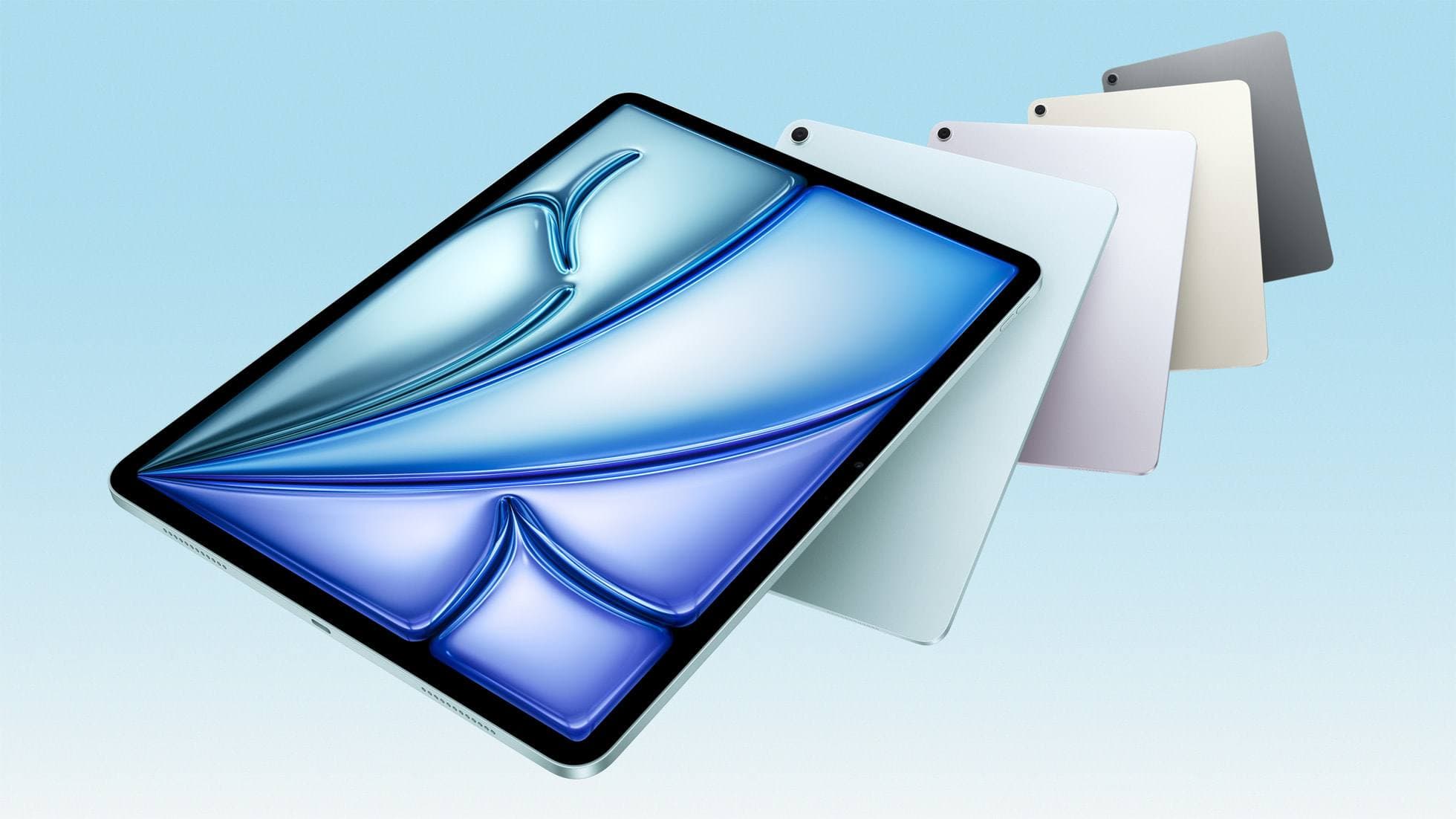
Your choice of iPad hardware sets the boundaries for layer ceilings and stylus precision when working in graphic design software [6], [7], [8]. The iPad Air lineup powered by the M4 chip provides a strong middle ground, giving you modern chip performance, multiple display size options, and Apple Pencil Pro support without the higher cost of an iPad Pro [7], [8]. Keep in mind that the iPad Air display remains at a 60Hz refresh rate, while Pro models feature faster ProMotion technology [7].
Pairing the iPad Air with an Apple Pencil Pro unlocks advanced input capabilities that streamline precision vector work [7], [8], [9]. Apple Pencil Pro supports squeeze actions, haptic feedback, barrel roll, tilt sensitivity, pressure sensitivity, and hover detection [9]. Barrel roll and squeeze provide tactile input for switching tools or rotating vector brushes, while hover lets you preview stroke placements before touching the glass [9]. Apple Pencil Pro works exclusively with newer iPad hardware, so verify model compatibility before purchasing accessories for an older tablet [7], [8].
Bottom line
If you want the most capable standalone vector design tool on iPadOS, buy Affinity Designer 2 for its rich, touch-optimized desktop feature set and straightforward license [1]. If your commercial work already lives inside Adobe Creative Cloud, choose Adobe Illustrator to keep your logo and vector asset pipelines synced [3]. If you want to draft early layouts on a flexible vector canvas, pick Concepts, and test Linearity Curve if you need to jump between an iPhone and an iPad [2], [4]. Keep Procreate for digital painting and raster textures, but avoid using it for scalable logo and typography production [5], [6].
Sources
[1] https://apps.apple.com/us/app/id1616833418 [2] https://apps.apple.com/us/app/id1219074514 [3] https://apps.apple.com/us/app/id1018784575 [4] https://apps.apple.com/us/app/id560586497 [5] https://apps.apple.com/us/app/procreate/id425073498 [6] https://help.procreate.com/articles/zlexav-ipad-compatibility [7] https://www.apple.com/ipad/compare/ [8] https://support.apple.com/en-us/108937 [9] https://www.apple.com/apple-pencil/
Recommended gear
Procreate
apps.apple.comPro: One-time purchase
Con: iPad-only
Clip Studio Paint
apps.apple.comPro: Deep comics, vector, ruler, and animation toolset
Con: iPad plan model is less simple than Procreate

Apple Pencil Pro
amazon.comThe best Apple stylus for serious digital art workflows. Expensive, but the control upgrades are real.
Pro: Best brush-control and hover workflow
Con: Highest price in the lineup
Works only with newer iPad models. Check compatibility.
iPad Air (M4)
apple.comThe clean current Air recommendation for most serious hobby artists. Stronger buy logic than old-stock M3 when pricing is close.
Pro: Best current balance of price, headroom, and Pencil support
Con: Still 60Hz
Current Air lineup. Choose size, storage, and keyboard path before checkout.
Related buying picks
More in this collectionBuyer guide
Best iPad app for surface pattern design: Procreate versus Clip Studio Paint
Choose Procreate for standalone raster pattern motifs or pick Clip Studio Paint for vector assets and complex pattern tile structures.
Buyer guide
Best iPad app for interior design sketching
Choose Procreate for simple one-time pricing and fast concept illustration, or pick Clip Studio Paint for multi-page floor plans and deep ruler systems.
Buyer guide
Best iPad app for mood boards
Choose between infinite vector canvases and fixed raster boards to assemble your next project visual references on iPad.
Buyer guide
Best iPad drawing app for kids with Apple Pencil
Compare Procreate, Sketchbook, Adobe Fresco, and Clip Studio Paint to choose the best Apple Pencil drawing app for your child.