For most illustrators, the iPad Pro is overkill for Procreate. You should skip the iPad Pro and choose the iPad Air (M4) instead if you want modern Apple Pencil Pro features like barrel roll and squeeze gestures without paying top-tier prices [1], [2]. If you simply want a digital sketchbook on a tight budget, buy the baseline iPad (A16, 11th gen) [1]. You only need an iPad Pro if your creative contracts require massive print canvases with high layer counts that demand maximum device memory [4].
Procreate runs across a broad spread of hardware, which means the app does not restrict its core painting tools to flagship devices [4], [5]. Deciding between these tablets comes down to physical display traits, pencil compatibility, and how much memory your canvas dimensions demand [1], [4].
How Procreate handles layers and memory
Procreate calculates canvas layer limits directly from the working memory available on your iPad [4]. When you create a canvas with thousands of pixels on each edge, the application reserves memory for each layer to keep strokes responsive [4], [5]. A tablet with less memory permits fewer active layers on identical canvas dimensions [4].
This calculation is where hardware differences matter most for production work. The iPad Pro models feature Apple's highest system memory configurations, while baseline tablets offer smaller allocations [1], [4]. If you frequently paint 300 DPI posters for physical print runs, a tablet with higher memory unlocks greater layer counts on those wide dimensions [4].
However, everyday sketching, web comics, character concepts, and social media illustrations do not require gigantic pixel grids [4], [5]. On modest canvas sizes, standard tablets offer dozens of workable layers, which covers normal art production for the vast majority of creators [4]. Buying a Pro tablet purely for layer security makes sense only if you have encountered real layer caps on your current setup [4].
Apple Pencil features across the iPad lineup
The drawing experience in Procreate depends heavily on which Apple Pencil model your tablet accepts [2], [3]. Apple organizes its stylus lineup into distinct tiers, and different iPad models pair with different styluses [1], [3].
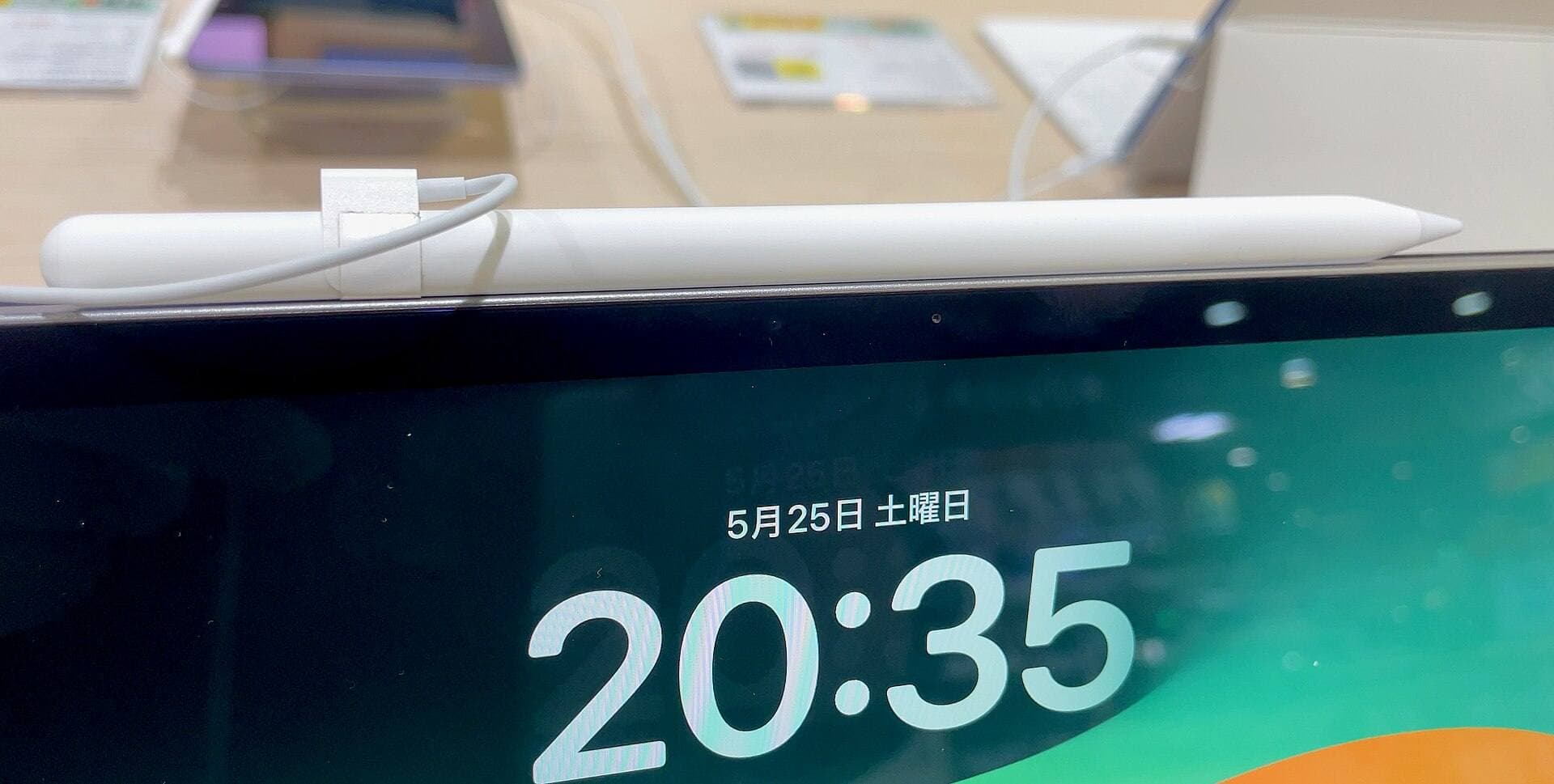
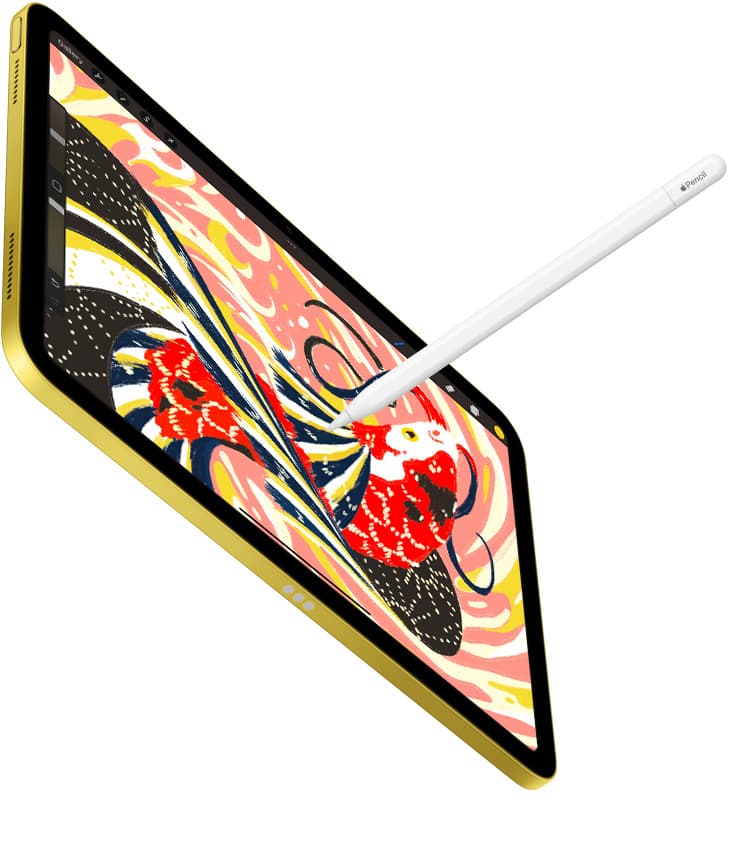
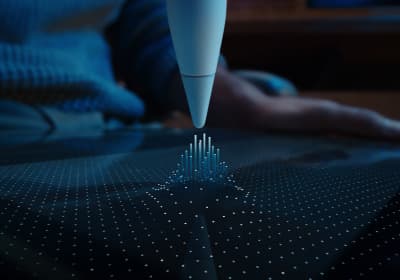
The Apple Pencil Pro works with modern hardware like the iPad Air (M4) and recent iPad Pro models [1], [3]. It includes pressure sensitivity, tilt recognition, Apple Pencil hover, barrel roll, squeeze inputs, and haptic feedback [2]. Procreate maps these features directly to brush rotation, quick tool palettes, and stroke adjustment [2], [5].
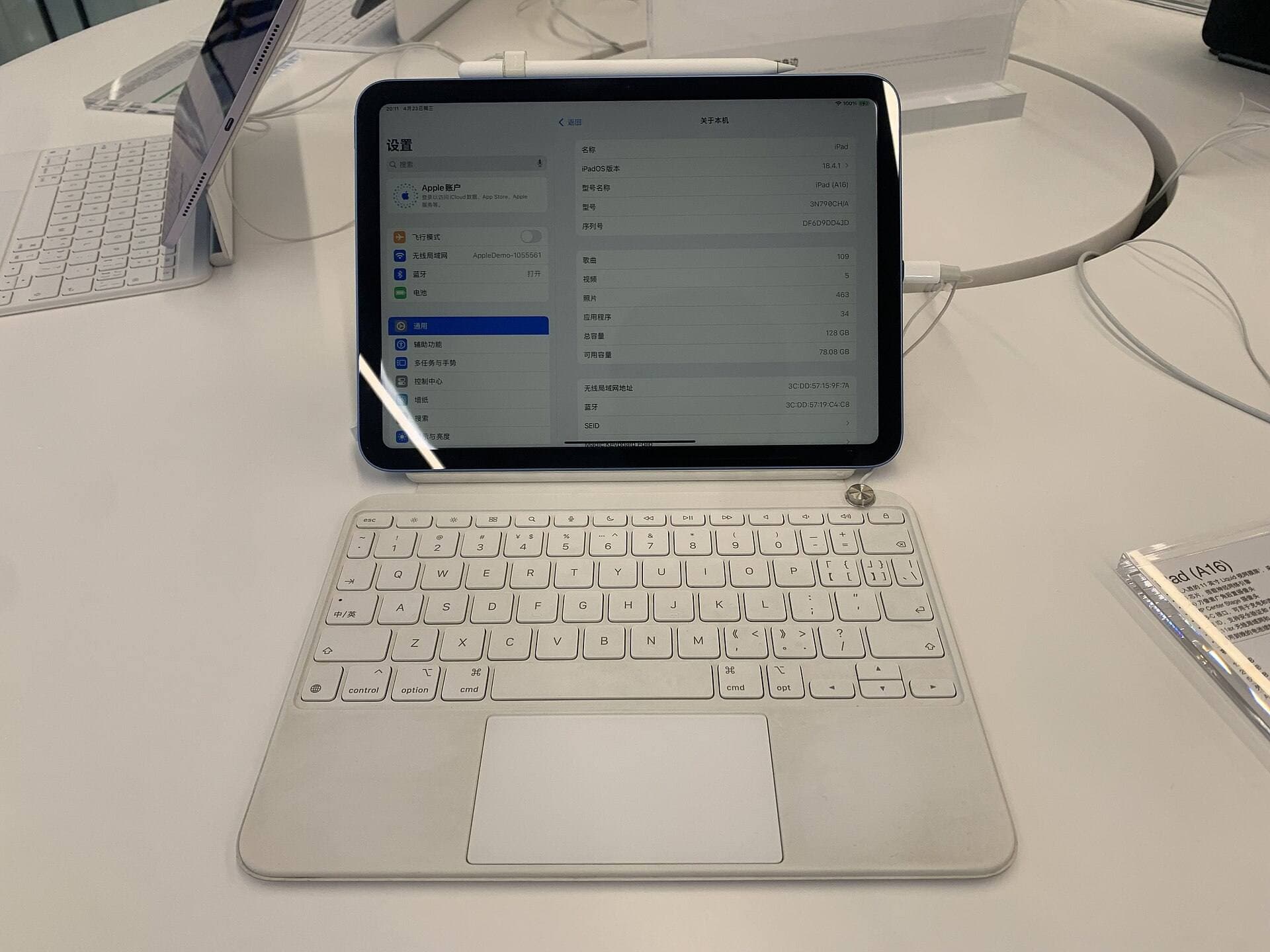
If you step down to the entry-level iPad (A16, 11th gen), compatibility changes [1], [3]. That tablet pairs with the Apple Pencil (USB-C) and the first-generation Apple Pencil [3]. The Apple Pencil (USB-C) provides tilt detection and magnetic attachment for storage, but it lacks pressure sensitivity [2]. If your style relies on pressure-sensitive line weight, you must pair that entry-level tablet with the first-generation stylus, or step up to the iPad Air to access the Apple Pencil Pro [1], [2], [3].
Because the iPad Air (M4) supports the exact same Apple Pencil Pro stylus as the iPad Pro, moving to the Pro does not give you any extra brush inputs or haptic tools [1], [2], [3].
Display differences and the ProMotion question
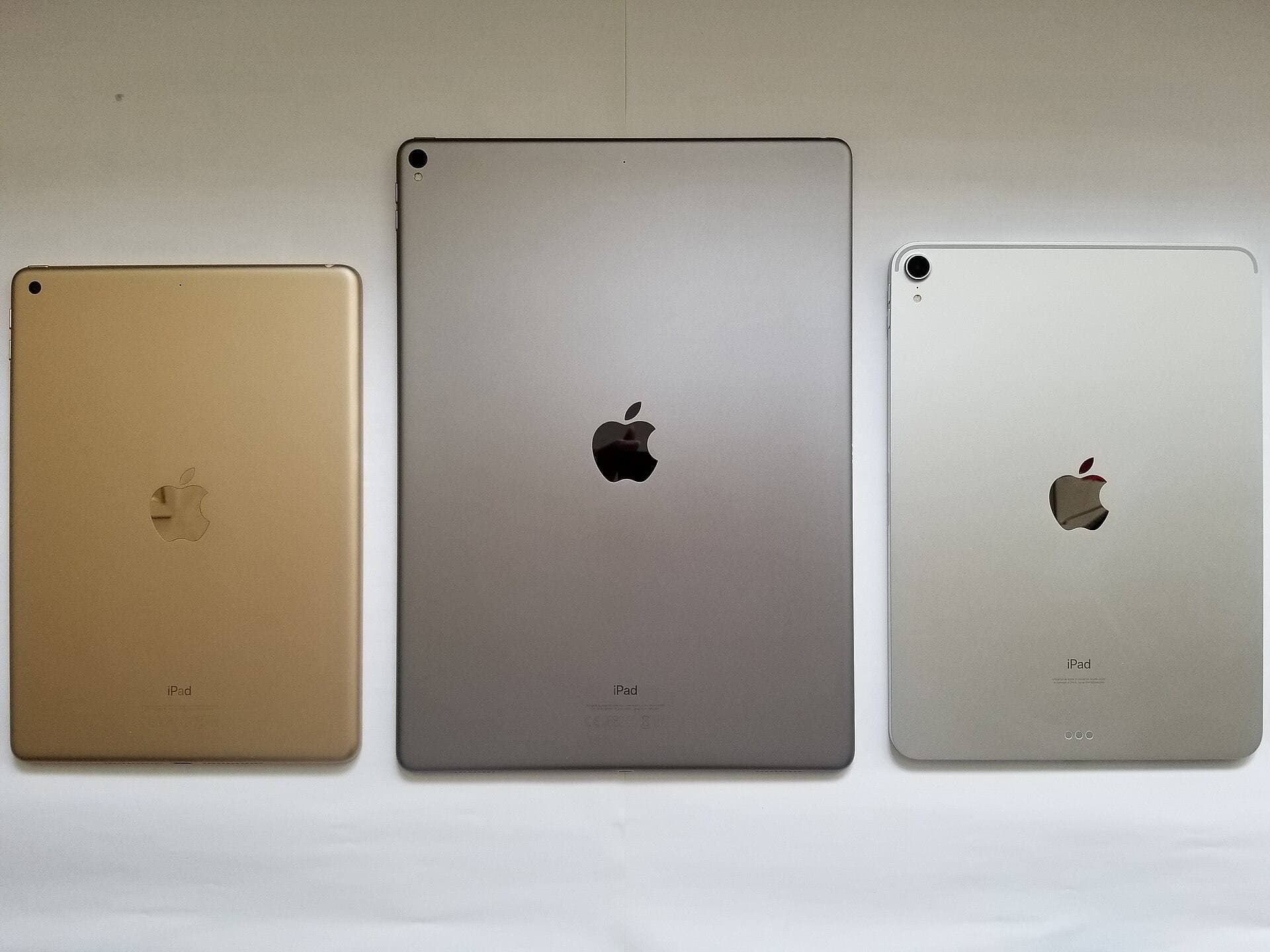
The visual canvas represents the clearest hardware distinction between the iPad Pro and the rest of the lineup [1]. The iPad Pro features an Ultra Retina XDR display with tandem OLED technology and ProMotion refresh rates up to 120Hz [1]. The iPad Air (M4) and iPad (A16, 11th gen) use standard 60Hz Liquid Retina panels [1].
ProMotion allows the screen to refresh twice as fast as standard displays, matching the refresh rate to pencil strokes and system motion [1]. Artists who sketch with rapid, sweeping lines notice that the ink appears closer to the stylus tip under a 120Hz refresh rate [1], [2].
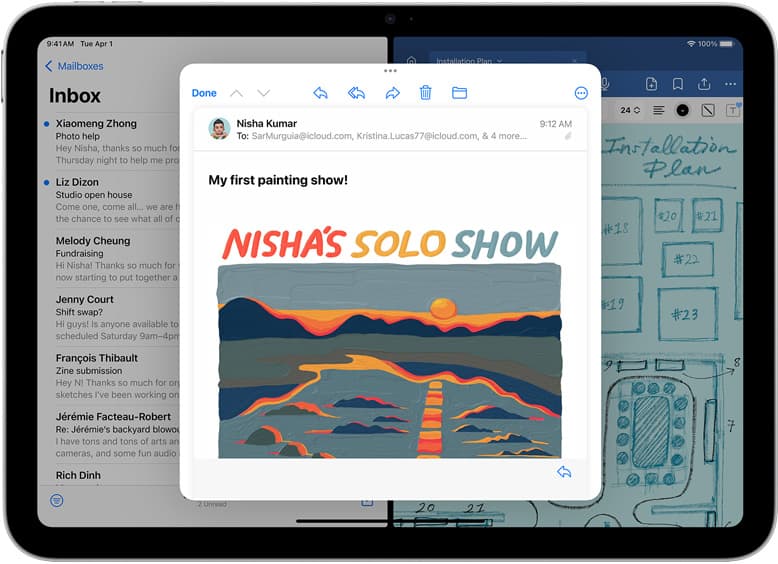
Even so, 60Hz panels have served illustrators for years across many iPad generations without restricting drafting precision [1], [4]. The glass surface on the iPad Air is fully laminated to the display panel, keeping the digital ink visually flush with the tip [1]. The baseline iPad retains an air gap between the cover glass and the screen panel, which creates a slight visual offset when drawing [1]. Choosing between these panels comes down to whether that visual flushness and high refresh rate justify the higher hardware cost [1].
Who should buy the iPad Air instead
The iPad Air (M4) represents the most balanced purchase for people who prioritize illustration [1]. It shares full compatibility with the Apple Pencil Pro, giving you squeeze menus, barrel roll, hover preview, and magnetic wireless charging [1], [2], [3].
Artists working on commercial illustration, digital painting, surface pattern design, and client commissions will find that the M4 processor and laminated display provide all the core foundation Procreate asks for [1], [4], [5]. You get modern stylus gestures without paying for tandem OLED displays or excessive memory configurations [1], [2].
You should buy the iPad Air (M4) if:
- You want the advanced brush manipulation features found on the Apple Pencil Pro [2], [3].
- You want a laminated screen without paying flagship Pro prices [1].
- You want a choice between 11-inch and 13-inch screen sizes [1].
You should skip the iPad Air (M4) if:
- You need the lowest total kit cost, in which case the standard iPad is more sensible [1].
- Your print workflow requires maximum possible layer counts on giant canvas presets [4].
Who should stick with the entry iPad
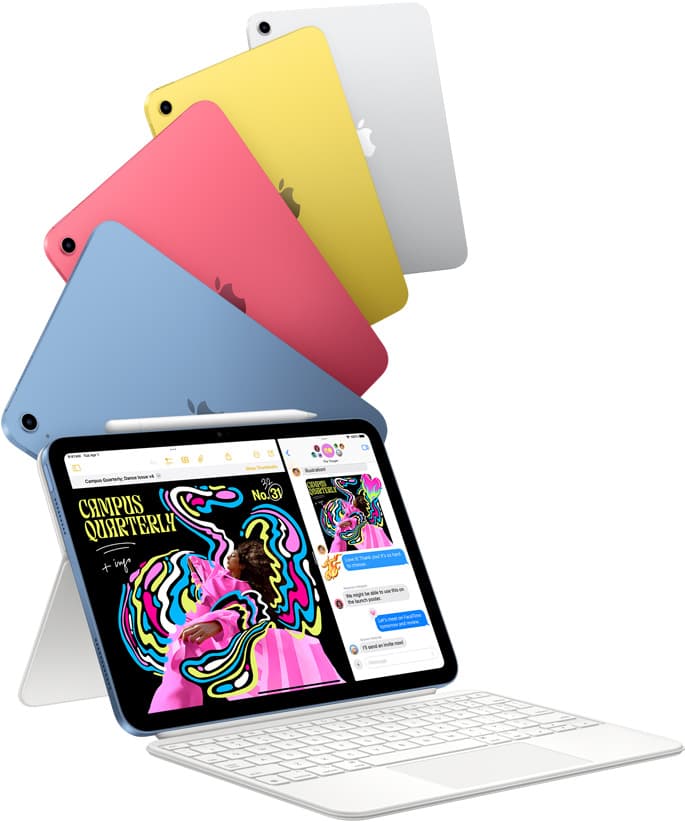
The iPad (A16, 11th gen) serves beginners, students, and hobbyists who want a portable drawing machine on a modest budget [1]. Procreate supports the hardware, providing access to the standard brush library, layer blends, and animation tools [4], [5].
The compromise centers on the stylus ecosystem [2], [3]. Because the Apple Pencil (USB-C) lacks pressure sensitivity, users who want variable line width must purchase the first-generation Apple Pencil and an adapter, or rely entirely on speed-based stroke dynamics [1], [2], [3].
You should buy the iPad (A16, 11th gen) if:
- You want an affordable tablet for casual drawing, journaling, and basic illustration [1], [4].
- You do not mind using the first-generation Apple Pencil or drawing without pressure sensitivity on the USB-C stylus [2], [3].
You should skip the iPad (A16, 11th gen) if:
- You want a laminated screen that reduces gap distance under the stylus [1].
- You want Apple Pencil Pro features like barrel roll, squeeze, and haptic feedback [1], [2], [3].
Bottom line
The iPad Pro is impressive hardware, but for digital art inside Procreate, it is overkill for nearly everyone [1], [4]. You do not need to buy Apple's top-tier tablet to unlock the best digital drawing features, because the iPad Air (M4) runs Procreate smoothly and pairs with the flagship Apple Pencil Pro [1], [2], [3], [5].
Choose the iPad Air (M4) with the Apple Pencil Pro if you want a complete creative setup with pressure sensitivity, barrel roll, and a laminated screen [1], [2], [3]. Pick the baseline iPad (A16, 11th gen) if cost is your primary constraint [1]. Reserve the iPad Pro strictly for commercial workflows where massive print resolutions demand the absolute maximum memory capacity available [1], [4].
Sources
[1] https://www.apple.com/ipad/compare/ [2] https://www.apple.com/apple-pencil/ [3] https://support.apple.com/en-us/108937 [4] https://help.procreate.com/articles/zlexav-ipad-compatibility [5] https://apps.apple.com/us/app/procreate/id425073498
Recommended gear
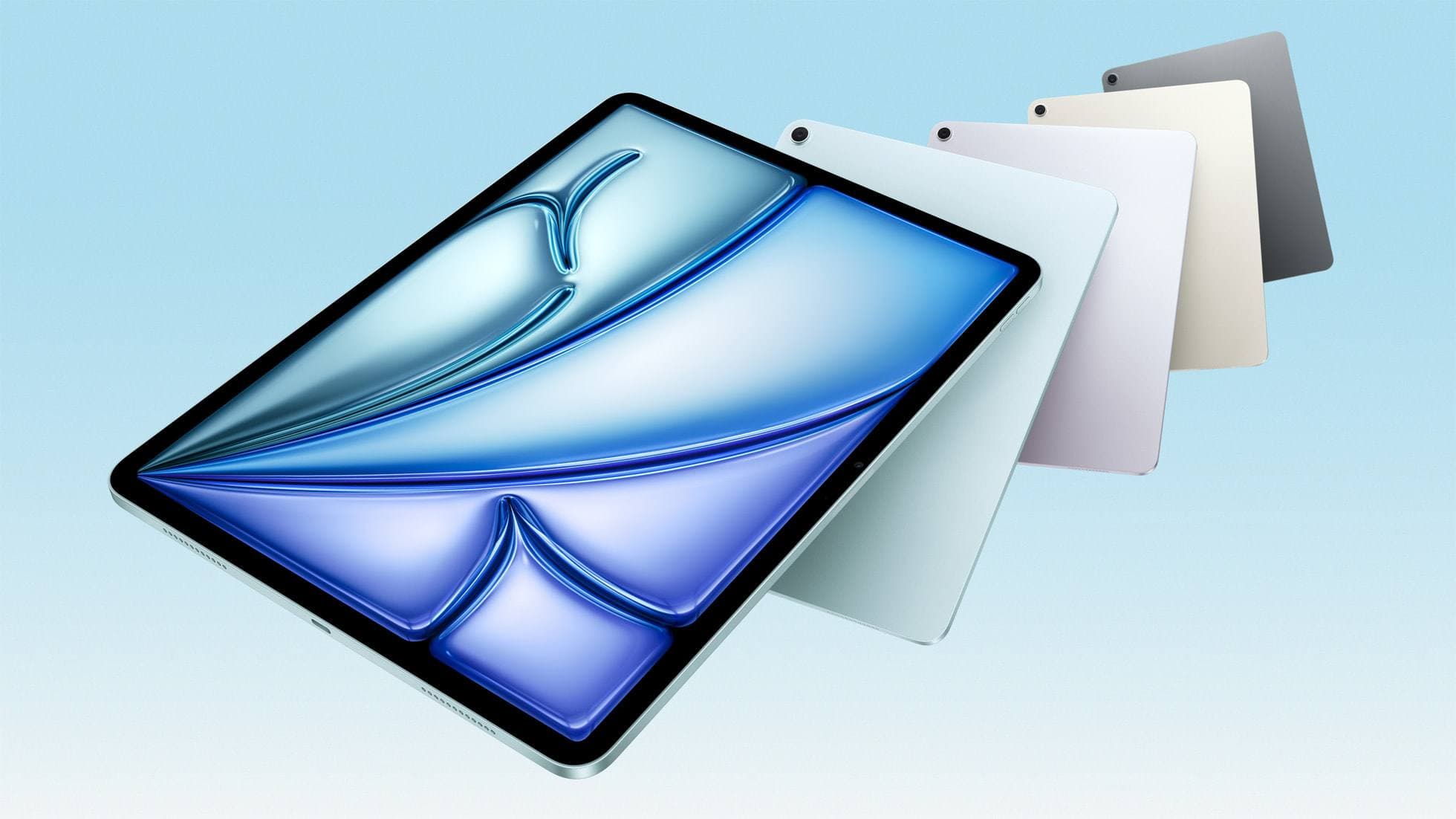
iPad Air (M4)
apple.comThe clean current Air recommendation for most serious hobby artists. Stronger buy logic than old-stock M3 when pricing is close.
Pro: Best current balance of price, headroom, and Pencil support
Con: Still 60Hz
Current Air lineup. Choose size, storage, and keyboard path before checkout.
iPad (A16, 11th gen)
amazon.comThe best entry iPad for most artists on a budget. It is not premium, but it is very hard to beat on value.
Pro: Best value iPad right now
Con: No ProMotion display
Search opens with the exact model keywords. Verify size and storage before checkout.
Procreate
apps.apple.comPro: One-time purchase
Con: iPad-only
Apple Pencil Pro
amazon.comThe best Apple stylus for serious digital art workflows. Expensive, but the control upgrades are real.
Pro: Best brush-control and hover workflow
Con: Highest price in the lineup
Works only with newer iPad models. Check compatibility.
Related buying picks
More in this collectionBuyer guide
Best drawing tablet for surface pattern design: iPad Air vs iPad Pro
Choose the iPad Air with Apple Pencil Pro for repeat pattern design, or step up to the iPad Pro if high-resolution layer limits dictate your production.
Buyer guide
Best tablet for 3d sculpting: how to choose your iPad setup
Compare the best iPads for digital 3D sculpting based on Apple Pencil Pro features, screen hardware, and memory ceilings.
Buyer guide
Is iPad 10th gen good for Procreate?
The iPad 10th gen handles Procreate well for everyday digital art, but stylus pairing limits and base hardware shape how far you can push large files.
Buyer guide
Best iPad for storyboard artists: our buyer guide
Choose the right iPad for storyboarding based on screen size, Apple Pencil Pro features, and canvas layer limits.