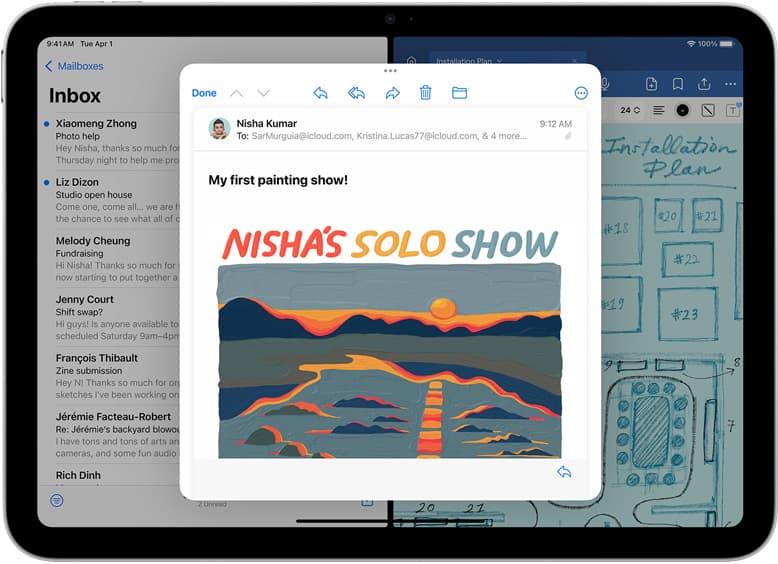
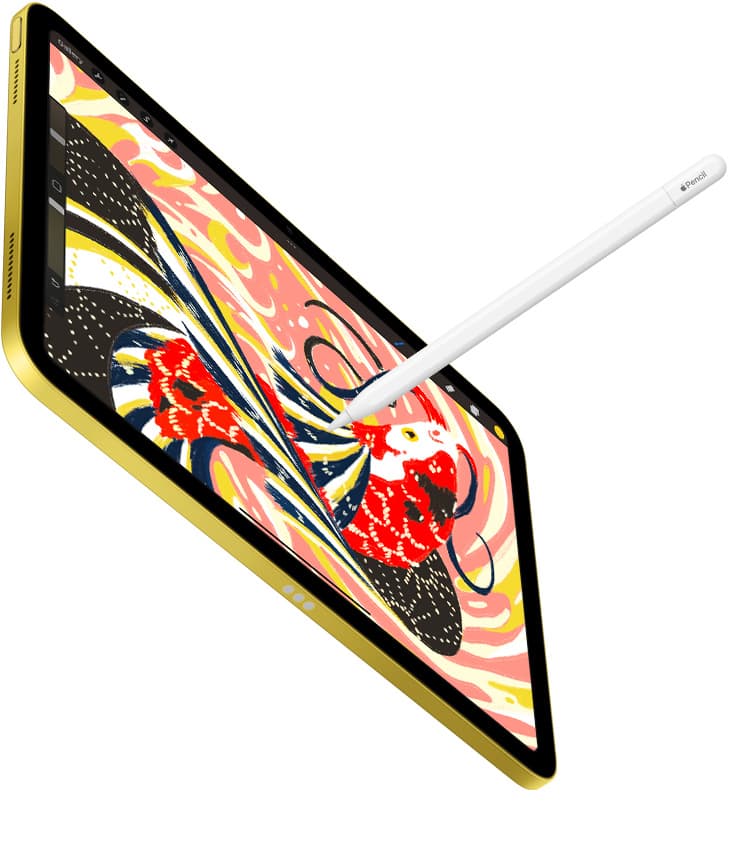
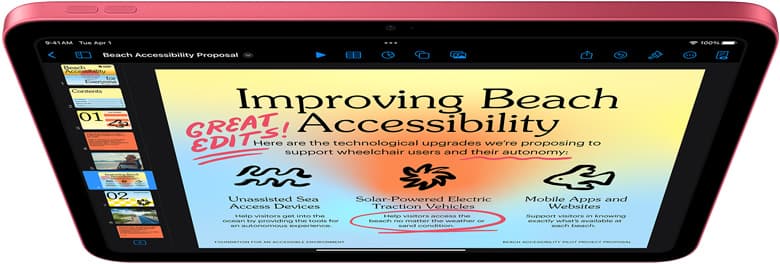
Buy the iPad Air (M4) paired with Apple Pencil Pro if you want modern stylus gestures and solid performance without paying flagship prices [1], [2]. If you demand the highest refresh rate and best screen tech in Apple's lineup, buy the iPad Pro (M5) instead [1]. Artists building an entry-level mobile kit can consider the iPad (A16), but you'll give up Apple Pencil Pro shortcuts like squeeze and barrel roll [2], [3]. If you already run a desktop workstation and do not need a portable standalone slate, a traditional screenless pen tablet connected to a computer might suit your desk better [6].
Concept art demands fast sketching, quick iteration, and dependable layer management. Because creative work shifts across thumbnail sketches, color comps, and detailed production paintings, your tablet needs to balance input precision, screen real estate, and hardware specs [1], [4]. Here is how the leading options compare for your concept art desk.
Why stylus features dictate your sketching workflow
Concept sketching relies heavily on fluid tool adjustments, expressive line weight, and shading control. The Apple Pencil Pro brings hardware tools that change how quickly you sketch, including barrel roll, squeeze gestures, and haptic feedback [2]. Barrel roll uses an internal gyroscope so you can rotate shaped brushes, which mirrors real-world calligraphy pens and flat markers directly on the digital surface [2]. Squeeze lets you press the barrel to open an on-screen palette or switch tools without interrupting your hand motion [2].
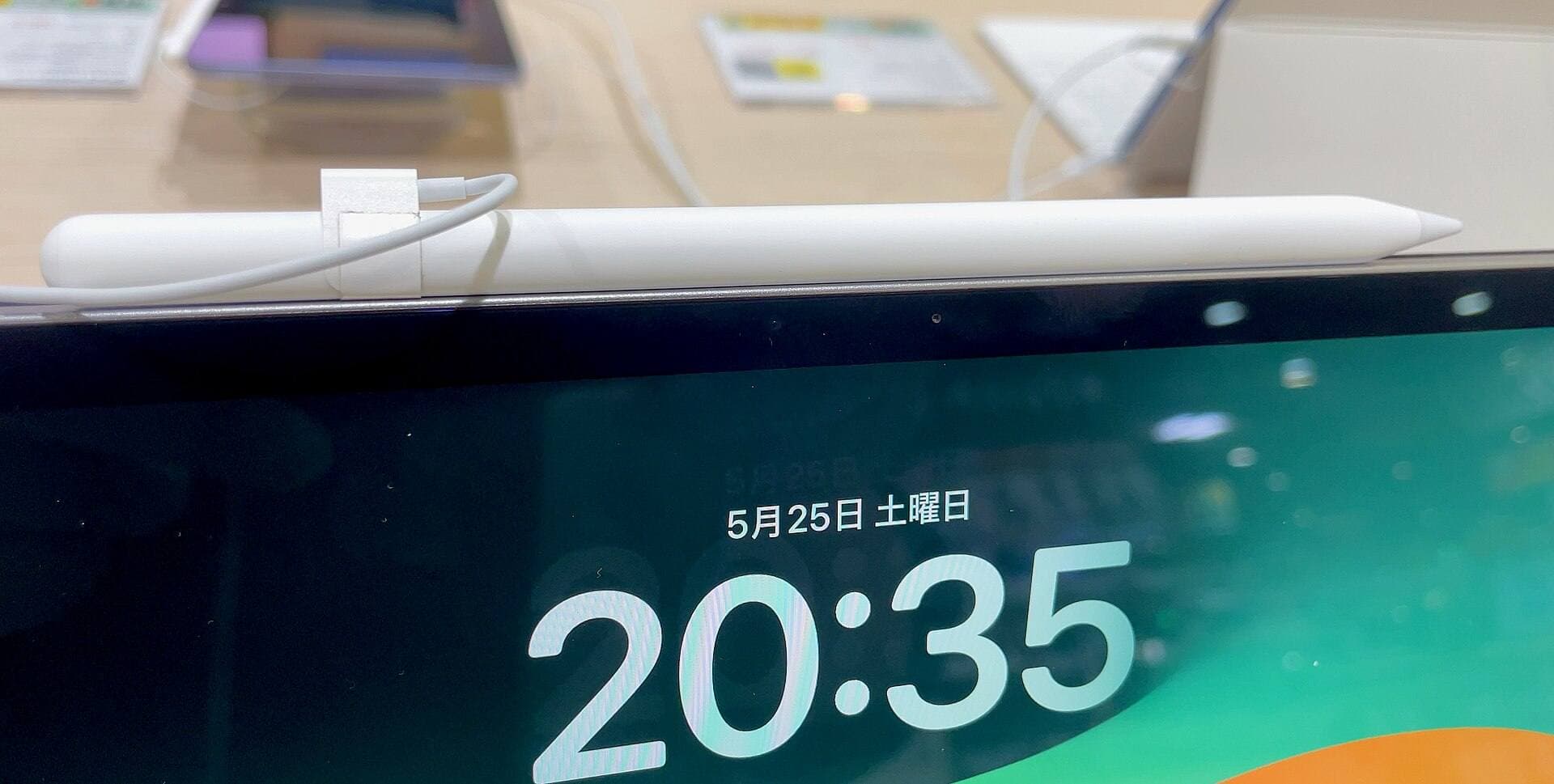
These advanced input methods are limited to newer iPad models. According to Apple's compatibility specifications, Apple Pencil Pro works with the iPad Air (M4) and iPad Pro (M5), but it does not pair with the standard iPad (A16) [1], [3]. The base iPad supports Apple Pencil (USB-C) and the older first-generation Apple Pencil [3]. The Apple Pencil (USB-C) provides tilt sensitivity and magnetic storage, but it lacks pressure sensitivity, which is a major compromise for shading and dynamic inking in digital painting apps [2]. If dynamic brush variation matters for your concept art thumbnails, you will want a hardware combination that supports full pressure sensitivity [2].
Canvas size and layer limits in concept art software
Concept artists frequently build complex compositions with separate layers for lighting, values, line art, and photobashing elements. When using raster painting software like Procreate, your maximum layer count is directly tied to the total memory available in the iPad hardware and your chosen canvas resolution [4], [5]. Larger canvas dimensions and higher pixel densities reduce the available layer count to keep memory usage stable [4].
If you work at print resolutions or paint wide cinematic aspect ratios, having extra hardware headroom gives you more room to organize your file structure [4]. The iPad Pro (M5) and iPad Air (M4) feature modern Apple silicon processors designed to handle demanding graphics apps, with storage tiers ranging from base capacities up to multi-terabyte models [1]. Meanwhile, the iPad (A16) offers lower baseline storage options and older chip architecture, which limits your canvas scaling before hitting layer caps in creative applications [1], [4]. For artists who organize extensive layer stacks, investing in more hardware memory remains an essential consideration [4].
iPad Air versus iPad Pro for concept art
The choice between the iPad Air (M4) and the iPad Pro (M5) comes down to display tech, refresh rates, and budget [1]. Both tablets support the Apple Pencil Pro, meaning you get identical stylus tracking, hover preview, squeeze shortcuts, and barrel roll features on either machine [1], [2]. Hover allows you to preview your brush mark, size, and opacity before the nib touches the screen glass, which is useful when laying down precise value passes [2].
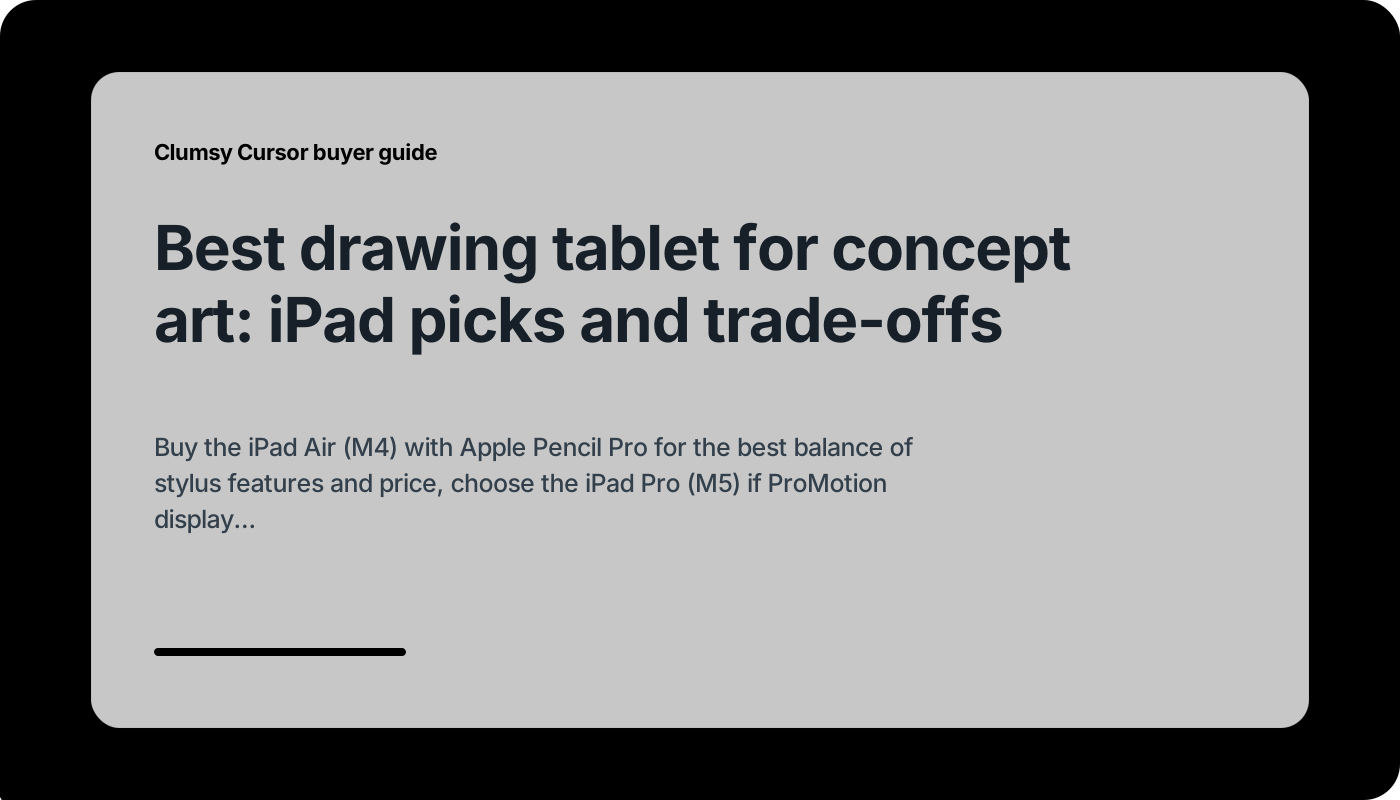
The fundamental hardware difference lies in the display assembly. The iPad Pro (M5) features Apple's ProMotion display technology with adaptive refresh rates up to 120Hz [1]. The iPad Air (M4) uses a fixed 60Hz display panel [1]. While both tablets register input accurately, the higher refresh rate on the Pro delivers smoother motion feedback as you drag the pencil across the glass [1]. The iPad Pro also features Apple's most advanced display panels, offering higher contrast and deeper blacks for viewing color grading and contrast adjustments [1]. If your budget allows for the premium tier, the iPad Pro gives you the top visual experience, but the iPad Air delivers the exact same stylus capabilities for less money [1], [2].
Standalone tablets versus traditional desktop pen tablets
Before settling on an iPad, consider whether a standalone mobile tablet or a dedicated desktop pen tablet matches your workflow. Standalone slates like the iPad let you sketch anywhere, taking your concept work from studio desks to coffee shops or client meetings [1], [5]. You draw directly onto the screen with instant visual contact beneath the pen nib [2].
In contrast, desktop pen tablets from makers like Wacom connect to an external Mac or PC workstation [6]. These input devices offer ergonomic pen control with battery-free styluses and programmable express keys, but they do not have built-in computers [6]. You look up at an external computer monitor while drawing on the desk pad [6]. Desktop setups allow you to run full desktop versions of 3D software and heavy digital painting suites without relying on mobile operating system apps [5], [6]. However, if your daily schedule demands mobile sketching, an iPad setup delivers a self-contained drawing studio that does not require an external workstation [1], [5].
Who should buy the base iPad or the iPad mini
Not every concept artist needs a large flagship slate. The iPad mini (A17 Pro) appeals to artists who prioritize mobility above all else, offering a compact footprint that slips into small bags [1]. Because it supports the Apple Pencil Pro, the iPad mini retains advanced pressure, squeeze, and barrel roll tools on a much smaller canvas [1], [2]. The compromise is visual workspace; drawing complex background scenes or panoramic environments feels tight on an 8.3-inch display [1].
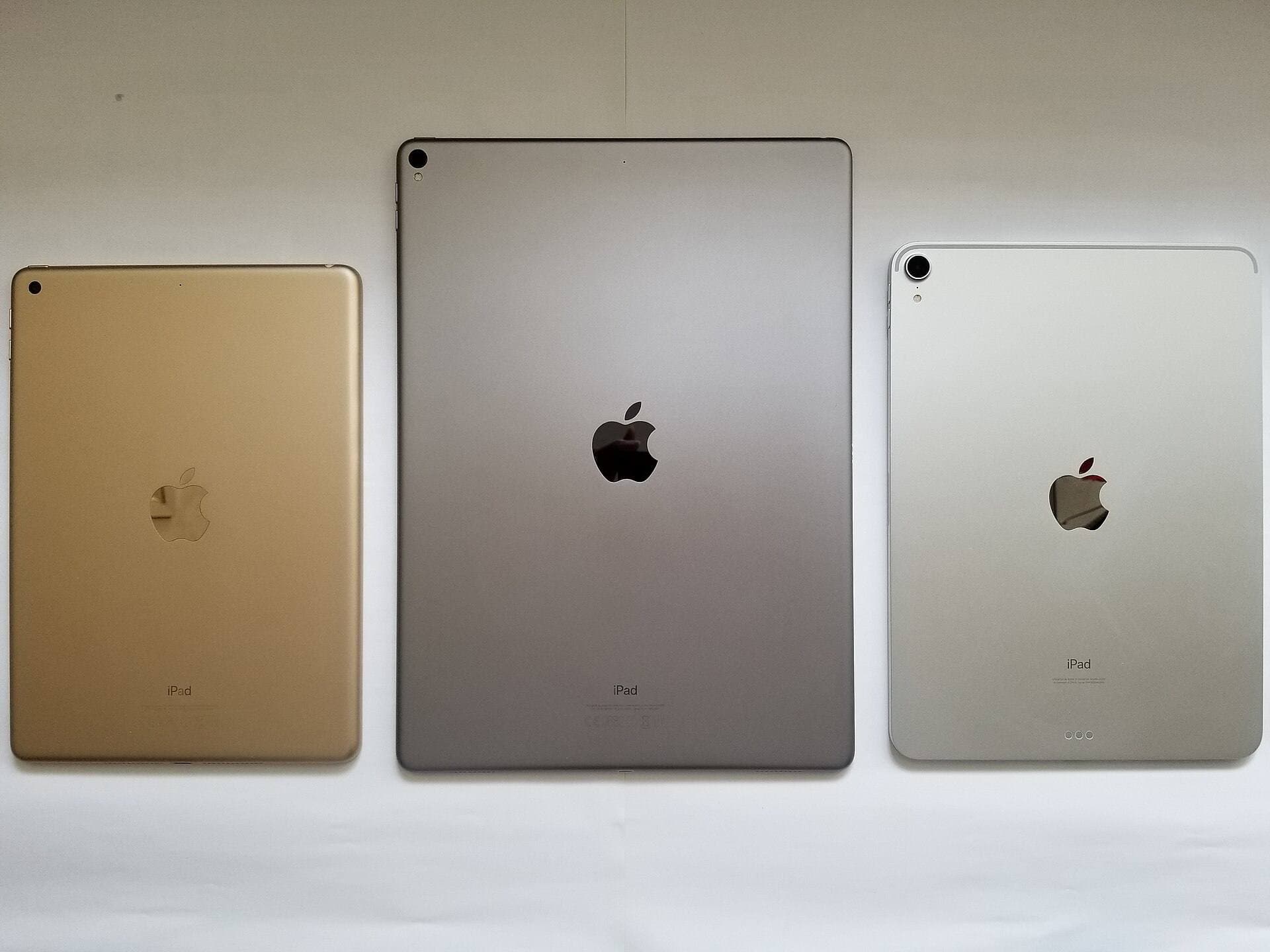
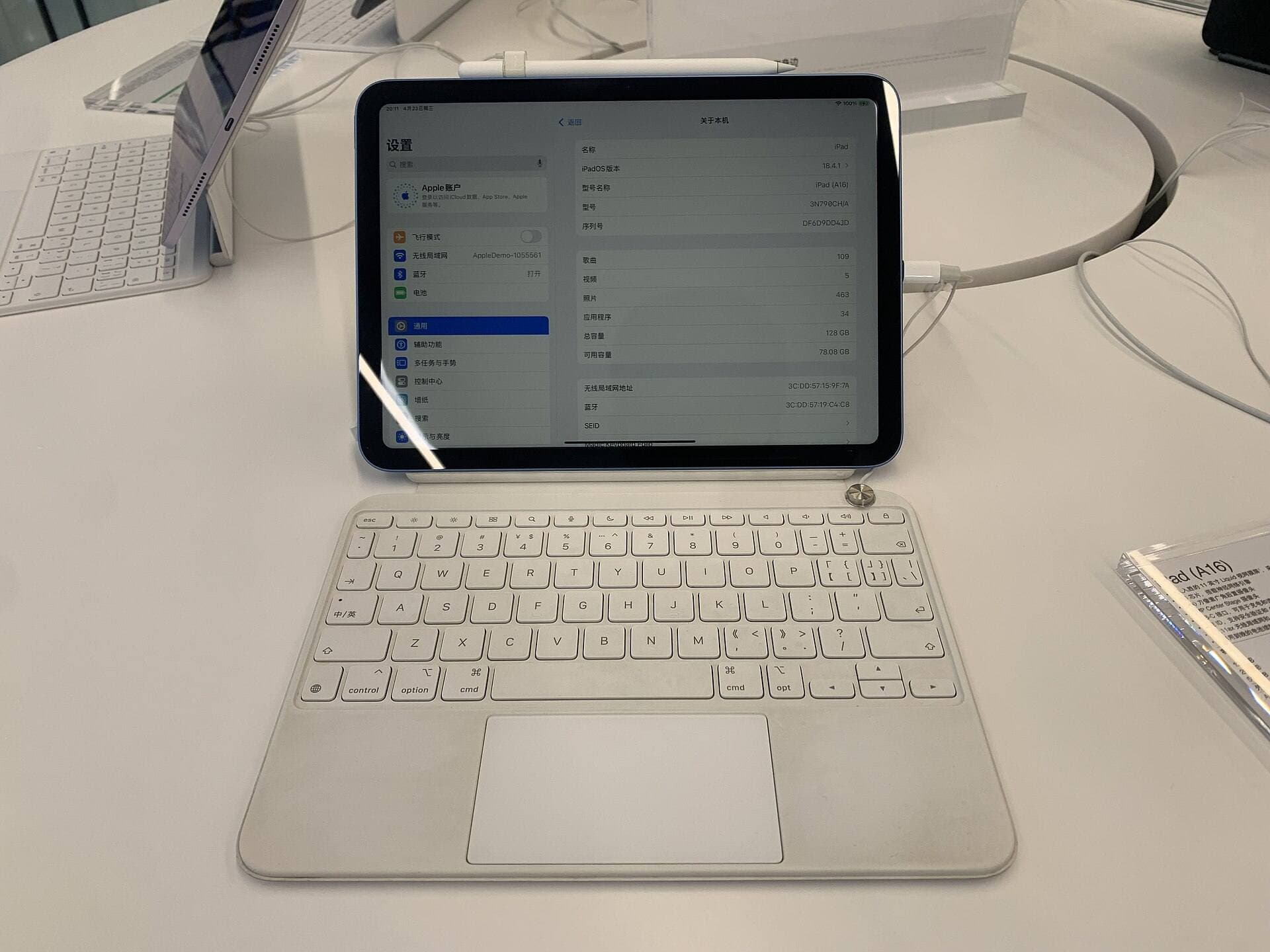
The standard iPad (A16) represents the most affordable entry into digital sketching, but it comes with distinct trade-offs for production artists [1]. It does not support the Apple Pencil Pro, so you cannot use barrel roll or squeeze gestures [2], [3]. If you use the Apple Pencil (USB-C) on the base iPad, you also lose pressure sensitivity [2]. Buy the standard iPad if your focus is casual ideation, simple visual notes, and storyboard thumbnails on a tight budget [1], [3]. Skip it if you need nuanced pressure modulation for rendering finished digital concept assets [2].
Bottom line
For most concept artists, the iPad Air (M4) is the best drawing tablet purchase because it gives you Apple Pencil Pro support, hover preview, and Apple silicon power without charging the highest premium in the lineup [1], [2]. Choose the iPad Pro (M5) if you want the fluid visual feel of a 120Hz ProMotion display and top-tier screen contrast for fine color judgment [1]. Buy the iPad mini (A17 Pro) if portability is your main requirement, but recognize the canvas size limits for detailed concept art [1]. Choose the base iPad (A16) only if upfront cost is your sole filter, and skip it if your painting style requires pressure sensitivity and advanced stylus shortcuts [1], [2], [3].
Sources
[1] https://www.apple.com/ipad/compare/ [2] https://www.apple.com/apple-pencil/ [3] https://support.apple.com/en-us/108937 [4] https://help.procreate.com/articles/zlexav-ipad-compatibility [5] https://apps.apple.com/us/app/procreate/id425073498 [6] https://www.wacom.com/en-us/products/pen-tablets
Recommended gear
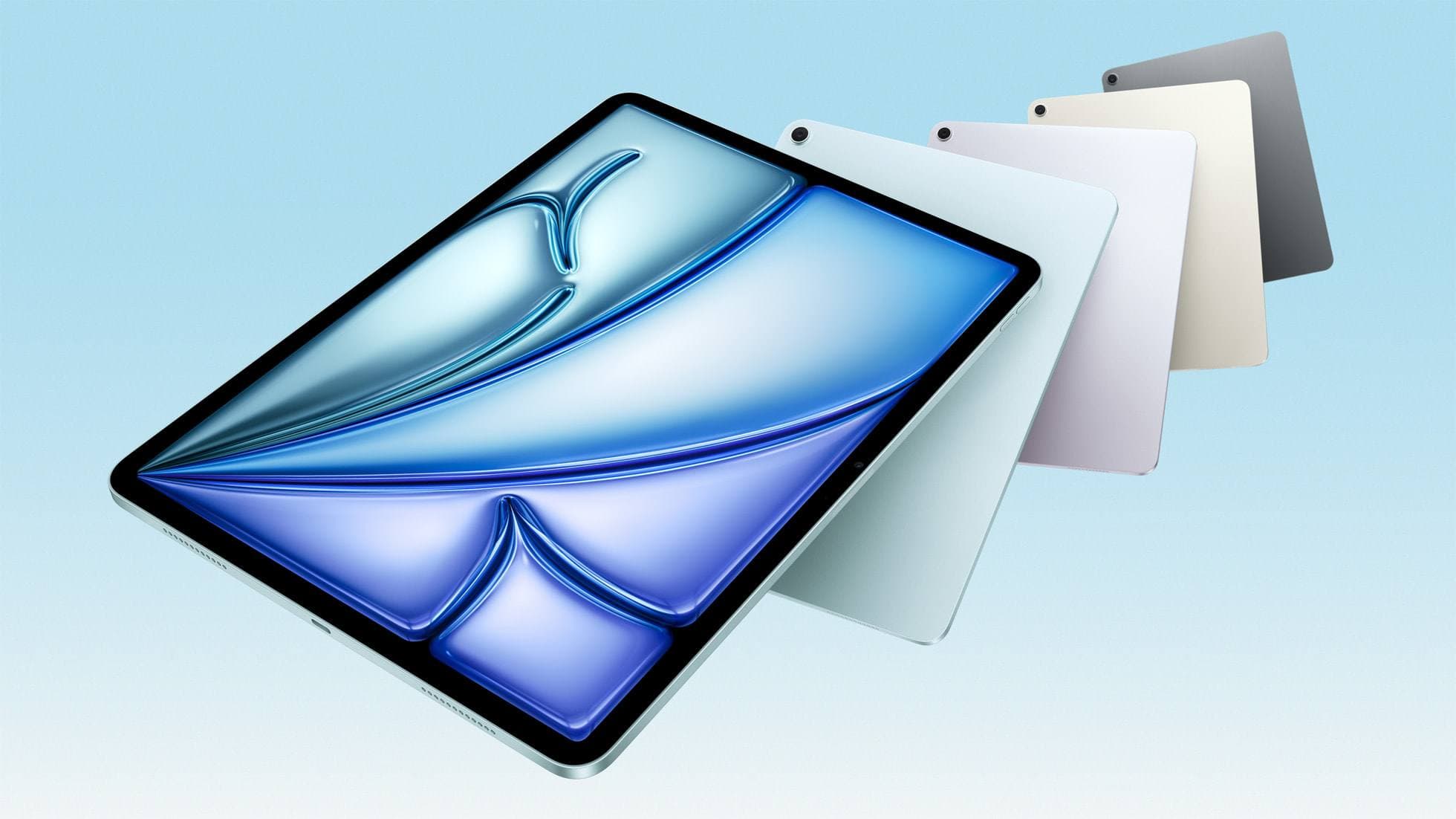
iPad Air (M4)
apple.comThe clean current Air recommendation for most serious hobby artists. Stronger buy logic than old-stock M3 when pricing is close.
Pro: Best current balance of price, headroom, and Pencil support
Con: Still 60Hz
Current Air lineup. Choose size, storage, and keyboard path before checkout.
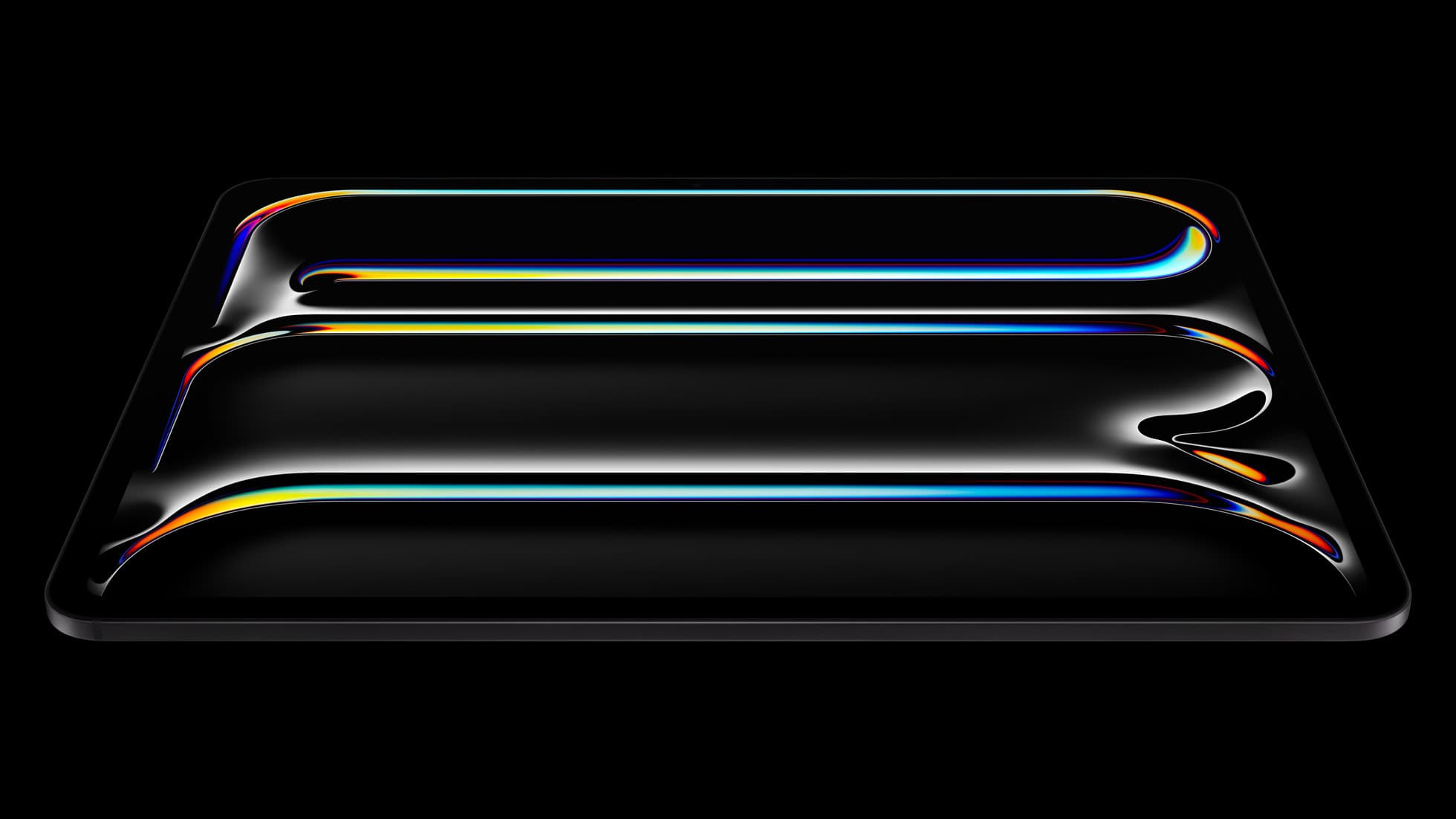
iPad Pro (M5)
amazon.comThe best iPad for drawing feel and premium workflow comfort, but many buyers still overpay for it.
Pro: Best iPad display and ProMotion feel
Con: Highest price in the lineup
Search opens with iPad Pro terms. Check year, chip, and screen size.
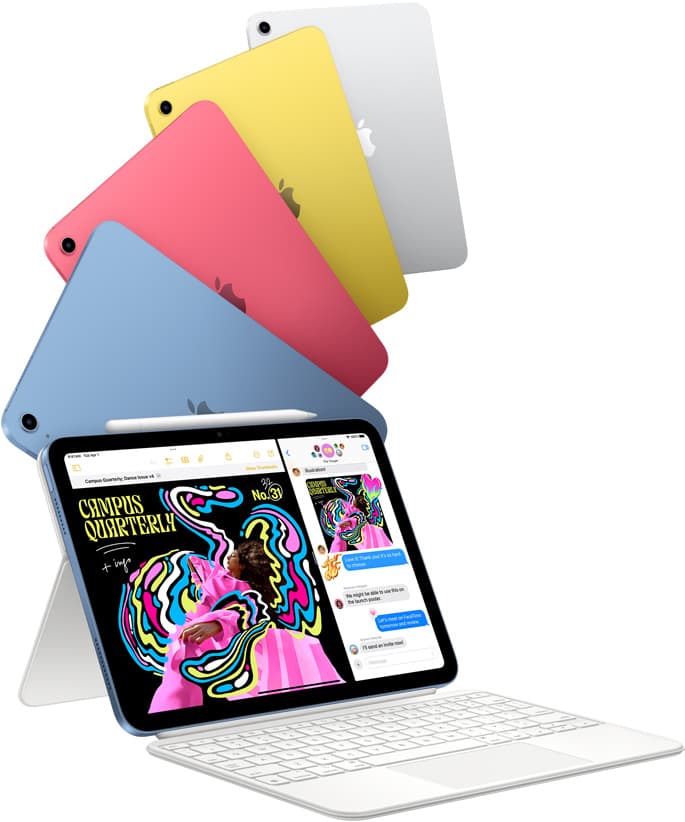
iPad (A16, 11th gen)
amazon.comThe best entry iPad for most artists on a budget. It is not premium, but it is very hard to beat on value.
Pro: Best value iPad right now
Con: No ProMotion display
Search opens with the exact model keywords. Verify size and storage before checkout.
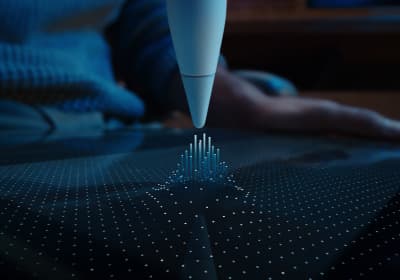
Apple Pencil Pro
amazon.comThe best Apple stylus for serious digital art workflows. Expensive, but the control upgrades are real.
Pro: Best brush-control and hover workflow
Con: Highest price in the lineup
Works only with newer iPad models. Check compatibility.
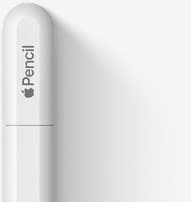
Apple Pencil (USB-C)
amazon.comA practical low-cost Apple stylus with broad compatibility, but limited for advanced art control.
Pro: Lowest official Apple Pencil cost
Con: No pressure sensitivity for brush work
Compatible with many recent iPads. No pressure support.
Related buying picks
More in this collectionComparison
iPad vs Surface Pro for artists: Which drawing tablet fits your workflow?
Compare iPad and Surface Pro drawing setups to decide whether mobile touch illustration or full desktop software suits your art studio best.
Buyer guide
Is the iPad Air enough for animation?
The iPad Air delivers Apple Silicon processing and Apple Pencil Pro support, making it plenty capable for animation without stepping up to Pro pricing.
Buyer guide
Is 256GB enough for Clip Studio Paint on iPad?
A 256GB iPad offers plenty of headroom for Clip Studio Paint brushes, materials, and multi-page comics unless you hoard unarchived animation projects.
Comparison
iPad vs Samsung tablet for drawing: which setup to choose
Choose an iPad if your art workflow relies on Procreate and Apple Pencil tools, and pick the iPad Air for the best balance of features.