





If you're building seamless pattern repeats, buy the iPad Air (M4) paired with Apple Pencil Pro [1], [2]. It gives you barrel roll, squeeze, and tilt features without making you pay top-tier prices for a tablet [1], [2]. Buy the iPad Pro (M5) instead if you want the ProMotion display and handle expansive pattern collections with heavy layer counts every week [1], [4]. Skip the standard iPad (A16) if you want hardware features like squeeze or barrel roll, as it doesn't support Apple Pencil Pro [1], [2], [3]. Skip the iPad mini (A17 Pro) if you need a broader workspace for laying out complex motif arrangements [1].
Why Apple Pencil Pro matters for repeat patterns
Surface pattern designers spend hours rotating motifs, adjusting leaf clusters, and testing tossed prints. The Apple Pencil Pro includes hardware sensors for barrel roll and squeeze gestures that older styluses lack [2]. Barrel roll lets you rotate shaped brushes simply by rolling the pencil barrel between your fingers as you draw [2]. That rotation gives you immediate control over directional foliage, stems, and textured brush marks without manually rotating the canvas inside your drawing software [2].
Squeeze detection adds a tactile shortcut right on the lower barrel of the pencil [2]. When you squeeze the stylus, it brings up a tool palette or triggers software actions, backed by haptic feedback [2]. The Apple Pencil Pro also provides tilt and pressure sensitivity, alongside Apple Pencil hover on compatible iPad models [1], [2]. Hover shows you a preview of your brush footprint or color preview before the tip touches the glass [2].
The baseline iPad (A16) does not pair with Apple Pencil Pro, limiting users to the Apple Pencil (USB-C) or earlier models [1], [3]. The Apple Pencil (USB-C) includes tilt sensitivity but omits pressure sensitivity, barrel roll, squeeze, and magnetic wireless charging [2]. For pattern designers building expressive botanical motifs or organic hand-drawn textures, losing pressure sensitivity limits mark variety [2]. That makes the iPad Air (M4) or iPad Pro (M5) a substantially better functional baseline [1], [3].
Layer limits and canvas scale in pattern workflows
Repeat pattern tiles for textile, wallpaper, or stationery production often demand high resolution to prevent pixelation during physical printing. When you configure a high-resolution canvas in Procreate, the application calculates maximum layer limits directly from the device memory [4]. High pixel dimensions on smaller memory profiles restrict how many layers you can keep open at once [4].
Pattern production typically separates background fills, linework, individual color separations, and repeat bounding boxes onto separate layers. If your canvas dimensions expand to accommodate a 300 DPI repeat tile for home decor printing, layer ceilings drop quickly [4]. Procreate establishes layer limits based strictly on the hardware memory available on the specific iPad model [4].
The iPad Pro (M5) and iPad Air (M4) give designers larger headroom for multi-layered pattern documents than base-tier iPads [1], [4]. The iPad Pro lineup offers higher storage tiers that include increased memory configurations [1]. If your client briefs require complex colorways, isolated drop shadows, and non-destructive motif duplicates, having higher layer limits saves you from prematurely merging layers [4].
Screen size tradeoffs between 11-inch and 13-inch displays
Both the iPad Air (M4) and iPad Pro (M5) are available in 11-inch and 13-inch display sizes [1]. Choosing between these two screen sizes affects how you interact with pattern repeats and software toolbars. Drawing apps like Procreate place toolbars, layers palettes, and color pickers along the edge of the screen [5].
On an 11-inch display, on-screen interface elements occupy a noticeable percentage of the overall viewing area [1], [5]. You'll find yourself zooming and panning more often to check seamless boundaries and examine micro-motifs across the repeat tile [1]. The 11-inch footprint remains lightweight and easy to carry to coffee shops or client meetings [1]. It's an excellent choice if your pattern work takes place on the move [1].
The 13-inch display provides a significantly larger canvas area, allowing you to view your working repeat block while keeping color palettes and layers visible [1], [5]. When arranging dense geometric patterns or checking whether a half-drop repeat aligns cleanly, extra screen real estate lets you evaluate full pattern repeats at scale [1]. The tradeoff is extra bulk and weight on your desk [1].
Choosing between iPad Air, iPad Pro, and pen tablets
Traditional dedicated pen tablets, such as those from Wacom, operate as desktop input devices connected to a Mac or PC [6]. A screenless pen tablet lets you draw while looking straight ahead at a calibrated desktop monitor [6]. Designers who work primarily in desktop vector applications like Adobe Illustrator frequently keep a pen tablet at their desk [6]. However, screenless pen tablets require a separate computer to operate and don't offer mobile direct-on-screen drawing [6].
The iPad provides a portable, self-contained drawing surface where your stylus touches the digital canvas directly [1], [5]. For designers who prefer direct drawing, the decision usually centers on the iPad Air (M4) versus the iPad Pro (M5) [1]. The iPad Air (M4) delivers full Apple Pencil Pro compatibility, solid internal processing, and dual screen size choices [1], [3]. It runs standard creative software like Procreate without the premium price tag of the Pro lineup [1], [5].
The iPad Pro (M5) distinguishes itself with its Ultra Retina XDR display and ProMotion technology, which offers refresh rates up to 120Hz [1]. The standard iPad Air display operates at 60Hz [1]. While ProMotion provides smoother visual tracking as the pencil moves across the screen, it doesn't change the underlying mechanics of pattern repeats or vector math [1]. For most independent pattern designers, paying extra for the Pro (M5) is worthwhile only if you need the highest storage and memory configurations for deep layer stacks [1], [4].
Bottom line
For most surface pattern designers, the iPad Air (M4) paired with the Apple Pencil Pro is the smartest purchase [1], [2], [3]. It unlocks critical illustration gestures like barrel roll and squeeze while leaving enough room in your budget for accessories and software [1], [2], [5]. Choose the 13-inch iPad Air if you spend most of your day drafting expansive repeat tiles, or pick the 11-inch model if you travel frequently [1].
Buy the iPad Pro (M5) only if your pattern business relies on massive high-resolution canvases requiring the absolute highest layer counts, or if you insist on a 120Hz ProMotion display [1], [4]. Skip the entry-level iPad (A16) because it lacks Apple Pencil Pro support, missing out on pressure-sensitive brush gestures and barrel roll functionality that elevate digital surface design [1], [2], [3].
Sources
[1] https://www.apple.com/ipad/compare/ [2] https://www.apple.com/apple-pencil/ [3] https://support.apple.com/en-us/108937 [4] https://help.procreate.com/articles/zlexav-ipad-compatibility [5] https://apps.apple.com/us/app/procreate/id425073498 [6] https://www.wacom.com/en-us/products/pen-tablets
Recommended gear
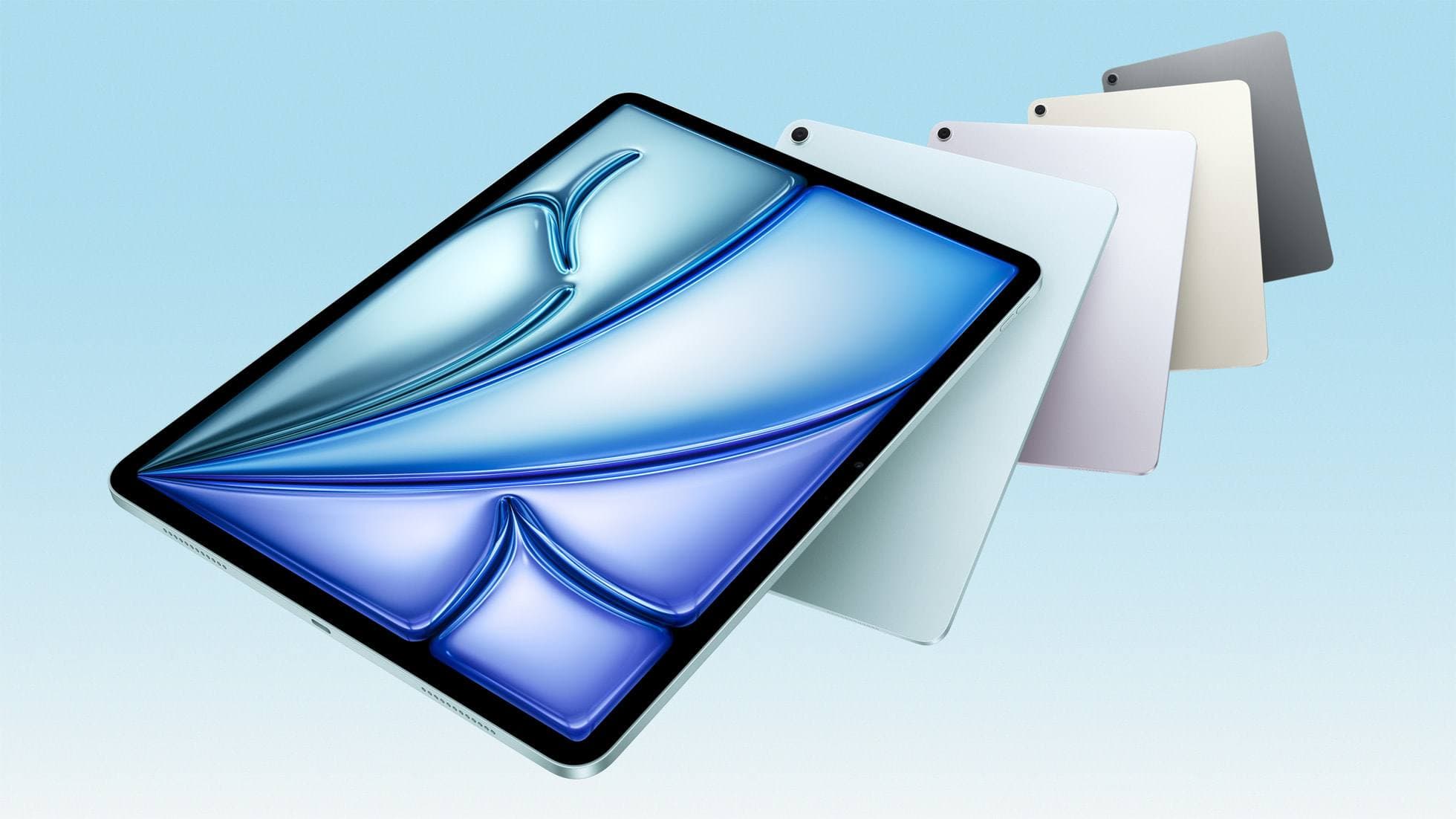
iPad Air (M4)
apple.comThe clean current Air recommendation for most serious hobby artists. Stronger buy logic than old-stock M3 when pricing is close.
Pro: Best current balance of price, headroom, and Pencil support
Con: Still 60Hz
Current Air lineup. Choose size, storage, and keyboard path before checkout.
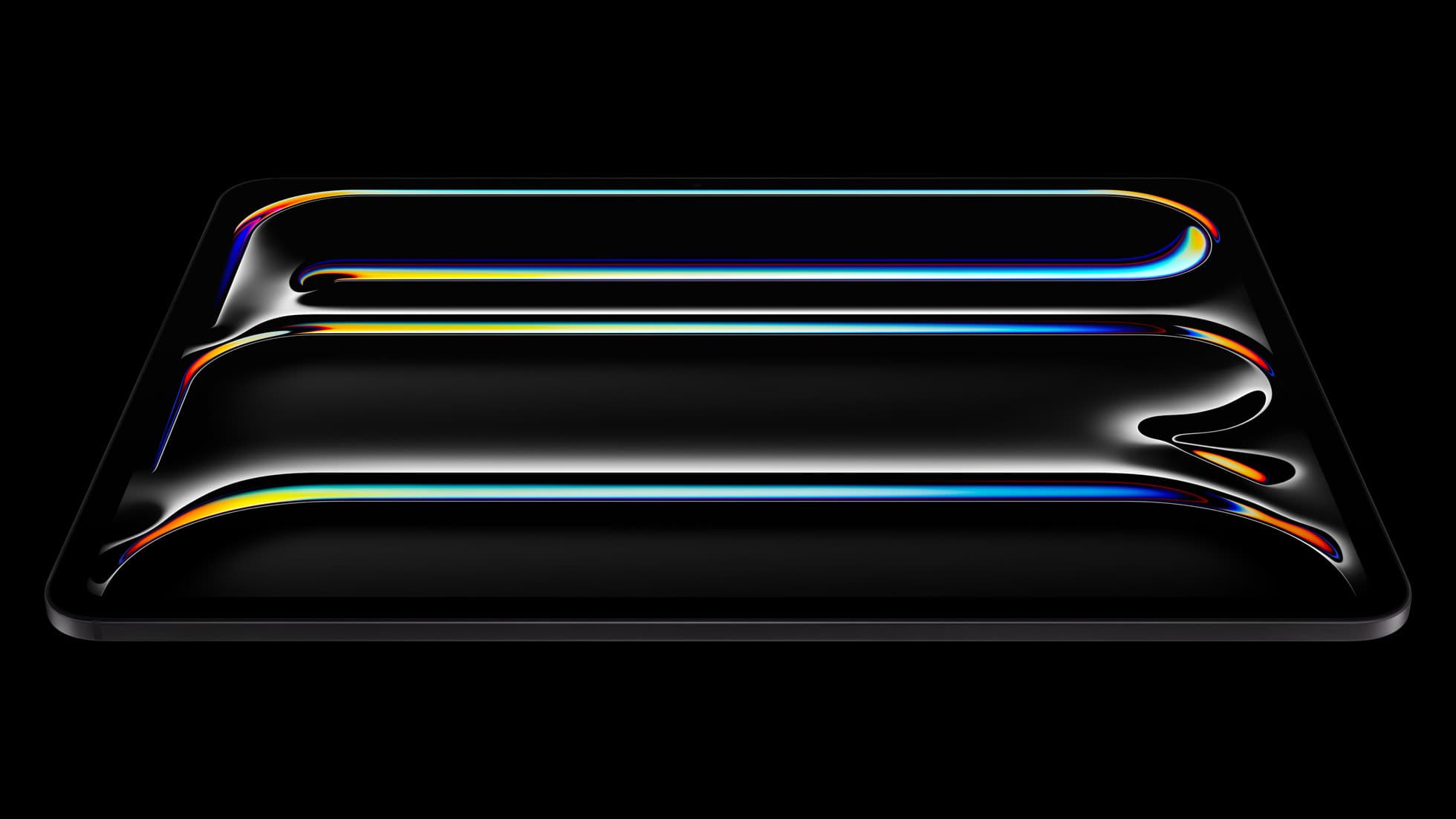
iPad Pro (M5)
amazon.comThe best iPad for drawing feel and premium workflow comfort, but many buyers still overpay for it.
Pro: Best iPad display and ProMotion feel
Con: Highest price in the lineup
Search opens with iPad Pro terms. Check year, chip, and screen size.
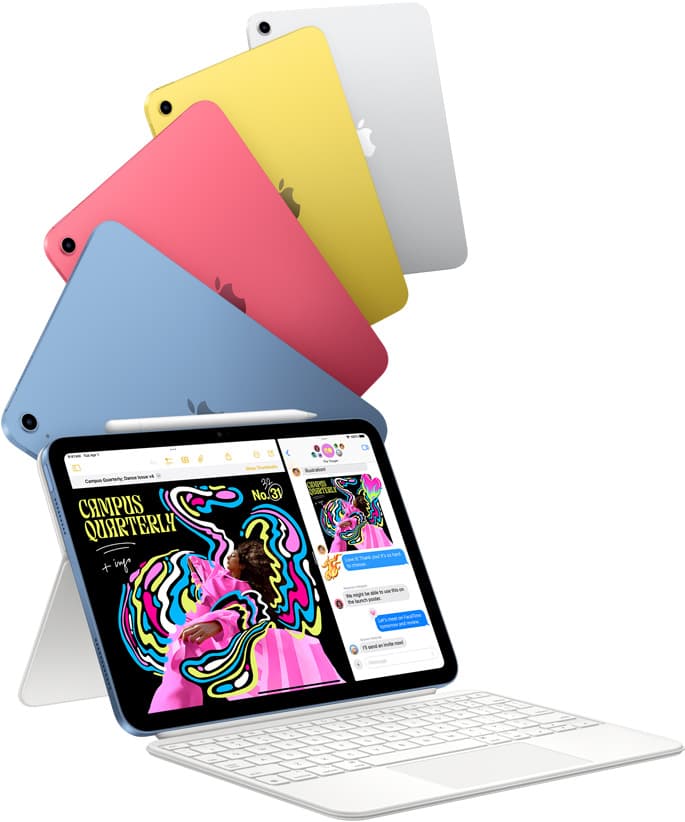
iPad (A16, 11th gen)
amazon.comThe best entry iPad for most artists on a budget. It is not premium, but it is very hard to beat on value.
Pro: Best value iPad right now
Con: No ProMotion display
Search opens with the exact model keywords. Verify size and storage before checkout.

Apple Pencil Pro
amazon.comThe best Apple stylus for serious digital art workflows. Expensive, but the control upgrades are real.
Pro: Best brush-control and hover workflow
Con: Highest price in the lineup
Works only with newer iPad models. Check compatibility.
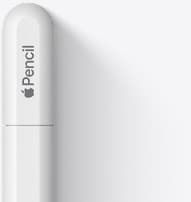
Apple Pencil (USB-C)
amazon.comA practical low-cost Apple stylus with broad compatibility, but limited for advanced art control.
Pro: Lowest official Apple Pencil cost
Con: No pressure sensitivity for brush work
Compatible with many recent iPads. No pressure support.
Related buying picks
More in this collectionBuyer guide
Best drawing tablet for concept art: iPad picks and trade-offs
For digital concept art, the iPad Air (M4) hits the sweet spot of Apple Pencil Pro features and value, while the iPad Pro (M5) remains the choice for ProMotion display feel.
Buyer guide
Best tablet for 3d sculpting: how to choose your iPad setup
Compare the best iPads for digital 3D sculpting based on Apple Pencil Pro features, screen hardware, and memory ceilings.
Comparison
iPad vs Surface Pro for artists: Which drawing tablet fits your workflow?
Compare iPad and Surface Pro drawing setups to decide whether mobile touch illustration or full desktop software suits your art studio best.
Comparison
iPad vs Samsung tablet for drawing: which setup to choose
Choose an iPad if your art workflow relies on Procreate and Apple Pencil tools, and pick the iPad Air for the best balance of features.