





If you're picking a tablet for portable 3D sculpting, buy the iPad Air (M4) [1]. It pairs with Apple Pencil Pro, giving you squeeze controls and barrel roll tool rotation without stepping up to flagship pricing [1], [2]. Buy the iPad Pro (M5) if you want ProMotion display hardware alongside the highest storage tiers [1]. Skip the base iPad (A16) if you want pressure sensitivity with modern Apple stylus models, since it limits your input options [1], [3]. For artists who sculpt meshes on the couch or at a desk, the iPad Air (M4) hits the sweet spot for capability and value [1].
Why stylus input dictates your sculpting choices
Precision stylus control defines how natural virtual clay feels under your hand. When you manipulate virtual geometry, having tool access directly on the stylus barrel speeds up your interaction loop. The Apple Pencil Pro includes squeeze detection, barrel roll orientation, and haptic feedback [2]. Squeeze lets an app present quick palettes or switch brushes without tapping an on-screen menu, while barrel roll tracks pencil rotation along its axis [2]. These features operate on the iPad Air (M4) and iPad Pro (M5), but they don't function on entry-level hardware [1], [3].
The Apple Pencil lineup also splits on core pressure detection. Apple Pencil Pro provides pressure sensitivity alongside tilt and hover, whereas the USB-C Apple Pencil lacks pressure sensitivity entirely [2]. If you sculpt with dynamic brushes where stroke depth depends on hand force, pressure sensitivity is a fundamental requirement [2]. Because the entry iPad (A16) only pairs with the USB-C Apple Pencil or the older first-generation Apple Pencil, your ergonomic options are far more constrained [1], [3]. Choosing a tablet that natively supports Apple Pencil Pro ensures you keep full stylus nuance [1], [2].
Evaluating the iPad Air (M4) for everyday sculpting
The iPad Air (M4) is the most balanced pick for digital sculptors who want modern hardware without paying top dollar [1]. Powered by the M4 chip, the iPad Air delivers significant processing capability in both 11-inch and 13-inch display sizes [1]. Having access to two physical sizes lets you decide between a lighter footprint for travel or a broader workspace for complex interface palettes [1].
Who should buy the iPad Air (M4)? Artists who sculpt personal projects, concept sculpts, or organic characters will find that it supports the Apple Pencil Pro and its full feature suite [1], [2]. You get hover preview, squeeze shortcuts, and barrel roll manipulation directly out of the box [2]. Who should skip it? Anyone who demands a display refresh rate above 60Hz or who requires tandem OLED panel technology should look past the Air, as its panel remains capped at standard refresh rates [1]. For most sculpting workflows, though, the Air provides everything needed for dense polygon interaction [1].
When the iPad Pro (M5) justifies its premium hardware
The iPad Pro (M5) represents Apple's flagship tier, incorporating the M5 processor and advanced Ultra Retina XDR display tech [1]. The Pro lineup features ProMotion, which scales the refresh rate up to 120Hz [1]. While ProMotion doesn't make a sculpt load faster, the higher refresh rate creates a noticeably smoother visual response when rotating dense viewports or panning around a mesh [1].
The Pro also offers expanded internal storage configurations reaching up to 1TB and 2TB, which Apple equips with higher unified memory configurations [1]. In complex creative software, device memory directly limits project headroom, canvas resolution, and simultaneous layer capacity [4]. Who should buy the iPad Pro (M5)? Buy it if your sculpting work integrates with extensive production pipelines, or if you spend hours every day interacting with heavy geometry where 120Hz tracking feels indispensable [1]. Who should skip it? Sculptors on a practical budget should skip the Pro, because the M4 Air delivers the exact same Apple Pencil Pro input features for considerably less investment [1], [2].
Why the entry iPad (A16) falls behind for 3D work
The standard iPad (A16, 11th gen) is a capable general-purpose tablet, but it introduces clear trade-offs for creative specialists [1]. Its compatibility list restricts you to the Apple Pencil (USB-C) or legacy styluses using separate adapters [1], [3]. Because the USB-C Apple Pencil lacks pressure sensitivity, sculpting brushes that rely on variable stylus pressure simply won't respond to how hard you press [2].
Beyond stylus limitations, the A16 chip and baseline memory architecture provide narrower ceilings for heavy creative apps [1], [4]. In creative suites like Procreate, total available system memory dictates how many layers or canvas dimensions you can create [4], [5]. A lower memory ceiling means you must manage mesh density and file size far more strictly [4]. Who should buy the iPad (A16)? Buy it if your tablet work is limited to basic 2D sketching, note-taking, or general media consumption [1], [3]. 3D sculptors should skip the entry iPad, as the missing pressure sensitivity makes precision clay manipulation awkward [2], [3].
Managing memory, layers, and project scale
When working in 3D apps and hybrid 2D painting software, hardware capacity sets real boundaries on your scene complexity [4]. While desktop sculpting software often relies on dedicated graphics cards, mobile creative applications rely entirely on the tablet's unified system architecture [1]. If a mesh grows too dense, apps must restrict undo steps, texture resolution, or layer allowances [4].
According to documentation from Procreate, device memory directly governs maximum layer counts at any given canvas size [4]. An iPad model with greater unified memory lets you build larger, multi-layered texture maps without hitting arbitrary project caps [1], [4]. Both the iPad Air (M4) and iPad Pro (M5) offer substantial storage options that carry sufficient memory for complex creative tasks [1]. For sculptors who texture paint their models across multiple passes, choosing an M-series iPad ensures that your canvas limits won't choke your detailing phase [1], [4].
Display dimensions and workspace tradeoffs across models
Screen real estate directly impacts how much room you have for 3D modeling toolbars, viewport cameras, and floating palettes [1]. Both the iPad Air and iPad Pro offer 11-inch and 13-inch display sizes, giving you clear options between compact mobility and expansive canvas space [1]. An 11-inch screen fits easily into a travel bag, but floating menus consume a noticeable percentage of the active modeling viewport [1].
A 13-inch display provides substantial room to view your 3D asset from multiple angles while keeping material libraries and transform tools pinned to the sides [1]. The trade-off is physical bulk, as a 13-inch chassis is less comfortable to hold unsupported in one hand during extended sketching sessions [1]. Deciding between these dimensions comes down to whether you sculpt while traveling or work primarily anchored to a desk or drafting stand [1].
Display technology also differs across the model lines [1]. The iPad Pro (M5) includes an Ultra Retina XDR display with ProMotion technology, providing refresh rates up to 120Hz [1]. The iPad Air (M4) and iPad (A16) use standard 60Hz displays [1]. While ProMotion creates a smoother visual response when rotating models or pulling strokes across the glass, standard refresh rates handle everyday modeling tasks without technical limitation [1].
Bottom line
If you're building a mobile 3D sculpting setup, your primary decision rests on stylus support and hardware headroom [1], [2]. Buy the iPad Air (M4) for the strongest combination of price and professional stylus capability [1]. It supports the Apple Pencil Pro, giving you squeeze palettes, barrel roll rotation, and pressure sensitivity without forcing you to pay for flagship Pro hardware [1], [2]. Buy the iPad Pro (M5) only if you require a ProMotion 120Hz display or the highest available memory tiers for massive project files [1], [4]. Skip the entry-level iPad (A16) for 3D work, because its stylus limitations hinder your creative control [1], [2], [3].
Sources
[1] https://www.apple.com/ipad/compare/ [2] https://www.apple.com/apple-pencil/ [3] https://support.apple.com/en-us/108937 [4] https://help.procreate.com/articles/zlexav-ipad-compatibility [5] https://apps.apple.com/us/app/procreate/id425073498
Recommended gear
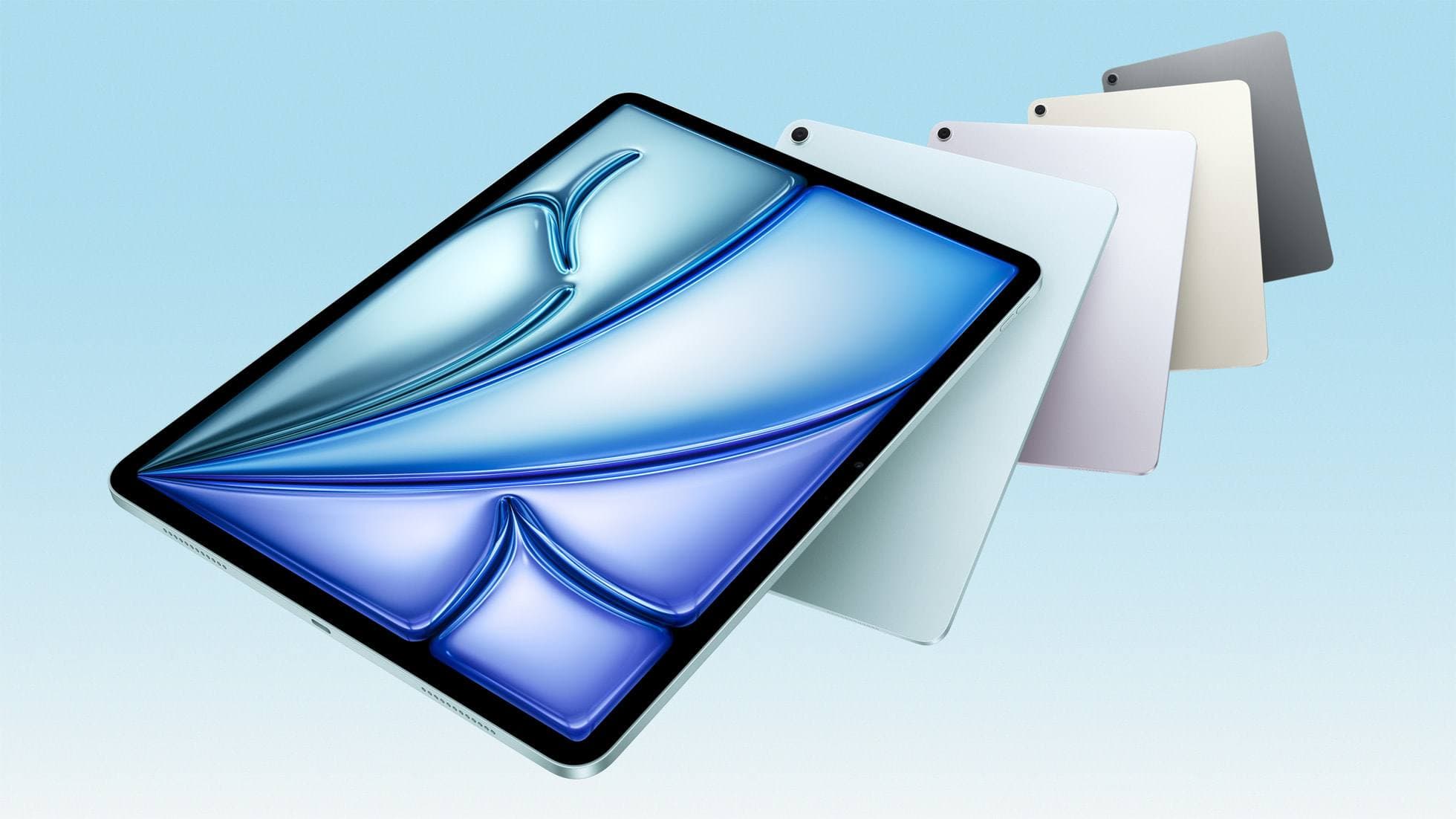
iPad Air (M4)
apple.comThe clean current Air recommendation for most serious hobby artists. Stronger buy logic than old-stock M3 when pricing is close.
Pro: Best current balance of price, headroom, and Pencil support
Con: Still 60Hz
Current Air lineup. Choose size, storage, and keyboard path before checkout.
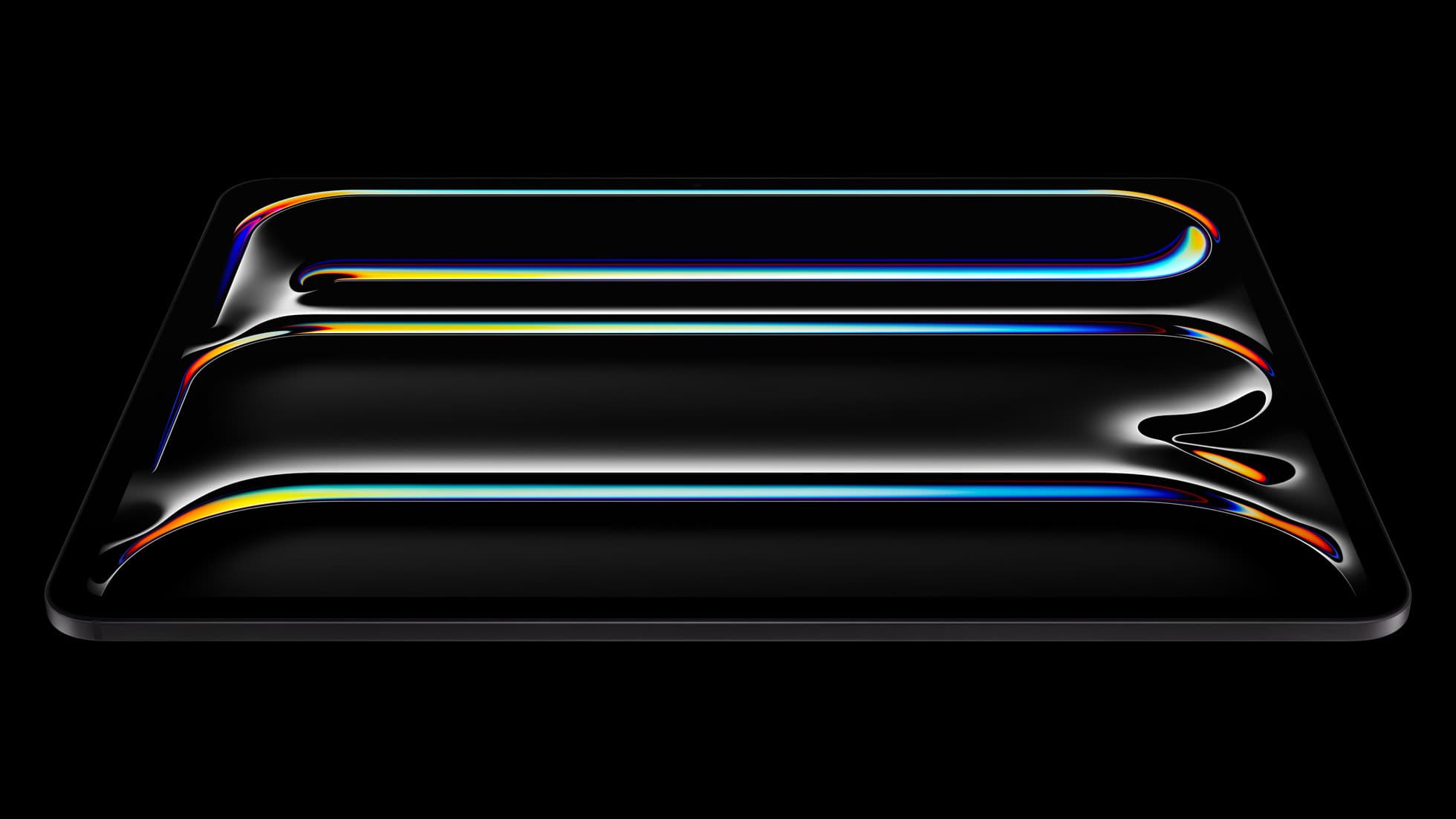
iPad Pro (M5)
amazon.comThe best iPad for drawing feel and premium workflow comfort, but many buyers still overpay for it.
Pro: Best iPad display and ProMotion feel
Con: Highest price in the lineup
Search opens with iPad Pro terms. Check year, chip, and screen size.
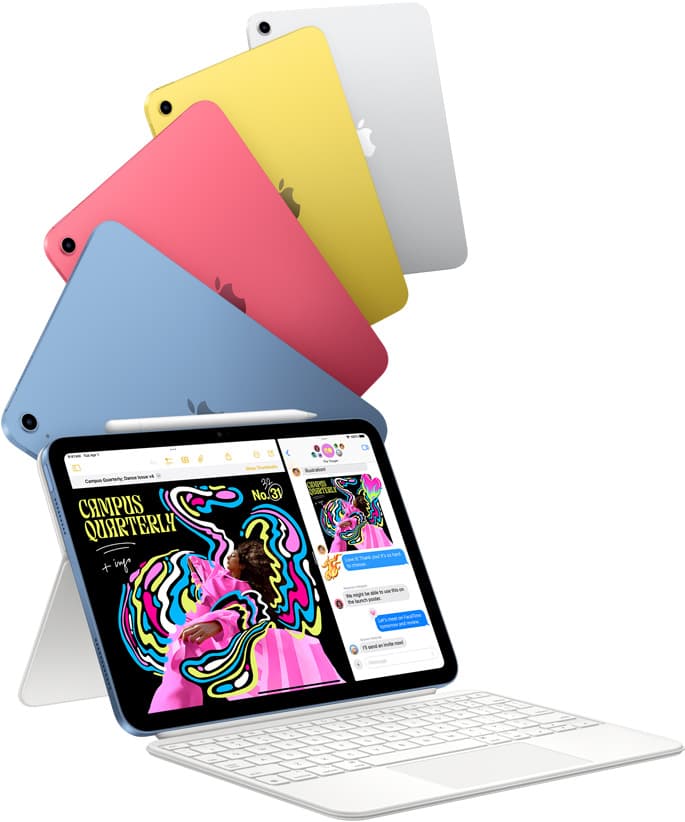
iPad (A16, 11th gen)
amazon.comThe best entry iPad for most artists on a budget. It is not premium, but it is very hard to beat on value.
Pro: Best value iPad right now
Con: No ProMotion display
Search opens with the exact model keywords. Verify size and storage before checkout.

Apple Pencil Pro
amazon.comThe best Apple stylus for serious digital art workflows. Expensive, but the control upgrades are real.
Pro: Best brush-control and hover workflow
Con: Highest price in the lineup
Works only with newer iPad models. Check compatibility.
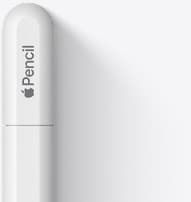
Apple Pencil (USB-C)
amazon.comA practical low-cost Apple stylus with broad compatibility, but limited for advanced art control.
Pro: Lowest official Apple Pencil cost
Con: No pressure sensitivity for brush work
Compatible with many recent iPads. No pressure support.
Related buying picks
More in this collectionBuyer guide
Best drawing tablet for surface pattern design: iPad Air vs iPad Pro
Choose the iPad Air with Apple Pencil Pro for repeat pattern design, or step up to the iPad Pro if high-resolution layer limits dictate your production.
Comparison
iPad vs reMarkable for note taking: which device belongs in your bag
Choose an iPad Air or iPad Pro if you need color, layered sketches, and active stylus tools, but skip the iPad if you only want a distraction-free monochrome notebook.
Buyer guide
Best drawing tablet for concept art: iPad picks and trade-offs
For digital concept art, the iPad Air (M4) hits the sweet spot of Apple Pencil Pro features and value, while the iPad Pro (M5) remains the choice for ProMotion display feel.
Buyer guide
Is the iPad Air enough for animation?
The iPad Air delivers Apple Silicon processing and Apple Pencil Pro support, making it plenty capable for animation without stepping up to Pro pricing.