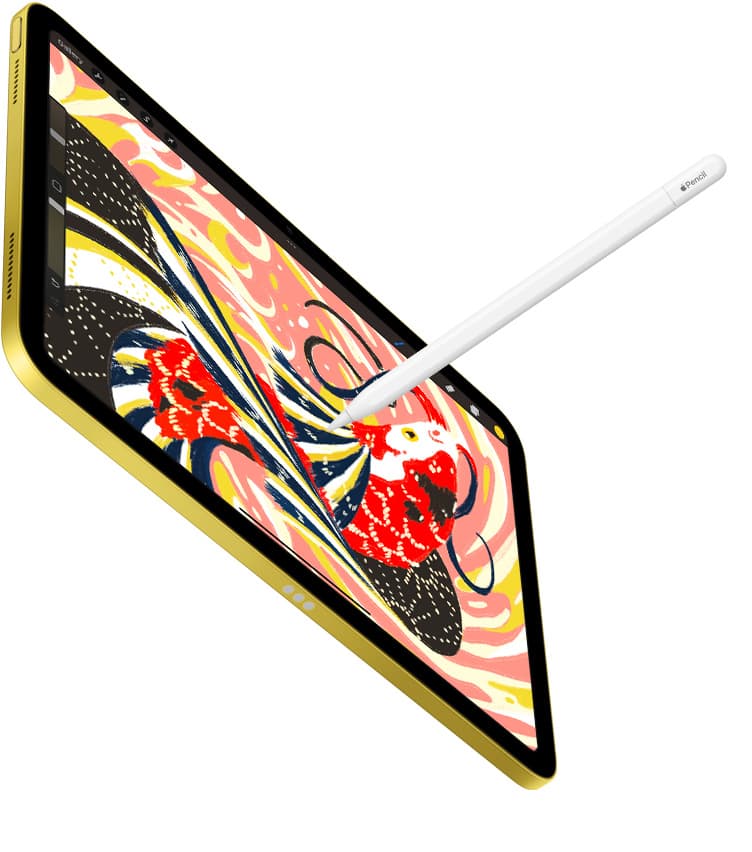
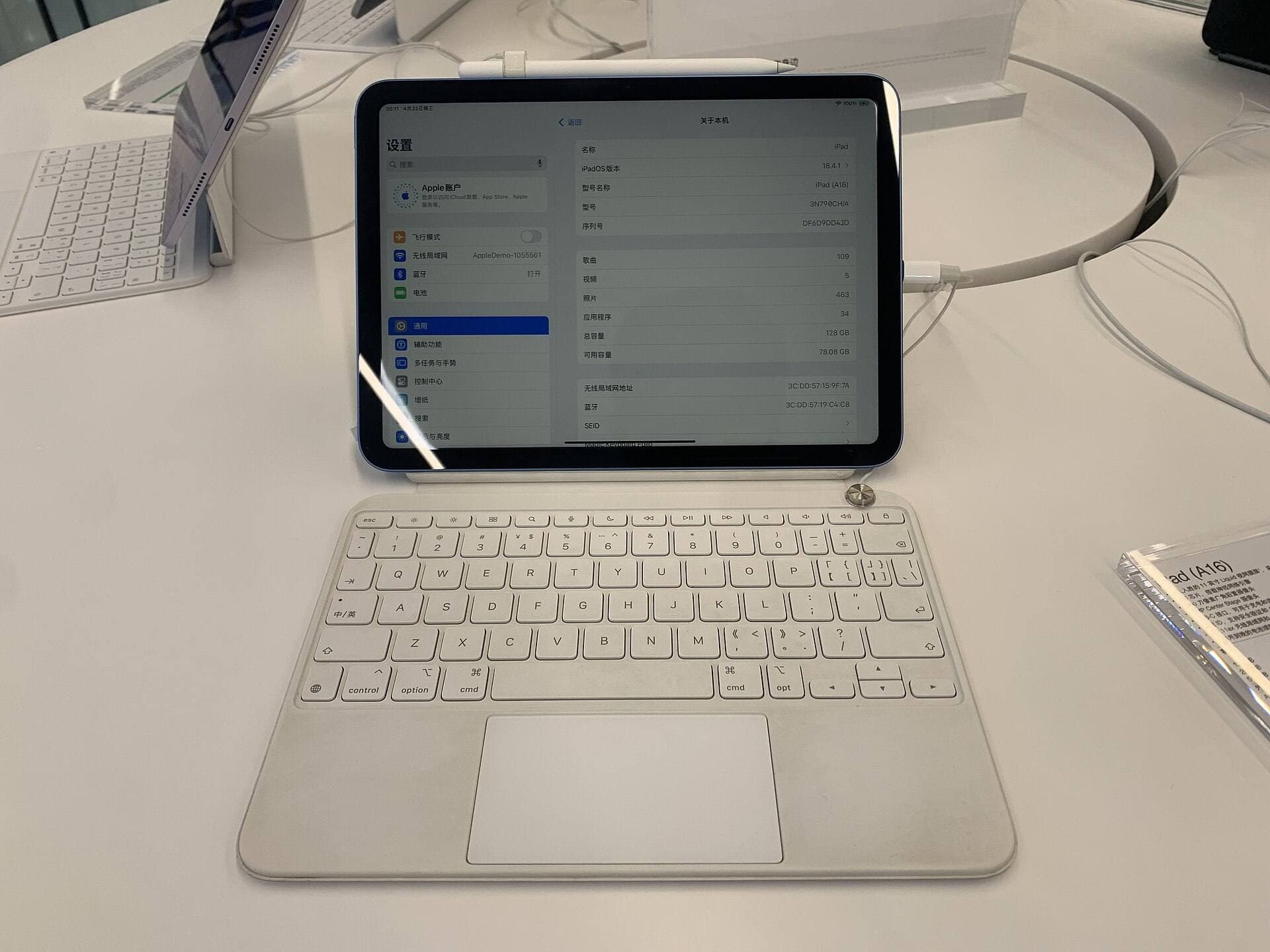
Buy an iPad if your primary goal is access to illustration software like Procreate and a standardized stylus ecosystem [1], [5]. If you need a balanced setup right now, the iPad Air (M4) paired with Apple Pencil Pro provides modern stylus features without the top-tier cost of premium hardware [1], [2]. Skip Android tablets unless you rely entirely on Android-specific utilities or avoid iPadOS by choice. The software ecosystem remains the deciding factor for most illustrators making this choice [4], [5].
Software catalogs and creative app availability
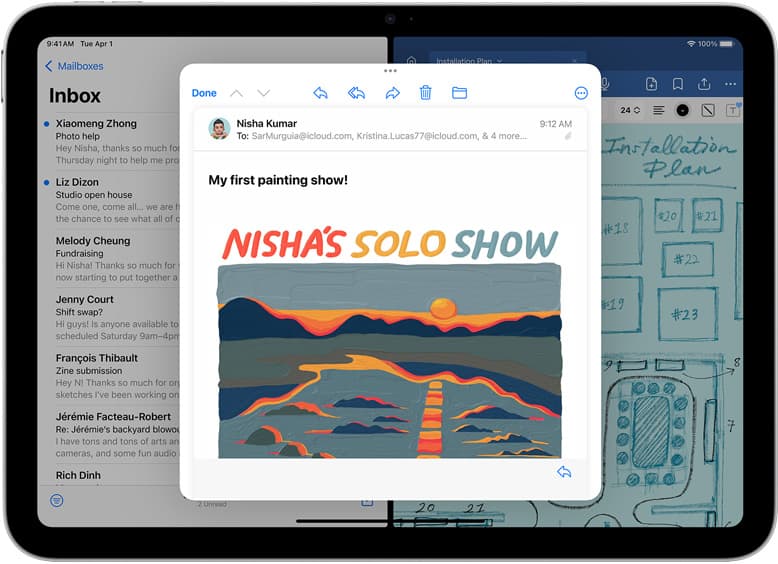
The software library is often the main reason artists choose an iPad over an Android tablet. Procreate, one of the most widely used raster illustration applications, is distributed exclusively on iPadOS through the App Store [4], [5]. Procreate ties its maximum canvas layer count directly to the host device's available memory [4]. This means that while Android offers cross-platform drawing tools, it cannot run Procreate or access native Procreate project files directly [4], [5].
If you choose an Android tablet, you will rely on cross-platform art applications. Those suites can handle layered illustration and raster painting, but many community tutorials, brush packs, and shared digital assets are built around iPad tools [4], [5]. For working artists who collaborate with peers or follow standard tutorial pipelines, having access to the App Store catalog prevents file interchange roadblocks [5]. The iPad Air (M4) and iPad (A16, 11th gen) both run these standard iPadOS art applications natively [1], [4].
Stylus hardware and drawing features
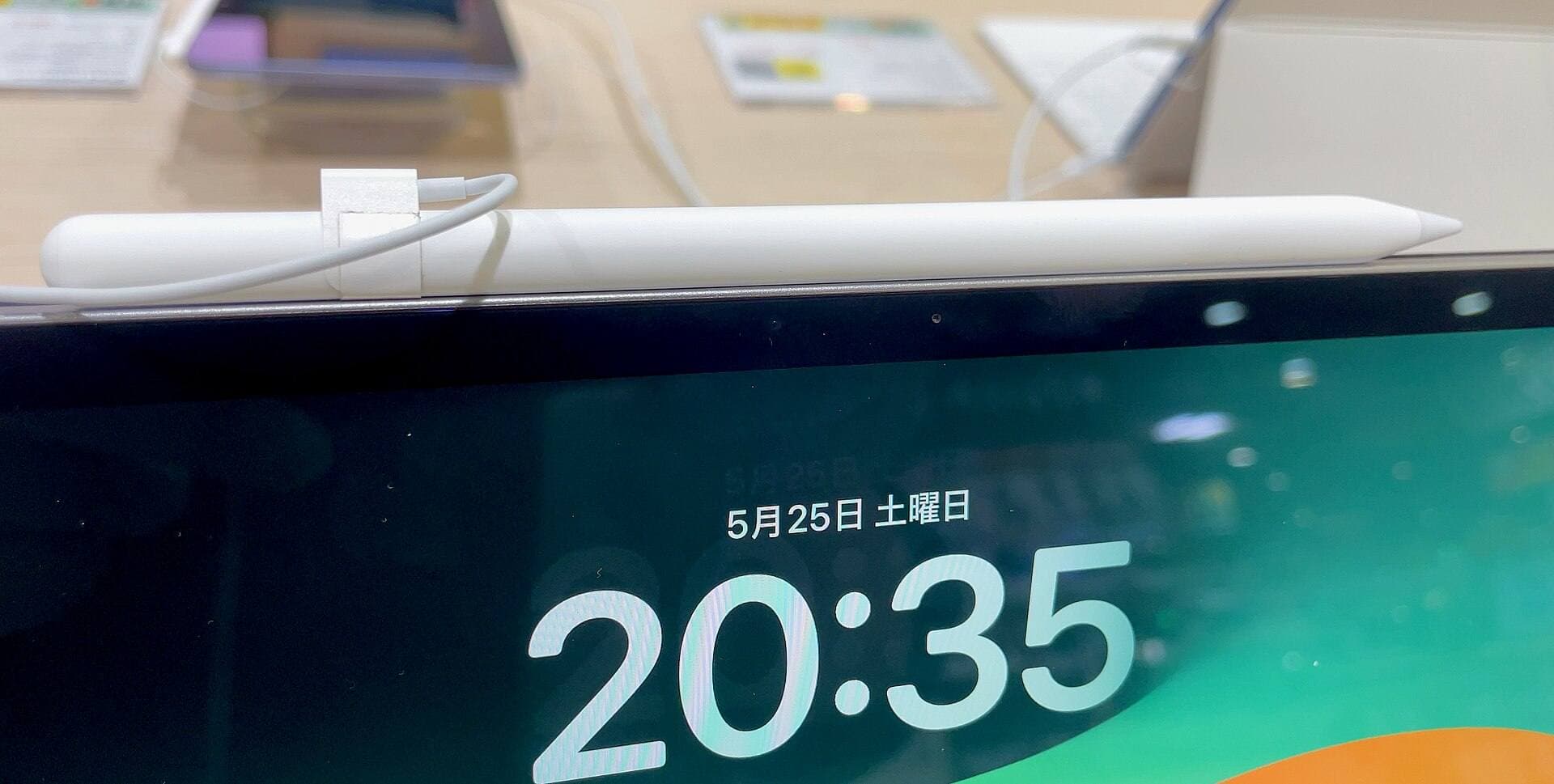
Stylus technology defines the physical drawing experience on any touchscreen tablet. Apple structures its lineup around specific hardware pairings across different generations [2], [3]. The Apple Pencil Pro supports tilt detection, pressure sensitivity, barrel roll, squeeze gestures, haptic feedback, and magnetic pairing and charging [2]. In contrast, basic models like the Apple Pencil (USB-C) provide tilt detection and pairing via cable, but they lack pressure sensitivity entirely [2].
Android hardware manufacturers take varied approaches to stylus design. Some include a passive or battery-free stylus in the retail box, while others require a separate stylus purchase using proprietary protocols. On the iPad platform, stylus capabilities are strictly mapped by Apple's compatibility tables [3]. If you want advanced gestures like barrel roll or squeeze shortcuts, you must pair an Apple Pencil Pro with a compatible tablet such as the iPad Air (M4) or iPad Pro (M5) [2], [3]. If you buy an entry model like the iPad (A16, 11th gen), Apple's support guidelines limit you to compatible styluses such as the Apple Pencil (1st generation) or Apple Pencil (USB-C) [3].
Display feel and screen specifications
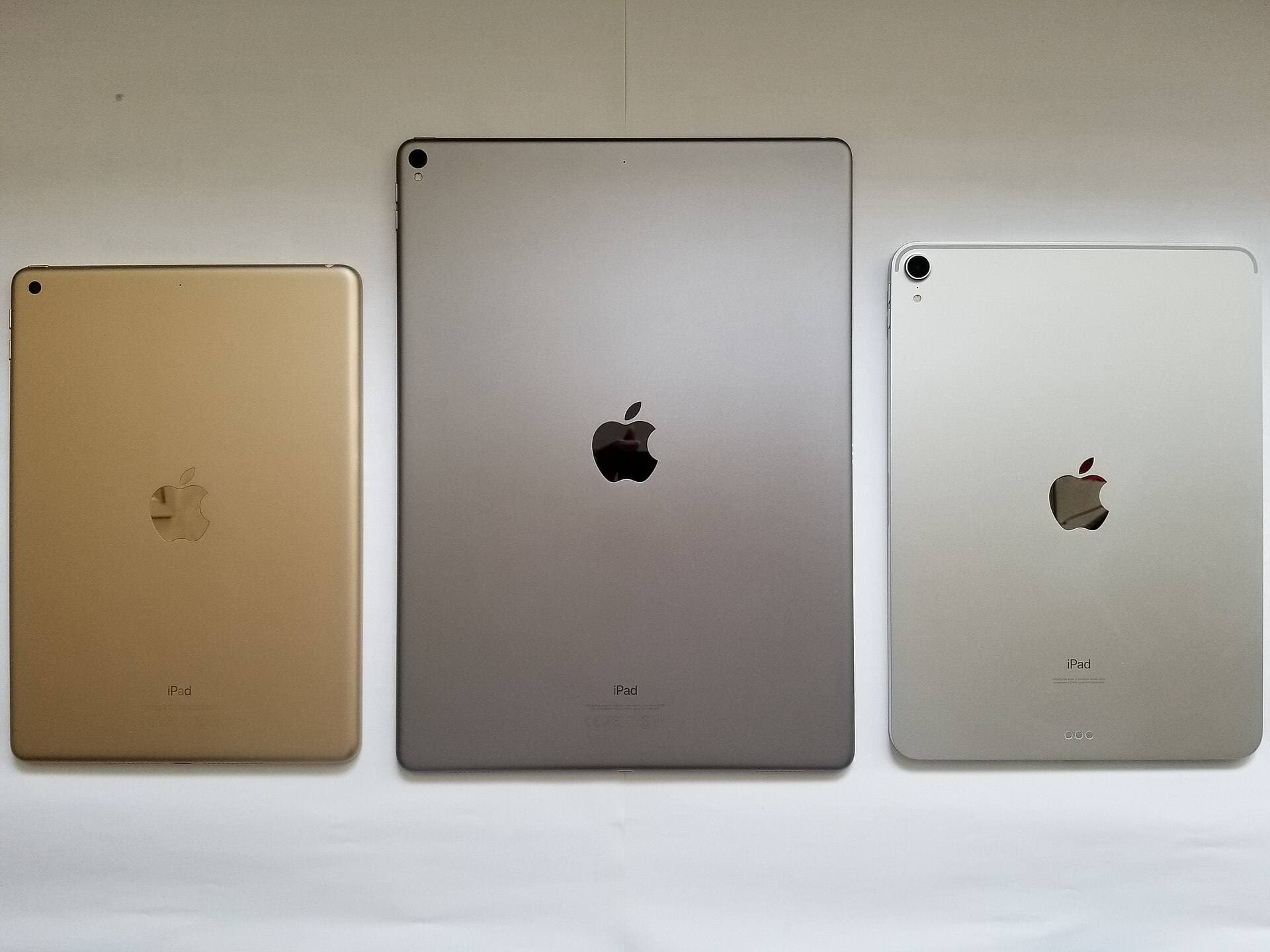
The physical surface of your screen impacts how drawing feels during long sessions. Apple splits its displays across standard refresh rates and high-refresh panels [1]. The entry-level iPad (A16, 11th gen) and the iPad Air (M4) both feature standard 60Hz panels [1]. If you want Apple's ProMotion display technology, which supports adaptive refresh rates up to 120Hz, you must step up to the iPad Pro (M5) [1].
Many competing Android tablets in the mid-range tier include 90Hz or 120Hz refresh rate screens. High-refresh panels make stroke delivery feel more immediate under the stylus tip [1]. However, screen refresh rate is only one part of the drawing equation. You must balance the physical refresh rate against color reproduction, laminated display glass, and stylus tracking [1], [2]. The iPad Air (M4) uses a fully laminated display that minimizes the visual gap between the glass cover and the active pixels below it, even though it remains a 60Hz panel [1].
Hardware longevity and configuration choices
Choosing a digital art tablet requires checking system memory and internal storage capacity. In applications like Procreate, your canvas resolution and total usable layers scale based on the physical RAM inside your iPad [4]. Standard drawing setups with lower system RAM hit layer limits earlier when working on high-resolution prints [4]. Selecting a model with sufficient internal storage is also necessary because raw project files and timelapse video recordings consume space quickly over time [1], [5].
Android tablets frequently feature expandable storage via microSD card slots, which can ease storage management for raw file archives. iPads do not support internal memory cards, meaning you must choose an appropriate storage tier at purchase [1]. For most illustrators, starting with an iPad Air (M4) gives a dependable processor and sufficient hardware headroom without moving to the highest tier of the product catalog [1].
Who should buy an iPad and who should choose Android
Buy an iPad if you want guaranteed access to Procreate, tight Apple Pencil integration, and a predictable workflow shared by millions of illustrators worldwide [2], [4], [5]. The mainstream iPad (A16, 11th gen) is the ideal pick for beginners and budget-focused hobbyists who want an entry point into the App Store art library [1], [5]. The iPad Air (M4) is the best choice for serious hobbyists and working illustrators who want Apple Pencil Pro features like barrel roll and squeeze shortcuts without paying premium prices [1], [2]. Choose the iPad Pro (M5) only if your workload demands the ProMotion display and top-end system performance [1].
Skip the iPad lineup and buy an Android tablet if your primary computing environment is already built on Android or Linux, or if you require expandable hardware storage. Android tablets can be suitable for casual sketching, note-taking, and cross-platform painting suites, but you will give up access to iPadOS exclusive creative software [4], [5].
Bottom line
For digital drawing, the iPad platform provides a more cohesive ecosystem thanks to software like Procreate and the precise feature set of the Apple Pencil lineup [2], [4], [5]. Most artists will find their best value in the iPad Air (M4), which provides compatibility with the Apple Pencil Pro while avoiding the high cost of flagship hardware [1], [2]. Buy an Android tablet only if non-iPad software integration is your top requirement.
Sources
[1] https://www.apple.com/ipad/compare/ [2] https://www.apple.com/apple-pencil/ [3] https://support.apple.com/en-us/108937 [4] https://help.procreate.com/articles/zlexav-ipad-compatibility [5] https://apps.apple.com/us/app/procreate/id425073498
Recommended gear
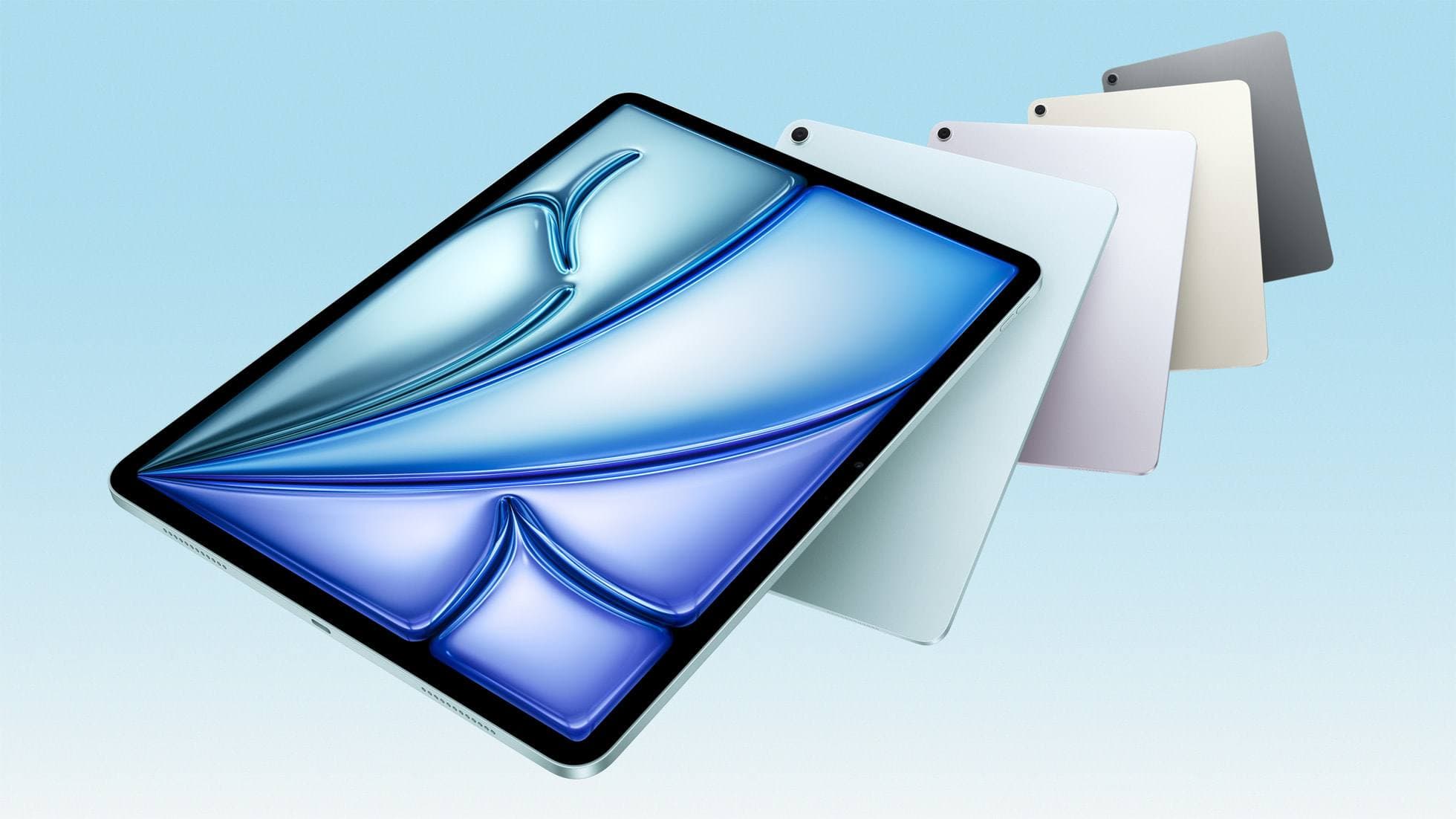
iPad Air (M4)
apple.comThe clean current Air recommendation for most serious hobby artists. Stronger buy logic than old-stock M3 when pricing is close.
Pro: Best current balance of price, headroom, and Pencil support
Con: Still 60Hz
Current Air lineup. Choose size, storage, and keyboard path before checkout.
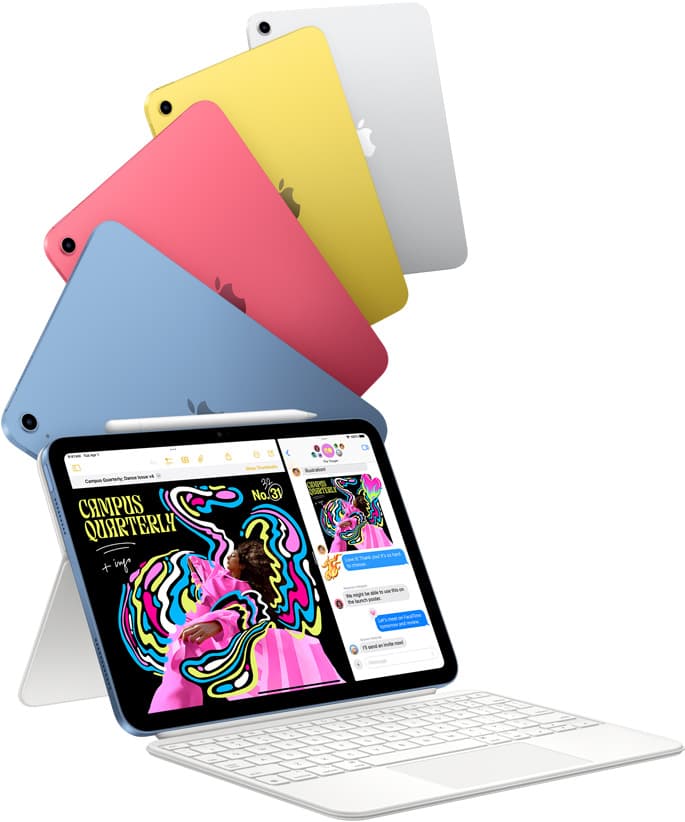
iPad (A16, 11th gen)
amazon.comThe best entry iPad for most artists on a budget. It is not premium, but it is very hard to beat on value.
Pro: Best value iPad right now
Con: No ProMotion display
Search opens with the exact model keywords. Verify size and storage before checkout.
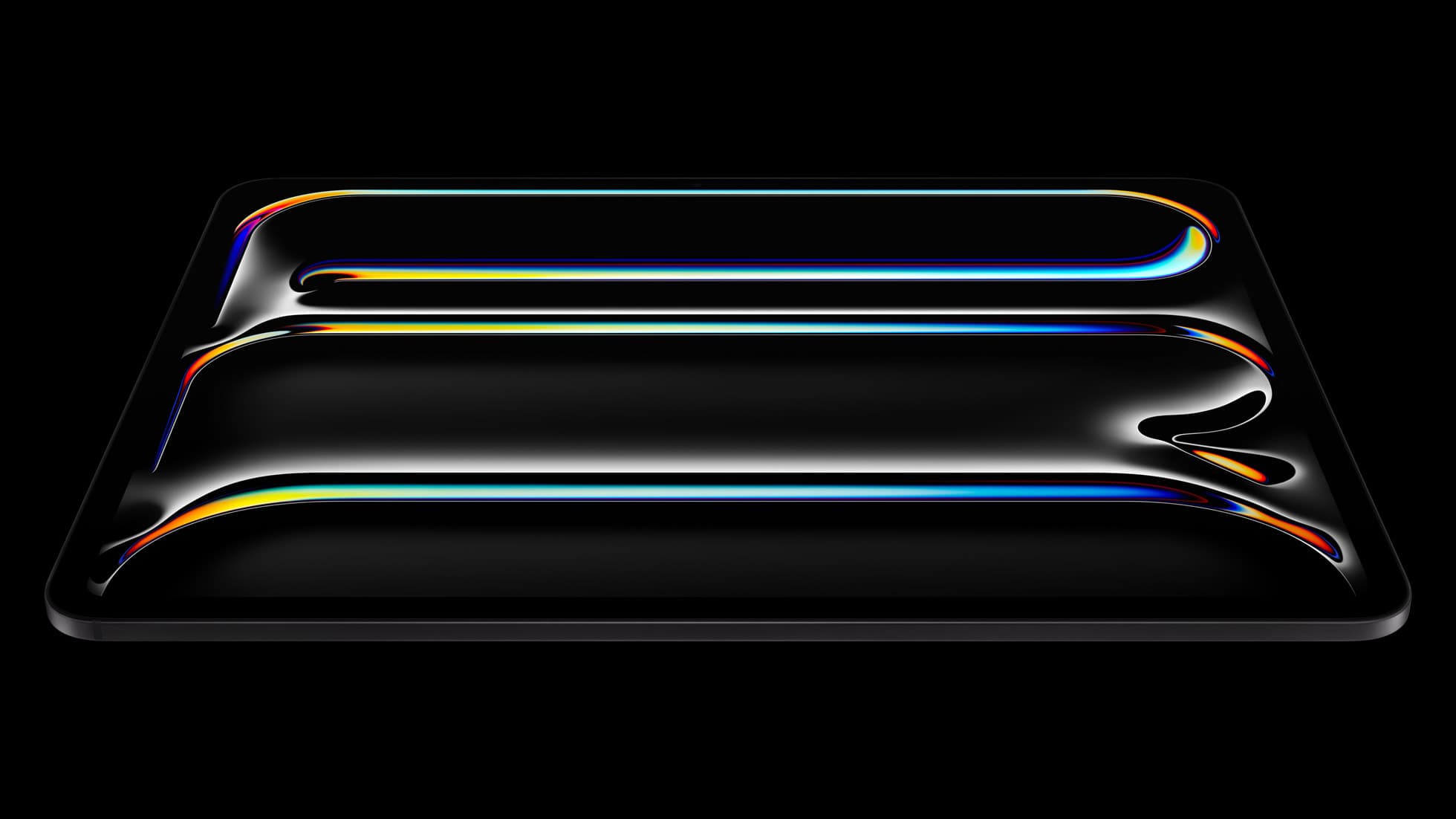
iPad Pro (M5)
amazon.comThe best iPad for drawing feel and premium workflow comfort, but many buyers still overpay for it.
Pro: Best iPad display and ProMotion feel
Con: Highest price in the lineup
Search opens with iPad Pro terms. Check year, chip, and screen size.
Apple Pencil Pro
amazon.comThe best Apple stylus for serious digital art workflows. Expensive, but the control upgrades are real.
Pro: Best brush-control and hover workflow
Con: Highest price in the lineup
Works only with newer iPad models. Check compatibility.
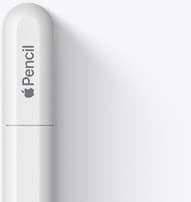
Apple Pencil (USB-C)
amazon.comA practical low-cost Apple stylus with broad compatibility, but limited for advanced art control.
Pro: Lowest official Apple Pencil cost
Con: No pressure sensitivity for brush work
Compatible with many recent iPads. No pressure support.
Related buying picks
More in this collectionBuyer guide
What's the best iPad for artists?
iPad Air with the M4 chip hits the best balance of stylus features and price for most digital artists.
Buyer guide
Is a 64GB iPad enough for Procreate?
A 64GB iPad can run Procreate; decide whether it is enough by measuring your active canvases and the device storage already in use.
Buyer guide
Best iPad for lettering and calligraphy
Choose the iPad Air for barrel roll calligraphy tools without paying Pro prices, or pick the iPad Pro if you need 120Hz ProMotion for fast flourishing.
Buyer guide
Best iPad for sublimation design: How to pick the right screen and chip
Compare iPad models for sublimation art so you get the layer counts, Apple Pencil features, and screen size your printing projects require.