Buy the Apple Pencil Pro if you own a compatible iPad Pro or iPad Air and need variable line weights, barrel roll for shaped markers, and tactile squeeze shortcuts [1], [2]. If your current tablet pairs with the Apple Pencil (2nd generation), keep it; both models offer pressure sensitivity and tilt control that handle architectural hatching and tonal marker washes [1], [2]. Skip the Apple Pencil (USB-C) if you draft conceptual perspectives or gestural massing studies, because it lacks pressure sensitivity [1]. Add a Paperlike screen protector only if you dislike the slick feel of bare display glass when drafting continuous alignment lines [3].
Architectural drawings rely on graphic hierarchy. Site plans, wall sections, and structural diagrams need clear contrasts between cut planes, surface materials, and background details [1], [4]. The stylus you select dictates how easily you create that graphic clarity on an iPad screen.
Why pressure sensitivity matters for architectural drawing
Line weight is the foundation of architectural graphics [1]. In traditional drafting, architects rotate technical pens or press lead holders firmly to differentiate sliced concrete walls from faint tile joint patterns. In digital drafting applications, that distinction comes from stylus pressure sensitivity [1], [4].
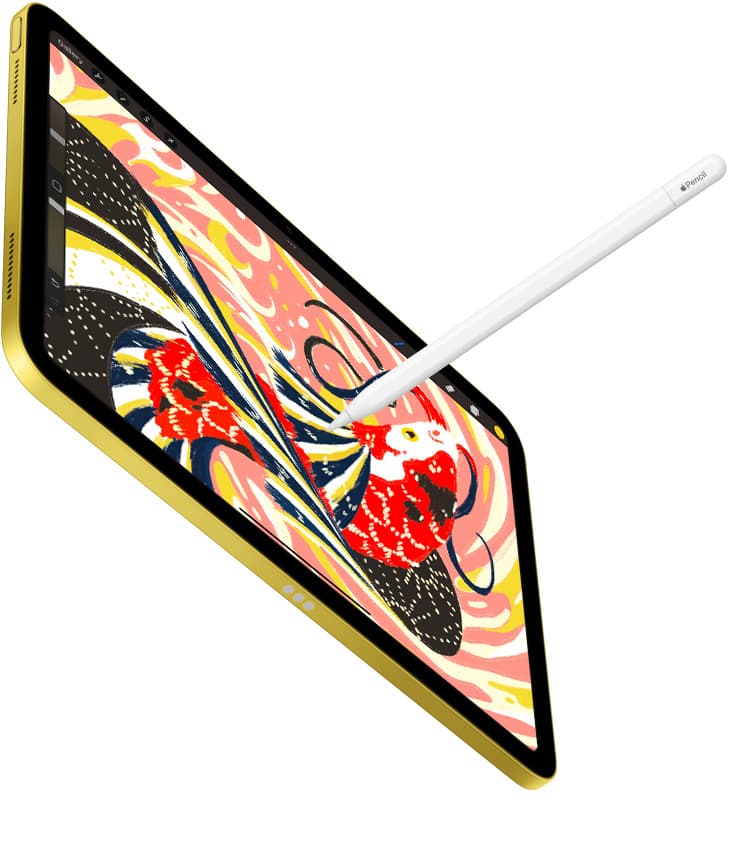
The Apple Pencil Pro and Apple Pencil (2nd generation) both feature pressure sensitivity, allowing digital brushes to scale line weight or change ink opacity based on how firmly your hand presses down [1]. That control lets you block in structural framing with dark outlines and feather light dimension guidelines across the floor plan without stopping to adjust brush radius sliders manually [1], [4].
The Apple Pencil (USB-C) does not provide pressure sensitivity [1]. While it records tilt and position accurately, every stroke produces the exact same stroke density unless you manually change your brush size or opacity in software palettes [1]. If your sketching workflow consists exclusively of fixed-width ink redlines, dimension annotations, or vector CAD adjustments, the Apple Pencil (USB-C) gets the job done at a lower cost [1]. For loose concept thumbnails, charcoal massing diagrams, or multi-tone marker overlays, the lack of pressure sensitivity creates extra friction [1], [4].
Pencil compatibility and iPad hardware boundaries
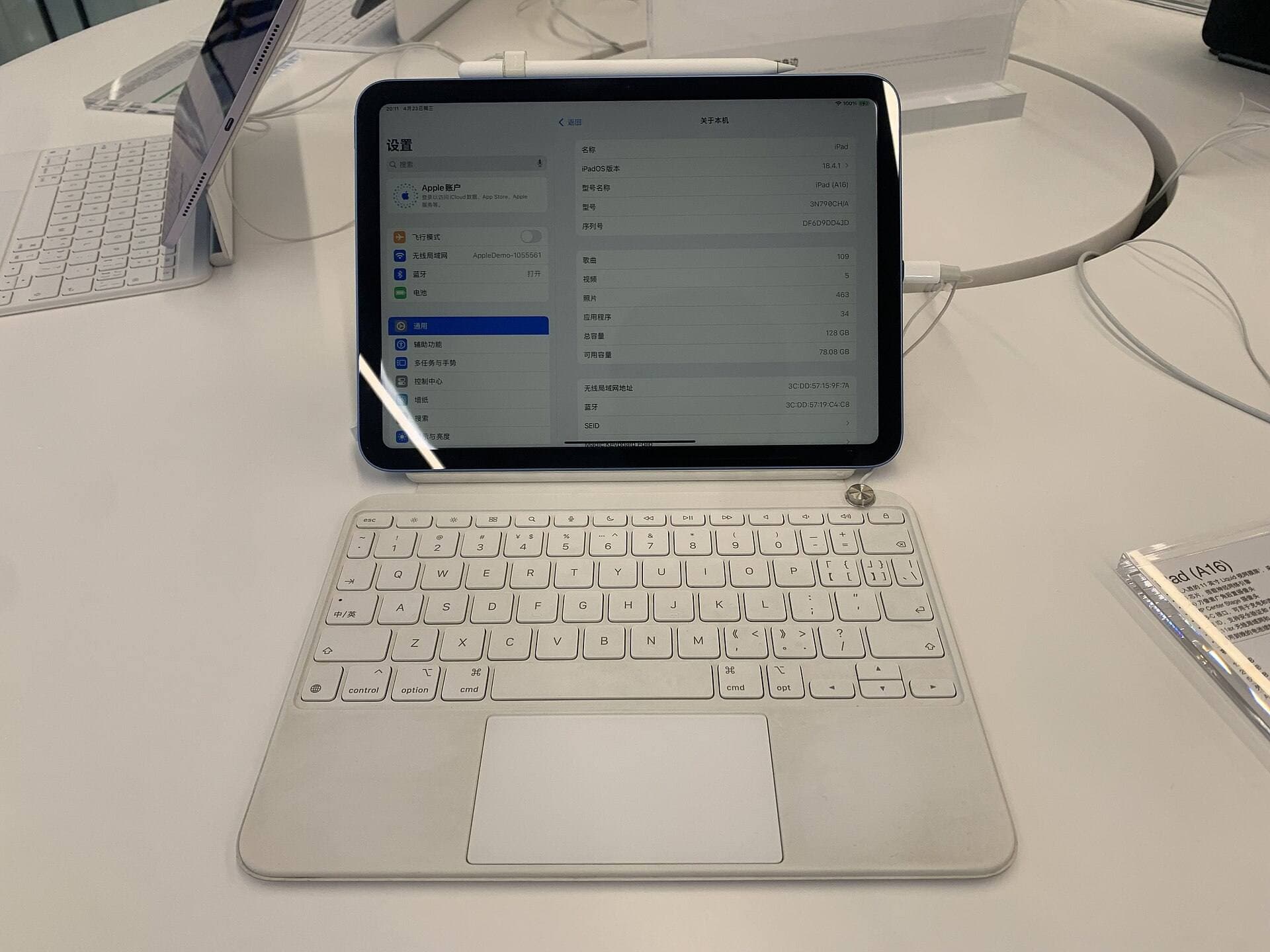
You cannot choose an Apple Pencil in isolation because Apple restricts each stylus to specific iPad models [2]. Buying the wrong stylus leaves you with a tool that cannot pair or charge [2].
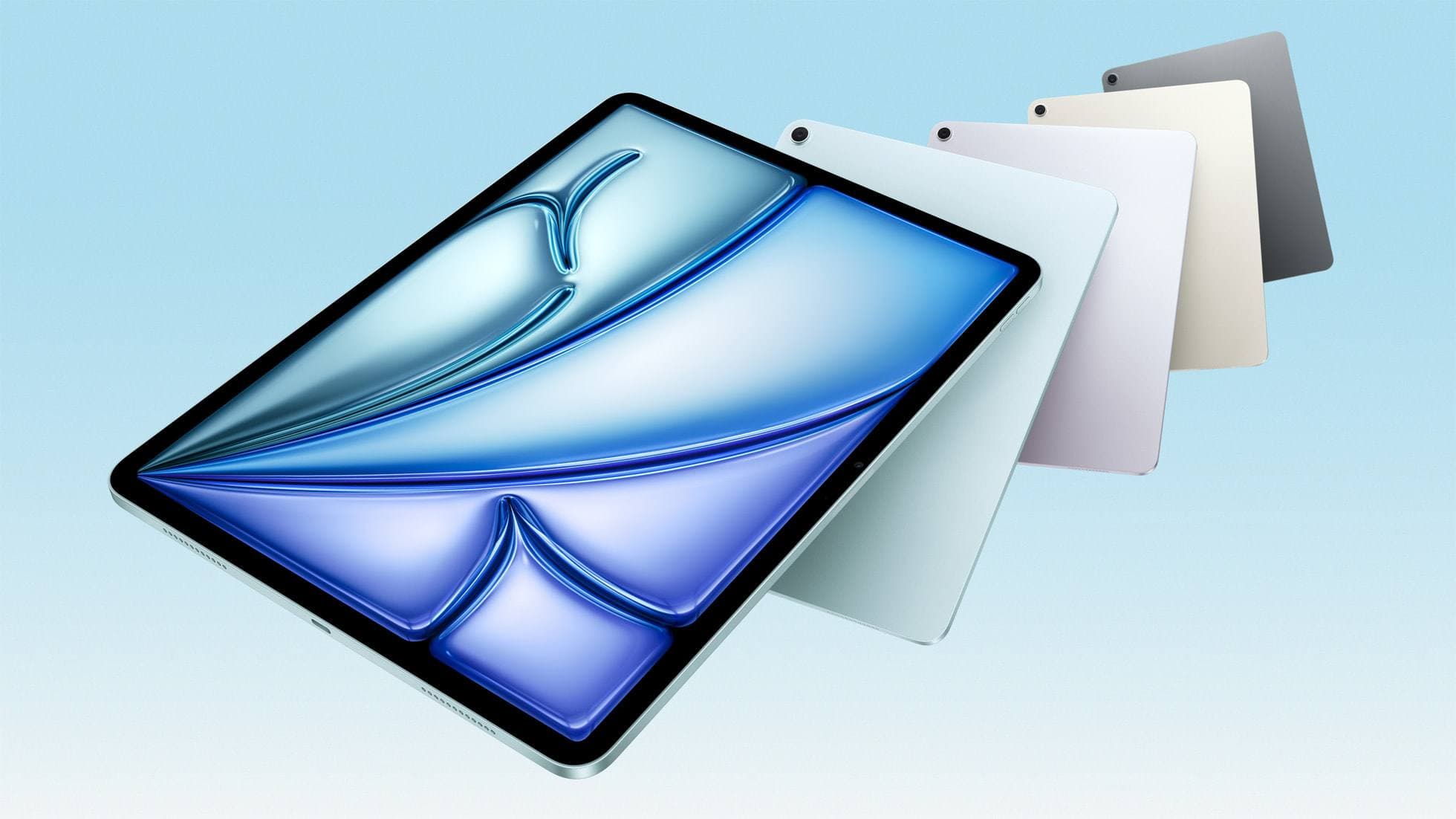
The Apple Pencil Pro pairs exclusively with newer hardware configurations, including specific iPad Pro and iPad Air releases [1], [2]. It relies on a dedicated magnetic charging interface built into those specific enclosures [1], [2]. The Apple Pencil (2nd generation) pairs and charges magnetically on a distinct set of earlier iPad Pro, iPad Air, and iPad mini models [2]. Neither stylus operates across the other hardware generation, meaning your tablet purchase fixes your choice between these two pressure-capable pens [1], [2].
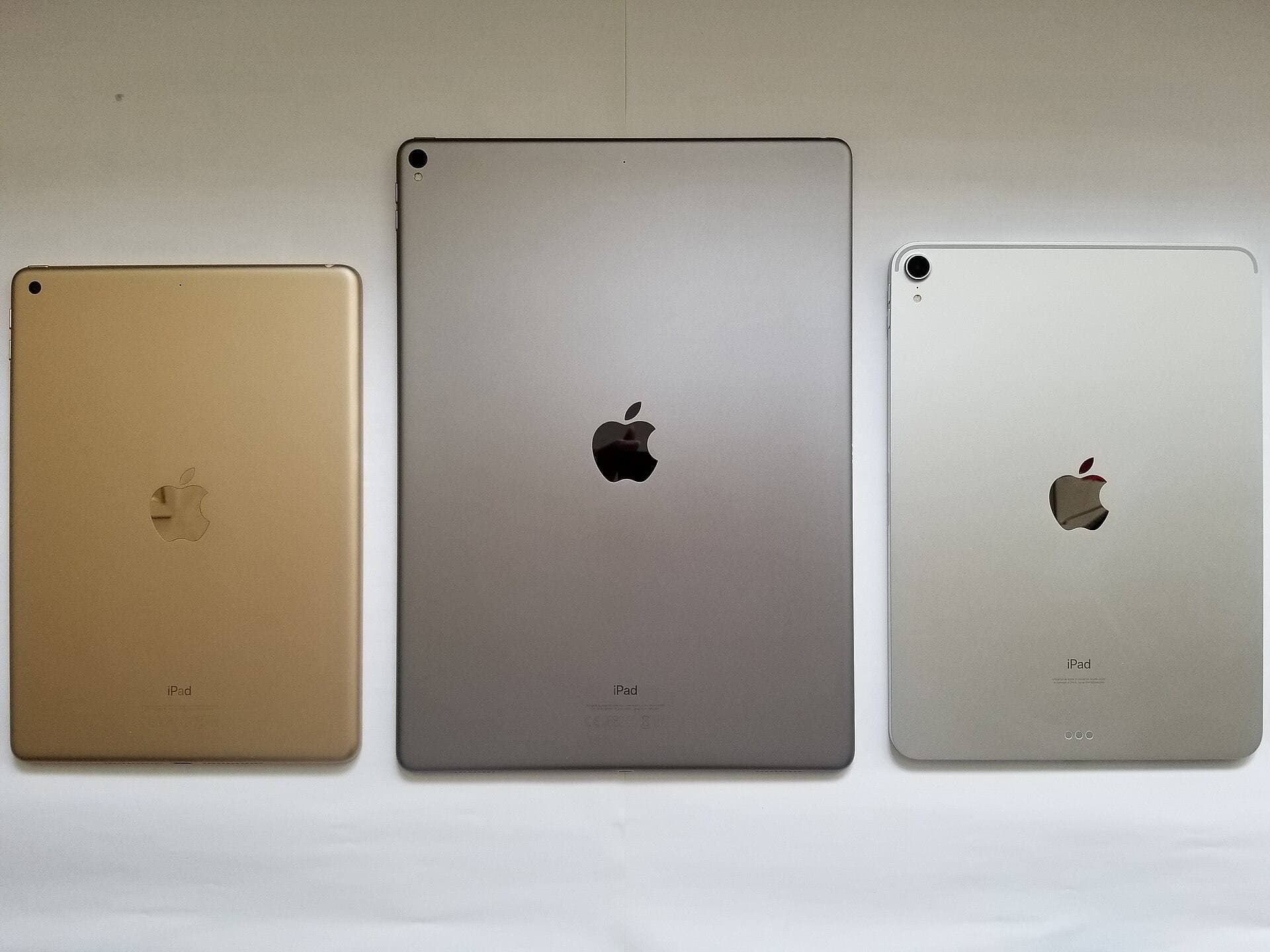
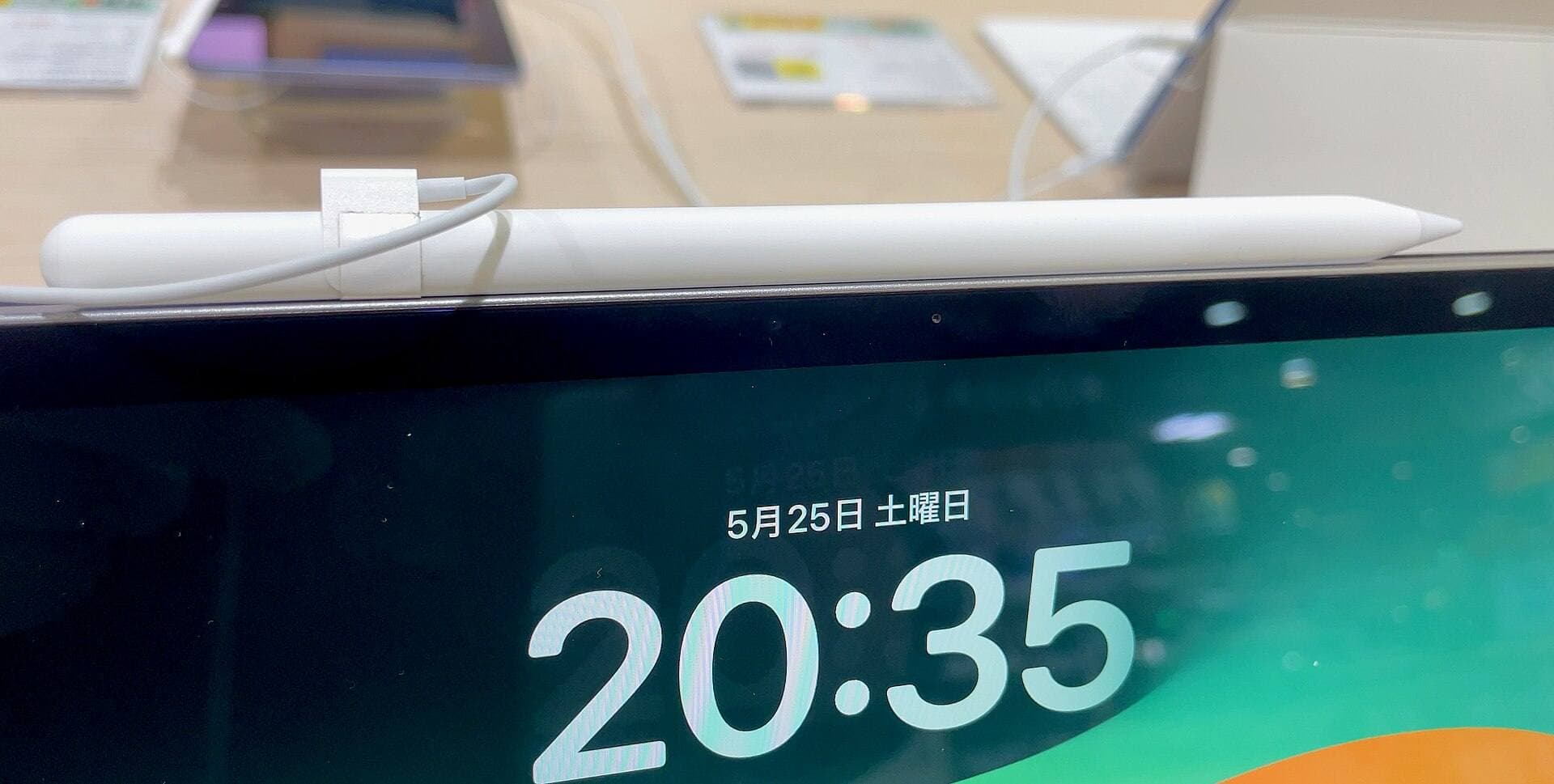
The Apple Pencil (USB-C) features broader compatibility across USB-C iPads, pairing via a sliding charging cap and physical cable connection before snapping magnetically to the tablet frame for storage [1], [2]. If your firm maintains a mixed fleet of entry-level and intermediate iPads for construction field visits, the USB-C model is simple to deploy across multiple desks [1], [2]. However, designers who demand pressure sensitivity must verify that their iPad accepts either the Pro or the second-generation model before checking out [1], [2]. In drawing apps like Procreate, overall document size and available layer stacks also trace directly to your iPad processor and memory configuration rather than the stylus itself [4].
Advanced tools on the Apple Pencil Pro
For architects starting fresh with a new tablet, the Apple Pencil Pro introduces hardware sensors that streamline rapid concept generation [1], [5]. Two additions stand out during design presentations: barrel roll and the squeeze sensor [1], [5].
Barrel roll uses an internal gyroscope to track rotational movement as you twist the stylus shaft between your fingers [1], [5]. In architectural illustration, wide chisel markers and flat wash brushes are common tools for rendering glazing reflections, shadows, and building facades. Barrel roll changes the brush footprint angle as you rotate the pen, reproducing the exact behavior of an angled felt-tip marker [1], [5]. On older styluses, maintaining a specific stroke angle requires rotating your wrist or rotating the entire iPad canvas [1].
The squeeze sensor detects firm finger pressure along the lower barrel, opening contextual tool palettes, brush lists, or quick menus right at the contact point [1], [5]. Haptic feedback pulses under your fingertips to confirm the trigger [1], [5]. That keeps your drawing hand focused on the sketch rather than tapping software menu icons on the far perimeter of the screen [5]. Apple Pencil hover also previews brush marks before the tip touches the display, helping you align structural column centerlines or check marker spreads before laying down permanent ink [1], [5].
Screen friction and the Paperlike trade-off
Drawing on an untreated iPad screen feels like sliding a plastic cone across kitchen glass [3]. When drafting rapid cross-hatching, structural trusses, or perspective lines, the slick surface can cause your hand to slip past intended end points [3].
Textured screen films like the Paperlike 3 introduce deliberate surface friction [3]. The micro-bead surface finish provides resistance against the Apple Pencil tip, simulating the mechanical feedback of drafting on bond paper or heavy vellum [3]. This resistance helps many architects hold steadier lines during freehand perspective sketching and construction field details [3].
This physical control carries a known trade-off in visual rendering [3]. Matte textured films disperse incoming and outgoing light, causing a slight reduction in perceived display sharpness and contrast [3]. If your iPad doubles as a presentation display for photorealistic client renderings, high-resolution material boards, or video walkthroughs, the matte diffusion is noticeable compared to bare glass [3]. Additionally, textured films accelerate physical wear on Apple Pencil tips due to friction, requiring occasional tip replacements [1], [3].
Who should buy which setup
Choosing the right architectural sketching setup comes down to your primary graphic tasks and your tablet compatibility [1], [2].
Buy the Apple Pencil Pro if:
- You own a compatible iPad Pro or iPad Air model [1], [2].
- You rely heavily on chisel markers, calligraphic pens, and watercolor washes that benefit from barrel roll [1], [5].
- You want squeeze shortcuts and haptic cues to keep your drafting focus centered on the sheet [1], [5].
Buy or keep the Apple Pencil (2nd generation) if:
- Your current iPad supports second-generation magnetic pairing [2].
- You draft architectural sketches with varied line weights and need reliable pressure sensitivity without upgrading your tablet [1], [2].
- You already use double-tap gestures to toggle between ink pens and erasers [1], [5].
Buy the Apple Pencil (USB-C) if:
- You only use your iPad for technical PDF plan markups, dimension notes, and single-weight redlines [1], [5].
- You manage an inventory of standard USB-C iPads across multiple job-site trailers [1], [2].
- You want a budget Apple Pencil and do not create tonal illustrations or variable-weight line art [1].
Add the Paperlike screen protector if:
- You struggle with pen slip on bare glass during precise parallel line drafting [3].
- You prioritize tactile drawing feedback over maximum screen contrast and display sharpness [3].
Bottom line
Architectural drawings succeed through deliberate linework hierarchy, and the Apple Pencil Pro delivers the most expressive control through pressure sensitivity, barrel roll, and squeeze gestures [1], [5]. If you already have a working tablet that pairs with the Apple Pencil (2nd generation), keep it; its pressure curve handles elevations and conceptual sketches cleanly [1], [2]. Only step down to the Apple Pencil (USB-C) if your work is limited to uniform redline notes and site surveys where pressure response does not matter [1].
Sources
[1] https://www.apple.com/apple-pencil/ [2] https://support.apple.com/en-us/108937 [3] https://paperlike.com/products/paperlike-for-ipad [4] https://help.procreate.com/articles/zlexav-ipad-compatibility [5] https://support.apple.com/guide/ipad/draw-with-apple-pencil-ipadc55b6c7a/ipados
Recommended gear
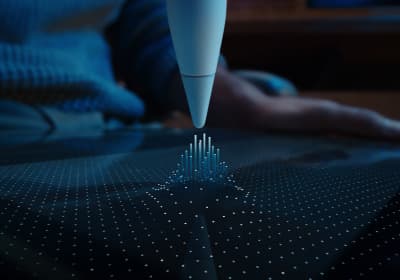
Apple Pencil Pro
amazon.comThe best Apple stylus for serious digital art workflows. Expensive, but the control upgrades are real.
Pro: Best brush-control and hover workflow
Con: Highest price in the lineup
Works only with newer iPad models. Check compatibility.
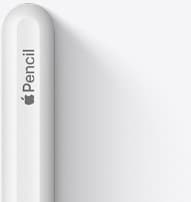
Apple Pencil (2nd generation)
amazon.comStill a strong stylus on compatible iPads. Good pressure control, but compatibility is the main trap.
Pro: Pressure support without Pro pricing
Con: Not compatible with newest Pro-only iPads
Only for iPads that support 2nd generation pairing.
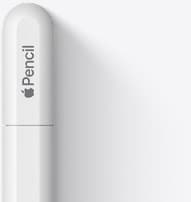
Apple Pencil (USB-C)
amazon.comA practical low-cost Apple stylus with broad compatibility, but limited for advanced art control.
Pro: Lowest official Apple Pencil cost
Con: No pressure sensitivity for brush work
Compatible with many recent iPads. No pressure support.
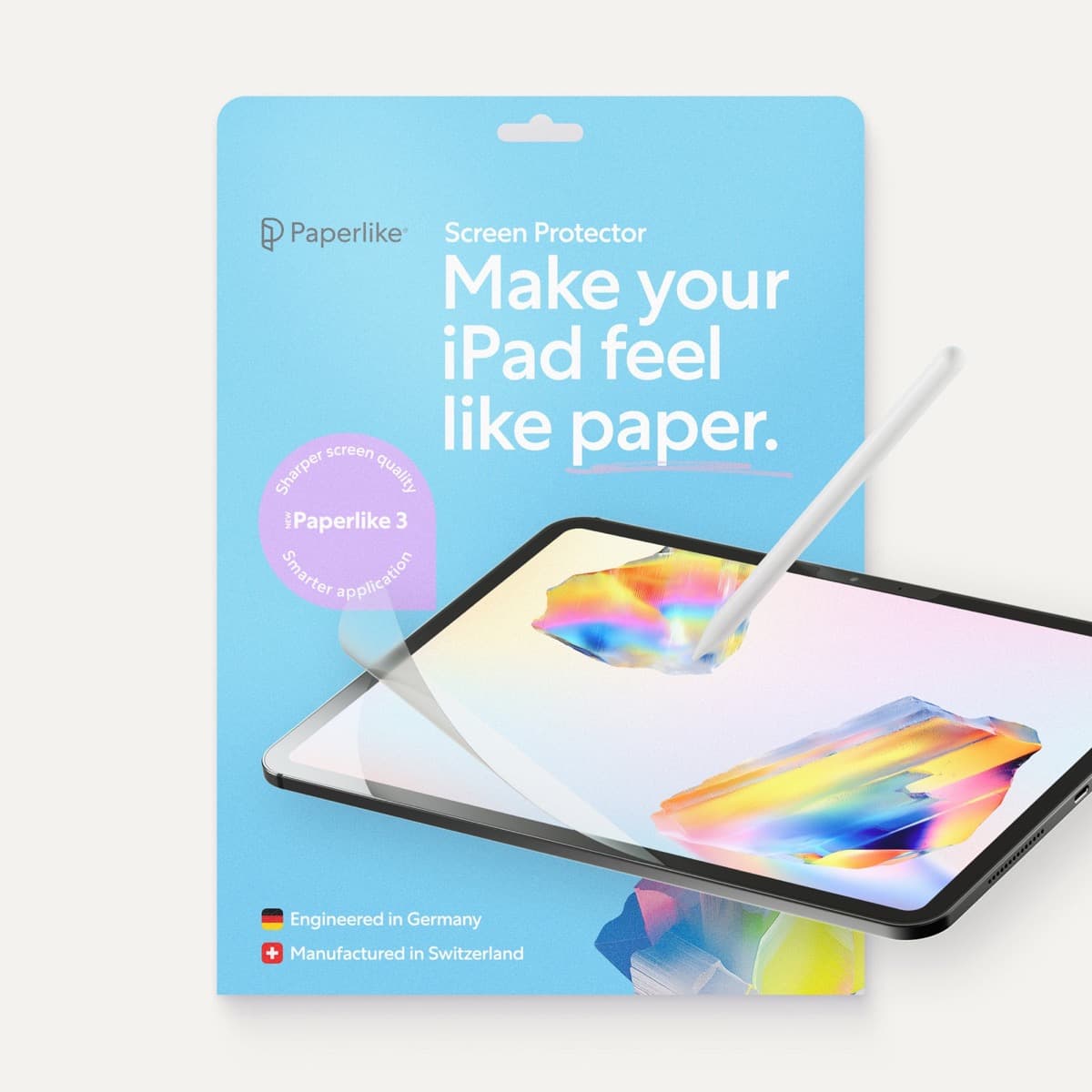
Paperlike 3 (11-inch, 2-pack)
amazon.comA strong surface-feel upgrade for drawing control. Clarity tradeoff is real and should be expected.
Pro: Adds controlled paper-feel friction
Con: Slightly reduces perceived display sharpness
11-inch fit only. Confirm generation before checkout.
Related buying picks
More in this collectionBuyer guide
Best Apple Pencil for pixel art: Which stylus fits your grid?
Pixel art relies on exact placement rather than pen pressure, making Apple Pencil compatibility and budget your main buying factors.
Buyer guide
Apple Pencil for watercolor painting: which stylus to choose
Choose an Apple Pencil with pressure sensitivity for digital watercolor, and avoid flat styluses that cannot modulate pigment wash.
Buyer guide
Best Apple Pencil for portrait drawing: choosing the right stylus
Portrait artists need pressure sensitivity for tonal rendering, making Apple Pencil Pro or Apple Pencil 2nd generation the right choice over the entry model.
Buyer guide
Choosing the best Apple Pencil for medical illustration
Medical illustrators need pressure sensitivity and precise hardware compatibility, making the Apple Pencil Pro or 2nd generation pencil essential over the USB-C model.