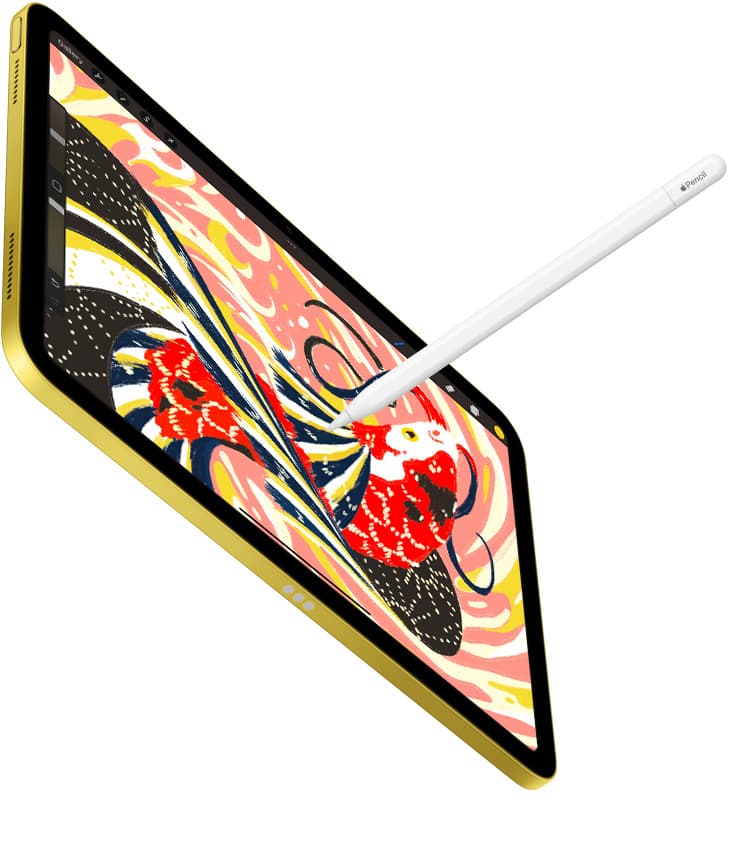
If you build sprites, tiles, or retro scenes on an iPad, buy the Apple Pencil (USB-C) to save money, because pixel art does not require pressure sensitivity [1], [2]. If you already own an Apple Pencil (2nd generation) paired with a compatible tablet, keep it and do not upgrade [2]. Artists who switch between low-resolution sprites and traditional digital painting should buy the Apple Pencil Pro or Apple Pencil (2nd generation), depending on which iPad hardware they own [1], [2]. The Apple Pencil (USB-C) covers every core requirement for placing single dots on a digital canvas without extra costs you will never touch [1].
Why pressure sensitivity does not matter for pixel art
Traditional digital illustration depends on varying stroke width and opacity based on how hard you press your stylus tip against the glass [1]. Pixel art operates on an opposite set of rules [3]. When you create sprite sheets or retro tiles, every pixel must be placed at full opacity with a fixed, rigid brush size [3]. Variable pressure can actually slow down your pixel placement by introducing stray semi-transparent dots that ruin clean palette indexing [3].
Because of this mechanical difference, Apple's removal of pressure sensitivity on the Apple Pencil (USB-C) is not a penalty for sprite creators [1]. The Apple Pencil (USB-C) still provides pixel-perfect precision and tilt detection for general system navigation [1]. You get a direct, accurate point of contact without paying for pressure sensors that your pixel brushes keep turned off anyway [1].
Choosing a stylus without pressure sensitivity also simplifies your software configuration [1], [3]. In creative apps like Procreate, drawing pixel art often requires turning off pressure dynamics inside brush settings so lines stay uniform [3]. With an entry-level stylus, you never have to worry about an accidental heavy press darkening a square or throwing off an indexed color ramp [1].
Comparing Apple Pencil models for grid work
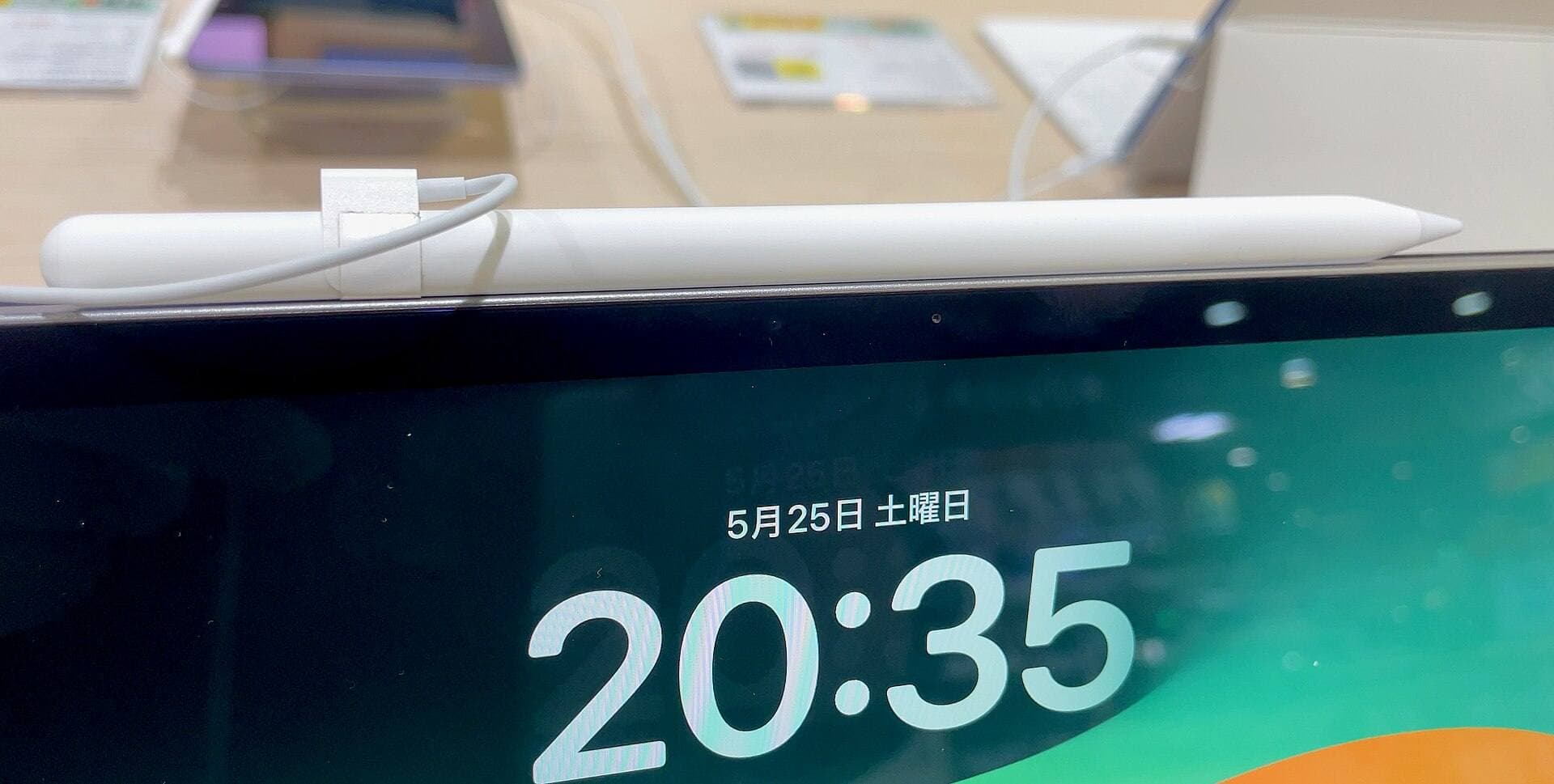
Apple sells three distinct stylus hardware tiers across its modern lineup [1], [2]. The Apple Pencil (USB-C) sits at the entry position, offering physical pairing and charging through a sliding USB-C port or magnetic snapping for storage without magnetic charging [1], [2]. It supports Apple Pencil hover on compatible M2 and newer iPad models, letting you preview your cursor over a tile before you drop color [1], [2].
Moving up to the Apple Pencil (2nd generation) adds pressure sensitivity, wireless magnetic pairing and charging, and a double-tap gesture sensor [1], [2]. For pixel illustrators, the primary everyday benefit of the 2nd generation model is wireless inductive charging on the side of the tablet rather than pressure response [1]. The double-tap shortcut can switch quickly between your pencil and eraser, which speeds up manual cleanup on tiny canvases [1].
At the top of the line, the Apple Pencil Pro adds a squeeze sensor, barrel roll with a gyroscope, haptic feedback, and Find My tracking alongside magnetic charging [1]. These additions are helpful for standard digital painting, but sprite artists will find limited utility in barrel roll or squeeze triggers during strict grid work [1]. If your iPad only supports the Apple Pencil Pro, it remains an excellent tool, but its specialized hardware features remain mostly dormant during retro art tasks [1], [2].
Matching your stylus to your iPad model
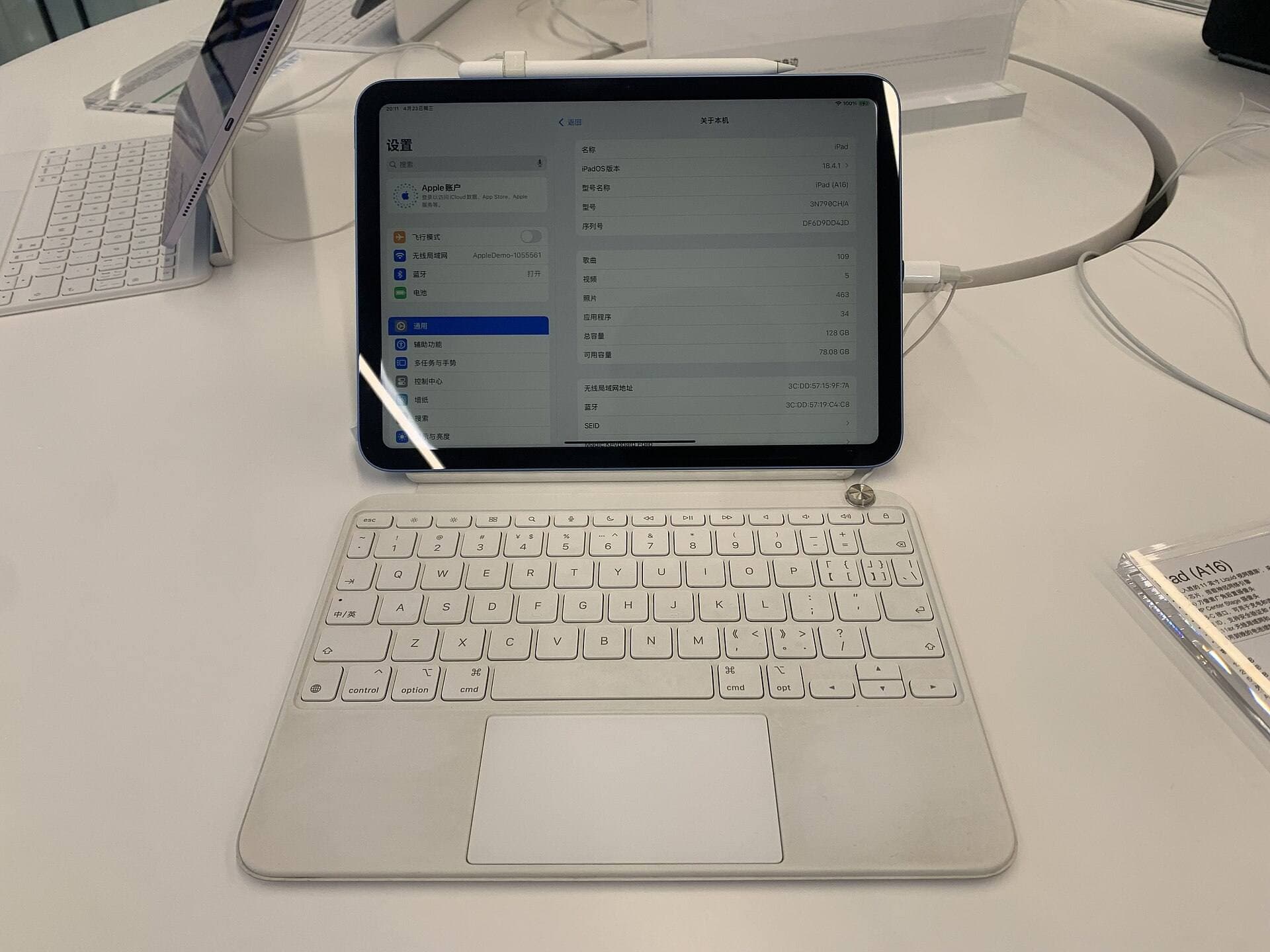
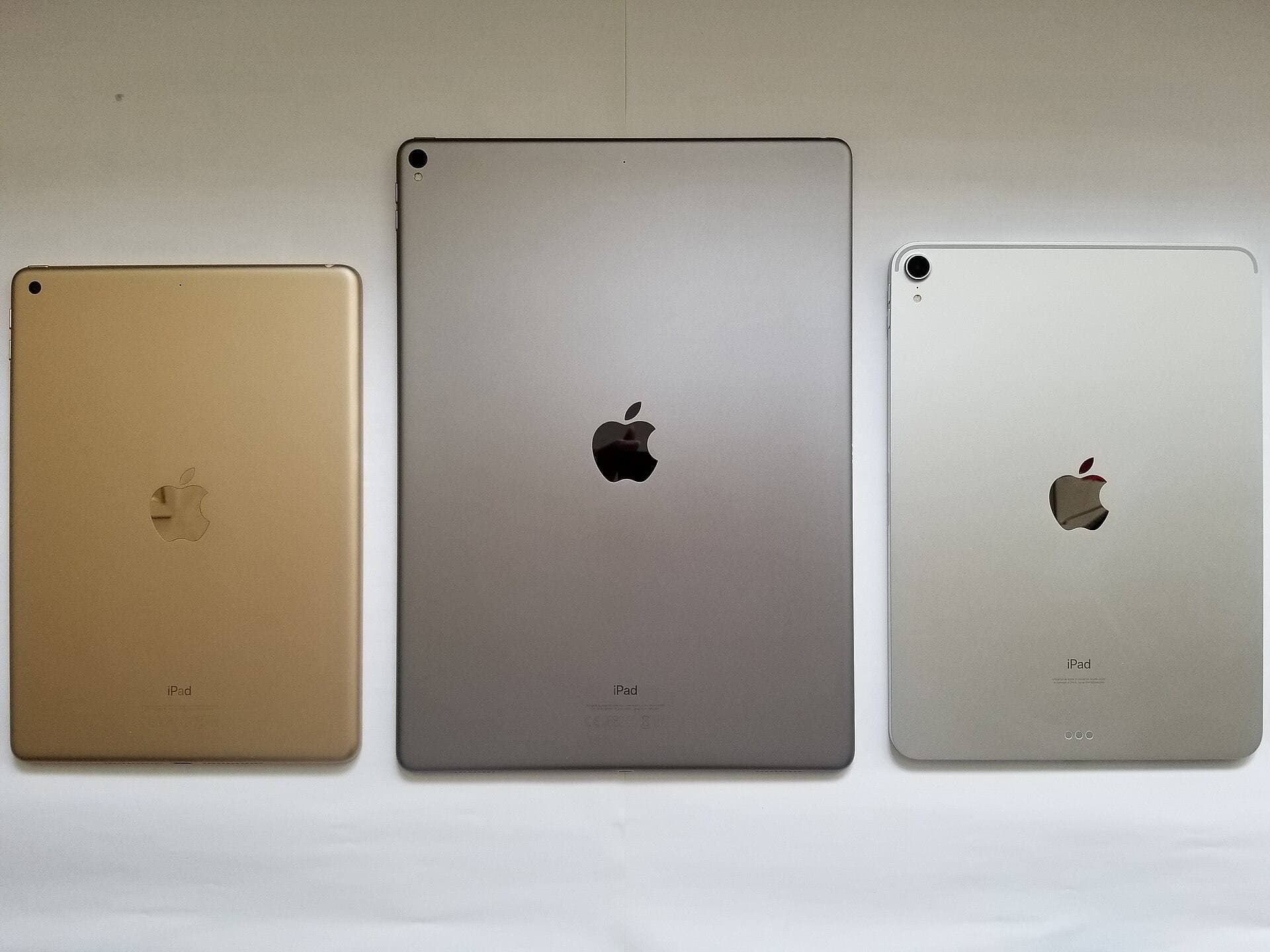
Stylus choice depends entirely on tablet compatibility, because no Apple Pencil model works across every single iPad generation [2]. The Apple Pencil Pro works exclusively with recent releases, including the iPad Pro (M4) and iPad Air (M2) [2]. If you own one of those newer devices, the Apple Pencil Pro and the Apple Pencil (USB-C) are your two official Apple options [2].
For artists using previous-generation hardware like the iPad Air (4th or 5th generation), iPad mini (6th generation), or older iPad Pro models, the Apple Pencil (2nd generation) is the fully featured magnetic option [2]. The Apple Pencil (USB-C) also pairs with those exact same tablets, giving owners of these iPads a direct budget path if they do not care about wireless magnetic charging [1], [2].
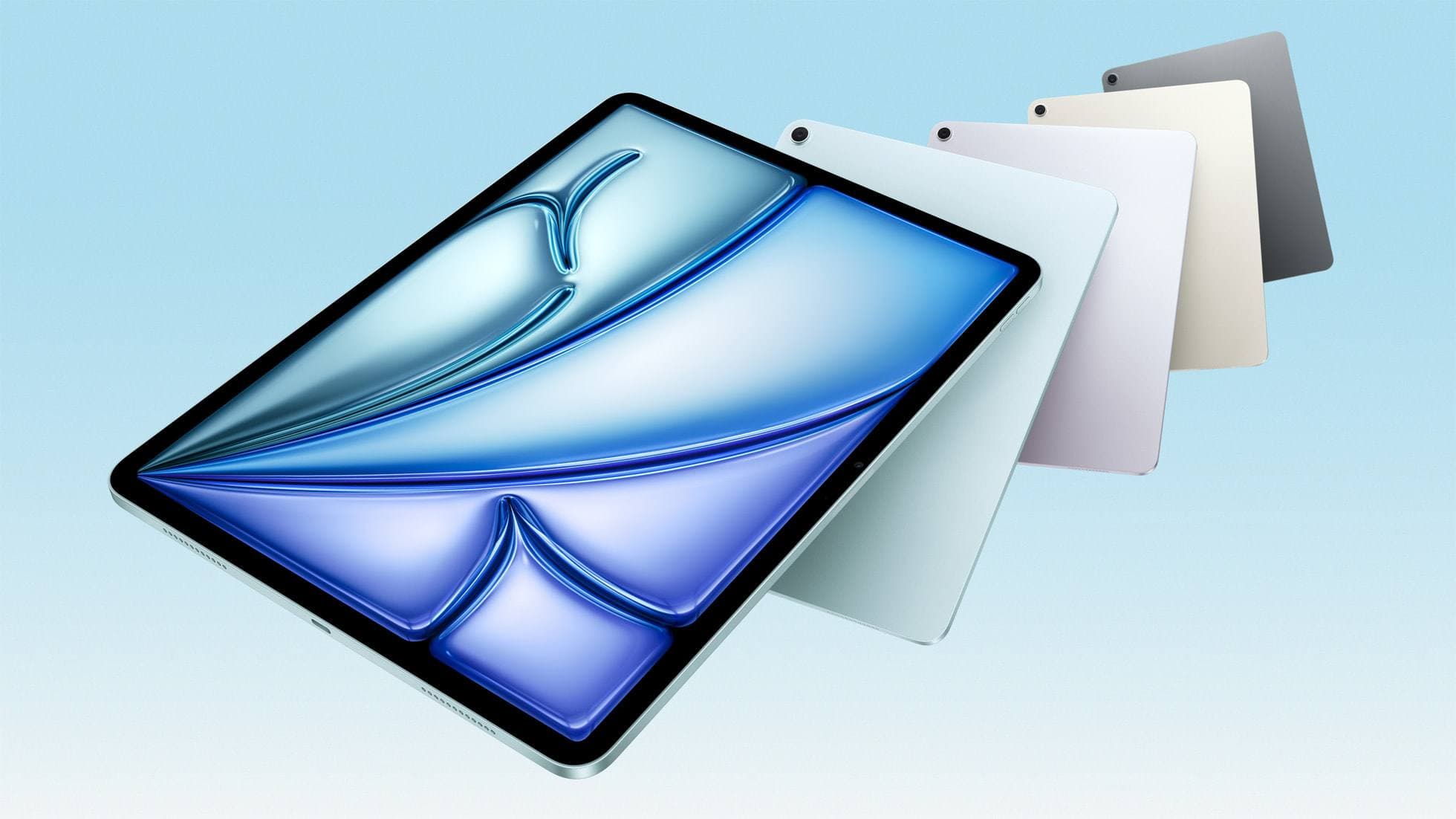
Device memory and iPad hardware specifications also influence how large your pixel projects can grow [4]. While pixel canvases generally use small pixel dimensions like 32 by 32 or 128 by 128, large animation sequences with dozens of frames require ample canvas layer capacity [4]. Procreate establishes maximum layer counts based on the available system memory of your specific iPad model, so pairing your stylus with an adequate tablet matters if you plan to animate long sprite loops [3], [4].
Screen protectors and nib traction for single-pixel precision
Drawing on bare iPad glass presents very little friction, which can make tiny single-dot selections feel slippery [5]. When working at extreme zoom levels to position a single square on a 16-color character sheet, a slight hand slide can drop a stray pixel on an adjacent row [3], [5]. Many pixel creators look to matte screen covers to counteract this slick surface [5].
Accessories like the Paperlike screen protector introduce textured resistance that mimics the feel of paper under the stylus tip [5]. This added surface friction helps stabilize small, controlled hand movements when clicking individual squares across a dense grid [5]. It dampens accidental hand slips during tedious tiling tasks [5].
There is an explicit visual tradeoff to keep in mind before installing a matte film [5]. Textured screen covers cause light refraction, which slightly reduces perceived display sharpness and contrast on the iPad display [5]. Because pixel art relies on evaluating hard edges, crisp square boundaries, and precise color palettes, some artists prefer bare glass clarity over physical tooth [5]. If you value steady nib resistance over maximum color pop, a textured protector makes targeting individual pixels easier [5].
Bottom line
For a dedicated pixel art setup, the Apple Pencil (USB-C) is the smartest purchase for most artists [1], [2]. Because sprite creation relies on rigid brushes with zero pressure dynamics, paying extra for pressure hardware offers no functional advantage on the canvas [1], [3]. Buy the Apple Pencil (USB-C) if you want a reliable, pinpoint stylus that handles grid layouts and UI navigation on a budget [1].
Skip the Apple Pencil (USB-C) only if you regularly switch to traditional illustration styles that depend on pressure opacity, or if you refuse to charge your stylus through a physical cable [1]. In those cases, choose the Apple Pencil Pro or Apple Pencil (2nd generation) based strictly on which model matches your iPad's pairing design [1], [2]. If slippery glass slows down your dot placement, add a textured cover like Paperlike to steady your hand [5].
Sources
[1] https://www.apple.com/apple-pencil/ [2] https://support.apple.com/en-us/108937 [3] https://apps.apple.com/us/app/procreate/id425073498 [4] https://help.procreate.com/articles/zlexav-ipad-compatibility [5] https://paperlike.com/products/paperlike-for-ipad
Recommended gear
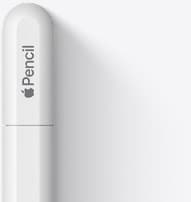
Apple Pencil (USB-C)
amazon.comA practical low-cost Apple stylus with broad compatibility, but limited for advanced art control.
Pro: Lowest official Apple Pencil cost
Con: No pressure sensitivity for brush work
Compatible with many recent iPads. No pressure support.
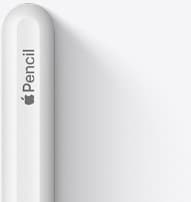
Apple Pencil (2nd generation)
amazon.comStill a strong stylus on compatible iPads. Good pressure control, but compatibility is the main trap.
Pro: Pressure support without Pro pricing
Con: Not compatible with newest Pro-only iPads
Only for iPads that support 2nd generation pairing.
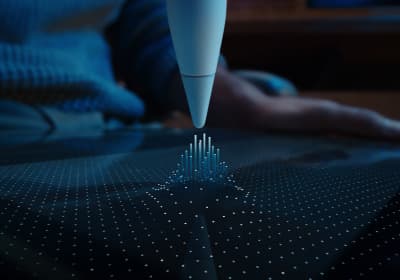
Apple Pencil Pro
amazon.comThe best Apple stylus for serious digital art workflows. Expensive, but the control upgrades are real.
Pro: Best brush-control and hover workflow
Con: Highest price in the lineup
Works only with newer iPad models. Check compatibility.
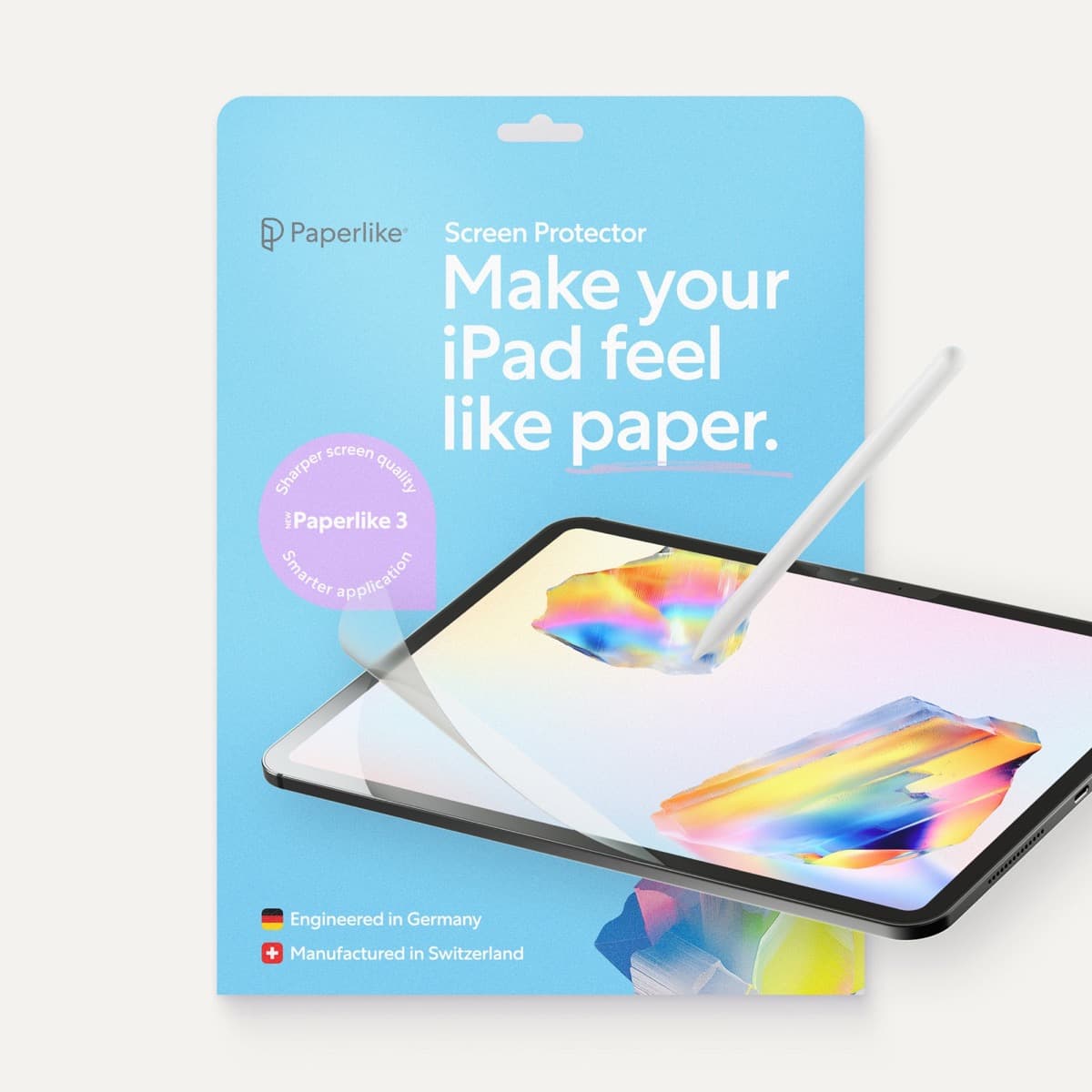
Paperlike 3 (11-inch, 2-pack)
amazon.comA strong surface-feel upgrade for drawing control. Clarity tradeoff is real and should be expected.
Pro: Adds controlled paper-feel friction
Con: Slightly reduces perceived display sharpness
11-inch fit only. Confirm generation before checkout.
Related buying picks
More in this collectionBuyer guide
Is the Apple Pencil USB-C enough for Procreate?
The Apple Pencil (USB-C) functions in Procreate, but the lack of pressure sensitivity makes it a poor fit for expressive brushwork.
Buyer guide
Best Apple Pencil for architectural sketching
Pick the right Apple Pencil for architectural drafting, elevation studies, and plan redlines based on hardware compatibility and line-weight tools.
Buyer guide
Apple Pencil for comic inking: Complete buyer guide
Choose the right Apple Pencil for digital comic inking based on line weight control, tablet compatibility, and glass friction.
Buyer guide
Apple Pencil for watercolor painting: which stylus to choose
Choose an Apple Pencil with pressure sensitivity for digital watercolor, and avoid flat styluses that cannot modulate pigment wash.