





If your Apple Pencil isn't connecting to your iPad, a model mismatch is often the primary cause [1]. Keep your stylus if its generation matches your iPad on Apple's compatibility chart, as unpairing and restarting usually fixes connection drops [1], [3]. Skip buying a new stylus until you verify your hardware pairing [1]. If you own an incompatible model, replace it with the specific stylus designed for your tablet [1], [2].
Checking hardware compatibility before troubleshooting
Before spending time resetting software, confirm that your stylus actually supports your iPad model. Apple does not offer universal backward or forward compatibility across its stylus catalog [1]. If you snap an Apple Pencil (2nd generation) onto an M4 iPad Pro or M2 iPad Air, nothing happens because those tablets only support Apple Pencil Pro and Apple Pencil (USB-C) [1], [3]. Similarly, placing an Apple Pencil Pro onto an older iPad will not produce a pairing banner or initiate charging [1], [2].
Apple Pencil Pro works exclusively with iPad Pro 13-inch (M4), iPad Pro 11-inch (M4), iPad Air 13-inch (M2), iPad Air 11-inch (M2), and iPad mini (A17 Pro) [1]. It does not pair with earlier iPad Pro or iPad Air tablets [1]. Older iPad Pro 12.9-inch models and 11-inch models require Apple Pencil (2nd generation) or Apple Pencil (USB-C) instead [1].
Base iPad models also cause confusion. The iPad (10th generation) does not support magnetic pairing or inductive charging [1], [3]. It works only with Apple Pencil (USB-C) or an original Apple Pencil paired via a physical adapter [1]. Attaching Apple Pencil (2nd generation) or Apple Pencil Pro to an iPad (10th generation) fails because the tablet lacks internal magnetic charging hardware [1], [3].
Fixing magnetic pairing on supported iPads
Magnetic pairing applies directly to Apple Pencil Pro and Apple Pencil (2nd generation) [1], [2]. Both models connect and charge by snapping directly onto the magnetic connector centered along the long edge of a supported iPad [2], [4]. If your stylus is compatible but refuses to pair, physical misalignment or case interference is often the reason [1], [2].
Start by inspecting your tablet case. Thick silicone cases and protective folios can create a gap between the iPad edge and the stylus body. Even a tiny gap breaks the inductive connection required to register the device [2]. Remove the iPad from its case and place the flat edge of the stylus directly onto the magnetic connector [1], [2].
If the pencil was detached for weeks, its battery might be drained. A depleted stylus cannot broadcast a Bluetooth signal [1]. Leave the pencil centered on the magnetic connector for 15 minutes [1], [2]. Once the battery reaches a baseline charge, iPadOS displays the battery banner [2], [4]. If no banner appears, wipe both the stylus and the iPad edge with a clean cloth to clear dust that blocks charging [1].
Troubleshooting cable connections on USB-C models
Apple Pencil (USB-C) handles pairing and power differently than Apple Pencil Pro and Apple Pencil (2nd generation) [2]. While it attaches magnetically to compatible iPads for storage, it does not charge or pair magnetically [2]. If you snap an Apple Pencil (USB-C) onto your iPad and expect a Bluetooth pairing prompt, your iPad won't respond [1], [2].
To pair Apple Pencil (USB-C), slide open the end cap to reveal the USB-C port, then connect a USB-C charge cable between the pencil and your iPad [1], [2]. The pairing prompt appears only when the physical cable connects both devices [1]. After pairing, you can unplug the cable and draw wirelessly [2], [4]. Reconnecting the cable re-establishes the Bluetooth bond if it drops [1].
If your iPad doesn't recognize Apple Pencil (USB-C) when plugged in, examine the cable and ports [1]. Dirt or lint inside the iPad port or the pencil port blocks power transfer [1], [3]. Try a different USB-C cable that transfers data and power reliably to rule out a damaged cord [1].
Resetting Bluetooth and restarting your iPad
When hardware compatibility and physical connections are verified, software pairing glitches are the remaining barrier [1]. A corrupted Bluetooth cache in iPadOS can prevent a previously paired pencil from reconnecting [1]. Clearing the device registration forces a clean handshake [1].
Open Settings on your iPad and select Bluetooth. Look for your Apple Pencil under My Devices [1]. If it appears, tap the info button next to its name and select Forget This Device [1]. If Bluetooth is active but the pencil shows as disconnected, toggle Bluetooth off, wait ten seconds, and toggle it back on [1].
Next, restart your iPad. On iPads without a Home button, press and quickly release the volume up button, press and quickly release the volume down button, then hold the top power button until the Apple logo appears [1], [3]. Restarting clears temporary system memory and resets background wireless connections [1]. Once the iPad boots, snap your magnetic Apple Pencil back onto the connector or plug in your USB-C model to trigger a fresh pairing prompt [1], [2].
Also check the stylus tip. A loose tip doesn't break Bluetooth connectivity, but it stops the iPad from detecting stroke input on the display [4]. Gently turn the pencil tip clockwise to confirm it is threaded securely [4].
Choosing the right replacement stylus for your workflow
If your stylus is incompatible with your tablet, choose a replacement based on your hardware and drawing needs [1], [2]. Buying the wrong stylus causes the exact same pairing issues [1].
Buy Apple Pencil Pro if you own an M4 iPad Pro, M2 iPad Air, or iPad mini (A17 Pro) and need advanced drawing tools [1], [3]. Apple Pencil Pro provides pressure sensitivity, tilt detection, hover, squeeze gestures, haptic feedback, and barrel roll for brush control [2], [4]. Skip Apple Pencil Pro if you own an earlier iPad generation, as it won't pair or charge with your device [1].
Buy Apple Pencil (2nd generation) if you own a compatible previous-generation iPad Pro, iPad Air, or iPad mini (6th generation) and require pressure sensitivity for brushwork [1], [2]. It supports magnetic charging, double-tap tool switching, and hover on select iPads [2], [4]. Skip Apple Pencil (2nd generation) if you plan to upgrade to an M4 iPad Pro or M2 iPad Air, because newer tablets don't support it [1], [3].
Buy Apple Pencil (USB-C) if you want the lowest-cost official Apple stylus for writing, sketching, or navigating across modern USB-C iPads [1], [2]. It supports tilt detection and hover on compatible tablets [2], [4]. Skip Apple Pencil (USB-C) if your workflow requires pressure sensitivity, as this model lacks pressure sensors [2].
Bottom line
Apple Pencil connection failures usually stem from hardware mismatches, dead batteries, or stale Bluetooth profiles rather than broken styluses [1], [2]. Keep your existing Apple Pencil if its model matches your iPad on Apple's compatibility chart, and clean the contacts and restart your tablet before buying anything new [1], [3]. Skip purchasing a replacement stylus until you confirm your iPad's generation supports it [1]. If your current pencil simply cannot pair due to a generation mismatch, replace it with the specific Apple Pencil model supported by your iPad [1], [2].
Sources
[1] https://support.apple.com/en-us/108937 [2] https://www.apple.com/apple-pencil/ [3] https://www.apple.com/ipad/compare/ [4] https://support.apple.com/guide/ipad/draw-with-apple-pencil-ipadc55b6c7a/ipados
Recommended gear

Apple Pencil Pro
amazon.comThe best Apple stylus for serious digital art workflows. Expensive, but the control upgrades are real.
Pro: Best brush-control and hover workflow
Con: Highest price in the lineup
Works only with newer iPad models. Check compatibility.
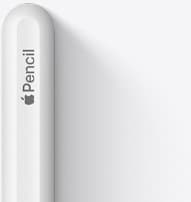
Apple Pencil (2nd generation)
amazon.comStill a strong stylus on compatible iPads. Good pressure control, but compatibility is the main trap.
Pro: Pressure support without Pro pricing
Con: Not compatible with newest Pro-only iPads
Only for iPads that support 2nd generation pairing.
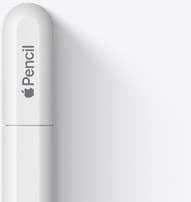
Apple Pencil (USB-C)
amazon.comA practical low-cost Apple stylus with broad compatibility, but limited for advanced art control.
Pro: Lowest official Apple Pencil cost
Con: No pressure sensitivity for brush work
Compatible with many recent iPads. No pressure support.
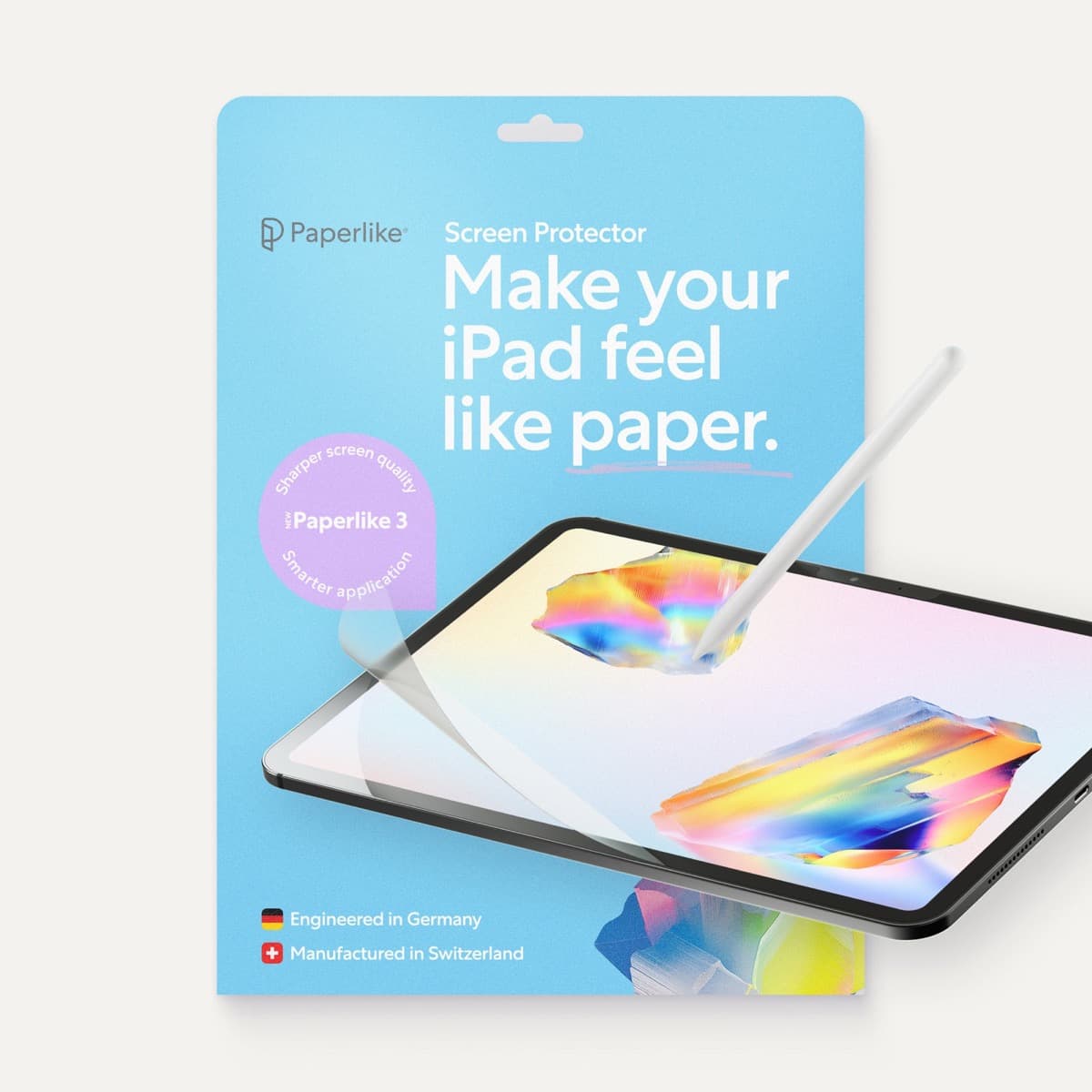
Paperlike 3 (11-inch, 2-pack)
amazon.comA strong surface-feel upgrade for drawing control. Clarity tradeoff is real and should be expected.
Pro: Adds controlled paper-feel friction
Con: Slightly reduces perceived display sharpness
11-inch fit only. Confirm generation before checkout.
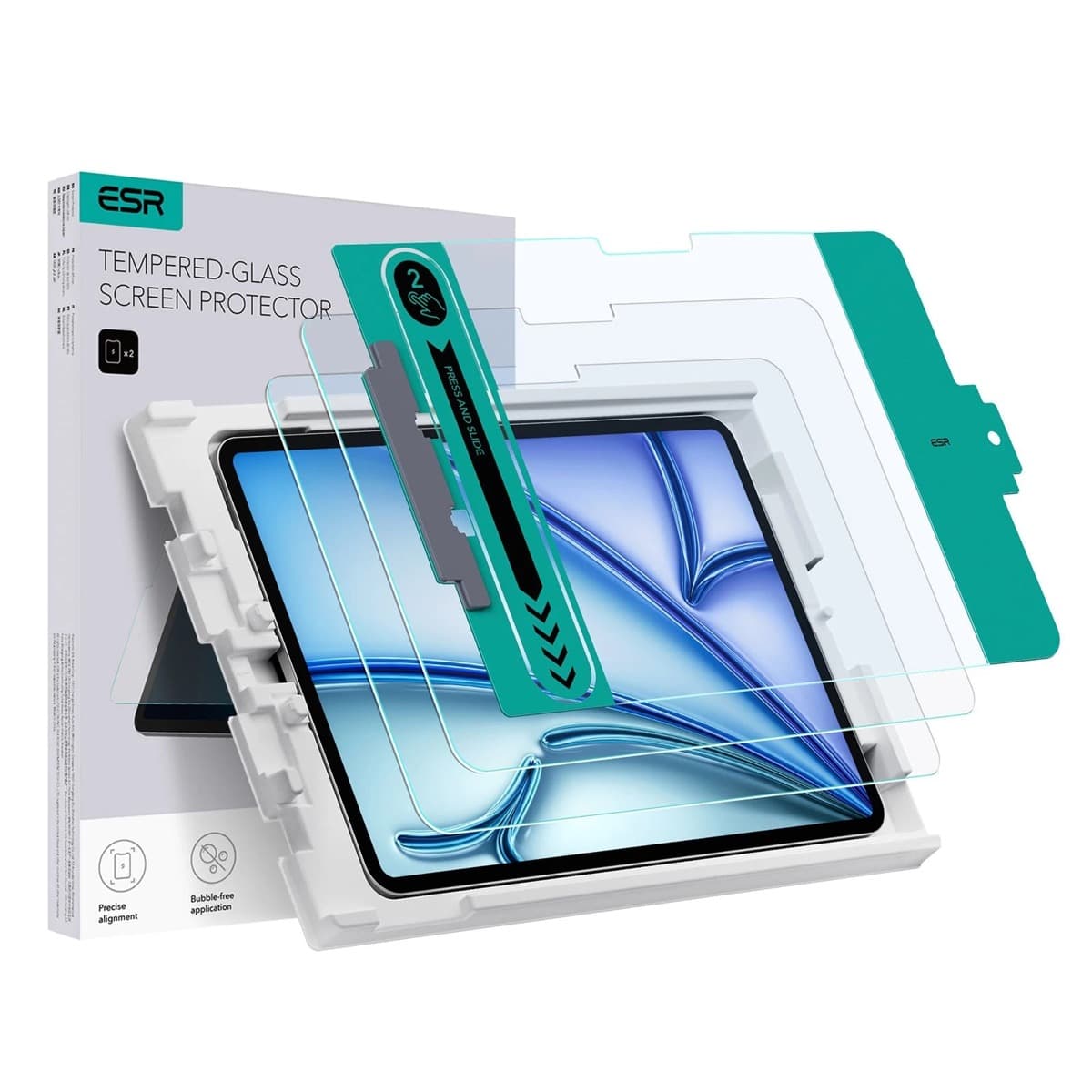
ESR Armorite Tempered Glass (11-inch)
amazon.comHigh-clarity protector with strong value. Great for visibility, less ideal for friction-seeking artists.
Pro: Very clear image with strong scratch resistance
Con: Minimal drawing friction compared with matte films
11-inch fit only. Verify exact iPad generation.
Related buying picks
More in this collectionBuyer guide
Best Apple Pencil for pixel art: Which stylus fits your grid?
Pixel art relies on exact placement rather than pen pressure, making Apple Pencil compatibility and budget your main buying factors.
Buyer guide
Best Apple Pencil for UI design: wireframing, markup, and layout on iPad
Choose the Apple Pencil (USB-C) for wireframing and interface sketches, or pick the Apple Pencil Pro if your iPad supports its squeeze and haptic shortcuts.
Buyer guide
Apple Pencil for 3D sculpting: Which model should you buy?
Choose Apple Pencil Pro if your iPad supports it, keep Apple Pencil 2nd generation on older models, and skip Apple Pencil USB-C due to its lack of pressure sensitivity.
Buyer guide
Best Apple Pencil for animation: Pro, 2nd generation, or USB-C?
Choose the best Apple Pencil for animation based on pressure sensitivity, tool switching gestures, and your specific iPad model.