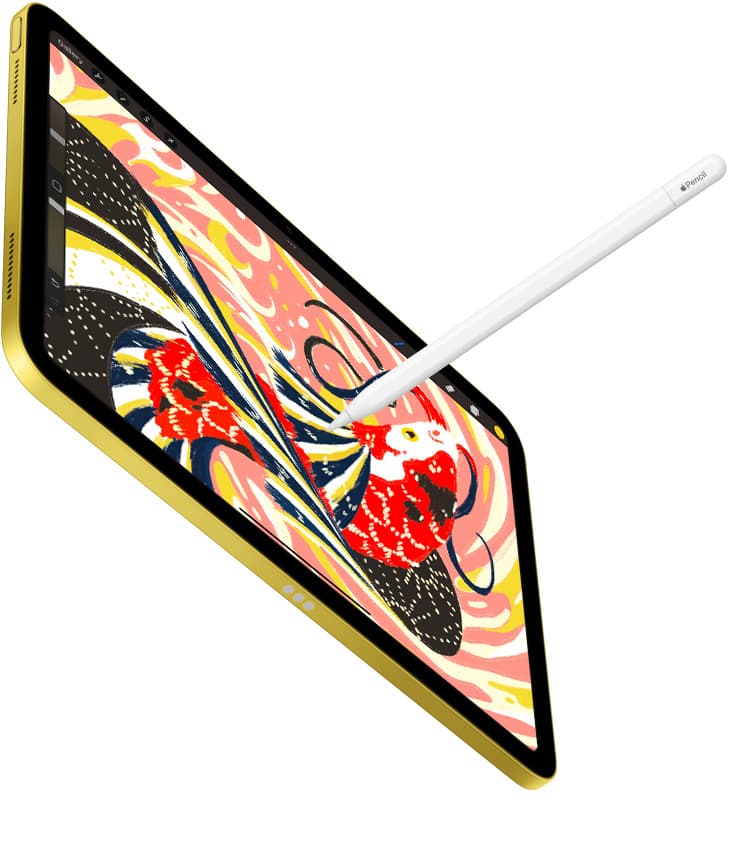
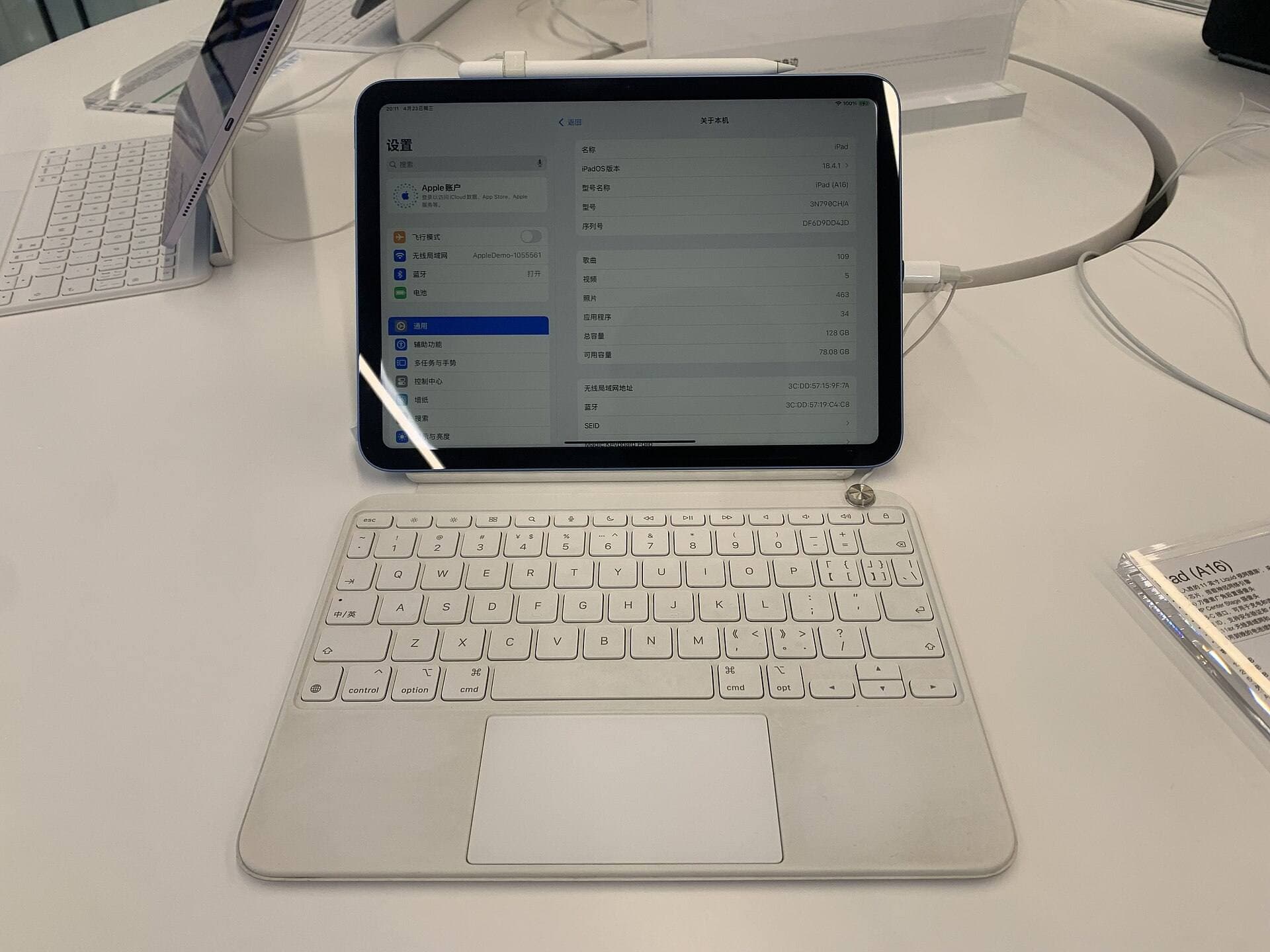
Keep your current Apple Pencil before spending money on a replacement stylus, because dotted or stuttered lines usually trace back to a loose nib, static charge, or screen protector interference rather than internal component failure [1], [3]. Tighten your tip clockwise first to restore the electrical contact before you reconsider your hardware setup [3]. If your stylus is genuinely broken or failing internally, buy the Apple Pencil (2nd generation) for compatible magnetic iPads, or pick the Apple Pencil Pro if you own a newer iPad that requires it [2], [3]. Skip buying the Apple Pencil (USB-C) if you depend on pressure sensitivity for steady, unbroken drawing strokes [1], [2].
Inspecting the tip and physical hardware connections
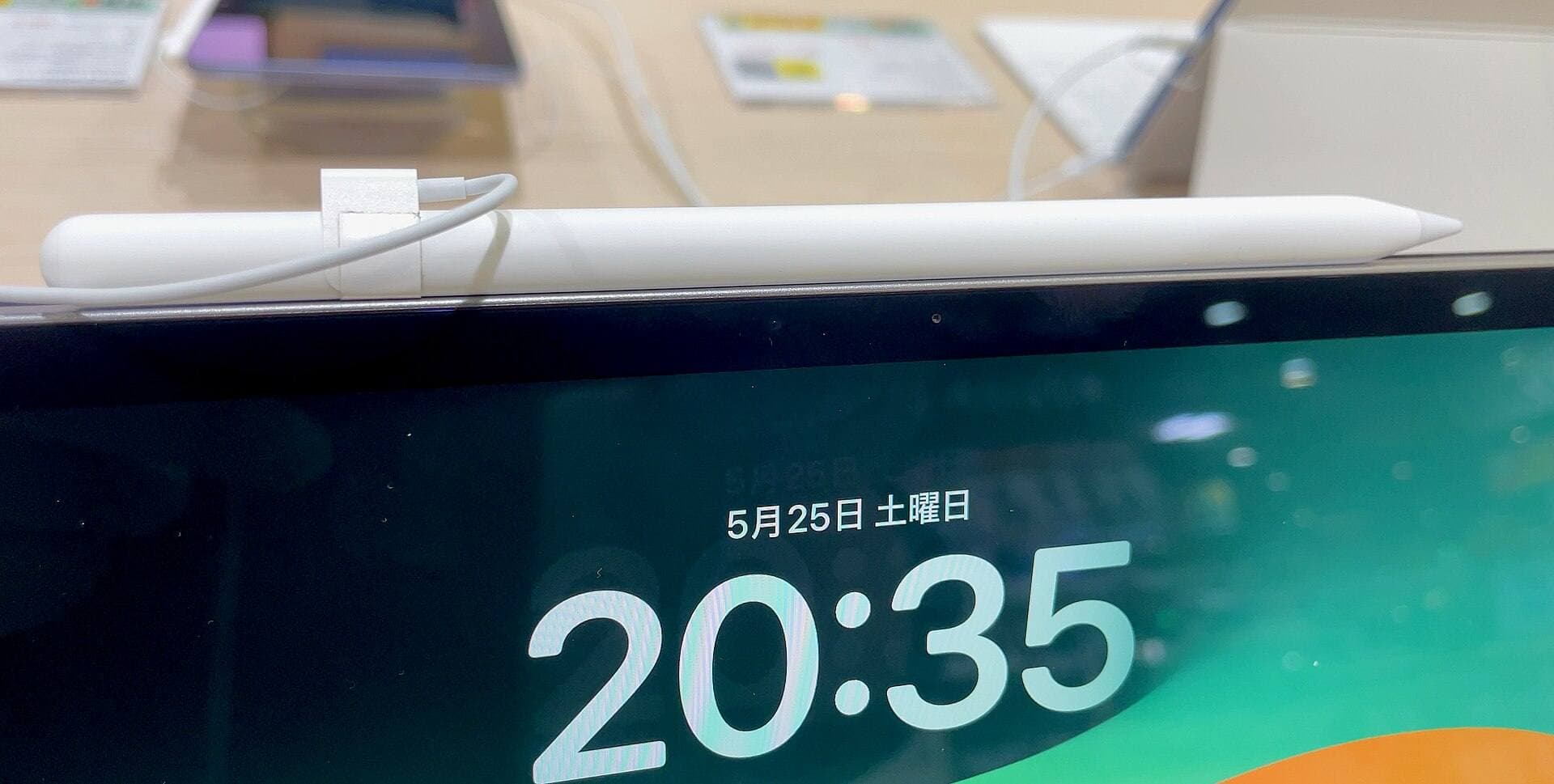
The Apple Pencil relies on a snug physical connection between the removable plastic tip and the internal transducer beneath it [1], [3]. When you sketch, write, or ink, micro-vibrations gradually rotate the nib loose over time. A loose tip creates an intermittent electrical signal, meaning the iPad detects contact only during specific angles or heavier pressures, which produces a dotted line across your canvas [3].
Before replacing any hardware, unscrew the tip completely, check for dust or debris inside the threads, and screw it back on firmly until it is flush against the pencil body [3]. Avoid overtightening, but ensure there is no visible seam gap or wobble. If the plastic tip shows visible wear, flat spots, or exposed metal from the internal pin, swap it for an official replacement tip to see if unbroken strokes return immediately [1], [3].
How screen protectors affect line consistency
Matte and textured screen protectors can contribute to stroke skipping if they create an inconsistent air gap or accumulate oils [5]. Products such as the Paperlike display sheet add textured friction to replicate paper resistance [5]. While this texture alters the tactile drag of the pencil tip, any bubble, dust pocket, or lifted corner under the film can interrupt the digitizer's sensing grid [3], [5].
Thick tempered glass protectors present an even higher risk of dotted lines because they increase the physical distance between the tip and the iPad glass [3]. If your tip is tight and your lines continue to stutter, test drawing on an uncovered portion of the screen or temporarily lift the protector. If the skipping vanishes without the protector, keep your existing pencil and replace the film instead of purchasing an unnecessary new stylus [3], [5].
Software settings and touch gestures that interrupt strokes
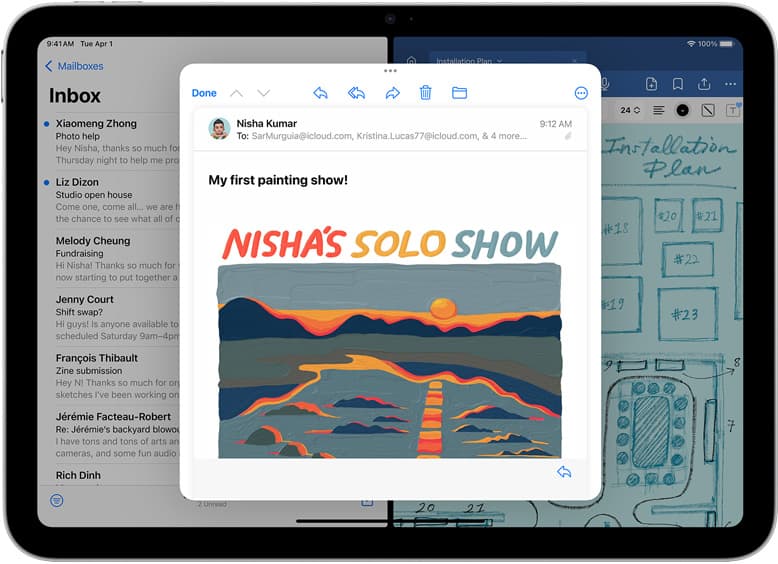
Dotted strokes are not always caused by hardware flaws; sometimes input settings in apps drop marks unintentionally [3], [4]. Apple Pencil drawing features in iPadOS support system interactions like palm rejection and handwriting input [3]. In creative applications such as Procreate, custom touch configurations let you assign specific actions to your fingers while reserving the stylus exclusively for drawing [4].
When your palm rests on the glass, conflicting inputs can register as tiny micro-touches, breaking your line into dots [3], [4]. To rule this out, adjust your app settings so that finger contact cannot trigger drawing strokes, leaving the digitizer free to track the stylus alone [4]. You can also test your stroke in Apple Notes using basic drawing tools to confirm whether the skipping occurs system-wide or only inside a specific digital art workspace [3].
When to keep your stylus and when to buy a replacement
If cleaning the nib, tightening the tip, and testing on clean glass fails to resolve intermittent stroke drops, the internal sensor of your stylus may be failing [1], [3]. At that stage, you must decide which replacement tool fits your workflow and budget. The Apple Pencil lineup splits features across distinct tiers, so your choice should match your drawing habits [1], [2].
Artists who need dynamic line weight should choose between the Apple Pencil (2nd generation) and the Apple Pencil Pro, because both models include full pressure sensitivity and magnetic pairing [1], [2]. The Apple Pencil Pro adds advanced inputs such as barrel roll, squeeze gestures, and haptic feedback, while the Apple Pencil (2nd generation) focuses on pressure response and double-tap tool switching [1], [3]. You should skip the Apple Pencil (USB-C) for complex illustration workflows, because Apple omitted pressure sensitivity from that entry-level model [1].
Matching a replacement Apple Pencil to your iPad
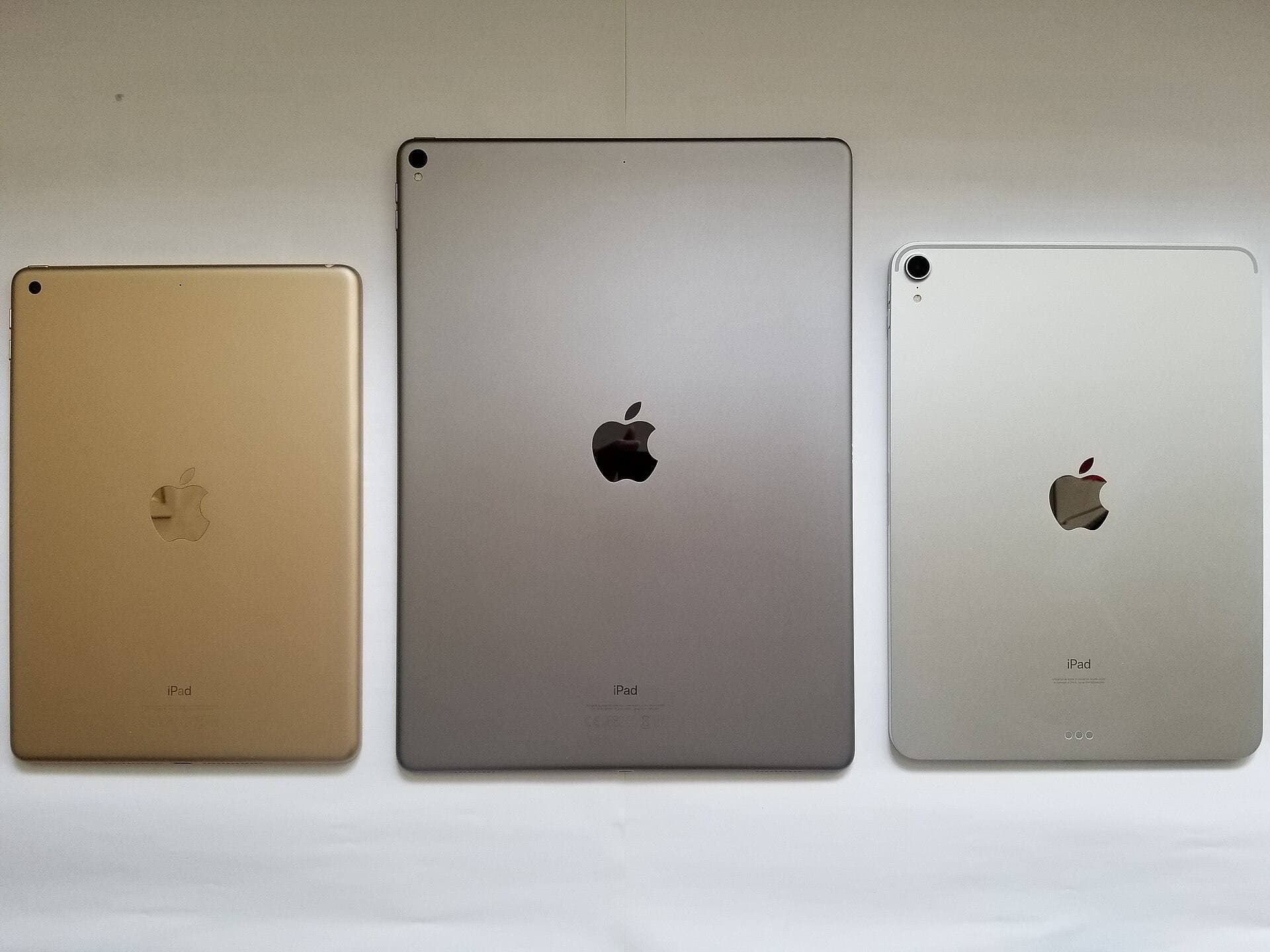
Never buy a replacement stylus without verifying the exact pairing requirements of your iPad model [2], [6]. Apple designs its pencil lineup with strict hardware compatibility boundaries across generations [2]. The Apple Pencil Pro works exclusively with designated modern models, such as the latest iPad Air and iPad Pro units [2], [6].
If you own an iPad that uses magnetic charging from an earlier generation, the Apple Pencil (2nd generation) remains your ideal choice, but it will not pair with newest-generation Pro-only tablets [2], [6]. Conversely, the Apple Pencil (USB-C) connects to a broader range of recent iPads via cable or slide-open port, but the lack of pressure support limits its appeal to note-takers rather than painters [1], [2]. Always check your device name in iPadOS settings against Apple's compatibility chart before checkout [2], [6].
Bottom line
Do not rush to replace an Apple Pencil that produces dotted lines, because tightening the nib or testing without a screen protector usually solves the problem without extra expense [1], [3], [5]. If physical damage forces you to buy a new stylus, pick the Apple Pencil (2nd generation) for older magnetic-charging iPads, or buy the Apple Pencil Pro if your tablet requires the latest hardware [1], [2], [6]. Skip the Apple Pencil (USB-C) if you rely on pressure-sensitive brush strokes [1], [2].
Sources
[1] https://www.apple.com/apple-pencil/ [2] https://support.apple.com/en-us/108937 [3] https://support.apple.com/guide/ipad/draw-with-apple-pencil-ipadc55b6c7a/ipados [4] https://help.procreate.com/procreate/handbook/5.2/interface-gestures/pencil [5] https://paperlike.com/products/paperlike-for-ipad [6] https://www.apple.com/ipad/compare/
Recommended gear
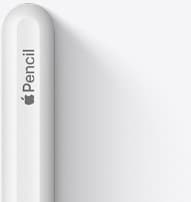
Apple Pencil (2nd generation)
amazon.comStill a strong stylus on compatible iPads. Good pressure control, but compatibility is the main trap.
Pro: Pressure support without Pro pricing
Con: Not compatible with newest Pro-only iPads
Only for iPads that support 2nd generation pairing.
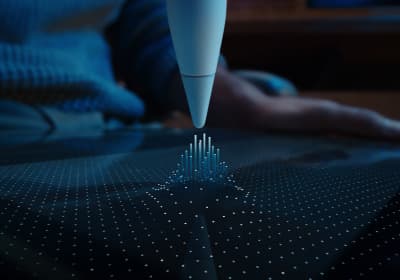
Apple Pencil Pro
amazon.comThe best Apple stylus for serious digital art workflows. Expensive, but the control upgrades are real.
Pro: Best brush-control and hover workflow
Con: Highest price in the lineup
Works only with newer iPad models. Check compatibility.
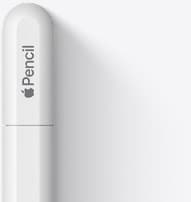
Apple Pencil (USB-C)
amazon.comA practical low-cost Apple stylus with broad compatibility, but limited for advanced art control.
Pro: Lowest official Apple Pencil cost
Con: No pressure sensitivity for brush work
Compatible with many recent iPads. No pressure support.
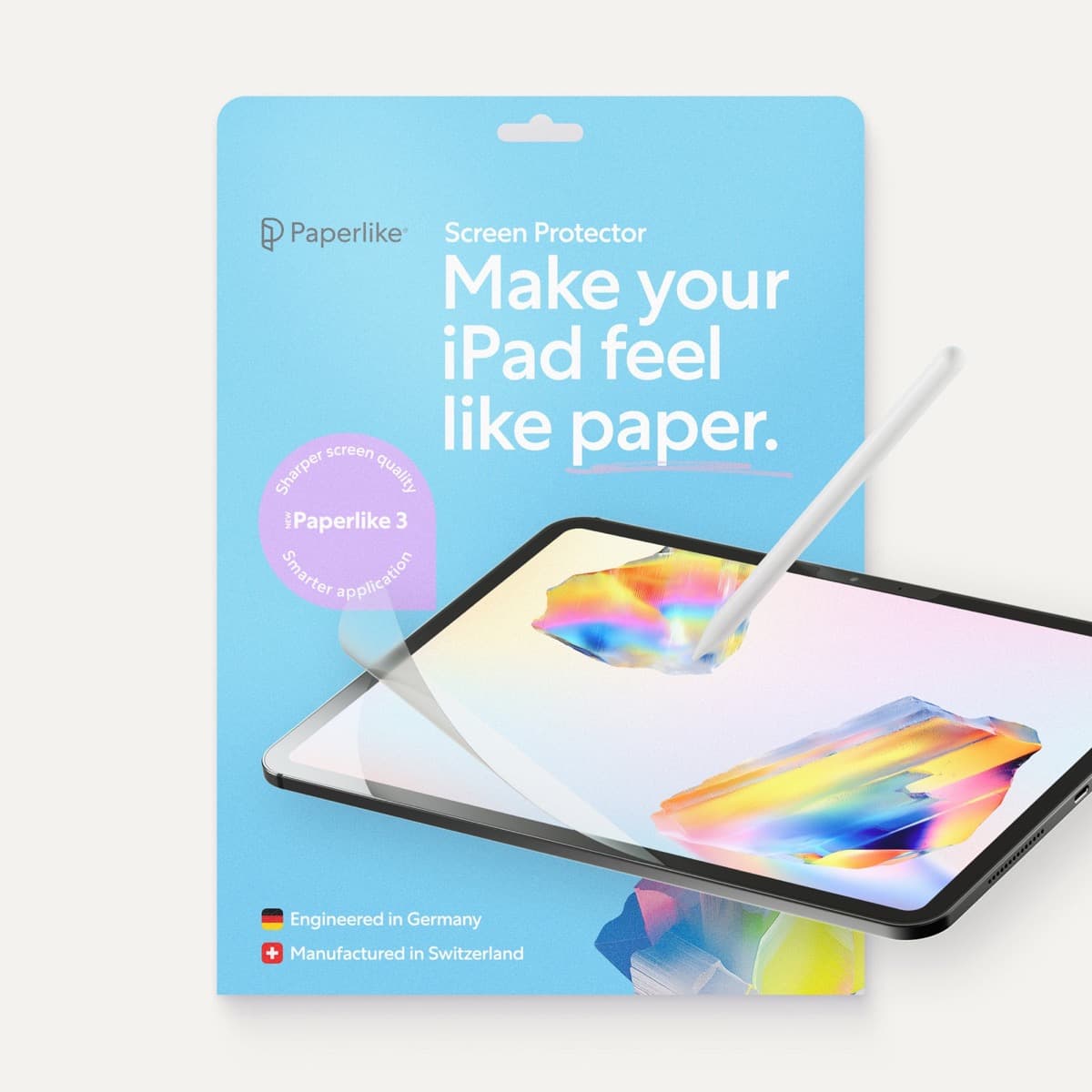
Paperlike 3 (11-inch, 2-pack)
amazon.comA strong surface-feel upgrade for drawing control. Clarity tradeoff is real and should be expected.
Pro: Adds controlled paper-feel friction
Con: Slightly reduces perceived display sharpness
11-inch fit only. Confirm generation before checkout.
Related buying picks
More in this collectionBuyer guide
Best Apple Pencil for pixel art: Which stylus fits your grid?
Pixel art relies on exact placement rather than pen pressure, making Apple Pencil compatibility and budget your main buying factors.
Buyer guide
Is the Apple Pencil USB-C enough for Procreate?
The Apple Pencil (USB-C) functions in Procreate, but the lack of pressure sensitivity makes it a poor fit for expressive brushwork.
Buyer guide
Best Apple Pencil for architectural sketching
Pick the right Apple Pencil for architectural drafting, elevation studies, and plan redlines based on hardware compatibility and line-weight tools.
Buyer guide
Choosing the best Apple Pencil for anime drawing
Anime line art demands pressure sensitivity, making Apple Pencil Pro or the 2nd generation model essential over the USB-C option.