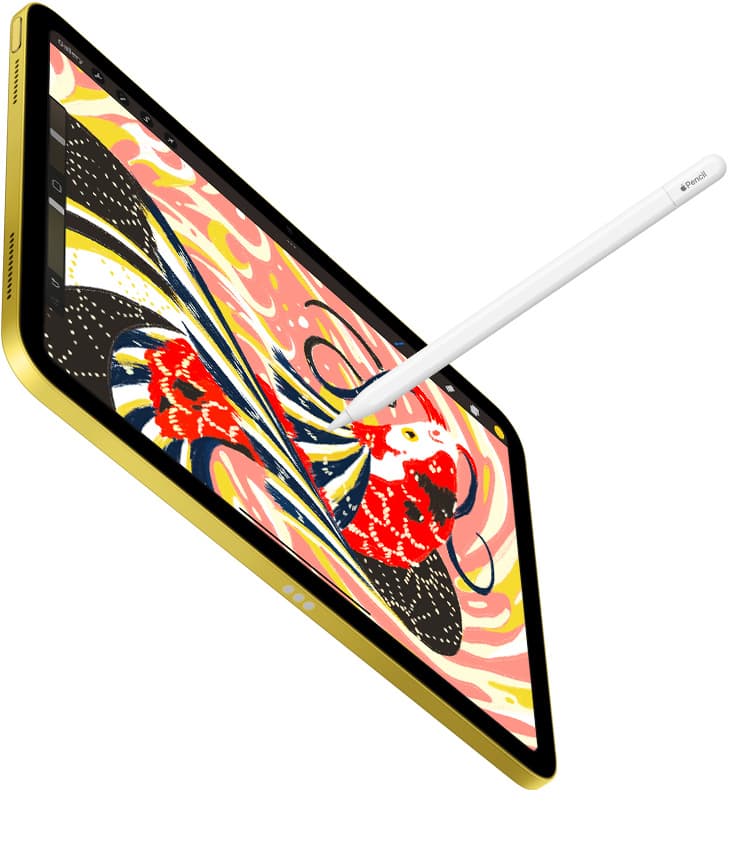
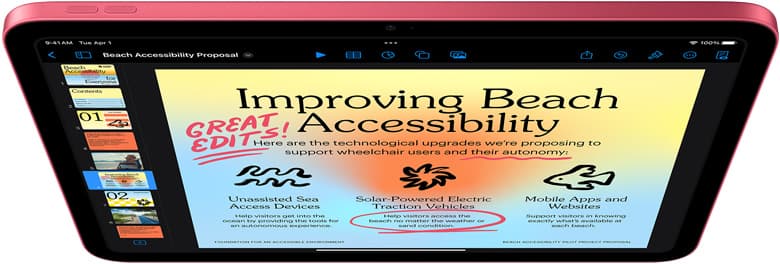
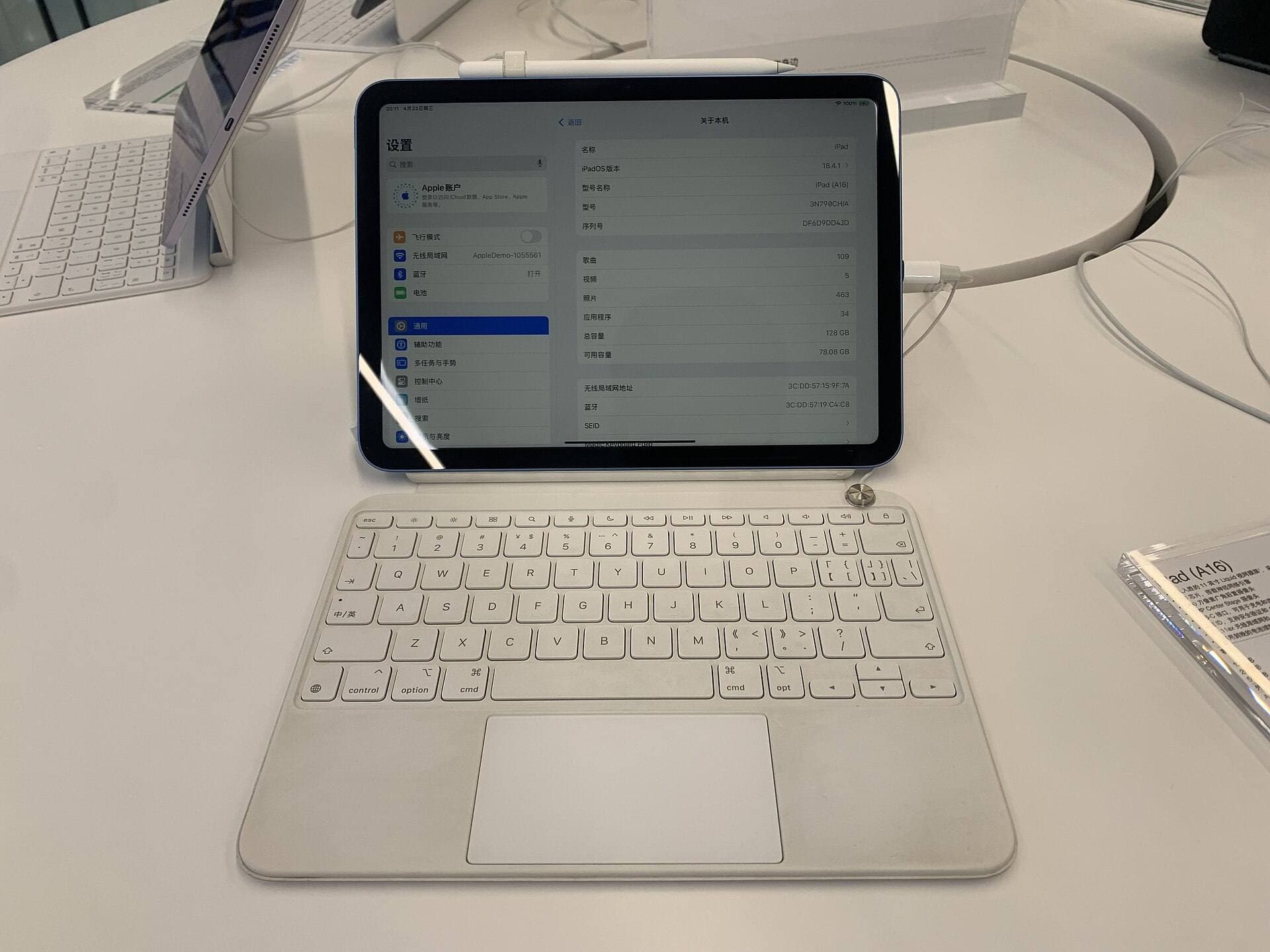
Buy an iPad if your day-to-day focus is direct drawing, digital sketching, and touch-first illustration tools [1], [2]. The iPad ecosystem pairs dedicated hardware with mobile drawing software like Procreate, giving you a streamlined stylus setup [4], [5]. Pick a Surface Pro only if you require a full desktop Windows environment to run specific studio software, legacy desktop plug-ins, or broader PC utility on a single machine. For most illustrators who want an intuitive digital sketchbook and studio canvas, the iPad Air (M4) hits the sweet spot for capability and tool support [1], [2]. Skip the Surface Pro if you just want a portable digital canvas without desktop operating system maintenance.
Operating system and software differences
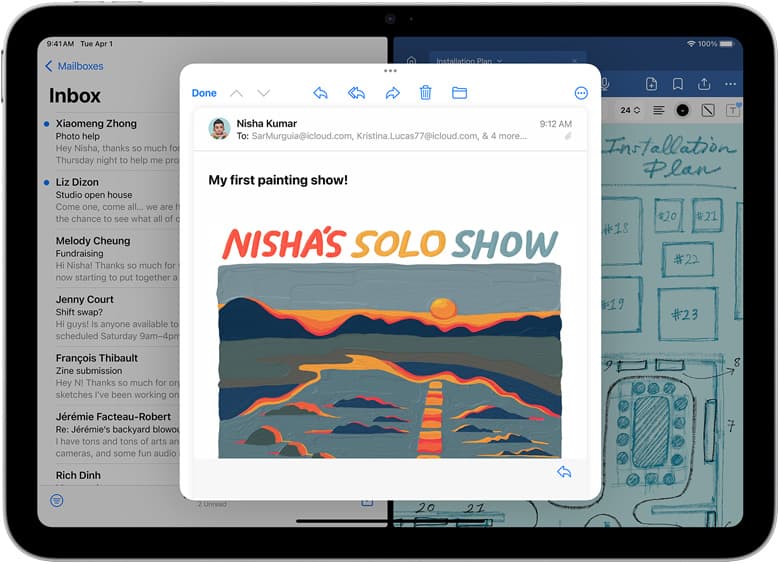
The fundamental divide between an iPad and a Surface Pro is the operating system powering your tools [1]. An iPad runs iPadOS, a mobile operating system built from the ground up for finger touch and stylus input [1], [2]. This environment hosts popular mobile-native creative applications such as Procreate, which requires iPadOS to run and is designed specifically around touch gestures and stylus interaction [4], [5].
A Surface Pro runs standard desktop Windows. That means it runs desktop installations of software suites like full desktop Photoshop, Clip Studio Paint, and 3D modeling programs. You get full file system access, external drive compatibility, and standard desktop window management. However, Windows remains a desktop interface adapted for touch, which means UI menus, file pickers, and tool palettes can feel tiny when operated by hand. If your creative process centers around standalone illustration, iPadOS offers an uncluttered, focused workspace [4], [5]. If your workflow demands complex file utilities, local rendering scripts, or studio pipeline tools built solely for x86 or ARM Windows, a desktop slate becomes necessary.
Stylus feel and tool features
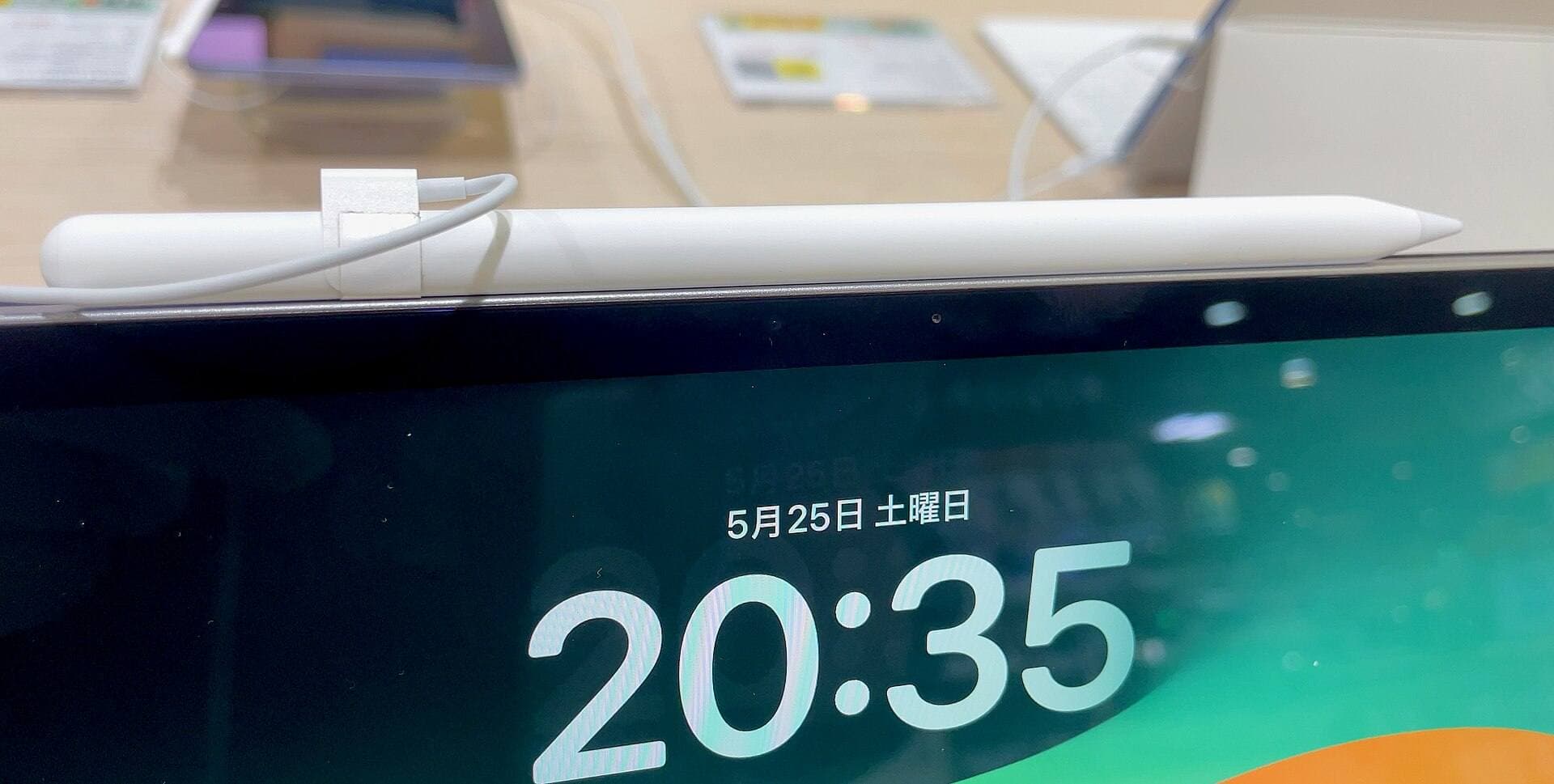
Stylus technology shapes your daily drawing experience more than almost any other hardware specification [2]. On modern iPads like the iPad Air (M4) and iPad Pro (M5), Apple Pencil Pro provides pressure sensitivity, tilt detection, low latency, squeeze gestures, barrel roll orientation, and haptic feedback [1], [2]. Apple Pencil hover also lets you preview brush size and location before touching the screen surface on supported iPad hardware [1], [2].
The Microsoft Surface Pro relies on the Surface Slim Pen system, which uses Microsoft Pen Protocol (MPP) technology. The Surface Slim Pen offers digital inking, haptic feedback signals in select Windows applications, side buttons, and a physical eraser tip on the tail end. While the tactile eraser on the Surface pen is convenient, Apple Pencil Pro integrates advanced sensor controls like barrel roll, which uses an internal gyroscope so you can rotate shaped brush tips precisely as you turn the stylus barrel [2]. If precision inking and varied brush dynamics are central to your artwork, Apple Pencil hardware remains a benchmark standard for mobile digital artists [2], [3].
Screen specs and drawing surface feel
Screen quality directly impacts color work, line placement, and overall drawing accuracy [1]. Apple equips the iPad lineup with high-resolution Liquid Retina displays [1]. The premium iPad Pro (M5) features an advanced display supporting ProMotion technology with refresh rates up to 120Hz [1]. This higher refresh rate makes stylus strokes appear immediately beneath the Pencil tip, matching real-time hand movement closely [1], [2]. The mainstream iPad (A16, 11th gen) and iPad Air (M4) use 60Hz panels, but both deliver sharp color reproduction and full digital canvas support [1].
Surface Pro tablets also feature sharp PixelSense screens, commonly offering dynamic refresh rates up to 120Hz on recent models along with a 3:2 aspect ratio. The 3:2 screen ratio provides generous vertical room for toolbars and palettes alongside your artwork. One physical difference lies in the kickstand design. Every Surface Pro includes an integrated, variable-angle mechanical kickstand built into the back chassis. An iPad requires a separate folio case, drawing stand, or keyboard accessory to prop the screen up at a comfortable drafting angle [1]. However, the iPad hardware remains lighter and thinner in the hand as a pure drawing tablet when unattached from accessories [1].
Memory handling and canvas limits
Device memory determines how complex your creative projects can become before you encounter hardware boundaries [1], [4]. In the iPad ecosystem, creative apps allocate system memory strictly based on the iPad model you own [4]. In Procreate, your maximum canvas dimensions and layer caps depend directly on the total RAM inside the iPad [4]. For instance, high-resolution print files require significant memory allocations to maintain multiple working layers [4]. If you pick an entry-level iPad with less unified memory, Procreate will restrict your maximum layer count on large canvases to safeguard device stability [4].
A Surface Pro handles memory using standard Windows memory management and virtual memory paging. While desktop art software allows unlimited layers up to your physical RAM and swap disk limits, heavy files can consume large amounts of resources. On iPadOS, supported apps like Procreate manage canvas memory transparently within preset limits, preventing background tasks from interfering with your drawing tools [4], [5]. For artists who want a predictable, structured layer workflow without managing background operating system processes, iPad hardware provides clear hardware guidelines [4].
Choosing the right iPad model for your art
If you decide an iPad fits your creative habits better than a Windows tablet, selecting the right model comes down to your budget and feature needs [1], [3].
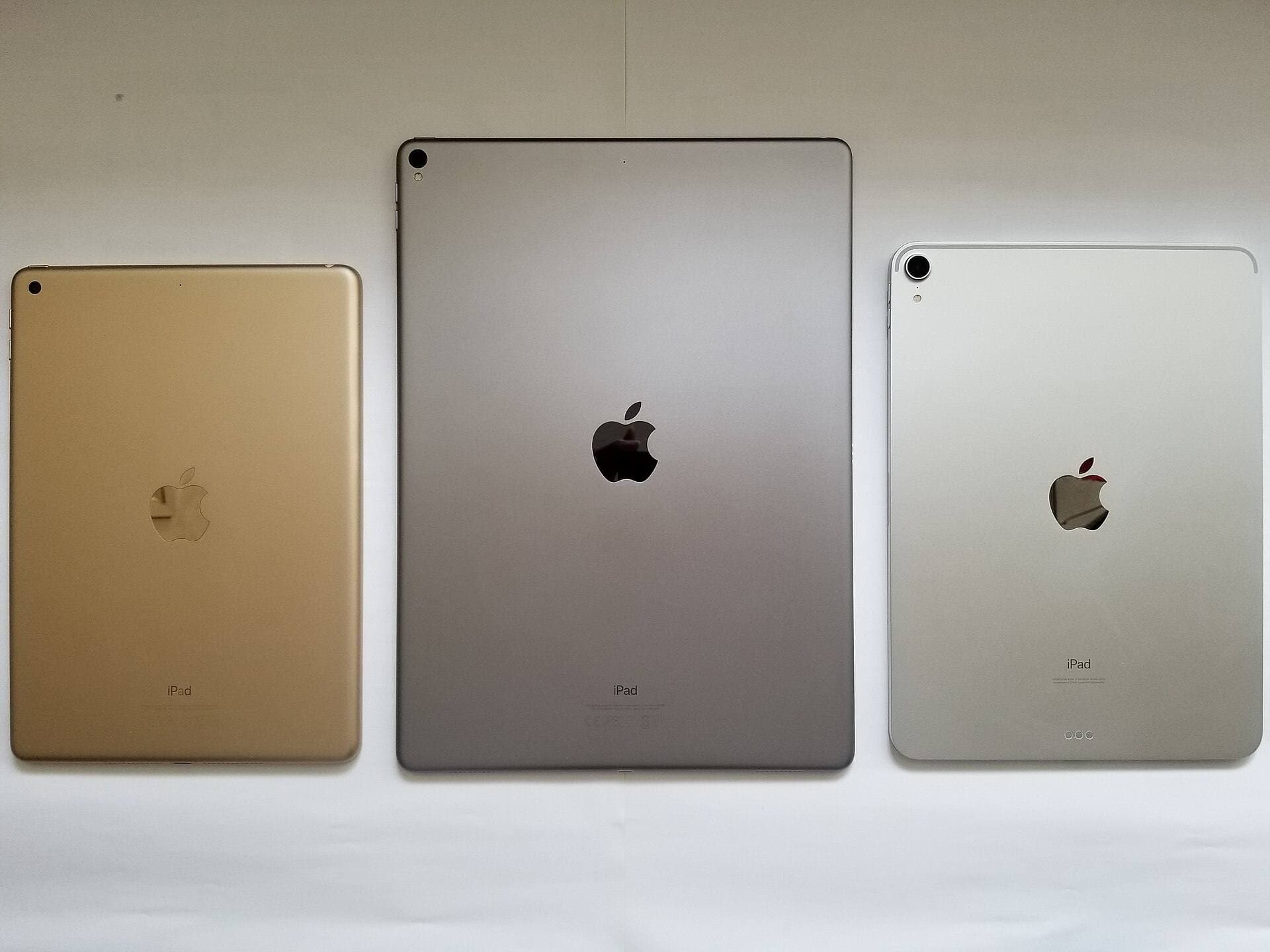
- iPad Air (M4): This is the ideal sweet spot for most illustrators [1]. It supports the Apple Pencil Pro, giving you squeeze gestures, barrel roll brush rotation, and Apple Pencil hover [1], [2], [3]. It provides strong processing headroom with the M4 chip while remaining well below the Pro price bracket [1]. Buy the iPad Air (M4) if you want modern stylus features for serious illustration without paying for extreme Pro display hardware.
- iPad Pro (M5): Apple's top-tier tablet delivers the best display technology in the family, including 120Hz ProMotion refresh rates and full Apple Pencil Pro compatibility [1], [2], [3]. Buy the iPad Pro (M5) if you produce client work daily, need the highest layer counts available in mobile apps, or want the smoothest stylus tracking Apple offers [1], [4]. Skip it if you are sketching recreationally or working on modest canvas sizes.
- iPad (A16, 11th gen): The standard iPad provides entry-level access to digital art [1]. It works with the Apple Pencil (USB-C) and the first-generation Apple Pencil via adapter, but it does not support Apple Pencil Pro [1], [2], [3]. Buy the iPad (A16) if you want an affordable sketchbook to run Procreate on a budget [1], [4]. Skip it if you want pressure-sensitive Apple Pencil Pro tools like barrel roll and squeeze [2], [3].
Bottom line
Choose an iPad if you want a reliable, focused drawing tablet with exceptional stylus accessories and an app ecosystem built specifically for mobile art creation [1], [2], [4]. The iPad Air (M4) is our top recommendation for most digital artists, delivering full Apple Pencil Pro support, Apple Pencil hover, and generous memory headroom for complex multi-layer canvases [1], [2], [4]. Choose a Surface Pro only if your art pipeline cannot function without full desktop Windows applications, local file directories, and PC peripherals. For a standalone, grab-and-go creative tablet, the iPad lineup remains the better drawing companion [1], [3].
Sources
[1] https://www.apple.com/ipad/compare/ [2] https://www.apple.com/apple-pencil/ [3] https://support.apple.com/en-us/108937 [4] https://help.procreate.com/articles/zlexav-ipad-compatibility [5] https://apps.apple.com/us/app/procreate/id425073498
Recommended gear
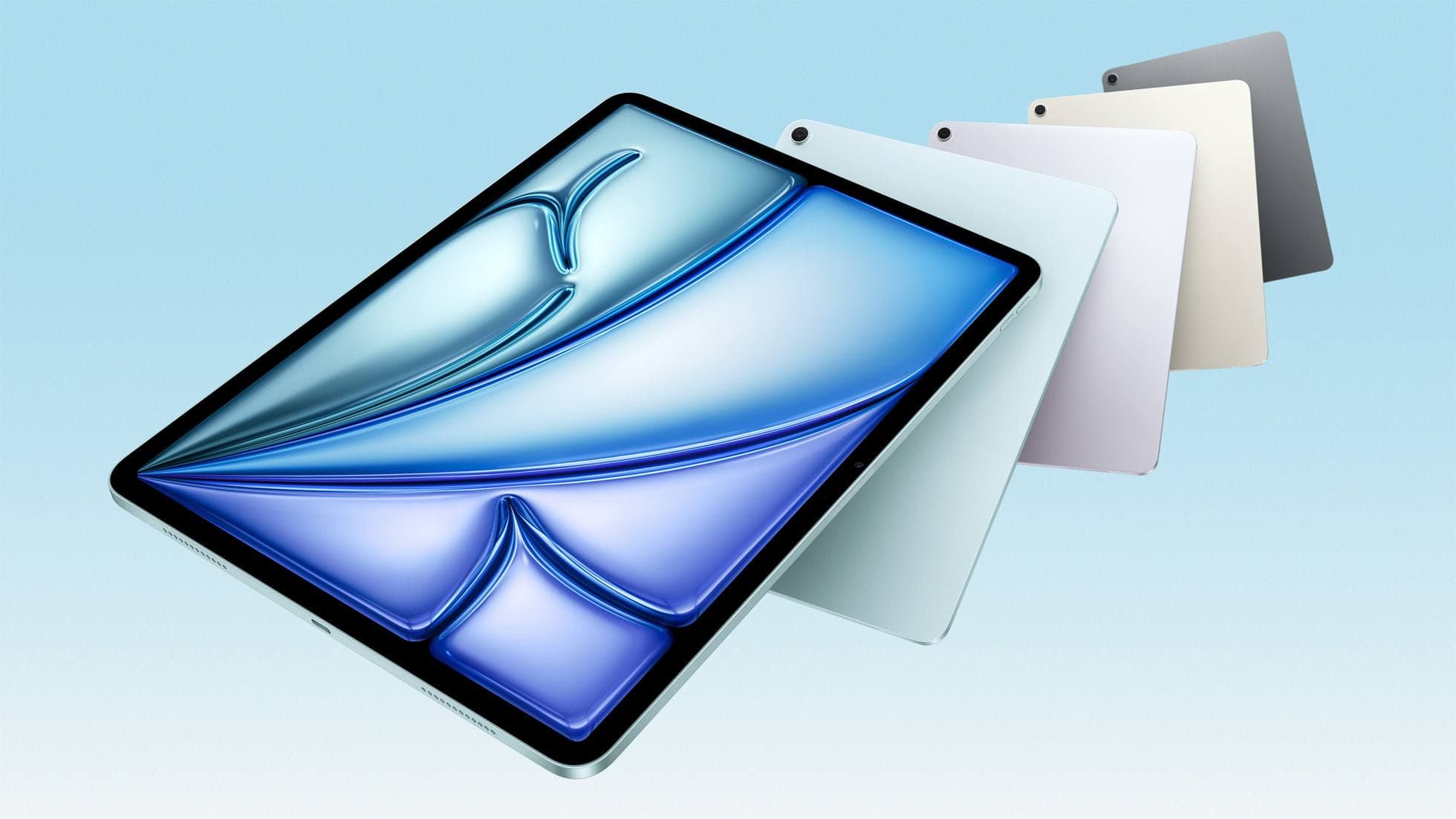
iPad Air (M4)
apple.comThe clean current Air recommendation for most serious hobby artists. Stronger buy logic than old-stock M3 when pricing is close.
Pro: Best current balance of price, headroom, and Pencil support
Con: Still 60Hz
Current Air lineup. Choose size, storage, and keyboard path before checkout.
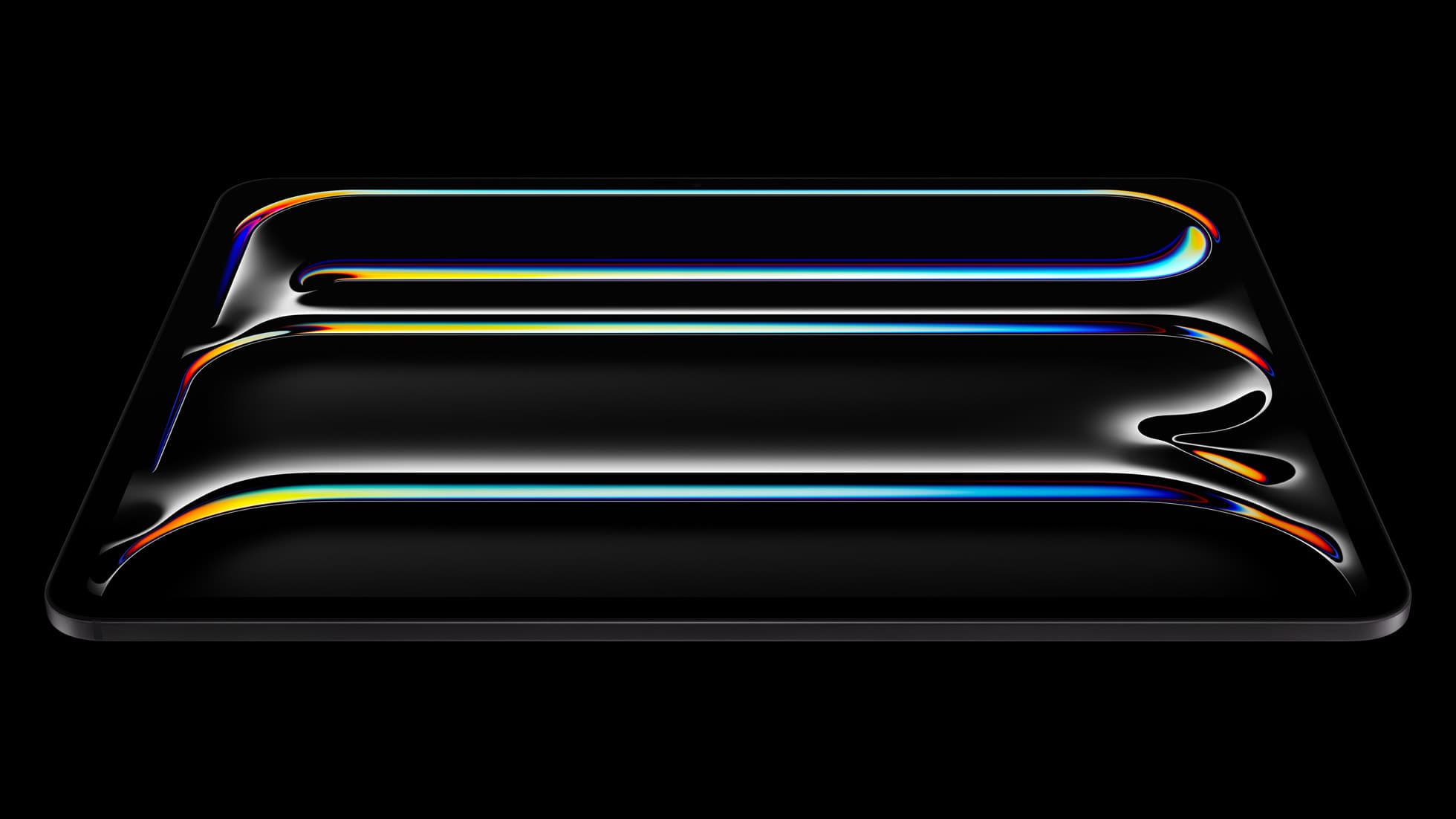
iPad Pro (M5)
amazon.comThe best iPad for drawing feel and premium workflow comfort, but many buyers still overpay for it.
Pro: Best iPad display and ProMotion feel
Con: Highest price in the lineup
Search opens with iPad Pro terms. Check year, chip, and screen size.
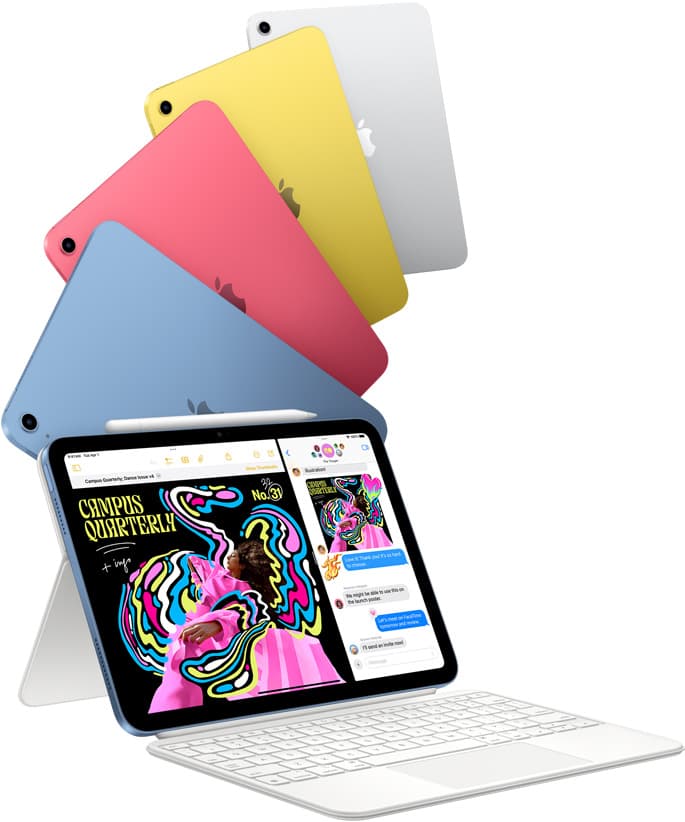
iPad (A16, 11th gen)
amazon.comThe best entry iPad for most artists on a budget. It is not premium, but it is very hard to beat on value.
Pro: Best value iPad right now
Con: No ProMotion display
Search opens with the exact model keywords. Verify size and storage before checkout.
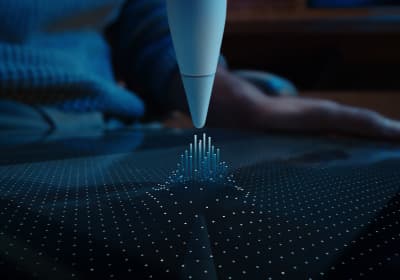
Apple Pencil Pro
amazon.comThe best Apple stylus for serious digital art workflows. Expensive, but the control upgrades are real.
Pro: Best brush-control and hover workflow
Con: Highest price in the lineup
Works only with newer iPad models. Check compatibility.
Apple Pencil (USB-C)
amazon.comA practical low-cost Apple stylus with broad compatibility, but limited for advanced art control.
Pro: Lowest official Apple Pencil cost
Con: No pressure sensitivity for brush work
Compatible with many recent iPads. No pressure support.
Related buying picks
More in this collectionBuyer guide
Is 256GB enough for Clip Studio Paint on iPad?
A 256GB iPad offers plenty of headroom for Clip Studio Paint brushes, materials, and multi-page comics unless you hoard unarchived animation projects.
Comparison
iPad vs Samsung tablet for drawing: which setup to choose
Choose an iPad if your art workflow relies on Procreate and Apple Pencil tools, and pick the iPad Air for the best balance of features.
Comparison
iPad vs pen display for illustration: how to choose your drawing setup
Compare standalone iPad mobility against tethered pen displays to pick the right digital drawing tool for your illustration workflow.
Comparison
iPad vs MacBook for digital art: Which setup should you buy?
Choose an iPad if direct stylus drawing matters most, or stick with a MacBook if your art pipeline demands desktop desktop file management and external tablet hardware.