





If you want to draw and animate on an iPad, the iPad Air (M4) is the best choice for most animators. It supports the Apple Pencil Pro and sits below the flagship iPad Pro in the lineup [1], [2]. Buy the iPad Pro (M5) if its ProMotion display matters to your drawing experience [1]. Buy the iPad (A16) if you are starting out and total kit cost matters most [1]. Skip the iPad mini for dedicated animation work when a larger view of the canvas and timeline matters more than portability [1].
Timeline scrubbing and memory demands in modern animation apps
Frame-by-frame 2D animation adds a timeline and repeated drawings to the usual demands of digital illustration. Procreate Dreams advertises drawing, cel animation, video editing, keyframes, and audio on a multi-track timeline [7]. Procreate also publishes device-dependent canvas and layer limits, so the exact project ceiling should be checked for the iPad you plan to use rather than inferred from a chip name alone [3], [4].
When a project grows beyond a short loop, software choice becomes the practical buying filter. Clip Studio Paint lists animation tools alongside its illustration and comic features on iPad [5], [6]. Before choosing hardware, build a representative scene in the app you intend to use and note the canvas, layer, audio, and export requirements. That test is more useful than assuming every animation app taxes an iPad in the same way [3], [5], [7].
Display refresh rate and Apple Pencil responsiveness
Drawing dozens of consecutive frames highlights the tactile connection between stylus and screen. Apple offers different display technologies across its lineup, separating standard 60Hz displays from 120Hz ProMotion panels [1]. On the iPad Pro (M5), the ProMotion display updates at up to 120Hz, reducing visual latency so your drawn stroke adheres directly to the tip of the Apple Pencil [1]. When you flip rapidly through frames to check weight, arc, and timing, higher refresh rates reduce motion blur, making line jitter and registration errors easier to spot immediately.
The iPad Air (M4) and iPad (A16) run at a standard 60Hz refresh rate [1]. For many character animators, 60Hz remains completely workable, as traditional 2D animation is commonly produced at 12 or 24 frames per second. However, overall drawing control is also shaped by stylus capability. The Apple Pencil Pro introduces barrel roll and squeeze sensors, along with haptic feedback, allowing animators to rotate textured brushes or summon tool palettes without lifting their hand away from the screen [2]. The Apple Pencil Pro works exclusively with specific hardware such as the iPad Air (M4) and iPad Pro (M5), while the base iPad (A16) relies on the Apple Pencil USB-C or first-generation accessories [2].
iPad Air (M4) as the balanced studio choice
For most independent animators, students, and storyboard artists, the iPad Air (M4) hits the practical center of the lineup. Apple positions it between the baseline iPad and iPad Pro, while Procreate Dreams is available as a dedicated animation app for iPad [1], [7]. That combination makes the Air a sensible starting recommendation without promising a particular export time or project ceiling.
The primary trade-off of the iPad Air (M4) is its 60Hz screen. It lacks the ultra-smooth visual feel of ProMotion found on the Pro series [1]. In exchange, you get full compatibility with the Apple Pencil Pro, giving you the squeeze gesture, barrel roll, and haptics that streamline repetitive inbetweening and coloring work [2]. Animators can choose between the 11-inch and 13-inch sizes based on desk space and portability needs [1]. If you do not need 120Hz rendering for studio grading or high-speed gaming, the iPad Air (M4) offers the best balance of speed, stylus utility, and overall cost.
When to step up to the iPad Pro (M5) or choose the iPad (A16)
Choosing between the extremes of the iPad lineup comes down to your display preference, software needs, and budget. The iPad Pro (M5) combines Apple's premium display features with Apple Pencil Pro compatibility [1], [2]. If ProMotion changes how confidently you draw repeated frames, test it beside an Air and decide whether that display difference is worth the step up. Commercial work alone does not make the Pro mandatory; a specific display or storage requirement should drive that purchase [1].
At the other end of the spectrum, the iPad (A16) is the cost-first option. It can run compatible creative apps, but it lacks ProMotion and does not support Apple Pencil Pro [1], [2], [3], [5]. Buy it if you are learning animation principles, sketching animatics, or working within a strict budget. Skip it if Apple Pencil Pro features or the Pro display are requirements, and verify your intended app against its current compatibility listing before ordering [1], [2], [3], [5].
Bottom line
For the vast majority of artists, the iPad Air (M4) is the best iPad for animation. It pairs Apple Pencil Pro support with a choice of screen sizes while avoiding the top model in the lineup [1], [2]. Choose the iPad Pro (M5) if ProMotion is a tested requirement for your drawing experience. Choose the iPad (A16) if you want the cost-first route and can accept its different Pencil options [1], [2].
Sources
[1] https://www.apple.com/ipad/compare/ [2] https://support.apple.com/en-us/108937 [3] https://help.procreate.com/articles/zlexav-ipad-compatibility [4] https://apps.apple.com/us/app/procreate/id425073498 [5] https://apps.apple.com/us/app/clip-studio-paint/id1262985592 [6] https://www.clipstudio.net/en/ [7] https://apps.apple.com/us/app/procreate-dreams/id1595520602
Recommended gear

iPad Air (M4)
apple.comThe clean current Air recommendation for most serious hobby artists. Stronger buy logic than old-stock M3 when pricing is close.
Pro: Best current balance of price, headroom, and Pencil support
Con: Still 60Hz
Current Air lineup. Choose size, storage, and keyboard path before checkout.
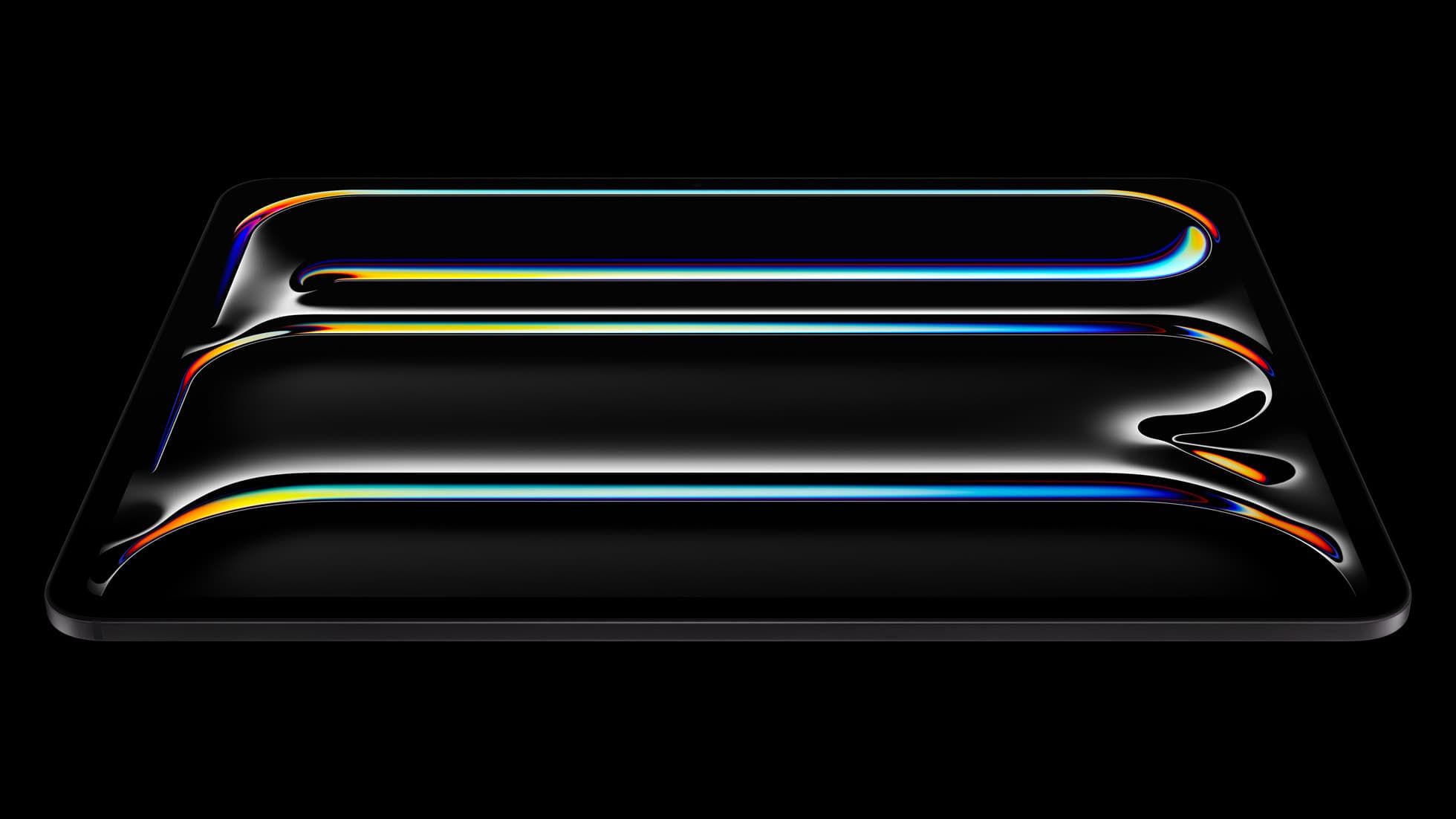
iPad Pro (M5)
amazon.comThe best iPad for drawing feel and premium workflow comfort, but many buyers still overpay for it.
Pro: Best iPad display and ProMotion feel
Con: Highest price in the lineup
Search opens with iPad Pro terms. Check year, chip, and screen size.
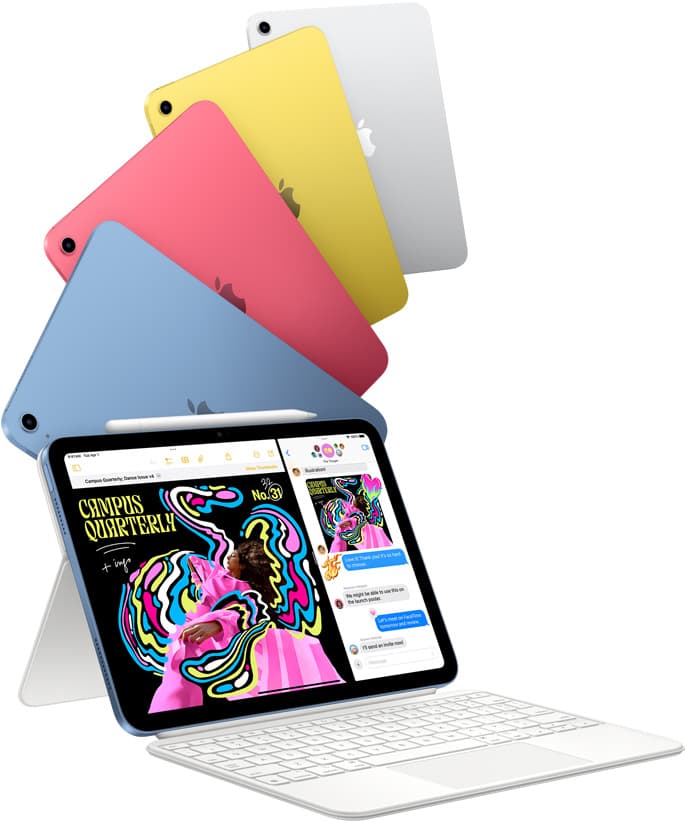
iPad (A16, 11th gen)
amazon.comThe best entry iPad for most artists on a budget. It is not premium, but it is very hard to beat on value.
Pro: Best value iPad right now
Con: No ProMotion display
Search opens with the exact model keywords. Verify size and storage before checkout.

Apple Pencil Pro
amazon.comThe best Apple stylus for serious digital art workflows. Expensive, but the control upgrades are real.
Pro: Best brush-control and hover workflow
Con: Highest price in the lineup
Works only with newer iPad models. Check compatibility.
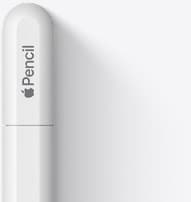
Apple Pencil (USB-C)
amazon.comA practical low-cost Apple stylus with broad compatibility, but limited for advanced art control.
Pro: Lowest official Apple Pencil cost
Con: No pressure sensitivity for brush work
Compatible with many recent iPads. No pressure support.
Related buying picks
More in this collectionBuyer guide
Best drawing tablet for webtoon artists: iPad picks and pen setups
Compare the best iPad options for webtoon creation based on screen size, Apple Pencil support, and layer capacity.
Comparison
iPad vs Samsung tablet for drawing: which setup to choose
Choose an iPad if your art workflow relies on Procreate and Apple Pencil tools, and pick the iPad Air for the best balance of features.
Comparison
iPad vs pen display for illustration: how to choose your drawing setup
Compare standalone iPad mobility against tethered pen displays to pick the right digital drawing tool for your illustration workflow.
Comparison
iPad vs MacBook for digital art: Which setup should you buy?
Choose an iPad if direct stylus drawing matters most, or stick with a MacBook if your art pipeline demands desktop desktop file management and external tablet hardware.