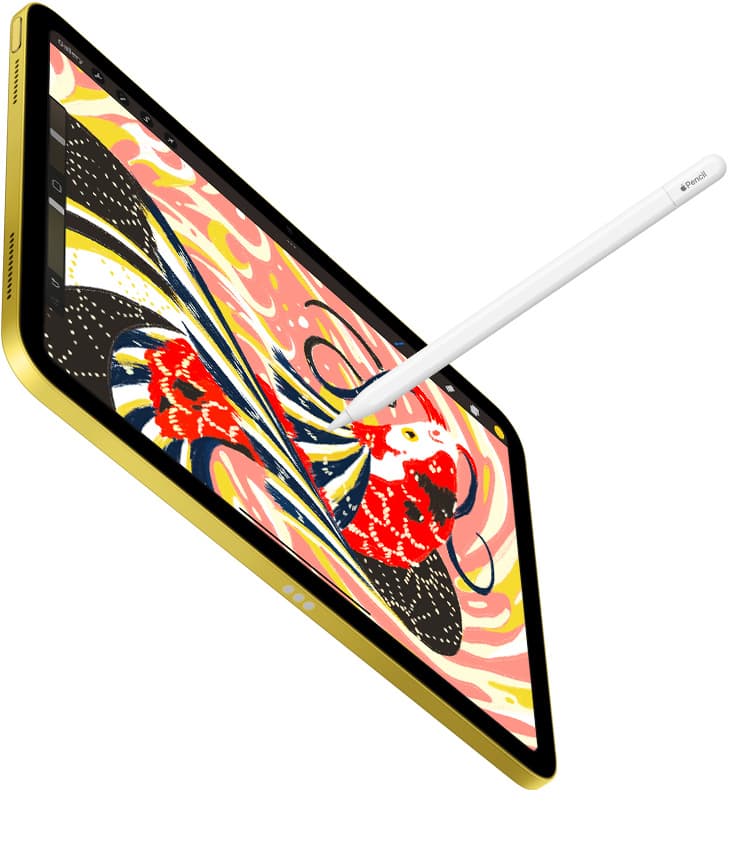
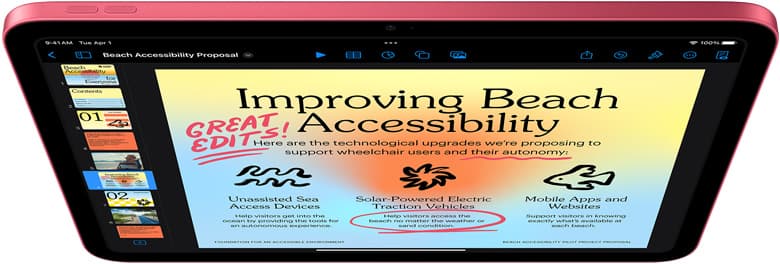
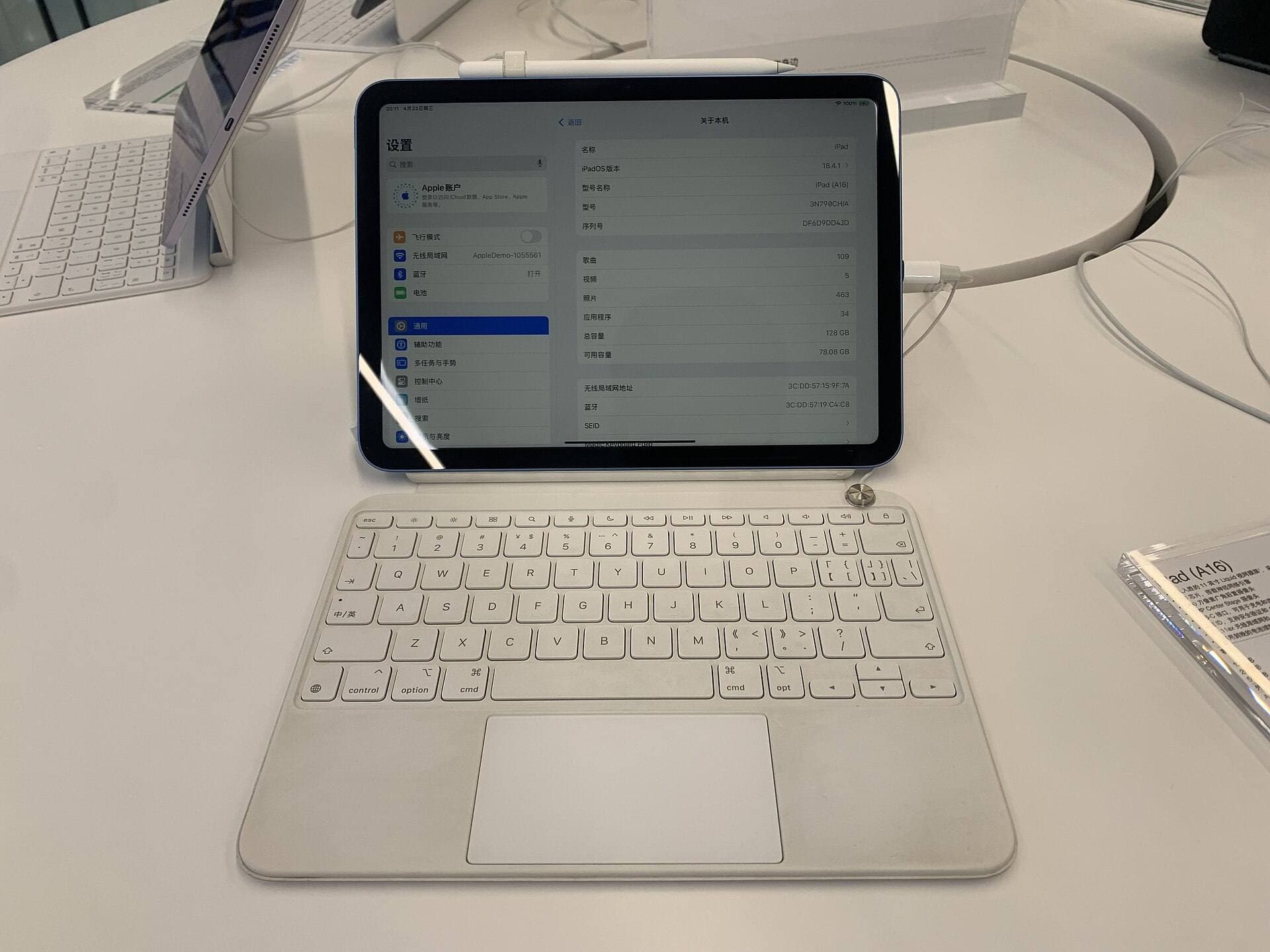
Buy an iPad Air (M4) if you want an all-in-one digital sketchbook with direct pen-on-screen drawing, full pressure sensitivity, and access to iPad-native drawing tools [1], [2]. Keep or buy a MacBook if your creative work focuses on heavy vector production, extensive file exports, or desktop graphic design software that requires an external drawing tablet [1]. An iPad gives you immediate, tactile mark-making that a laptop alone cannot replicate because MacBooks do not support Apple Pencil hardware on their screens [1], [2]. If you don't already own an iPad and direct drawing is your priority, pick the iPad Air (M4) over a laptop upgrade [1], [3].
Direct screen drawing versus external tablet setups
The fundamental difference between an iPad and a MacBook for digital art is how your hands interact with the artwork. Every modern iPad supports an Apple Pencil model, enabling you to place your stylus directly on the glass surface where pixels are rendered [1], [3]. On a MacBook, the screen does not accept touch or stylus input, meaning any drawing requires connecting an external graphics pad or tethered display tablet via USB cables [1].
For artists who sketch, ink, or hand-letter, drawing directly on the glass provides instant hand-eye coordination [2]. With Apple Pencil models that support tilt and pressure sensitivity, you adjust stroke weight and shading by changing your physical grip angle and pressure against the glass [2]. Apple Pencil Pro adds barrel roll and haptic feedback on supported hardware, letting you rotate shaped brushes as you sketch [2], [3]. A MacBook setup forces you to split your focus between an external desk tablet and your laptop screen, which introduces extra gear to pack, plug in, and calibrate [1]. If your goal is to draw anywhere without setting up secondary input hardware, the iPad is the cleaner choice [1].
Software ecosystems and creative app availability
The operating system dictates which creative software you can install. The iPad runs iPadOS, giving you access to touch-first and stylus-native art apps like Procreate [4], [5]. Procreate is built specifically for iPad hardware and requires an Apple Pencil or compatible stylus for full pressure dynamics [2], [5]. The app uses native canvas gestures like two-finger tap to undo, three-finger pinch to zoom, and quick menu gestures that feel natural on a handheld slab [5].
In contrast, macOS on a MacBook runs traditional desktop applications that do not support iPadOS-only apps like Procreate [1], [5]. If your workflow demands full desktop Adobe Illustrator, complex font management tools, 3D rendering engines, or batch file processing across multiple hard drives, the MacBook remains a powerhouse [1]. But for illustration, line art, webcomics, and concept painting, drawing directly inside Procreate or similar mobile software on an iPad often replaces the need for a laptop [4], [5]. Choose the MacBook if your creative projects are mostly layout, desktop typography, or complex asset preparation [1]. Choose the iPad if your primary joy is putting lines on paper [2].
Hardware tiers across the iPad lineup
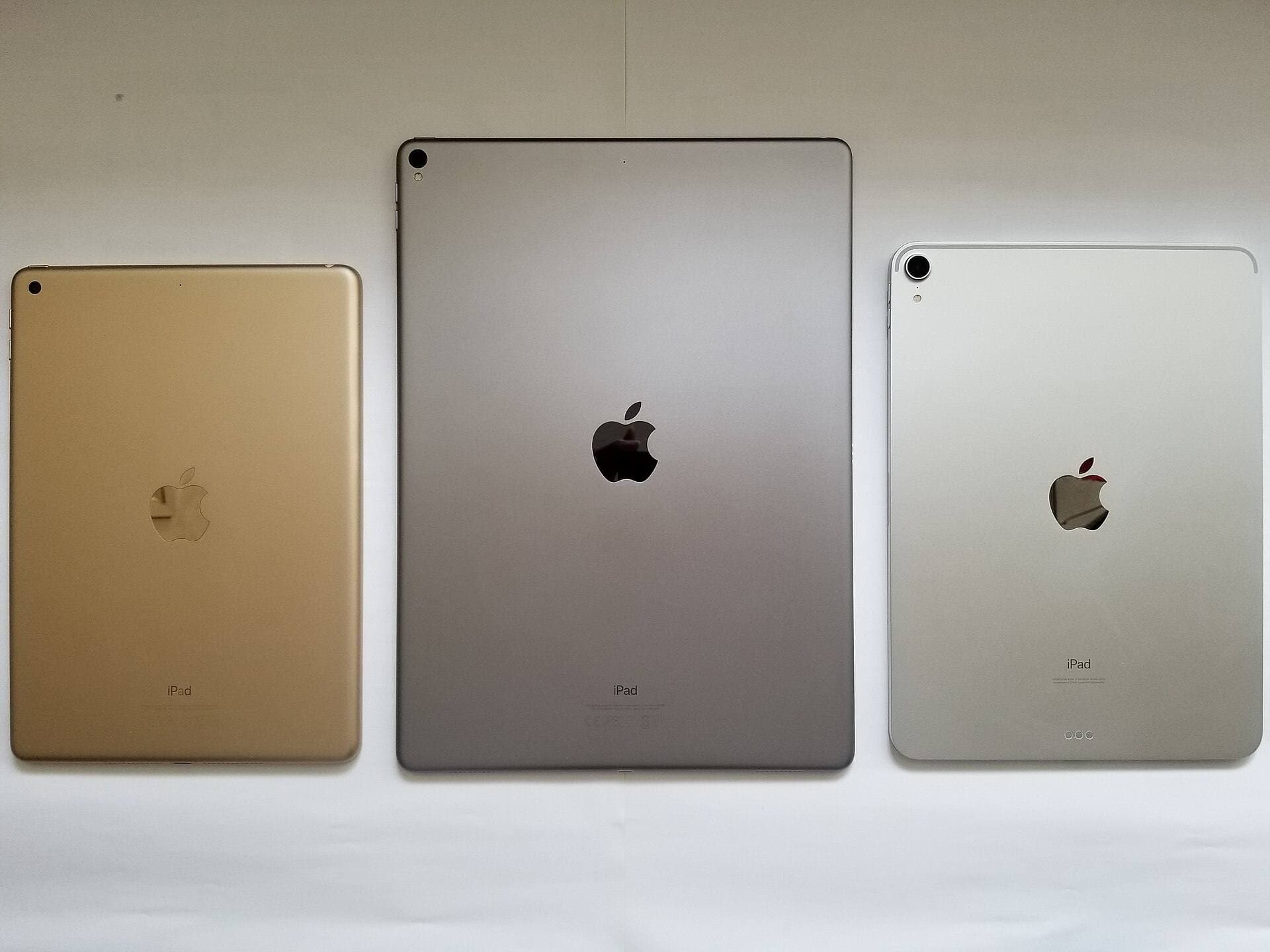
If you choose the iPad route over a MacBook, selecting the right model comes down to display technology, stylus compatibility, and your working canvas scale [1], [4]. Apple offers distinct tiers that match different artistic budgets and production demands [1].
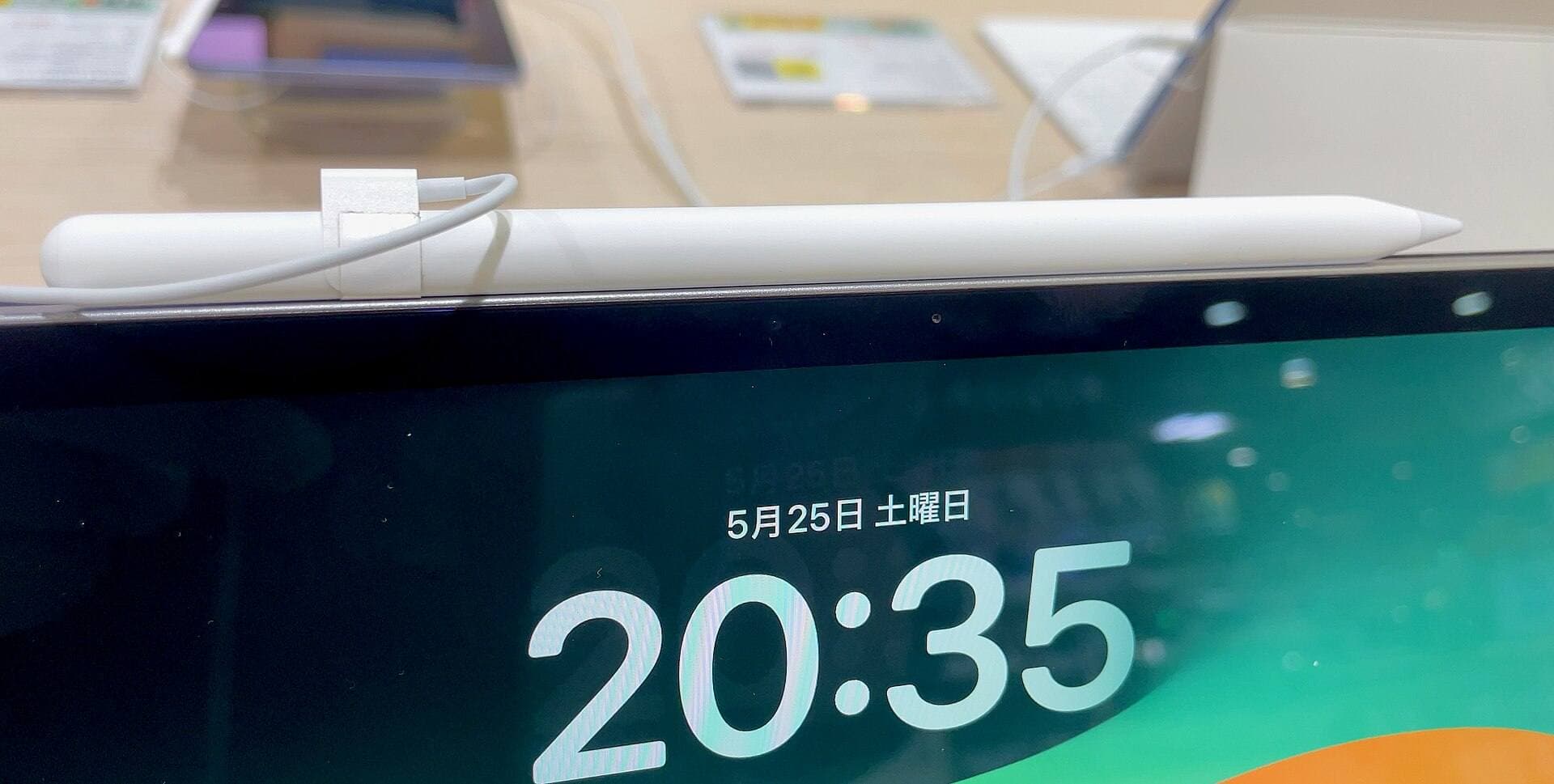
At the entry level, the iPad (A16, 11th gen) provides standard iPad drawing capabilities at the lowest kit cost [1]. It works with the Apple Pencil (USB-C), which supports tilt sensitivity and magnetically attaches to the side for storage, but it lacks pressure sensitivity [2], [3]. Because pressure sensitivity is absent on the Apple Pencil (USB-C), painters who rely on variable stroke pressure will find this setup limiting [2]. The baseline iPad also features a 60Hz display without anti-reflective coating, making it a functional starting point for casual sketching or vector line work rather than detailed shading [1].
For serious illustrators, the iPad Air (M4) represents the sweet spot [1]. The Air supports Apple Pencil Pro, which includes pressure sensitivity, barrel roll, squeeze gestures, and haptic feedback [2], [3]. Powered by the M4 chip, the iPad Air handles large raster canvases with ample layer counts in Procreate, where total memory directly governs available layer limits [1], [4]. The only noticeable compromise is that the display refresh rate remains at 60Hz rather than Apple's 120Hz ProMotion [1].
The premium tier belongs to the iPad Pro (M5) [1]. It pairs the M5 chip with an Ultra Retina XDR display featuring ProMotion technology, which refreshes at up to 120Hz [1]. That faster refresh rate makes the digital ink appear directly beneath the stylus tip with minimal perceived latency [1], [2]. The iPad Pro also offers the Apple Pencil hover feature, which displays a preview mark before your stylus tip touches the screen [2]. For full-time digital painters, the iPad Pro (M5) delivers the best visual feedback Apple makes, though it costs significantly more than the Air [1].

Portability, ergonomics, and daily workflow
Where and how you work changes dramatically between these two machines. A MacBook requires a flat surface, an open clamshell lid, and space for an external tablet or mouse [1]. You cannot comfortably draw with a MacBook while sitting on a train, lounging on a sofa, or standing at a convention booth [1]. The laptop form factor is optimized for typing, trackpad navigation, and stationary desk setups [1].
An iPad functions like a digital sketchbook that weighs roughly one pound [1]. You can hold it in one arm while sketching with the other, drop it flat onto a desk, or prop it on an easel stand [1]. When using an Apple Pencil Pro with an iPad Air (M4) or iPad Pro (M5), the stylus charges wirelessly while magnetically snapped to the edge of the tablet, keeping the whole drawing kit self-contained [1], [2], [3]. You never have to pack extra charging cables or replacement tablet nibs just to spend an afternoon drawing at a coffee shop [1], [2].
Layer counts in mobile apps are governed by the iPad model's available RAM, meaning massive print files require mindful canvas dimensions [4]. On a MacBook, desktop software can swap to virtual disk memory for massive multi-gigabyte files, avoiding hard layer cutoffs [1], [4]. But for everyday illustration, spot graphics, and social media artwork, the physical convenience of a handheld iPad usually outweighs the laptop's raw file handling perks [1], [4].
Who should buy an iPad and who should stick with a MacBook
Buy an iPad if your primary medium is freehand illustration, comic inking, lettering, or mobile painting [2], [5]. If you already have a computer for office work or gaming, adding an iPad Air (M4) gives you a dedicated creative surface that plugs directly into the modern Apple Pencil ecosystem without duplicate clutter [1], [3]. It gives you access to Procreate, which provides an intuitive, streamlined studio environment designed specifically around touch and stylus hardware [4], [5].
Skip the iPad if your artwork is primarily vector logo design, print prepress, web layout, or heavy video editing [1]. A MacBook is the superior machine for organizing thousands of files across external drives, running deep plugin chains in desktop design suites, and managing typography projects that require physical keyboard shortcuts and multi-window multitasking [1]. If you only draw occasionally, you can attach a basic external graphics tablet to your existing MacBook without buying a second computing device [1].
Bottom line
If your goal is to draw directly on screen with responsive, pressure-sensitive tools, buy the iPad Air (M4) paired with Apple Pencil Pro [1], [2], [3]. It delivers high-end stylus features like barrel roll, squeeze shortcuts, and pressure control at a far more approachable investment than the flagship iPad Pro (M5) [1], [2]. Stick with your MacBook only if your creative workload centers on desktop software, detailed vector file organization, or desktop prepress production where an external graphics tablet meets your drawing needs [1].
Sources
[1] https://www.apple.com/ipad/compare/ [2] https://www.apple.com/apple-pencil/ [3] https://support.apple.com/en-us/108937 [4] https://help.procreate.com/articles/zlexav-ipad-compatibility [5] https://apps.apple.com/us/app/procreate/id425073498
Recommended gear
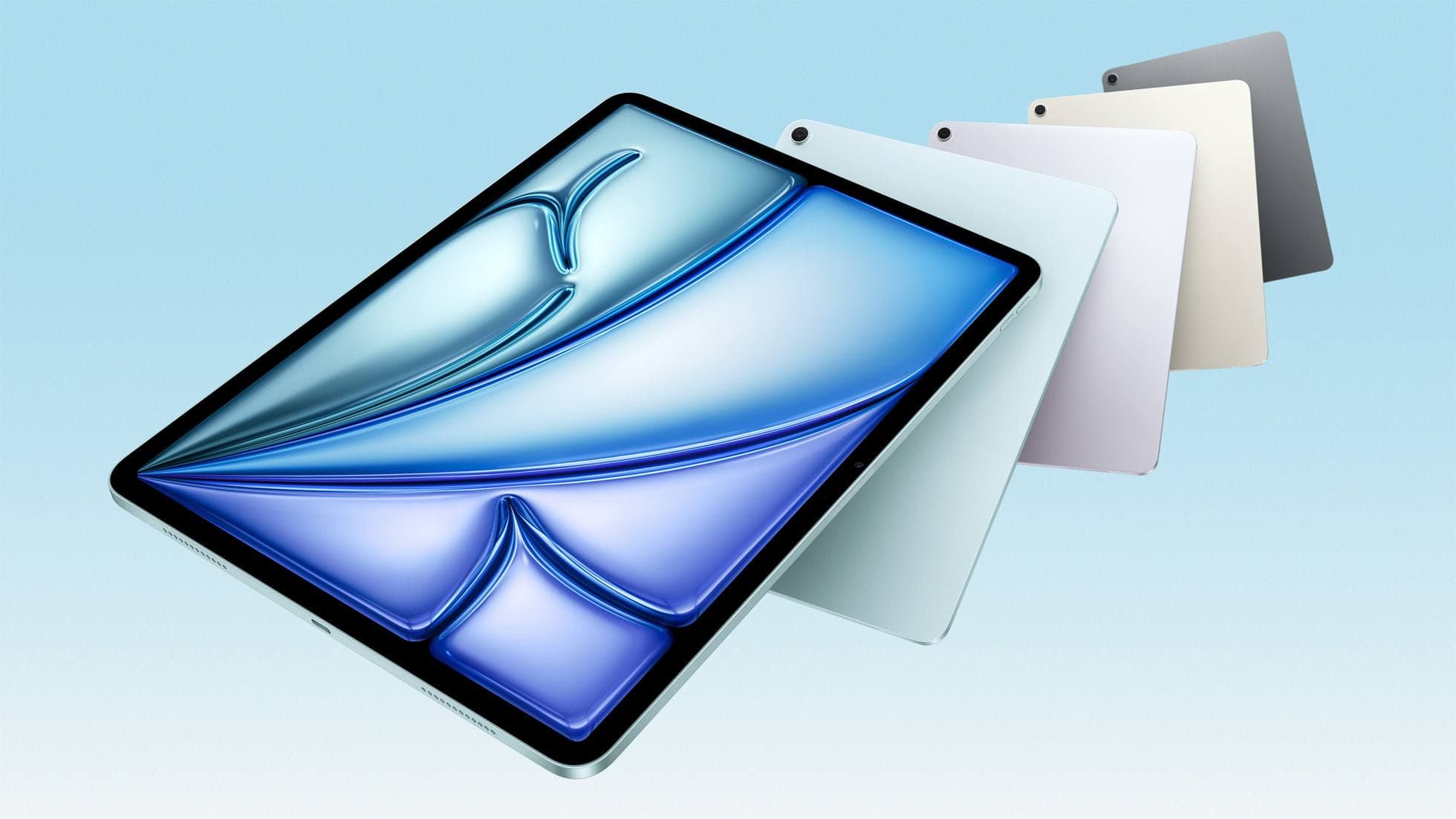
iPad Air (M4)
apple.comThe clean current Air recommendation for most serious hobby artists. Stronger buy logic than old-stock M3 when pricing is close.
Pro: Best current balance of price, headroom, and Pencil support
Con: Still 60Hz
Current Air lineup. Choose size, storage, and keyboard path before checkout.
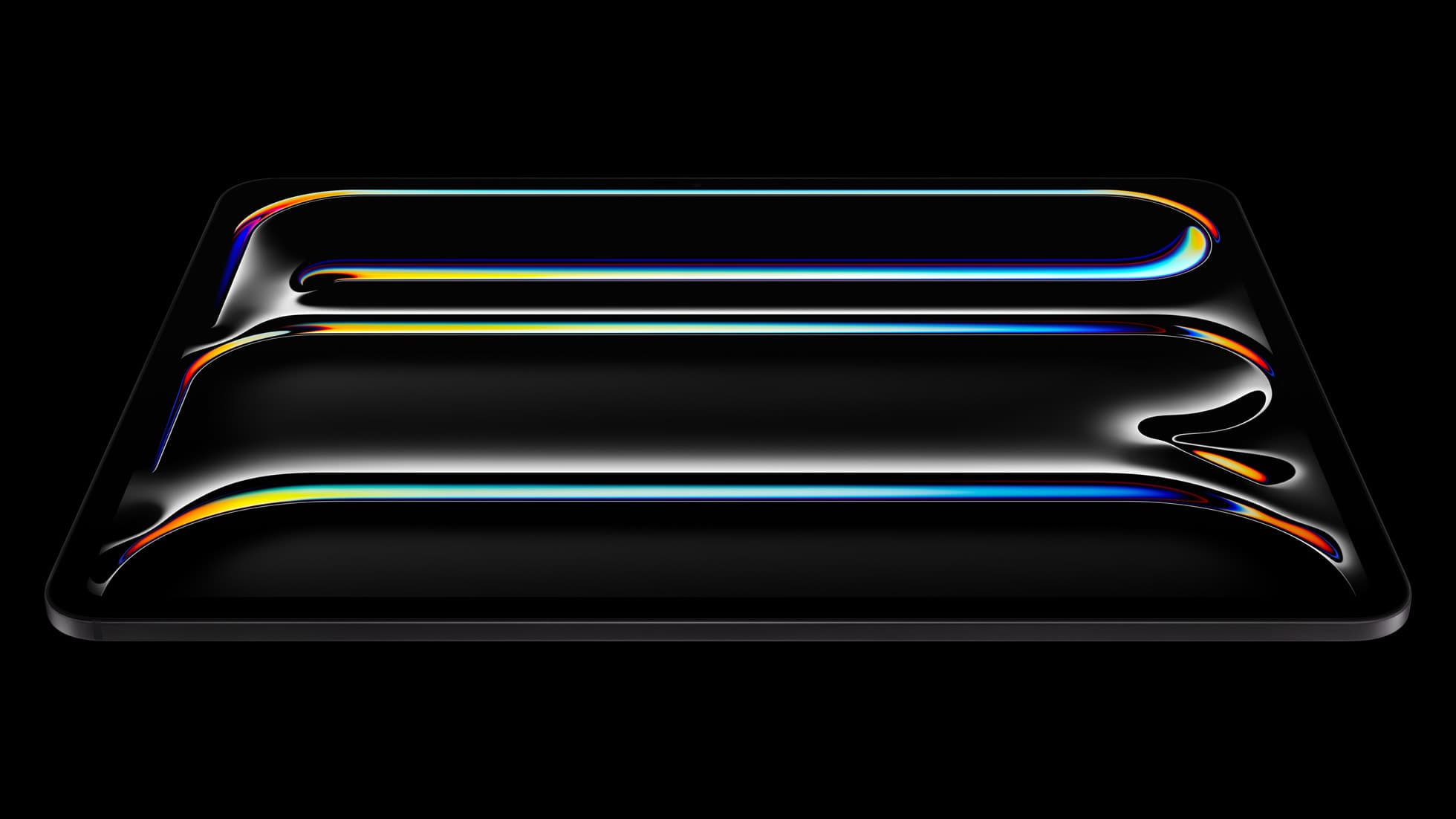
iPad Pro (M5)
amazon.comThe best iPad for drawing feel and premium workflow comfort, but many buyers still overpay for it.
Pro: Best iPad display and ProMotion feel
Con: Highest price in the lineup
Search opens with iPad Pro terms. Check year, chip, and screen size.
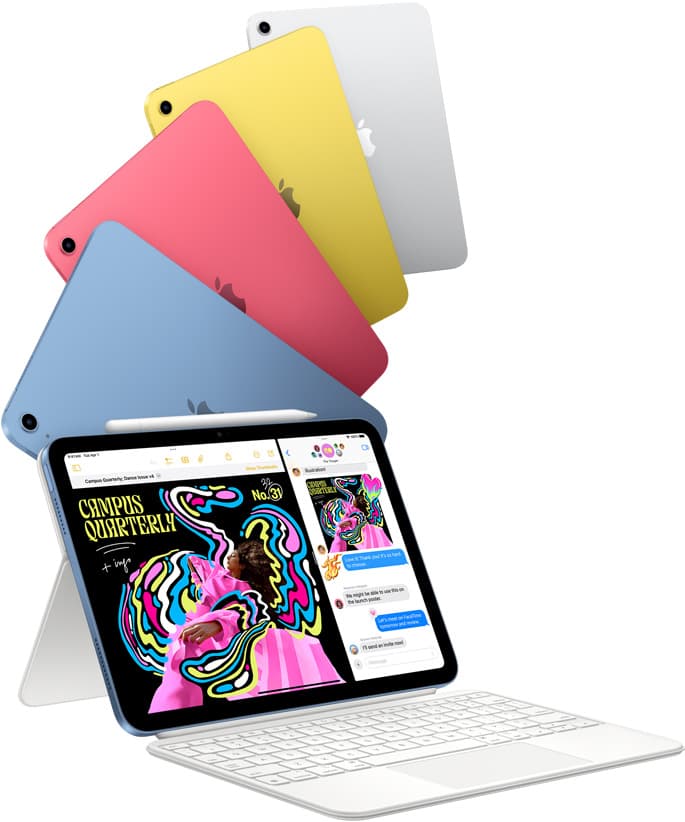
iPad (A16, 11th gen)
amazon.comThe best entry iPad for most artists on a budget. It is not premium, but it is very hard to beat on value.
Pro: Best value iPad right now
Con: No ProMotion display
Search opens with the exact model keywords. Verify size and storage before checkout.
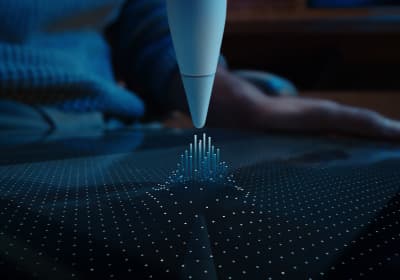
Apple Pencil Pro
amazon.comThe best Apple stylus for serious digital art workflows. Expensive, but the control upgrades are real.
Pro: Best brush-control and hover workflow
Con: Highest price in the lineup
Works only with newer iPad models. Check compatibility.
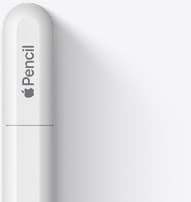
Apple Pencil (USB-C)
amazon.comA practical low-cost Apple stylus with broad compatibility, but limited for advanced art control.
Pro: Lowest official Apple Pencil cost
Con: No pressure sensitivity for brush work
Compatible with many recent iPads. No pressure support.
Related buying picks
More in this collectionComparison
iPad vs Samsung tablet for drawing: which setup to choose
Choose an iPad if your art workflow relies on Procreate and Apple Pencil tools, and pick the iPad Air for the best balance of features.
Comparison
iPad vs pen display for illustration: how to choose your drawing setup
Compare standalone iPad mobility against tethered pen displays to pick the right digital drawing tool for your illustration workflow.
Buyer guide
Best iPad for animation: How to choose your creative setup
Compare the best iPads for 2D animation, timeline performance, and stylus responsiveness to match your workflow and budget.
Buyer guide
Does Cricut Design Space work on iPad, and which model should you buy?
Cricut cut workflows run on iPad hardware, but choosing between a base iPad and an iPad Air depends on your stylus and illustration needs.