





Buy an iPad if digital drawing, sketching, or digital painting is your main goal. For most artists choosing between these platforms, buying an iPad Air with an Apple Pencil is the right pick, while an entry iPad with an A16 chip is the best budget alternative [1]. Skip the Chromebook if stylus-driven illustration is your priority. ChromeOS laptops excel at typing papers and browser work, but they lack native iPadOS creative tools like Procreate [5]. If you need a dedicated drawing tablet that combines pressure sensitivity, tilt detection, and specialized software, Apple hardware delivers the clearer path [2].
Stylus support and drawing input hardware
The physical stylus experience is the single biggest separator between drawing on an iPad and drawing on a Chromebook. Apple designs its styluses specifically for low-friction digital illustration and creative work [2]. The Apple Pencil lineup includes models with pressure sensitivity, tilt detection, squeeze gestures, barrel roll, and tactile haptic feedback [2]. When you draw on an iPad display with a compatible Apple Pencil, the hardware registers angle and force directly inside creative apps without requiring third-party driver configuration [2].
Chromebooks, by comparison, rely primarily on universal stylus standards such as USI (Universal Stylus Initiative) or passive capacitive styluses. While USI styluses can provide basic pressure detection on supported touchscreens, they lack the broad creative ecosystem integration found in the Apple Pencil family [2]. You won't find features like Apple Pencil Pro barrel roll or haptic confirmation on ChromeOS hardware [2]. These hardware-level features allow artists to rotate shaped brushes and switch tools quickly without breaking visual concentration [2].
Compatibility between pen and tablet is also straightforward on iPadOS. Apple explicitly documents which pencils pair and charge with specific iPad models. You get the exact input features you expect [3]. For example, the Apple Pencil Pro pairs and charges magnetically with the iPad Air (M4) and iPad Pro (M5), while the Apple Pencil (USB-C) pairs with both entry and premium models [1], [3]. On Chromebooks, finding a stylus with pressure sensitivity that matches your specific laptop panel requires sorting through varying third-party hardware standards and conflicting touchscreen digitizers.
Drawing app availability and operating systems
Hardware matters, but your daily drawing experience depends heavily on software availability. The iPad platform is the exclusive home of Procreate, one of the most widely used digital illustration applications on the market [4], [5]. Procreate is built specifically for iPadOS and Apple touch inputs, offering advanced brush engines, layer blending, and animation tools tailored to a pen-first interface [5]. You cannot run Procreate natively on a Chromebook, because it isn't available for ChromeOS [5].
Chromebooks run web applications and select Android apps downloaded through the Google Play Store. While there are web-based sketching tools and certain Android drawing apps available, many were originally designed for traditional desktop mice or small smartphone screens. Running Android apps on a Chromebook often means navigating interfaces that aren't optimized for convertible laptop hinges or tablet-mode drawing gestures [5]. You may encounter scaling issues or tools that fail to recognize specialized stylus inputs.
iPadOS treats drawing as a core input method across the entire operating system. Apps like Procreate take full advantage of Apple Pencil features such as tilt shading, pressure dynamics, and hover previews on supported devices [2], [5]. Artists who buy an iPad can open a dedicated creative app and start sketching immediately without worrying about whether their operating system treats their stylus like an emulated mouse cursor [2], [5].
Canvas size, memory, and layer limits
When you work on complex digital artwork, system memory determines how far you can push your files. In Procreate, your maximum canvas size and your total available layer count are linked directly to your iPad hardware and memory capacity [4]. Choosing an iPad with more unified memory allows you to build projects with higher layer counts at high resolutions, which is essential for detailed illustration and client deliverables [4].
Apple offers clear hardware tiers that allow you to balance display canvas area and internal specifications [1]. The standard iPad (A16) provides a capable 10.9-inch display, while the iPad Air (M4) lets you choose between an 11-inch screen and a larger 13-inch screen [1]. Having the option for a 13-inch display gives you substantial physical space for your hand and your reference images without feeling crowded [1]. Procreate officially supports these modern iPad configurations, allowing artists to select an exact balance of screen size and processing capability [1], [4].
On a Chromebook, measuring your art project limits is much harder. Because ChromeOS drawing tools are fragmented across browser tabs and Android emulation layers, you don't get the predictable, hardware-governed layer limits that Procreate documents for iPads [4]. Complex files in web-based art programs can encounter memory bottlenecks inside browser tabs, limiting how many layers or textures you can manage before your workspace slows down.
Choosing between an iPad Air and an entry iPad
If you decide an iPad is the right choice over a Chromebook, you need to decide which iPad model fits your budget and workflow. The baseline iPad with the A16 chip is the best default when keeping total setup cost down is your primary objective [1]. It runs modern iPadOS, supports Procreate, and pairs with the Apple Pencil (USB-C) [1], [3], [4]. However, the entry iPad does not support the Apple Pencil Pro, meaning you won't have access to pressure sensitivity, barrel roll, or squeeze shortcuts [2], [3].
The iPad Air (M4) represents the best balance of longevity, processing power, and creative feature support [1]. The M4 chip provides plenty of headroom for heavy illustration, and the chassis supports the Apple Pencil Pro with magnetic pairing and wireless charging [1], [3]. If pressure sensitivity is non-negotiable for your inking or painting technique, stepping up to the iPad Air is worth the extra investment over the base model [2]. You can also choose the 13-inch Air if you want a larger drawing area without jumping all the way to premium Pro pricing [1].
For artists who demand the highest-end display performance, the iPad Pro (M5) provides an Ultra Retina XDR display and ProMotion technology with adaptive refresh rates [1]. However, unless you need the absolute top-tier display hardware or rely on the heaviest daily production workloads, the iPad Pro is an expensive upgrade over the capable iPad Air [1]. For the majority of buyers comparing tablets against Chromebooks, the iPad Air (M4) hits the sweet spot [1].
Bottom line
Skip the Chromebook if your primary goal is learning, practicing, or producing digital art. While Chromebooks are great typing machines for schoolwork, their stylus support and creative app ecosystems pale in comparison to Apple's touch-first platform [2], [5].
Buy an iPad (A16) if you want an affordable sketchbook and don't require advanced pressure sensitivity [1], [2]. Buy an iPad Air (M4) paired with the Apple Pencil Pro if you want the ideal creative tool with full pressure control, intuitive shortcuts, and access to Procreate [1], [2], [3], [4].
Sources
[1] https://www.apple.com/ipad/compare/ [2] https://www.apple.com/apple-pencil/ [3] https://support.apple.com/en-us/108937 [4] https://help.procreate.com/articles/zlexav-ipad-compatibility [5] https://apps.apple.com/us/app/procreate/id425073498
Recommended gear
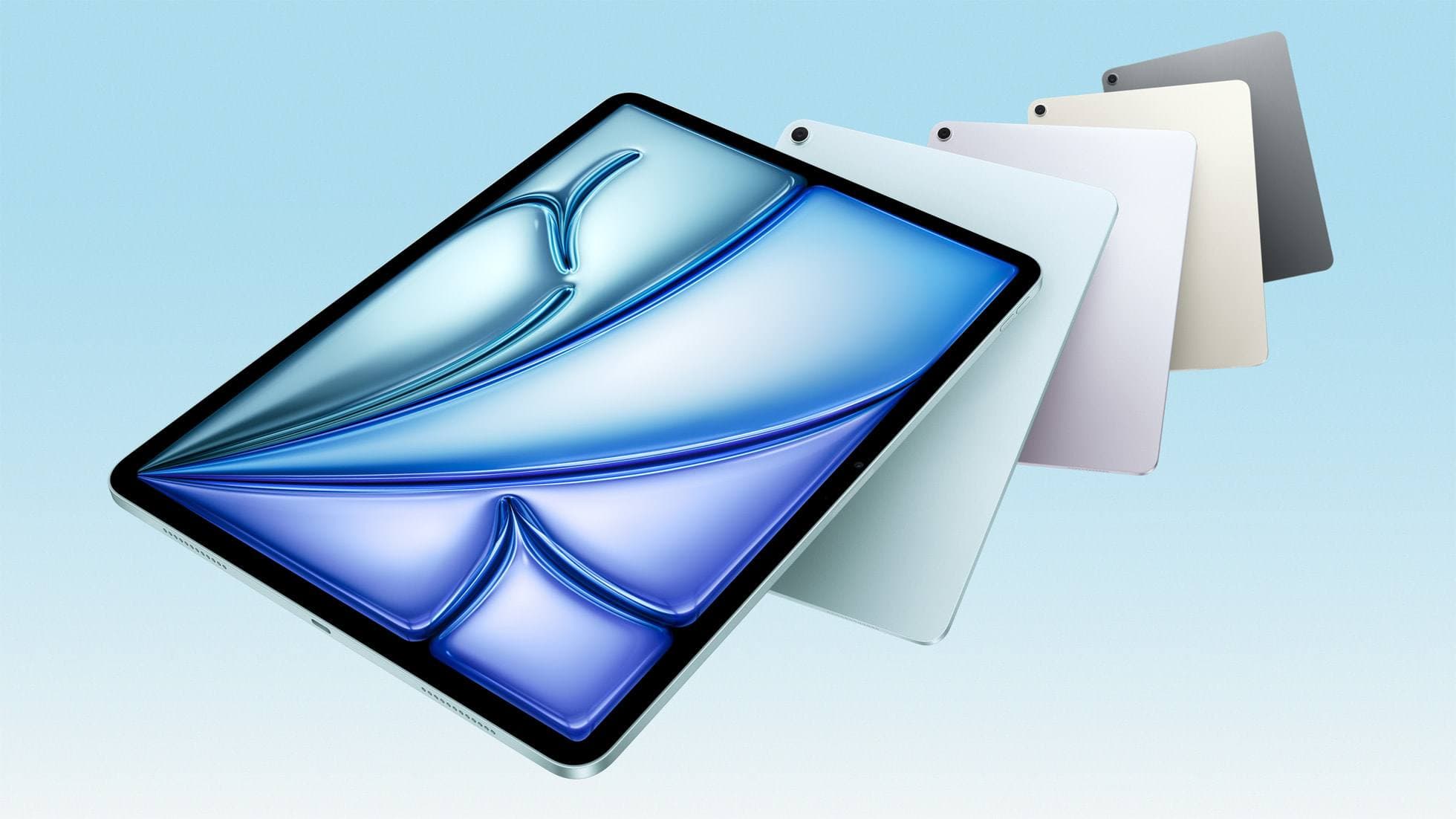
iPad Air (M4)
apple.comThe clean current Air recommendation for most serious hobby artists. Stronger buy logic than old-stock M3 when pricing is close.
Pro: Best current balance of price, headroom, and Pencil support
Con: Still 60Hz
Current Air lineup. Choose size, storage, and keyboard path before checkout.
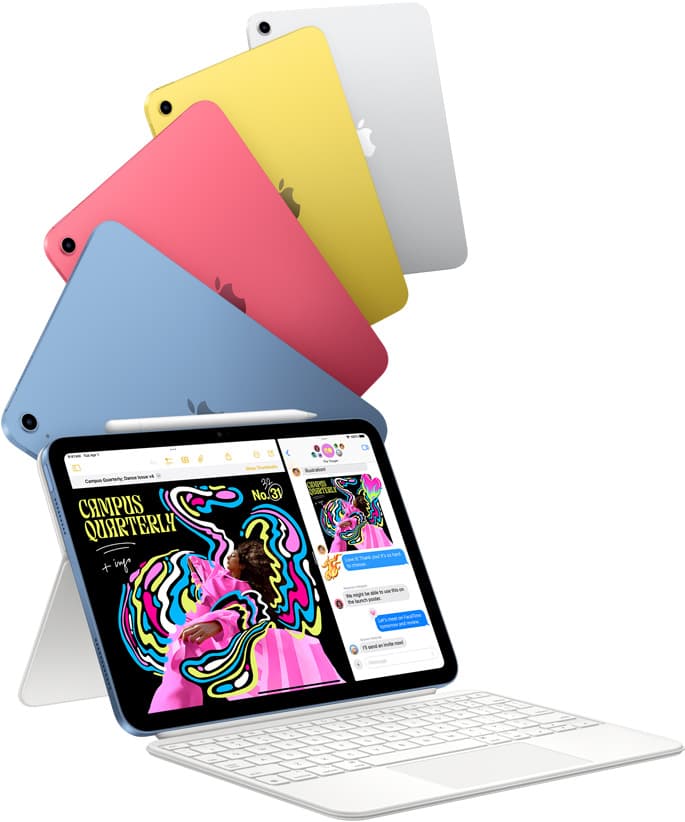
iPad (A16, 11th gen)
amazon.comThe best entry iPad for most artists on a budget. It is not premium, but it is very hard to beat on value.
Pro: Best value iPad right now
Con: No ProMotion display
Search opens with the exact model keywords. Verify size and storage before checkout.
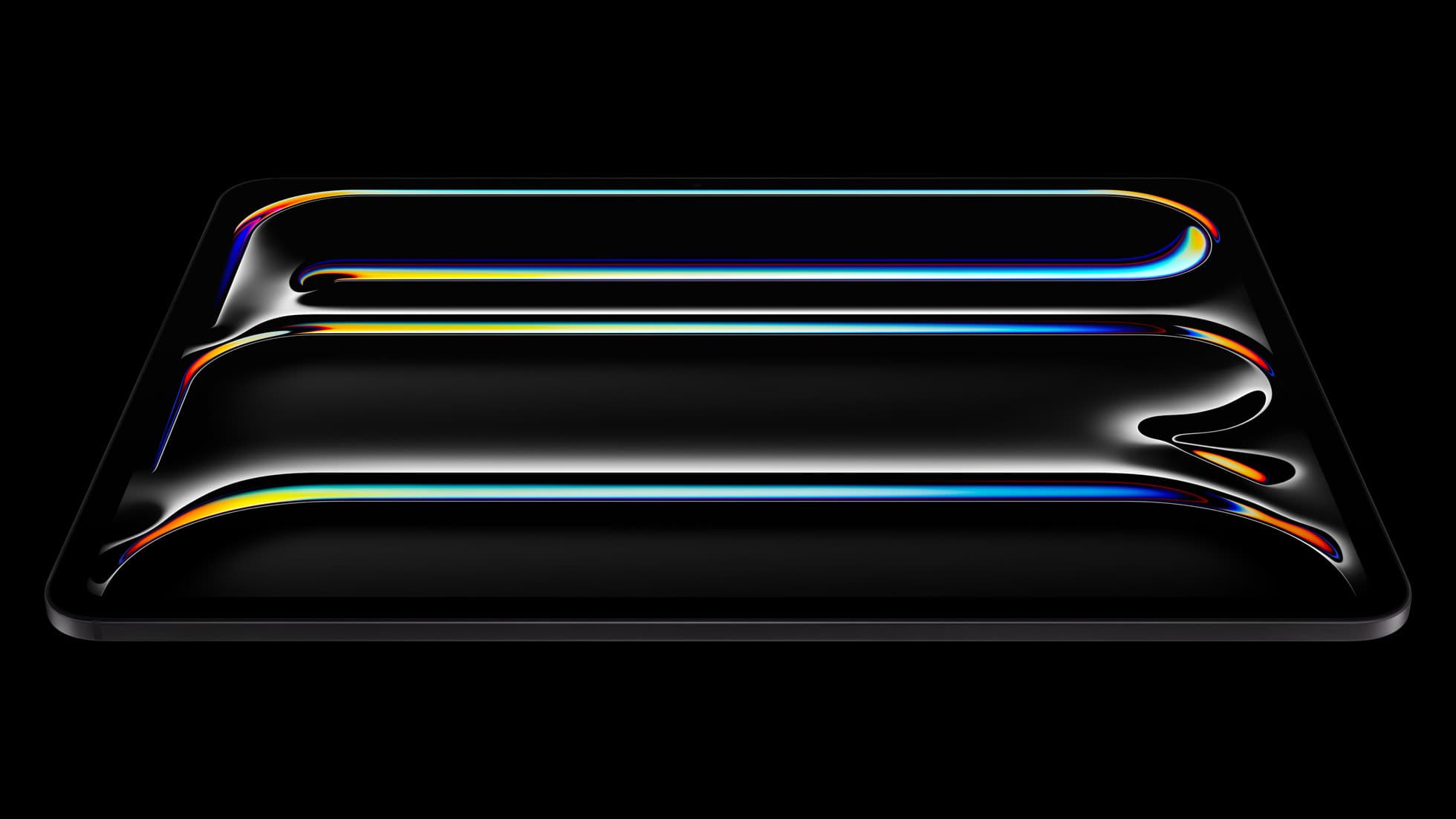
iPad Pro (M5)
amazon.comThe best iPad for drawing feel and premium workflow comfort, but many buyers still overpay for it.
Pro: Best iPad display and ProMotion feel
Con: Highest price in the lineup
Search opens with iPad Pro terms. Check year, chip, and screen size.

Apple Pencil Pro
amazon.comThe best Apple stylus for serious digital art workflows. Expensive, but the control upgrades are real.
Pro: Best brush-control and hover workflow
Con: Highest price in the lineup
Works only with newer iPad models. Check compatibility.
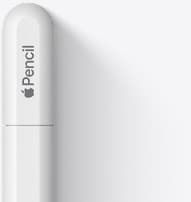
Apple Pencil (USB-C)
amazon.comA practical low-cost Apple stylus with broad compatibility, but limited for advanced art control.
Pro: Lowest official Apple Pencil cost
Con: No pressure sensitivity for brush work
Compatible with many recent iPads. No pressure support.
Related buying picks
More in this collectionBuyer guide
Best drawing tablet for surface pattern design: iPad Air vs iPad Pro
Choose the iPad Air with Apple Pencil Pro for repeat pattern design, or step up to the iPad Pro if high-resolution layer limits dictate your production.
Comparison
iPad vs Surface Pro for artists: Which drawing tablet fits your workflow?
Compare iPad and Surface Pro drawing setups to decide whether mobile touch illustration or full desktop software suits your art studio best.
Comparison
iPad vs Samsung tablet for drawing: which setup to choose
Choose an iPad if your art workflow relies on Procreate and Apple Pencil tools, and pick the iPad Air for the best balance of features.
Comparison
iPad vs pen display for illustration: how to choose your drawing setup
Compare standalone iPad mobility against tethered pen displays to pick the right digital drawing tool for your illustration workflow.