





Buy a 128GB iPad Air if you routinely move completed projects to cloud or external storage, but skip 128GB and select 256GB if you want your active animation library, video references, and layered drawings stored directly on your tablet [1]. Baseline 128GB capacity on models like the iPad Air with the M4 chip easily fits iPadOS and drawing tools like Procreate [1], [5]. But animation projects accumulate imported media quickly, making backup discipline essential [1], [4].
How animation files and drawing assets use storage
Digital art applications interact with your iPad storage in two distinct ways: file footprints on the drive and active canvas overhead in system memory [1], [4]. When you build static illustrations in Procreate, project file size depends on canvas dimensions, layer counts, and embedded time-lapse recordings [4], [5]. Procreate sets maximum layer limits based on your iPad model's available device memory rather than total storage capacity [4]. Hardware memory governs layer limits, while drive space determines how many multi-layer files can sit on your tablet [1], [4].
Animation projects demand significantly more local drive storage than static drawing [1], [5]. Timeline scenes frequently incorporate imported audio tracks, reference footage, photographic backgrounds, and video clips [1]. Every piece of imported footage consumes physical space on the solid-state drive [1]. When you render or export finished scenes in full resolution, those video files also remain on internal storage until you delete or offload them [1]. Storing several multi-track projects alongside an illustration library narrows free drive space quickly [1], [5].
Operating system overhead is another factor on a 128GB iPad [1]. iPadOS, cached system data, fonts, and installed apps take up a noticeable portion of the initial 128GB capacity out of the box [1]. You don't begin with an empty 128GB drive [1]. Once essential system files and creative apps take their share, usable working capacity drops into double-digit gigabytes [1]. Artists who overlook system cache growth can find themselves short on space even for iPadOS updates [1].
Who should buy a 128GB iPad
You should buy a 128GB model if you treat your iPad as an active production clipboard rather than an archive [1]. If your routine already includes offloading finished animation sequences, saving source files to external SSDs over USB-C, or syncing artwork to cloud storage, 128GB is practical [1]. You'll have plenty of space to run Procreate, maintain current animation timelines, and hold a custom brush collection [1], [5]. Choosing the baseline 128GB tier lets you access hardware like the iPad Air (M4) without paying extra for storage you won't use [1].
This tier also suits artists focused on still illustration and short motion clips [1], [4]. If you primarily paint in Procreate and only build brief animated loops or small storyboards, file sizes stay manageable [1], [5]. Layer limits in Procreate depend on device memory, not drive size [4]. For students and hobbyists working on a few pieces at a time, 128GB remains a practical choice [1].
Who should skip 128GB and step up to larger drives
You should skip 128GB and step up to 256GB or more if you work with imported live-action video references, multi-track audio, or long animated scenes [1]. Video assets are heavy [1]. If you rotoscope over imported footage or add continuous sound effects to your scenes, individual projects grow quickly [1]. When client revisions require keeping several project versions locally accessible without cloud downloads, a 128GB drive fills up fast [1].
You should also pass on 128GB if you travel frequently or lack dependable high-speed internet [1]. Relying on cloud services to offload large animation exports requires steady bandwidth [1]. Without an external drive or fast internet, a 128GB drive restricts what you can keep on your tablet [1]. Stepping up to 256GB provides the buffer needed to store your ongoing animation library, reference files, and system updates without daily cleanup [1].
Matching storage capacity with iPad and Apple Pencil hardware
Storage is only one part of the buying decision; pairing that drive size with the right tablet and stylus completes your workstation [1], [2]. The iPad Air (M4) starts at 128GB and offers storage upgrades at 256GB, 512GB, and 1TB [1]. It features an M-series chip and full compatibility with the Apple Pencil Pro [1], [2], [3]. The Apple Pencil Pro supports pressure sensitivity, tilt, barrel roll, squeeze gestures, haptic feedback, and hover [2]. That combination enables natural line control across Procreate and timeline animation tools [2], [5].
If you consider mainstream hardware like the iPad (A16), you face different stylus options [1]. Base iPad models pair with the Apple Pencil (USB-C) or first-generation Apple Pencil [1], [3]. The Apple Pencil (USB-C) includes tilt sensitivity and hover on select models, but it doesn't offer pressure sensitivity [2]. For dedicated drawing, lacking pressure sensitivity limits expressive mark-making in Procreate [2], [5]. Choosing the iPad Air (M4) ensures pressure sensitivity and squeeze shortcuts through Apple Pencil Pro compatibility, making it a stronger step-up model even at 128GB [1], [2], [3].
Display technology also factors into your hardware pairing [1]. Both the iPad Air (M4) and the mainstream iPad feature 60Hz displays [1]. While Pro models feature faster ProMotion refresh rates, the iPad Air (M4) balances Apple Pencil Pro support, M-series processing architecture, and baseline 128GB capacity [1], [2]. Choosing the 128GB Air gives you modern stylus inputs without paying top-tier pricing, provided you manage local file storage [1], [2].
Managing projects when working with 128GB
If you decide a 128GB iPad fits your budget, consistent file habits keep your drive functional [1]. Turn off time-lapse canvas recording in Procreate preferences if you don't plan to export process videos [4], [5]. Embedded recordings increase individual file sizes over time [4], [5]. Disabling video capture keeps your standard illustration files much smaller [4], [5].
Make external offloading part of your routine [1]. Modern iPads with USB-C ports connect directly to portable solid-state drives and flash storage [1]. When an animation timeline is complete and you've exported your final video, transfer the project file and reference media to external media [1]. Clearing finished timelines from the internal drive ensures iPadOS maintains enough free space for background operations and system caching [1].
Bottom line
A 128GB iPad is sufficient for animation and illustration if you routinely offload completed projects to external drives or cloud storage [1], [5]. It provides an affordable entry to the iPad Air (M4) with Apple Pencil Pro pressure and tilt support [1], [2], [3]. But if you store reference video locally or want months of project revisions on hand, skip 128GB and choose 256GB [1].
Sources
[1] https://www.apple.com/ipad/compare/ [2] https://www.apple.com/apple-pencil/ [3] https://support.apple.com/en-us/108937 [4] https://help.procreate.com/articles/zlexav-ipad-compatibility [5] https://apps.apple.com/us/app/procreate/id425073498
Recommended gear

iPad Air (M4)
apple.comThe clean current Air recommendation for most serious hobby artists. Stronger buy logic than old-stock M3 when pricing is close.
Pro: Best current balance of price, headroom, and Pencil support
Con: Still 60Hz
Current Air lineup. Choose size, storage, and keyboard path before checkout.
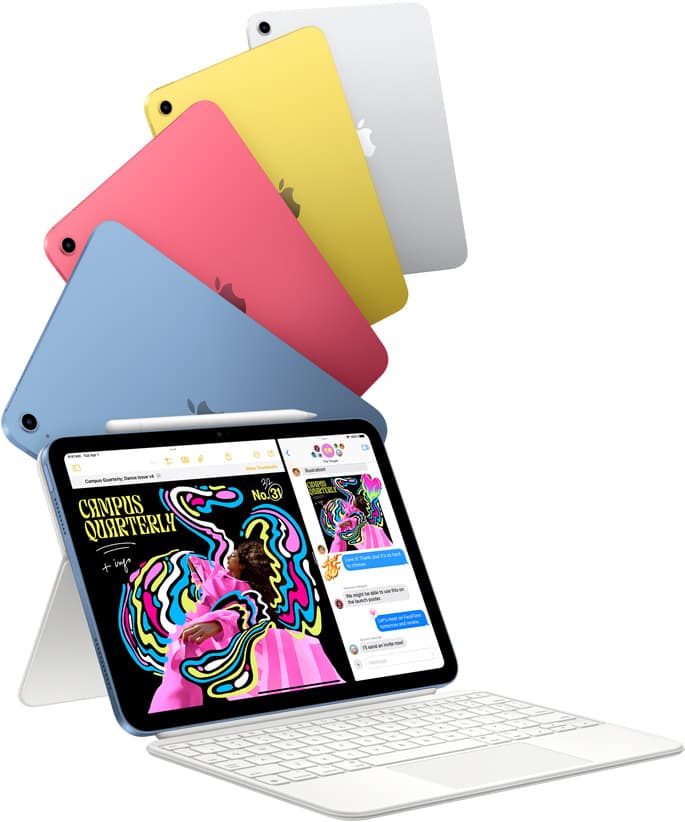
iPad (A16, 11th gen)
amazon.comThe best entry iPad for most artists on a budget. It is not premium, but it is very hard to beat on value.
Pro: Best value iPad right now
Con: No ProMotion display
Search opens with the exact model keywords. Verify size and storage before checkout.
Procreate
apps.apple.comPro: One-time purchase
Con: iPad-only

Apple Pencil Pro
amazon.comThe best Apple stylus for serious digital art workflows. Expensive, but the control upgrades are real.
Pro: Best brush-control and hover workflow
Con: Highest price in the lineup
Works only with newer iPad models. Check compatibility.
Related buying picks
More in this collectionBuyer guide
Best iPad for logo design
Choose the iPad Air with the M4 chip for the best mix of vector precision, Apple Pencil Pro support, and balanced pricing.
Buyer guide
Best iPad for digital painting: Which model should you buy?
Choose the right iPad for digital painting based on screen space, Apple Pencil features, and layer capacity.
Buyer guide
Best iPad for digital art beginners
Get the iPad Air (M4) if you want the Apple Pencil Pro toolset, or pick the base iPad (A16) if you want a capable digital sketchpad at the lowest entry cost.
Buyer guide
Best iPad for t shirt design
Pick the right iPad and Apple Pencil pairing for creating production-ready t-shirt graphics.