Buy the Apple Pencil Pro if you own a compatible newer iPad, or pick the Apple Pencil (2nd generation) if you use a supported earlier tablet, because dynamic watercolor painting requires hardware pressure sensitivity [1], [2]. Skip the Apple Pencil (USB-C) for watercolor work because it lacks pressure detection entirely [1]. If you want your glass screen to offer physical drag under your strokes, pair your stylus with a Paperlike screen protector [4].
Your stylus dictates how brush engines simulate water dilution, pigment load, and edge darkening. On an iPad, watercolor simulation is not just about moving color across a screen. It relies on how precisely the hardware reports your hand pressure and stylus angle to digital brushes [1], [3].
Why pressure sensitivity makes or breaks digital watercolor
Traditional watercolor depends on how much water rests on your brush tip and how heavily you press pigment into the tooth of the paper. Digital watercolor brushes mimic this interaction by mapping hand pressure to brush size, pigment concentration, and wetness variables [1], [5]. When an Apple Pencil includes pressure sensitivity, tapping lightly creates a translucent tint, while pressing harder deposits concentrated color pools [1].
Without pressure sensitivity, a digital brush behaves like a felt marker or technical pen. It lays down a uniform line width and an unyielding opacity regardless of how your hand moves, unless you manually stop to drag software sliders between strokes [1], [5]. This ruins the fluid spontaneity that watercolor requires. If you want to glaze soft layers or build wet-on-wet gradients, pressure support is an absolute necessity [1].
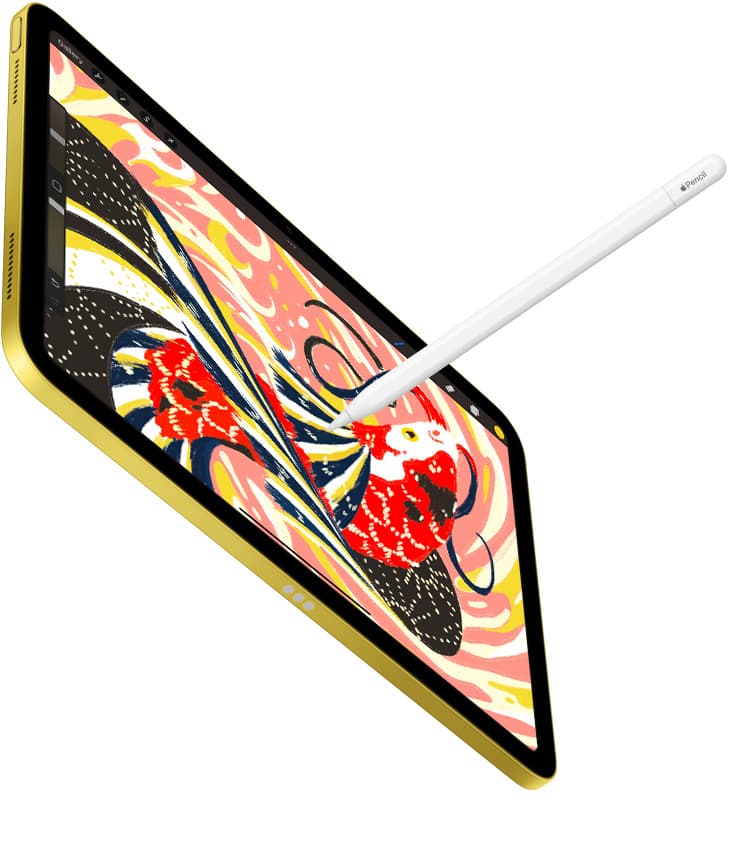
Both the Apple Pencil Pro and the Apple Pencil (2nd generation) include pressure sensitivity alongside tilt detection [1]. This hardware pairing allows you to tilt the stylus on its edge to drop broad washes while simultaneously varying the touch weight to regulate saturation [1], [3]. You cannot paint convincing watercolor washes without both sensors active on your display [1].
Choosing between Apple Pencil Pro and Apple Pencil (2nd generation)
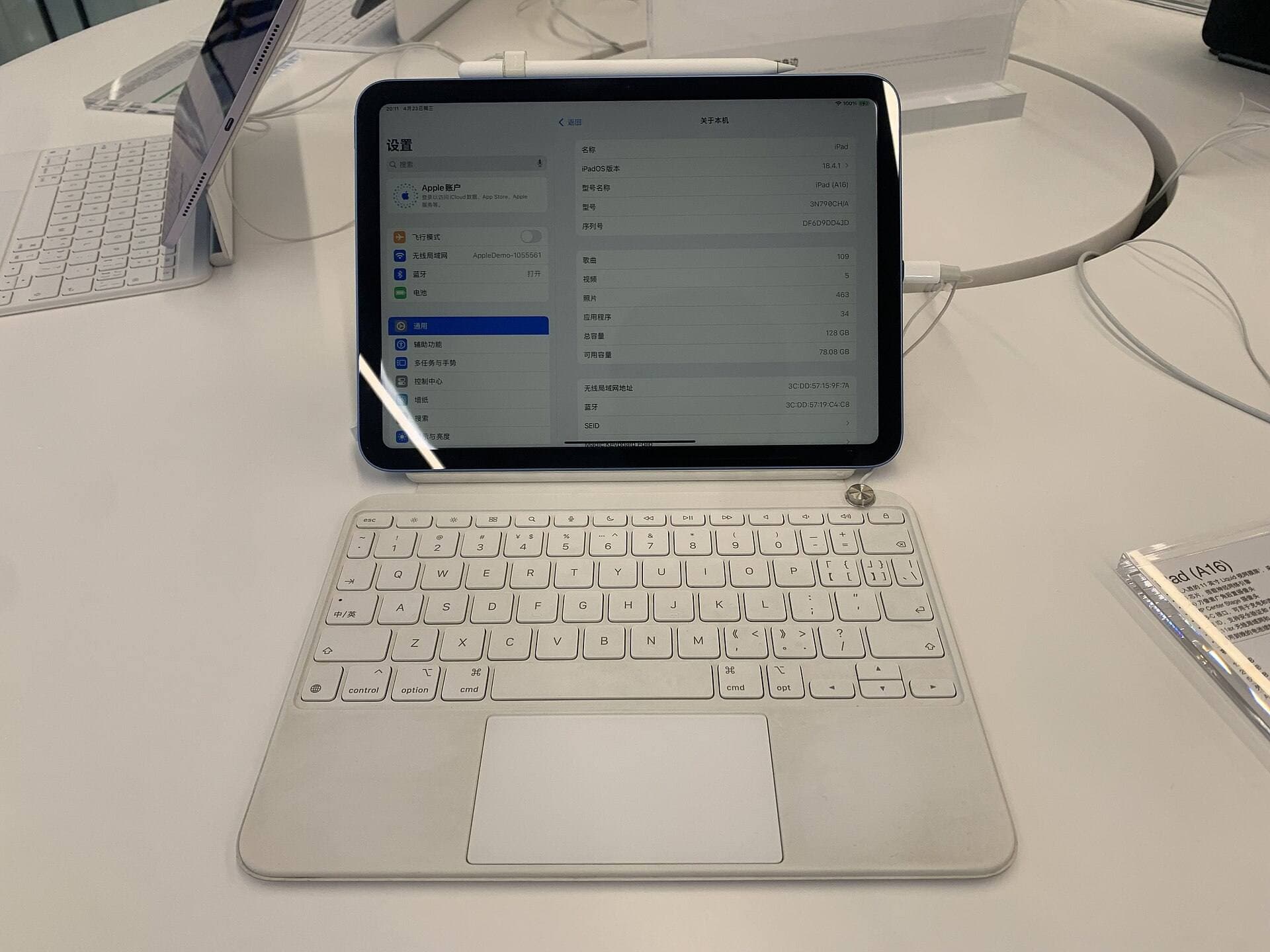
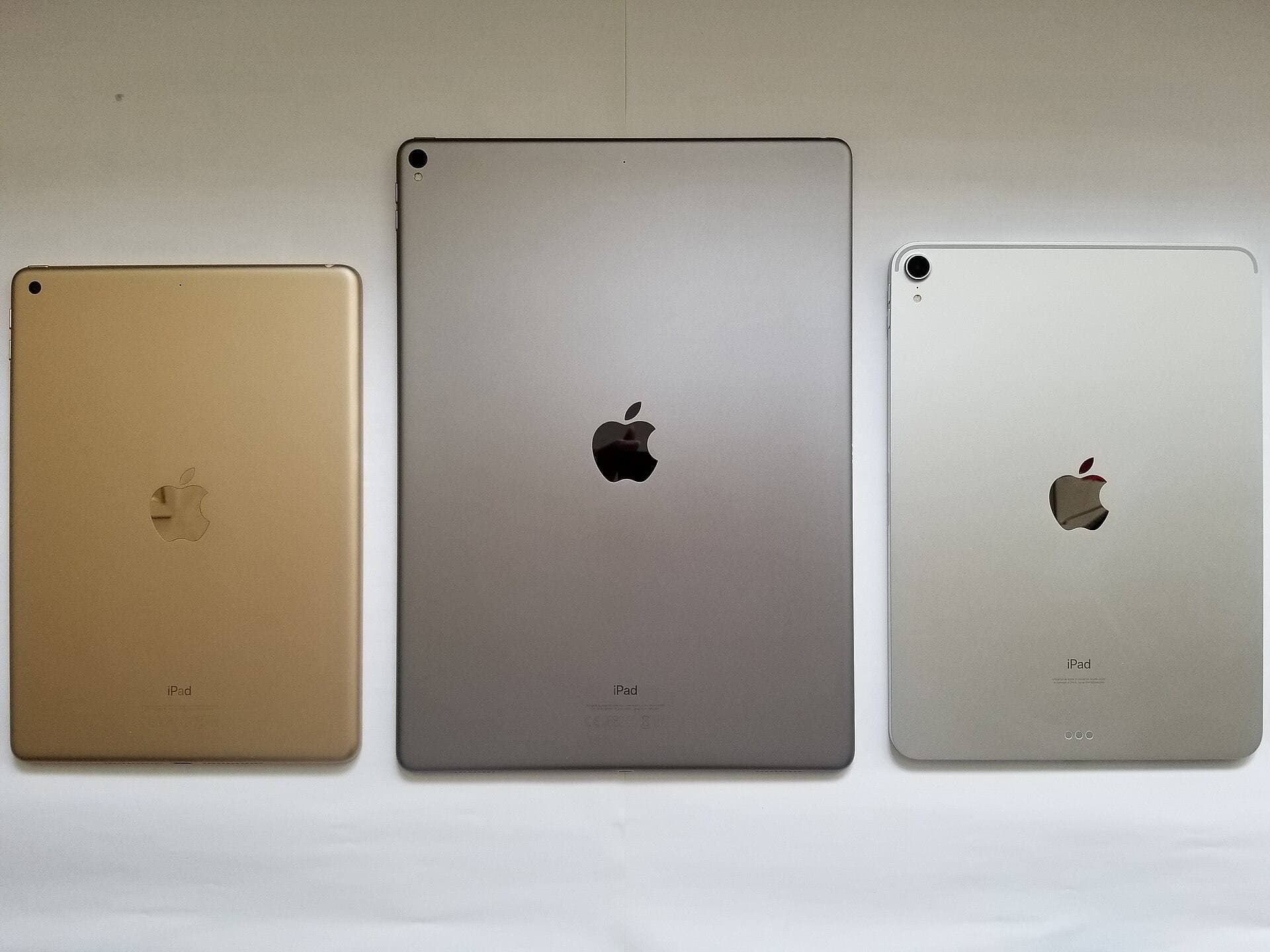
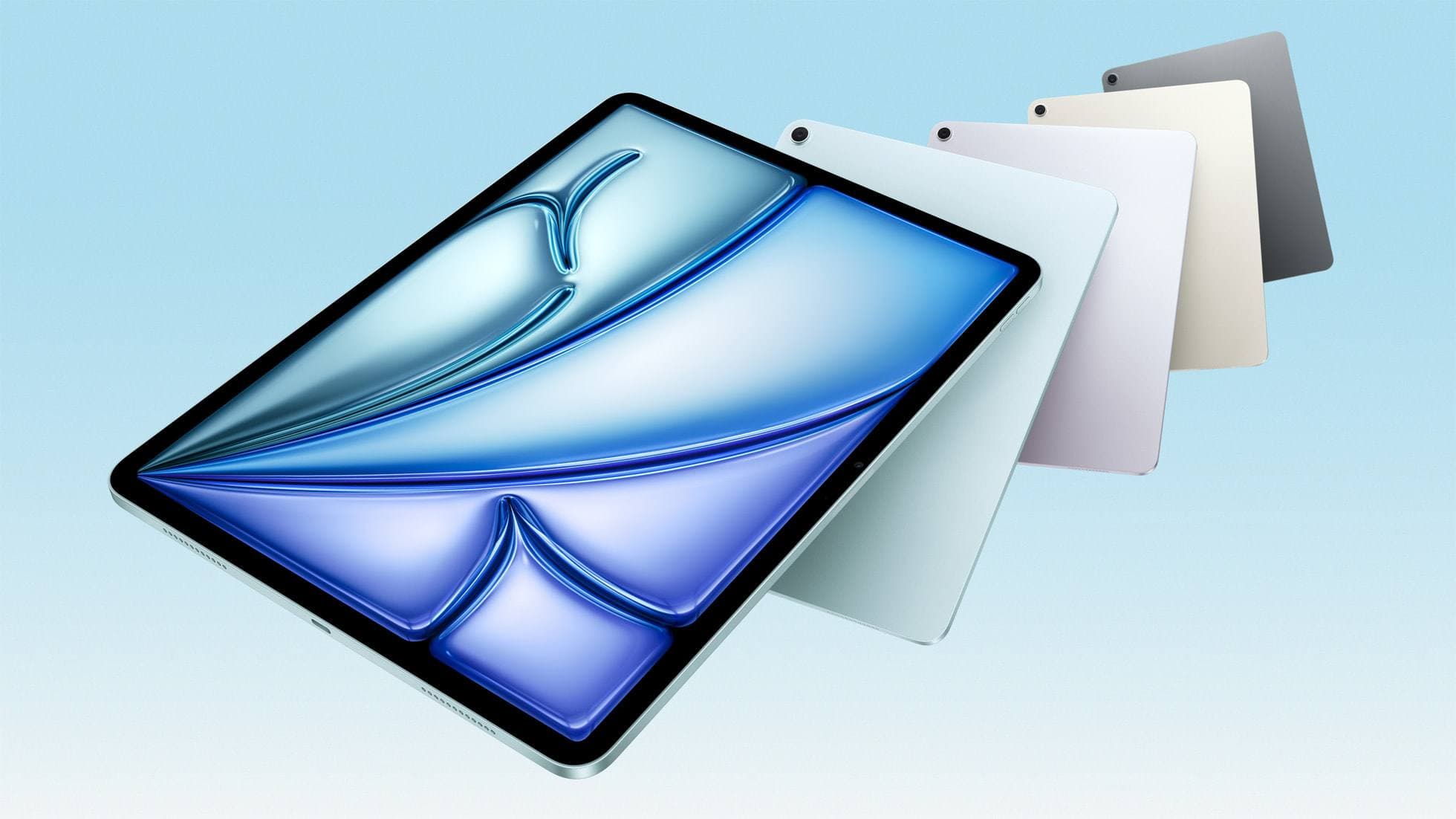
Choosing between the top two Apple styluses comes down to tablet compatibility and specialized brush gestures. The Apple Pencil Pro works exclusively with designated recent iPad models, while the Apple Pencil (2nd generation) pairs with earlier generations of the iPad Pro, iPad Air, and iPad mini [2]. Neither stylus operates across the other hardware group, so your tablet model dictates which one you can connect [2].
If you own a tablet that supports the Apple Pencil Pro, you gain access to barrel roll and squeeze controls [1], [3]. Barrel roll uses an internal gyroscope to track the rotation of the stylus barrel along its axis [1]. For watercolor artists, this feature lets you rotate shaped, flat, or angled mop brushes dynamically as you curve a stroke across the canvas [1], [3]. In apps that support it, twisting your fingers changes the profile of the wash without requiring you to lift the tip [1], [3].
Squeeze adds a sensor in the lower barrel that triggers tool palettes, custom actions, or contextual menus when pressed gently between your fingers [1], [3]. Coupled with haptic feedback that pulses against your grip, it lets you switch between a wet brush, a blending mop, and an eraser without reaching for screen menus [1], [3]. You can also use Apple Pencil hover on compatible iPads to preview your brush footprint and tilt angle before the tip makes contact with the virtual paper [1], [3].
Artists using the Apple Pencil (2nd generation) miss out on barrel roll, squeeze sensors, and haptic pulses, but they keep the essential pressure and tilt sensitivity needed for washes [1]. It features a double-tap surface that allows you to swap tools or switch to an eraser quickly [1], [5]. If your iPad only supports the second-generation model, you do not need to replace your tablet just to paint watercolor, because your core brush mechanics remain intact [1], [2].
Why the Apple Pencil (USB-C) falls short for wash and glaze techniques
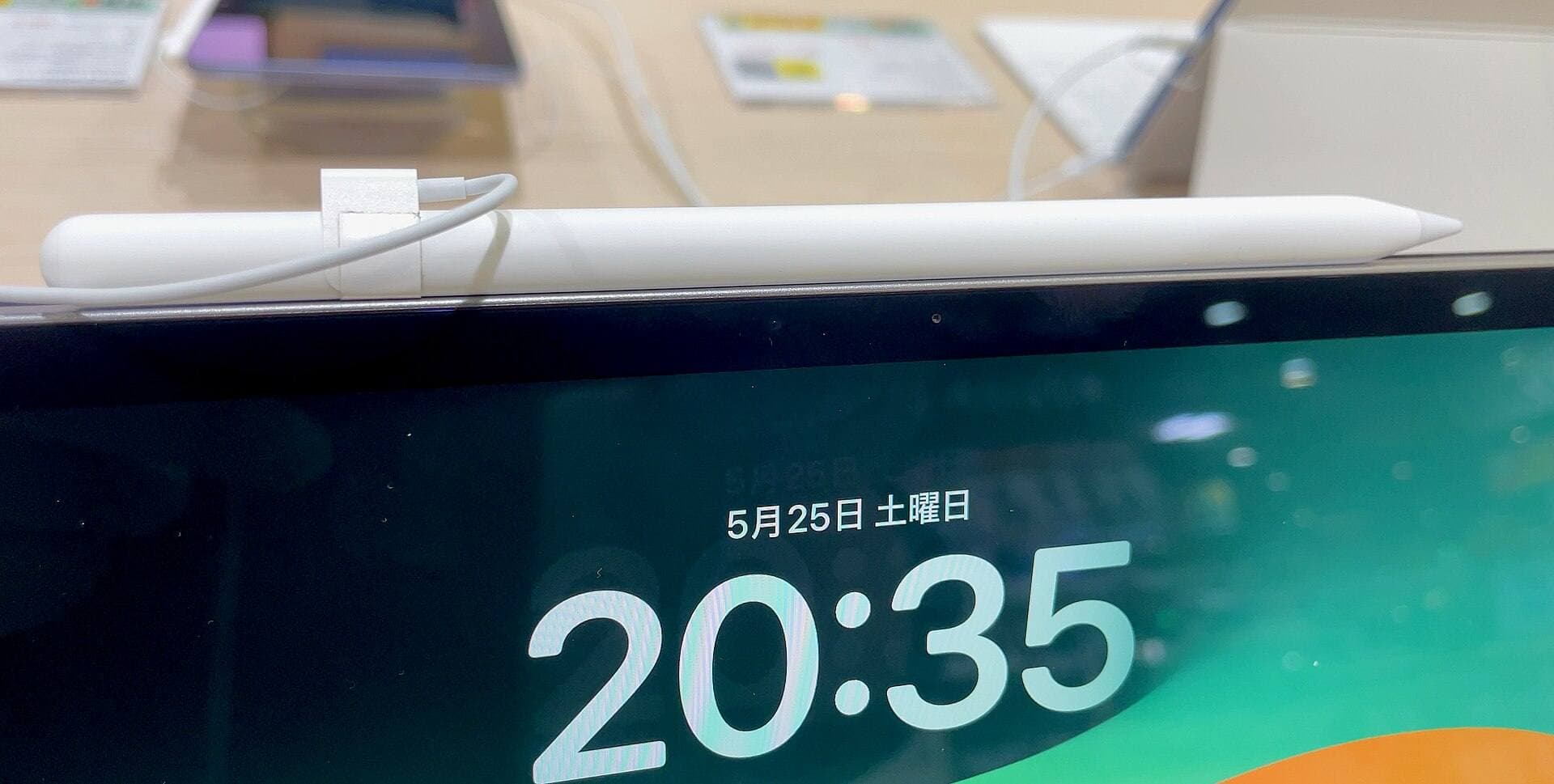
The Apple Pencil (USB-C) is designed as an entry point for note taking, linear drafting, and basic sketching [1]. While it offers tilt detection and low latency, Apple built it without pressure sensitivity [1]. That omission makes it an unsuitable tool for watercolor illustration [1].
When using the USB-C model in watercolor software, pressing harder against the screen produces no change in stroke weight, pigment release, or water transparency [1], [5]. You can tilt the barrel to widen specific tilt-responsive brushes, but the stroke remains at a single static opacity regardless of pressure [1], [3]. Creating soft gradients demands constant opacity adjustments through on-screen menus, which disrupts painting rhythm [5].
Who should buy the Apple Pencil (USB-C)? Buy it if your workflow is restricted to clean line work, vector outlines, journaling, or marking documents [1]. Skip it completely if you plan to paint watercolor landscapes, botanical studies, or soft-edge portrait washes [1]. Investing in an older iPad paired with an Apple Pencil (2nd generation) yields a vastly superior watercolor experience compared to buying a new iPad with the USB-C stylus [1], [2].
Screen texture and friction: when to add a matte film
Painting watercolor on naked iPad glass can feel slick and imprecise. Because glass has almost zero surface tooth, hand pressure can cause the hard plastic tip of the stylus to slide abruptly during delicate edge control. Many watercolorists pair their Apple Pencil with a Paperlike screen protector to counteract this slippery feeling [4].
Paperlike uses micro-bead surface texturing to introduce tactile friction beneath the stylus tip [4]. This resistance mimics the physical drag of a traditional sable or synthetic brush gliding over cold-press watercolor paper [4]. The added friction helps stabilize slow strokes, wet puddle boundaries, and careful dry-brush feathering [4].
There is an optical trade-off to consider before buying textured films. Matte films introduce surface refraction that slightly softens display contrast and sharpness compared to bare glass [4]. If you prioritize high-clarity video playback or crisp photo editing on the same iPad, that reduction in clarity might bother you [4]. However, if your tablet serves primarily as an art easel for watercolor and illustration, the physical feedback of a textured sheet is well worth the tradeoff [4].
Bottom line
Your choice of stylus for watercolor work hinges on pressure support and hardware compatibility [1], [2]. If you have an iPad that supports the Apple Pencil Pro, buy it to take full advantage of pressure modulation, barrel roll orientation, and squeeze shortcuts [1], [2], [3]. If your tablet pairs with the Apple Pencil (2nd generation), buy or keep that model to secure reliable pressure and tilt sensitivity without needing to replace your tablet [1], [2].
Avoid the Apple Pencil (USB-C) for watercolor work because its complete lack of pressure sensitivity prevents natural pigment pooling and wash control [1]. If you want greater physical control over your line stability on slippery glass, add a Paperlike protector to create tactile drag against your stylus tip [4].
Sources
[1] https://www.apple.com/apple-pencil/ [2] https://support.apple.com/en-us/108937 [3] https://support.apple.com/guide/ipad/draw-with-apple-pencil-ipadc55b6c7a/ipados [4] https://paperlike.com/products/paperlike-for-ipad [5] https://help.procreate.com/procreate/handbook/5.2/interface-gestures/pencil
Recommended gear
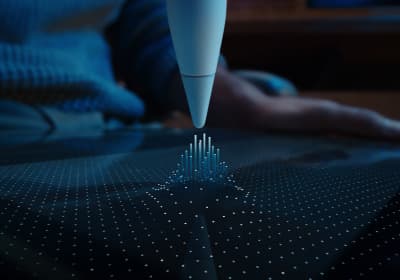
Apple Pencil Pro
amazon.comThe best Apple stylus for serious digital art workflows. Expensive, but the control upgrades are real.
Pro: Best brush-control and hover workflow
Con: Highest price in the lineup
Works only with newer iPad models. Check compatibility.
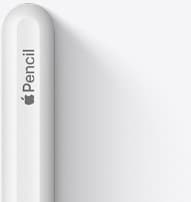
Apple Pencil (2nd generation)
amazon.comStill a strong stylus on compatible iPads. Good pressure control, but compatibility is the main trap.
Pro: Pressure support without Pro pricing
Con: Not compatible with newest Pro-only iPads
Only for iPads that support 2nd generation pairing.
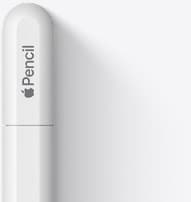
Apple Pencil (USB-C)
amazon.comA practical low-cost Apple stylus with broad compatibility, but limited for advanced art control.
Pro: Lowest official Apple Pencil cost
Con: No pressure sensitivity for brush work
Compatible with many recent iPads. No pressure support.
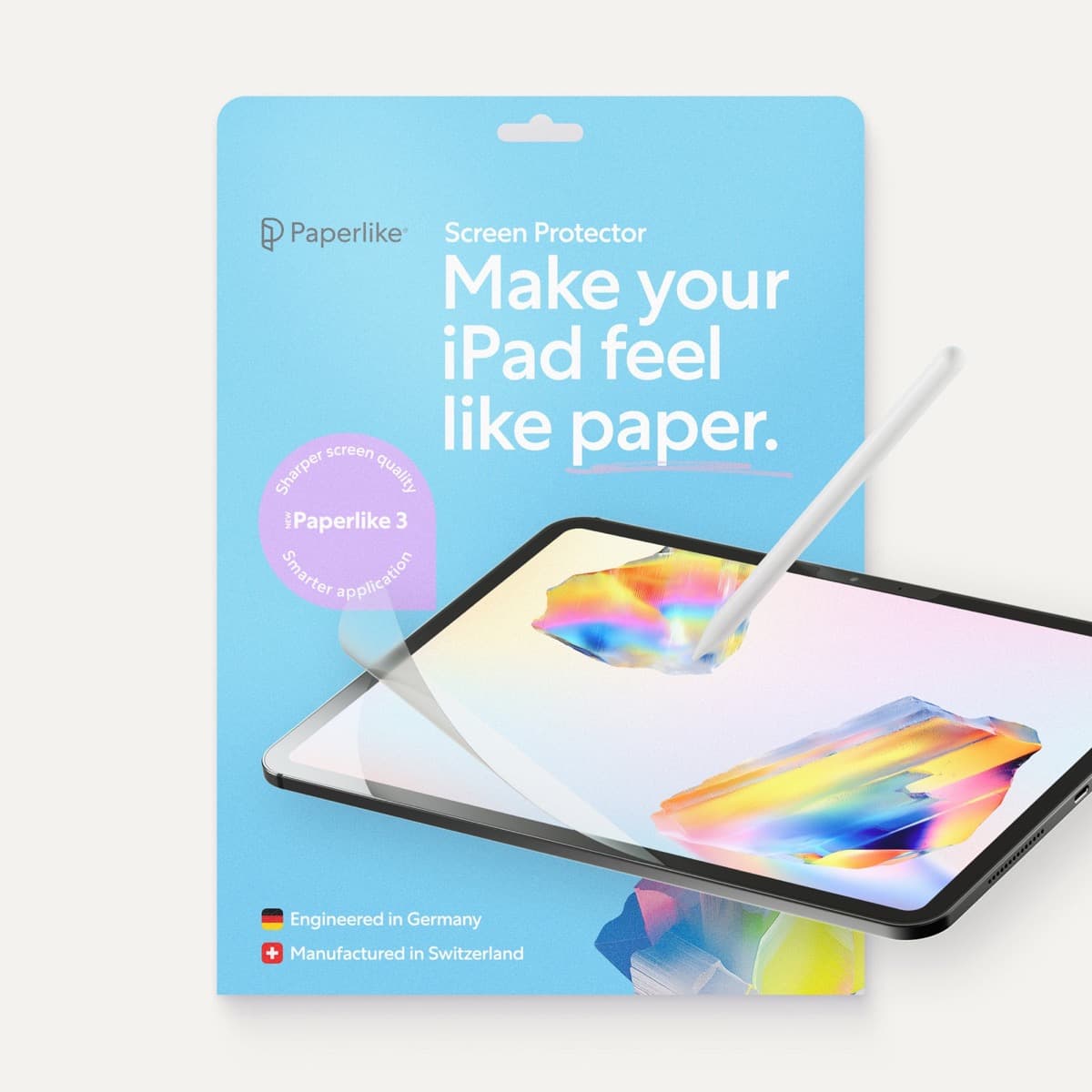
Paperlike 3 (11-inch, 2-pack)
amazon.comA strong surface-feel upgrade for drawing control. Clarity tradeoff is real and should be expected.
Pro: Adds controlled paper-feel friction
Con: Slightly reduces perceived display sharpness
11-inch fit only. Confirm generation before checkout.
Related buying picks
More in this collectionBuyer guide
Best Apple Pencil for portrait drawing: choosing the right stylus
Portrait artists need pressure sensitivity for tonal rendering, making Apple Pencil Pro or Apple Pencil 2nd generation the right choice over the entry model.
Buyer guide
Choosing the best Apple Pencil for medical illustration
Medical illustrators need pressure sensitivity and precise hardware compatibility, making the Apple Pencil Pro or 2nd generation pencil essential over the USB-C model.
Buyer guide
Choosing the best Apple Pencil for anime drawing
Anime line art demands pressure sensitivity, making Apple Pencil Pro or the 2nd generation model essential over the USB-C option.
Buyer guide
Best Apple Pencil for figure drawing: how to choose your stylus
Figure drawing demands reliable pressure sensitivity and stroke control, making Apple Pencil Pro or Apple Pencil 2nd generation the right choice over the USB-C model.