






If you plan to sculpt 3D models on an iPad, buy Apple Pencil Pro if your tablet supports it, keep Apple Pencil (2nd generation) if you already use an earlier supported model, and skip Apple Pencil (USB-C) entirely [1], [2]. 3D sculpting requires pressure sensitivity to pull clay forms, modify tool depth, and smooth surfaces cleanly [2]. Because Apple Pencil (USB-C) lacks pressure sensitivity, your tablet hardware dictates your choice between the Pro and 2nd generation models [1], [2], [3].
Why pressure sensitivity matters for digital clay
Digital sculpting apps treat your stylus tip like a physical shaping tool [4]. When you carve creases, build muscle volumes, or smooth topology, the pressure response translates directly into stroke strength and displacement depth [2], [4]. Apple Pencil Pro and Apple Pencil (2nd generation) include pressure sensitivity that measures varying hand force [2], [3]. This response allows you to start a stroke softly and press harder to pull mass outward from the virtual mesh [2], [4].
Without pressure sensitivity, every sculpting stroke applies uniform depth unless you stop to adjust an on-screen slider [2], [5]. Apple Pencil (USB-C) omits pressure sensors, offering only tilt detection and touch tracking [2]. While tilt helps angle flat pencil marks in sketch apps, it cannot replace the hand pressure needed to carve creases or blend clay [2], [4].
For organic sculpting and surface detailing, pressure sensitivity remains necessary [2], [4]. Apple built both Apple Pencil Pro and Apple Pencil (2nd generation) with this dynamic response, making them the only practical choices for sculpting workflows [2], [3].
Hover and barrel roll for 3D modeling tools
Apple Pencil Pro introduces hardware features that expand how you interact with 3D modeling tools [2], [4]. Apple Pencil hover detects the stylus tip up to 12 mm above the screen, projecting a cursor preview before you touch the glass [2], [4]. In sculpting viewports, hover displays the active brush size and surface angle directly on curved geometry [2], [4]. This visual guide helps prevent accidental marks on your mesh before you apply pressure [2], [4].
Apple Pencil Pro also adds a gyroscope for barrel roll [2], [4]. By rotating the stylus body between your fingers, you rotate the brush orientation or sculpt stamp along the stroke path [2], [4]. This control provides immediate directional shaping without manually rotating the camera [2], [4]. Apple Pencil (2nd generation) lacks a gyroscope and cannot track barrel roll, though it supports hover on select iPad Pro models [2], [3].
A built-in squeeze sensor in Apple Pencil Pro opens tool palettes or contextual menus with haptic feedback [2], [4]. This action lets you swap between carving, smoothing, and masking brushes without tapping interface icons [2], [4]. In comparison, Apple Pencil (2nd generation) provides only a double-tap gesture on its flat edge to switch between two preset tools [2], [5].
Apple Pencil compatibility across iPad hardware
Before choosing between the Pro and 2nd generation styluses, check your iPad model because Apple Pencil models are not interchangeable [1], [3]. Apple Pencil Pro pairs and charges wirelessly on newer hardware, including iPad Pro 13-inch (M4), iPad Pro 11-inch (M4), iPad Air 13-inch (M2), and iPad Air 11-inch (M2) [1], [3]. If you own one of these models, Apple Pencil Pro is your only choice with pressure support, as Apple Pencil (2nd generation) cannot pair with them [1], [3].
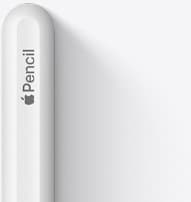
Apple Pencil (2nd generation) works exclusively with earlier magnetic iPads [1], [3]. Supported tablets include iPad Pro 12.9-inch (3rd through 6th generation), iPad Pro 11-inch (1st through 4th generation), iPad Air (4th and 5th generation), and iPad mini (6th generation) [1], [3]. If you sculpt on an M1 or M2 iPad Pro, your tablet cannot pair with Apple Pencil Pro, but your 2nd generation pencil already delivers pressure sensitivity and double-tap gestures for 3D work [1], [2].
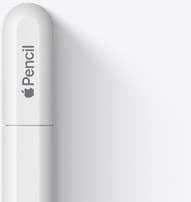
Apple Pencil (USB-C) pairs via a cable and attaches magnetically to iPads for storage without wireless charging [2], [3]. While it connects across both older and newer USB-C iPads, wide compatibility cannot compensate for missing pressure sensitivity in sculpting apps [1], [2], [3].
Skipping Apple Pencil USB-C for sculpting workflows
Apple Pencil (USB-C) costs less than the other models in Apple's current stylus lineup [2]. It suits note-taking, document annotation, and basic navigation [2], [3]. It offers pixel accuracy, tilt tracking, and low latency, along with hover on supported M2 and M4 iPad Pro tablets [2], [3].
However, Apple Pencil (USB-C) is not suitable for 3D sculpting [2]. Digital clay sculpting requires continuous variation in stroke strength while pulling volumes, defining folds, and blending forms [4], [5]. Without pressure sensitivity, you must manually move interface sliders to alter stroke depth, interrupting your sculpting cadence [2], [5].
Apple Pencil (USB-C) also omits shortcut controls like the double-tap sensor on the 2nd generation model and the squeeze sensor on Apple Pencil Pro [2], [4]. Additionally, it lacks wireless charging, requiring a physical USB-C cable whenever its battery runs low [2]. For creative projects where sculpting sessions run long, having your pencil charge automatically while attached to your iPad is a noticeable practical benefit [2], [3].
Managing surface texture and nib drag
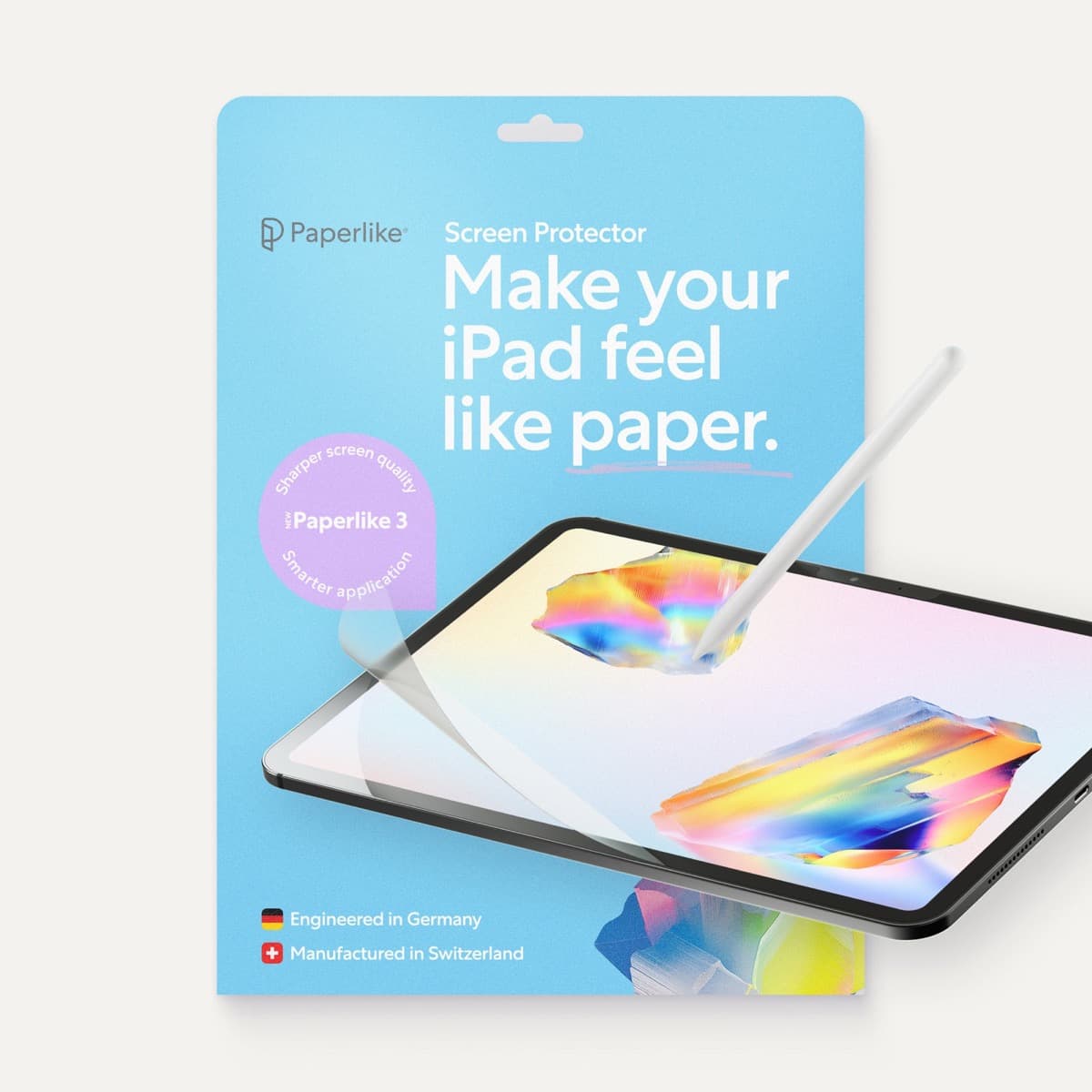
Sculpting directly on smooth iPad glass offers minimal friction, which some artists find slippery during delicate detail work [6]. A matte screen protector like Paperlike adds textured surface drag designed to emulate paper or drafting sheets [6]. That mechanical resistance can stabilize your hand while carving fine surface ridges or guiding seams across 3D meshes [4], [6].
Even so, matte films diffuse light, slightly lowering perceived contrast and sharpness compared to bare display glass [1], [6]. If your sculpting process relies on inspecting fine geometry details and cavity maps on an Ultra Retina XDR or Liquid Retina screen, bare glass preserves full visual clarity [1], [6]. If hand stability is your primary obstacle, a textured film adds tactile control [6].
Bottom line
Your choice depends on your iPad hardware [1], [3]. If you own an iPad Pro (M4) or iPad Air (M2), buy Apple Pencil Pro for pressure sensitivity, hover previews, barrel roll, and squeeze gestures [1], [2]. If you sculpt on an earlier supported iPad Pro or iPad Air, keep Apple Pencil (2nd generation) for its pressure tracking and double-tap shortcuts [1], [2]. Skip Apple Pencil (USB-C) because its lack of pressure sensitivity undermines 3D sculpting [2], [3].
Sources
[1] https://www.apple.com/ipad/compare/ [2] https://www.apple.com/apple-pencil/ [3] https://support.apple.com/en-us/108937 [4] https://support.apple.com/guide/ipad/draw-with-apple-pencil-ipadc55b6c7a/ipados [5] https://help.procreate.com/procreate/handbook/5.2/interface-gestures/pencil [6] https://paperlike.com/products/paperlike-for-ipad
Recommended gear

Apple Pencil Pro
amazon.comThe best Apple stylus for serious digital art workflows. Expensive, but the control upgrades are real.
Pro: Best brush-control and hover workflow
Con: Highest price in the lineup
Works only with newer iPad models. Check compatibility.
Apple Pencil (2nd generation)
amazon.comStill a strong stylus on compatible iPads. Good pressure control, but compatibility is the main trap.
Pro: Pressure support without Pro pricing
Con: Not compatible with newest Pro-only iPads
Only for iPads that support 2nd generation pairing.
Apple Pencil (USB-C)
amazon.comA practical low-cost Apple stylus with broad compatibility, but limited for advanced art control.
Pro: Lowest official Apple Pencil cost
Con: No pressure sensitivity for brush work
Compatible with many recent iPads. No pressure support.
Paperlike 3 (11-inch, 2-pack)
amazon.comA strong surface-feel upgrade for drawing control. Clarity tradeoff is real and should be expected.
Pro: Adds controlled paper-feel friction
Con: Slightly reduces perceived display sharpness
11-inch fit only. Confirm generation before checkout.
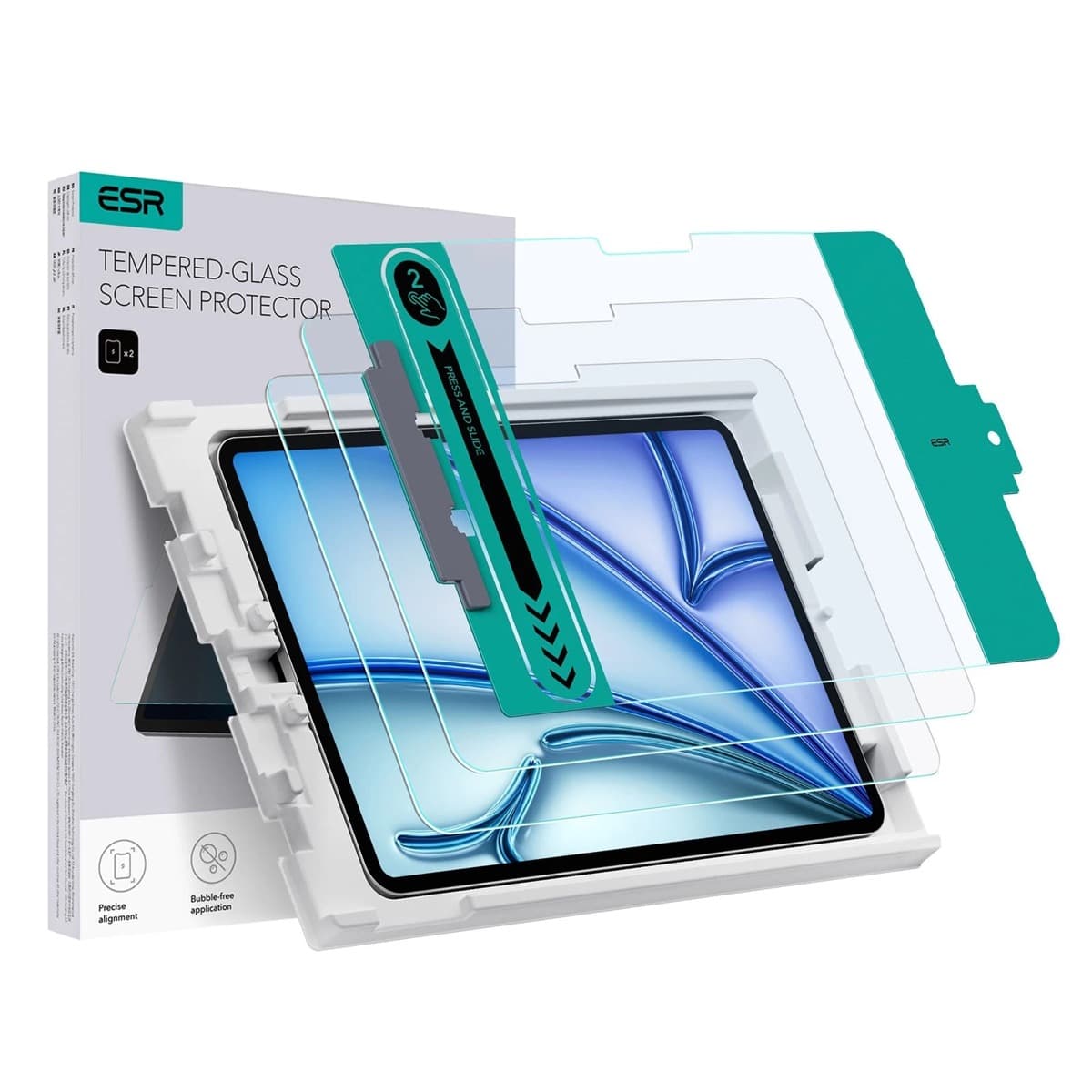
ESR Armorite Tempered Glass (11-inch)
amazon.comHigh-clarity protector with strong value. Great for visibility, less ideal for friction-seeking artists.
Pro: Very clear image with strong scratch resistance
Con: Minimal drawing friction compared with matte films
11-inch fit only. Verify exact iPad generation.
Related buying picks
More in this collectionBuyer guide
Best Apple Pencil for UI design: wireframing, markup, and layout on iPad
Choose the Apple Pencil (USB-C) for wireframing and interface sketches, or pick the Apple Pencil Pro if your iPad supports its squeeze and haptic shortcuts.
Buyer guide
Best Apple Pencil for portrait drawing: choosing the right stylus
Portrait artists need pressure sensitivity for tonal rendering, making Apple Pencil Pro or Apple Pencil 2nd generation the right choice over the entry model.
Buyer guide
Is the Apple Pencil USB-C enough for Procreate?
The Apple Pencil (USB-C) functions in Procreate, but the lack of pressure sensitivity makes it a poor fit for expressive brushwork.
Buyer guide
Apple Pencil for comic inking: Complete buyer guide
Choose the right Apple Pencil for digital comic inking based on line weight control, tablet compatibility, and glass friction.