





If your Apple Pencil double tap isn't working on iPadOS, don't rush to buy a replacement stylus right away. Most double-tap failures happen because the gesture was disabled in system settings, overridden by an app like Procreate, or attempted on hardware like Apple Pencil (USB-C) that lacks a double-tap sensor entirely [1], [2]. Keep your Apple Pencil (2nd generation) or Apple Pencil Pro if the stylus still pairs and writes normally [1], [3]. You only need to buy a new Apple Pencil Pro if your current stylus has physical hardware damage and you use a supported modern iPad [1], [2]. If you accidentally bought Apple Pencil (USB-C), return or skip it for art workflows because it lacks double tap and pressure sensitivity [1].
Confirm your Apple Pencil hardware supports double tap
Before spending hours tweaking software, confirm that your specific stylus actually includes a double-tap sensor. Apple divides its stylus lineup into distinct tiers with very different hardware capabilities [1], [2]. Apple Pencil (2nd generation) and Apple Pencil Pro feature an active tap zone near the lower barrel that recognizes two quick taps with your index finger [1], [3]. If you use either of these models on a supported iPad, the double-tap feature is built into the barrel hardware [1], [2].
In contrast, Apple Pencil (USB-C) does not feature double tap at all [1]. It attaches magnetically for storage and charges via a sliding USB-C port, but Apple built it without tap sensors, squeeze sensors, or pressure sensitivity [1], [2]. Many digital artists who buy Apple Pencil (USB-C) assume their double click gesture is broken when the hardware simply lacks the sensor [1]. If quick tool switching and brush pressure are essential for your daily drawing habits, skip Apple Pencil (USB-C) and choose Apple Pencil (2nd generation) or Apple Pencil Pro depending on which iPad you own [1], [2].
Compatibility also determines whether your stylus connects properly to your iPad. Apple Pencil (2nd generation) pairs and charges magnetically on compatible older iPad Pro models, iPad Air, and iPad mini [2], [5]. Apple Pencil Pro requires newer iPad models that support its upgraded charging coil, squeeze sensor, and barrel roll gyroscope [1], [2]. If you try to pair an unsupported stylus with an incompatible tablet, gestures and pairing will fail completely [2], [5].
System settings and gesture options on iPadOS
When your compatible Apple Pencil stops responding to double taps, the first place to inspect is the main iPadOS Settings menu. Tap shortcuts can turn off during operating system updates or accidental menu selections [3]. Open Settings on your iPad, select Apple Pencil, and check the double-tap configuration panel [3].
In iPadOS, Apple lets you assign specific default actions to the double-tap action [3]. The default options include switching between your current tool and the eraser, switching between your current tool and the previous tool, showing the color palette, or turning off the gesture entirely [3]. If the setting is marked as off, your pencil won't respond to any double click on the barrel [3]. Make sure your preferred action is checked, such as switching to the eraser [3].
Another frequent culprit is the tap speed threshold. In Accessibility settings under Apple Pencil, iPadOS provides adjustments for double-tap duration [3]. If your taps are slightly too slow or spaced unevenly, the system will register them as two isolated touches rather than a double-tap command [3]. Setting the double-tap duration to a slower recognition speed gives the digitizer a wider window to register your finger movements [3].
App-level gesture conflicts in creative tools
Even when iPadOS has double tap enabled, individual drawing and note-taking apps can override or ignore the system default [4]. If double tap works in Apple Notes or Markup but fails in your favorite drawing app, the problem sits in the application's gesture menu [3], [4].
In Procreate, for example, the app contains its own dedicated Gesture Controls menu [4]. Procreate lets users assign the Apple Pencil double tap to custom actions, such as opening the QuickMenu, invoking the eyedropper, or clearing the layer [4]. If an update clears this assignment or sets it to an action that doesn't trigger visually on your canvas, double tap will feel broken [4]. Open the Actions menu in Procreate, tap Prefs, open Gesture Controls, and verify what action is linked to the Apple Pencil double tap [4].
Note-taking applications like Notability and Goodnotes also include custom tool-switching preferences that can silence the standard system toggle. When switching between complex apps, check each application's internal stylus settings to ensure the pencil gesture isn't assigned to a hidden menu or turned off completely [3], [4]. Realigning app settings with your system preferences usually restores consistent tool switching immediately [3], [4].
Physical troubleshooting and pairing resets
If software menus show that double tap is enabled but the stylus still refuses to toggle tools, physical connection issues are the next logical suspect [1], [3]. Because the tap sensor resides inside the lower barrel, third-party thick silicone grips or protective sleeves can block the touch sensor from detecting your finger [1]. If you keep a decorative sleeve on your pencil, remove it and test double tapping directly on the bare plastic casing [1], [3].
Bluetooth connectivity drops can also freeze gesture inputs even while the tip continues drawing basic lines on the display [1], [3]. To reset the Bluetooth connection, open Settings, choose Bluetooth, find your Apple Pencil, tap the info button, and select Forget This Device [2], [3]. Next, snap the Apple Pencil onto the magnetic connector on the side of your iPad to re-pair it [2], [3].
A full iPad restart can also clear cached digitizer glitches that prevent gesture recognition after prolonged wake sessions [3]. Hold the top button and either volume button until the power slider appears, turn off the iPad, wait thirty seconds, and boot it back up [3]. Once the tablet restarts, reconnect the pencil magnetically and test the double-tap toggle in the native Notes app [2], [3].
Bottom line
Fixing an Apple Pencil double tap that stopped working almost never requires spending money on a replacement stylus [1], [3]. First, make sure you aren't using Apple Pencil (USB-C), which lacks tap sensors and pressure sensitivity by design [1], [2]. If you have an Apple Pencil (2nd generation) or Apple Pencil Pro, check your system settings under Apple Pencil, test a slower double-tap speed in Accessibility, and verify that apps like Procreate aren't overriding your shortcut [3], [4].
Keep your current Apple Pencil (2nd generation) if you use a compatible iPad Air, iPad mini, or older iPad Pro, as its pressure tracking and double-tap sensors provide identical tool toggling [1], [2], [5]. Only buy the Apple Pencil Pro if your existing stylus has true physical hardware failure or if you're upgrading to a newer compatible iPad model that unlocks barrel roll, squeeze gestures, and haptic feedback [1], [2].
Sources
[1] https://www.apple.com/apple-pencil/ [2] https://support.apple.com/en-us/108937 [3] https://support.apple.com/guide/ipad/draw-with-apple-pencil-ipadc55b6c7a/ipados [4] https://help.procreate.com/procreate/handbook/5.2/interface-gestures/pencil [5] https://www.apple.com/ipad/compare/
Recommended gear
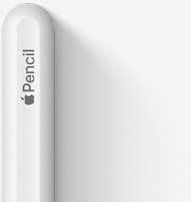
Apple Pencil (2nd generation)
amazon.comStill a strong stylus on compatible iPads. Good pressure control, but compatibility is the main trap.
Pro: Pressure support without Pro pricing
Con: Not compatible with newest Pro-only iPads
Only for iPads that support 2nd generation pairing.

Apple Pencil Pro
amazon.comThe best Apple stylus for serious digital art workflows. Expensive, but the control upgrades are real.
Pro: Best brush-control and hover workflow
Con: Highest price in the lineup
Works only with newer iPad models. Check compatibility.
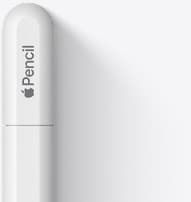
Apple Pencil (USB-C)
amazon.comA practical low-cost Apple stylus with broad compatibility, but limited for advanced art control.
Pro: Lowest official Apple Pencil cost
Con: No pressure sensitivity for brush work
Compatible with many recent iPads. No pressure support.
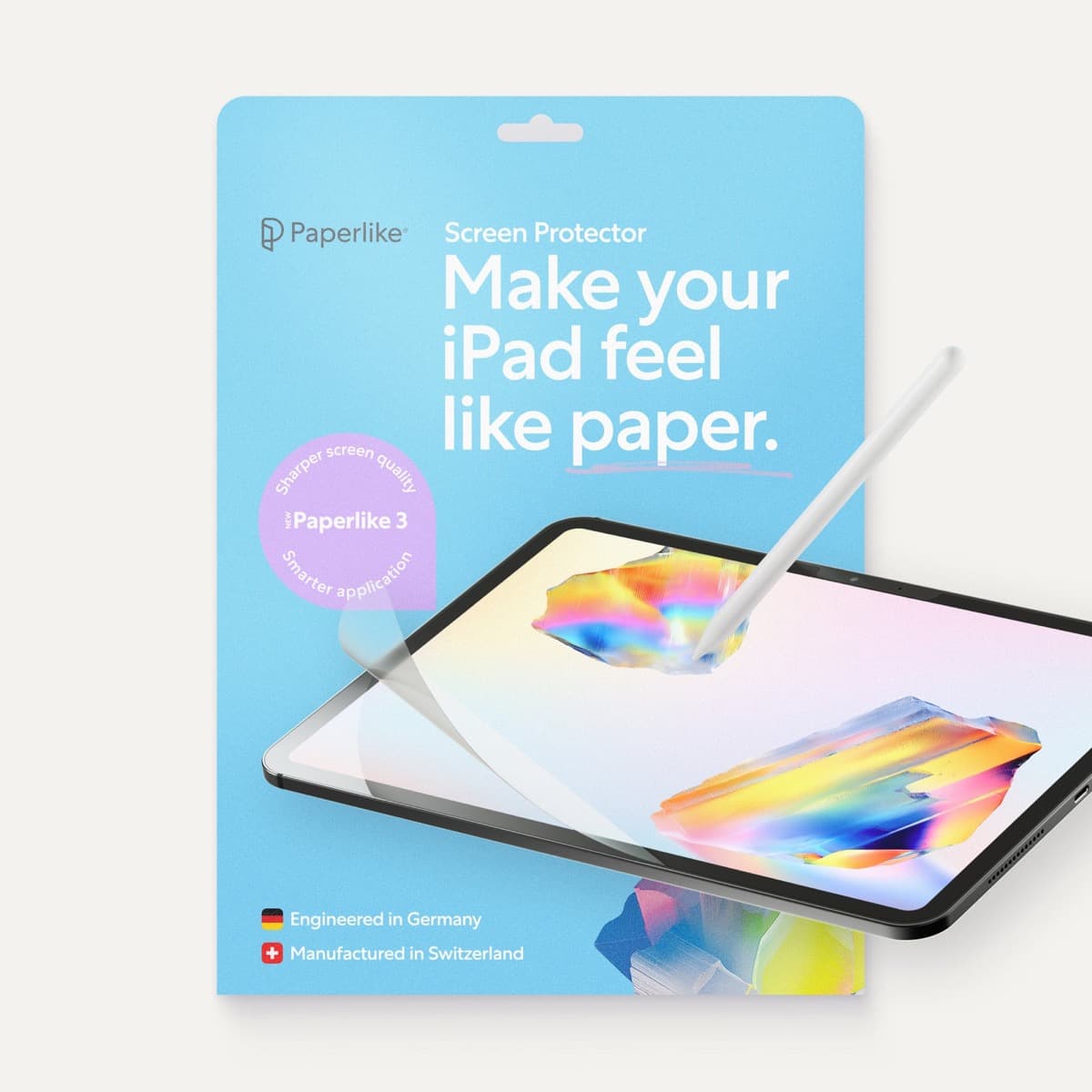
Paperlike 3 (11-inch, 2-pack)
amazon.comA strong surface-feel upgrade for drawing control. Clarity tradeoff is real and should be expected.
Pro: Adds controlled paper-feel friction
Con: Slightly reduces perceived display sharpness
11-inch fit only. Confirm generation before checkout.
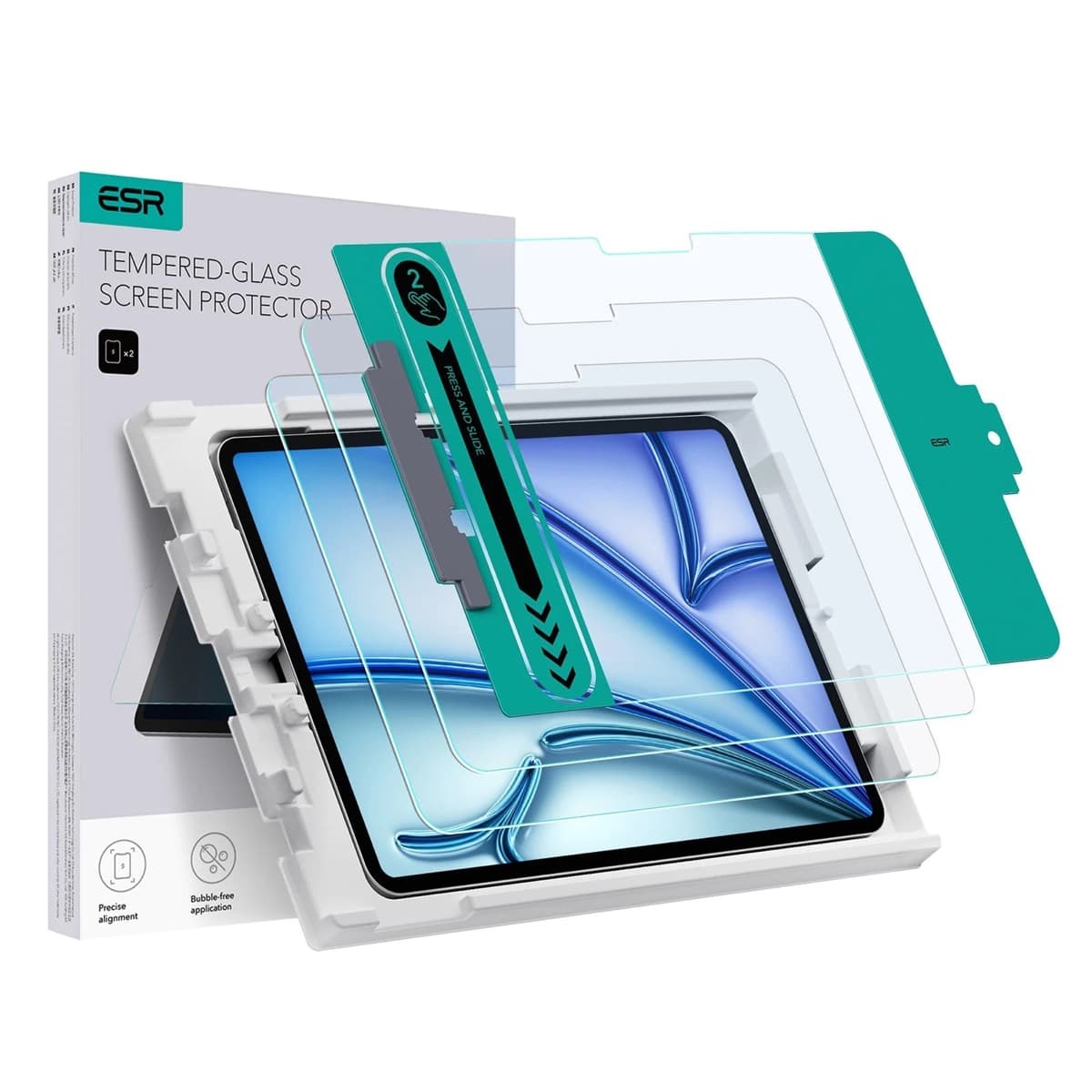
ESR Armorite Tempered Glass (11-inch)
amazon.comHigh-clarity protector with strong value. Great for visibility, less ideal for friction-seeking artists.
Pro: Very clear image with strong scratch resistance
Con: Minimal drawing friction compared with matte films
11-inch fit only. Verify exact iPad generation.
Related buying picks
More in this collectionBuyer guide
Best Apple Pencil for figure drawing: how to choose your stylus
Figure drawing demands reliable pressure sensitivity and stroke control, making Apple Pencil Pro or Apple Pencil 2nd generation the right choice over the USB-C model.
Buyer guide
Best Apple Pencil for lettering and calligraphy
Choose between Apple Pencil Pro, Apple Pencil 2, and Apple Pencil USB-C based on pressure sensitivity, barrel roll, and iPad compatibility.
Buyer guide
Choosing an Apple Pencil for photo retouching on iPad
Buy the Apple Pencil Pro or 2nd generation for pressure sensitivity, and skip the USB-C model for detailed photo editing.
Buyer guide
Best Apple Pencil for digital planning: How to choose
Choose the right Apple Pencil for digital planning based on your iPad model, handwriting habits, and shortcut preferences.