If you want one device for daily agenda tracking, handwriting, and digital art, buy the iPad Air paired with the Apple Pencil Pro [1], [3]. This combination provides hardware tool switching, barrel roll, and pressure sensitivity without forcing you into the top tier tablet [1], [2]. If you already own an iPad that handles your digital planner and supports a pressure-sensitive stylus, keep your current tablet and invest in software such as Goodnotes 6 or Notability instead [1], [3]. You don't need to upgrade your hardware just to manage schedules or sketch basic concepts [1].
Matching hardware to planning and drawing tasks
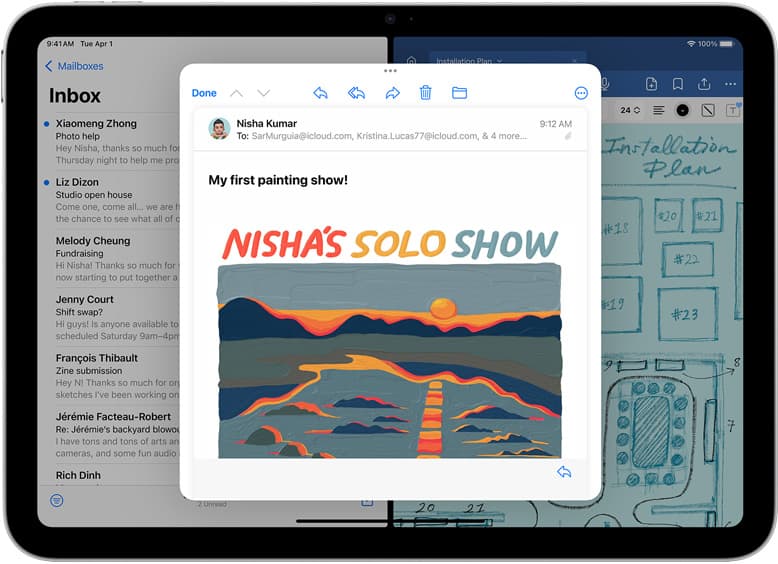
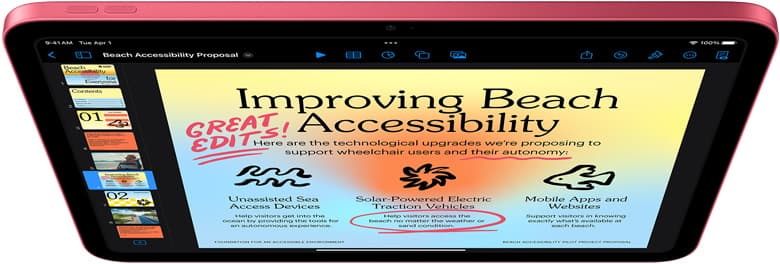
Digital planning and digital drawing place distinct demands on an iPad. Planning workflows in Goodnotes 6 rely on structured PDF notebooks, linked calendars, and rapid handwriting tools [1]. Notability similarly focuses on continuous handwriting and note capture [1]. These tasks don't demand massive graphics processing, but they require reliable handwriting input and a display large enough to view daily or weekly spreads comfortably [1], [3].
Drawing tools shift the requirements toward physical stylus response and memory limits. When you open drawing apps such as Procreate, the available system memory directly determines how many layers you can use on a given canvas size [4], [5]. If you build layered illustrations, canvas resolution and layer headroom matter quickly [4]. The iPad Air provides an M-series chip with Apple Pencil Pro support, offering a practical balance of hardware capability and software versatility for both disciplines [1], [3].
If your routine is ninety percent agenda organization and ten percent light doodling, a base iPad or an older tablet setup is plenty [1], [3]. But if you plan to split your time equally between daily agendas and layered digital art, you'll appreciate hardware that supports advanced stylus mechanics [2], [4].
Apple Pencil features that matter for dual workflows
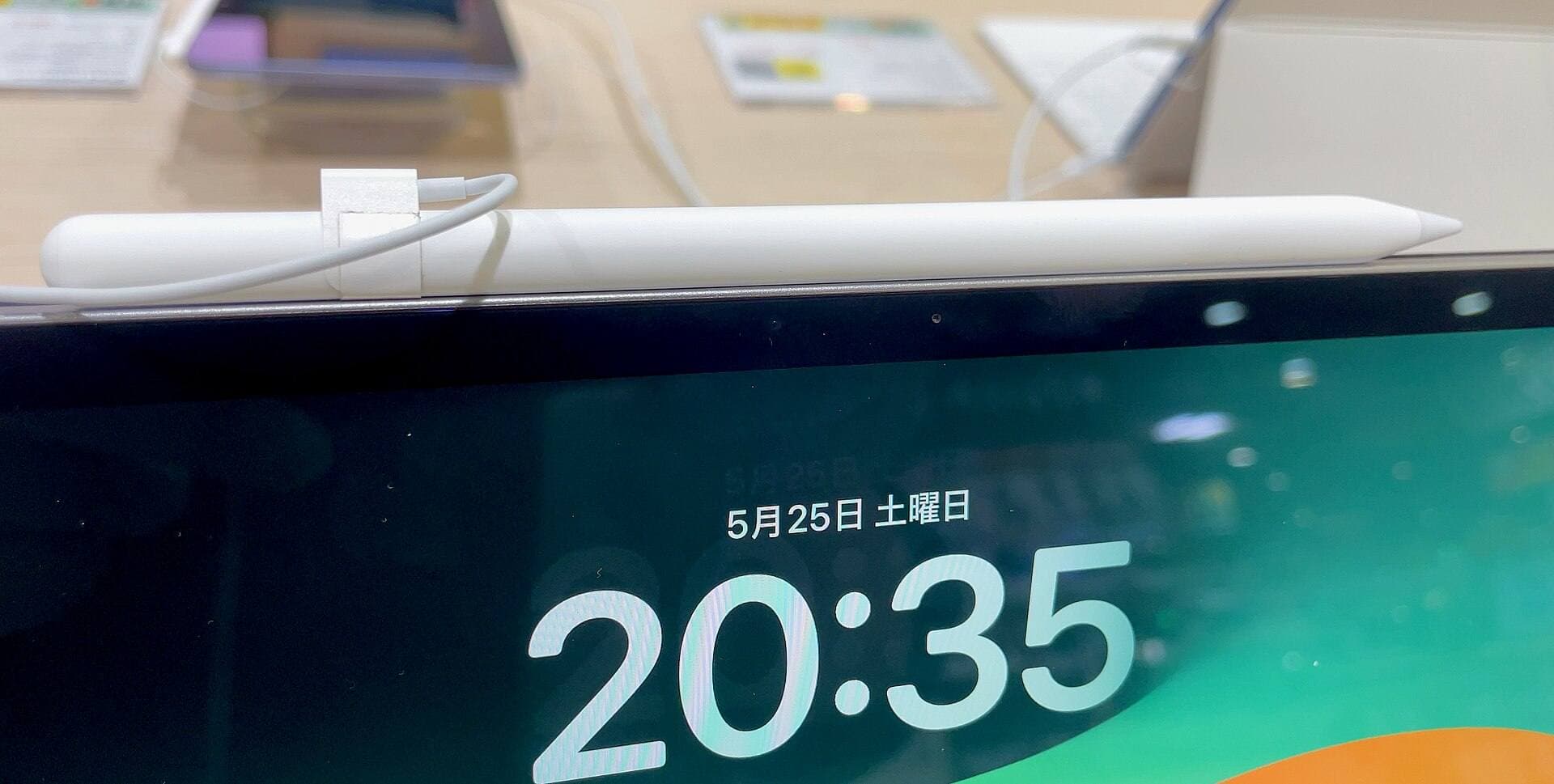
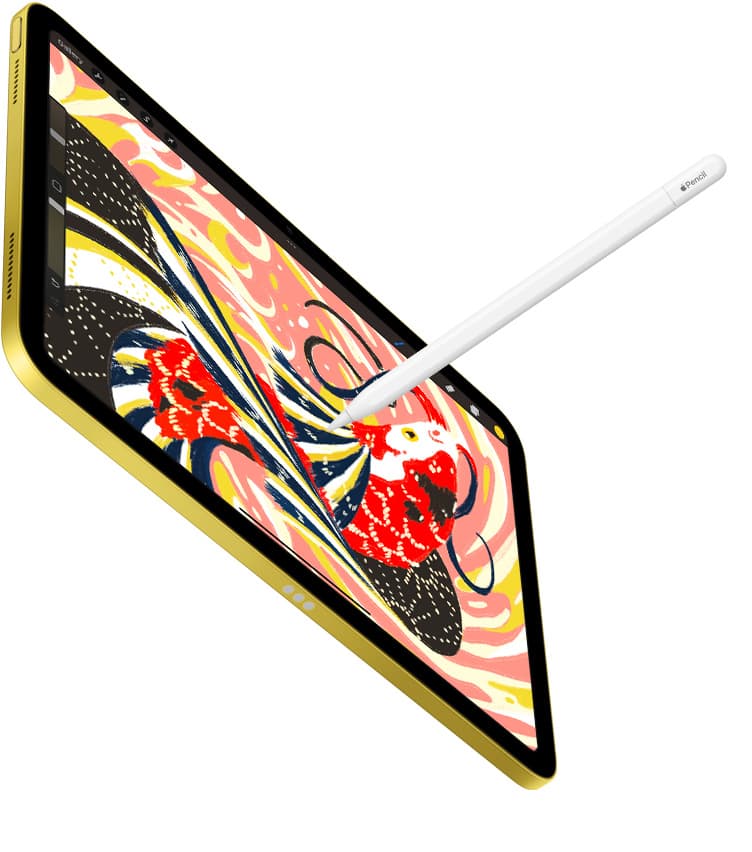
Choosing the right stylus comes down to the specific physical inputs you need while working. Apple Pencil Pro adds squeeze detection, barrel roll, haptic feedback, and hover to the drawing experience [2]. Barrel roll uses an internal gyroscope so you can rotate shaped brush tips as you draw, which alters brush marks directly in supported art apps [2], [5]. Squeeze brings up an on-screen palette to switch tools, line weights, or colors without reaching for toolbars [2].
For planning apps like Goodnotes 6 and Notability, squeeze and double tap provide quick access to erasers and highlighter tools [2]. This keeps your handwriting flow steady when filling in calendars or checking off tasks [2]. Tilt and pressure sensitivity also let you shade sketches or mimic fountain pens directly on the glass [2].
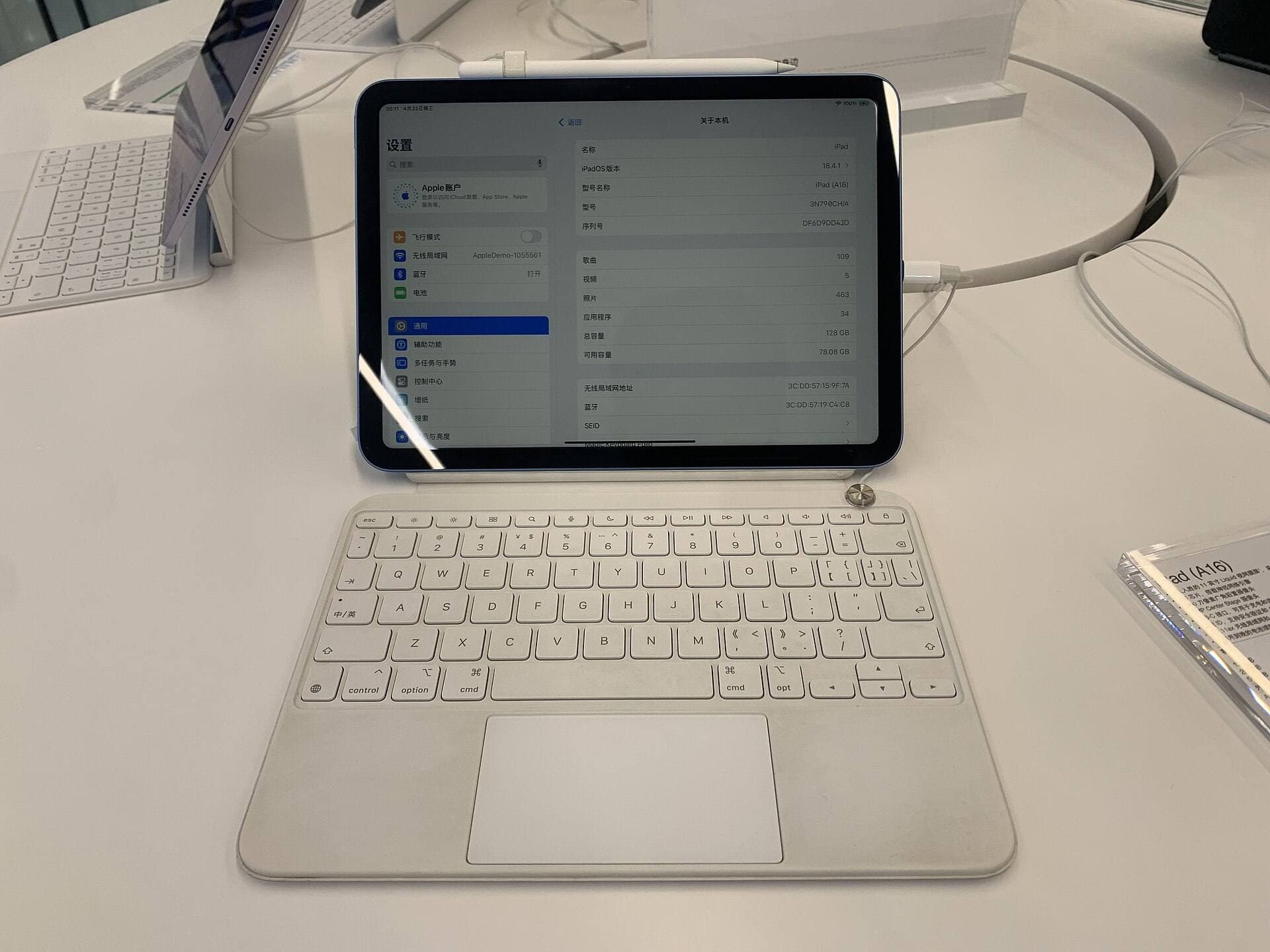
However, Apple Pencil Pro only works with select modern iPad models, including the iPad Air with M4 [1], [3]. Older iPads can't pair with or charge Apple Pencil Pro [1], [3]. If you pick a stylus without checking tablet compatibility, you'll end up with an unusable tool [3]. Anyone buying a stylus solely for checking off planner boxes can skip the Pro stylus and use a basic input tool, but illustrators will want the pressure and roll features [2].
Screen real estate and portability tradeoffs
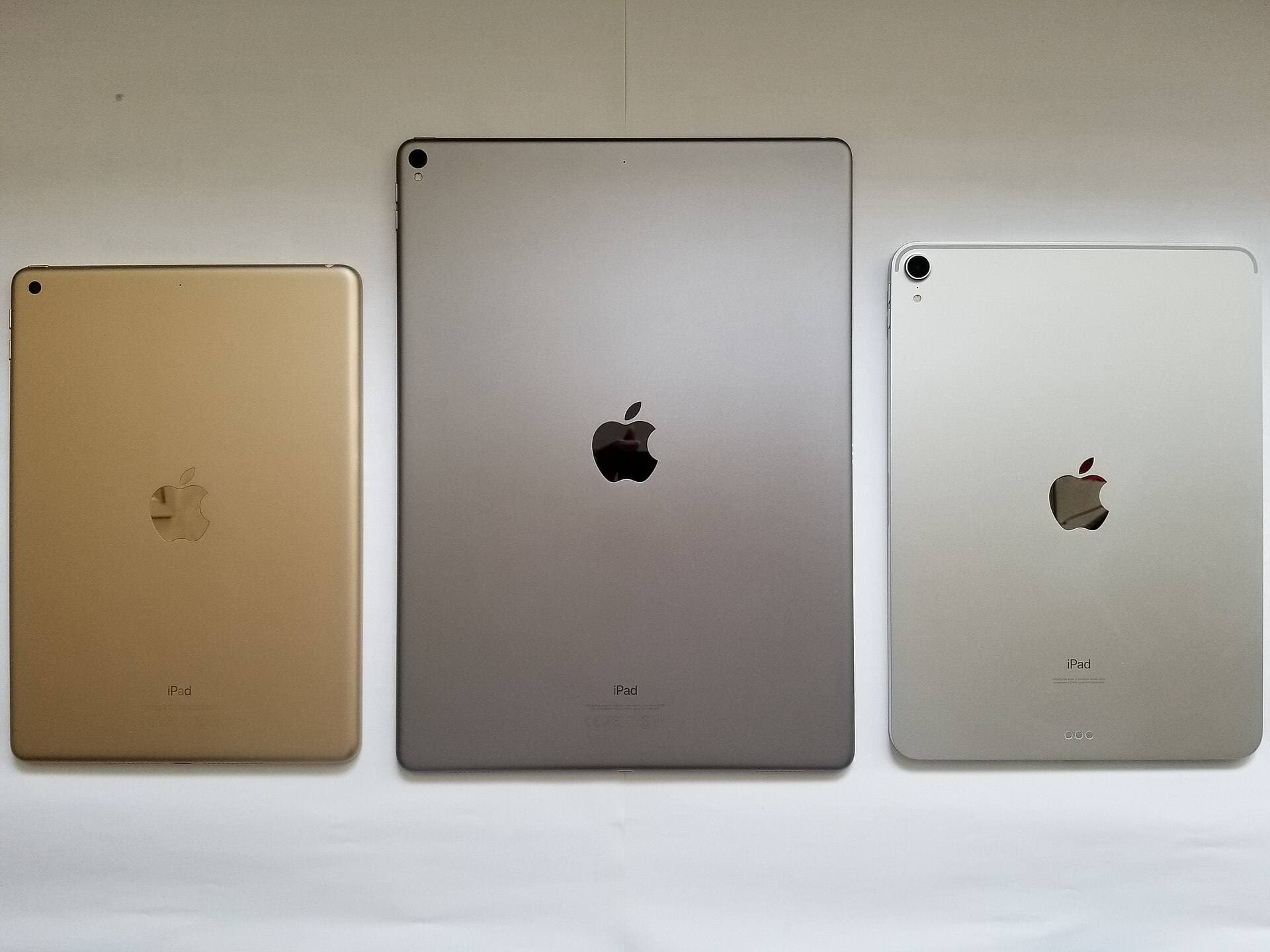
Screen dimensions alter how you write in a digital planner and how you compose a canvas. Apple offers the iPad Air in two physical display sizes, letting you pick between a compact footprint and an expanded workspace [1]. A smaller screen is lighter to hold while writing notes on the couch or checking a planner on the train [1]. It slips easily into bags and works well as a personal organizer [1].
Drawing on a smaller display, however, means toolbars and menus take up a larger percentage of your active work area [4], [5]. When you open side panels in Procreate or split your screen between a planner and a browser reference, a compact screen feels tight [1], [5]. A larger display gives you room for full two-page planner spreads and leaves ample margins for sketching [1].
While the iPad Air runs at a standard 60Hz display refresh rate rather than the higher refresh rate found on iPad Pro models, it provides ample clarity for drawing and planning [1]. Artists who require higher refresh rates must move up to a Pro model, but the iPad Air handles both Goodnotes 6 templates and Procreate brushes without requiring that jump [1], [4].
Software differences between Goodnotes 6 and Notability
Your choice of planning application shapes your day-to-day organizer experience. Goodnotes 6 emphasizes structured notebook organization, folder hierarchies, and customizable paper templates [1]. It excels when importing interactive PDF planners that use hyperlinked tabs to jump between monthly, weekly, and daily pages [1]. For users who treat digital planning like a physical paper planner, Goodnotes 6 offers the most natural filing system [1].
Notability uses a continuous scrolling format that favors rapid handwriting, lecture notes, and linear outlining [1]. It includes audio recording synced to written notes, which is helpful if you attend meetings while keeping an agenda [1]. However, if your planning system relies heavily on pre-formatted graphic planners with interactive tabs, Goodnotes 6 typically accommodates those PDF files with fewer visual quirks [1].
Both apps require subscriptions or paid upgrades to unlock their full feature suites [1]. If you only need occasional sketching or plain note capture, you can start with basic pre-installed tools before committing to recurring software fees [1]. But if you intend to keep a year-long planner alongside your sketchbook, testing both interfaces will clarify which file structure matches your habits [1].
Balancing storage and canvas memory
Storage configurations affect your overall device longevity, while internal memory determines your drawing limits. In apps like Procreate, total device memory dictates the maximum number of layers available on a specific canvas size [4]. A larger canvas with high pixel dimensions consumes more system resources, which lowers your maximum layer limit to keep file operations stable [4].
Digital planners also accumulate substantial file sizes over months of use. Planners with hundreds of hyperlinked pages, embedded sticker images, and thousands of pen strokes take up drive space [1]. Selecting an iPad Air with adequate onboard storage ensures you'll not have to offload archived planners or export artwork files constantly to free up space [1].
Artists who work with dozens of layers on high-resolution print files will want to monitor their canvas dimensions carefully [4]. If you frequently exceed layer boundaries on complex projects, you may need to flatten layers or adjust canvas dimensions to work within the app limits [4]. For typical digital planning and standard social illustration, the iPad Air provides plenty of headroom [1], [4].
Bottom line
Buy the iPad Air and Apple Pencil Pro if you want a complete planning and illustration setup without paying top-tier tablet prices [1], [3]. This pairing gives you pressure sensitivity, barrel roll, and tool switching in a flexible package [1], [2]. Skip this hardware upgrade if you already own an iPad that runs your planner smoothly, as software like Goodnotes 6 and Notability works reliably across multiple hardware generations [1], [3].
Sources
[1] https://www.apple.com/ipad/compare/ [2] https://www.apple.com/apple-pencil/ [3] https://support.apple.com/en-us/108937 [4] https://help.procreate.com/articles/zlexav-ipad-compatibility [5] https://apps.apple.com/us/app/procreate/id425073498
Recommended gear
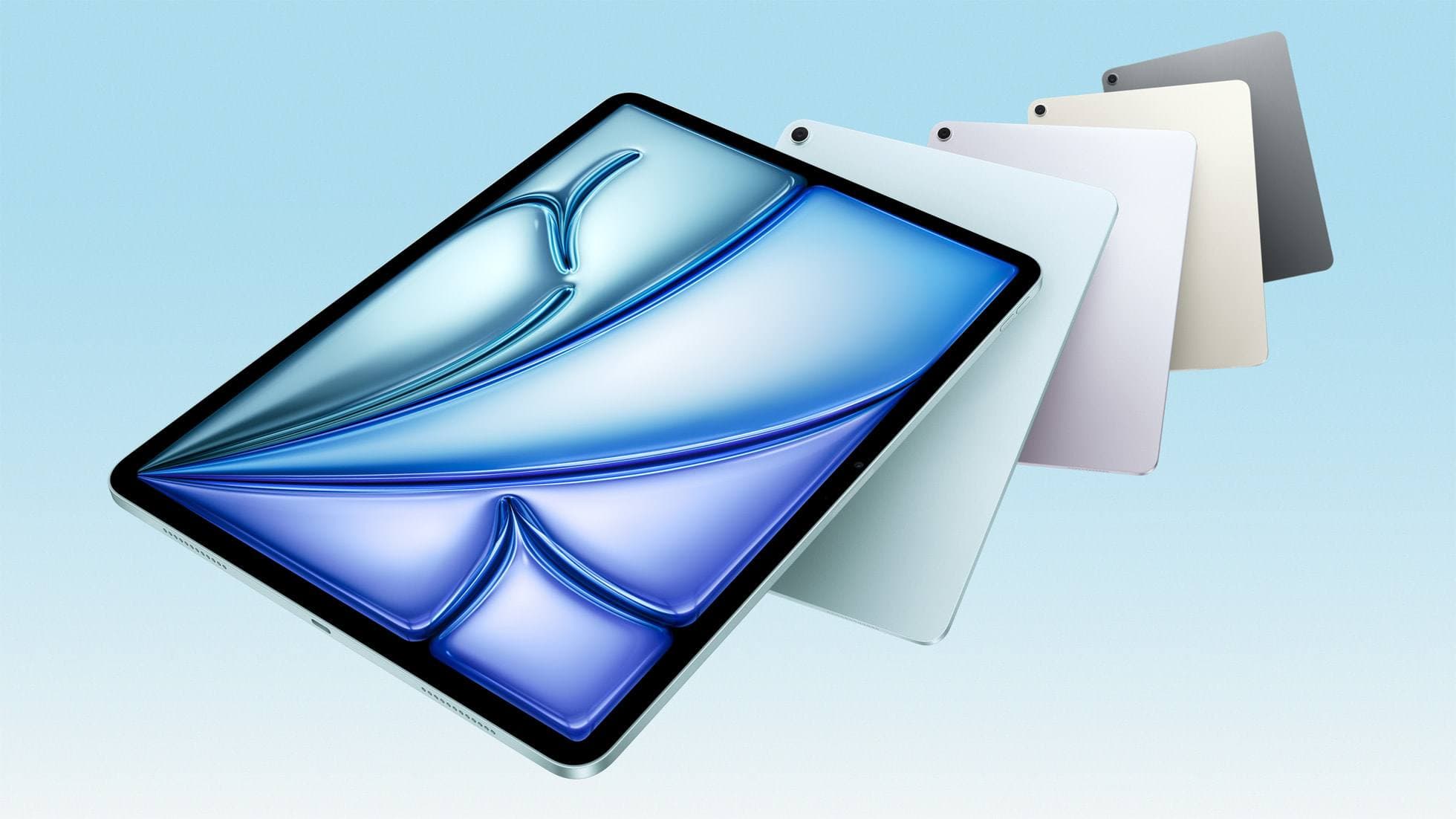
iPad Air (M4)
apple.comThe clean current Air recommendation for most serious hobby artists. Stronger buy logic than old-stock M3 when pricing is close.
Pro: Best current balance of price, headroom, and Pencil support
Con: Still 60Hz
Current Air lineup. Choose size, storage, and keyboard path before checkout.
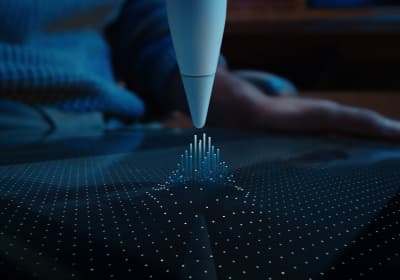
Apple Pencil Pro
amazon.comThe best Apple stylus for serious digital art workflows. Expensive, but the control upgrades are real.
Pro: Best brush-control and hover workflow
Con: Highest price in the lineup
Works only with newer iPad models. Check compatibility.
Goodnotes 6
apps.apple.comPro: Strong templates and organization
Con: Subscription for full features
Notability
apps.apple.comPro: Fast handwriting workflow
Con: Feature gating on free tier
Related buying picks
More in this collectionBuyer guide
Best iPad for architecture drawing: picking your drafting setup
Compare the top iPads for architectural drawing, plan markups, and Apple Pencil support to find the right fit for your desk and site work.
Buyer guide
What's the best iPad for artists?
iPad Air with the M4 chip hits the best balance of stylus features and price for most digital artists.
Comparison
iPad vs Android tablet for drawing: How to pick your art setup
Compare iPad and Android tablets for digital art to find the right stylus, app ecosystem, and hardware balance.
Buyer guide
Best iPad for sublimation design: How to pick the right screen and chip
Compare iPad models for sublimation art so you get the layer counts, Apple Pencil features, and screen size your printing projects require.