






If you're heading into graphic design classes, buy the iPad Air (M4) [1]. It pairs with the Apple Pencil Pro, giving you pressure sensitivity, barrel roll, squeeze gestures, and haptic feedback for your drawing assignments [2], [3]. You get the creative features you need without paying extra for top-tier hardware [1]. If you want to keep costs as low as possible, choose the iPad (A16), but you'll have to accept stylus trade-offs [1], [2]. If you have extra budget and want the ProMotion display, choose the iPad Pro (M5) [1]. Skip the iPad mini (A17 Pro) unless you prioritize a small footprint over canvas space [1].
Choosing the right screen size for studio coursework
Screen size shapes how much interface you can keep open alongside your artwork [1]. The iPad Air comes in two display sizes, giving you the choice between an 11-inch or 13-inch screen [1]. An 11-inch screen fits neatly into an everyday backpack, while a 13-inch display provides more physical area for toolbars, palettes, reference photos, and multi-window multitasking in iPadOS [1]. The base iPad (A16) offers a standard single display size that covers sketching and basic typography layouts [1].
The iPad mini (A17 Pro) features an 8.3-inch display, which makes it easy to hold in one hand during quick campus commutes [1]. That compact footprint works well for thumbnail sketches, but it limits your workspace when you need menus and drawing layers open at the same time [1]. Working on detailed client briefs or vector projects on an 8.3-inch panel means constantly zooming in and out [1].
On the other end of the spectrum, the iPad Pro (M5) comes in 11-inch and 13-inch configurations with Apple's best display technology and ProMotion refresh rates [1]. If your design program requires long sessions of layout work, having either an 11-inch or 13-inch screen gives you room to see your composition clearly [1]. For most design majors, an 11-inch or 13-inch workspace offers the balance you need for both drawing and document review [1].
Why Apple Pencil compatibility dictates your tool choice
Stylus support is the most critical technical distinction across the iPad lineup [2], [3]. The iPad Air (M4) and iPad Pro (M5) both support the Apple Pencil Pro [1], [3]. This stylus includes pressure sensitivity, tilt detection, barrel roll, squeeze shortcuts, hover, and haptic feedback [2]. Squeeze allows you to bring up tool palettes directly at the pencil tip, while barrel roll rotates shaped brushes as you turn the barrel [2]. These input features give design students direct control over brush dynamics in creative software [2], [5].
In contrast, the entry-level iPad (A16) pairs with the Apple Pencil (USB-C) [1], [3]. While the Apple Pencil (USB-C) includes tilt sensitivity and magnetically attaches to the side of the tablet, it lacks pressure sensitivity [2]. Without pressure sensitivity, your brush strokes won't change thickness or opacity based on how hard you press down [2]. That limitation matters for hand lettering, digital painting, and dynamic inking assignments [2], [5]. If your graphic design curriculum involves illustration and expressive line work, pairing an iPad Air with an Apple Pencil Pro avoids that functional barrier [1], [2], [3].
The iPad mini (A17 Pro) also supports the Apple Pencil Pro, bringing pressure sensitivity and barrel roll to a smaller chassis [1], [2], [3]. But you don't get full advantage of those expressive brushes if your drawing surface feels cramped [1], [2]. Matching the Apple Pencil Pro with an 11-inch or 13-inch screen provides the physical room necessary to practice precise line weights and gestural strokes [1], [2].
How device memory impacts canvas layers in Procreate
Many design students rely on illustration tools like Procreate for concept art, storyboarding, and digital drawing [4], [5]. Procreate runs on iPadOS and relies directly on the hardware specifications of your tablet [4], [5]. Because the app operates within available device memory, your maximum layer count per canvas depends entirely on the memory installed in your specific iPad model and your chosen canvas resolution [4].
When you create a large canvas for print resolution, such as a 300 DPI poster or a multi-page spread, the available layer count drops accordingly [4]. iPads with more system memory allow a higher number of layers at identical canvas dimensions [4]. If your design coursework requires complex composite illustrations with dozens of separate adjustment, text, and artwork layers, you'll need sufficient memory to avoid hitting strict layer caps [4].
The iPad Air (M4) and iPad Pro (M5) offer larger memory configurations and higher storage tiers than entry-level options [1], [4]. That memory headroom gives you freedom when organizing design files with multiple non-destructive layers [4]. The standard iPad (A16) is capable of running the app, but its memory limits will restrict how many layers you can stack on high-resolution print files [1], [4], [5].
Comparing each iPad model for design majors
Each iPad model in the current catalog addresses a specific balance of price, portability, and capability [1]. The iPad Air (M4) represents the best overall balance for most students [1]. It supports the Apple Pencil Pro, offers modern M4 silicon, comes in two physical sizes, and avoids the steep pricing of the Pro line [1], [2]. The only notable compromise is that the iPad Air uses a 60Hz display rather than a high-refresh ProMotion screen [1].
The standard iPad (A16) is the best default option when total kit cost matters more than having every creative tool [1]. It runs modern iPadOS design apps and handles typography, layout sketching, and vector adjustments reliably [1], [5]. However, you should skip the iPad (A16) if you need pressure-sensitive drawing or native Apple Pencil Pro features [2], [3]. The lack of pressure sensitivity on its compatible USB-C stylus limits its utility for advanced illustration courses [2].
The iPad Pro (M5) provides the highest ceiling with its ProMotion display and high-end screen technology [1]. ProMotion delivers a 120Hz refresh rate, giving the Pencil stroke an immediate visual response on screen [1], [2]. Buy the iPad Pro (M5) if you have the budget and want the best possible screen experience for color work and daily production [1]. Skip it if you need to stretch your student equipment budget, because the iPad Air delivers the same Apple Pencil Pro drawing tools at a much friendlier price point [1], [2].
The iPad mini (A17 Pro) fits a very specific niche [1]. It supports the Apple Pencil Pro, which means it retains pressure sensitivity, squeeze, and barrel roll [2], [3]. That makes it a capable pocket sketchbook for field drawing and portable ideation [1], [2]. You should skip the iPad mini as your primary studio machine, however, because an 8.3-inch screen isn't large enough for extended layout projects, multi-window reference viewing, and detailed typography work [1].
Bottom line
For the vast majority of graphic design students, the iPad Air (M4) is the exact model to purchase [1]. It gives you full compatibility with the Apple Pencil Pro, including pressure sensitivity, barrel roll, and haptic feedback, without forcing you to pay for the Pro tier [1], [2], [3]. It also offers enough memory headroom to keep your layer limits generous on high-resolution Procreate canvases [1], [4]. Choose the 11-inch version for daily transit or the 13-inch version if you want a larger drawing table [1].
If you must strictly minimize your expenses, buy the iPad (A16) and pair it with the Apple Pencil (USB-C), but prepare to work without pressure sensitivity [1], [2], [3]. If you want the most refined display and ProMotion refresh rates, invest in the iPad Pro (M5) [1]. Otherwise, skip the extremes and put your money into the iPad Air (M4) [1].
Sources
[1] https://www.apple.com/ipad/compare/ [2] https://www.apple.com/apple-pencil/ [3] https://support.apple.com/en-us/108937 [4] https://help.procreate.com/articles/zlexav-ipad-compatibility [5] https://apps.apple.com/us/app/procreate/id425073498
Recommended gear
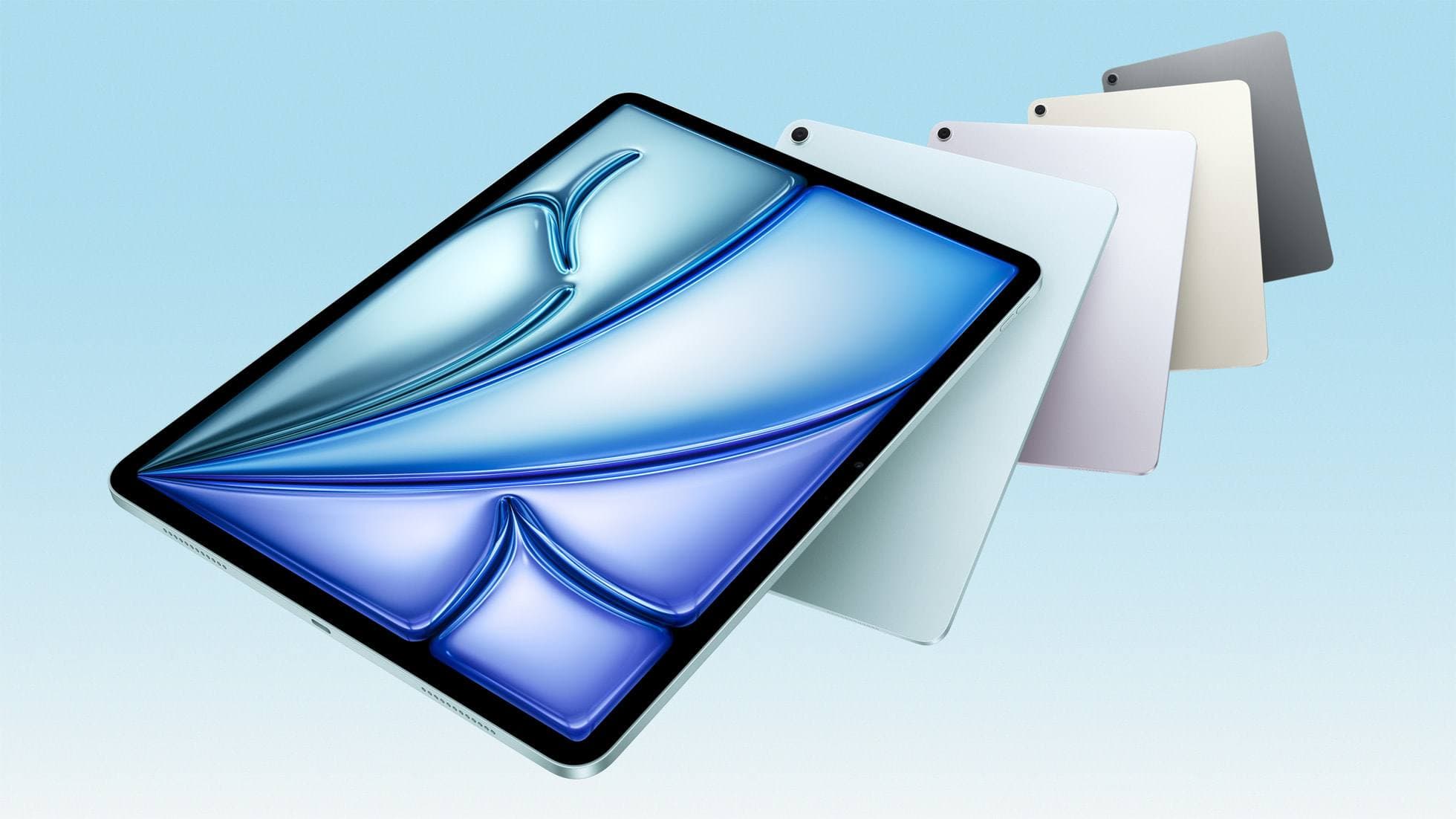
iPad Air (M4)
apple.comThe clean current Air recommendation for most serious hobby artists. Stronger buy logic than old-stock M3 when pricing is close.
Pro: Best current balance of price, headroom, and Pencil support
Con: Still 60Hz
Current Air lineup. Choose size, storage, and keyboard path before checkout.
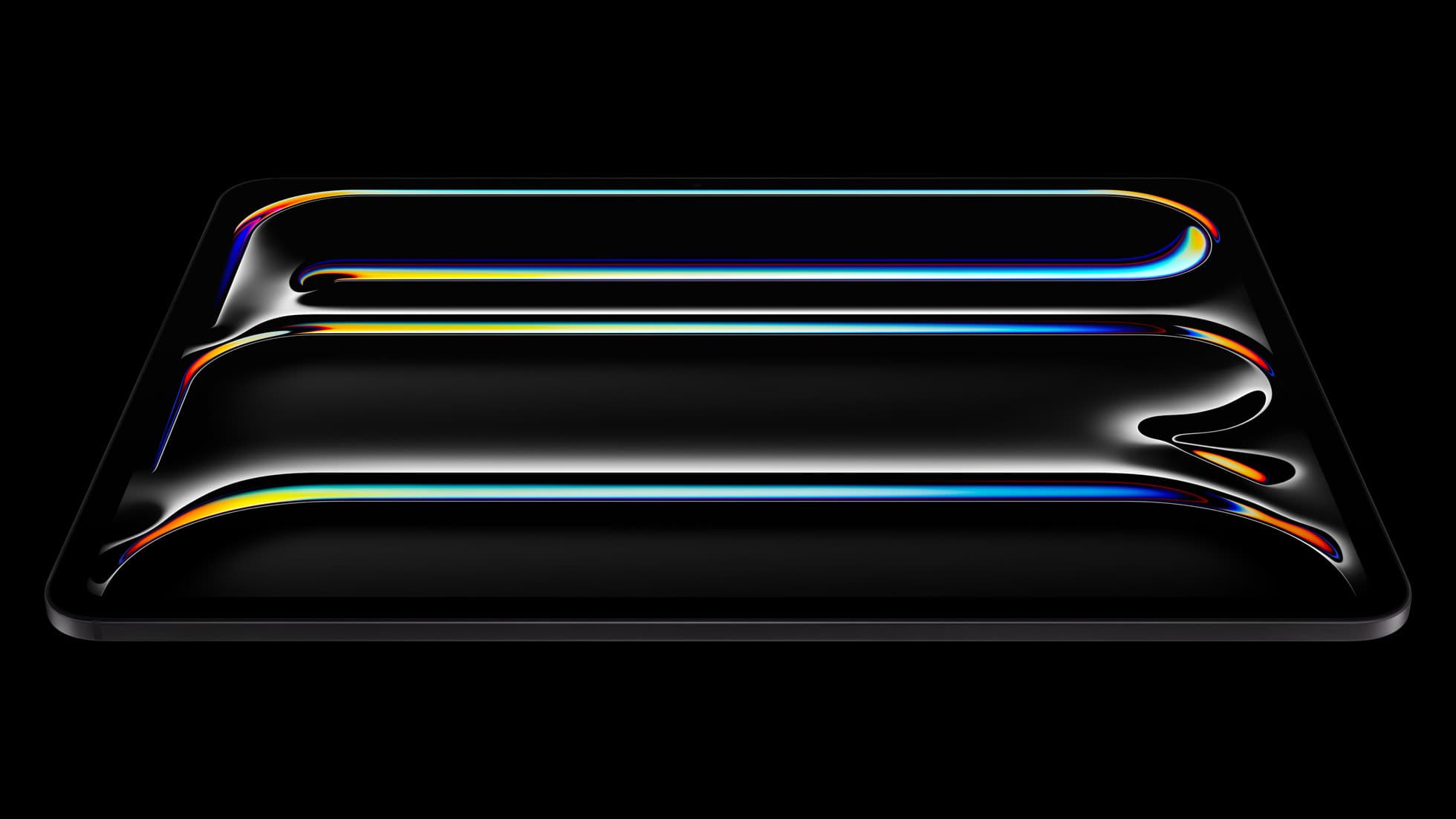
iPad Pro (M5)
amazon.comThe best iPad for drawing feel and premium workflow comfort, but many buyers still overpay for it.
Pro: Best iPad display and ProMotion feel
Con: Highest price in the lineup
Search opens with iPad Pro terms. Check year, chip, and screen size.
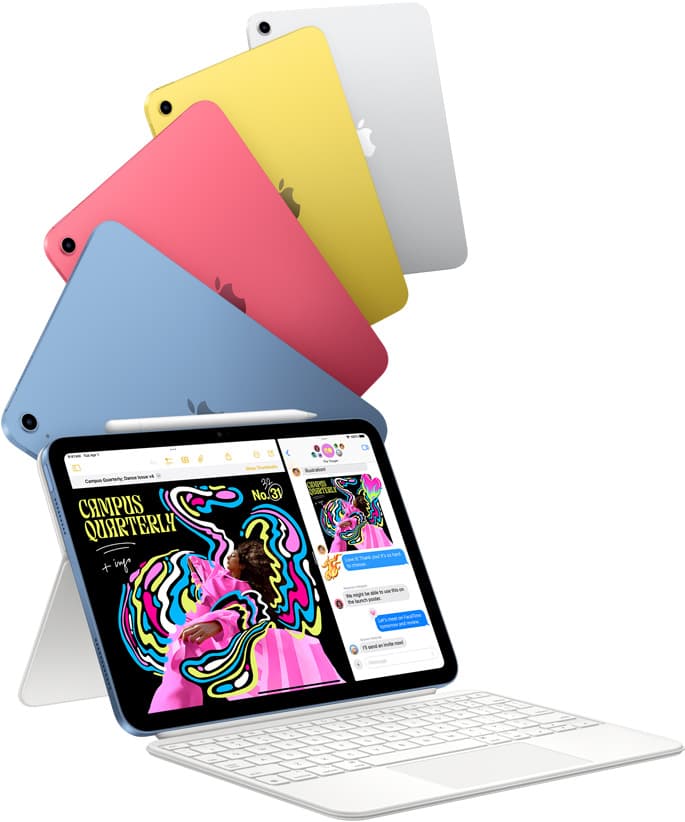
iPad (A16, 11th gen)
amazon.comThe best entry iPad for most artists on a budget. It is not premium, but it is very hard to beat on value.
Pro: Best value iPad right now
Con: No ProMotion display
Search opens with the exact model keywords. Verify size and storage before checkout.
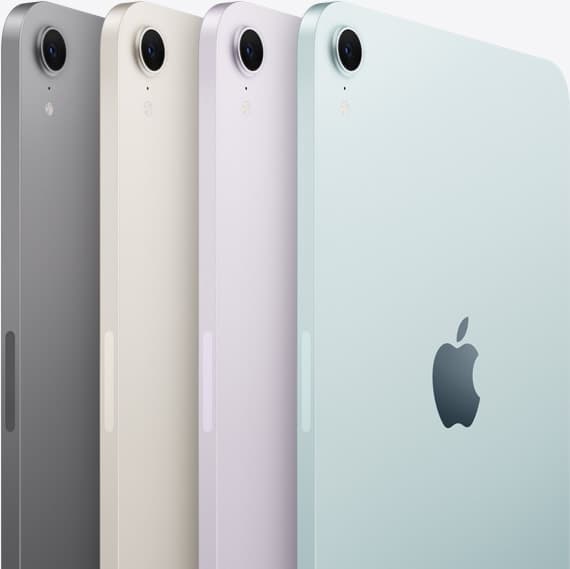
iPad mini (A17 Pro)
amazon.comThe most portable real iPad for drawing. It wins on mobility and loses on workspace.
Pro: Most portable drawing iPad
Con: Small canvas for detailed work
Search opens with iPad mini A17 Pro terms. Verify model number before buying.
Related buying picks
More in this collectionBuyer guide
Best iPad for Illustrator and Photoshop
Compare the best iPads for Adobe Illustrator and Photoshop workflows to choose the right balance of Apple Pencil Pro features, screen size, and hardware headroom.
Buyer guide
Is a 64GB iPad enough for Procreate?
A 64GB iPad can run Procreate; decide whether it is enough by measuring your active canvases and the device storage already in use.
Buyer guide
Does Cricut Design Space work on iPad, and which model should you buy?
Cricut cut workflows run on iPad hardware, but choosing between a base iPad and an iPad Air depends on your stylus and illustration needs.
Buyer guide
Choosing the best iPad for graphic design and video editing
Compare chip options, display tech, and Apple Pencil support to find the best iPad for your design and video workflow.