





If you need an iPad for interior design, buy the iPad Air (M4) [1]. It pairs with Apple Pencil Pro to give you squeeze shortcuts, barrel roll rotation, and haptic feedback on site visits and at your desk [2], [3]. You also get a choice between an 11-inch and a 13-inch screen size [1]. Skip the iPad Pro (M5) unless you specifically demand its ProMotion display [1]. Skip the base iPad (A16) if you plan to sketch architectural details, because it lacks Apple Pencil Pro compatibility and relies on Apple Pencil (USB-C) or first-generation Apple Pencil [1], [3].
Interior design workflows pull in varied tasks. You might sketch a floor plan during a morning walkthrough, photograph a client's living room and drop furniture overlays across multiple layers, and refine finished presentation boards in the afternoon [4], [5]. Choosing the right tablet comes down to pen precision, canvas area, and system memory [1], [4].
Apple Pencil Pro support for sketching and markups
The stylus you use matters as much as the tablet itself. Apple Pencil Pro works with the iPad Air (M4) and the iPad Pro (M5), but it isn't supported on the base iPad (A16) [1], [3]. That distinction shapes how you interact with drawing software like Procreate [4], [5].
Apple Pencil Pro introduces several input methods that change everyday drafting work [2]. The squeeze gesture brings up tool palettes directly at your pen tip so you don't have to reach across the screen to change brush sizes or switch to an eraser [2]. Barrel roll uses an internal gyroscope to rotate shaped brushes as you turn the barrel of the pen in your fingers [2]. This helps when painting textures, applying architectural stippling, or pulling flat ribbon markers across a section plan [2], [5]. The stylus also has haptic feedback, a short pulse you feel when you squeeze or snap to a guide [2]. In addition, Apple Pencil hover lets you preview marks and tool positions before the tip touches the glass on compatible iPad Air and iPad Pro models [1], [2].
If you choose the base iPad (A16), your primary modern stylus option is Apple Pencil (USB-C) [1], [3]. Apple Pencil (USB-C) supports tilt and low latency, but it lacks pressure sensitivity [2]. For simple dimension notes, contract signing, and quick text markups on PDFs, that might suffice [2]. But if you hand-render lighting washes, custom fabrics, or shaded elevations, the lack of pressure sensitivity makes the base iPad less versatile [2]. Designers who want expressive, varied strokes will find Apple Pencil Pro on the iPad Air (M4) a superior pairing [1], [2], [3].
Screen size choices for site visits and studio desks
Screen real estate directly affects how easily you review architectural drawings. Apple sells both the iPad Air (M4) and the iPad Pro (M5) in 11-inch and 13-inch display sizes [1]. The base iPad (A16) comes in a single 10.9-inch display size [1].
The 11-inch size is easy to hold in one arm while measuring walls or climbing stairs during job site walk-throughs [1]. It packs into small totes and client briefcases without hassle [1]. However, when you open an architectural plan in Procreate alongside reference photos, the interface panels take up a notable share of the visible area [4], [5]. You find yourself zooming and panning more often to read small room dimensions or inspect tile layouts [1], [5].
The 13-inch size matches the proportions of a standard physical drafting pad [1]. It lets you view an entire room elevation while keeping layer stacks, brush pickers, and color swatches visible [1], [4]. You can also split the screen between a PDF blueprint and a photo markup app without shrinking either document to unreadable dimensions [1]. The trade-off is physical bulk [1]. Holding a 13-inch tablet unsupported with one hand for an hour on an active construction site can feel clumsy [1]. If your day involves constant walking, the 11-inch iPad Air (M4) is convenient; if you do most of your detailing at a conference table or drafting desk, the 13-inch model is the better canvas [1].
Memory and layer limits for complex floor plans
Interior design documents get heavy fast. A concept presentation board might include an underlying CAD plan, scanned wallpaper swatches, digital paint swatches, lighting drop shadows, and handwritten dimension notes [4], [5]. In raster drawing apps like Procreate, your maximum layer count is strictly tied to device memory and canvas resolution [4].
Procreate sets hard limits on layer numbers based on the amount of RAM in your iPad model and the pixel dimensions of your file [4]. If you build a high-resolution, print-ready 300 DPI board at poster scale, an entry-level iPad with lower memory will cap your available layers quickly [1], [4]. Hitting a layer ceiling forces you to merge sketches with base plans, and the merge wipes your editable history [4].
The iPad Air (M4) runs on Apple's M4 chip and carries the higher RAM configuration typical of Apple's recent desktop-class silicon [1], [4]. That allows for significantly more working layers on high-resolution canvases compared to the base iPad (A16) [1], [4]. The iPad Pro (M5) also offers higher storage tiers, such as 1TB and 2TB capacities, that ship with double the system RAM of standard models [1]. While most interior designers don't need that extreme ceiling, knowing that M-series iPads provide greater headroom for layered artwork makes the iPad Air (M4) a safer long-term investment than the base iPad [1], [4].
How to choose between the iPad Air, iPad Pro, and base iPad
Your purchase decision comes down to matching your weekly design tasks to the specific hardware tiers Apple offers [1].
Choose the iPad Air (M4) if:
- You want Apple Pencil Pro features like squeeze, barrel roll, and haptic feedback without spending top tier money [1], [2], [3].
- You want the option to pick between an 11-inch or 13-inch display to fit your travel habits [1].
- You need the memory and M4 processing headroom to handle layered floor plans and large PDF catalogs in Procreate [1], [4], [5].
Choose the iPad Pro (M5) if:
- You work long hours drawing directly on the glass and want the fluid feel of Apple's 120Hz ProMotion display technology [1].
- You work in high-end visualization where Apple's Ultra Retina XDR tandem OLED display provides deeper contrast and higher brightness for client presentations [1].
- You want the thinnest possible industrial design across either the 11-inch or 13-inch form factor [1].
Choose the iPad (A16) only if:
- Your budget cannot stretch to the iPad Air, and you only need basic note-taking, room measurement logging, and PDF markups [1], [3].
- You don't need pressure-sensitive drawing tools, since you will be pairing it with the Apple Pencil (USB-C) [1], [2], [3].
- You are comfortable working on a fixed 10.9-inch display running a mainstream mobile chip [1].
Skip the iPad mini (A17 Pro) for primary design work [1]. While it supports Apple Pencil Pro, its 8.3-inch screen is too constrained for comfortably navigating architectural drawings, balancing layer menus, or presenting finish schedules to clients [1], [2], [4].
Bottom line
The iPad Air (M4) is the standout choice for interior designers today [1]. It delivers complete support for the Apple Pencil Pro, gives you access to both 11-inch and 13-inch screen sizes, and packs enough memory to keep your Procreate files flexible and layered [1], [2], [4]. Buy the 13-inch iPad Air (M4) if you primarily draft at a desk, or choose the 11-inch model if you spend your days on site [1]. Reserve the iPad Pro (M5) strictly for those who want the ProMotion display, and skip the base iPad (A16) if you plan on doing serious artistic rendering [1], [2].
Sources
[1] https://www.apple.com/ipad/compare/ [2] https://www.apple.com/apple-pencil/ [3] https://support.apple.com/en-us/108937 [4] https://help.procreate.com/articles/zlexav-ipad-compatibility [5] https://apps.apple.com/us/app/procreate/id425073498
Recommended gear
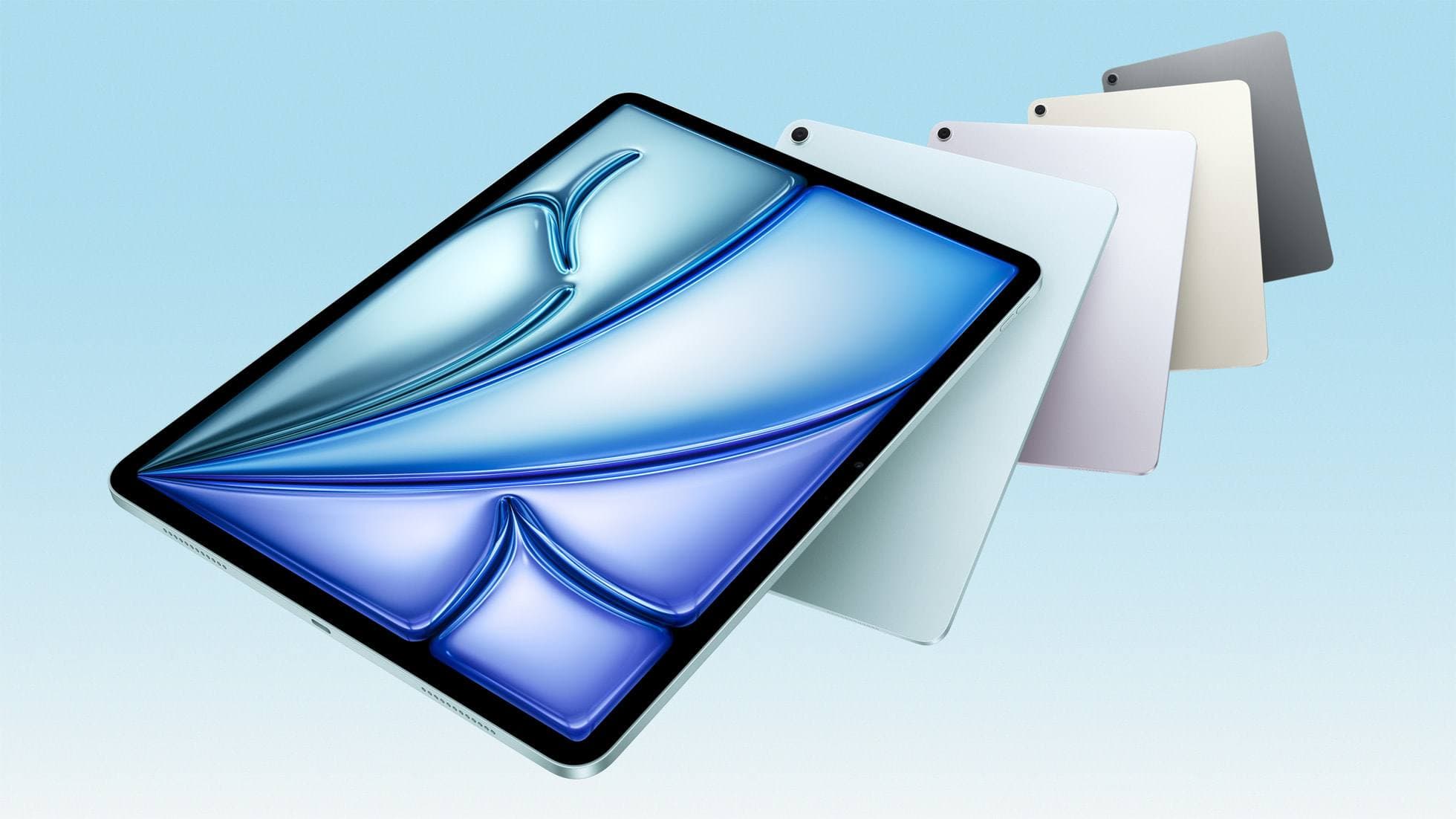
iPad Air (M4)
apple.comThe clean current Air recommendation for most serious hobby artists. Stronger buy logic than old-stock M3 when pricing is close.
Pro: Best current balance of price, headroom, and Pencil support
Con: Still 60Hz
Current Air lineup. Choose size, storage, and keyboard path before checkout.
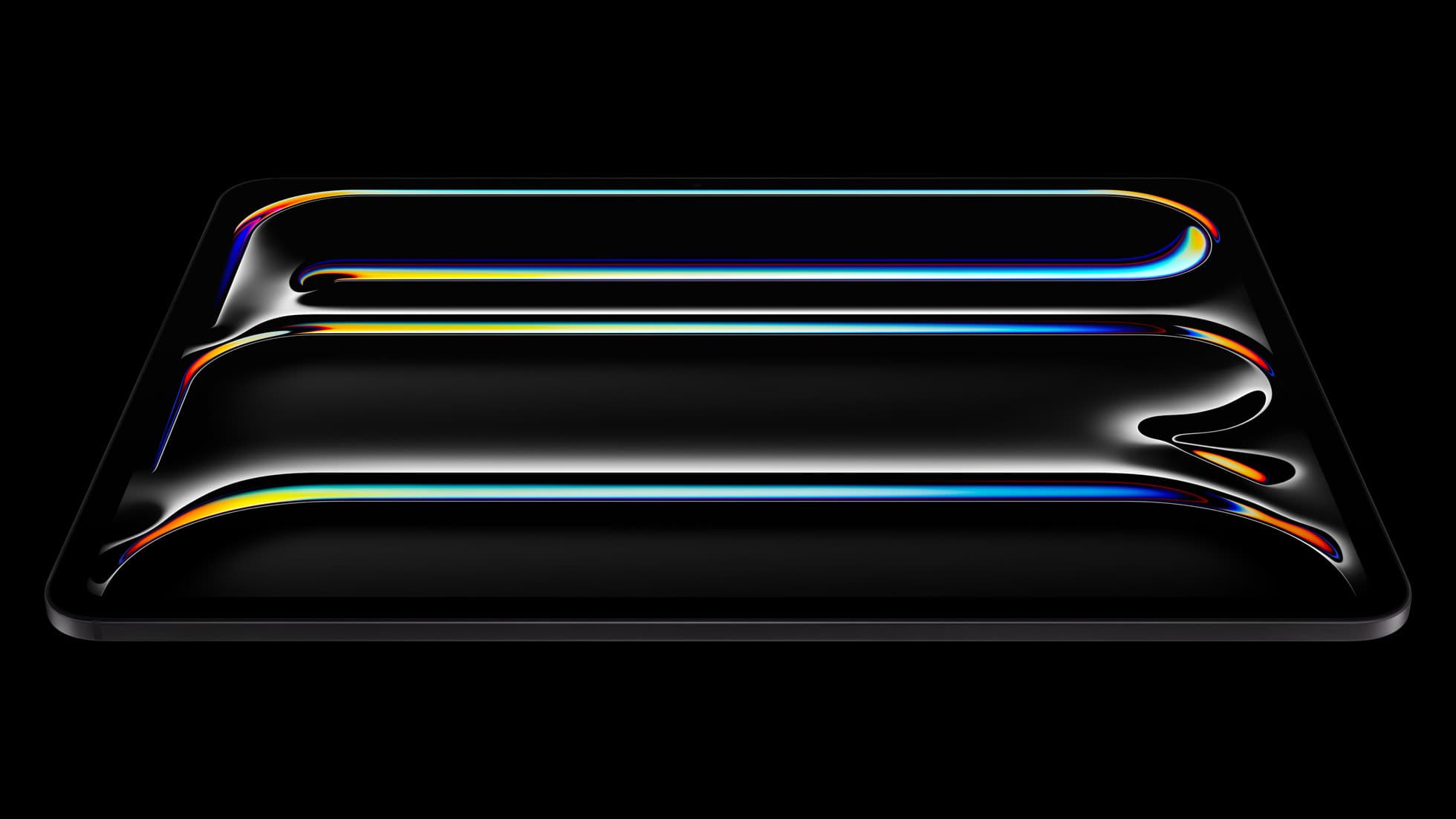
iPad Pro (M5)
amazon.comThe best iPad for drawing feel and premium workflow comfort, but many buyers still overpay for it.
Pro: Best iPad display and ProMotion feel
Con: Highest price in the lineup
Search opens with iPad Pro terms. Check year, chip, and screen size.
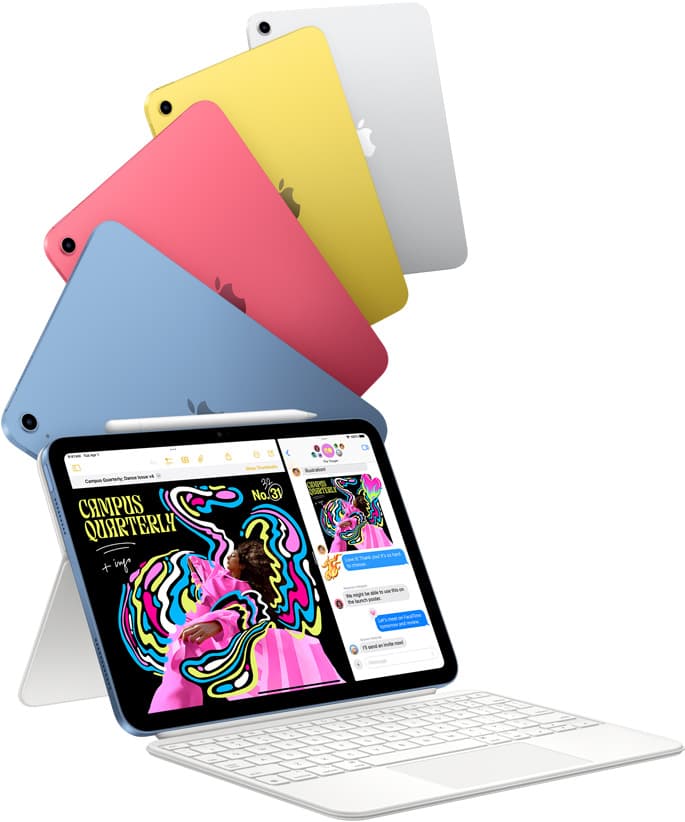
iPad (A16, 11th gen)
amazon.comThe best entry iPad for most artists on a budget. It is not premium, but it is very hard to beat on value.
Pro: Best value iPad right now
Con: No ProMotion display
Search opens with the exact model keywords. Verify size and storage before checkout.

Apple Pencil Pro
amazon.comThe best Apple stylus for serious digital art workflows. Expensive, but the control upgrades are real.
Pro: Best brush-control and hover workflow
Con: Highest price in the lineup
Works only with newer iPad models. Check compatibility.
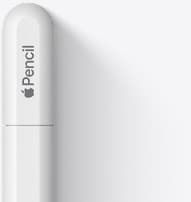
Apple Pencil (USB-C)
amazon.comA practical low-cost Apple stylus with broad compatibility, but limited for advanced art control.
Pro: Lowest official Apple Pencil cost
Con: No pressure sensitivity for brush work
Compatible with many recent iPads. No pressure support.
Related buying picks
More in this collectionBuyer guide
What's the best iPad for artists?
iPad Air with the M4 chip hits the best balance of stylus features and price for most digital artists.
Buyer guide
Does Cricut Design Space work on iPad, and which model should you buy?
Cricut cut workflows run on iPad hardware, but choosing between a base iPad and an iPad Air depends on your stylus and illustration needs.
Comparison
iPad vs Samsung tablet for drawing: which setup to choose
Choose an iPad if your art workflow relies on Procreate and Apple Pencil tools, and pick the iPad Air for the best balance of features.
Buyer guide
The best iPad for urban sketching and field drawing
Choose between the ultra-portable iPad mini and the sketchbook-sized iPad Air for drawing on the go.