






If you ink comics on an iPad, buy the Apple Pencil Pro if your tablet supports it, or choose the Apple Pencil (2nd generation) if you use a compatible older iPad. Skip the Apple Pencil (USB-C) for comic inking. Traditional comic inking relies on thick-to-thin taper, organic brush response, and variable line weight driven by hand pressure. The USB-C model lacks pressure sensitivity entirely, making it unusable for expressive comic lines. If you already own an Apple Pencil 2nd generation paired with a working iPad, keep it. The Pencil Pro adds barrel roll and haptic feedback, but the core line-weight mechanics remain consistent across both pressure-capable styluses [1].
Why pressure sensitivity dictates your inking setup
Comic inking is fundamentally different from flat technical drafting or note-taking. An inker uses varying downward force to communicate volume, lighting, shadow depth, and visual hierarchy across a panel. When drawing with a digital brush configured to mimic a sable brush or a flexible steel dip nib, the software relies on precise pressure readouts to vary stroke diameter and ink flow [2].
Without pressure sensitivity, every stroke yields a uniform mechanical width unless you manually adjust brush sliders between lines. The Apple Pencil (USB-C) omits pressure sensors entirely to achieve a lower price point [1]. While it supports tilt for broad shading, tilt cannot substitute for the subtle, continuous pressure adjustments needed when pulling crisp contours or cross-hatching shadows. For graphic novels, manga, or superhero linework, a stylus without pressure force data severely limits your speed and line dynamics.
Both the Apple Pencil Pro and Apple Pencil (2nd generation) support pressure-sensitive drawing, while the USB-C model does not [1], [2]. If variable line weight is part of your inking method, pressure support is the requirement that removes the USB-C model from the shortlist.
Apple Pencil Pro: Line control and workflow upgrades
For artists using newer compatible iPad hardware, the Apple Pencil Pro introduces physical features that directly benefit comic inkers [1]. The most significant feature for line artists is barrel roll. By rotating the barrel between your fingers as you pull a stroke, you alter the orientation of shaped brush tips dynamically [2]. In traditional inking, turning a chisel-edge nib or an angled calligraphy nib changes line width on the fly without breaking hand contact. Barrel roll brings that mechanical behavior into digital comic applications.
In addition to barrel roll, the Apple Pencil Pro adds haptic feedback. When you trigger a squeeze gesture, the pencil delivers a subtle physical pulse [2]. You can assign this squeeze action to call up a contextual tool palette, change brush presets, or toggle between an inking nib and an eraser without lifting your hand from the working area [3]. This keeps your focus locked onto the active line art rather than hunting through side menus. Squeeze input can also snap objects or switch layers depending on the active software configuration [2].
Apple Pencil hover is also supported. It shows the brush tip marker, diameter, and angle on screen before the nib touches the glass [2]. When inking tight line clusters or joining tight panel borders, seeing the crosshair indicator prevents misaligned strokes and reduces the time spent undoing missed marks.
Apple Pencil 2nd Gen: The reliable standard for existing iPads
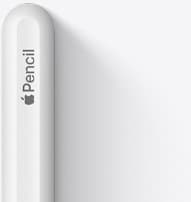
The Apple Pencil (2nd generation) remains a strong inking tool if your tablet supports it. Apple lists pressure-sensitive drawing and a different compatibility set from the Pencil Pro [1], [2]. If the current iPad and Pencil already handle your representative page, barrel roll and squeeze are feature choices rather than reasons to replace the entire setup.
The second-generation Pencil provides a double-tap control that compatible apps can use for tool changes [1], [3]. It lacks the Pencil Pro's squeeze, haptic feedback, and barrel-roll features [1], [2]. Test your main inking brush rather than assuming those additions will change a round-brush workflow.
The limitation of the second-generation model lies purely in hardware compatibility. Apple designed the Pencil Pro and Apple Pencil (2nd generation) for different tablet families. They are not interchangeable across generations [1]. Always verify your iPad model number before buying a replacement stylus.
The Apple Pencil USB-C compromise for line art
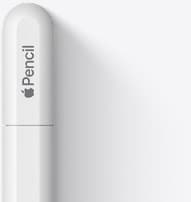
The Apple Pencil (USB-C) costs less than the Pro and 2nd generation models, but it represents the wrong compromise for comic production. While it shares the same pixel-level accuracy and low latency for basic handwriting, the lack of internal pressure sensors restricts its utility [1].
Because the USB-C model supplies no pressure data, any line variation must come from a different input or a software setting rather than changes in downward force [1]. That is a workable constraint for monoline layouts, but it is the wrong compromise for an artist whose chosen brushes depend on pressure [1], [3].
The USB-C model also lacks wireless charging and magnetic pairing, requiring a physical cable connection for initial setup, although it does attach magnetically to the tablet edge for storage [1]. For general writing, marking scripts, or rough panel layouts that require only monoline sketching, it functions adequately. For finished comic inking, you should skip it entirely.
Surface drag and accessories: Managing glass friction
A bare iPad display presents a slick, low-friction surface. When drawing rapid hatching marks or long curved strokes, a hard plastic Apple Pencil tip can easily slide or skid out of alignment. Comic inkers accustomed to Bristol board, smooth comic book paper, or drafting film often struggle with the slippery sensation of direct glass contact [2].
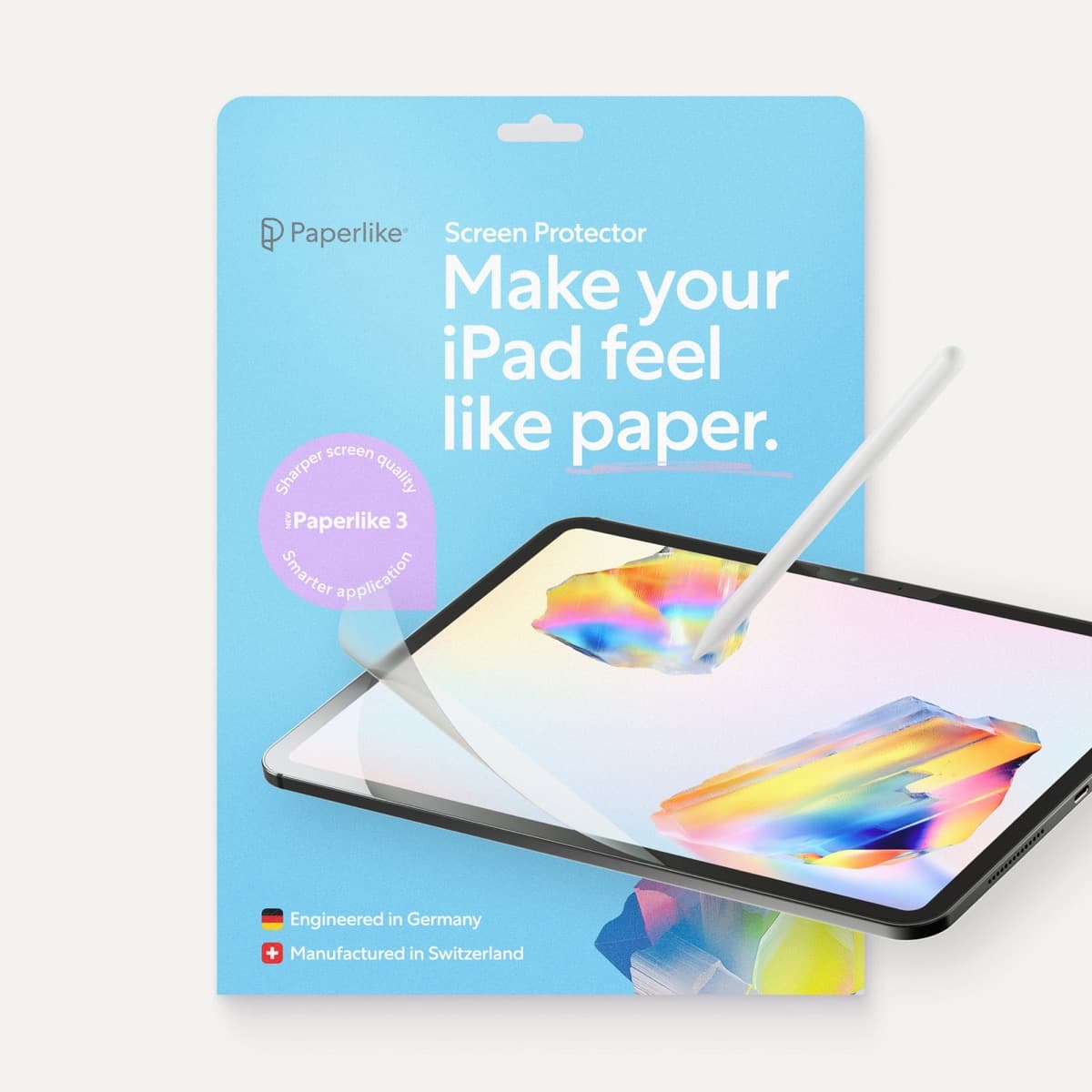
Paperlike markets its screen protector as a textured drawing surface for iPad [5]. Treat that as a vendor claim and try the feel if possible. A texture preference is personal, so it should not be bundled automatically with every Pencil recommendation.
Any added surface layer changes the direct-glass experience, and the product must fit the exact iPad size [5]. Decide whether the claimed paper feel is worth that change for your own inking. Avoid assuming a universal effect on accuracy, display quality, or tip life without a controlled comparison.
Software pairing: Clip Studio Paint and Procreate workflows
Clip Studio Paint's official product page lists dedicated comic and drawing tools [4]. Pair those tools with a pressure-capable Pencil when your chosen brush is configured around pressure. Verify the current iPad app's settings for the exact control you plan to use rather than assuming desktop and iPad controls are identical [4], [6].
Procreate documents Apple Pencil gestures and settings in its handbook [3]. Check which controls the app exposes for your Pencil model, then test the inking brush you will actually use. Pressure support enables pressure-driven settings, but it does not guarantee that every digital brush will imitate a physical nib in the same way [3], [6].
Bottom line
Your inking setup hinges on pressure sensitivity and tablet compatibility. If you own an iPad that supports Apple Pencil Pro, buy it when barrel roll, squeeze, or haptic feedback fits your app workflow [1], [2], [3], [6]. If your tablet pairs with the Apple Pencil (2nd generation), keep or buy that pressure-capable model. Skip the USB-C Pencil when pressure-driven line weight is required [6]. Consider a textured protector only after deciding that you prefer the vendor's claimed paper feel [5].
Sources
[1] https://support.apple.com/en-us/108937 [2] https://support.apple.com/guide/ipad/draw-with-apple-pencil-ipadc55b6c7a/ipados [3] https://help.procreate.com/procreate/handbook/5.2/interface-gestures/pencil [4] https://www.clipstudio.net/en/ [5] https://paperlike.com/products/paperlike-for-ipad [6] https://www.apple.com/apple-pencil/
Recommended gear

Apple Pencil Pro
amazon.comThe best Apple stylus for serious digital art workflows. Expensive, but the control upgrades are real.
Pro: Best brush-control and hover workflow
Con: Highest price in the lineup
Works only with newer iPad models. Check compatibility.
Apple Pencil (2nd generation)
amazon.comStill a strong stylus on compatible iPads. Good pressure control, but compatibility is the main trap.
Pro: Pressure support without Pro pricing
Con: Not compatible with newest Pro-only iPads
Only for iPads that support 2nd generation pairing.
Apple Pencil (USB-C)
amazon.comA practical low-cost Apple stylus with broad compatibility, but limited for advanced art control.
Pro: Lowest official Apple Pencil cost
Con: No pressure sensitivity for brush work
Compatible with many recent iPads. No pressure support.
Paperlike 3 (11-inch, 2-pack)
amazon.comA strong surface-feel upgrade for drawing control. Clarity tradeoff is real and should be expected.
Pro: Adds controlled paper-feel friction
Con: Slightly reduces perceived display sharpness
11-inch fit only. Confirm generation before checkout.
Related buying picks
More in this collectionBuyer guide
Apple Pencil for 3D sculpting: Which model should you buy?
Choose Apple Pencil Pro if your iPad supports it, keep Apple Pencil 2nd generation on older models, and skip Apple Pencil USB-C due to its lack of pressure sensitivity.
Buyer guide
Is the Apple Pencil USB-C enough for Procreate?
The Apple Pencil (USB-C) functions in Procreate, but the lack of pressure sensitivity makes it a poor fit for expressive brushwork.
Buyer guide
Best Apple Pencil for UI design: wireframing, markup, and layout on iPad
Choose the Apple Pencil (USB-C) for wireframing and interface sketches, or pick the Apple Pencil Pro if your iPad supports its squeeze and haptic shortcuts.
Buyer guide
Best Apple Pencil for photo editing on iPad
Choose the right Apple Pencil for retouching, masking, and color grading based on pressure sensitivity and iPad compatibility.