Buy the iPad Air (M4) if you want modern Apple Pencil Pro support, strong processing headroom, and a choice of screen sizes without paying top dollar [1], [2]. Step up to the iPad Pro (M5) if you spend hours drafting every day and specifically want Apple's ProMotion display technology [1]. Skip the standard iPad (A16) if your architectural sketching depends on pressure sensitivity or barrel roll, as it does not pair with the Apple Pencil Pro [1], [3]. Skip the iPad mini (A17 Pro) if you need an expansive digital drafting table, because its compact panel restricts your drawing canvas [1].
Apple Pencil compatibility and drafting precision
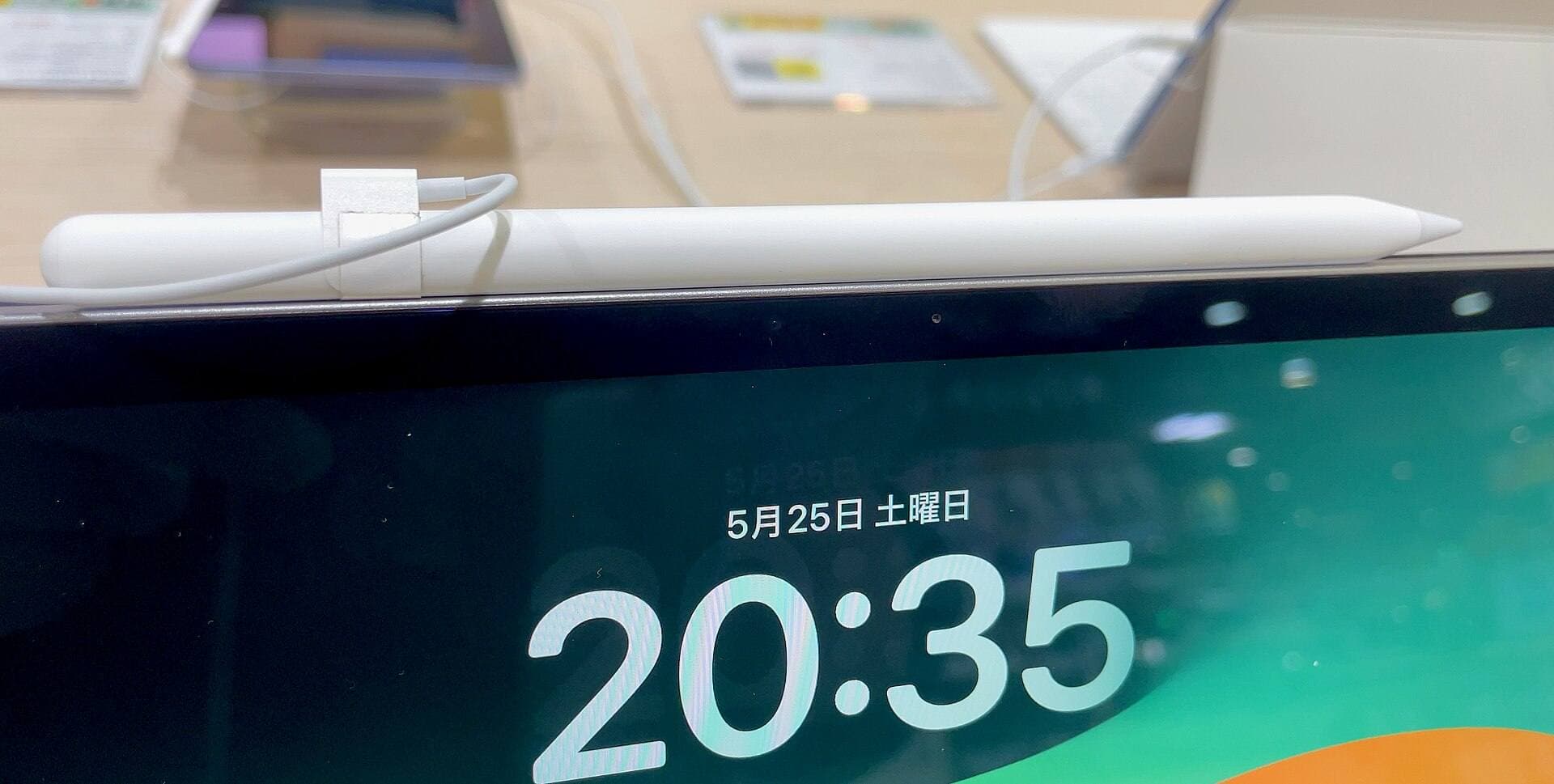
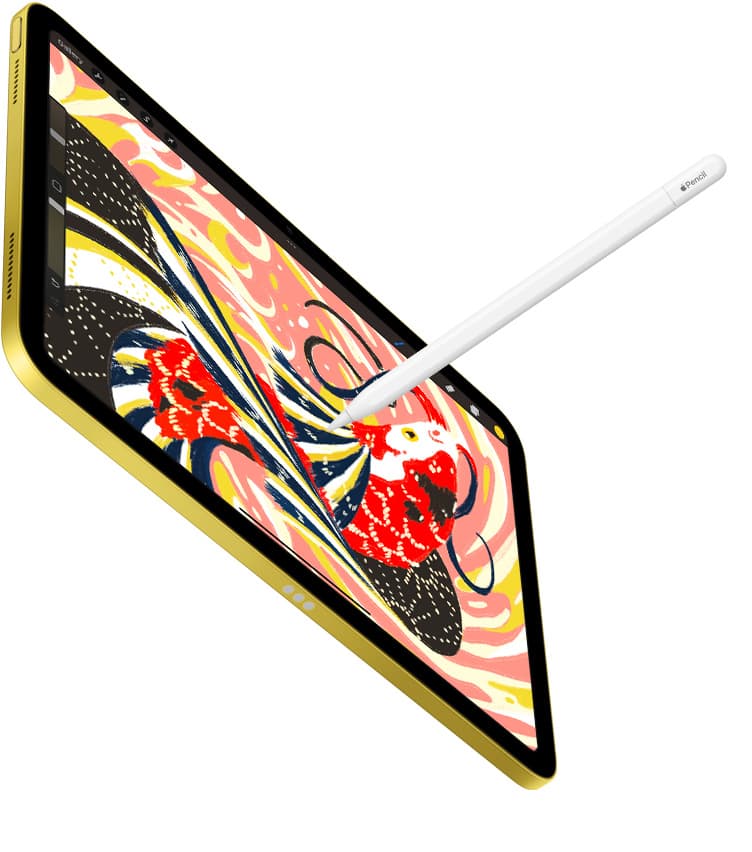
Stylus compatibility dictates how natural your line work feels when sketching schematics or laying out elevations. The iPad Air (M4) and the iPad Pro (M5) both support the Apple Pencil Pro and the Apple Pencil (USB-C) [1], [3]. In contrast, the baseline iPad (A16) pairs only with the Apple Pencil (USB-C) and the first-generation Apple Pencil [3]. That hardware boundary determines which physical drawing tools you can use on screen [2], [3].
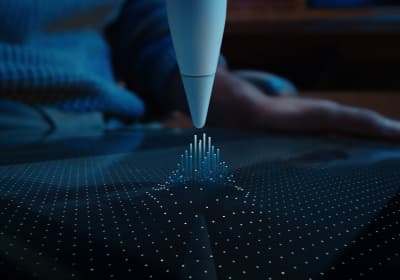
For architectural sketching, the Apple Pencil Pro introduces specific hardware capabilities that change how you interact with drawing software. Apple builds barrel roll, squeeze gestures, haptic feedback, and hover into the Apple Pencil Pro [2]. Hover allows you to preview your line position and brush mark before your tip touches the glass on supported iPad models [2]. Squeeze opens quick contextual tool palettes directly at your grip, while barrel roll rotates shaped brushes and drafting tools as you twist the barrel [2].
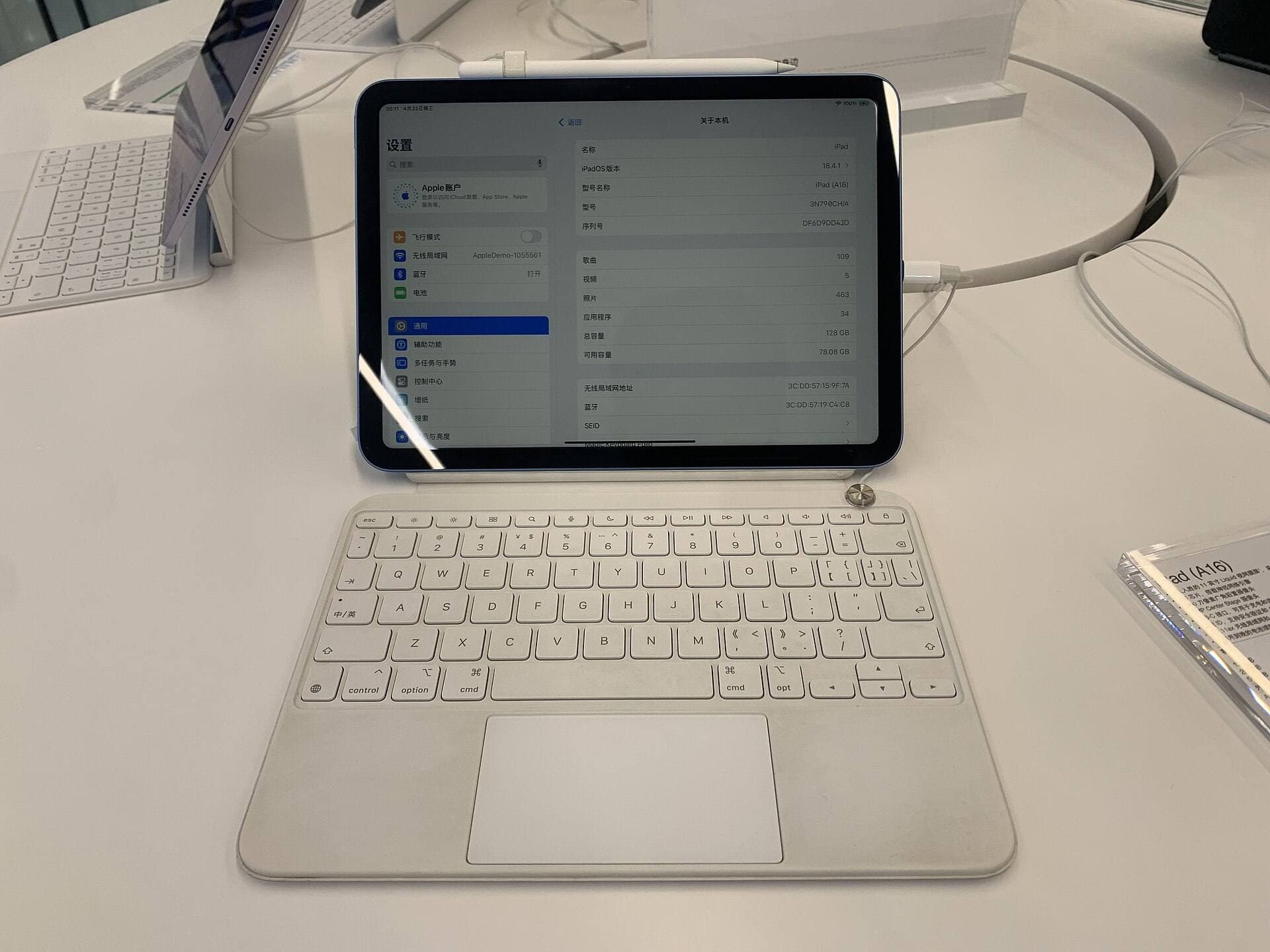
If you choose the baseline iPad (A16), your primary stylus pairing is the Apple Pencil (USB-C) [3]. Apple notes that the Apple Pencil (USB-C) supports tilt sensitivity and low latency, but it omits pressure sensitivity [2]. Pressure sensitivity remains essential for traditional architectural line weights where hand pressure dictates stroke thickness. The first-generation Apple Pencil offers pressure sensitivity with the iPad (A16), but it requires an adapter for pairing and charging via USB-C [2], [3]. For serious drafting, pairing an iPad Air (M4) or iPad Pro (M5) with the Apple Pencil Pro provides a cleaner, fully integrated toolset [1], [2].

Screen size tradeoffs for plans, elevations, and site visits
Architectural drawing demands a balance between canvas real estate and transportability. When reviewing wide construction sets, full elevations, or master plans, physical display size shapes how often you must zoom and pan across your drawings [1].
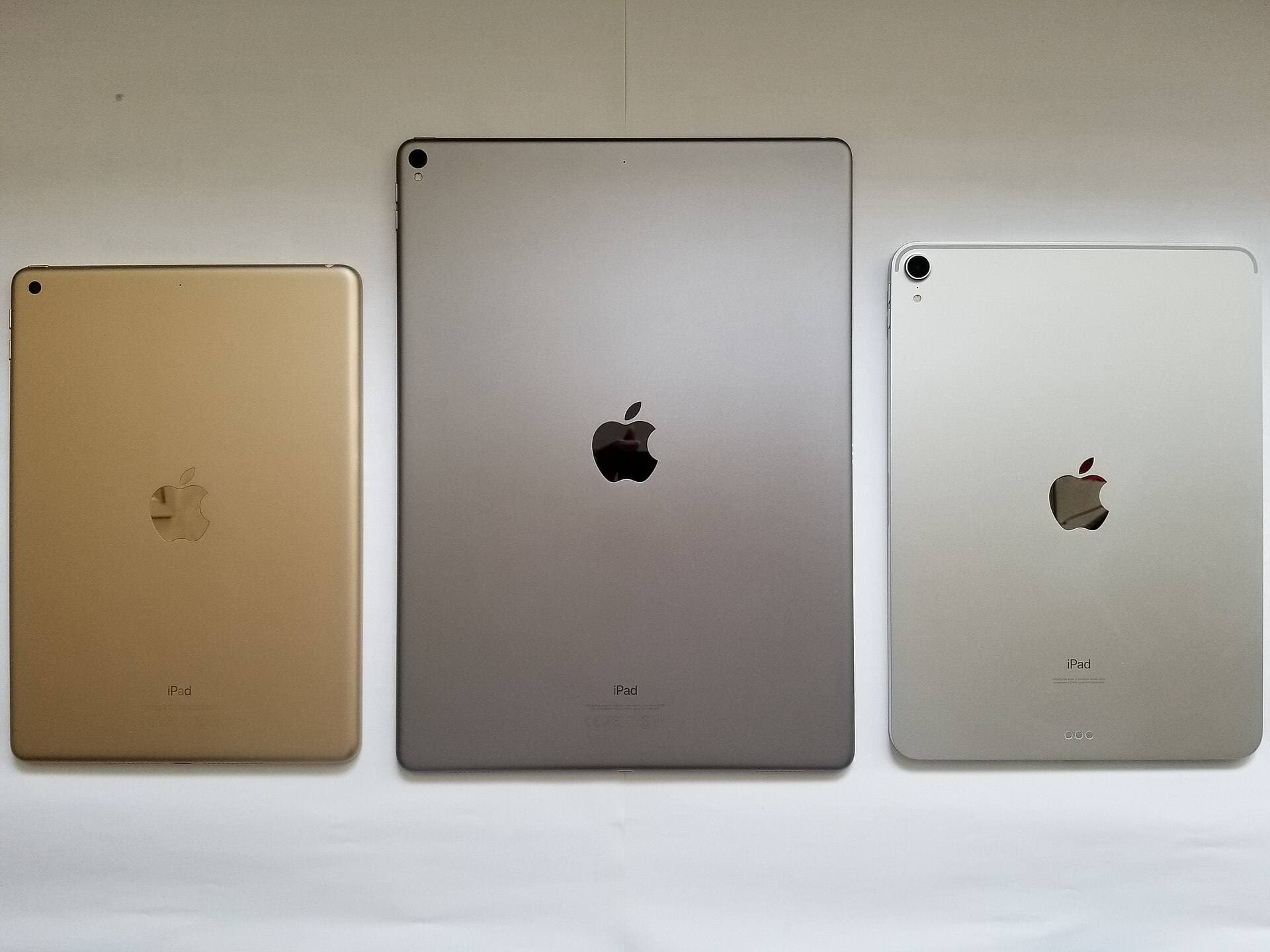
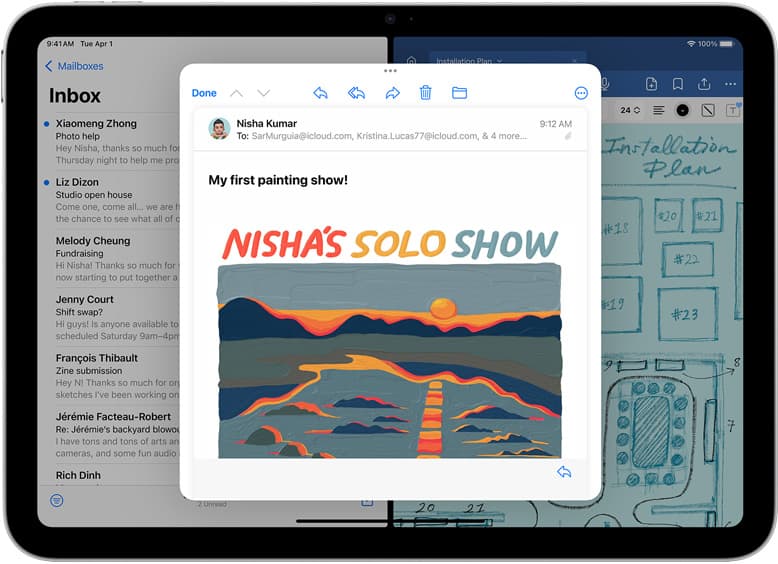
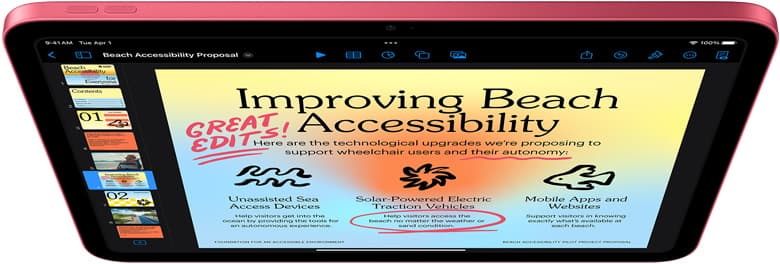
Apple offers both the iPad Air (M4) and the iPad Pro (M5) in two screen sizes, giving you the choice between an 11-inch class panel and a 13-inch class panel [1]. The larger 13-inch display provides noticeably more area for digital drafting boards, drawing palettes, and split-screen reference files [1]. If your iPad lives primarily on a drafting table, at an office desk, or on client conference tables, the larger canvas provides comfortable spacing for detailed schematics [1].
When your workflow requires frequent travel, climbing ladders, or conducting field surveys, a smaller chassis brings practical advantages. The 11-inch iPad Air (M4), the 11-inch iPad Pro (M5), and the baseline iPad (A16) offer portable profiles that are easy to carry across a job site in one hand [1]. The iPad mini (A17 Pro) pushes portability even further with its 8.3-inch display [1]. It supports the Apple Pencil Pro, including hover and squeeze controls [2], [3]. However, the compact screen on the iPad mini (A17 Pro) leaves very little room for complex drawing tools alongside your floor plans [1].
Display refresh rates and line tracking
The fundamental hardware distinction between the iPad Air (M4) and the iPad Pro (M5) centers on display technology [1]. The iPad Pro (M5) features Apple's ProMotion display, which delivers adaptive refresh rates up to 120Hz [1]. The iPad Air (M4), iPad (A16), and iPad mini (A17 Pro) use standard 60Hz displays [1].
On a 120Hz ProMotion panel, the screen updates twice as often each second compared to a standard 60Hz screen [1]. When you pull fast pencil strokes, shade large wall sections, or quickly flick across detailed digital blue sheets, line tracking visually appears closer to the physical tip of your stylus [1], [2]. Many illustrators and architects notice this visual fluidity immediately during rapid freehand gesturing [1].
Yet a 60Hz panel remains entirely usable for accurate technical drawing. The iPad Air (M4) shares the exact same Apple Pencil Pro pairing, pressure response, tilt tracking, and hover capabilities as the Pro model [1], [2]. If your daily routine involves deliberate drafting, ruled linework, site notes, and PDF markups, the standard refresh rate on the iPad Air (M4) handles those tasks without requiring the higher investment of the Pro series [1].
Memory and layer limits in creative apps
Architectural drawings can generate large file sizes, especially when you maintain separate layers for structural grids, electrical rough-ins, furniture layouts, and presentation washes. Your hardware choices directly influence how applications manage these multilayered drawing files [4], [5].
Procreate specifies that maximum canvas resolution and available layer counts depend directly on the amount of memory in your iPad [4]. Models with higher system memory let you build canvases with significantly more layers before hitting software constraints [4]. The M-series processors in the iPad Air (M4) and iPad Pro (M5) feature dedicated memory configurations tailored for heavy digital creation workloads [1], [4]. The iPad Pro (M5) also offers higher maximum internal storage options, scaling up through 2TB for architects storing dense project archives locally [1].
For basic redlining, site sketches, and entry-level CAD viewing, the A16 chip in the standard iPad and the A17 Pro chip in the iPad mini provide capable performance across standard drawing applications [1], [5]. However, if you plan to build deep, publication-ready architectural illustrations with dozens of independent visual passes, the memory headroom on the iPad Air (M4) or iPad Pro (M5) gives your drawing applications far more room to operate [1], [4].
Who should buy which iPad
Choosing the right iPad comes down to matching your drawing style, mobility needs, and required accessories to your budget [1], [3].
Buy the iPad Air (M4) if you want the best overall value for professional drawing [1]. It gives you full access to the Apple Pencil Pro, offers both 11-inch and 13-inch sizes, and supplies desktop-class M-series processing power without the premium cost of ProMotion hardware [1], [2].
Buy the iPad Pro (M5) if you want the highest-tier drafting surface Apple produces [1]. It is the right option for designers who demand the 120Hz ProMotion display and want maximum storage headroom for extensive digital drawing libraries [1].
Buy the iPad mini (A17 Pro) if you specifically need a pocketable digital clipboard for field inspections, punch lists, and quick conceptual sketches [1]. It pairs with the Apple Pencil Pro, but its smaller display makes extensive drafting cramped [1], [2].
Skip the baseline iPad (A16) if you intend to do serious freehand architectural rendering [1], [3]. Because it lacks Apple Pencil Pro support and does not offer pressure sensitivity with the Apple Pencil (USB-C), it limits your tactile control over line weights [2], [3].
Bottom line
For most architects and design professionals, the iPad Air (M4) is the smartest purchase in the current lineup [1]. It pairs with the Apple Pencil Pro for squeeze, barrel roll, and hover tools, and it comes in both portable 11-inch and spacious 13-inch configurations [1], [2]. Unless you specifically require the 120Hz ProMotion display on the iPad Pro (M5), the iPad Air (M4) gives you everything needed for serious digital drafting [1].
Sources
[1] https://www.apple.com/ipad/compare/ [2] https://www.apple.com/apple-pencil/ [3] https://support.apple.com/en-us/108937 [4] https://help.procreate.com/articles/zlexav-ipad-compatibility [5] https://apps.apple.com/us/app/procreate/id425073498
Recommended gear
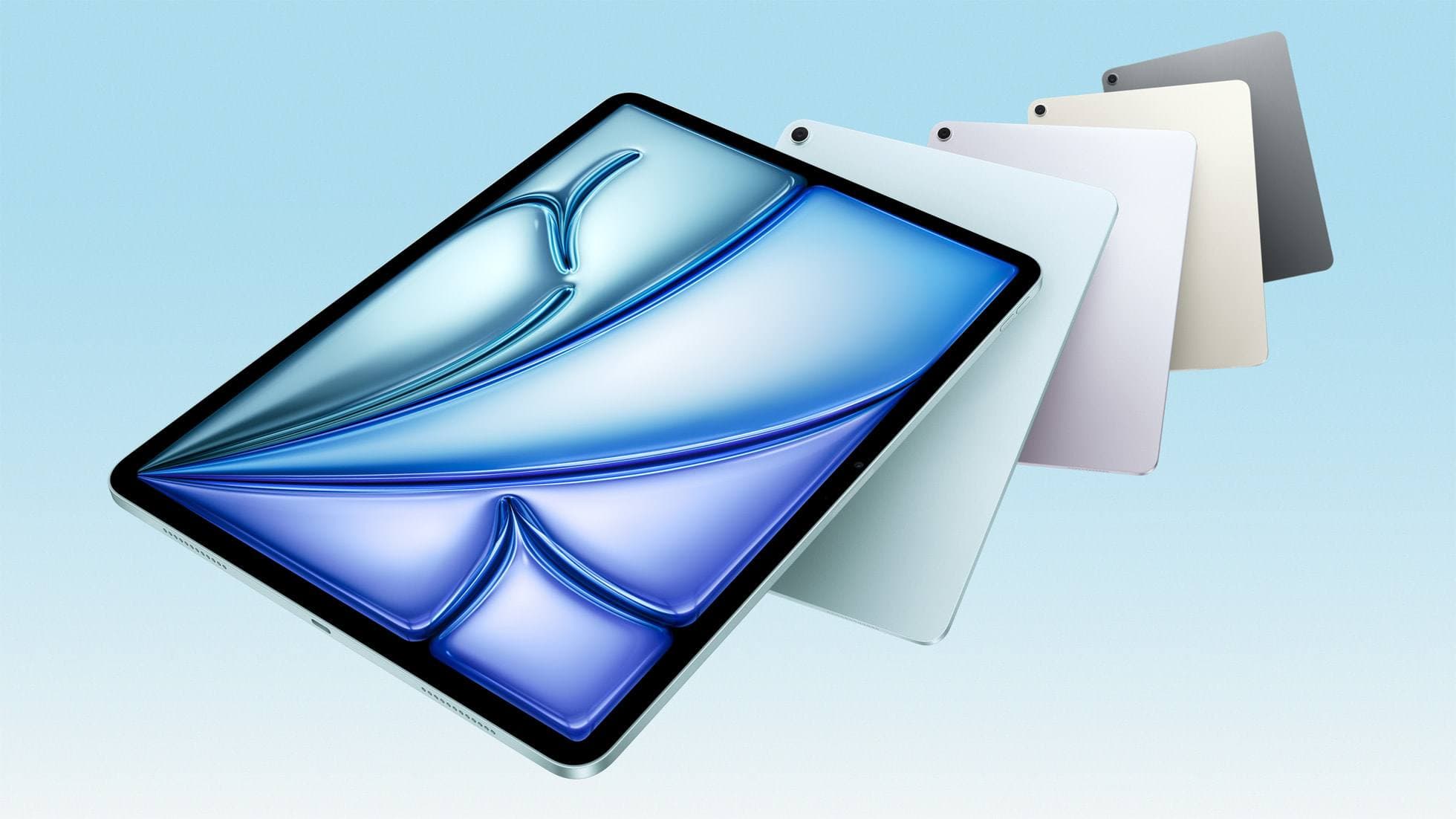
iPad Air (M4)
apple.comThe clean current Air recommendation for most serious hobby artists. Stronger buy logic than old-stock M3 when pricing is close.
Pro: Best current balance of price, headroom, and Pencil support
Con: Still 60Hz
Current Air lineup. Choose size, storage, and keyboard path before checkout.
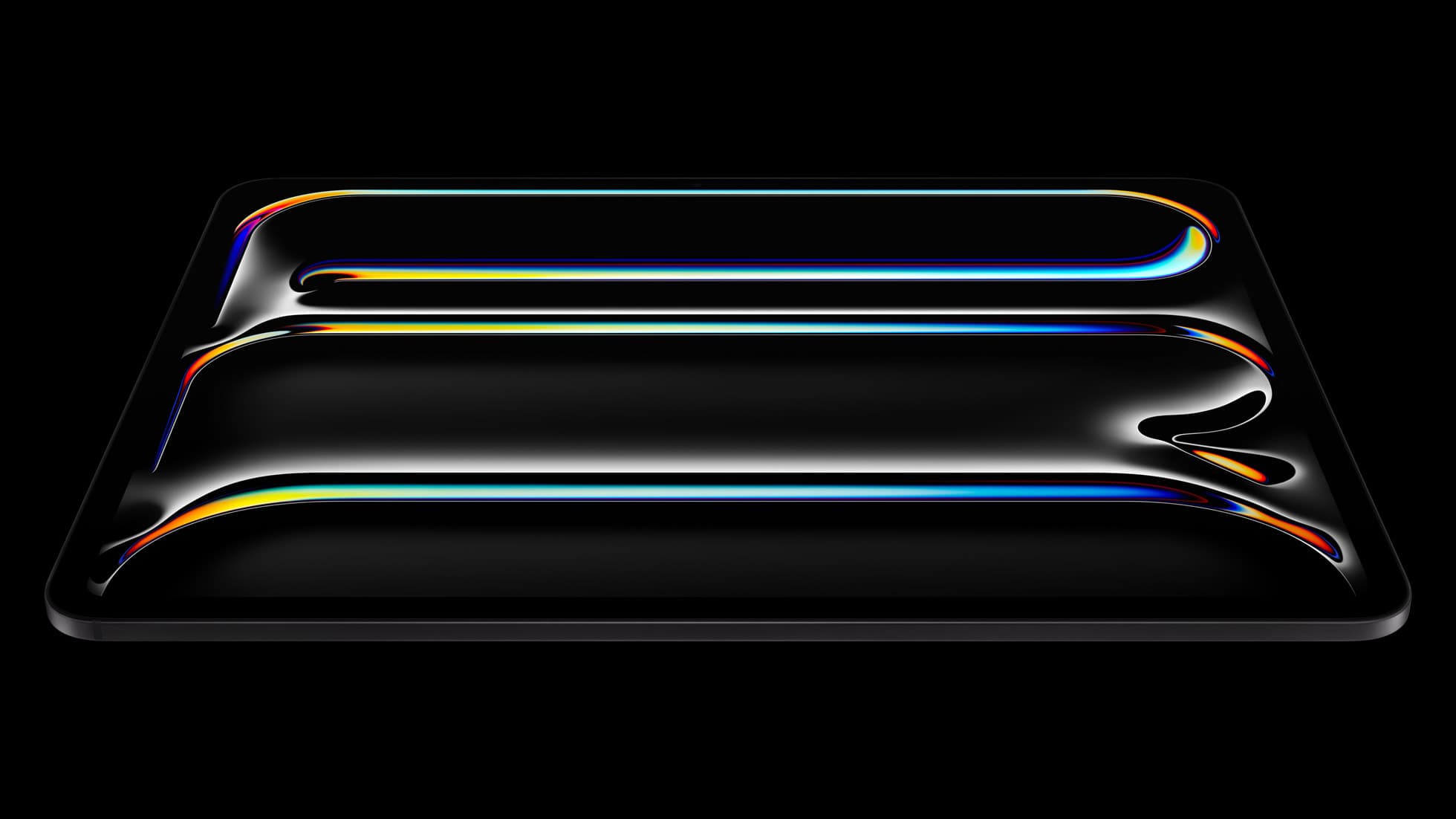
iPad Pro (M5)
amazon.comThe best iPad for drawing feel and premium workflow comfort, but many buyers still overpay for it.
Pro: Best iPad display and ProMotion feel
Con: Highest price in the lineup
Search opens with iPad Pro terms. Check year, chip, and screen size.
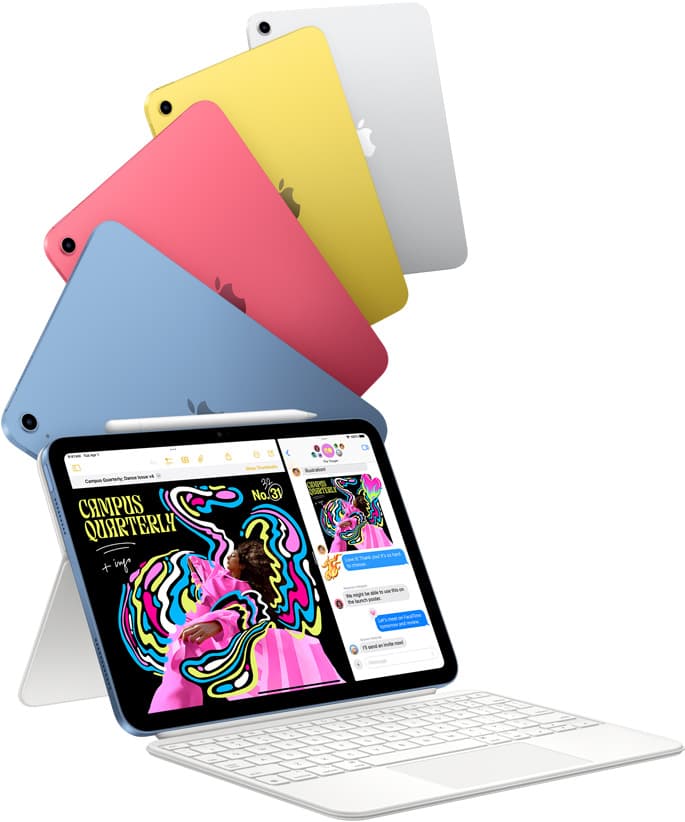
iPad (A16, 11th gen)
amazon.comThe best entry iPad for most artists on a budget. It is not premium, but it is very hard to beat on value.
Pro: Best value iPad right now
Con: No ProMotion display
Search opens with the exact model keywords. Verify size and storage before checkout.
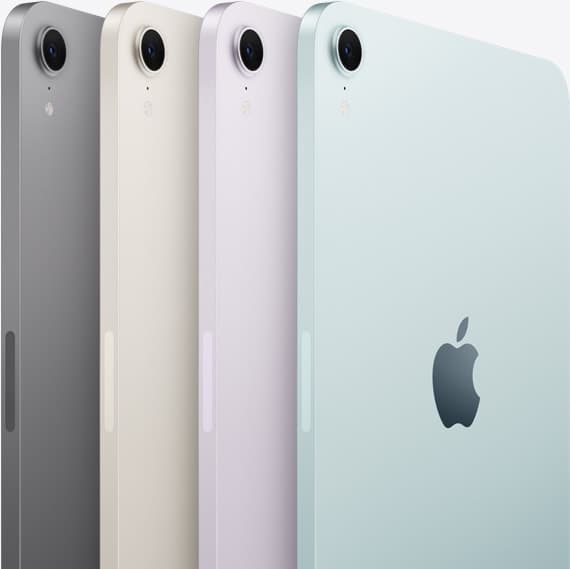
iPad mini (A17 Pro)
amazon.comThe most portable real iPad for drawing. It wins on mobility and loses on workspace.
Pro: Most portable drawing iPad
Con: Small canvas for detailed work
Search opens with iPad mini A17 Pro terms. Verify model number before buying.
Related buying picks
More in this collectionBuyer guide
Best iPad for sublimation design: How to pick the right screen and chip
Compare iPad models for sublimation art so you get the layer counts, Apple Pencil features, and screen size your printing projects require.
Buyer guide
Choosing an iPad for digital planning and drawing
Pairing an iPad Air with Apple Pencil Pro offers the right balance of stylus features and canvas headroom for dual planning and sketch workflows.
Comparison
iPad vs laptop for Cricut: how to choose your cutting setup
Compare operating system support, Apple Pencil illustration workflows, and file uploads to decide whether an iPad or a laptop fits your Cricut cutting setup.
Buyer guide
Is a 64GB iPad enough for Procreate?
A 64GB iPad can run Procreate; decide whether it is enough by measuring your active canvases and the device storage already in use.