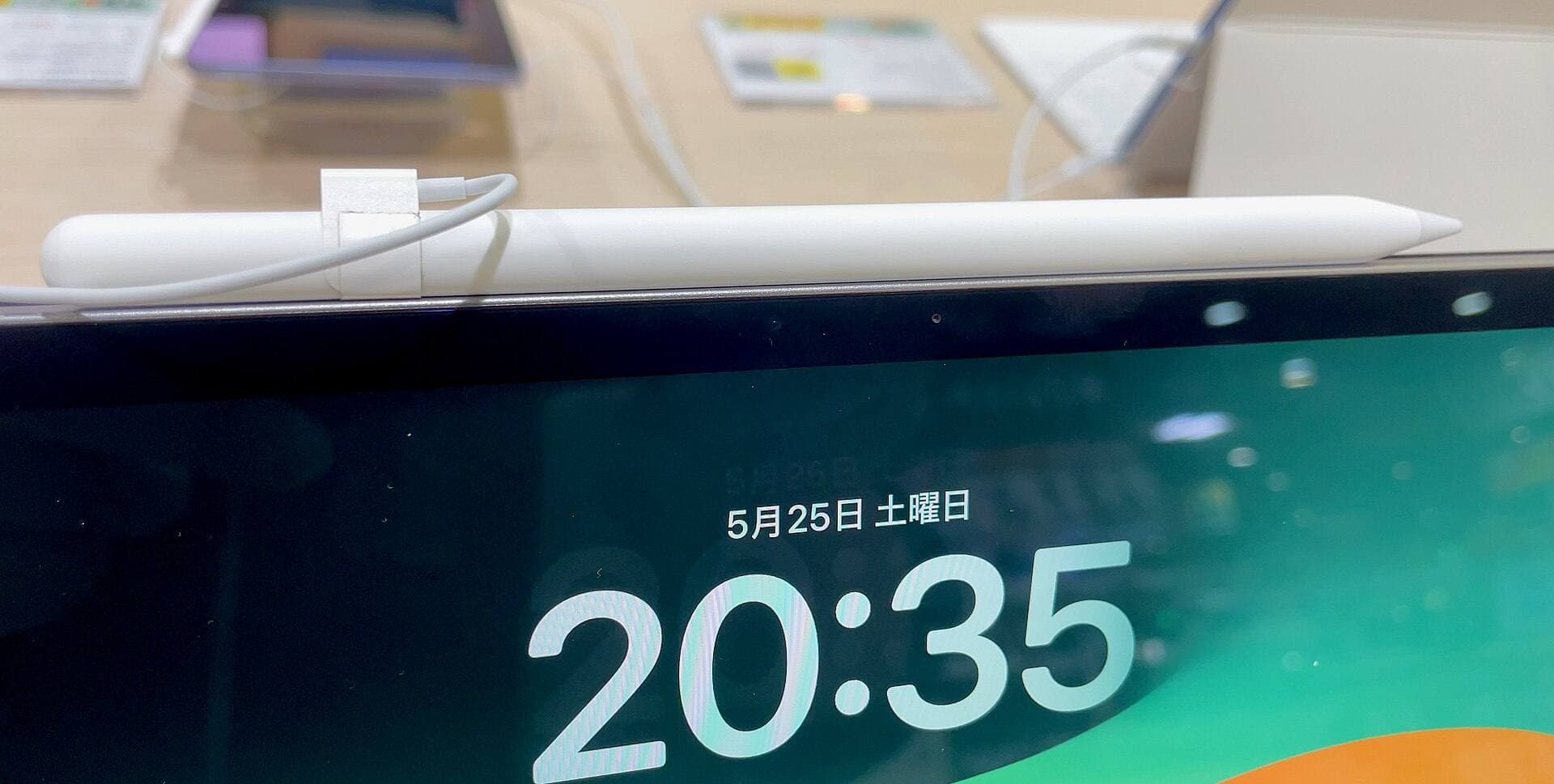
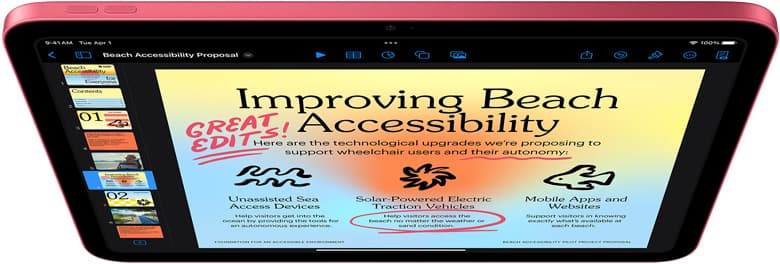
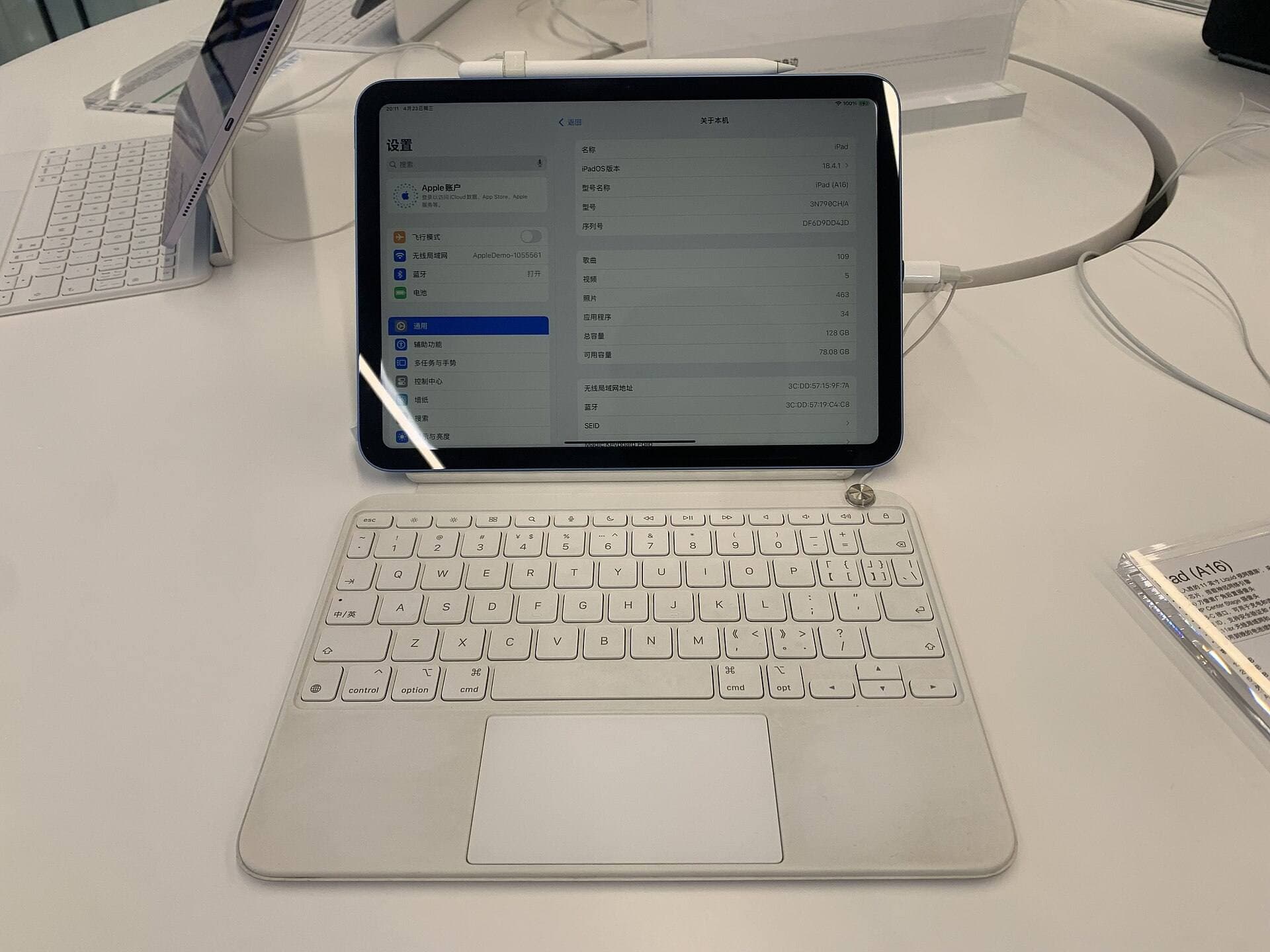
Paper is quietly coaching you.
It gives you friction. It gives you tiny warnings when you’re about to slip. It even hides some of your sins by turning microscopic wobbles into “texture.”
An iPad does none of that. It’s glass: uniform, fast, and just honest enough to make you feel like your handwriting got worse overnight.
What changed overnight was your feedback system.
On paper, your hand gets “free stabilization.” On glass, your muscles have to do the stabilizing, and if you write fast, grip hard, or write too small, the screen will broadcast the chaos in 4K.
The good news is that iPad handwriting is fixable in a way paper rarely is: you can zoom, duplicate practice pages, replay your own work, and even use iPadOS features to refine output, without pretending that output polishing is the same as skill. [1]
The iPad is a liar (in a useful way)
The lie is that handwriting is a “trait.” You either have it or you don’t.
The iPad turns that lie into a workflow problem:
- Your setup can be tuned (angle, friction, pen choice, guides).
- Your practice can be repeated precisely (same page, same sentence, same zoom).
- Your output can be cleaned (Smart Script / handwriting-to-text) after you’ve captured ideas.
That last point matters: the iPad can make your notes look good even when your handwriting is mid. If your goal is legibility and confidence, don’t confuse those two. Use the polish as a mirror, not a mask. [1]
Why handwriting feels worse on glass

You can explain most “bad iPad handwriting” with four causes:
1) Less friction (so curves overshoot)
On paper, friction slows you down automatically in turns. On glass, your hand overshoots unless you deliberately slow.
2) Less tactile feedback (so your hand has to trust vision)
Paper tells you when the pen is “about to slide.” Glass doesn’t. So your eye becomes the stabilizer, which is slower.
3) More visual honesty (so micro-jitters look dramatic)
Backlit screens spotlight tiny tremors. This is annoying, but it’s also feedback. It’s like switching from a soft pencil to a crisp technical pen: you see what’s real.
4) A different error profile (so spacing collapses)
Most messy writing isn’t ugly letterforms. It’s bad spacing. Glass makes it easier to write too fast and too tight, so spacing dies first.
Here’s the ruthless shortcut: if you want your handwriting to look adult, fix spacing before style, because spacing is the protein and style is dessert.
The “quick wins” that actually work

This is the stuff that changes your handwriting today, not “eventually”:
-
Write bigger (zoom in) If your lowercase letters are tiny, you’re trying to do precision motor control at a scale where your hand can’t be stable. Zoom in until your handwriting is the size it would be on ruled paper. This alone makes many people’s writing look 30% cleaner.
-
Use guides Blank digital paper is a trap. You’re forcing your brain to invent a baseline and x-height every sentence. Use lined paper, grid, or dot templates.
-
Slow down until wobble stops If your curves tremble, you’re writing above your current “smoothness speed.” Drop speed until strokes are smooth, then earn speed back later.
If you do nothing else: zoom + guides + slower curves.
The surface: friction without self-sabotage
A matte / “paper-feel” screen protector is the most common suggestion for iPad handwriting, and it’s not wrong. Micro-texture adds resistance, and resistance makes control easier.
But don’t let the internet sell you a fairy tale. The trade-offs are real:
- Matte diffuses light, which can reduce perceived sharpness/brightness and add grain. [2]
- More friction = more tip wear. Even Paperlike’s own support docs acknowledge “minor wear over time” because resistance creates friction. [3]
So think of friction like seasoning:
- Too little and the Pencil skates.
- Too much and your screen looks softer and your tips get chewed up faster.
A good, non-hype approach:
- Practice one week on bare glass first.
- If you still feel out of control, add friction.
- If you mainly care about screen clarity (reading, media), friction might not be worth the trade.
Harsh but fair: a screen protector can make your bad habits feel nicer. It cannot redesign your letterforms for you.
Posture and angle: the invisible upgrade
Most people write on iPad like they’re eating off a tray: flat on a desk. That posture is fine for tapping, but it’s weird for writing.
Two things tend to help immediately:
-
Tilt the iPad slightly (case stand, shallow incline). You want “not flat, not vertical.” This relaxes the wrist and lets your forearm guide strokes.
-
Let the forearm lead Fingers are good for details; forearm motion is good for stable lines and consistent curves, and on glass that stability matters more.
A 30-second setup check:
- Screen wiped (oil increases slip)
- iPad slightly tilted
- Zoomed in
- Guides on
- Shoulders down (tension = jitter)
Apple Pencil: what matters for handwriting (and what doesn’t)
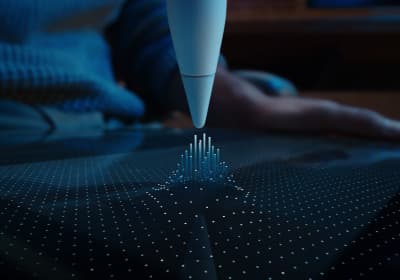
Newer Pencil models add conveniences, especially Apple Pencil Pro features like squeeze (palette), barrel roll (rotation control), haptic feedback, hover preview, double tap, and Find My support. [4]
Those are great for flow, but they don’t automatically improve penmanship.
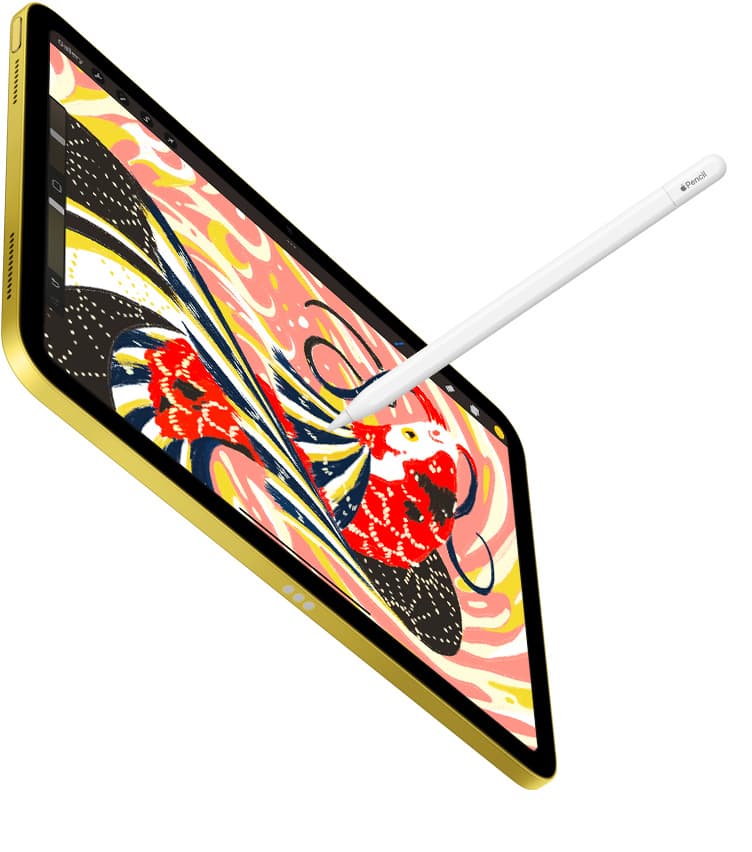
For handwriting, the big reality is simpler: the Pencil is precise enough that you can’t blame hardware anymore. The bottleneck becomes your control: pressure, speed, spacing, and consistency.
Your best “upgrade” is boring:
- Replace a worn tip.
- Stop death-gripping.
- Use lighter pressure than you think you need.
If your hand hurts, your handwriting will look anxious every time.
Pick an app like you pick paper
You can improve handwriting in any app. But apps change how easy it is to do the two things that matter:
- Practice with structure (templates, guides, duplication)
- Review and refine (reorganizing, rewriting, converting)
A clean way to think about it:
- Apple Notes: best default, frictionless capture; Smart Script can tidy handwriting and make handwritten editing more flexible. [1]
- Goodnotes / Notability: best for “notebook life” (organization, templates, study workflow).
- Nebo: strongest handwriting recognition + “ink that behaves like editable text” if you want handwritten input to become clean documents.
Pick the one that makes review and rewriting painless, because that’s where penmanship improves fastest.
Technique: four dials that make handwriting look adult

Ignore fancy styles. Good handwriting is mostly four dials:
Dial 1, Size
Bigger letters are easier to control, so start bigger than you think and shrink later.
Dial 2, Speed
Smoothness is speed-limited: if you’re wobbling, you’re going too fast, so slow down.
Dial 3, Pressure
Lighter pressure reduces skidding and helps curves stay round.
Dial 4, Spacing
Spacing is the secret. Most “bad handwriting” is cramped writing with inconsistent gaps.
If you want the fastest visible upgrade:
- Stabilize x-height (the height of your a/e/n).
- Then stabilize spacing.
- Style comes after.
Typography nerd truth: when handwriting looks “designed,” it’s usually because the writer accidentally started behaving like a font, consistent baseline, consistent x-height, consistent spacing.
The drills that work (because they’re boring)

You need reps far more than you need a calligraphy phase.
A 10-minute routine that actually moves the needle:
Minute 1-2: warmup
- Straight lines
- Ovals
- Loops Goal: smooth strokes, light pressure.
Minute 3-6: letter families Practice shapes that share strokes:
- (i / l / t)
- (o / a / d)
- (n / m / h)
Minute 7-9: spacing words Write words that punish sloppy spacing:
- minimum
- little
- balance
- rhythm
Minute 10: one sentence slowly Pick one sentence and repeat it all week, because the same sentence gives you an honest comparison.
iPad advantage: duplicate the same page daily, or write on a fresh layer. Your improvement becomes visible instead of imagined.
Use iPadOS handwriting superpowers, without getting lazy
Two features matter for the “handwriting workflow” mindset:
Scribble
Scribble converts handwriting to typed text in supported fields, and Apple notes it’s on by default when you pair Apple Pencil on a supported iPad (and can be toggled in Settings). [5]
It’s great for forms, search boxes, and moments when you want Pencil flow but typed output.
Smart Script (Apple Notes)
Apple describes Smart Script as making handwritten notes “more fluid, flexible, and easy to read,” while maintaining your personal style, smoothing/straightening in real time, and enabling edits like adding space, scratching out to delete, and even pasting typed text in your own handwriting. [1]
The trap: letting Smart Script become a crutch.
The smart use:
- Write normally.
- Toggle/compare.
- Notice what Smart Script “fixes” (often baseline + alignment).
- Train those manually during practice.
Does handwriting actually help you learn?
This topic attracts loud, simplistic takes.
The reality is: research suggests longhand note-taking can outperform laptop note-taking in some contexts, often explained by typing’s tendency toward verbatim transcription (which is shallower than summarizing). [6]
But replications and meta-analytic discussions complicate the headline. For example, a direct replication plus mini meta-analyses found laptop note-takers wrote more words and more verbatim overlap, yet the original “longhand is better for immediate learning” effect didn’t reliably appear in the replication. [7]
Where the iPad gets interesting is stylus note-taking: it can preserve some of the motor/engagement aspects of handwriting while keeping digital organization. A classroom study comparing longhand, keyboard, and stylus note-taking reported no direct effect on immediate recall in their mini-lectures, but found students did better with their preferred method; and over the semester, stylus and longhand were associated with better course grades and higher perceived engagement than keyboard use. [8]
So the grown-up takeaway:
- Handwriting can help when it forces summarizing and engagement.
- The tool matters less than the behavior.
- Stylus can be a nice hybrid, if you don’t use the iPad like a distraction machine.
Common traps (and the blunt fixes)
-
Writing tiny. Fix: Zoom in, because tiny handwriting gives you tiny control.
-
Chasing pretty before consistent. Fix: Make your x-height boringly consistent first.
-
Using textured brushes while practicing. Fix: Practice with a clean pen so you can’t hide wobble.
-
Buying gear instead of doing reps. Fix: Practice creates the habits that gear can only amplify.
-
Never rewriting. Fix: Rewriting is where penmanship improves fastest, because you’re building deliberate strokes, not rushing.
A modern handwriting workflow that doesn’t collapse
Split your handwritten life into three modes:
-
Capture Fast, messy and honest, in big letters, with no perfection.
-
Refine Rewrite the important bits on a clean page. This is where your handwriting improves and your thinking sharpens.
-
Archive Title/tag; convert to text when needed; make it searchable.
Most people skip “refine,” then wonder why nothing improves.
That’s the whole game: the iPad isn’t just a notebook. It’s a handwriting practice studio, if you treat it like one.
Sources
Recommended gear
Goodnotes 6
apps.apple.comPro: Strong templates and organization
Con: Subscription for full features

Notability
apps.apple.comPro: Fast handwriting workflow
Con: Feature gating on free tier
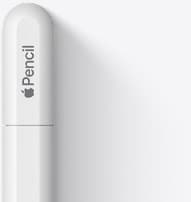
Apple Pencil (USB-C)
amazon.comA practical low-cost Apple stylus with broad compatibility, but limited for advanced art control.
Pro: Lowest official Apple Pencil cost
Con: No pressure sensitivity for brush work
Compatible with many recent iPads. No pressure support.
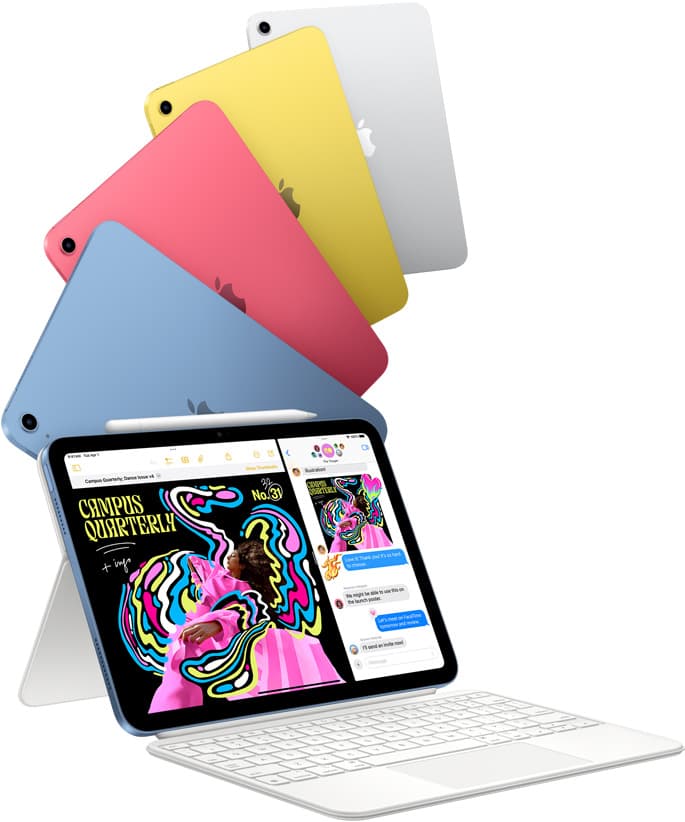
iPad (A16, 11th gen)
amazon.comThe best entry iPad for most artists on a budget. It is not premium, but it is very hard to beat on value.
Pro: Best value iPad right now
Con: No ProMotion display
Search opens with the exact model keywords. Verify size and storage before checkout.
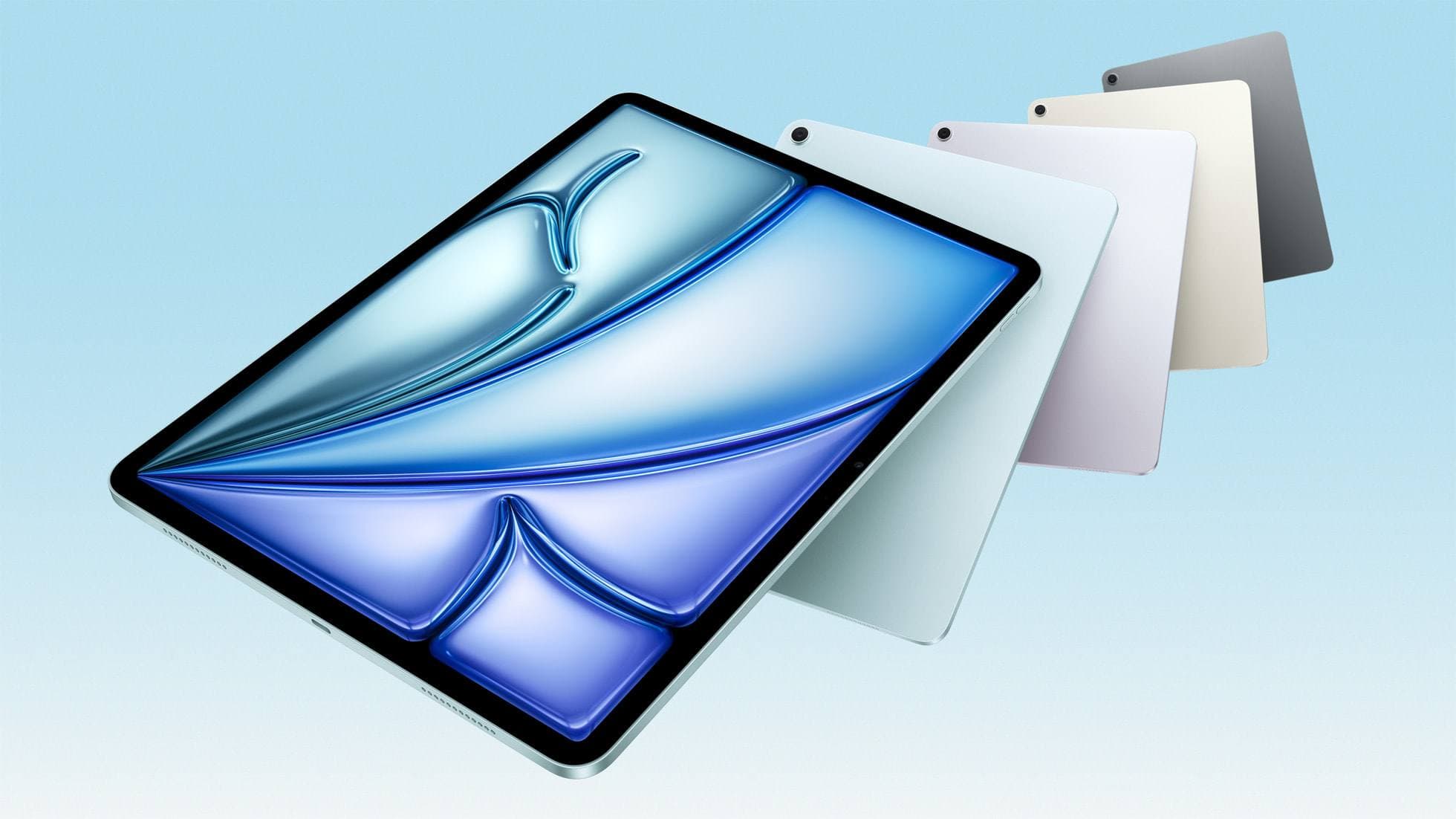
iPad Air (M4)
apple.comThe clean current Air recommendation for most serious hobby artists. Stronger buy logic than old-stock M3 when pricing is close.
Pro: Best current balance of price, headroom, and Pencil support
Con: Still 60Hz
Current Air lineup. Choose size, storage, and keyboard path before checkout.
Related buying picks
More in this collectionBuyer guide
Portable iPad Keyboard Travel Kit (2026): Write, Sketch, Pack Fast
How to build a portable iPad writing and sketch kit for cafes and transit, including keyboard format choices, setup flow, and compatibility checks.
Buyer guide
Travel Charging Setup for iPad Artists (2026): One-Bag Power Kit
A travel charging setup works when charger, power bank, and cables have fixed roles and you run the same simple routine at airports, hotels, and cafes.
Buyer guide
Best Bluetooth Shortcut Remotes for Procreate and iPad Drawing (2026)
The right shortcut remote reduces repetitive hand movement, but only if it behaves like a keyboard and supports reliable mapping.
Buyer guide
Best SD and microSD Card Readers for iPad Creators (2026)
Card reader speed on iPad depends on card bus, reader bus, and iPad port limits. Buy for your actual ingest workflow, not label hype.