If you want a handwriting and sketching setup with no boundaries, download Concepts [1]. It provides a flexible vector-based sketchbook designed to take ideas from concept to reality [1]. If your handwriting leans toward finished calligraphy, custom inking, or lettering on fixed canvases, buy Procreate instead [2]. Procreate is a paid application built specifically for iPad, featuring a one-time purchase model [2], [3]. Those who need multi-page comic paneling or structured document management should explore Clip Studio Paint [4]. Before you buy any app, verify your hardware compatibility, because stylus features like pressure sensitivity, barrel roll, and squeeze require specific Apple Pencil models [5], [6].
Vector sketchbooks for unstructured handwriting
When taking quick handwritten notes or outlining complex diagrams, fixed canvas borders can interrupt your train of thought [1]. Concepts offers an infinite, flexible vector-based workspace categorized under Graphics and Design in the App Store [1]. Because it records strokes as mathematical vectors rather than fixed pixels, you can resize, re-center, or reorganize your handwriting without losing stroke clarity [1].
Linearity Curve is another vector-focused alternative, listed in the App Store as professional vector art and graphic design software for iPad and iPhone [7]. While Linearity Curve targets formal graphic design and precision layouts, its vector engine can also structure clean line art and typographic paths [7]. However, for pure freeform handwriting, drafting, and rapid brainstorming, Concepts remains the more straightforward free download to test first [1].
Layer-based apps for lettering and textured inking
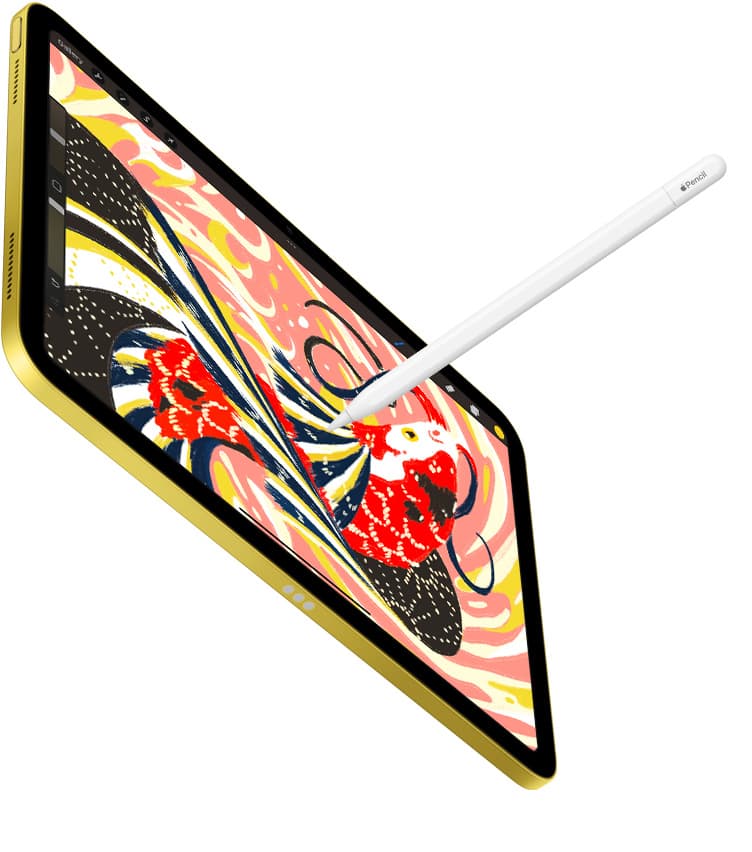
If your handwriting workflow involves lettering, calligraphy, or expressive stroke textures, raster-based engines provide more tactile brush customization [2], [8]. Procreate stands out as a leading creative application made for iPad, holding a 4.4 rating across tens of thousands of App Store reviews [2]. As a one-time purchase with no recurring subscription, it allows you to build custom inking brushes, set stabilization controls, and export clean graphics [2], [3].
Another capable raster choice is Adobe Fresco, which is available as a free download in the App Store [8]. Adobe Fresco offers digital drawing and painting tools suited for expressive mark-making [8]. If you don't want to commit to a paid app immediately, Fresco lets you test basic handwriting and sketching at no initial cost [8]. Yet for users who want dedicated canvas management and a deep community brush catalog without a subscription, Procreate remains the standard recommendation [2], [3].
Hardware pairings that dictate pencil response
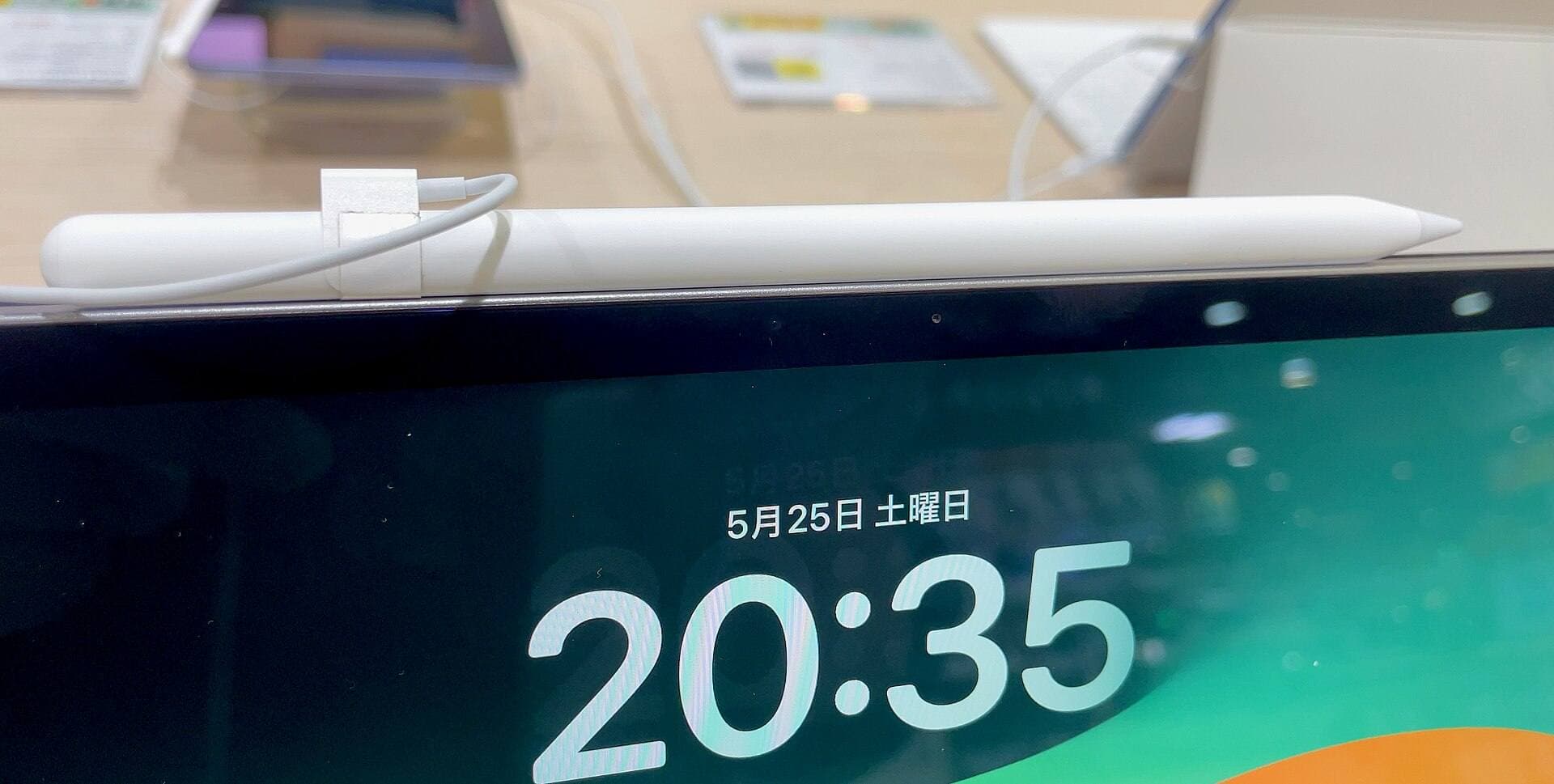
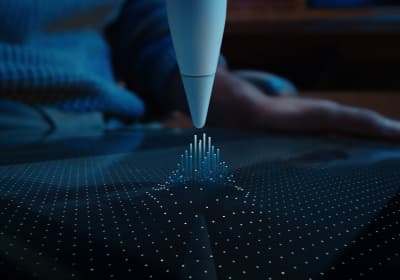
An app can't deliver pressure or angle dynamics if your stylus hardware lacks those sensors [5], [6]. The Apple Pencil lineup splits features across distinct models [5]. The Apple Pencil Pro includes pressure sensitivity, tilt detection, low latency, magnetic pairing, wireless charging, Apple Pencil hover, squeeze, barrel roll, and haptic feedback [5]. In contrast, cheaper options like the Apple Pencil (USB-C) provide tilt and hover, but lack pressure sensitivity and wireless pairing [5].
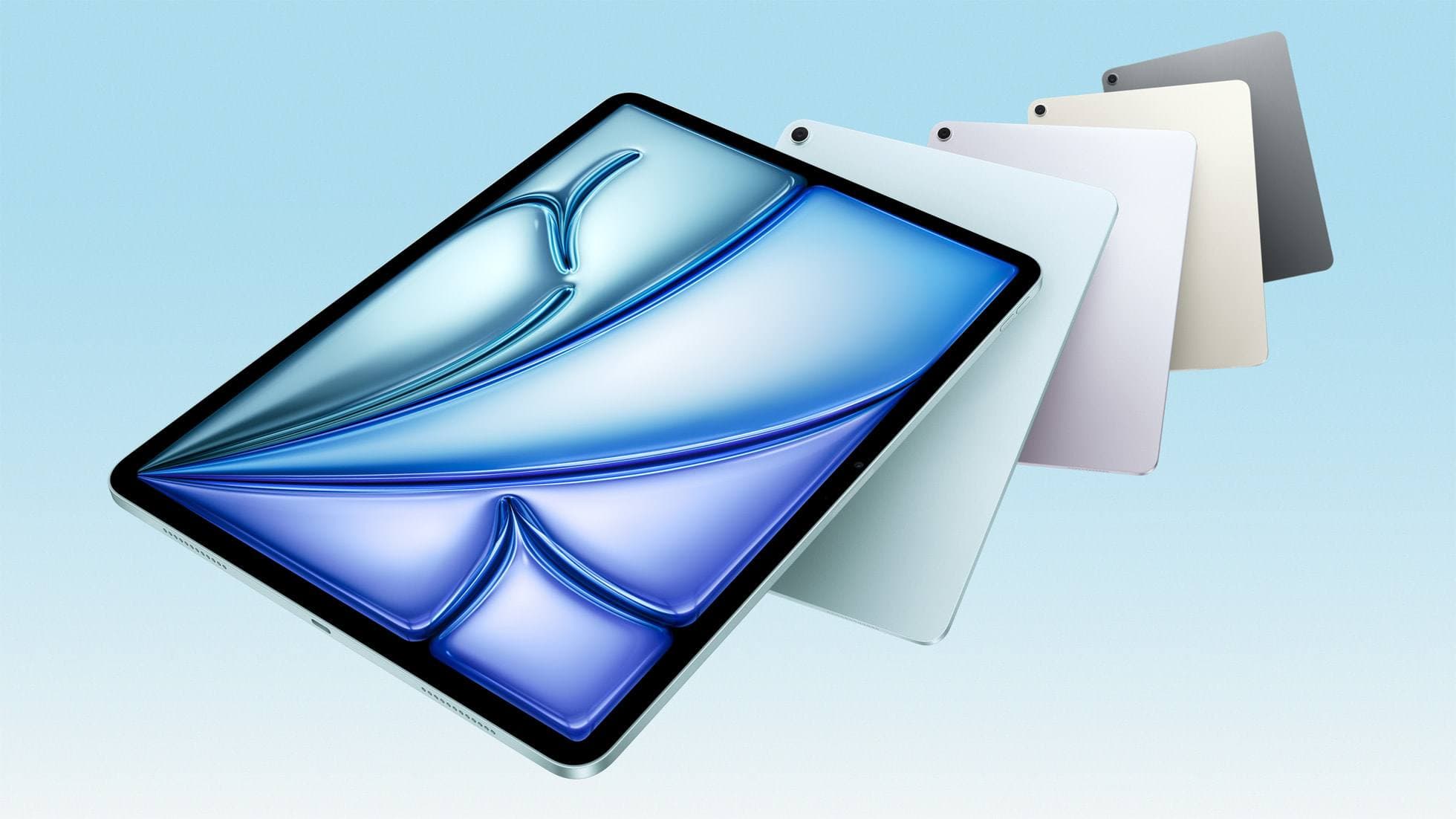
Stylus compatibility depends strictly on your iPad generation [6]. The Apple Pencil Pro works exclusively with recent releases, such as the iPad Air (M4) and iPad Pro (M4) [6], [9]. Older iPads or standard base-tier iPad models pair with the first-generation or second-generation Apple Pencil, or the USB-C model [6]. If your handwriting depends on fine pressure modulation, skip the USB-C Pencil and ensure your tablet pairs with a pressure-capable stylus [5], [6].
Managing memory, layers, and project scale
Handwriting and sketching documents can grow heavy over time, especially when you work across multiple layers or dense vector clusters [1], [10]. In raster applications like Procreate, your device memory directly caps the maximum number of layers available per canvas [10]. An iPad with more system RAM provides higher layer allowances on large dimensions, preventing you from hitting hard limits during detailed lettering projects [10].
If you prefer vector-based apps such as Affinity Designer 2, projects handle scaling differently [11]. Affinity Designer 2 brings desktop-grade vector precision to a touch-focused iPad layout [11]. For users building large multi-page documents, technical manuals, or graphic-heavy journals, pairing an M-series iPad like the iPad Air (M4) with a modern vector tool ensures adequate hardware headroom [9], [11]. Make sure to pick your tablet storage size carefully before checkout, as internal capacity can't be upgraded later [9].
Who should buy which setup
Your optimal handwriting configuration depends on how you store your work and whether you prioritize freeform notes or styled lettering [1], [2].
Buy Concepts if you want an open, non-restrictive vector layout for rapid handwritten brainstorming, diagramming, and rough notes [1]. Its free download model makes it easy to evaluate without financial commitment [1].
Buy Procreate if you create finished lettering, calligraphic art, or textured illustrations, and want a one-time purchase that keeps your workflow self-contained on iPad [2], [3].
Choose Clip Studio Paint if you manage multi-page comic layouts, specialized drawing rulers, or cross-platform desktop handoff that basic sketchbooks don't provide [4].
Skip the Apple Pencil (USB-C) if you need pressure-sensitive strokes for natural calligraphy, and opt for the Apple Pencil Pro alongside a compatible tablet like the iPad Air (M4) instead [5], [6], [9].
Bottom line
For open-ended handwritten notes and infinite sketching, Concepts is the most versatile starting point because its vector foundation lets you scale and reorganize handwriting freely [1]. If your focus centers on dedicated lettering, precise pen strokes, and standalone artwork, pay once for Procreate and pair it with a pressure-sensitive stylus to get full control over every line [2], [3], [5].
Sources
[1] https://apps.apple.com/us/app/id560586497 [2] https://apps.apple.com/us/app/id425073498 [3] https://apps.apple.com/us/app/procreate/id425073498 [4] https://apps.apple.com/us/app/id1219074514 [5] https://www.apple.com/apple-pencil/ [6] https://support.apple.com/en-us/108937 [7] https://apps.apple.com/us/app/id1219074514 [8] https://apps.apple.com/us/app/id1458660369 [9] https://www.apple.com/ipad/compare/ [10] https://help.procreate.com/articles/zlexav-ipad-compatibility [11] https://apps.apple.com/us/app/id1616833418
Recommended gear
Procreate
apps.apple.comPro: One-time purchase
Con: iPad-only
Clip Studio Paint
apps.apple.comPro: Deep comics, vector, ruler, and animation toolset
Con: iPad plan model is less simple than Procreate
Apple Pencil Pro
amazon.comThe best Apple stylus for serious digital art workflows. Expensive, but the control upgrades are real.
Pro: Best brush-control and hover workflow
Con: Highest price in the lineup
Works only with newer iPad models. Check compatibility.
iPad Air (M4)
apple.comThe clean current Air recommendation for most serious hobby artists. Stronger buy logic than old-stock M3 when pricing is close.
Pro: Best current balance of price, headroom, and Pencil support
Con: Still 60Hz
Current Air lineup. Choose size, storage, and keyboard path before checkout.
Related buying picks
More in this collectionBuyer guide
Best iPad app for manga: Clip Studio Paint versus Procreate and free alternatives
Clip Studio Paint is the best overall iPad app for serialized manga and multi-page comics, while Procreate remains the top one-time purchase for single illustrations.
Buyer guide
Best iPad app for architecture sketching
Compare Procreate, Concepts, and Clip Studio Paint to choose the right iPad drawing tool for your architectural drafting workflow.
Buyer guide
Best iPad drawing app for beginners
Procreate remains the best first drawing app to buy on iPad, while free options like Sketchbook and Adobe Fresco let you start without upfront costs.
Buyer guide
Best Procreate alternatives for iPad
Compare top iPad drawing apps to decide whether Clip Studio Paint, Fresco, or another tool fits your workflow better than Procreate.