





Buy Procreate if you want a clean, ad-free digital canvas with a one-time purchase model, or download Sketchbook if you want a zero-cost app before spending any money [1], [2]. You should skip Clip Studio Paint for younger children because its ongoing plan model is less simple than an outright purchase [3]. For parents pairing an iPad with an Apple Pencil, matching the software to your child's age and artistic focus saves money and prevents frustration [1], [4].
Children do not need complex desktop software to learn digital art. They need an app that responds accurately to Apple Pencil input, keeps tools organized, and avoids recurring paywalls that interrupt creative play [1], [4]. Here is how the leading iPad drawing apps compare for young artists.
Why Procreate is the top choice for most kids
Procreate is a paid Graphics and Design app that holds a 4.4 out of 5 rating from over 50,000 App Store reviews [1]. It is sold as a one-time purchase rather than a recurring subscription, making it a favorite for parents who prefer predictable software costs [1]. Savage Interactive built the application specifically for iPad, which means the interface centers entirely on touch and stylus input rather than ported desktop menus [1].
When a child opens Procreate, the workspace shows only a clean canvas framed by minimal brush, layer, and color icons [1]. This layout keeps young creators from feeling overwhelmed by floating toolbars and technical dialogues. Children can select an inking pen, choose a color swatch, and immediately begin drawing without configuring workspace palettes [1]. The software supports essential Apple Pencil features like pressure sensitivity and tilt, allowing kids to shade sketches by angling the stylus [1], [4].
There is one technical boundary that parents should keep in mind before buying. In Procreate, the maximum number of layers allowed on any canvas depends directly on the device memory of your iPad model [5]. If your child works on an entry-level iPad with less memory and attempts to build large canvases, layer limits will be lower than on higher-end hardware like an iPad Air [5], [6]. Even with those hardware-linked layer counts, Procreate remains the most balanced overall purchase for beginners and developing illustrators alike [1], [5].
Free alternatives that let children start immediately
If you are not ready to pay for software upfront, Sketchbook is an exceptional free download in the App Store Graphics and Design category, earning a 4.8 out of 5 rating across more than 220,000 reviews [2]. Sketchbook promotes a workflow that goes from quick sketches to fully finished artwork, offering an accessible starting point for young users [2]. The app gives kids access to pencils, markers, and blending tools without asking parents for payment details before checkout [2].
Adobe Fresco is another strong zero-cost alternative, listed as a free download with a 4.7 out of 5 rating from over 61,000 App Store ratings [7]. Adobe describes Fresco as a free, professional drawing and painting app made for everyone [7]. Because Fresco includes both vector and raster brushes, older kids who want to experiment with different artistic styles can explore versatile line work without upfront cost [7].
Both Sketchbook and Adobe Fresco support standard Apple Pencil interactions, including pressure sensitivity and tilt shading [2], [4], [7]. Choosing between them comes down to personal taste. Sketchbook provides an ultra-minimal interface that feels like a real paper pad, while Adobe Fresco gives children an early look at professional brush engines without requiring an Adobe subscription to start drawing [2], [7].
When comic creation calls for specialized tools
For kids specifically interested in manga, anime, or comic book creation, generic sketching tools might feel limiting. In that category, ibis Paint X stands out as a free download with a 4.7 out of 5 rating from nearly 300,000 App Store reviews [8]. The listing positions the software for anyone who wants to draw and animate freely, making it immensely popular among older kids and teens who share character art online [8]. The toolset contains specialized screentones, frame dividers, and anime-style brushes that appeal directly to aspiring cartoonists [8].
Clip Studio Paint offers even deeper capability, holding a 4.7 out of 5 rating from more than 14,000 App Store reviews [3]. The listing allows users to start drawing and painting in a free 30-day trial [3]. Clip Studio Paint excels when multi-page projects, comic panels, perspective rulers, vector line editing, and animation workflows are required [3]. It is widely recognized across the digital art industry as a standard for sequential comic production [3].
Despite its technical power, Clip Studio Paint is usually the wrong choice for younger kids. The iPad plan model is less simple than Procreate, requiring an ongoing subscription or license after the trial period ends [3]. Furthermore, the interface mirrors a dense desktop graphics workstation, filled with detailed sub-tool panels, modifier keys, and complex palette menus [3]. Skip Clip Studio Paint for elementary-age artists, and reserve it for serious teenage illustrators who specifically request advanced comic-strip framing and vector ink correction [3].
Matching Apple Pencil hardware to your child's drawing style
Choosing the right software also requires understanding what your Apple Pencil hardware actually does on the screen [4]. The Apple Pencil lineup includes models with distinct feature sets, including tilt sensitivity, pressure sensitivity, hover preview, double tap, squeeze, and haptic feedback [4]. For example, the Apple Pencil Pro supports squeeze actions, barrel roll rotation, and haptic response, whereas other models in the lineup omit certain physical gestures [4].
When a child draws in iPadOS, the system interprets stylus angle and pressure directly through supported apps [4], [9]. In apps like Procreate and Sketchbook, pressing harder with an Apple Pencil creates a thicker, darker mark, while tilting the stylus tip shades broad background areas just like a real graphite stick [1], [2], [4]. Higher-end hardware pairings, such as an iPad Air with an Apple Pencil Pro, let users preview brush marks on the glass using hover before the tip touches down [4], [6], [9].
Younger children rarely need advanced hardware gestures like barrel roll or squeeze shortcuts to enjoy drawing [4]. A standard Apple Pencil that supports reliable pressure and tilt gives a young artist every essential mechanic needed to practice line weight and coloring technique [4], [9]. You should prioritize an app that responds cleanly to natural pencil strokes rather than hunting for complex accessory shortcuts [1], [4].
Bottom line
For most families, Procreate is the best iPad drawing app to buy for a child using an Apple Pencil [1], [4]. Its simple one-time purchase eliminates unexpected monthly charges, and its distraction-free layout lets kids focus entirely on creativity without navigating confusing menus [1]. You avoid subscription fatigue while giving your child access to a beloved, full-featured creative studio [1].
If you want to test whether your child will actually use an Apple Pencil before spending money, install Sketchbook as a free download [2], [4]. It offers an uncluttered digital sketchbook that handles drawing fundamentals with zero financial commitment [2]. Skip Clip Studio Paint for younger children due to its more complex subscription structure and dense interface, saving that software for dedicated teenage cartoonists who outgrow simpler drawing canvases [3].
Sources
[1] https://apps.apple.com/us/app/id425073498 [2] https://apps.apple.com/us/app/id883738213 [3] https://apps.apple.com/us/app/id1262985592 [4] https://www.apple.com/apple-pencil/ [5] https://help.procreate.com/articles/zlexav-ipad-compatibility [6] https://www.apple.com/ipad/compare/ [7] https://apps.apple.com/us/app/id1458660369 [8] https://apps.apple.com/us/app/id450722833 [9] https://support.apple.com/guide/ipad/draw-with-apple-pencil-ipadc55b6c7a/ipados
Recommended gear
Procreate
apps.apple.comPro: One-time purchase
Con: iPad-only
Clip Studio Paint
apps.apple.comPro: Deep comics, vector, ruler, and animation toolset
Con: iPad plan model is less simple than Procreate

Apple Pencil Pro
amazon.comThe best Apple stylus for serious digital art workflows. Expensive, but the control upgrades are real.
Pro: Best brush-control and hover workflow
Con: Highest price in the lineup
Works only with newer iPad models. Check compatibility.
iPad Air (M4)
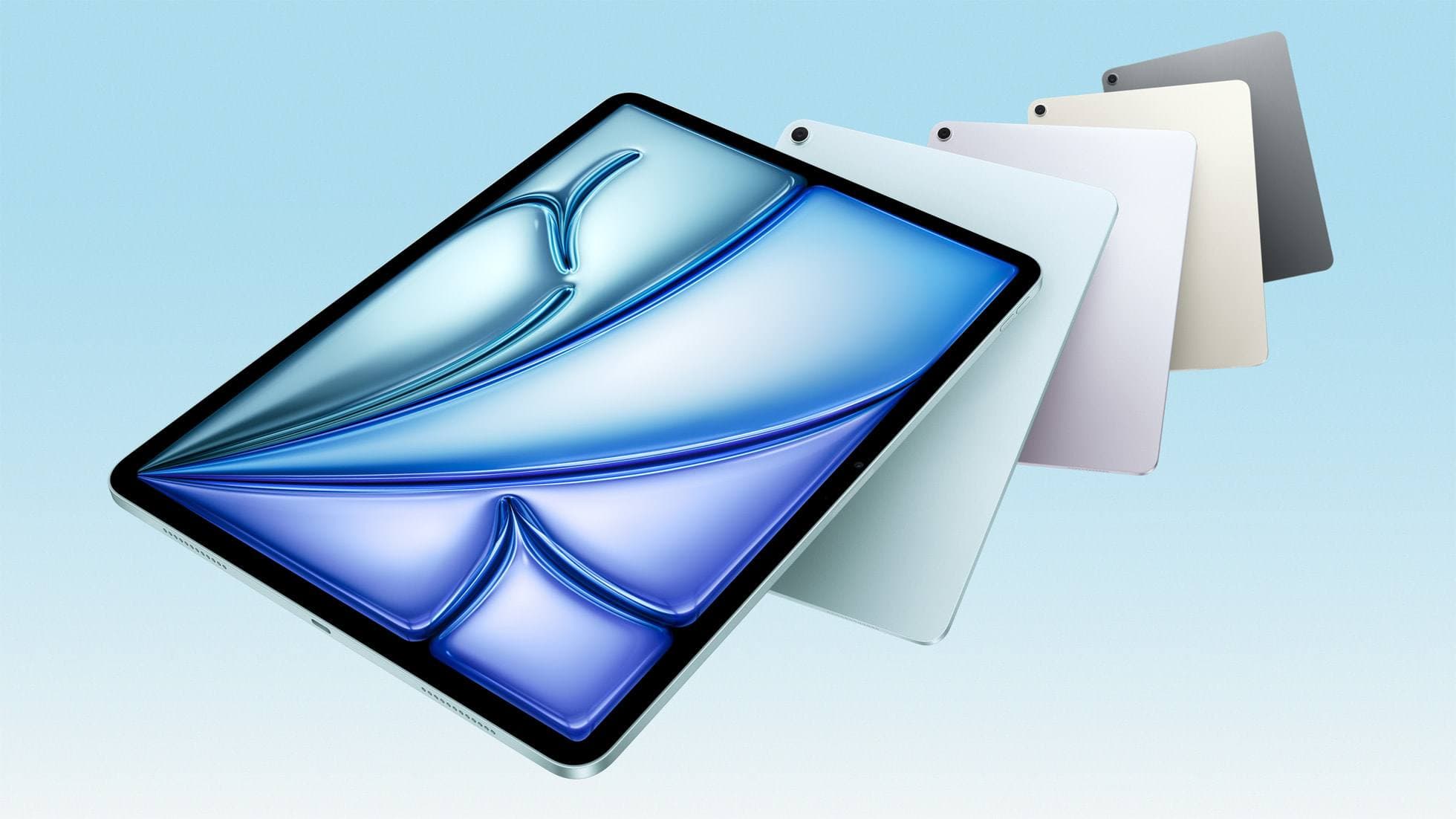
apple.comThe clean current Air recommendation for most serious hobby artists. Stronger buy logic than old-stock M3 when pricing is close.
Pro: Best current balance of price, headroom, and Pencil support
Con: Still 60Hz
Current Air lineup. Choose size, storage, and keyboard path before checkout.
Related buying picks
More in this collectionBuyer guide
What is the best handwriting app for iPad?
Choose between flexible vector canvases and traditional raster stroke engines based on how you organize your handwriting and notes.
Buyer guide
Best iPad app for manga: Clip Studio Paint versus Procreate and free alternatives
Clip Studio Paint is the best overall iPad app for serialized manga and multi-page comics, while Procreate remains the top one-time purchase for single illustrations.
Buyer guide
Best iPad app for architecture sketching
Compare Procreate, Concepts, and Clip Studio Paint to choose the right iPad drawing tool for your architectural drafting workflow.
Buyer guide
What is the best app for illustration on iPad?
Procreate leads for standalone tablet raster painting, while Clip Studio Paint offers deeper multi-page tools and desktop parity.