





Yes, the iPad with the A16 chip is good for Procreate if you want an affordable entry point for digital drawing and illustration [1], [5]. Buy the iPad A16 if you are a beginner, student, or hobbyist who wants a reliable drawing tablet without paying for higher-end hardware [1]. Skip it and choose the iPad Air M4 if you create complex commercial illustrations that demand high layer counts, or if you need Apple Pencil Pro features like barrel roll, squeeze gestures, and tactile haptic feedback [1], [2], [4]. The A16 processor handles Procreate easily, but specific stylus pairings and screen specifications define what you can do [1], [3].
How the A16 chip handles drawing workflows
Procreate runs on iPadOS and supports iPads running compatible software releases [4], [5]. The A16 Bionic chip delivers plenty of processing capability for line art, flat coloring, sketching, and standard brush engines [1], [5]. Because Procreate is engineered directly for iPad hardware, the app operates as a one-time purchase from the App Store without ongoing subscription fees [5]. For everyday creative work, the A16 handles core brush engines and standard canvas resolutions without issue [1], [5].
The physical display on the base iPad uses Apple's standard 60Hz refresh rate rather than the 120Hz ProMotion technology found on iPad Pro hardware [1]. A 60Hz display refreshes sixty times per second, which means lines track slightly behind the stylus tip compared to higher refresh panels [1]. For most illustrators, calligraphers, and casual doodlers, this standard refresh rate provides a familiar, workable surface [1]. However, artists who are accustomed to ProMotion screens will notice the visual distinction when making rapid strokes across the screen [1].
Display construction is another factor to consider when evaluating the iPad A16 [1]. The entry-level iPad design uses an unlaminated display, leaving a small air gap between the top glass and the active LCD digitizer [1]. Higher-end models like the iPad Air feature fully laminated screens where the glass and display pixels sit fused together [1]. While an unlaminated glass panel still registers precise touch and stylus inputs, your stylus tip visually hovers a tiny fraction of a millimeter above the mark you create [1].
Procreate layer limits and memory on the iPad A16
Layer availability in Procreate is tied directly to the physical system memory installed in your iPad [4]. When you build a new canvas, Procreate calculates maximum allowable layers based on canvas dimensions, color depth, and available device RAM [4]. Because the iPad A16 has less unified memory than M-series iPads, your maximum layer allocations on large canvases are lower [1], [4].
If you illustrate for social media, personal portfolios, or small web graphics, canvas sizes like 2048 by 2048 pixels offer plenty of working layers on the A16 [4]. You can separate line work, color flats, shading, and background elements easily without running out of room [4]. The constraints become visible when you prepare artwork for physical print formats, such as large posters, book covers, or merchandise [4]. A 300 DPI canvas at poster size demands significant memory, restricting your total usable layers on a baseline iPad [4].
Artists working around lower layer limits often merge layers, use manual layer grouping, or split multi-character scenes across separate project files [4]. If your personal workflow relies on dozens of non-destructive adjustment layers, clipping masks, and separate sketch passes, those memory constraints require active canvas management [4]. For painters who prefer a direct painting style on a handful of layers, the memory limits on the iPad A16 won't pose an everyday hurdle [4].
Apple Pencil choices and pressure sensitivity
Stylus compatibility is the most critical decision when purchasing an iPad A16 for art [1], [3]. The iPad A16 does not support the Apple Pencil Pro or the second-generation Apple Pencil [1], [3]. Instead, this iPad pairs with the Apple Pencil (USB-C) and the first-generation Apple Pencil [1], [3]. Understanding how these two styluses differ determines your inking experience in Procreate [2], [3].
The Apple Pencil (USB-C) includes tilt sensitivity, magnetic attachment for storage, and low latency, but it lacks pressure sensitivity [2], [3]. When you press harder against the glass with the USB-C model, your line weight remains uniform unless your brush relies purely on tilt angles [2]. For digital note-takers, technical drawing, and vector design, uniform lines are acceptable [2]. For traditional digital painting, calligraphic inking, and expressive sketching, pressure sensitivity is a fundamental tool inside Procreate [2], [5].
To get pressure sensitivity on the iPad A16, you must purchase the first-generation Apple Pencil and connect it using a USB-C to Apple Pencil adapter [1], [3]. The first-generation stylus gives you dynamic line thickness and opacity based on hand pressure [2]. However, charging and pairing require connecting the stylus via a cable adapter rather than snapping it to the iPad frame [1], [3]. If you want a seamless magnetic charging workflow alongside pressure control, the standard iPad setup involves trade-offs you must weigh carefully [1], [2], [3].
iPad A16 versus iPad Air M4 for art
Stepping up from the iPad A16 to the iPad Air M4 brings significant hardware upgrades for creative applications [1]. The iPad Air M4 includes Apple's M4 processor, a fully laminated display, antireflective screen coating, and broad P3 wide color support [1]. The laminated panel brings the digital ink right beneath your stylus tip, removing the subtle depth gap present on the baseline iPad [1].
The biggest workflow difference between the two models centers on Apple Pencil Pro support [1], [3]. The iPad Air M4 supports the Apple Pencil Pro, which provides pressure sensitivity, magnetic pairing and wireless charging, barrel roll, squeeze shortcuts, and haptic feedback [1], [2], [3]. Squeeze shortcuts let you pull up quick tool palettes directly at your fingertips, while barrel roll rotates shaped brushes as you twist the stylus shaft [2]. The base iPad A16 simply cannot use the Apple Pencil Pro or any of these advanced tool-switching gestures [1], [3].
Storage options also differ between the two product tiers [1]. The iPad A16 provides entry-level storage tiers suitable for basic apps and casual project storage, but large Procreate galleries, time-lapse recordings, and high-resolution brush packs quickly occupy space [1], [5]. The iPad Air M4 offers higher base storage configurations and larger capacity options, allowing artists to keep extensive reference libraries and high-resolution working files directly on device [1].
Choosing between these two models comes down to your budget and long-term goals [1]. If you want the most cost-effective tablet setup to learn digital art, practice drawing fundamentals, or create web graphics, the iPad A16 combined with a compatible stylus is a practical starting point [1], [3]. If you earn money from client illustrations, rely heavily on tactile gestures, or require extensive layer stacks for print files, investing in the iPad Air M4 provides a more versatile creative setup [1], [2], [4].
Bottom line
The iPad A16 is a solid, budget-conscious choice for digital drawing in Procreate [1], [5]. Buy the iPad A16 if you want an accessible digital sketchbook for personal illustrations, casual art projects, and social media graphics [1], [4]. Skip the iPad A16 and purchase the iPad Air M4 if you need seamless Apple Pencil Pro features like barrel roll and magnetic charging, or if your artwork demands deep layer stacks for commercial print projects [1], [2], [3], [4].
Sources
[1] https://www.apple.com/ipad/compare/ [2] https://www.apple.com/apple-pencil/ [3] https://support.apple.com/en-us/108937 [4] https://help.procreate.com/articles/zlexav-ipad-compatibility [5] https://apps.apple.com/us/app/procreate/id425073498
Recommended gear
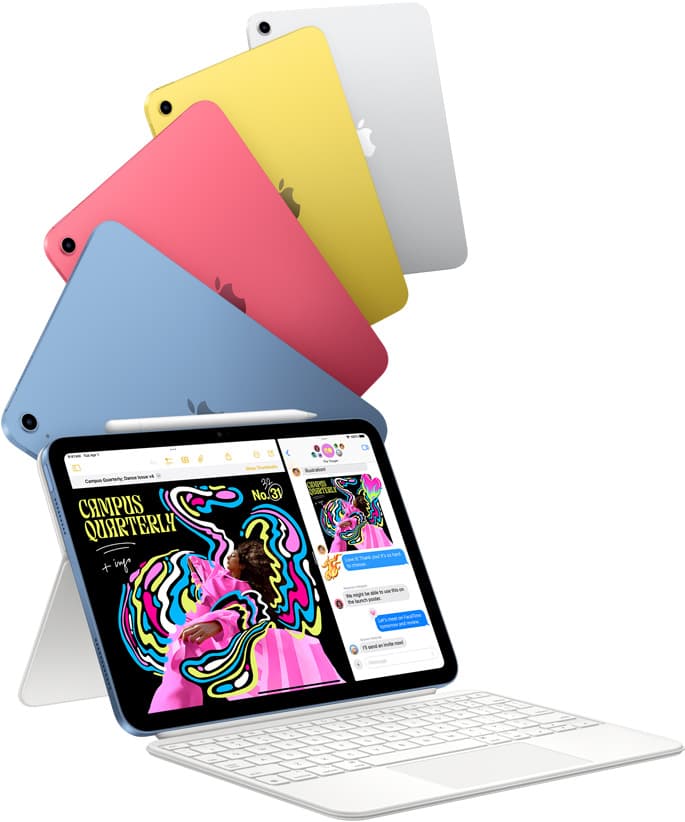
iPad (A16, 11th gen)
amazon.comThe best entry iPad for most artists on a budget. It is not premium, but it is very hard to beat on value.
Pro: Best value iPad right now
Con: No ProMotion display
Search opens with the exact model keywords. Verify size and storage before checkout.
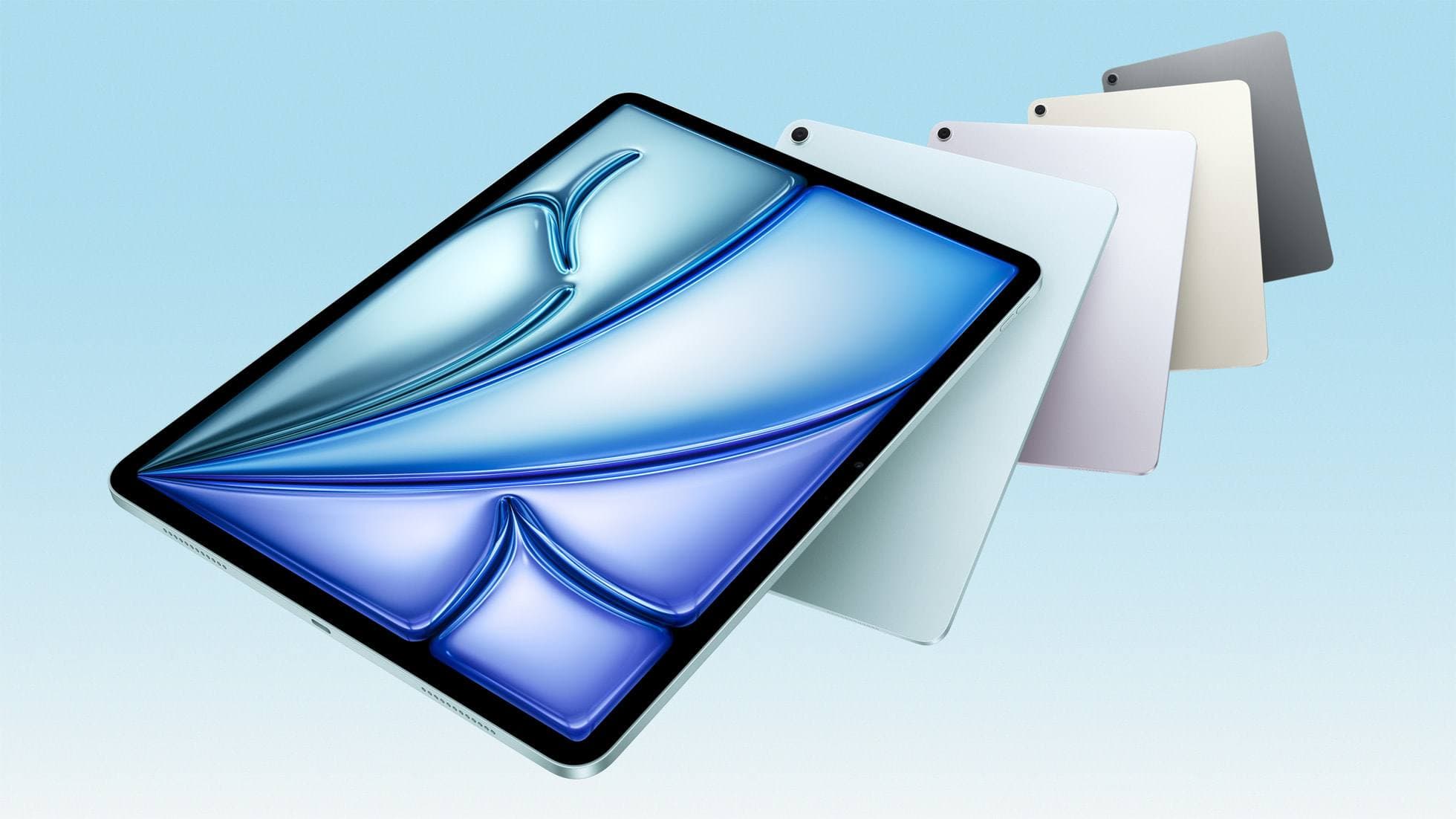
iPad Air (M4)
apple.comThe clean current Air recommendation for most serious hobby artists. Stronger buy logic than old-stock M3 when pricing is close.
Pro: Best current balance of price, headroom, and Pencil support
Con: Still 60Hz
Current Air lineup. Choose size, storage, and keyboard path before checkout.

Apple Pencil Pro
amazon.comThe best Apple stylus for serious digital art workflows. Expensive, but the control upgrades are real.
Pro: Best brush-control and hover workflow
Con: Highest price in the lineup
Works only with newer iPad models. Check compatibility.
Procreate
apps.apple.comPro: One-time purchase
Con: iPad-only
Related buying picks
More in this collectionComparison
iPad vs Samsung tablet for drawing: which setup to choose
Choose an iPad if your art workflow relies on Procreate and Apple Pencil tools, and pick the iPad Air for the best balance of features.
Buyer guide
The best iPad for urban sketching and field drawing
Choose between the ultra-portable iPad mini and the sketchbook-sized iPad Air for drawing on the go.
Buyer guide
How to choose the best iPad for illustration work
Find the best iPad for your illustration workflow based on Apple Pencil Pro compatibility, screen size, Procreate layer limits, and display feel.
Buyer guide
Best iPad for art college: how to choose your studio tablet
The iPad Air (M4) is the best tablet for art college because it supports the Apple Pencil Pro without the expense of the iPad Pro.