Buy the iPad Air (M4) if you create sublimation graphics for tumblers, apparel, or blanks and want Apple Pencil Pro features without paying top tier rates [1], [3]. It offers the practical sweet spot of processing power and screen options for multi-layer illustration [1]. Choose the base iPad (A16, 11th gen) if you only build simple graphics and total equipment cost is your main constraint [1]. Skip the iPad Pro (M5) unless you already know you need its specific display tech or maximum memory overhead for very heavy production routines [1], [4]. Most sublimation creators don't need to spend Pro money to prepare sharp, high-resolution transfers [1], [4].
Why sublimation templates demand specific iPad hardware
Sublimation printing is unforgiving when it comes to image resolution. When you print onto transfer paper for heat pressing onto polyester shirts, ceramic mugs, or aluminum signs, your canvas files need to sit at high resolutions, typically 300 dots per inch, so lines print cleanly without visible pixelation [4]. Working at full physical print dimensions at print density creates large digital canvases [4]. In popular raster illustration applications like Procreate, the maximum number of layers you can use on any given canvas is strictly dictated by the available memory of your iPad model [4].
If you buy an entry device with lower hardware specifications, your maximum layer count drops steeply on large canvases [4]. A tumbler wrap canvas or a full apparel back print set to high resolution can quickly limit you to fewer layers than your design process requires [4]. That constraint forces you to flatten elements, merge text groups, or separate your design across multiple files [4]. Understanding how Apple structures memory across the lineup helps you avoid hitting an artificial ceiling while laying out your print files [1], [4].
Selecting your hardware also means choosing which accessories you can connect for detailed drafting [1], [3]. Drawing clean vector outlines, hand-lettered quotes, and detailed patterns requires an accurate stylus interface [2]. Apple divides its stylus features across different hardware generations, which means your choice of iPad directly governs which Apple Pencil models you can pair with your setup [1], [3].
Evaluating screen size and canvas layers for print layouts
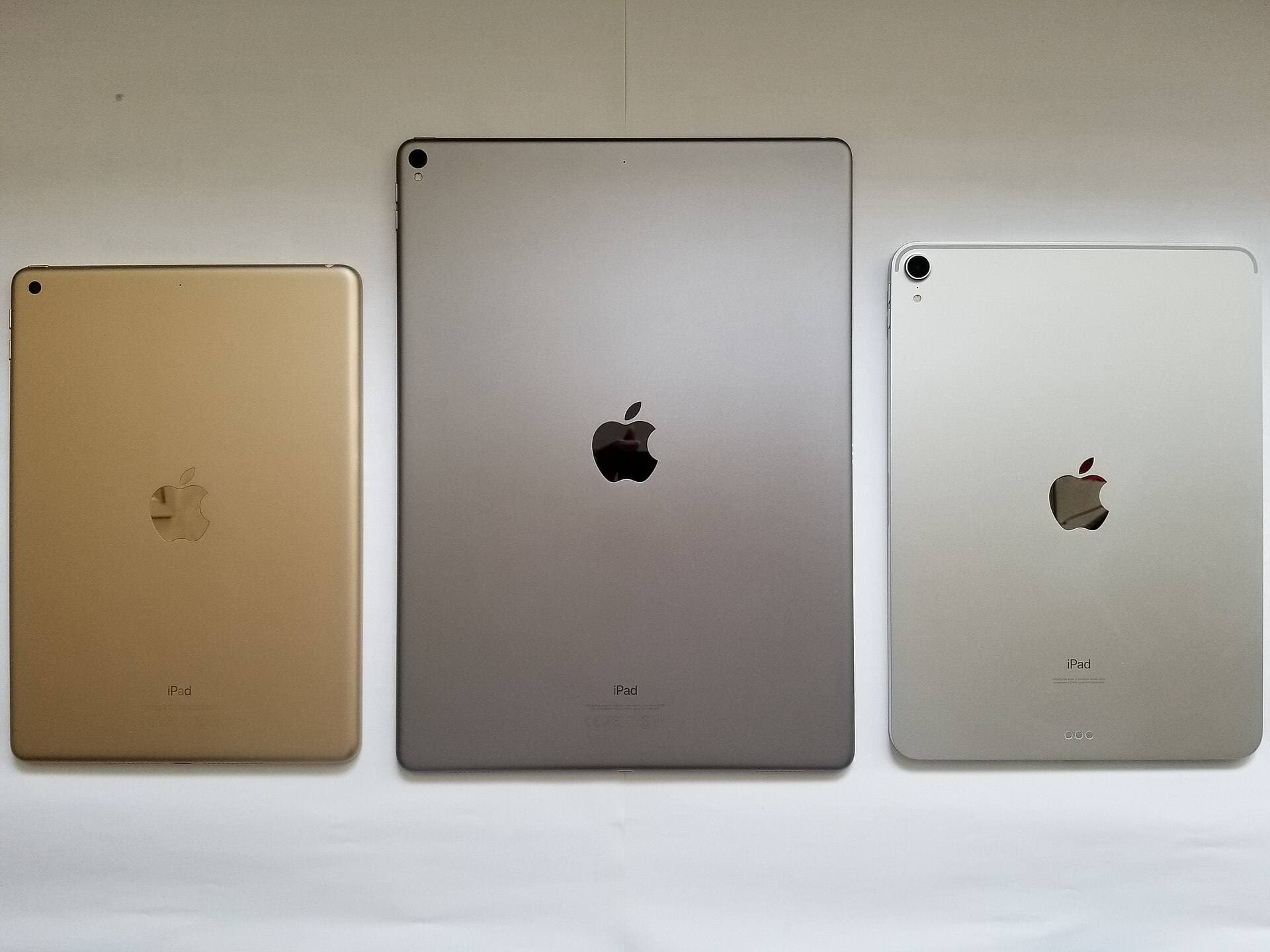
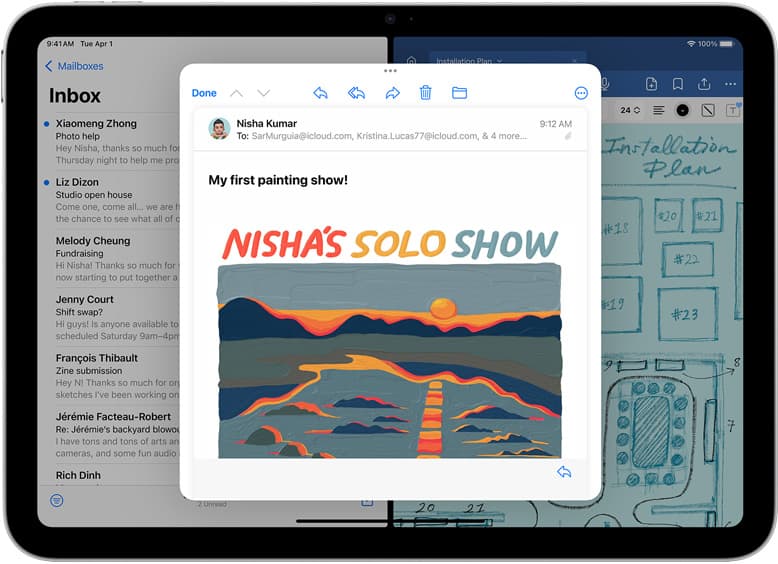
Physical display real estate alters how you interact with sublimation templates [1]. Designing for 20-ounce skinny tumblers or large t-shirt graphics requires checking wide horizontal spans or large rectangular footprints [4]. Apple offers standard display sizes around 11 inches alongside larger 13-inch displays on select lines like the iPad Air and iPad Pro [1]. A compact screen displays your full template in a reduced preview window, requiring frequent zooming to verify alignment markers, bleed margins, and seam overlaps [1], [4].
A 13-inch display provides more visual workspace for tool pallets, color swatches, and reference images while keeping your working template visible [1], [5]. Procreate organizes brushes, layer stacks, and adjustments around the perimeter of the active drawing canvas [5]. Having physical screen space keeps your design elements from being obscured by user interface menus during detailed linework sessions [1], [5].
Memory capacity directly dictates how far you can push layer separation inside these drawing apps [4]. The iPad Pro lineup features the highest ceiling for canvas dimensions and layer totals due to its memory configurations, while the iPad Air line provides ample breathing room for standard production jobs [1], [4]. If your sublimation style relies heavily on separate adjustment layers, isolated texture overlays, and non-destructive shadows, you need enough system memory to prevent continuous layer merging [4].
Choosing the right Apple Pencil for graphic detailing
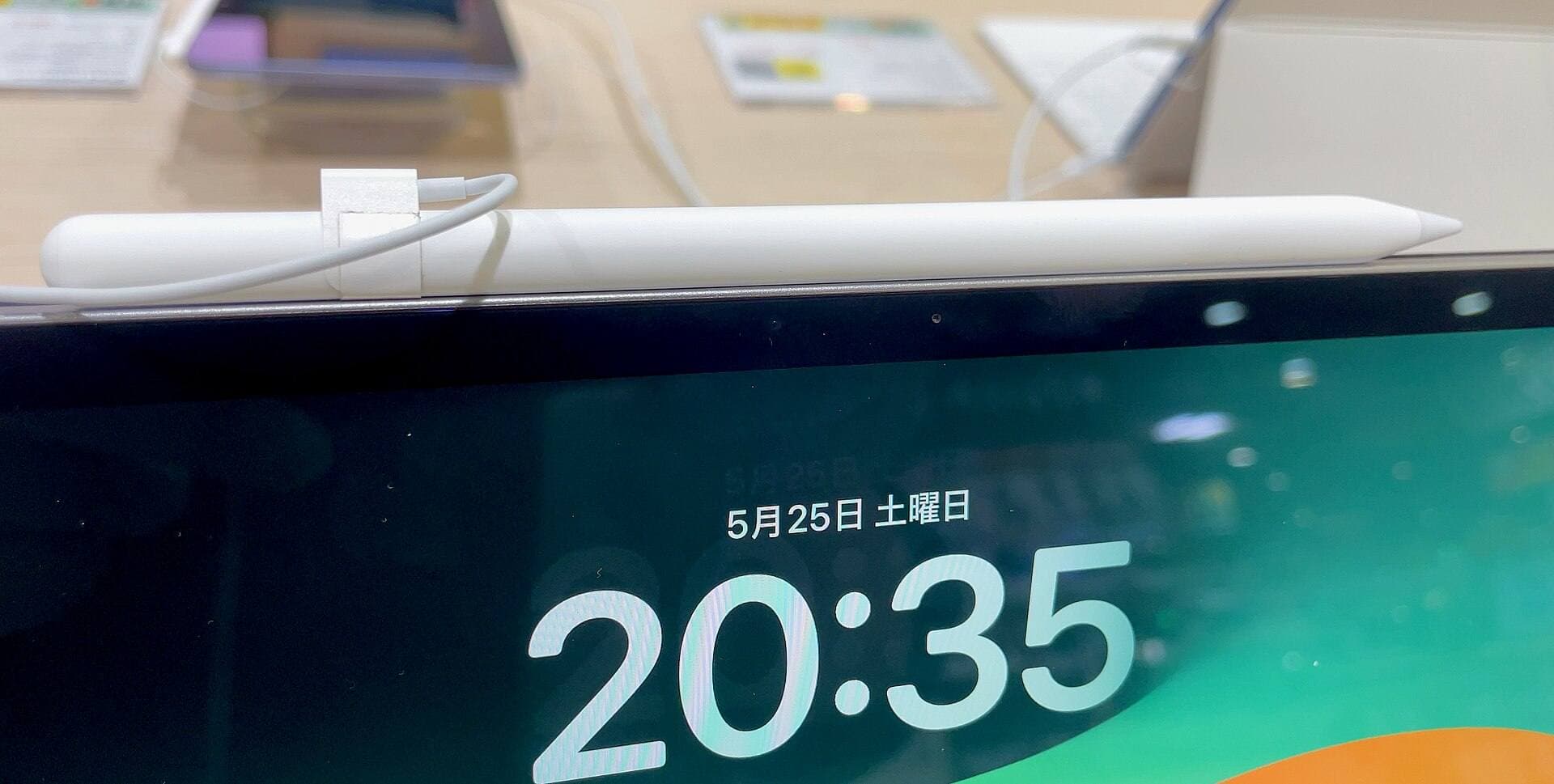
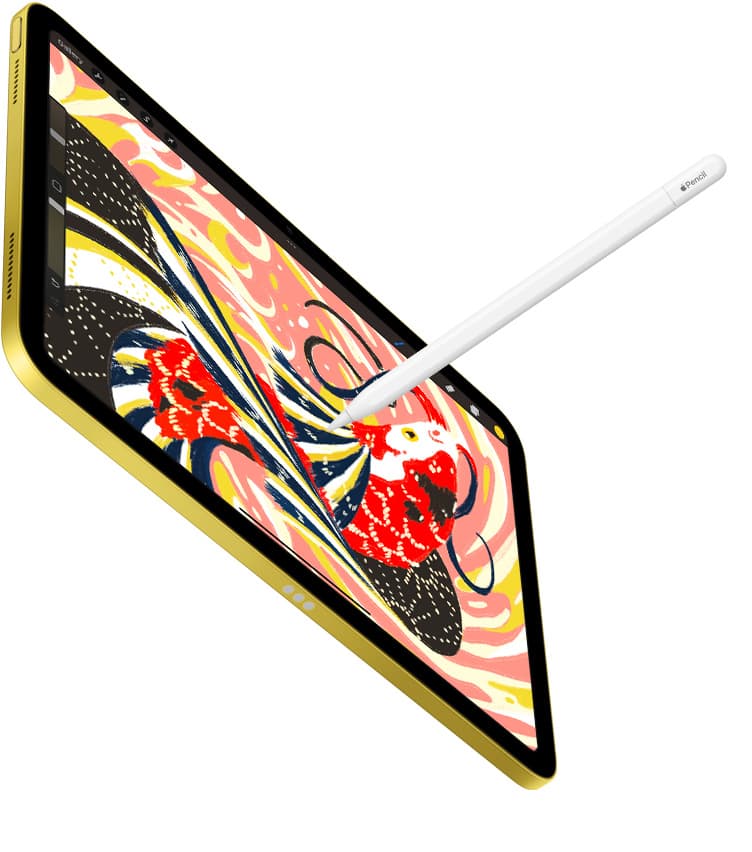
Your stylus dictates how you interact with brush engines and tool shortcuts [2]. The Apple Pencil Pro introduces barrel roll, squeeze gestures, and haptic feedback, while retaining pressure sensitivity, tilt detection, and magnetic pairing [2]. Barrel roll uses an internal gyroscope so you can rotate shaped brushes and calligraphy pens simply by rolling the barrel between your fingers [2]. For sublimation crafters building custom lettering or floral flourishes, this feature provides direct orientation control [2].
The squeeze gesture on Apple Pencil Pro lets you bring up an on-screen palette to switch tools, brush sizes, or color palettes without reaching across the canvas [2]. However, the Apple Pencil Pro only functions with supported modern hardware, such as the iPad Air (M4) and iPad Pro (M5) [1], [3]. It will not pair or charge with the base iPad models [3].
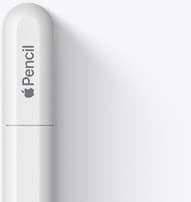
If you select the iPad (A16, 11th gen), you're paired with the Apple Pencil (USB-C) or an older supported stylus [1], [3]. The Apple Pencil (USB-C) provides tilt sensitivity, magnetic attachment for storage, and low latency, but it lacks pressure sensitivity [2]. Pressure sensitivity controls line weight and opacity based on how firmly you press the tip against the glass [2]. Sublimation designers who rely on variable stroke width for hand lettering or shaded illustration will miss pressure sensitivity on the USB-C model [2]. Designers who primarily assemble flat vector shapes, type digital fonts, and position imported elements may not require pressure sensitivity [2].
iPad Air versus base iPad for your sublimation workflow
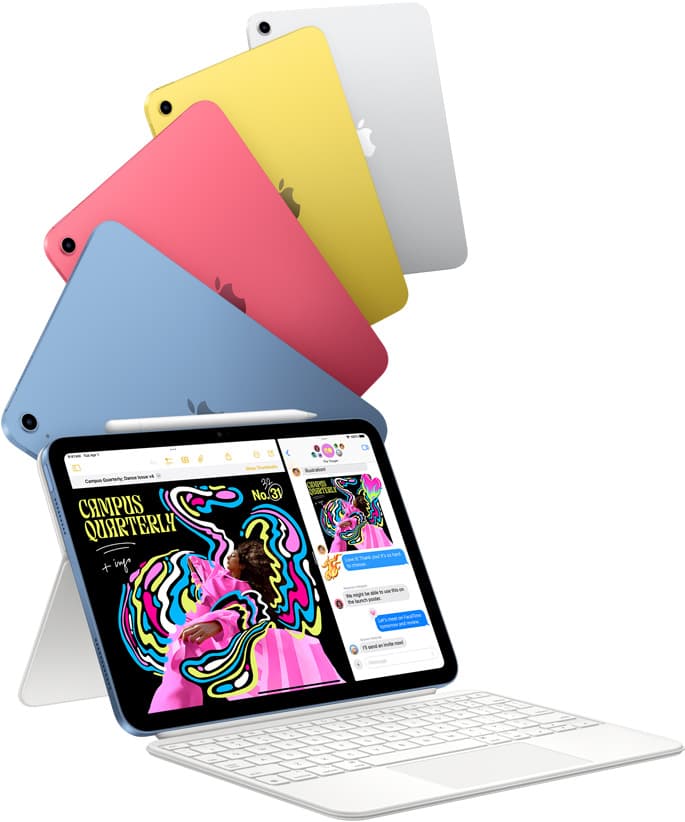
The iPad Air (M4) sits as the most balanced workstation for most sublimation creators [1]. It incorporates Apple's M-series processor architecture, delivering strong headroom for extensive layer counts on print-ready canvases [1], [4]. It also provides native compatibility with Apple Pencil Pro, giving you access to pressure control, barrel roll, and squeeze tools [2], [3]. Because the iPad Air is available in both 11-inch and 13-inch variants, you can choose a larger workspace without having to step up into premium Pro pricing [1].
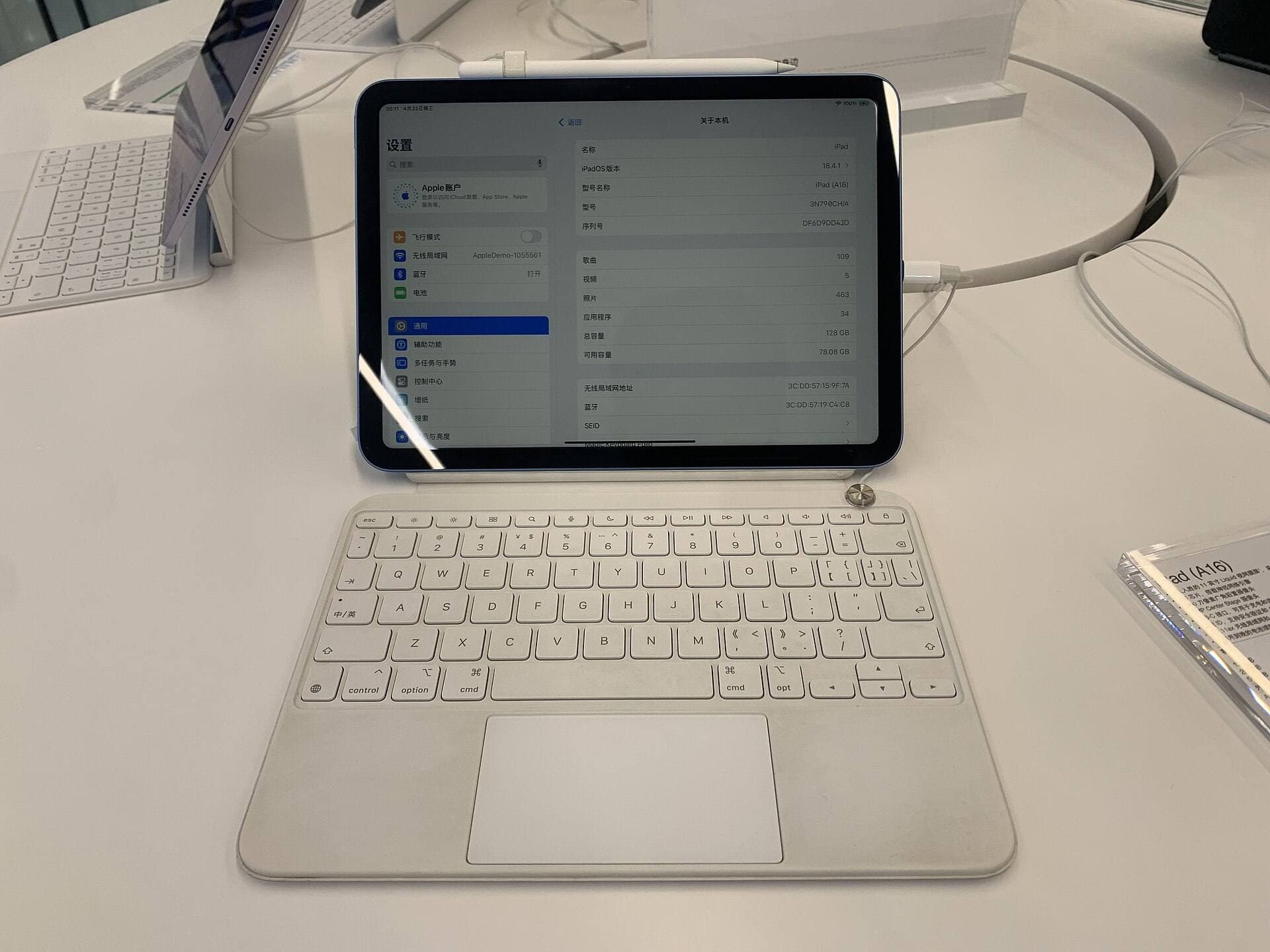
The iPad (A16, 11th gen) is the economical entry point for makers focusing on basic templates [1]. If your projects consist of placing downloaded graphics, adjusting photo cutouts for ceramic ornaments, or arranging simple text blocks, the base iPad handles the core requirements of running drawing software [1], [5]. However, the base iPad doesn't support the Apple Pencil Pro [3]. You must confirm whether the missing pressure sensitivity on the Apple Pencil (USB-C) fits your drawing habits before choosing this hardware [2], [3].
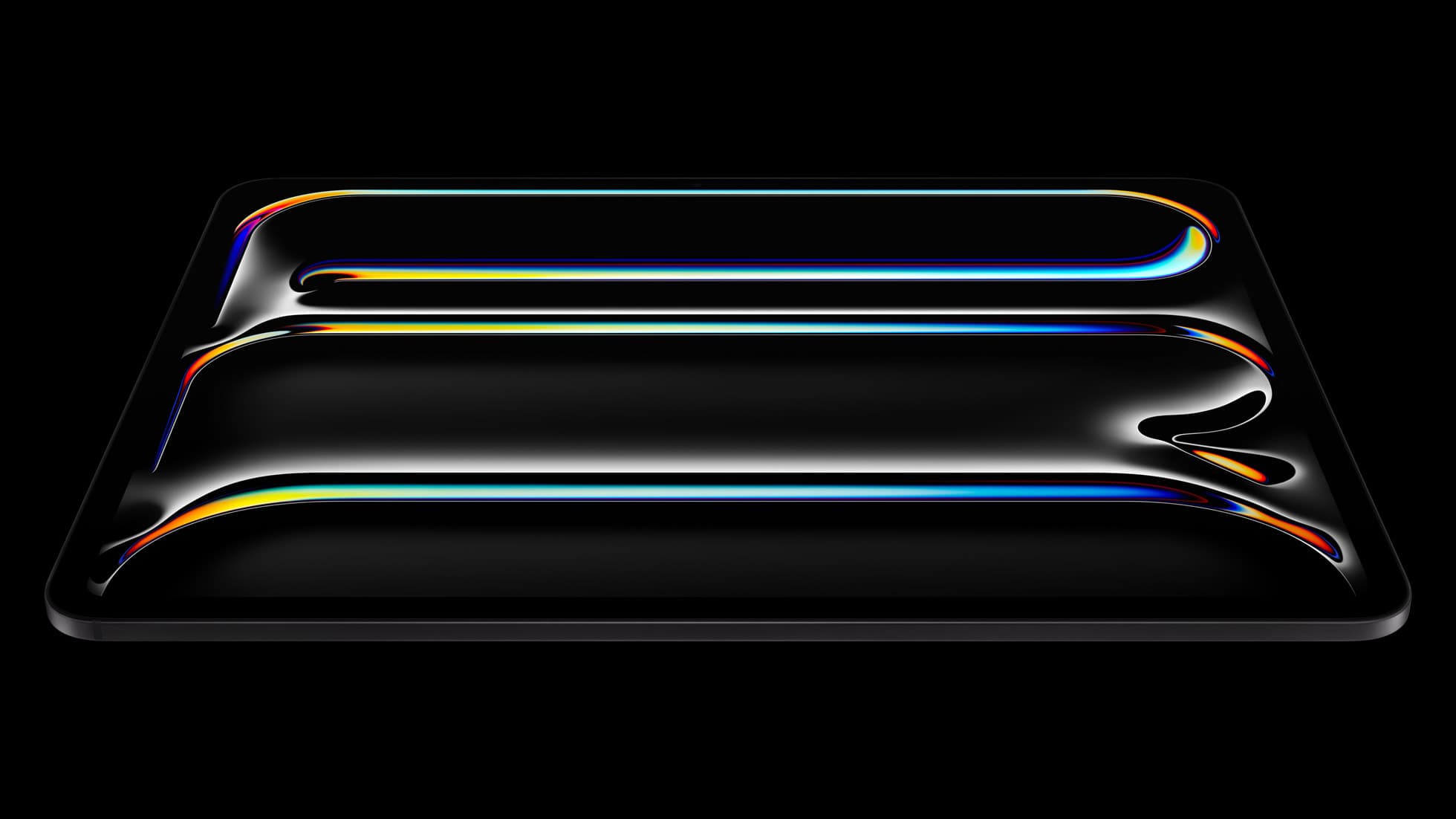
The iPad Pro (M5) occupies the top tier of Apple's portable lineup [1]. It features an advanced Ultra Retina XDR display with ProMotion technology, along with the highest memory tiers available in the family [1], [4]. While the 120Hz ProMotion refresh rate feels responsive under the pencil tip, the display speed doesn't alter the output quality of your final sublimation print [1]. A printed mug or shirt looks identical whether the PNG graphic was exported from an iPad Pro or an iPad Air [4], [5]. Buy the iPad Pro (M5) only if you manage massive high-volume commercial batches, run heavy 3D previews, or require top-tier display specifications for your daily work [1], [4].
Bottom line
For most creators producing sublimation prints, the iPad Air (M4) is the correct purchase [1]. It offers the essential balance between canvas layer headroom, screen size selection, and full compatibility with the Apple Pencil Pro [1], [2], [3], [4]. Choose the base iPad (A16, 11th gen) if you have a strict budget and your design work consists of basic layouts that don't require pressure-sensitive drawing tools [1], [2], [3]. Skip the iPad Pro (M5) unless you have commercial layer demands that genuinely require Apple's most expensive tablet hardware [1], [4].
Sources
[1] https://www.apple.com/ipad/compare/ [2] https://www.apple.com/apple-pencil/ [3] https://support.apple.com/en-us/108937 [4] https://help.procreate.com/articles/zlexav-ipad-compatibility [5] https://apps.apple.com/us/app/procreate/id425073498
Recommended gear
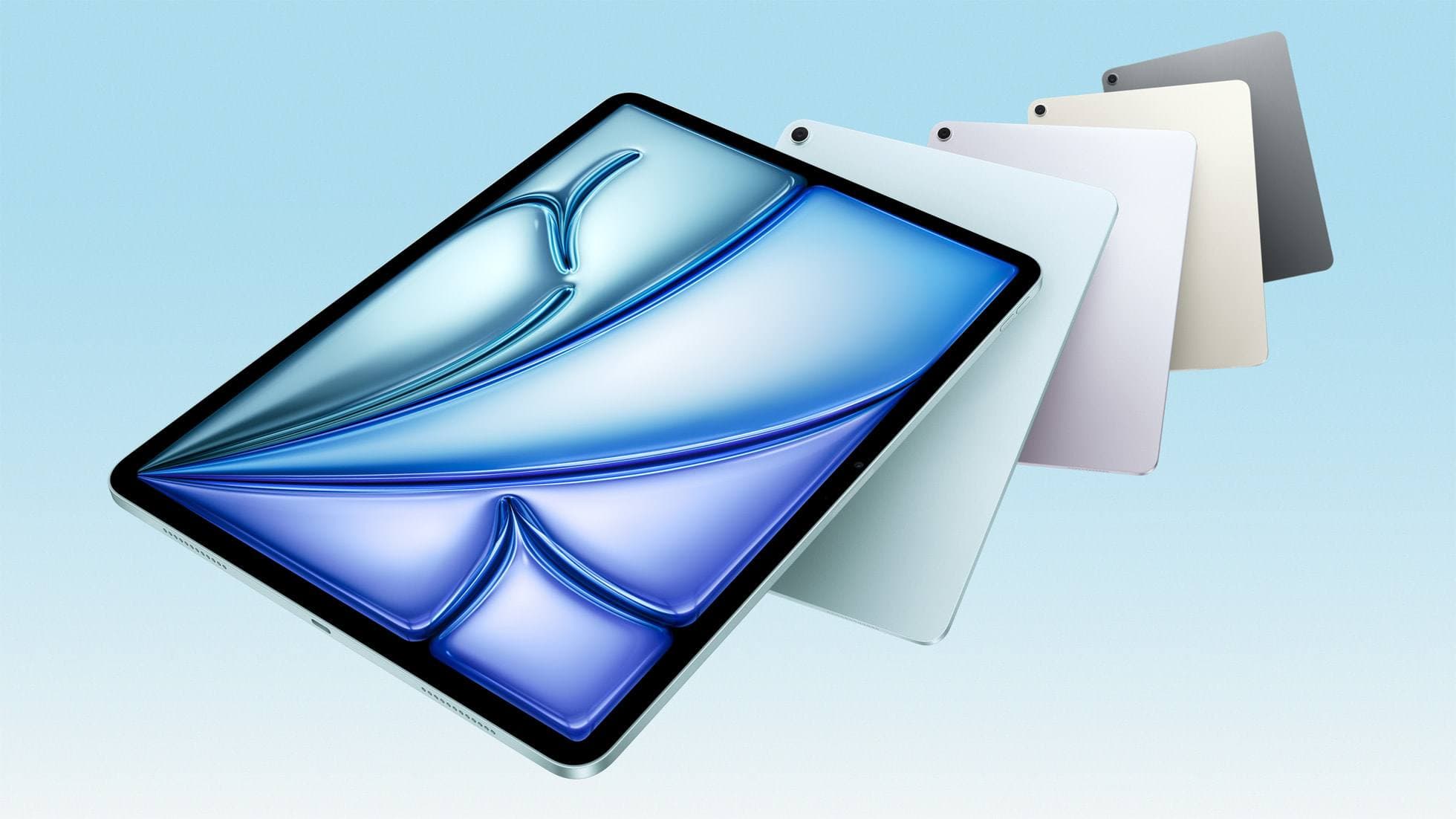
iPad Air (M4)
apple.comThe clean current Air recommendation for most serious hobby artists. Stronger buy logic than old-stock M3 when pricing is close.
Pro: Best current balance of price, headroom, and Pencil support
Con: Still 60Hz
Current Air lineup. Choose size, storage, and keyboard path before checkout.
iPad (A16, 11th gen)
amazon.comThe best entry iPad for most artists on a budget. It is not premium, but it is very hard to beat on value.
Pro: Best value iPad right now
Con: No ProMotion display
Search opens with the exact model keywords. Verify size and storage before checkout.
iPad Pro (M5)
amazon.comThe best iPad for drawing feel and premium workflow comfort, but many buyers still overpay for it.
Pro: Best iPad display and ProMotion feel
Con: Highest price in the lineup
Search opens with iPad Pro terms. Check year, chip, and screen size.
Apple Pencil Pro
amazon.comThe best Apple stylus for serious digital art workflows. Expensive, but the control upgrades are real.
Pro: Best brush-control and hover workflow
Con: Highest price in the lineup
Works only with newer iPad models. Check compatibility.
Apple Pencil (USB-C)
amazon.comA practical low-cost Apple stylus with broad compatibility, but limited for advanced art control.
Pro: Lowest official Apple Pencil cost
Con: No pressure sensitivity for brush work
Compatible with many recent iPads. No pressure support.
Related buying picks
More in this collectionComparison
iPad vs laptop for Cricut: how to choose your cutting setup
Compare operating system support, Apple Pencil illustration workflows, and file uploads to decide whether an iPad or a laptop fits your Cricut cutting setup.
Buyer guide
Is a 64GB iPad enough for Procreate?
A 64GB iPad can run Procreate; decide whether it is enough by measuring your active canvases and the device storage already in use.
Buyer guide
What's the best iPad for artists?
iPad Air with the M4 chip hits the best balance of stylus features and price for most digital artists.
Buyer guide
Best iPad for architecture drawing: picking your drafting setup
Compare the top iPads for architectural drawing, plan markups, and Apple Pencil support to find the right fit for your desk and site work.