






Buy the iPad Air (M4) if you need the best overall balance of physical size, accessory flexibility, and Apple Pencil Pro support for your stop motion planning and playback [1], [2]. If total kit cost matters more than accessory perks, buy the iPad (A16, 11th gen) instead [1].
Stop motion animation places specific demands on a tablet. You might use the tablet mounted to a tripod arm as a capture monitor, or flat on a desk to sketch model sheets, storyboards, and replacement mouth shapes in creative apps [5], [8]. The right choice depends on how your tablet fits into your physical stage setup, which Apple Pencil tools you need, and what screen dimensions keep your workspace readable without overloading your mounting hardware [1], [2].
Matching screen size to your stop motion stage
A stop motion setup often involves arm mounts, desk clamps, and camera brackets. That makes tablet physical footprint just as meaningful as internal processing hardware [1].
The iPad Air (M4) offers a clear middle ground for mounting on standard grip hardware while giving you enough screen area to inspect frame alignment and scrub timelines [1], [8]. Its display size keeps UI panels accessible in creative suites without requiring an oversized clamp [1], [6].
If you build tiny sets or need a handheld reference monitor right next to a miniature puppet, the iPad mini (A17 Pro) has the smallest footprint in the lineup [1]. The trade-off is screen area: drawing overlays, scrubbing long timelines, and inspecting fine background details feel tighter on its smaller canvas [1], [4].
The iPad Pro (M5) provides Apple's largest screen options, which helps when reviewing frames alongside playback controls [1], [8]. However, larger tablets add weight to articulating arms, so pick the Pro only if your stage hardware supports it and you genuinely need the premium display technology [1].
Apple Pencil features for animation prep and overlays
Stop motion animators frequently use stylus input to draw 2D registration marks, plan movement arcs, or paint background plates in apps like Procreate or Clip Studio Paint [5], [6]. Apple's stylus lineup splits across different tablet tiers [2], [3].
The iPad Air (M4) and iPad Pro (M5) both support Apple Pencil Pro [1], [3]. That stylus includes barrel roll, squeeze gestures, haptic feedback, and hover capability [2]. Squeeze lets you quickly switch tool palettes, while barrel roll rotates shaped brushes as you sketch storyboard sequences or trace motion arcs [2], [5]. Both models also support the Apple Pencil (USB-C) if you only need basic drawing and pairing [2], [3].
The iPad (A16, 11th gen) does not support Apple Pencil Pro [1], [3]. Instead, it pairs with the Apple Pencil (USB-C) or the first-generation Apple Pencil [3]. The Apple Pencil (USB-C) provides tilt sensitivity and magnetic attachment for storage, but it lacks pressure sensitivity and squeeze features [2]. If your stop motion workflow only involves simple markup, tapping UI buttons, and rough framing notes, the USB-C Pencil is entirely functional [2]. But if you paint detailed textured matte paintings or expressive storyboards, you'll miss pressure response on that setup [2], [5].
Canvas management and app requirements
Stop motion production often branches into related digital art tasks. Animators use Procreate for character design and texture painting, Clip Studio Paint for multi-frame animatics, and Procreate Dreams for timeline-based playback and drawn overlays [5], [6], [8].
Digital art applications tie their canvas limits directly to hardware memory [4]. In Procreate, larger canvas resolutions limit your maximum layer count based on the device's available memory [4]. When planning multi-layered scene mockups or detailed frame-by-frame guide tracks, having the higher headroom found on M-series chips like the iPad Air (M4) and iPad Pro (M5) allows for more simultaneous working layers at high resolutions [1], [4].
Clip Studio Paint offers animation timelines, light table tools, and frame editing on iPadOS [6], [7]. If you plan to sketch out onion-skin guide drawings before capturing clay or puppet movement on your physical stage, Clip Studio Paint runs across the current iPad family [1], [6]. The base iPad (A16, 11th gen) handles standard timeline playback and storyboard sketching, while the M-series models provide higher layer ceilings when building multi-track projects [1], [4], [8].
Choosing the right iPad model for your workspace
Every tablet in the current lineup fits a distinct budget and physical role on an animation stage [1].
Buy the iPad Air (M4) if:
- You want access to Apple Pencil Pro gestures like squeeze and barrel roll for storyboarding [2], [3].
- You need a balance between screen workspace and physical weight for desk or tripod clamps [1].
- You want strong memory headroom for high-resolution Procreate canvases without paying top-bracket prices [1], [4].
Buy the iPad (A16, 11th gen) if:
- You want the most affordable entry point for reference playback, line testing notes, and framing checks [1], [8].
- You are comfortable using the Apple Pencil (USB-C) without pressure sensitivity or squeeze tools [2], [3].
- Your stop motion software setup lives primarily on an external camera or computer, leaving the tablet as a secondary utility screen [1].
Buy the iPad Pro (M5) if:
- You want Apple's highest-tier display specifications and ProMotion display technology [1].
- You run heavy multi-track animation and video workflows in Procreate Dreams and need the maximum hardware tier [1], [8].
Buy the iPad mini (A17 Pro) if:
- Your physical set is small and you need a compact screen that tucks into tight stage spaces [1].
- You prefer checking your shot references on a handheld tablet rather than a permanent rig mount [1].
Skip the iPad Pro (M5) if your tablet sits on a stand just displaying frame reference, because its premium display features won't change your physical capture process [1]. Skip the iPad mini if you plan to do your primary digital drawing, rough storyboarding, and timeline editing on the device, where its compact screen feels restricted [1], [4].
Bottom line
For most creators tackling stop motion animation, the iPad Air (M4) is the best buy [1]. It supports Apple Pencil Pro, fits easily onto standard mounting gear, and delivers the layer headroom you need for storyboards and texture work [1], [2], [4]. Pick the iPad (A16, 11th gen) if keeping your initial production budget low is the top priority [1].
Sources
[1] https://www.apple.com/ipad/compare/ [2] https://www.apple.com/apple-pencil/ [3] https://support.apple.com/en-us/108937 [4] https://help.procreate.com/articles/zlexav-ipad-compatibility [5] https://apps.apple.com/us/app/procreate/id425073498 [6] https://apps.apple.com/us/app/clip-studio-paint/id1262985592 [7] https://www.clipstudio.net/en/ [8] https://apps.apple.com/us/app/procreate-dreams/id1595520602
Recommended gear

iPad Air (M4)
apple.comThe clean current Air recommendation for most serious hobby artists. Stronger buy logic than old-stock M3 when pricing is close.
Pro: Best current balance of price, headroom, and Pencil support
Con: Still 60Hz
Current Air lineup. Choose size, storage, and keyboard path before checkout.
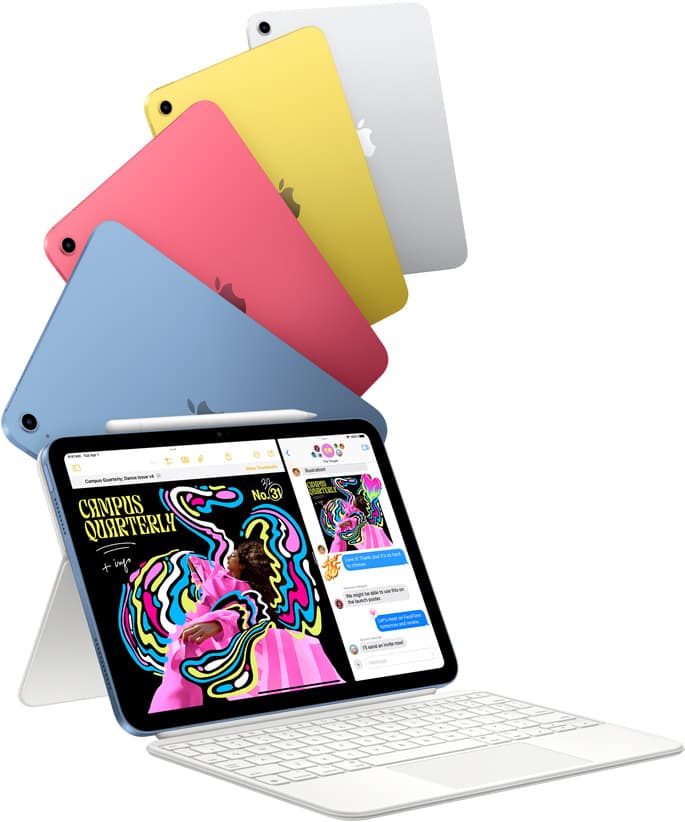
iPad (A16, 11th gen)
amazon.comThe best entry iPad for most artists on a budget. It is not premium, but it is very hard to beat on value.
Pro: Best value iPad right now
Con: No ProMotion display
Search opens with the exact model keywords. Verify size and storage before checkout.
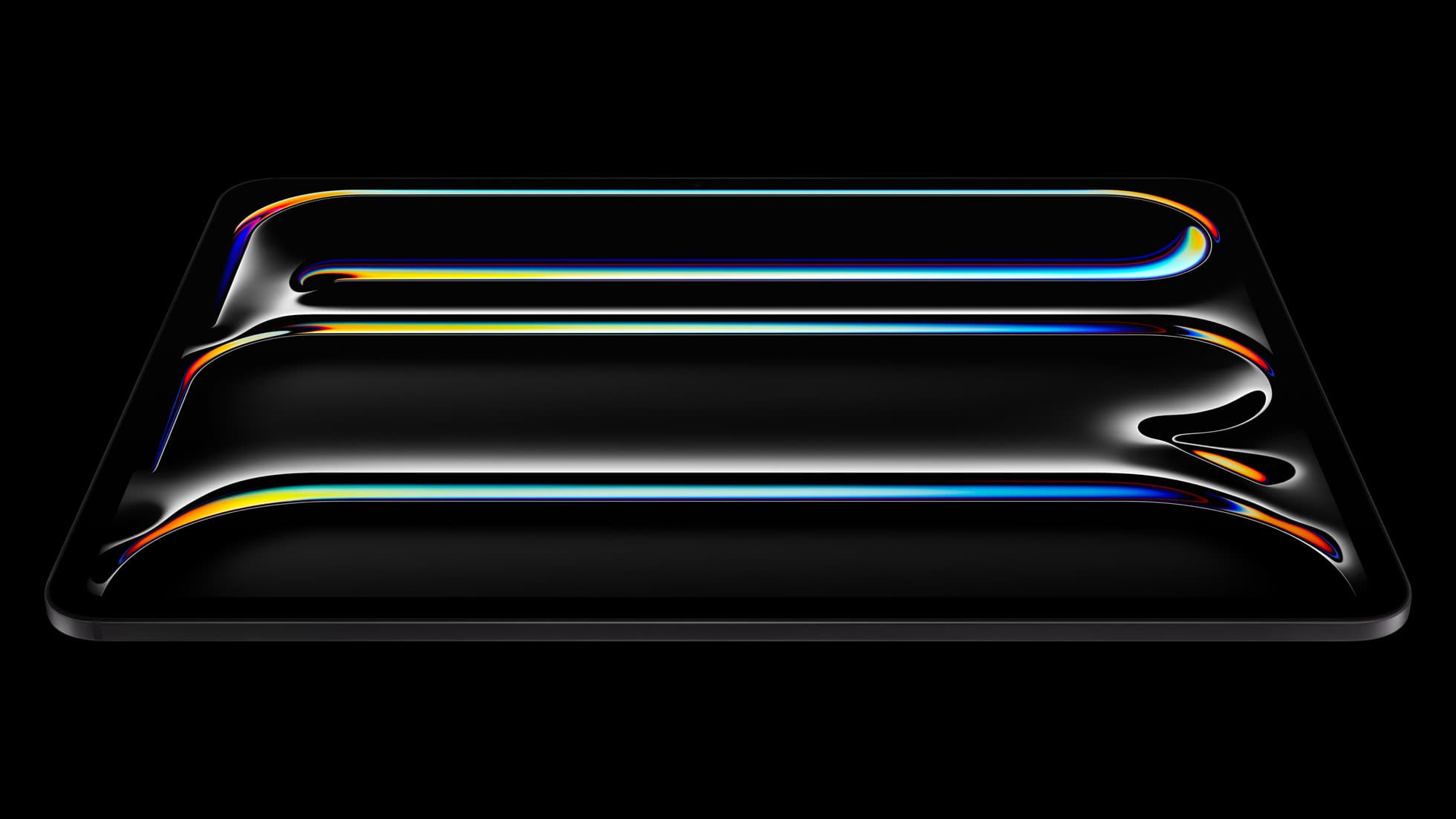
iPad Pro (M5)
amazon.comThe best iPad for drawing feel and premium workflow comfort, but many buyers still overpay for it.
Pro: Best iPad display and ProMotion feel
Con: Highest price in the lineup
Search opens with iPad Pro terms. Check year, chip, and screen size.
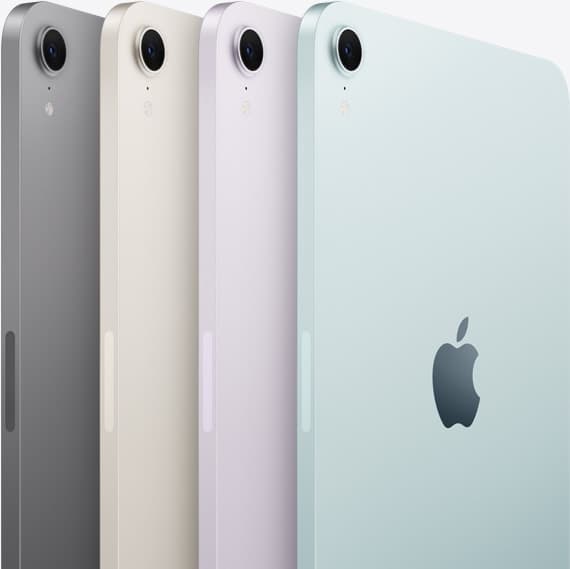
iPad mini (A17 Pro)
amazon.comThe most portable real iPad for drawing. It wins on mobility and loses on workspace.
Pro: Most portable drawing iPad
Con: Small canvas for detailed work
Search opens with iPad mini A17 Pro terms. Verify model number before buying.
Related buying picks
More in this collectionBuyer guide
Best iPad for animation: How to choose your creative setup
Compare the best iPads for 2D animation, timeline performance, and stylus responsiveness to match your workflow and budget.
Buyer guide
Best drawing tablet for webtoon artists: iPad picks and pen setups
Compare the best iPad options for webtoon creation based on screen size, Apple Pencil support, and layer capacity.
Comparison
iPad vs Wacom Intuos for photo editing
Choose between an iPad screen tablet and a Wacom Intuos pen tablet based on whether you edit directly on glass or at a desktop monitor.
Buyer guide
Best drawing tablet for pixel art: Which iPad fits your grid workflow?
The iPad (A16) is the best drawing tablet for pixel art because low-resolution sprite grids do not need expensive workstation processors.