Pinterest still does one thing absurdly well: it’s frictionless. Type a vibe, get a waterfall of images, pin the shiny ones, feel productive.
The problem is that frictionless also means contextless.
When an image gets separated from its maker, its medium, and its intent, your brain fills in the missing pieces with vibes. That’s fine if you’re picking a couch color. It’s actively bad if you’re trying to build taste, craft, and original ideas, because what you actually need is provenance (who made it), process (how), and permission (is this even a legit thing to reference). Pinterest does have copyright reporting and takedown pathways, but the core experience is still “infinite feed first, source maybe later.” [1]
And the 2020s twist is that Pinterest’s biggest strength, fast visual abundance, also makes it a magnet for low-effort spam, including AI-generated “looks real until you zoom” sludge. Even Pinterest has had to add tooling to tune what your home feed shows and deal with the rising tide. [2]
So this isn’t an anti-Pinterest manifesto. It’s a workflow upgrade.
If you want “Pinterest, but for people who actually make things,” the five sites below beat Pinterest at one crucial job: they keep the work attached to reality, an artist profile, a full project, a museum label, or a 3D object you can rotate.
What “better than Pinterest” means for artists
Not “prettier thumbnails.” Better inputs.
Here’s the bar:
- Attribution built in (or at least not actively destroyed)
- Depth (projects, series, and breakdowns)
- Search you can steer (filters, categories, tags that aren’t pure chaos)
- Less duplication (fewer repins-of-repins)
- Higher signal-to-noise (you learn something by scrolling)
Pinterest can still be your junk drawer. These are your workshop.
1) Are.na, the anti-algorithm moodboard for serious thinking

Are.na is for collecting ideas with receipts. It’s a platform built around channels (collections) and blocks (images, links, text, files) that you can arrange into actual research. [3]
Why it’s better than Pinterest for art ideas:
- Context travels with the image. You can put the source link right next to the visual.
- Non-image inputs count. A short note, a paragraph, a PDF, a material reference, same board.
- It rewards curation over hoarding. The vibe is “library,” not “mall.”
How to use it (the way that actually changes your work):
-
Make a channel named like a brief: “Soft-edge gouache brushes: what I’m really chasing”.
-
Add 12-20 blocks: 5 visuals, 5 materials/textures, 2 palettes, 3 process notes, 5 “why this works” annotations.
-
Make a second channel called “Extracted rules” and translate the vibe into constraints:
- edge softness range
- grain scale
- palette compression
- value grouping style
That last step is where Pinterest fails you. Pinterest hands you a vibe. Are.na helps you turn the vibe into decisions.
Where it can be harsh:
- If you’re addicted to infinite scroll dopamine, Are.na will feel “quiet.” Good. Quiet is where your taste can actually speak.
2) Behance, inspiration that comes with process

Behance is portfolio-first, which means it’s structurally designed to answer the questions Pinterest dodges: Who made this? What else do they make? What did the process look like? [4]
Why it’s better than Pinterest:
- Projects, not pins. You’re seeing a full set of images with sequencing and intent.
- Better attribution by default. You’re on an artist’s page, not a repost’s repost.
- Search and filters are aimed at creative work discovery. [5]
The smart way to use Behance:
-
Search by deliverable, not style: “character sheet,” “children’s book spread,” “pattern system,” “editorial illustration series,” “brush pack branding”
-
Open three strong projects and scroll until you hit the “boring” parts:
- rough sketches
- layout tests
- failed iterations
- notes / constraints Those are the sections that teach you.
Behance also supports Moodboards, which is basically “Pinterest boards, but inside a portfolio ecosystem.” [6]
The catch:
- Because it’s professional-facing, Behance can drift toward “polished and safe.” Use it to learn craft and presentation, then leave before you start inheriting other people’s blandness.
3) ArtStation, the internet’s best rabbit hole for production-grade art
ArtStation is built for artists in games, film, media, and entertainment. It’s where you go when you want the kind of work that ships: character design, environments, props, keyframes, 3D renders, and breakdowns. [7]
Why it’s better than Pinterest:
- You can usually find higher-res images and series posts rather than single scraps.
- There’s a strong culture of breakdowns (process, materials, steps).
- It’s tied to a broader ecosystem: portfolio, jobs, learning, marketplace. [7]
How to use it without turning into a clone factory:
-
Search for the problem you’re solving, not the genre you like:
- “cloth folds study”
- “snow material”
- “prop turnaround”
- “lighting pass”
- “shape language”
-
Save 5 examples.
-
Write one sentence under each: “The thing I’m stealing is ____ (composition / value grouping / edge control / silhouette rhythm).” If you can’t fill that blank, you’re not learning, you’re just consuming.
The catch:
- ArtStation’s gravity can pull everything toward a few dominant aesthetics. Pair it with museum inputs (next) to keep your taste from collapsing into the same cinematic mush.
4) Google Arts & Culture, museum-grade reference with the label still attached

This is the opposite of Pinterest energy.
Google Arts & Culture is a portal into cultural institutions worldwide, with metadata. Artist, era, medium, context. That’s what turns “pretty image” into “usable reference.” [8]
Also: it’s huge. Google describes partnerships with 2,000+ institutions across 80+ countries, including high-resolution images, archival artifacts, and museum Street View captures. [8]
Why it’s better than Pinterest:
- Provenance is built in. You’re looking at the thing, not a repost.
- Zoom becomes a teacher. You can study brushwork, edges, layering, surface, craquelure, the physical logic of marks. [9]
- It injects non-trendy inputs. Which is exactly how you end up making trend-resistant work.
A practical exercise (10 minutes, actually useful):
- Pick one painting.
- Zoom in and find 3 edge types: hard, soft, lost.
- Do a study where you only copy the edge logic, not the subject.
Pinterest makes you chase subject matter. Museums teach you mark-making.
The catch:
- It won’t spoon-feed you “what’s hot this month.” That’s a feature. Trend is cheap. Craft is rare.
5) Sketchfab, 3D reference you can rotate (aka: form, finally)
Sketchfab is a platform for publishing and exploring interactive 3D models on the web, including viewing in AR/VR, embedding, and more. [10] It’s also been part of Epic’s ecosystem since Epic acquired Sketchfab. [11]

Why it’s better than Pinterest:
-
Pinterest gives you 200 photos of “cool chair.” Sketchfab gives you one chair you understand.
-
You can rotate, inspect proportions, and study spatial relationships, things 2D reference hides.
-
It’s unbeatable for:
- anatomy (skulls, torsos, hands)
- props (weapons, bags, cameras, vehicles)
- architectural forms
- lighting studies from different angles
How to use it (and not waste time):
- Choose one model.
- Lock a view.
- Draw for 10 minutes.
- Rotate 30 degrees and redraw.
- Repeat once.
You’re training spatial memory, not tracing a silhouette.
The catch:
- Model quality varies. Treat it like a library: follow creators who consistently upload clean, accurate models.
The best way to use all five is as a stack
Here’s the workflow that beats “save 500 pins and do nothing”:
- Start in Are.na to build a small, annotated collection (12-20 blocks). [3]
- Use Behance + ArtStation to steal craft and process from people who show their work, from sketch to final image. [5]
- Use Google Arts & Culture to keep your taste connected to real material and history (brushwork, composition, value). [8]
- Use Sketchfab whenever you’re stuck on form, because rotating the object ends arguments with your brain. [10]
Pinterest stays useful as a fast junk drawer. Just don’t confuse a junk drawer with a studio.
And if you want one brutally honest takeaway: if your inspiration source doesn’t preserve context, you’ll end up copying surfaces. Context is where original ideas come from.
Sources
Recommended gear

Procreate
apps.apple.comPro: One-time purchase
Con: iPad-only
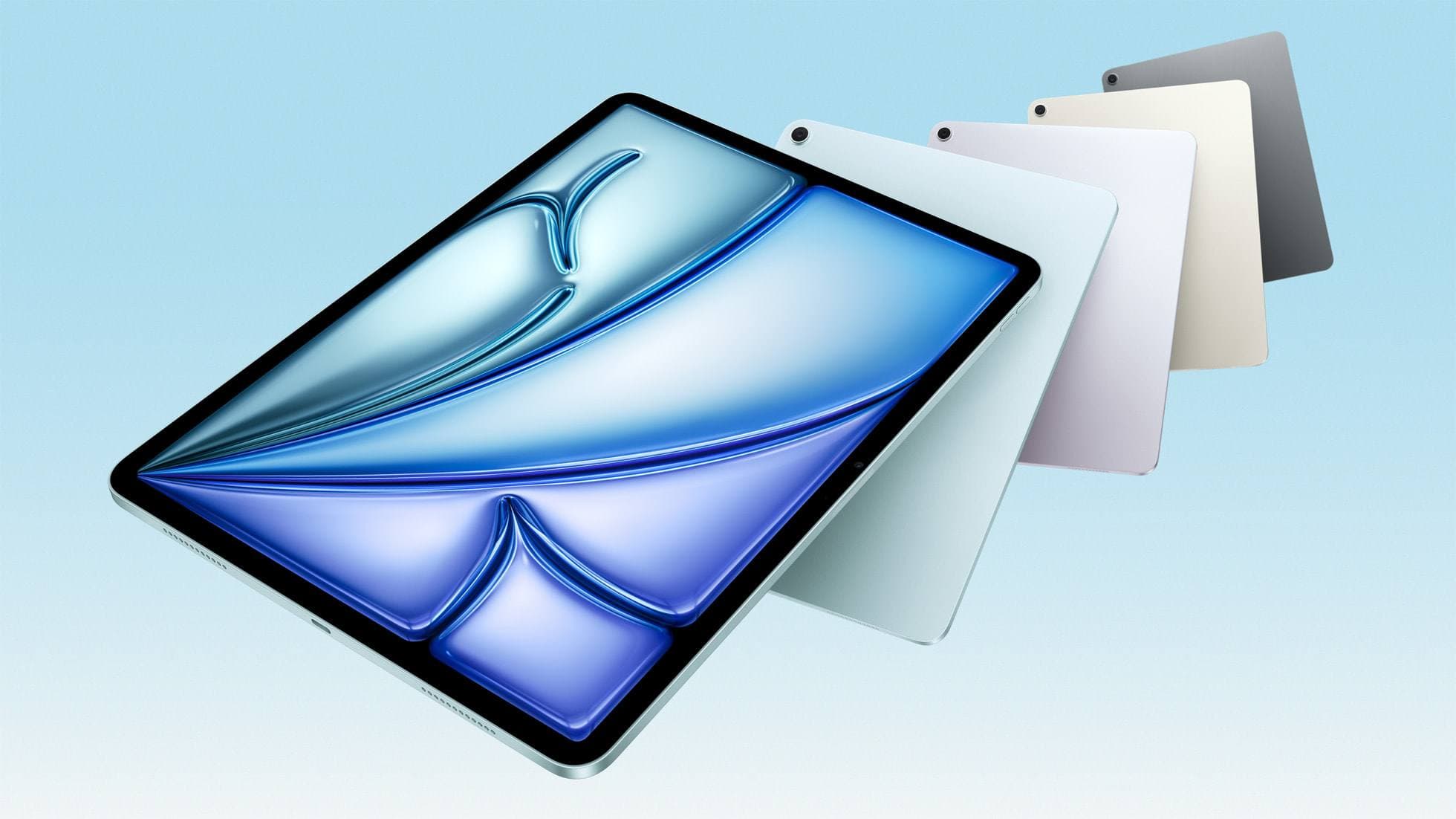
iPad Air (M3)
amazon.comStill a smart Air buy when the discount is real. Harder to justify when pricing drifts too close to the current model.
Pro: Strong prior-gen value when the discount is real
Con: Not the current Air lineup
This is the prior-gen Air. Confirm the discount against the current Air before checkout.
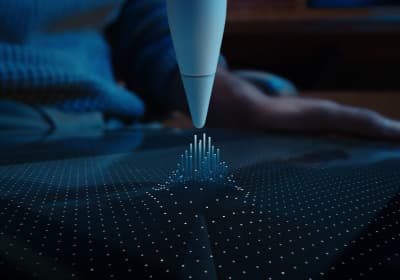
Apple Pencil Pro
amazon.comThe best Apple stylus for serious digital art workflows. Expensive, but the control upgrades are real.
Pro: Best brush-control and hover workflow
Con: Highest price in the lineup
Works only with newer iPad models. Check compatibility.
iPad Air (M4)
apple.comThe clean current Air recommendation for most serious hobby artists. Stronger buy logic than old-stock M3 when pricing is close.
Pro: Best current balance of price, headroom, and Pencil support
Con: Still 60Hz
Current Air lineup. Choose size, storage, and keyboard path before checkout.
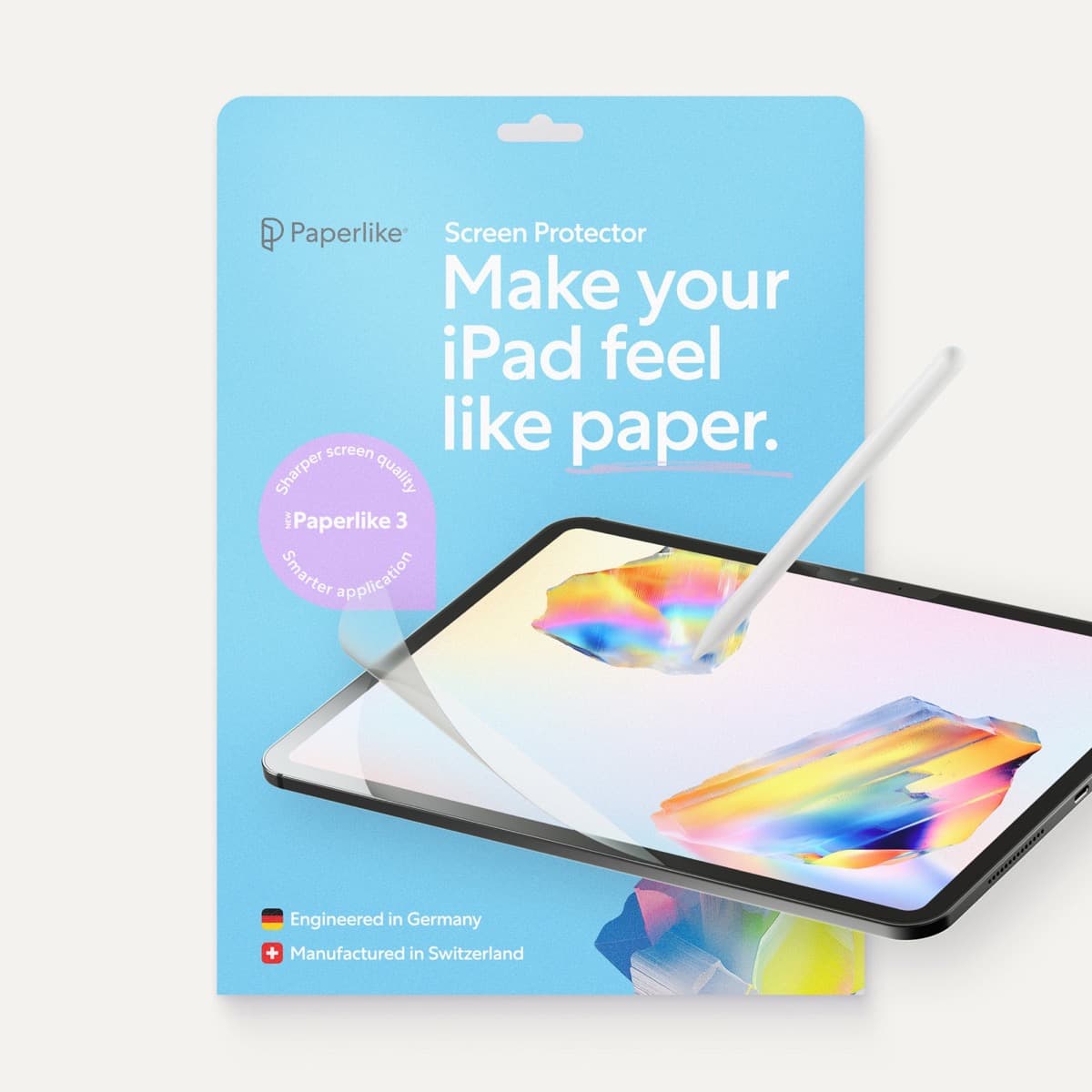
Paperlike 3 (11-inch, 2-pack)
amazon.comA strong surface-feel upgrade for drawing control. Clarity tradeoff is real and should be expected.
Pro: Adds controlled paper-feel friction
Con: Slightly reduces perceived display sharpness
11-inch fit only. Confirm generation before checkout.
Related buying picks
More in this collectionBuyer guide
Portable iPad Keyboard Travel Kit (2026): Write, Sketch, Pack Fast
How to build a portable iPad writing and sketch kit for cafes and transit, including keyboard format choices, setup flow, and compatibility checks.
Buyer guide
Travel Charging Setup for iPad Artists (2026): One-Bag Power Kit
A travel charging setup works when charger, power bank, and cables have fixed roles and you run the same simple routine at airports, hotels, and cafes.
Buyer guide
Best Bluetooth Shortcut Remotes for Procreate and iPad Drawing (2026)
The right shortcut remote reduces repetitive hand movement, but only if it behaves like a keyboard and supports reliable mapping.
Buyer guide
Best SD and microSD Card Readers for iPad Creators (2026)
Card reader speed on iPad depends on card bus, reader bus, and iPad port limits. Buy for your actual ingest workflow, not label hype.