





If your stylus cuts out mid-stroke, do not panic and buy a brand-new stylus right away. In most cases, you should keep your current Apple Pencil until you rule out a loose nib, Bluetooth desynchronization, or a drained battery [1], [2]. If the stylus refuses to hold a charge or register on screen after full troubleshooting, then you need a replacement. Buy Apple Pencil (2nd generation) if you use a supported magnetic iPad and depend on pressure sensitivity [1], [2]. Buy Apple Pencil Pro only if your iPad specifically supports its squeeze and roll sensors [1], [2]. Skip Apple Pencil (USB-C) if you need pressure response for digital art, but buy it if you only take notes and want the lowest entry cost [2].
Quick checks for physical tip and sensor issues
The most frequent cause of an Apple Pencil suddenly ignoring strokes is a loose tip. The nib threads onto the base of the stylus, channeling contact to the internal sensor [2]. If the tip backs off even half a turn during vigorous sketching, the iPad screen stops reading the input consistently. Gently twist the tip clockwise until it sits snug against the housing. Do not over-tighten with tools, because excessive force can strip the internal threading.
While checking the nib, look closely at the tip material. Heavy friction from rough surfaces or matte protectors like Paperlike can gradually wear down the plastic exterior over months of use [3]. If the plastic cap has worn through and exposes the interior metal antenna, replace the tip immediately. A worn-through tip will fail to register strokes properly and risks scratching the iPad display glass [3].
Sometimes third-party screen protectors cause intermittent dead spots rather than pencil failure. Textured films like Paperlike add deliberate friction for a paper-like drawing sensation [3]. However, if the film lifts along the border or traps air pockets, the touch digitizer can miss the pencil signal beneath that bubble. Testing your stylus on an uncovered portion of glass helps isolate whether the issue sits in the stylus or the film surface [3].
Resetting the Bluetooth connection and battery
When an Apple Pencil connects and disconnects erratically, the Bluetooth handshake has usually stalled. The fastest fix is unpairing the accessory completely. Open Settings on your iPad, select Bluetooth, locate your Apple Pencil, tap the info icon, and tap Forget This Device [1]. Restart your iPad before attempting to reconnect.
To re-pair an Apple Pencil (2nd generation) or Apple Pencil Pro, attach the flat magnetic edge directly to the charging connector on the long side of your iPad [1], [2]. For an Apple Pencil (USB-C), slide open the cap and connect a USB-C cable directly between the pencil and the iPad port [1], [2]. A pairing prompt should appear on the screen within several seconds [1].
If no prompt appears, the stylus battery is probably flat. A lithium battery left at zero percent for an extended period can take ten to fifteen minutes of continuous charging before the iPad recognizes it [2]. Leave an Apple Pencil (2nd generation) or Apple Pencil Pro docked to the magnetic strip, or keep Apple Pencil (USB-C) plugged into power [1], [2]. If the battery widget on the iPad never shows a charge icon after half an hour, the internal battery may have failed permanently [2].
Isolating software settings and app glitches
Not every drawing failure is a hardware fault. Sometimes the stylus works across the general iPad interface while refusing to draw in a single application like Procreate [4], [5]. If your pencil navigates the home screen and pulls down menus without difficulty, your hardware connection is functioning normally [1], [6]. The breakdown sits in the application layer.
In Procreate, check your gesture controls and brush settings. If your brush color matches the canvas background, or if the brush opacity slider dropped to zero percent, the pencil appears unresponsive even though it registers touches [4]. Procreate also provides specific gesture toggles that disable Apple Pencil drawing in favor of finger-only actions [4]. Open Actions, select Preferences, and review the Gesture Controls panel to confirm that Apple Pencil is set to paint and smudge correctly [4].
System features can also override your expectations. Apple Pencil Pro supports squeeze actions and barrel roll, while Apple Pencil (2nd generation) supports double-tap gestures to switch tools [2], [6]. If unexpected tool switches keep disrupting your lines, verify the gesture sensitivity in the iPad Settings app under Apple Pencil [6]. You can turn double tap or squeeze off entirely if accidental touches interfere with your work [6].
Deciding when to repair, keep, or replace
If you have swapped the tip, reset Bluetooth, confirmed app settings, and charged the stylus without any response, your Apple Pencil has reached hardware failure [1], [2]. Internal sensor degradation or dead rechargeable cells cannot be repaired at home. At this stage, choosing the right replacement comes down to your iPad model and drawing style [1], [2].
Buy Apple Pencil (2nd generation) if you own an iPad Air or iPad Pro from previous compatible generations and need pressure sensitivity for inking and shading [1], [2]. This model attaches magnetically, charges wirelessly, and supports double-tap tool switching [2]. Skip it if you own the newest iPad models that require Apple Pencil Pro [1].
Buy Apple Pencil Pro if your iPad is listed as compatible on Apple's pairing charts and you want advanced inputs like barrel roll, haptics, and squeeze [1], [2]. It represents the highest feature level in Apple's current lineup [2]. Skip Apple Pencil Pro if you own an older iPad, because it will not pair or charge on incompatible hardware [1].
Buy Apple Pencil (USB-C) if you work on a strict budget and focus on handwriting, sketching without pressure, or general navigation [2]. It supports tilt and magnetic storage, but lacks pressure sensitivity [2]. Skip Apple Pencil (USB-C) if you are a serious digital painter who requires dynamic line weight from hand pressure [2].
Bottom line
Before spending money on a replacement stylus, tighten the nib, inspect for tip wear, and toggle Bluetooth to see if your Apple Pencil returns to normal operation [1], [2]. If the stylus remains unresponsive after an extended charge and a full reset, the hardware has failed [1], [2]. Buy Apple Pencil (2nd generation) for older compatible magnetic iPads, pick Apple Pencil Pro for newest compatible tablets, and choose Apple Pencil (USB-C) only if you can live without pressure sensitivity [1], [2].
Sources
[1] https://support.apple.com/en-us/108937 [2] https://www.apple.com/apple-pencil/ [3] https://paperlike.com/products/paperlike-for-ipad [4] https://help.procreate.com/procreate/handbook/5.2/interface-gestures/pencil [5] https://apps.apple.com/us/app/procreate/id425073498 [6] https://support.apple.com/guide/ipad/draw-with-apple-pencil-ipadc55b6c7a/ipados
Recommended gear
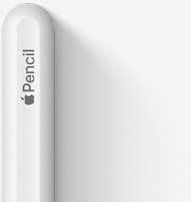
Apple Pencil (2nd generation)
amazon.comStill a strong stylus on compatible iPads. Good pressure control, but compatibility is the main trap.
Pro: Pressure support without Pro pricing
Con: Not compatible with newest Pro-only iPads
Only for iPads that support 2nd generation pairing.

Apple Pencil Pro
amazon.comThe best Apple stylus for serious digital art workflows. Expensive, but the control upgrades are real.
Pro: Best brush-control and hover workflow
Con: Highest price in the lineup
Works only with newer iPad models. Check compatibility.
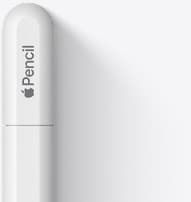
Apple Pencil (USB-C)
amazon.comA practical low-cost Apple stylus with broad compatibility, but limited for advanced art control.
Pro: Lowest official Apple Pencil cost
Con: No pressure sensitivity for brush work
Compatible with many recent iPads. No pressure support.
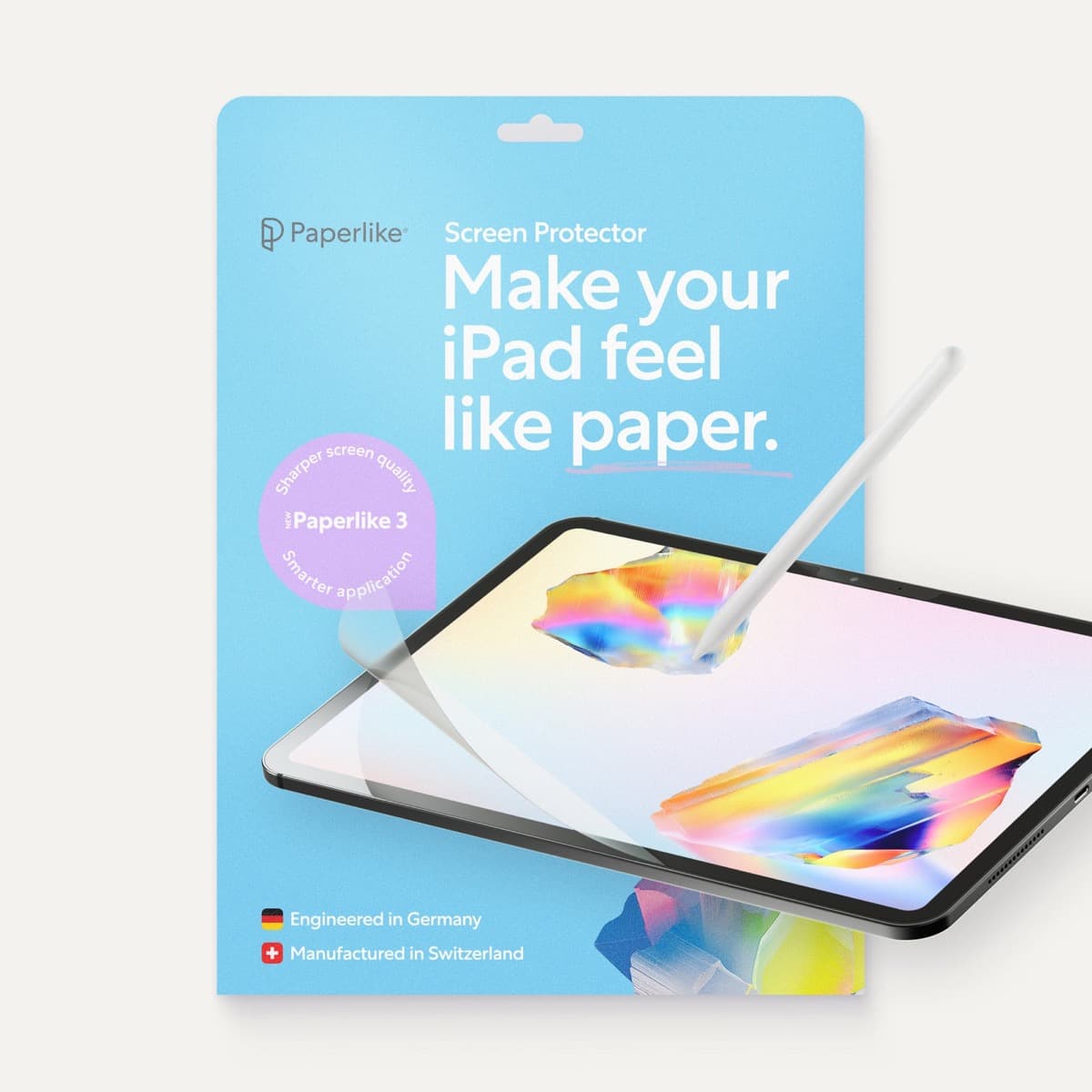
Paperlike 3 (11-inch, 2-pack)
amazon.comA strong surface-feel upgrade for drawing control. Clarity tradeoff is real and should be expected.
Pro: Adds controlled paper-feel friction
Con: Slightly reduces perceived display sharpness
11-inch fit only. Confirm generation before checkout.
Related buying picks
More in this collectionBuyer guide
Best Apple Pencil for urban sketching: what to buy and what to skip
Choose the Apple Pencil that matches your sketching style and iPad model without paying for extra features you won't use outdoors.
Buyer guide
Is the Apple Pencil USB-C enough for Procreate?
The Apple Pencil (USB-C) functions in Procreate, but the lack of pressure sensitivity makes it a poor fit for expressive brushwork.
Buyer guide
Apple Pencil for comic inking: Complete buyer guide
Choose the right Apple Pencil for digital comic inking based on line weight control, tablet compatibility, and glass friction.
Buyer guide
Best Apple Pencil for figure drawing: how to choose your stylus
Figure drawing demands reliable pressure sensitivity and stroke control, making Apple Pencil Pro or Apple Pencil 2nd generation the right choice over the USB-C model.