





If your Apple Pencil isn't charging or connecting to your iPad, verify your model pairing before assuming the battery is dead [1]. An incompatible stylus will physically cling to the magnetic connector of an iPad without charging at all [1], [2]. Keep your current stylus if a Bluetooth toggle or contact cleaning restores the charge indicator, but skip costly out-of-warranty repairs on older units [1]. If the hardware is genuinely dead or mismatched, buy the Apple Pencil (2nd generation) for compatible legacy iPads, choose the Apple Pencil Pro for newest generation tablets, or pick the Apple Pencil (USB-C) if you only need basic sketching without pressure sensitivity [1], [2].
Why your Apple Pencil stops charging or connecting
When an Apple Pencil sits attached to an iPad without gaining charge, the issue usually stems from physical disruption, a frozen Bluetooth stack, or a complete battery depletion [1], [2]. Magnetic charging relies on precise alignment along the long edge of the iPad frame [2]. Thick protective cases or third-party silicone sleeves often prevent the internal inductive coils from establishing a proper connection [2].
If an Apple Pencil remains drained for months, lithium-ion battery sleep can prevent the iPad from recognizing the accessory immediately [1], [2]. Leaving the pencil attached to the magnetic connector for at least thirty minutes often wakes the battery controller [2]. If the battery indicator appears in the iPad battery widget but stays at zero percent, the iPad may still be failing to push current across the inductive link [1], [2].
Bluetooth connectivity issues also mimic charging failures [1]. If the iPad cannot communicate with the stylus radio, iPadOS will not display the charging status bubble or update the battery percentage [1], [2]. In these situations, the accessory might actually hold power even though the operating system shows no sign of life [1].
Confirming iPad hardware compatibility before replacing hardware
A common reason an Apple Pencil refuses to charge on an iPad is a mismatch between the tablet model and the stylus generation [1]. Apple designs different Pencil models with distinct wireless protocols and magnetic charging configurations [1], [2]. An Apple Pencil Pro will not pair or charge on an iPad designed for the Apple Pencil (2nd generation), and an Apple Pencil (2nd generation) will not charge on the latest iPad Pro or iPad Air models [1], [3].
According to Apple's pairing guidelines, the Apple Pencil Pro pairs and charges wirelessly only on specific recent iPad hardware [1]. The Apple Pencil (2nd generation) pairs and charges magnetically on older supported iPad Pro, iPad Air, and iPad mini models [1], [3]. If you place a second-generation pencil onto a newer iPad that requires the Apple Pencil Pro, the magnets may grab the stylus, but no electrical charging will occur [1], [2].
Meanwhile, the Apple Pencil (USB-C) pairs and charges only through a physical USB-C cable, even though it magnetically attaches to the side of compatible iPads for storage [1], [2]. Users who expect the USB-C model to charge magnetically often assume the accessory is broken, but Apple explicitly designed that model without wireless inductive charging [1], [2]. Checking your iPad model against official documentation ensures you don't discard a functioning stylus by mistake [1], [3].
Cleaning contacts and resetting Bluetooth connections
Before spending money on a replacement stylus, walk through basic physical and software recovery steps [1]. Dust, pocket lint, or skin oils on the flat charging edge of an Apple Pencil or along the edge of the iPad can degrade magnetic induction [2]. Wipe both surfaces with a clean, dry, lint-free microfiber cloth to establish clean physical contact [2].
Next, resolve potential software freezes in iPadOS [1]. Open the Settings app, select Bluetooth, locate your Apple Pencil under My Devices, and tap the information icon to forget the device [1]. Restart your iPad using the standard power-down sequence, and then snap the Apple Pencil back onto the magnetic connector [1], [2].
For the Apple Pencil (USB-C), slide open the protective cap and connect a known-working USB-C charge cable directly between the iPad and the stylus [1], [2]. If the iPad displays the pairing prompt, confirm the connection and monitor the battery widget for fifteen minutes to verify that the percentage climbs [1], [2]. If the pencil shows no reaction after an extended charge attempt on a verified compatible iPad, the internal battery has likely reached end of life [1], [2].
Choosing between Apple Pencil Pro, second generation, and USB-C
When hardware troubleshooting fails and the stylus must be replaced, select the model that matches your iPad hardware and creative requirements [1], [2]. You should not buy an Apple Pencil based on features alone, because your iPad dictates which models work [1], [3].
Buy the Apple Pencil Pro if you own a compatible recent iPad and want Apple's most advanced toolset [1], [2]. The Apple Pencil Pro supports wireless charging, pressure sensitivity, tilt sensitivity, hover, double tap, haptic feedback, squeeze gestures, and barrel roll for rotating shaped brushes [2], [4]. Skip the Apple Pencil Pro if your iPad belongs to an earlier generation that only supports second-generation pairing, because the Pro model will neither pair nor charge on older hardware [1].
Buy the Apple Pencil (2nd generation) if you own an earlier supported iPad Air, iPad mini, or iPad Pro that requires magnetic charging [1], [3]. It provides pressure sensitivity, tilt detection, low latency, and double-tap tool switching without forcing you to buy a new tablet [2], [4]. Skip the Apple Pencil (2nd generation) if you have upgraded to newer hardware that dropped support for it [1], [3].
Choose the Apple Pencil (USB-C) if you want an entry-level stylus for note-taking, sketching, and navigation, and you don't mind charging via a physical cable [1], [2]. It supports tilt sensitivity and magnetic storage, but it lacks pressure sensitivity, squeeze, barrel roll, and wireless charging [2], [4]. Illustrators who require dynamic line variation based on hand pressure should skip the USB-C model in favor of the second-generation or Pro models [2].
Bottom line
Do not discard an Apple Pencil that isn't charging until you verify that your tablet hardware supports it and that physical contact points are clear of debris [1], [2]. If an incompatible stylus is the root cause, buy the model matching your iPad: choose the Apple Pencil Pro for the newest iPads, pick the Apple Pencil (2nd generation) for older magnetic-charging iPads, or grab the Apple Pencil (USB-C) for affordable note-taking if you don't need pressure sensitivity [1], [2], [3].
Sources
[1] https://support.apple.com/en-us/108937 [2] https://www.apple.com/apple-pencil/ [3] https://www.apple.com/ipad/compare/ [4] https://support.apple.com/guide/ipad/draw-with-apple-pencil-ipadc55b6c7a/ipados
Recommended gear
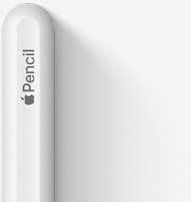
Apple Pencil (2nd generation)
amazon.comStill a strong stylus on compatible iPads. Good pressure control, but compatibility is the main trap.
Pro: Pressure support without Pro pricing
Con: Not compatible with newest Pro-only iPads
Only for iPads that support 2nd generation pairing.

Apple Pencil Pro
amazon.comThe best Apple stylus for serious digital art workflows. Expensive, but the control upgrades are real.
Pro: Best brush-control and hover workflow
Con: Highest price in the lineup
Works only with newer iPad models. Check compatibility.
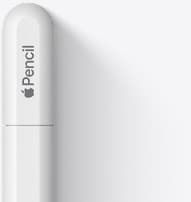
Apple Pencil (USB-C)
amazon.comA practical low-cost Apple stylus with broad compatibility, but limited for advanced art control.
Pro: Lowest official Apple Pencil cost
Con: No pressure sensitivity for brush work
Compatible with many recent iPads. No pressure support.
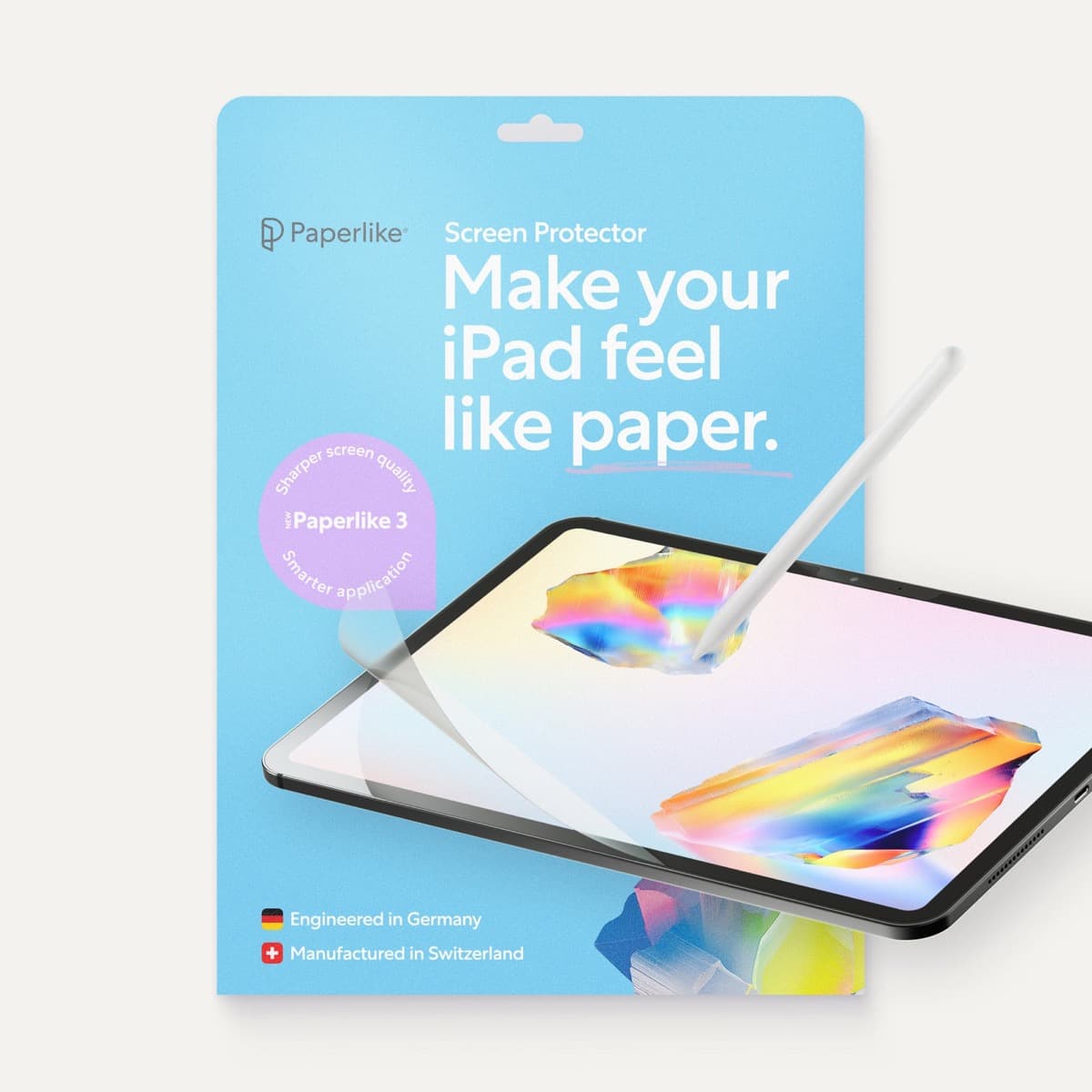
Paperlike 3 (11-inch, 2-pack)
amazon.comA strong surface-feel upgrade for drawing control. Clarity tradeoff is real and should be expected.
Pro: Adds controlled paper-feel friction
Con: Slightly reduces perceived display sharpness
11-inch fit only. Confirm generation before checkout.
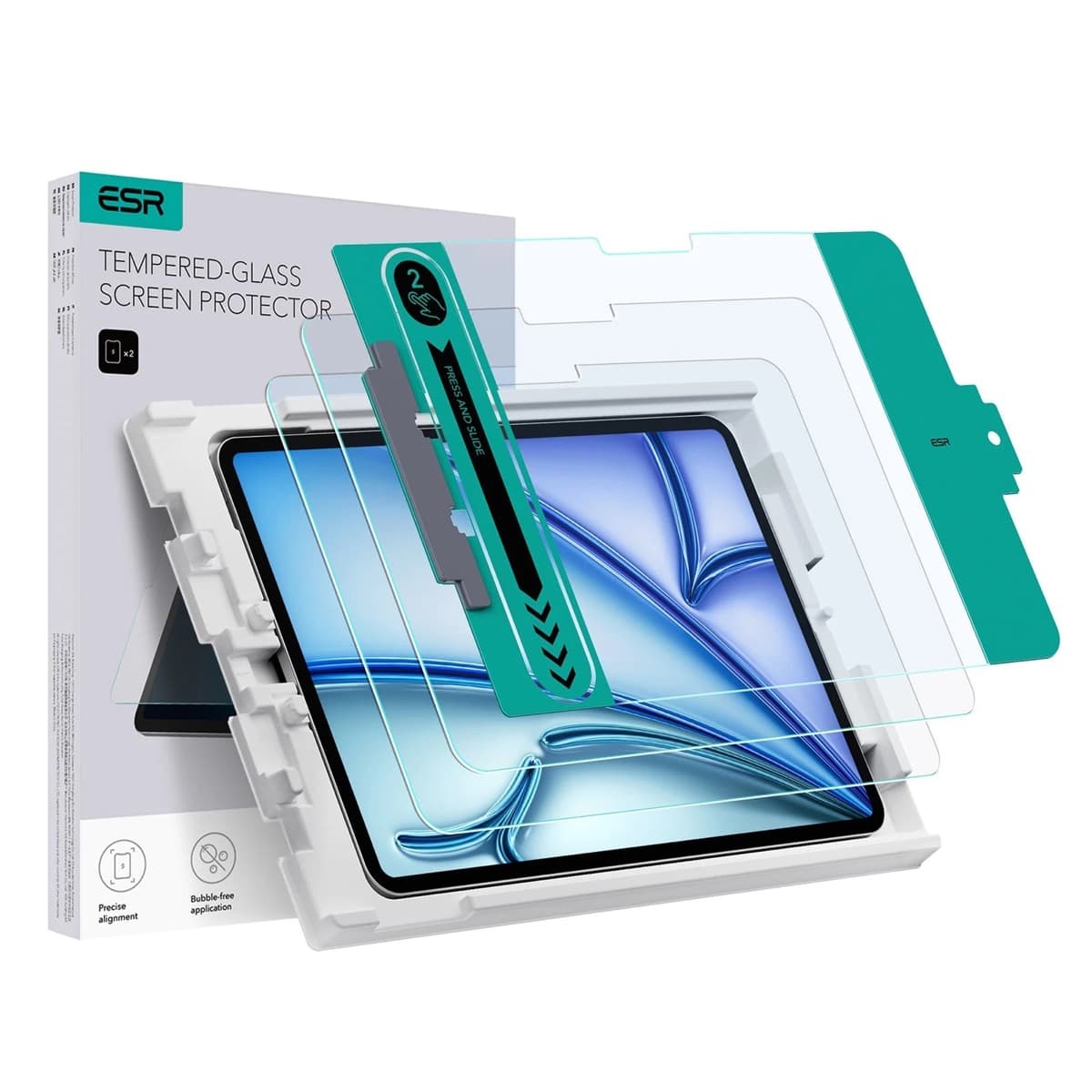
ESR Armorite Tempered Glass (11-inch)
amazon.comHigh-clarity protector with strong value. Great for visibility, less ideal for friction-seeking artists.
Pro: Very clear image with strong scratch resistance
Con: Minimal drawing friction compared with matte films
11-inch fit only. Verify exact iPad generation.
Related buying picks
More in this collectionBuyer guide
Best Apple Pencil for urban sketching: what to buy and what to skip
Choose the Apple Pencil that matches your sketching style and iPad model without paying for extra features you won't use outdoors.
Buyer guide
Is the Apple Pencil USB-C enough for Procreate?
The Apple Pencil (USB-C) functions in Procreate, but the lack of pressure sensitivity makes it a poor fit for expressive brushwork.
Buyer guide
Apple Pencil for comic inking: Complete buyer guide
Choose the right Apple Pencil for digital comic inking based on line weight control, tablet compatibility, and glass friction.
Buyer guide
Best Apple Pencil for figure drawing: how to choose your stylus
Figure drawing demands reliable pressure sensitivity and stroke control, making Apple Pencil Pro or Apple Pencil 2nd generation the right choice over the USB-C model.