Buy the Apple Pencil Pro if you own a compatible newer iPad, keep using the Apple Pencil 2nd generation if you have a supported older iPad, and skip the Apple Pencil (USB-C) because it lacks pressure sensitivity [1], [2]. For photo retouching, fine brush control and nuanced masking depend entirely on how a stylus responds to your physical touch [1]. If your stylus treats every stroke with identical weight, making delicate skin cleanup, spot healing, and dodging or burning takes far more manual brush adjustments than necessary [1].
Your choice comes down to which tablet you own and how much direct control you want over editing brushes [1], [2]. The hardware controls on modern Apple styluses change how quickly you switch between masking, sampling, and blending [1], [3]. Here is how the available styluses match up for photo retouching, and what you should buy based on your current gear [1], [2].
Why pressure sensitivity matters for retouching brushes
Photo retouching relies heavily on variable stroke dynamics, which requires hardware pressure sensitivity [1]. When you apply a digital clone stamp or a healing brush, altering your touch pressure alters the tool opacity, size, or flow without breaking your editing rhythm [1]. The Apple Pencil Pro and the Apple Pencil 2nd generation include full pressure sensitivity, whereas the Apple Pencil (USB-C) doesn't [1].
Without pressure support, every contact with the screen produces a flat, full-strength stroke [1]. That means you have to pause constantly to adjust software sliders for brush diameter, hardness, and flow rate [1]. While a fixed-pressure stylus works adequately for global color adjustments or sliding preset toggles, it creates extra friction when you paint subtle luminance masks or clean stray hairs [1]. If your goal is focused portrait or landscape cleanup, pressure sensitivity is a mandatory requirement [1].
Apple Pencil Pro features for detailed editing
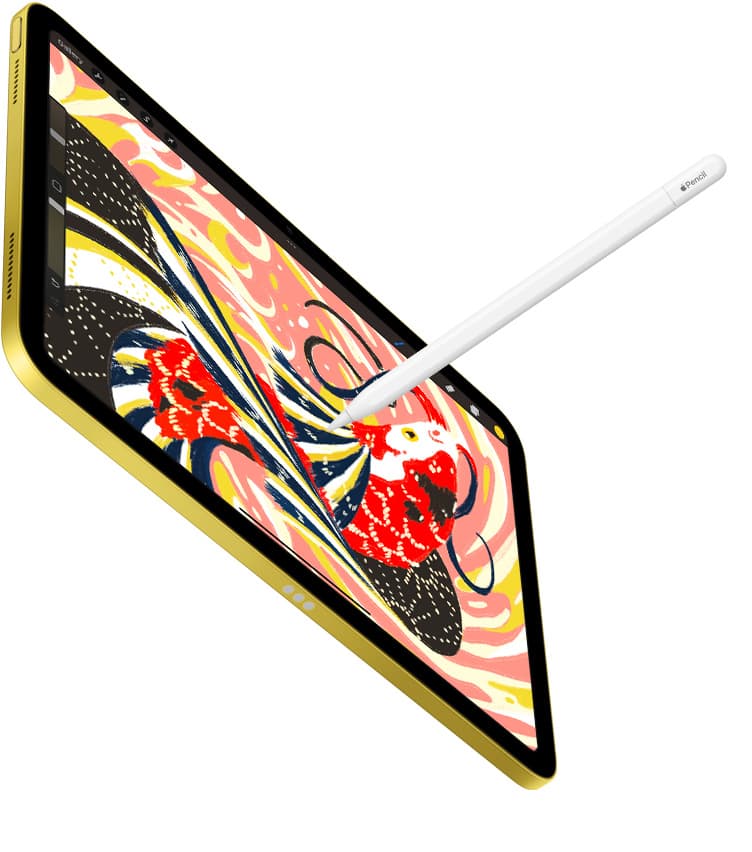
For editors using the newest iPad Pro or iPad Air models, the Apple Pencil Pro is the best stylus you can buy [1], [2]. It includes pressure sensitivity, tilt support, and wireless magnetic charging directly on the frame of your iPad [1], [2]. Apple also added squeeze detection and barrel roll functionality to this model, paired with built-in haptic feedback [1].
These additions directly benefit complex masking workflows [1], [3]. Squeezing the stylus body brings up contextual tool palettes or quick switches without requiring your other hand to tap an on-screen menu [1], [3]. Barrel roll uses an internal gyroscope to detect rotation, letting you change the angle of shaped retouching brushes simply by turning the barrel in your fingers [1], [3]. If you frequently use directional clone stamps, textured grain brushes, or asymmetric dodge brushes, barrel roll delivers immediate physical control [1], [3].
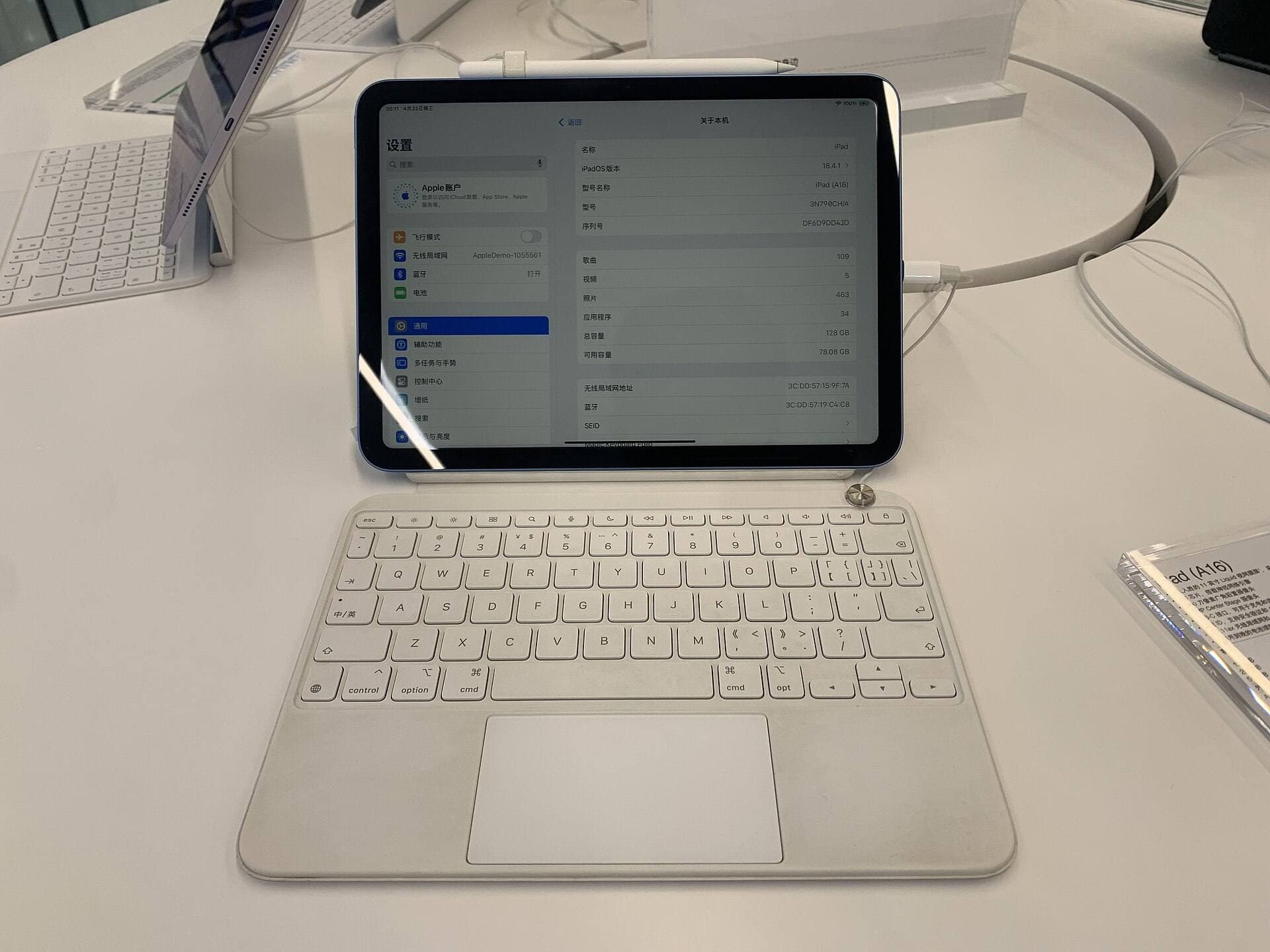
Apple Pencil hover is another helpful feature available on compatible iPad models [1], [4]. As you bring the tip close to the glass, you see an exact preview of the brush size and shape before touching down [1], [3]. That preview prevents mistaken marks when feathering an adjustment edge or targeting a tiny blemish [1], [3]. However, the Apple Pencil Pro works exclusively with specific recent iPads, so you can't use it if you have an older device [1], [2].
Apple Pencil 2nd generation as a reliable alternative
If you already own an iPad that pairs with the Apple Pencil 2nd generation, you don't need to upgrade your tablet just to do high-end photo retouching [2], [4]. The Apple Pencil 2nd generation includes pressure sensitivity, tilt detection, low latency, and magnetic wireless charging [1]. It delivers the exact same raw pressure precision for healing brushes and layer masks as the newer Pro model [1].
The primary interface control on the Apple Pencil 2nd generation is a double-tap sensor on the barrel [1]. You can configure this gesture to switch between your current brush and an eraser, or toggle your previous tool [1], [3]. For dodging and burning or refining quick masks, that double-tap action provides plenty of speed without interrupting your workflow [1], [3].
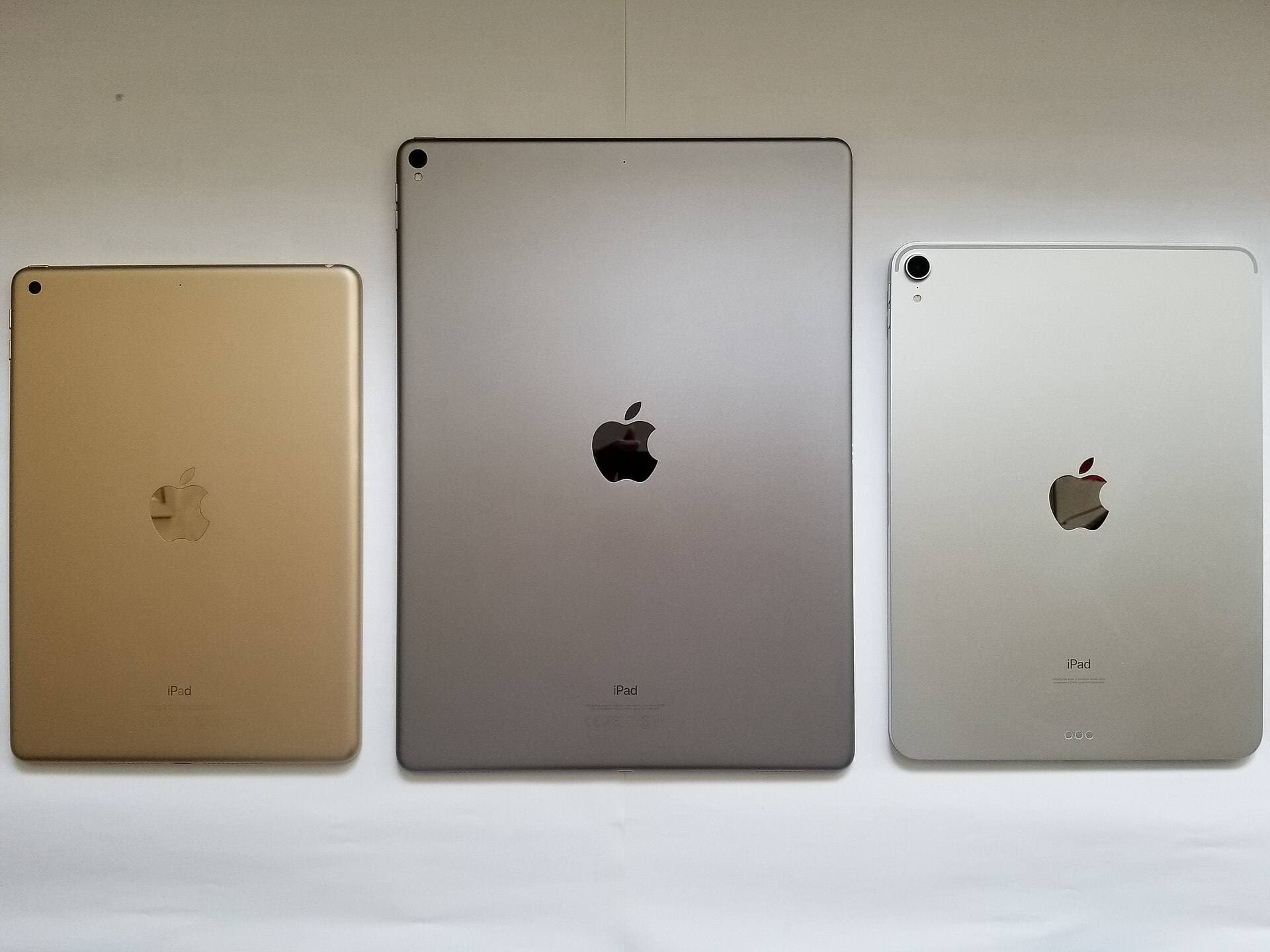
The downside is hardware compatibility [2]. The Apple Pencil 2nd generation only connects to select iPads and is incompatible with the newest iPad models designed for the Apple Pencil Pro [1], [2]. If your current iPad runs smoothly with your photo software, keep your 2nd generation stylus and skip buying new hardware [1], [2].
Why Apple Pencil USB-C falls short for masks and healing
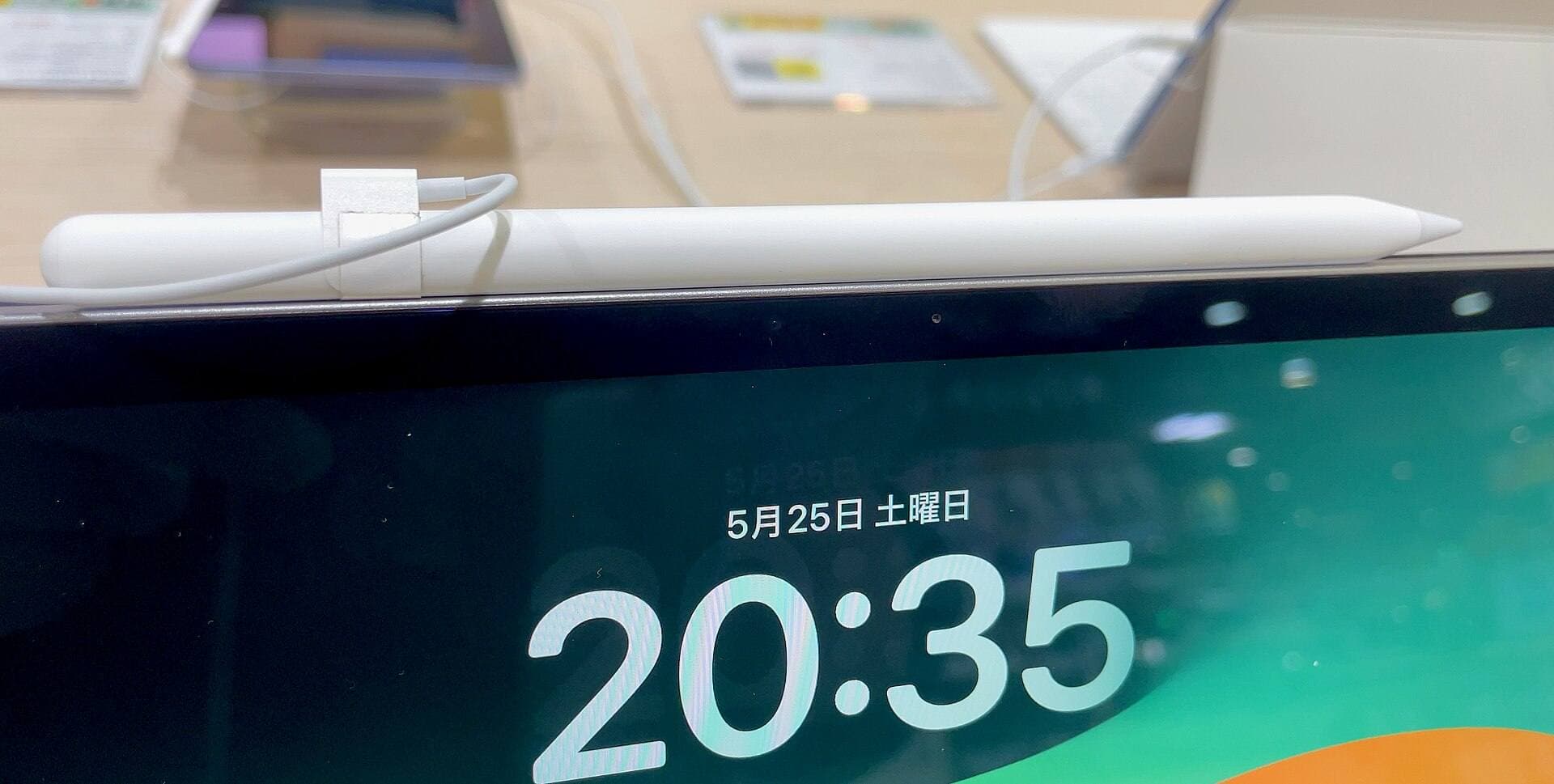
The Apple Pencil (USB-C) is the lowest-cost official pencil from Apple, but it isn't recommended for serious photo retouching [1]. While it includes tilt sensitivity, low latency, magnetic storage, and hover support on compatible iPads, Apple removed pressure sensitivity from this model [1]. It also requires a physical cable for charging instead of charging wirelessly from the tablet edge [1].
Using the USB-C model for spot healing or selective adjustments feels rigid [1]. Because it can't measure pressure, every stroke lands with uniform opacity unless you stop and change software sliders [1]. Photographers who only need a stylus to drag crop handles, adjust global exposure curves, or make basic notes on image proofs can get by with it [1]. Anyone painting detailed adjustment masks, softening skin, or blending exposures should skip this model entirely [1].
Screen protectors and texture tradeoffs
Many photographers consider matte screen protectors like the Paperlike 3 to add friction to the slick iPad display [5]. Paperlike markets its textured surface to recreate the tactile feel of drawing on paper [5]. When you perform repetitive, fine-stroke retouching, added surface resistance can provide more physical stability for your hand [5].
However, a textured screen protector comes with a clear optical tradeoff [5]. Matte surfaces diffuse light to reduce glare, which can slightly soften fine details and reduce perceived screen contrast [5]. For precision color grading, critical contrast assessment, and high-frequency sharpness checks, a glossy bare screen displays colors and contrast more accurately [4], [5]. If your work focuses primarily on color evaluation and final sharpness, skip matte protectors or use an external calibrated display for proofing [4], [5]. If you struggle to keep steady control on glossy glass while building complex masks, the mechanical friction of a protector like Paperlike may justify the reduction in screen clarity [5].
Bottom line
Your photo retouching stylus choice depends on pressure sensitivity and tablet matching [1], [2]. Buy the Apple Pencil Pro if you own a compatible iPad and want the full benefit of squeeze controls, barrel roll, and brush hover [1], [2]. Keep your Apple Pencil 2nd generation if your present iPad supports it, as it delivers identical pressure sensitivity for everyday editing [1], [2]. Skip the Apple Pencil (USB-C) for photo work because its lack of pressure sensitivity restricts masking and healing efficiency [1].
Sources
[1] https://www.apple.com/apple-pencil/ [2] https://support.apple.com/en-us/108937 [3] https://support.apple.com/guide/ipad/draw-with-apple-pencil-ipadc55b6c7a/ipados [4] https://www.apple.com/ipad/compare/ [5] https://paperlike.com/products/paperlike-for-ipad
Recommended gear
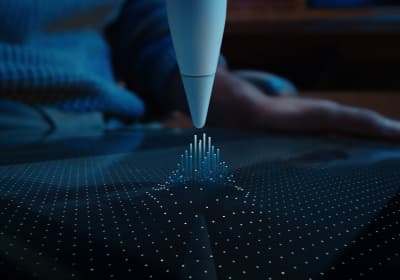
Apple Pencil Pro
amazon.comThe best Apple stylus for serious digital art workflows. Expensive, but the control upgrades are real.
Pro: Best brush-control and hover workflow
Con: Highest price in the lineup
Works only with newer iPad models. Check compatibility.
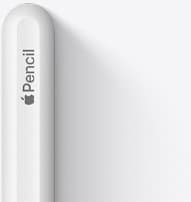
Apple Pencil (2nd generation)
amazon.comStill a strong stylus on compatible iPads. Good pressure control, but compatibility is the main trap.
Pro: Pressure support without Pro pricing
Con: Not compatible with newest Pro-only iPads
Only for iPads that support 2nd generation pairing.
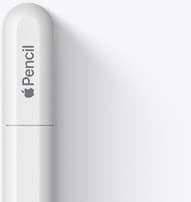
Apple Pencil (USB-C)
amazon.comA practical low-cost Apple stylus with broad compatibility, but limited for advanced art control.
Pro: Lowest official Apple Pencil cost
Con: No pressure sensitivity for brush work
Compatible with many recent iPads. No pressure support.
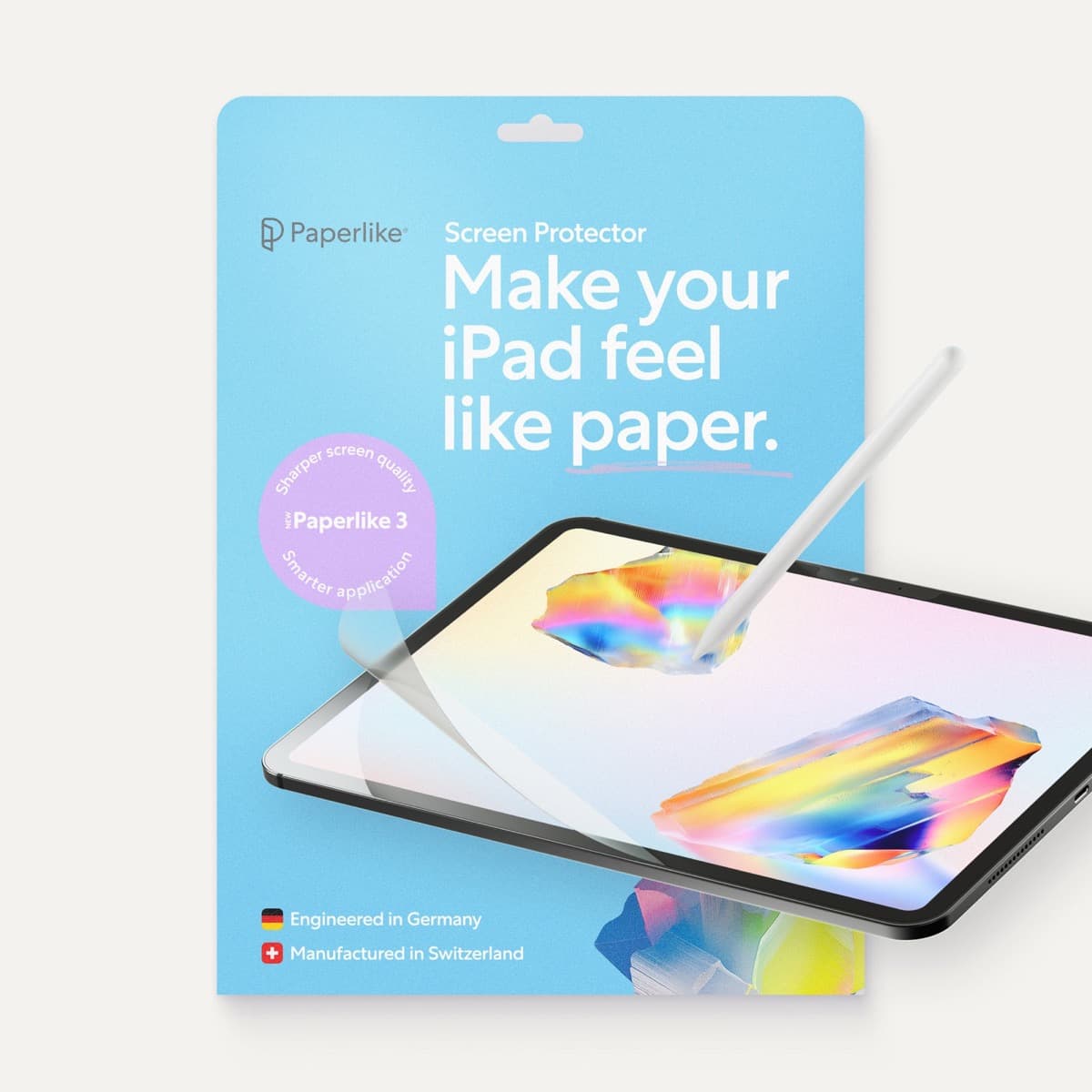
Paperlike 3 (11-inch, 2-pack)
amazon.comA strong surface-feel upgrade for drawing control. Clarity tradeoff is real and should be expected.
Pro: Adds controlled paper-feel friction
Con: Slightly reduces perceived display sharpness
11-inch fit only. Confirm generation before checkout.
Related buying picks
More in this collectionBuyer guide
Best Apple Pencil for lettering and calligraphy
Choose between Apple Pencil Pro, Apple Pencil 2, and Apple Pencil USB-C based on pressure sensitivity, barrel roll, and iPad compatibility.
Buyer guide
Best Apple Pencil for digital planning: How to choose
Choose the right Apple Pencil for digital planning based on your iPad model, handwriting habits, and shortcut preferences.
Buyer guide
Best Apple Pencil for Cricut Design Space
Cricut Design Space does not use pressure sensitivity, making the Apple Pencil (USB-C) the most practical choice unless you draw outside the app.
Buyer guide
Is the Apple Pencil USB-C enough for Procreate?
The Apple Pencil (USB-C) functions in Procreate, but the lack of pressure sensitivity makes it a poor fit for expressive brushwork.