





Buy Procreate if you want a dedicated raster drawing studio that lives entirely on your iPad and avoids recurring software fees [4], [5]. Skip Procreate and choose Adobe Fresco if you need vector line art alongside raster textures or if you rely on creative desktop libraries across multiple devices. Both apps run on current iPad hardware, but they approach tools, file storage, and stylus input with very different design philosophies [1], [5].
Your choice comes down to how you make art, how you manage your files, and which Apple Pencil hardware you plan to pair with your tablet [1], [2]. Below, we break down how both apps compare across licensing, memory handling, stylus technology, and hardware matching so you can invest in the right setup.
Pricing models and file ownership
Software licensing is often the first dividing line for digital illustrators. Procreate uses a traditional single-purchase model through the App Store, meaning you pay once to download the app and receive updates without ongoing billing [5]. This makes Procreate an accessible, low-friction investment for hobbyists, independent illustrators, and anyone building a digital sketchbook on iPad [4], [5]. All project files are stored locally on the device or exported through your chosen backup location, giving you direct control over your archive [4], [5].
Adobe Fresco uses a different framework centered around cloud document management and subscription tiers. While Adobe offers a free tier with core drawing features, advanced brush packs, full cloud storage capacities, and cross-application connectivity connect to wider creative plans. If you already maintain creative cloud services for desktop graphic design, photo retouching, or page layout, Fresco slots naturally into that ecosystem. However, if you dislike recurring fees and prefer self-contained software that never asks for an active account sign-in, Procreate remains the simpler ownership choice [5].
File portability also varies between the two options. Procreate focuses on its native .procreate file format alongside standard exports like PSD, PDF, PNG, and TIFF [5]. Adobe Fresco builds around cloud documents that open directly inside desktop illustration and photo editing applications. If your typical project starts on a tablet and finishes inside desktop layout software, Fresco reduces friction. If your work begins and ends on your iPad display, Procreate provides everything you need on the device itself [4], [5].
Memory, canvas size, and layer limits on iPad
Digital art software handles device resources differently, and canvas limits are a critical consideration. In Procreate, layer counts are not arbitrary; they are strictly bound by the amount of physical system memory inside your specific iPad model and the pixel dimensions of your canvas [4]. A small social media canvas on a modern iPad Air allows dozens or even hundreds of layers, while a large print canvas at 300 DPI will restrict layer headroom to ensure stable rendering [1], [4].
Because Procreate links canvas dimensions directly to hardware RAM, your choice of iPad directly impacts how complex your artwork can become [1], [4]. Artists planning large multi-layer print files must pay close attention to the memory tier of the tablet they select [1], [4]. Procreate lists supported hardware across multiple generations of iPad, iPad Air, iPad mini, and iPad Pro, allowing artists on older devices to continue working within established memory bounds [4].
Adobe Fresco approaches canvas scaling through its hybrid engine, which supports both raster pixels and infinitely scalable vector paths. Vector brushes inside Fresco create mathematically defined lines that scale without pixelation, which alters how you think about resolution limits. When working with Fresco's vector brushes, you don't face the same fixed pixel grid constraints as traditional raster layers. However, when you use Fresco's pixel brushes or dynamic wet media tools, memory demands return. Understanding whether your final output requires raster texture or clean vector paths is critical before committing your project to either canvas engine [4], [5].
Apple Pencil Pro support and stylus controls
The drawing experience on an iPad is defined by the stylus in your hand. Both Procreate and Adobe Fresco support essential digital drawing inputs, including pressure sensitivity for varying line weight and tilt detection for broad shading strokes [2], [5]. These core features exist across standard Apple Pencil options, ensuring that even entry-level configurations deliver expressive mark-making [2], [3].
Modern hardware unlocks specialized control gestures when paired with the Apple Pencil Pro [2]. The Apple Pencil Pro introduces barrel roll, squeeze gestures, haptic feedback, and hover preview capabilities [2]. Barrel roll uses an internal gyroscope to rotate shaped brushes as you twist the pencil barrel in your fingers, simulating the directional control of a flat chisel brush or calligraphic nib [2]. Hover allows you to preview your brush stamp, size, and blending color before the tip makes contact with the glass display [2].
Procreate integrates Apple Pencil Pro squeeze shortcuts, hover previews, and barrel roll dynamics directly into its brush studio, letting users fine-tune angle dynamics, grain orientation, and menu access [2], [5]. Adobe Fresco also recognizes pressure, tilt, and hover across supported iPads, helping artists paint naturally with simulated watercolor and oil media [2]. If you want the most granular control over brush rotation and gesture menus, choosing a setup with Apple Pencil Pro support gives you the widest range of physical inputs [2], [3].
Choosing the right iPad for digital drawing
Selecting your software helps determine which iPad hardware fits your budget and workflow. If you want the full suite of Apple Pencil Pro features, such as barrel roll, squeeze, and haptic feedback, you must choose a compatible tablet [2], [3]. The iPad Air (M4) is an ideal balance for artists who want Apple Pencil Pro support without stepping up to the higher expense of the iPad Pro lineup [1], [3]. With its M4 processor and compatibility with modern stylus inputs, the iPad Air provides ample power for layered Procreate projects and multi-layer cloud files alike [1], [3], [4].
If you are working with a more modest equipment budget, the base iPad (A16) represents an accessible entry point for digital drawing [1]. The standard iPad handles core drawing workflows comfortably, pairing with the Apple Pencil (USB-C) or first-generation stylus depending on the specific model generation [1], [3]. While you miss out on advanced Apple Pencil Pro inputs like barrel roll and squeeze on base-tier iPads, you can still produce finished digital artwork in Procreate or Fresco [1], [2], [3].
For artists who demand generous layer counts on expansive physical dimensions, checking the unified memory of your iPad is vital [1], [4]. Tablets with higher RAM configurations unlock significantly higher layer maximums in Procreate, which prevents workflow bottlenecks when preparing art for fine art prints or physical merchandise [1], [4]. Match your tablet purchase to your intended canvas scale before checking out [1], [4].
Bottom line
Procreate remains the best choice for illustrators who want a dedicated, standalone drawing program with a one-time purchase price and no ongoing fees [4], [5]. It turns your iPad into an independent sketchbook and print studio that manages memory efficiently and takes deep advantage of Apple Pencil hardware [2], [4], [5].
Adobe Fresco is the better path if your projects demand clean vector linework, or if you regularly move assets between iPad and desktop creative apps. If you want the most refined tactile drawing control with barrel roll and squeeze gestures, pair your software with an iPad Air (M4) and an Apple Pencil Pro [1], [2], [3].
Sources
[1] https://www.apple.com/ipad/compare/ [2] https://www.apple.com/apple-pencil/ [3] https://support.apple.com/en-us/108937 [4] https://help.procreate.com/articles/zlexav-ipad-compatibility [5] https://apps.apple.com/us/app/procreate/id425073498
Recommended gear

iPad Air (M4)
apple.comThe clean current Air recommendation for most serious hobby artists. Stronger buy logic than old-stock M3 when pricing is close.
Pro: Best current balance of price, headroom, and Pencil support
Con: Still 60Hz
Current Air lineup. Choose size, storage, and keyboard path before checkout.
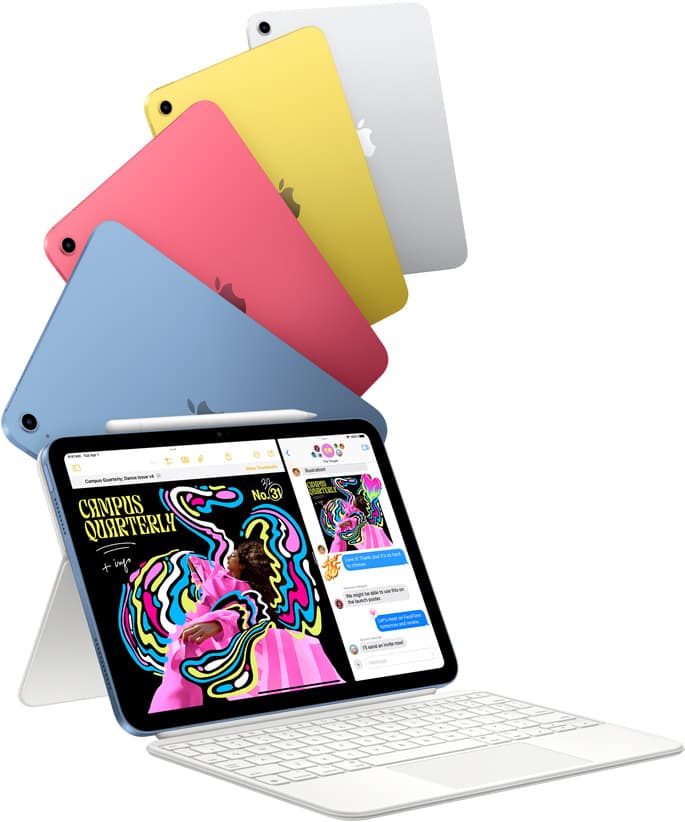
iPad (A16, 11th gen)
amazon.comThe best entry iPad for most artists on a budget. It is not premium, but it is very hard to beat on value.
Pro: Best value iPad right now
Con: No ProMotion display
Search opens with the exact model keywords. Verify size and storage before checkout.
Procreate
apps.apple.comPro: One-time purchase
Con: iPad-only

Apple Pencil Pro
amazon.comThe best Apple stylus for serious digital art workflows. Expensive, but the control upgrades are real.
Pro: Best brush-control and hover workflow
Con: Highest price in the lineup
Works only with newer iPad models. Check compatibility.
Related buying picks
More in this collectionComparison
Do you need a computer to draw digitally?
You do not need a computer to make digital art when a standalone iPad runs dedicated drawing software and input styluses on its own.
Buyer guide
Best iPad for logo design
Choose the iPad Air with the M4 chip for the best mix of vector precision, Apple Pencil Pro support, and balanced pricing.
Buyer guide
Best iPad for digital painting: Which model should you buy?
Choose the right iPad for digital painting based on screen space, Apple Pencil features, and layer capacity.
Buyer guide
Best iPad for digital art beginners
Get the iPad Air (M4) if you want the Apple Pencil Pro toolset, or pick the base iPad (A16) if you want a capable digital sketchpad at the lowest entry cost.