





Keep your existing Apple Pencil and adjust your software setup first before you spend money on a replacement [1], [3]. If your iPad records random palm marks, the issue is almost always a software toggle, an unseated pencil tip, or a generic stylus without active system integration [2], [3]. Buy the Apple Pencil (USB-C) if you currently use an unsupported passive capacitive stylus and need official system palm handling [1], [2]. Buy the Apple Pencil Pro only if you own a compatible iPad and want hardware squeeze or barrel roll controls [1], [2]. Skip buying any new hardware if your Pencil already pairs and writes [3].
How iPadOS handles palm rejection
Apple tablets distinguish between a resting wrist and an intentional stylus mark through hardware sensors and operating system recognition [1], [3]. When a compatible Apple Pencil connects to an iPad, the system detects the active tip signal on the digitizer [1], [3]. Because the screen knows the pencil is hovering or touching the surface, iPadOS suppresses capacitive contacts from the broader surface area of your hand [1], [3].
If you work with an unsupported passive stylus, your tablet cannot differentiate between the rubber tip and the side of your hand [1], [2]. Passive styluses lack the internal electronics and Bluetooth communication found on official Apple Pencil models [1], [2]. This missing handshake means the display treats your palm as just another finger tapping the glass [3]. Switching to an official Apple Pencil (USB-C), Apple Pencil (2nd generation), or Apple Pencil Pro gives the operating system the active hardware signal it needs to ignore resting skin [1], [2].
Even with supported hardware, momentary communication interruptions can cause the tablet to lose track of the stylus [1], [3]. If the active signal drops for a fraction of a second, the display re-enables touch tracking across the entire panel [3]. That brief lapse allows your palm to create accidental smudges, zoom the canvas unexpectedly, or trigger unintended menu items [3], [4].
System and app settings to check first
Your first troubleshooting step should happen in the iPad Settings app rather than at the checkout counter [3]. Open Settings, navigate to the Apple Pencil section, and check your configuration [3]. iPadOS includes a toggle labeled "Only Draw with Apple Pencil" that tells the operating system to reject all finger and palm drawing inputs across native apps and supported third-party tools [3]. Turning this option on ensures your hand can still swipe to scroll or tap buttons without laying down stray strokes [3].
Creative software often adds its own layer of touch controls on top of the system settings [4], [5]. In Procreate, for instance, you can fine-tune gestures in the Preferences menu under Gesture Controls [4], [5]. If you have touch drawing enabled inside Procreate while resting your wrist on the glass, the app will interpret wrist movement as paint strokes regardless of system defaults [4], [5]. Disabling touch painting in Procreate forces the app to accept marks only from an active stylus tip [4], [5].
You should also check whether your Pencil has maintained an active Bluetooth pairing [2], [3]. If the battery drains to zero or the connection disconnects, the tablet reverts to treating the physical tip like an ordinary capacitive contact [2], [3]. Unpairing the Pencil in Bluetooth settings and reconnecting it to the magnetic connector or USB-C port re-establishes normal communication protocols [1], [2].
Physical causes from screen protectors to dirty nibs
Hardware accessories and physical wear can also degrade how cleanly your iPad tracks stylus inputs [1], [6]. A loose Pencil tip is one of the most common physical triggers for intermittent palm interference [1], [3]. If the plastic nib is unscrewed even half a turn, the internal sensor loses consistent contact with the tablet digitizer [1], [3]. Gently twisting the tip clockwise until it sits snug against the pencil body often restores reliable contact tracking immediately [1], [3].
Surface contamination on the front glass creates another barrier to accurate input detection [3], [7]. Finger oils, sweat, and dust alter the surface electrical conductivity, causing the digitizer to register ghost touches from a resting hand [3], [7]. Wiping the glass with a clean microfiber cloth removes grease patches that confuse capacitive sensors [3], [7].
Screen protectors also influence how touch inputs pass through to the iPad screen [6], [7]. Extremely thick tempered glass protectors can weaken the sensor detection threshold, making it harder for the iPad to track low-power hover or subtle stylus signals [1], [6]. In contrast, matte screen protectors like the Paperlike film are engineered to add friction while maintaining clear touch communication with the display [6]. If you use a heavy, third-party glass protector and experience constant palm errors, removing it or switching to a thinner matte film like Paperlike can eliminate missed signals [6]. Keep in mind that Paperlike slightly reduces display sharpness, so buy it only if you want paper-like drawing resistance [6].
When to keep your stylus and when to replace it
If you already own an Apple Pencil (2nd generation) paired with a compatible iPad Air or iPad Pro, keep your current setup [2], [7]. Palm rejection issues on an official, working Pencil are almost always cured by tightening the tip, cleaning the screen, or toggling "Only Draw with Apple Pencil" in iPadOS [1], [3]. Spending money on an upgrade will not change palm performance if your underlying issue is a Procreate gesture preference or dirty glass [3], [4].
The real reason to buy a new stylus is if you currently work with a cheap, non-Apple capacitive pen [1], [2]. Passive pens cannot broadcast an active digitizer signal, so true system-level palm rejection will never work reliably with them [1], [3]. In that scenario, buying the Apple Pencil (USB-C) is the most economical way to gain official iPadOS palm suppression [1], [2]. The Apple Pencil (USB-C) lacks pressure sensitivity, but it delivers tilt support, low latency, and full system palm rejection across supported iPads [1], [2]. Skip the USB-C model if you rely on brush pressure variations for painting, because it cannot vary line width with force [1].
If you need pressure sensitivity on an older supported iPad, buy the Apple Pencil (2nd generation), which includes pressure support and double-tap tool switching [1], [2]. However, verify your tablet compatibility before buying, because the 2nd generation Pencil does not work on the newest M4 iPad Pro or M2 iPad Air models [2], [7].
Artists who own those newer iPad Pro or iPad Air models should choose the Apple Pencil Pro instead [1], [2]. The Apple Pencil Pro provides pressure sensitivity, barrel roll, squeeze gestures, and haptic feedback alongside reliable palm rejection [1], [3]. Skip the Apple Pencil Pro if your iPad does not support it, as it will not pair or charge on older hardware [1], [2].
Bottom line
Palm rejection failures stem from settings conflicts, dirty screens, or non-active styluses rather than a flaw in your iPad hardware [1], [3]. Keep your current Apple Pencil if it pairs correctly, and resolve your stray marks by tightening the tip and enabling "Only Draw with Apple Pencil" in iPadOS [1], [3]. If you use Procreate, disable touch painting in gesture settings to keep your wrist from applying color [4], [5]. Only buy the Apple Pencil (USB-C) if you need an official, low-cost stylus to replace an unbranded capacitive pen that lacks palm suppression [1], [2]. Upgrade to the Apple Pencil Pro only if you own a newer compatible iPad and want advanced squeeze and rotation tools for serious artwork [1], [2].
Sources
[1] https://www.apple.com/apple-pencil/ [2] https://support.apple.com/en-us/108937 [3] https://support.apple.com/guide/ipad/draw-with-apple-pencil-ipadc55b6c7a/ipados [4] https://help.procreate.com/procreate/handbook/5.2/interface-gestures/pencil [5] https://help.procreate.com/procreate/handbook [6] https://paperlike.com/products/paperlike-for-ipad [7] https://www.apple.com/ipad/compare/
Recommended gear

Apple Pencil Pro
amazon.comThe best Apple stylus for serious digital art workflows. Expensive, but the control upgrades are real.
Pro: Best brush-control and hover workflow
Con: Highest price in the lineup
Works only with newer iPad models. Check compatibility.
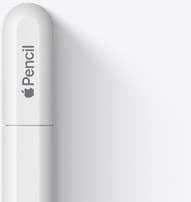
Apple Pencil (USB-C)
amazon.comA practical low-cost Apple stylus with broad compatibility, but limited for advanced art control.
Pro: Lowest official Apple Pencil cost
Con: No pressure sensitivity for brush work
Compatible with many recent iPads. No pressure support.
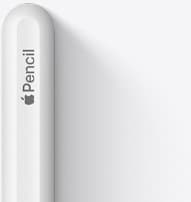
Apple Pencil (2nd generation)
amazon.comStill a strong stylus on compatible iPads. Good pressure control, but compatibility is the main trap.
Pro: Pressure support without Pro pricing
Con: Not compatible with newest Pro-only iPads
Only for iPads that support 2nd generation pairing.
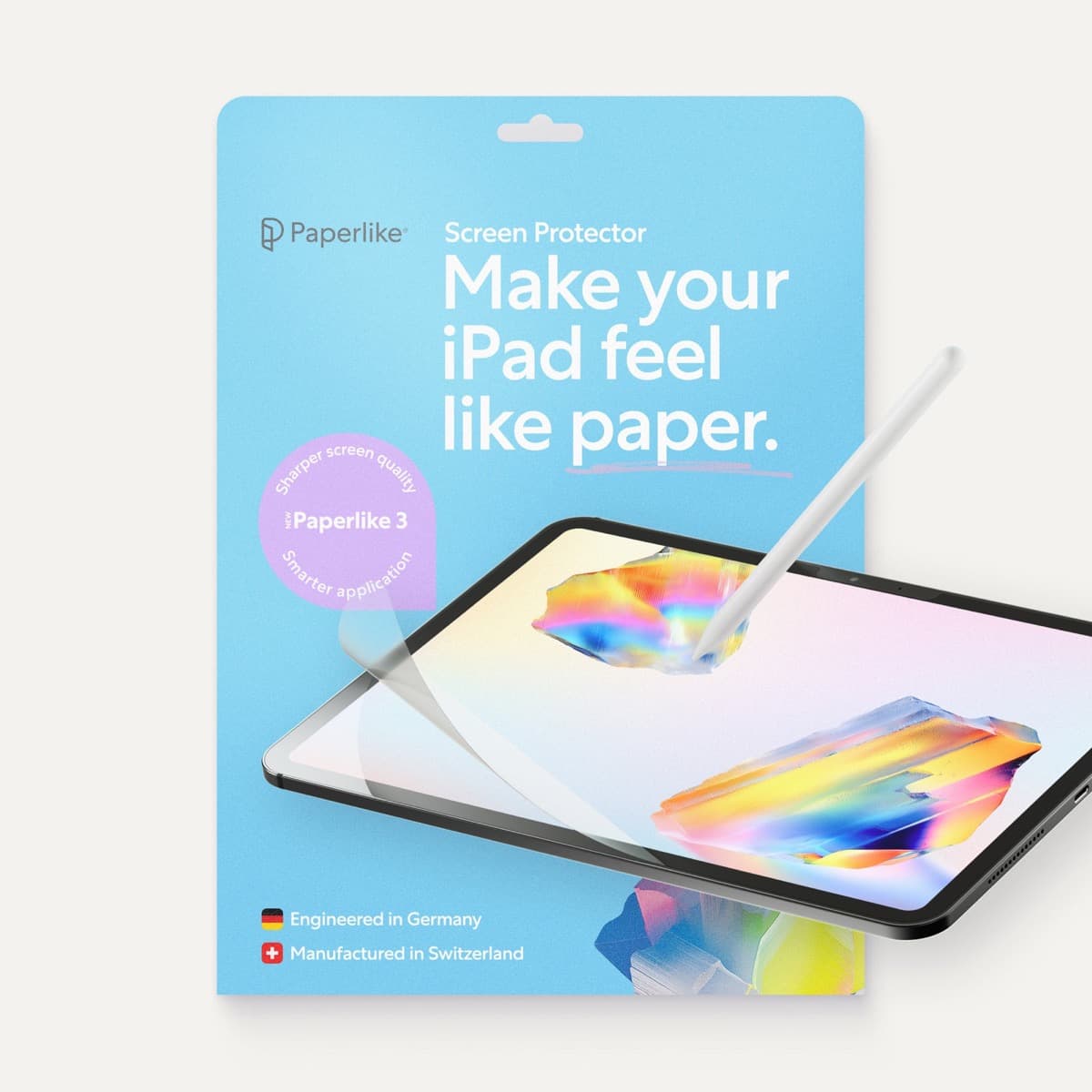
Paperlike 3 (11-inch, 2-pack)
amazon.comA strong surface-feel upgrade for drawing control. Clarity tradeoff is real and should be expected.
Pro: Adds controlled paper-feel friction
Con: Slightly reduces perceived display sharpness
11-inch fit only. Confirm generation before checkout.
Related buying picks
More in this collectionBuyer guide
Is the Apple Pencil USB-C enough for Procreate?
The Apple Pencil (USB-C) functions in Procreate, but the lack of pressure sensitivity makes it a poor fit for expressive brushwork.
Buyer guide
Best Apple Pencil for UI design: wireframing, markup, and layout on iPad
Choose the Apple Pencil (USB-C) for wireframing and interface sketches, or pick the Apple Pencil Pro if your iPad supports its squeeze and haptic shortcuts.
Buyer guide
Best Apple Pencil for manga drawing
Choose an Apple Pencil with pressure sensitivity for manga inking, matching the stylus directly to your iPad model.
Buyer guide
Apple Pencil for 3D sculpting: Which model should you buy?
Choose Apple Pencil Pro if your iPad supports it, keep Apple Pencil 2nd generation on older models, and skip Apple Pencil USB-C due to its lack of pressure sensitivity.