





If you are experiencing stroke delays or sluggish response in Procreate, keep your current iPad before spending money on a replacement. Most stroke tracking delays come from brush stabilization settings like StreamLine or large canvas dimensions rather than failing hardware [2]. Adjust your brush stabilization and canvas resolutions inside the app first [2]. If you are working on massive multi-layer print files and constantly hit low layer caps, upgrade to the iPad Air (M4) for higher memory headroom and Apple Pencil Pro support [1], [4], [5]. If total kit budget is your priority, choose the base iPad (A16) [4]. Skip a tablet upgrade entirely if your layer counts fit comfortably within your current tablet limits [1].
Brush settings that mimic stroke delay
Many artists confuse deliberate stroke smoothing with hardware latency. In the Procreate brush studio, the StreamLine setting smooths out jitter by pulling the stroke path behind the physical tip of the stylus [2]. When StreamLine or Stabilization is dialed to high values, the line visibly trails your pen tip across the glass [2]. That delay is intentional mathematical correction, not processing lag [2]. If your strokes feel like they are dragging on a string, tap the active brush, open the Stabilization tab, and reduce StreamLine to lower values to see immediate tracking response [2].
Global stabilization settings also change how every brush reacts across the entire canvas. Inside the Procreate Actions menu under Preferences, the Pressure and Smoothing panel controls app-wide stabilization, motion filtering, and motion filtering expression [2]. If you have turned these settings up while trying to steady your line work, the app applies global smoothing to every single mark you make [2]. Turning down the global sliders restores real-time tracking across your entire brush library [2]. Procreate is a one-time purchase with all brush engines included locally, so your settings stay saved on the device without background sync delays [3].
Brush spacing and grain textures create actual rendering demands that can slow down stroke delivery. Brushes that use complex shapes, dual-brush architectures, or extremely tight spacing require the iPad to render dozens of shape stamps per second [2]. If a custom brush stutters while a default monoline pen draws smoothly, the brush structure itself is the bottleneck [2]. Open the brush properties and widen the spacing slightly to decrease stamp density without changing the visual look of your line [2].
Canvas dimensions and device memory limits
Procreate manages performance strictly through canvas limits rather than letting your iPad overheat or drop frames. The app ties maximum layer allowances directly to the physical system memory of your specific iPad model and the pixel dimensions of your canvas [1]. When you build a large canvas at high print resolutions, Procreate automatically caps the number of layers you can create [1]. This design prevents the operating system from terminating the app when memory runs short [1].
Working near the ceiling of available memory does not slow down brush tracking, but it restricts your working flexibility. If you build a 24 by 36 inch poster at 300 dots per inch on an entry-level tablet, you might only get a handful of layers [1]. If your workflow requires dozens of adjustment layers, sketching passes, and separate ink layers, you will spend time constantly merging artwork [1]. Users who create standard digital illustrations for screen display at 2048 by 2048 pixels receive ample layers on almost any supported hardware [1].
Background features also consume operating system memory and processor cycles during active sessions. Procreate includes an automatic time-lapse recording feature that captures every mark made on the canvas [2]. You can choose standard or 4K recording quality in the canvas creation menu, and high-resolution recording increases file overhead [2]. Turning off time-lapse recording or avoiding ultra-high-resolution video capture inside the canvas settings menu reduces background processing demands while you draw [2].
Apple Pencil features and hardware pairings
Stylus behavior can make an iPad feel unresponsive even when the underlying software is running correctly. The Apple Pencil Pro includes hardware sensors for barrel roll, squeeze gestures, haptic feedback, and hover preview [5]. Hover shows the exact brush footprint and angle before the tip touches the glass on compatible iPad displays [5]. If you are using a standard Apple Pencil without hover support, you do not get this real-time visual indicator [5]. This lack of visual preview sometimes makes brush placement feel less precise [5].
Compatibility between stylus hardware and iPad generations requires careful checking before you buy or replace accessories. The Apple Pencil Pro pairs and charges magnetically exclusively with compatible tablets like the iPad Air (M4) [4], [5], [6]. It does not pair or work with the base iPad (A16) [4], [6]. If you use an older or standard iPad, pairing issues or low accessory charge can cause intermittent signal drops that feel like brush lag [6]. Keeping the stylus charged and verifying that your iPad model officially supports your Pencil model prevents unexpected drawing dropouts [6].
Hardware refresh rates also influence how you perceive drawing delay. The iPad Air (M4) and the base iPad (A16) both feature standard 60Hz displays [4]. While line processing remains rapid on modern silicon, visual line delivery on 60Hz screens refreshes at sixty frames per second [4]. This visual refresh rate is normal hardware behavior across these models, not an application error or software bug [4].
Choosing between an iPad upgrade and adjusting settings
An iPad upgrade will not eliminate the stroke drag caused by brush settings like StreamLine [2]. If your lines lag because stabilization is set to maximum, buying a newer tablet will yield the exact same trailing line behavior [2]. Artists who draw web comics, character sketches, or social media illustrations on canvases under 4000 pixels wide can keep their current iPad without running into hardware boundaries [1]. Tuning your brush properties and reducing global smoothing will solve the issue for free [2].
Upgrading hardware makes financial sense when your professional workflow demands physical canvas sizes that current memory caps cannot accommodate [1]. The iPad Air (M4) is the best choice when you need the M4 processor and broad layer headroom without paying top-tier prices [4]. It also unlocks the Apple Pencil Pro with its squeeze palette, haptics, and barrel roll features [4], [5], [6]. The iPad Air (M4) display remains at 60Hz, but its processing headroom accommodates demanding multi-layer art boards [1], [4].
If you simply want an affordable entry point for digital art, the base iPad (A16) is the ideal pick [4]. It handles Procreate reliably for sketchbooks, hobby illustration, and standard resolution projects without premium costs [1], [3], [4]. It lacks support for the Apple Pencil Pro and features a 60Hz screen, but it runs the full Procreate toolset smoothly within standard layer limits [1], [3], [4], [6].
Bottom line
Adjust your Procreate brush stabilization and reduce canvas dimensions before spending money on new hardware [1], [2]. If high-resolution print canvases constantly limit your required layer count, buy the iPad Air (M4) to gain higher layer headroom and Apple Pencil Pro compatibility [1], [4], [5], [6]. Buy the base iPad (A16) if you want reliable daily drawing at the lowest possible cost [3], [4]. Keep your current iPad if tuning your brush studio settings eliminates your stroke drag and your existing layer limits meet your creative needs [1], [2].
Sources
[1] https://help.procreate.com/articles/zlexav-ipad-compatibility [2] https://help.procreate.com/procreate/handbook [3] https://help.procreate.com/articles/dbgjal-procreate-faq [4] https://www.apple.com/ipad/compare/ [5] https://www.apple.com/apple-pencil/ [6] https://support.apple.com/en-us/108937
Recommended gear

iPad Air (M4)
apple.comThe clean current Air recommendation for most serious hobby artists. Stronger buy logic than old-stock M3 when pricing is close.
Pro: Best current balance of price, headroom, and Pencil support
Con: Still 60Hz
Current Air lineup. Choose size, storage, and keyboard path before checkout.
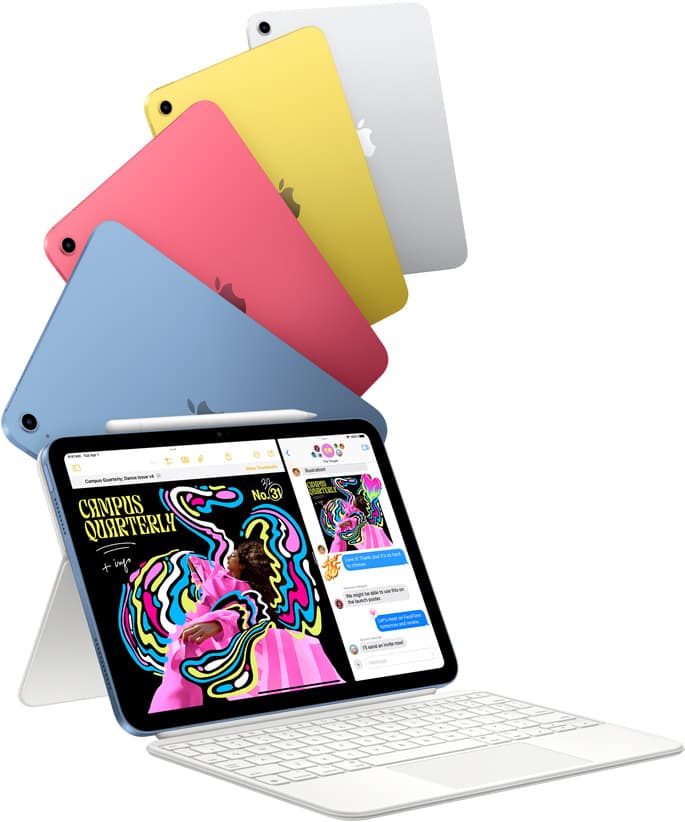
iPad (A16, 11th gen)
amazon.comThe best entry iPad for most artists on a budget. It is not premium, but it is very hard to beat on value.
Pro: Best value iPad right now
Con: No ProMotion display
Search opens with the exact model keywords. Verify size and storage before checkout.
Procreate
apps.apple.comPro: One-time purchase
Con: iPad-only

Apple Pencil Pro
amazon.comThe best Apple stylus for serious digital art workflows. Expensive, but the control upgrades are real.
Pro: Best brush-control and hover workflow
Con: Highest price in the lineup
Works only with newer iPad models. Check compatibility.
Related buying picks
More in this collectionBuyer guide
Best iOS app for graphic design: Choosing between vector and raster tools
Choose Affinity Designer 2 or Adobe Illustrator for vector graphic design on iPadOS, and keep Procreate primarily for raster drawing.
Buyer guide
Best iPad drawing app for kids with Apple Pencil
Compare Procreate, Sketchbook, Adobe Fresco, and Clip Studio Paint to choose the best Apple Pencil drawing app for your child.
Buyer guide
What is the best handwriting app for iPad?
Choose between flexible vector canvases and traditional raster stroke engines based on how you organize your handwriting and notes.
Buyer guide
Best iPad app for manga: Clip Studio Paint versus Procreate and free alternatives
Clip Studio Paint is the best overall iPad app for serialized manga and multi-page comics, while Procreate remains the top one-time purchase for single illustrations.