If Cricut Design Space isn't working on your iPad, don't immediately buy a new tablet. Most app crashes, frozen cut screens, and canvas sync failures trace back to outdated operating systems or unflattened image uploads rather than weak hardware [1], [2]. You should keep your current iPad if it meets Cricut official system requirements and can run recent iPadOS updates [1]. You should only buy the iPad Air (M4) if your existing tablet has fallen off the supported iPadOS list and you want long-term compatibility alongside Apple Pencil Pro input [1], [3], [4]. If you only need a budget-friendly machine to send cut jobs to your machine, the iPad (A16) gives you full software support without extra expense [1], [3].
Checking system requirements before replacing hardware
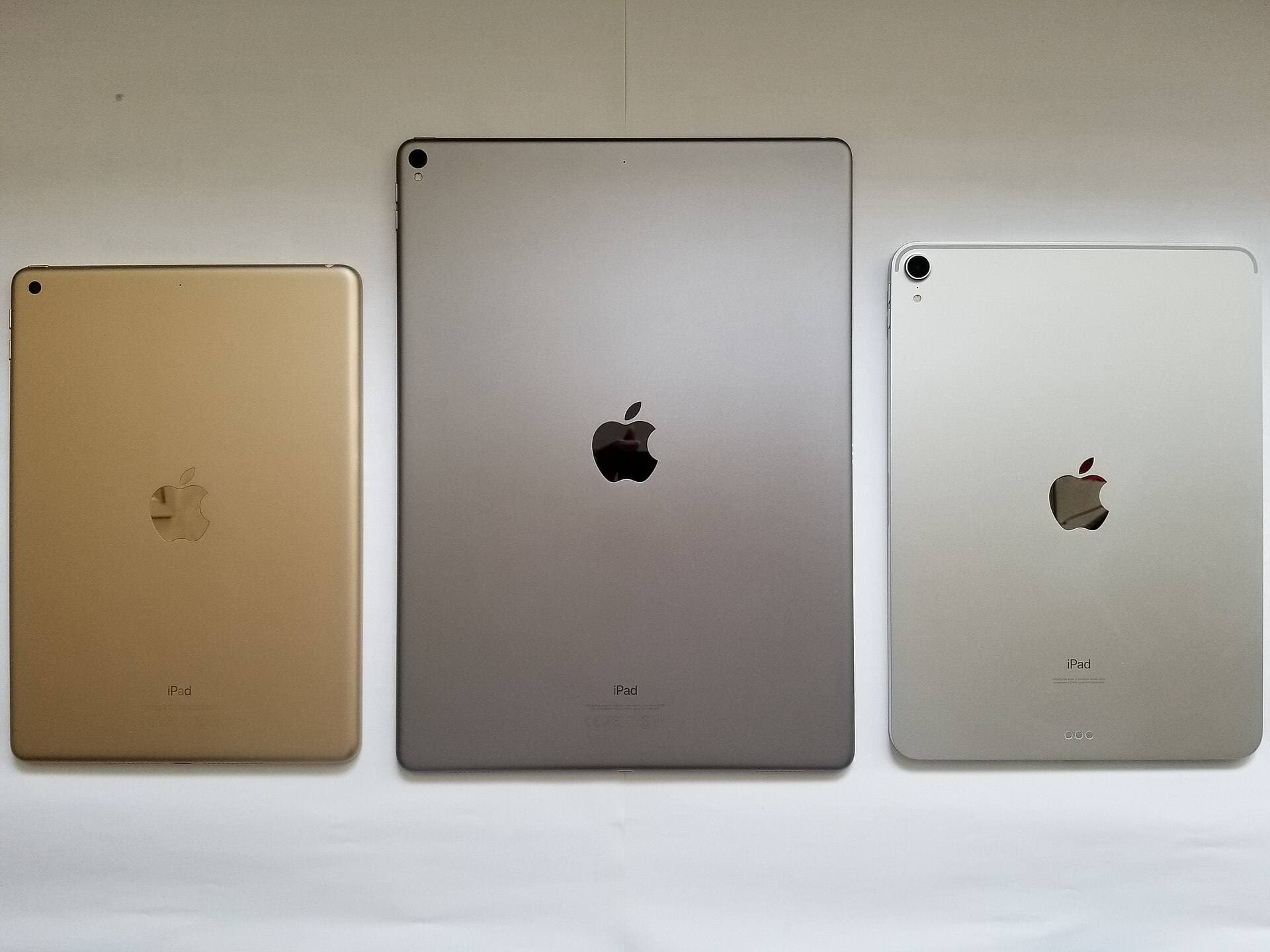
Before spending money on a replacement device, verify that your current iPad meets Cricut minimum system specifications [1]. Cricut explicitly defines the supported operating systems, mobile devices, and system requirements needed to run Design Space properly [1]. When an older iPad gets stuck on an obsolete major release of iPadOS, Design Space can fail to open, refuse to connect over Bluetooth, or freeze while loading cloud projects [1]. Apple maintains distinct iPad models across the entry-level iPad, iPad Air, and iPad Pro lines, each with specific processor generations and operating system update lifecycles [3].
If your iPad model can no longer update to the minimum operating system version listed by Cricut, the software will not run reliably no matter how many times you reinstall it [1]. In that situation, replacing your tablet becomes necessary to keep using your cutting machine [1]. However, if your iPad is running a supported version of iPadOS and Design Space still will not load, your issue is likely an app cache corruption or network glitch rather than obsolete hardware [1]. Uninstalling the application, restarting your iPad, and downloading the latest build from the App Store resolves many local software lockups without requiring a hardware purchase [1].
Fixing upload errors with supported image formats
Many crafters assume Design Space is broken on iPad when the actual failure happens during the image upload step [2]. Cricut documents specific supported image file types for Design Space, including PNG, JPG, GIF, SVG, DXF, and BMP [2]. Uploading unsupported file types or uploading extremely complex vector paths with thousands of unmerged anchor points can cause Design Space to stall on mobile screens [2].
When importing graphics into Design Space on iPad, Cricut documents specific upload workflows for basic and vector images [2]. If you upload raster artwork like a PNG or JPG, Design Space requires manual clean-up steps to isolate cut paths from the background [2]. Complex raster files with gradients or semi-transparent artifacts can overwhelm the mobile app during the clean-up phase [2]. Simplifying your image files prior to import avoids these stalls and keeps your cut files cleanly categorized [2].
Separating design work in Procreate from cutting in Design Space
Design Space is built primarily to arrange mats and manage cutting operations rather than to draw complex original artwork from scratch [1], [2]. For serious drawing, lettering, and sticker creation, pairing your iPad with Procreate provides a dedicated workspace with comprehensive illustration tools [5], [9]. Procreate is available on the iPad App Store as a standalone creative application [5], [7]. Because Procreate manages layers, custom brushes, and high-resolution export formats directly on your iPad, you can build your designs there and export clean assets into Design Space [2], [7], [9].
Procreate documents specific iPad hardware compatibility alongside the technical relationship between hardware memory, canvas pixel dimensions, and maximum available layers [6]. High-resolution canvases on devices with more memory allow for higher layer counts, giving you room to isolate cut lines from colors [6]. According to Procreate official documentation and user guidance, you can export your finished layers in standard formats such as flattened PNG files or transparent graphics [2], [7], [8]. Once exported to your iPad camera roll or cloud storage, you can follow Cricut standard image upload process to bring the artwork into Design Space for cutting [2], [9]. This division of labor keeps Design Space focused strictly on sizing and sending jobs to your Cricut machine [1], [2].
Choosing between iPad (A16) and iPad Air (M4) for Cricut setups
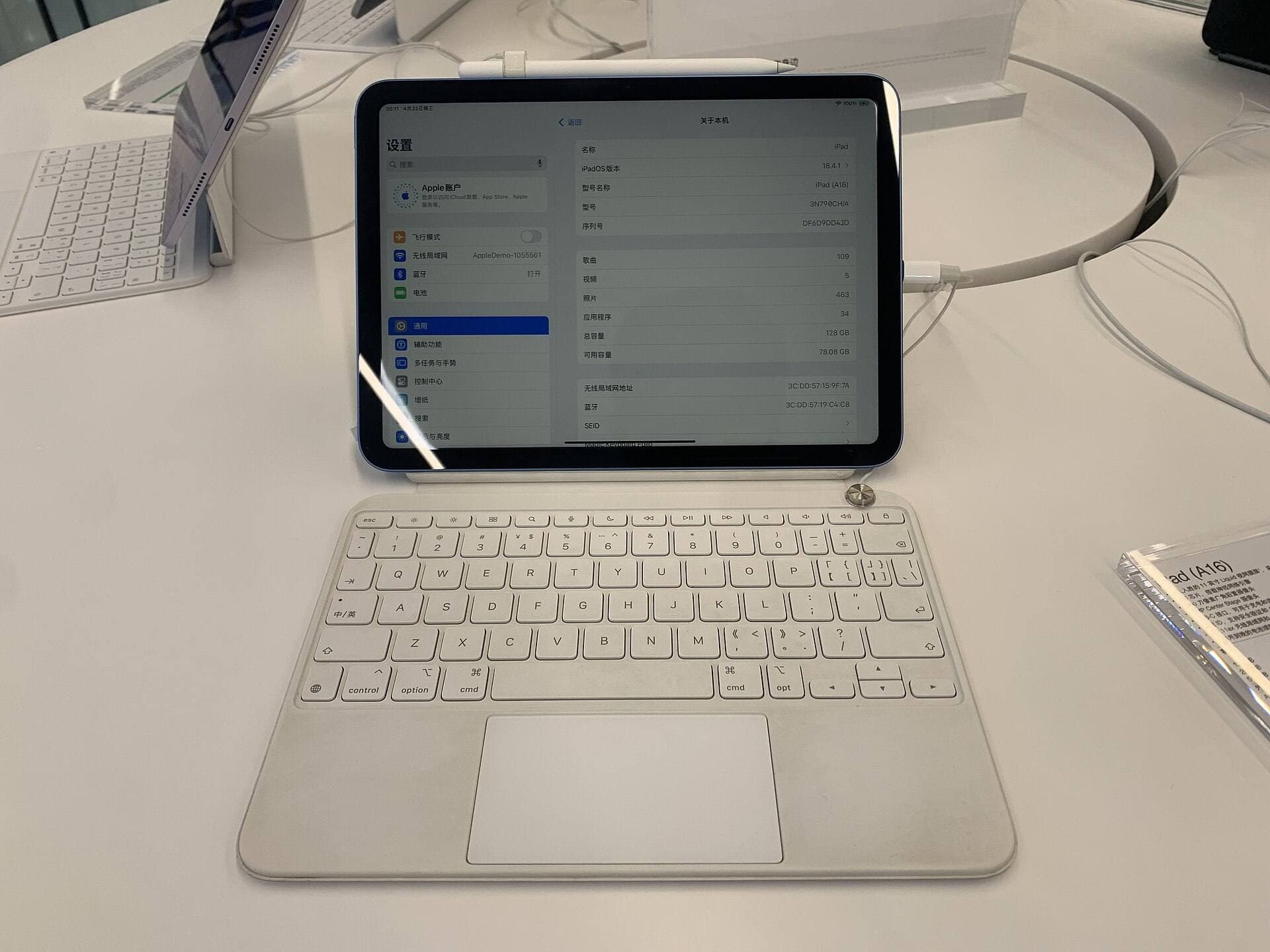
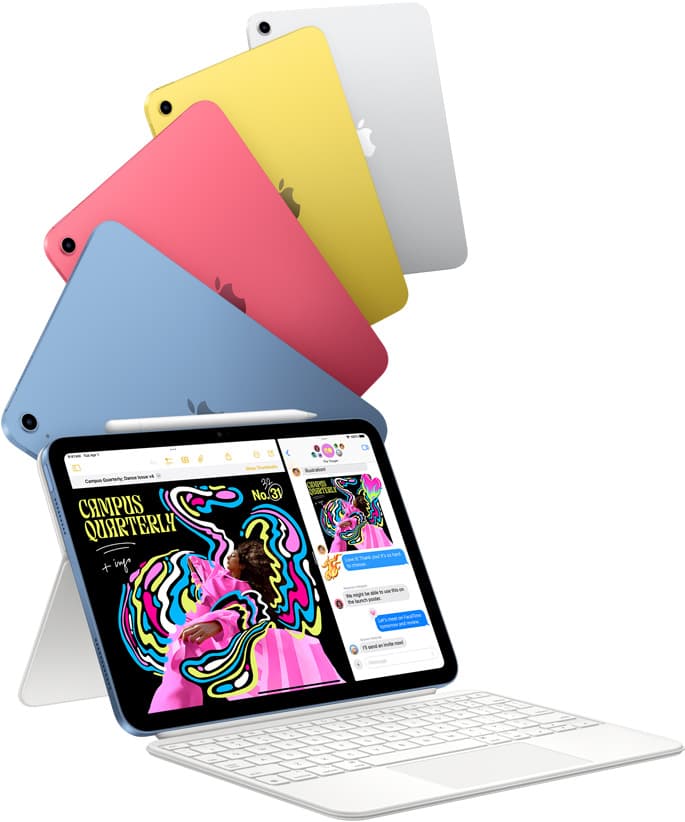
If your older tablet is no longer supported by Cricut system requirements, you must choose a replacement model [1]. The entry-level iPad (A16) is the best buy for crafters who primarily use their tablet as a cut-control terminal [1], [3]. It features a standard 60Hz display and provides the processing capability needed to run current iPadOS versions without paying for pro-tier components [3]. Crafters who cut vinyl, assemble cards, and cut simple iron-on decals don't need extra computing headroom, making the iPad (A16) a practical, budget-conscious choice [1], [3].
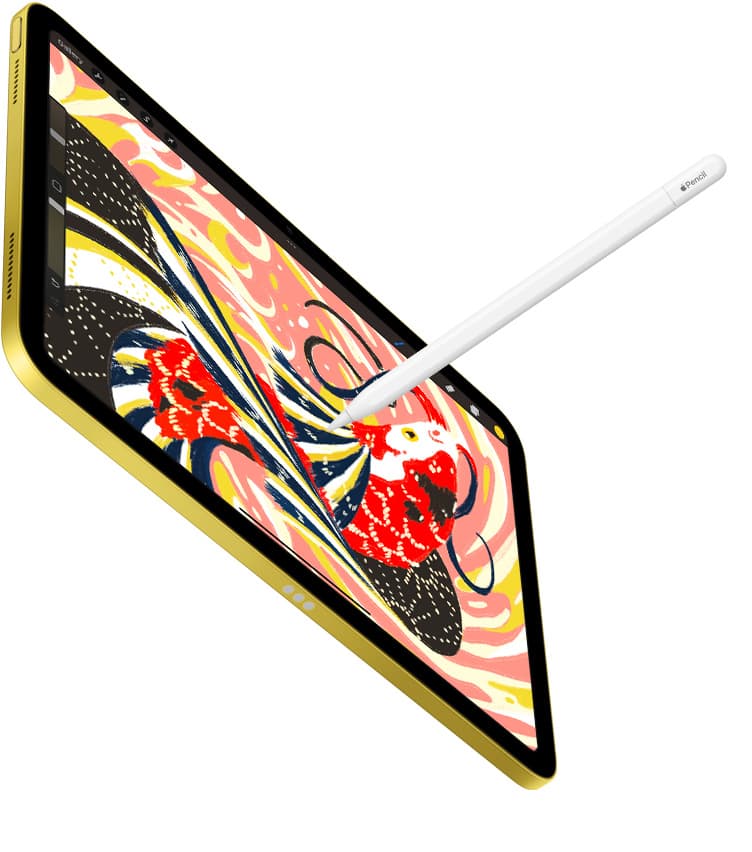
Buyers who also want a powerful drawing workstation for Procreate should look at the iPad Air (M4) [3], [6]. The iPad Air (M4) features Apple M4 processor, multiple storage configurations, and compatibility with Apple Pencil Pro [3], [4]. In Procreate, devices with more system memory offer higher layer caps on large canvases, which benefits illustrators building detailed sticker sheets and multi-color print-then-cut graphics [6]. While the iPad Air (M4) still features a 60Hz screen rather than ProMotion, its chip and accessory support make it an ideal middle ground for crafters who both draw detailed artwork and operate Cricut machines [3], [4]. You should skip the iPad Air (M4) if your cutting projects rely entirely on pre-made Cricut access files, because the base iPad (A16) handles those tasks equally well [1], [3].
Apple Pencil options for vector prep and tracing
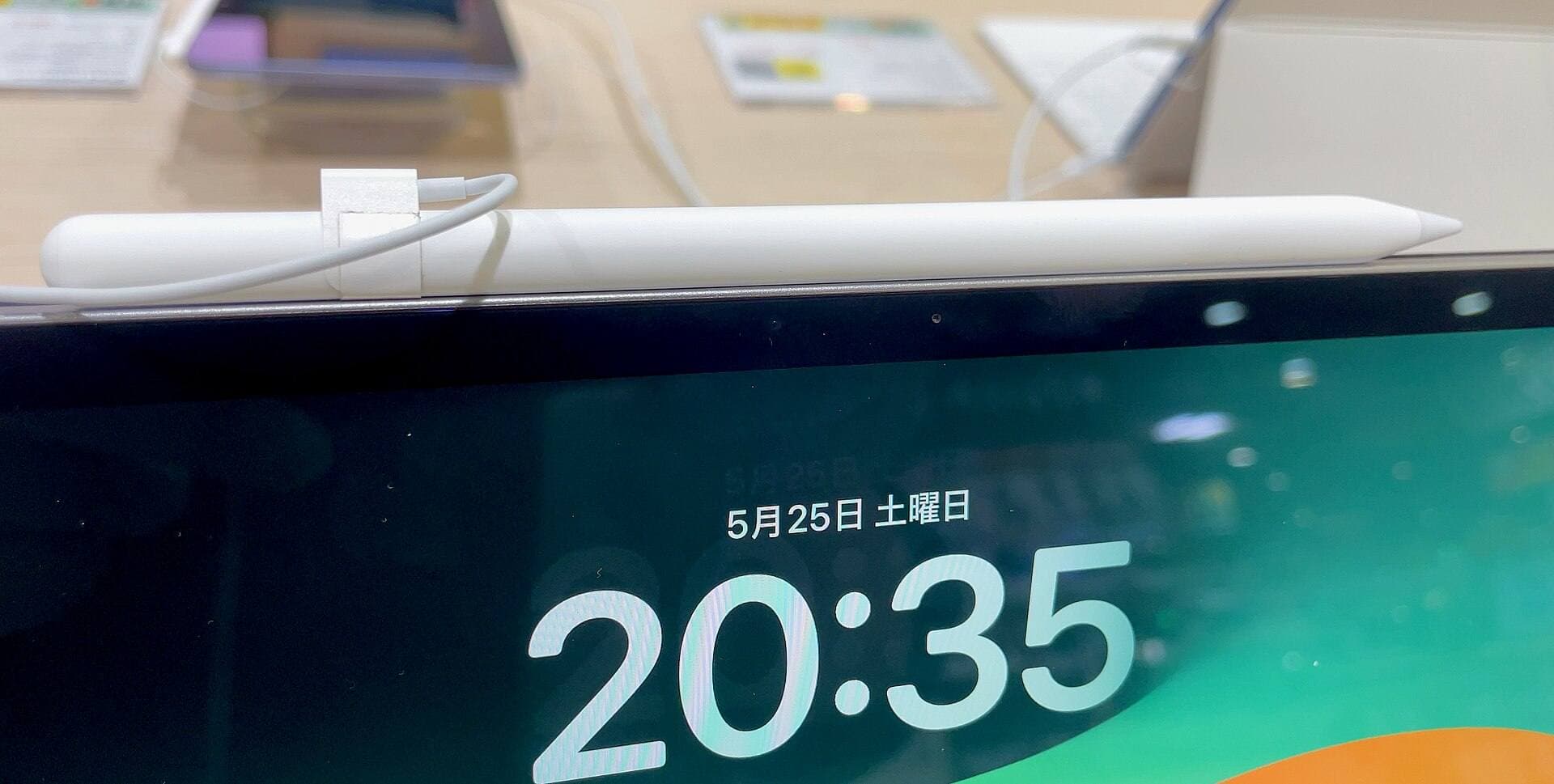
Your choice of Apple Pencil depends entirely on which iPad model you use and how deeply you draw your own cut files [3], [4]. Apple publishes a detailed comparison of its Pencil lineup, detailing features such as pressure sensitivity, tilt detection, low latency, magnetic pairing, wireless charging, hover, squeeze, and haptic feedback [5]. If you choose the base iPad (A16), you can pair it with the Apple Pencil (USB-C) or first-generation Apple Pencil using the required adapter, giving you an accurate stylus for tracing shapes and cleaning cut lines [3], [4], [5].
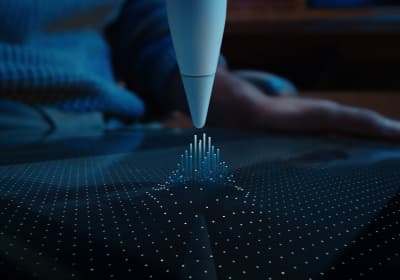
If you invest in the iPad Air (M4), you gain compatibility with Apple Pencil Pro [3], [4]. Apple Pencil Pro introduces squeeze gestures, barrel roll rotation, haptic feedback, and hover functionality on supported displays [5]. In drawing apps like Procreate, these physical inputs allow you to change brush parameters or select tools without tapping through submenus [5], [9]. However, Apple Pencil Pro works only with select recent iPad models and can't pair with the base iPad (A16) [3], [4]. Crafters who only tap on-screen buttons in Design Space to position cutting mats should skip the Apple Pencil Pro entirely, as a basic stylus or finger input is sufficient for basic mat placement [1], [5].
Bottom line
When Cricut Design Space stops working on your iPad, don't rush into buying hardware before verifying your software environment [1]. Check Cricut official system requirements page to ensure your iPadOS version is fully supported, and clean up your image files before importing them [1], [2]. If your device runs supported software, keep your present iPad and use Procreate to handle illustration and layer prep [1], [6], [7]. If your iPad can't update to current iPadOS versions, buy the iPad (A16) for straightforward cutting tasks, or step up to the iPad Air (M4) if you want Apple Pencil Pro support for serious design work [1], [3], [4], [5].
Sources
[1] https://help.cricut.com/hc/en-us/articles/360009556033-System-Requirements-Design-Space [2] https://help.cricut.com/hc/en-us/articles/360009556313-How-to-upload-images-into-Design-Space [3] https://www.apple.com/ipad/compare/ [4] https://support.apple.com/en-us/108937 [5] https://www.apple.com/apple-pencil/ [6] https://help.procreate.com/articles/zlexav-ipad-compatibility [7] https://apps.apple.com/us/app/procreate/id425073498 [8] https://help.procreate.com/articles/dbgjal-procreate-faq [9] https://help.procreate.com/procreate/handbook
Recommended gear
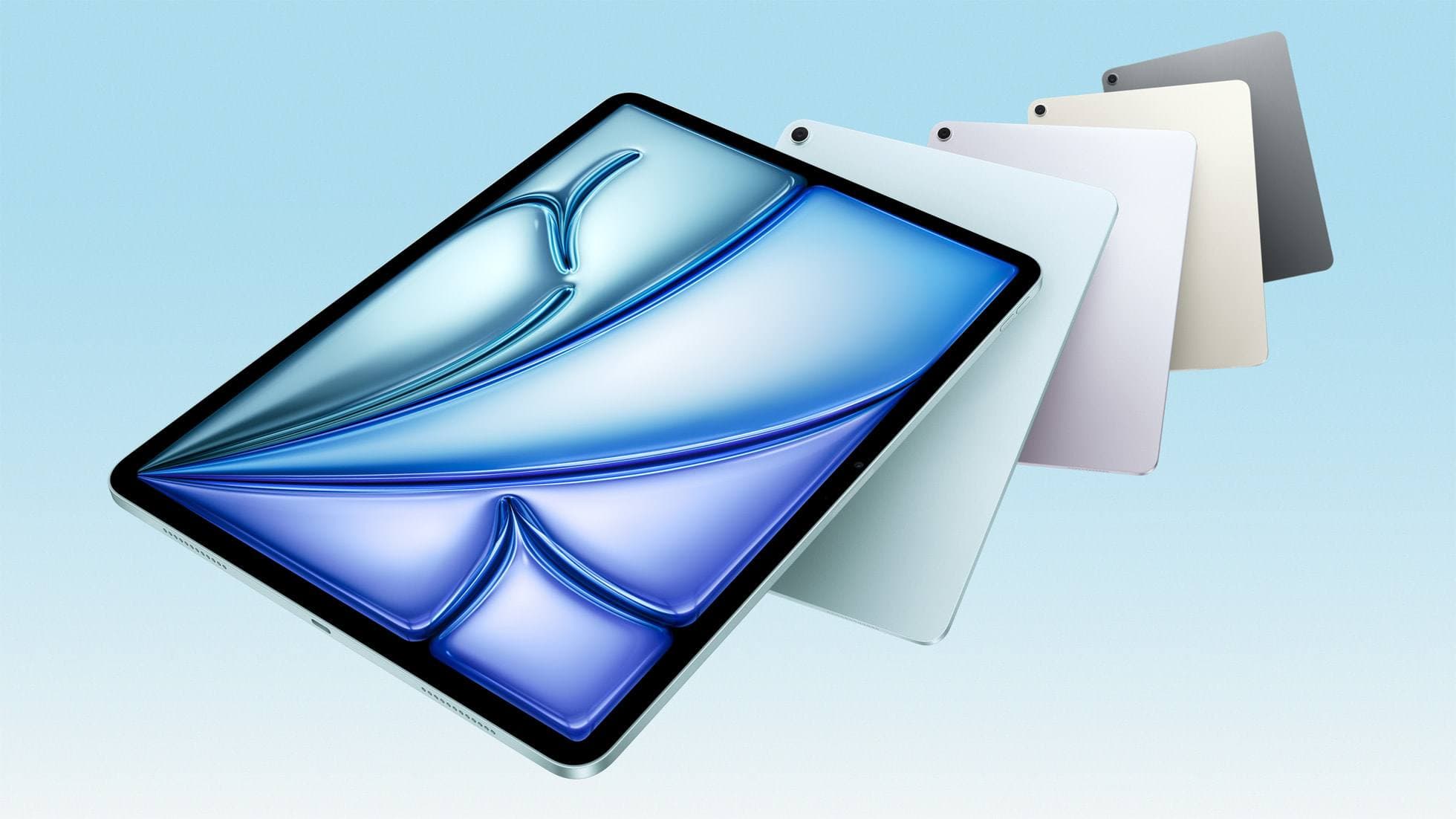
iPad Air (M4)
apple.comThe clean current Air recommendation for most serious hobby artists. Stronger buy logic than old-stock M3 when pricing is close.
Pro: Best current balance of price, headroom, and Pencil support
Con: Still 60Hz
Current Air lineup. Choose size, storage, and keyboard path before checkout.
iPad (A16, 11th gen)
amazon.comThe best entry iPad for most artists on a budget. It is not premium, but it is very hard to beat on value.
Pro: Best value iPad right now
Con: No ProMotion display
Search opens with the exact model keywords. Verify size and storage before checkout.
Apple Pencil Pro
amazon.comThe best Apple stylus for serious digital art workflows. Expensive, but the control upgrades are real.
Pro: Best brush-control and hover workflow
Con: Highest price in the lineup
Works only with newer iPad models. Check compatibility.
Procreate
apps.apple.comPro: One-time purchase
Con: iPad-only
Related buying picks
More in this collectionBuyer guide
What is the best handwriting app for iPad?
Choose between flexible vector canvases and traditional raster stroke engines based on how you organize your handwriting and notes.
Buyer guide
Best iPad app for manga: Clip Studio Paint versus Procreate and free alternatives
Clip Studio Paint is the best overall iPad app for serialized manga and multi-page comics, while Procreate remains the top one-time purchase for single illustrations.
Buyer guide
Best iPad app for architecture sketching
Compare Procreate, Concepts, and Clip Studio Paint to choose the right iPad drawing tool for your architectural drafting workflow.
Buyer guide
Best iPad app for drawing anime: Clip Studio Paint versus Procreate
Pick Clip Studio Paint for dedicated manga and anime production toolsets, or choose Procreate for a streamlined one-time purchase on iPad.