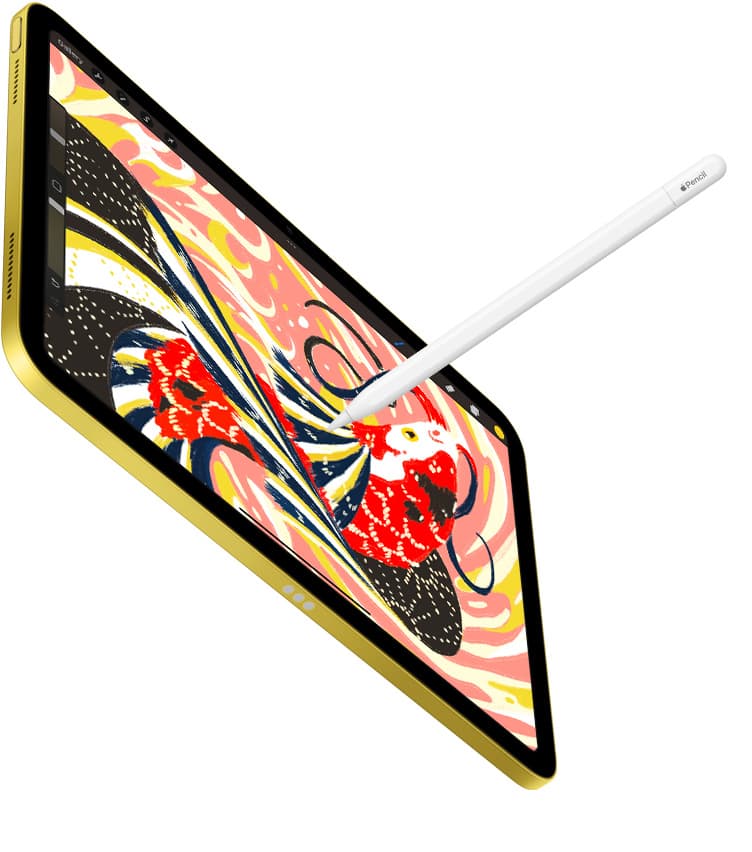
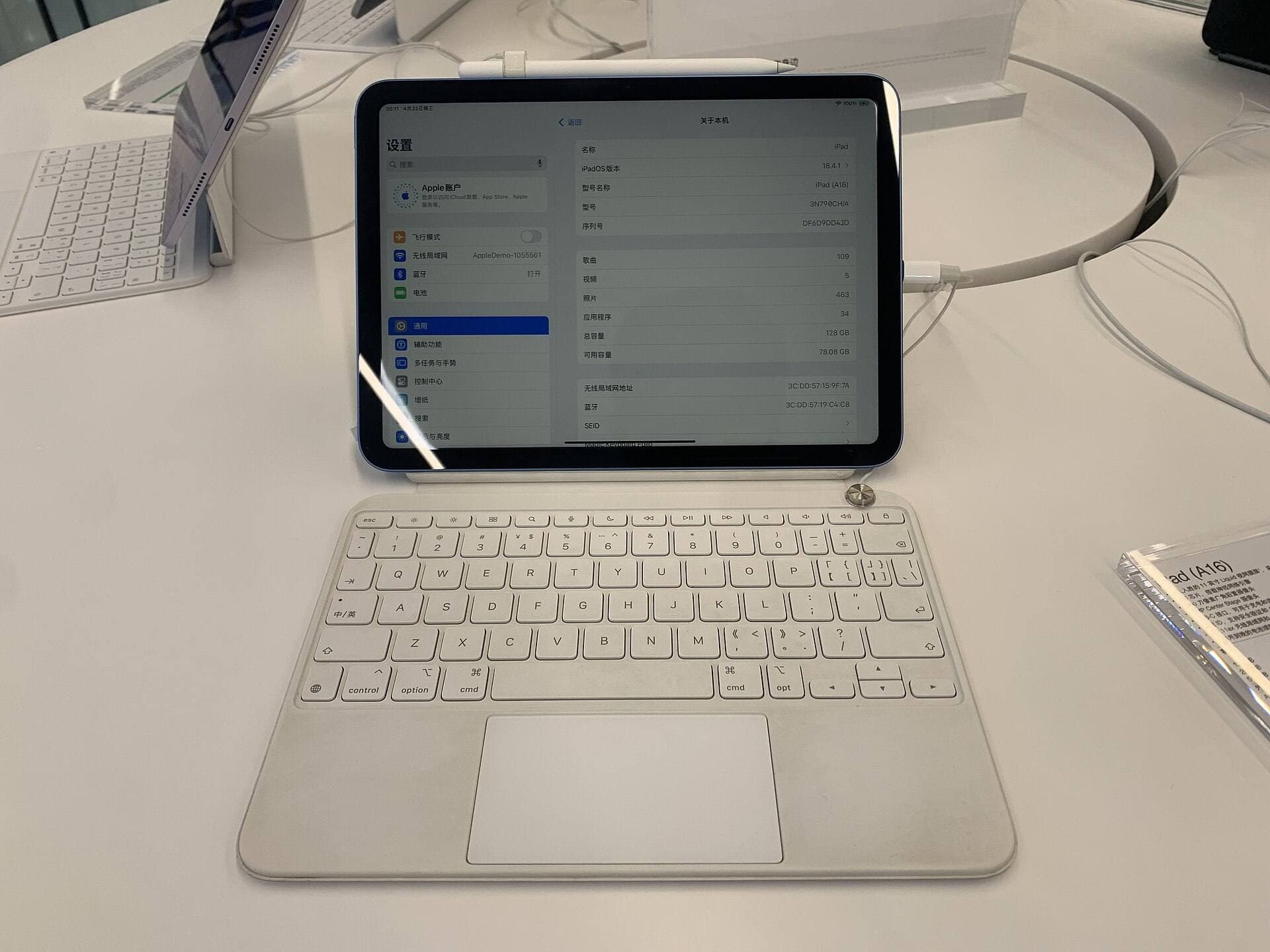
If Procreate isn't working after an iPad update, don't rush to replace your hardware yet [4]. Keep your current iPad if updating the app from the App Store and repairing your Apple Pencil solves the problem [3], [5]. You should only buy a new tablet like the iPad Air (M4) if your older device has lost compatibility or if your canvas layer limits prevent you from completing your work [1], [4]. For artists on a tighter budget who just need a reliable drawing tablet that supports the current app, the iPad (A16, 11th gen) is the sensible default [1], [4].
When iPadOS updates roll out, changes to background memory allocation, gesture inputs, and Bluetooth connections often cause immediate confusion inside digital art workflows [3], [4]. Here is how to diagnose what went wrong, fix your setup, and decide if an upgrade makes sense.
Check app version and operating system compatibility
The most common reason Procreate acts up right after an iPad system update is an outdated app build [5]. iPadOS updates frequently alter core system libraries, and running an older build of Procreate on a brand-new OS version can lead to unexpected tool behavior [4], [5]. Procreate is an iPad-only application available as a one-time purchase, and it receives maintenance updates to align with system changes [4], [5].
Open the App Store, search for Procreate, and verify whether an update button is waiting for you [5]. If auto-updates are disabled on your iPad, your operating system might be running ahead of the software build [5]. Procreate documents its official device support guidelines, confirming which hardware generations and operating system versions can run the software properly [4]. If your iPad is older and can't update to the minimum system version required by current Procreate releases on the App Store, your setup is officially frozen in place [4], [5].
Restore Apple Pencil pairing and gesture inputs
Many artists assume Procreate itself is broken after an update when the real culprit is a disconnected stylus or altered gesture configuration [2], [7]. Major iPad system updates can reset Bluetooth configurations or disrupt the communication channel between your iPad and your Apple Pencil [2], [3]. If your finger draws on the screen but your stylus leaves no marks, your stylus connection needs attention [2], [7].
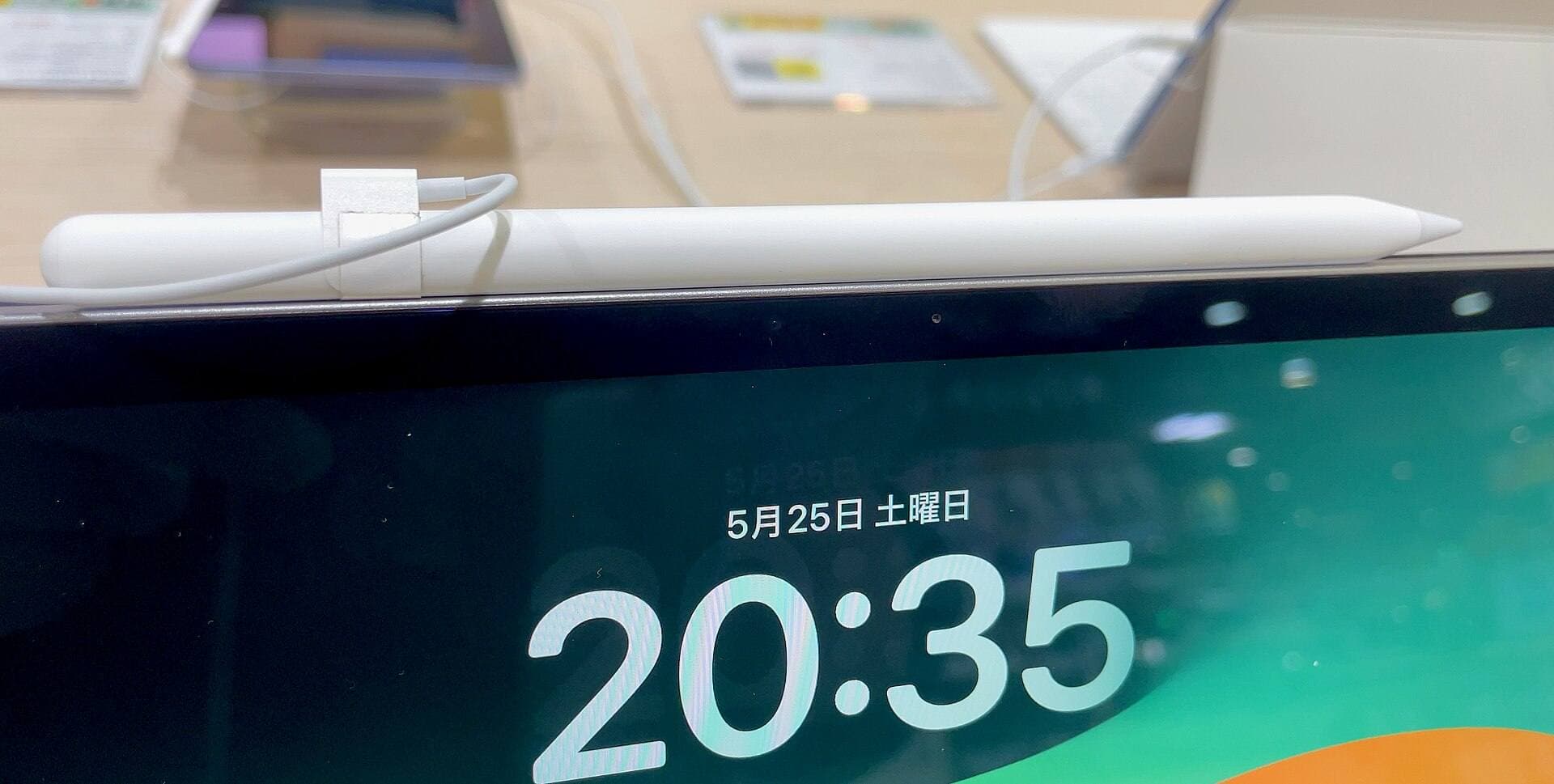
Start by checking physical pairing and battery status [2], [3]. For magnetic-charging pens, snap the stylus onto the magnetic connector of your iPad [2], [3]. If it fails to register, open your iPad Settings, go to Bluetooth, select your Apple Pencil, choose to forget the device, and then attach it again to re-pair [2], [3]. Apple notes specific feature pairings across its stylus lineup, including pressure sensitivity and tilt support [2], [3]. If you use an Apple Pencil Pro, pairing requires a compatible modern tablet such as the iPad Air (M4) [1], [3].
Inside Procreate, review your gesture controls in the Actions menu, which is fully documented in the Procreate handbook [7]. Updates can occasionally toggle settings for touch input versus stylus input [7]. Ensure that General settings don't have touch painting disabled if you expect finger drawing, or verify that Apple Pencil is designated for drawing strokes to avoid conflicts with finger gestures [7]. Procreate also supports Apple Pencil features like hover, squeeze, barrel roll, and double tap depending on the hardware in use [2], [7].
Understand canvas size and layer limits
Sometimes an update doesn't break drawing tools directly, but creators notice that their projects suddenly allow fewer layers than they expected [4], [6]. Procreate determines the maximum number of layers available on any canvas based directly on the available system memory of your specific iPad model [4]. The app doesn't manage memory arbitrarily; your hardware specifications strictly define how many layers a canvas can hold at a given pixel dimension and DPI [4].
Procreate documentation explains that devices with more RAM provide significantly higher layer counts on large canvases [4]. When an iPadOS update increases the baseline memory footprint of system services, older iPads with lower total RAM can feel the pinch immediately [1], [4]. If you are working on print-ready canvases and running into hard layer ceilings that halt your workflow, no software patch will create extra physical memory on your existing device [4]. That ceiling is an inherent limitation of the hardware you own [4].
When to keep your iPad versus when to upgrade
Troubleshooting will resolve the vast majority of post-update software problems without spending any money [3], [5]. If restarting your iPad, reinstalling or updating Procreate, and re-pairing your stylus restores smooth drawing, keep your existing tablet [3], [5], [7]. There is no reason to buy new gear if your current device supports your required canvas dimensions and layers [4].
However, upgrading makes practical sense under two distinct conditions [1], [4]. The first is when your iPad is dropped from the Procreate compatibility list, leaving you unable to install future app updates and security fixes [4], [5]. The second is when your client work demands high-resolution canvases with dozens of layers, and your current device can't deliver the necessary headroom [4].
If you need to upgrade, consider these two distinct paths:
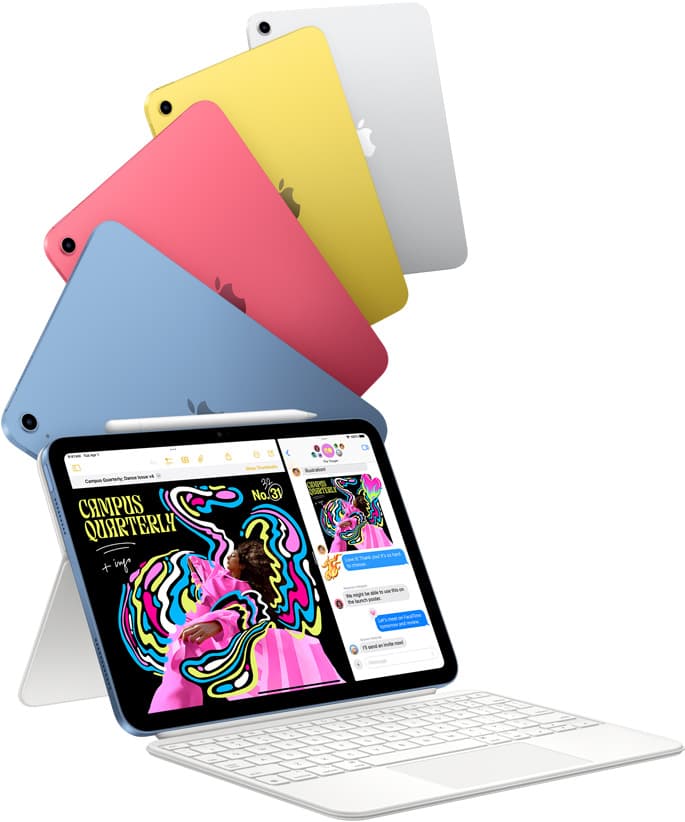
- Buy the iPad Air (M4) if you want the best balance of price, performance headroom, and Apple Pencil Pro support [1], [3]. It features an M4 chip, liquid retina display at 60Hz, and full compatibility with the Apple Pencil Pro, which unlocks squeeze, barrel roll, haptics, and hover inputs [1], [2]. It's the ideal step-up for artists who want modern features without paying top-tier Pro tablet prices [1], [3]. Skip the Air if you are on a strict budget and don't need advanced stylus sensors [1], [2].
- Buy the iPad (A16, 11th gen) if you want the best value iPad right now [1]. It delivers modern iPadOS support and runs Procreate reliably, making it the right default when total kit cost matters most [1], [4], [5]. Skip this model if you want Apple Pencil Pro features, since the base iPad pairs with the Apple Pencil (USB-C) or Apple Pencil (1st generation) depending on port hardware, lacking pressure sensitivity or barrel roll [1], [2], [3].
Bottom line
Before spending money on new hardware, update Procreate through the App Store and re-pair your Apple Pencil to fix basic post-update communication glitches [3], [5]. If your iPad is older and permanently locked out of new updates, or if its hardware memory restricts your layer count beyond what your work allows, upgrading is the only true fix [1], [4]. For creators ready for an upgrade, the iPad Air (M4) paired with an Apple Pencil Pro provides excellent performance and modern brush control, while the iPad (A16, 11th gen) remains the sensible, budget-friendly baseline for everyday sketching [1], [2], [4].
Sources
[1] https://www.apple.com/ipad/compare/ [2] https://www.apple.com/apple-pencil/ [3] https://support.apple.com/en-us/108937 [4] https://help.procreate.com/articles/zlexav-ipad-compatibility [5] https://apps.apple.com/us/app/procreate/id425073498 [6] https://help.procreate.com/articles/dbgjal-procreate-faq [7] https://help.procreate.com/procreate/handbook
Recommended gear
iPad Air (M4)
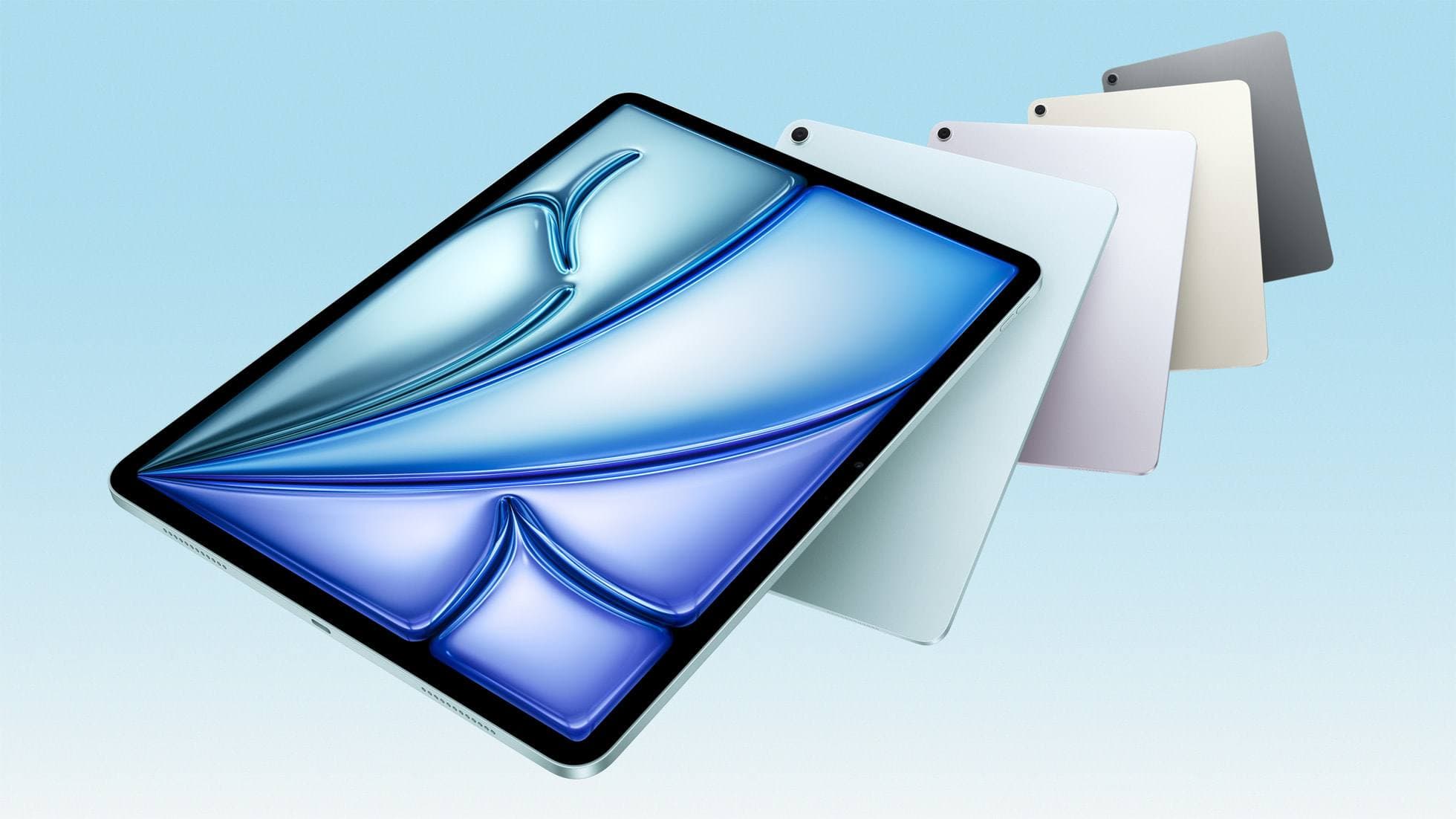
apple.comThe clean current Air recommendation for most serious hobby artists. Stronger buy logic than old-stock M3 when pricing is close.
Pro: Best current balance of price, headroom, and Pencil support
Con: Still 60Hz
Current Air lineup. Choose size, storage, and keyboard path before checkout.
iPad (A16, 11th gen)
amazon.comThe best entry iPad for most artists on a budget. It is not premium, but it is very hard to beat on value.
Pro: Best value iPad right now
Con: No ProMotion display
Search opens with the exact model keywords. Verify size and storage before checkout.
Procreate
apps.apple.comPro: One-time purchase
Con: iPad-only
Apple Pencil Pro
amazon.comThe best Apple stylus for serious digital art workflows. Expensive, but the control upgrades are real.
Pro: Best brush-control and hover workflow
Con: Highest price in the lineup
Works only with newer iPad models. Check compatibility.
Related buying picks
More in this collectionBuyer guide
What is the best handwriting app for iPad?
Choose between flexible vector canvases and traditional raster stroke engines based on how you organize your handwriting and notes.
Buyer guide
Best iPad app for manga: Clip Studio Paint versus Procreate and free alternatives
Clip Studio Paint is the best overall iPad app for serialized manga and multi-page comics, while Procreate remains the top one-time purchase for single illustrations.
Buyer guide
Best iPad app for architecture sketching
Compare Procreate, Concepts, and Clip Studio Paint to choose the right iPad drawing tool for your architectural drafting workflow.
Buyer guide
Best iPad app for drawing anime: Clip Studio Paint versus Procreate
Pick Clip Studio Paint for dedicated manga and anime production toolsets, or choose Procreate for a streamlined one-time purchase on iPad.