





If you are an art student deciding between a physical sketchbook and an iPad, buy the iPad Air (M4) if your classes demand digital color work, layered compositions, or client revisions, but do not throw out your paper pad [1], [4]. Paper remains the best low-friction medium for fast gesture drawing, whereas the iPad Air gives you access to Apple Pencil Pro features like barrel roll, squeeze, and pressure sensitivity without forcing you to spend premium Pro money [1], [2]. If you cannot afford a digital kit yet, keep your sketchbook without hesitation, as drawing fundamentals transfer directly across both mediums [6].
For most art school curriculums, an iPad does not replace a sketchbook so much as it transforms what you can do after the initial rough sketch [4]. Choosing between them comes down to course requirements, tool friction, and how you manage finished work [1], [3].
Drawing mechanics and tactile response
A physical sketchbook gives you natural resistance straight from the paper tooth, offering immediate physical feedback with charcoal, graphite, or ink [6]. There are no menus, no palm rejection settings, and no battery indicators to monitor [2]. When you make a mark in pencil, the friction of the paper fibers controls your line quality directly, which is why foundation drawing instructors still lean heavily on paper pads for classroom still-life exercises [6].
Digital drawing on an iPad replaces paper texture with smooth glass, though Apple Pencil models bridge that gap through hardware sensors [2]. Apple Pencil Pro and Apple Pencil (2nd generation) include pressure sensitivity and tilt detection, allowing you to shade on the edge of the tip just like a traditional wooden pencil [2], [6]. Apple Pencil Pro also adds a squeeze gesture to call up tool palettes and barrel roll to rotate shaped brushes as you turn the barrel [2], [7]. While drawing on smooth glass takes some adjustment compared to cotton paper, drawing apps let you customize pressure curves to match your natural hand pressure [7].
Paper forces commitment because you cannot tap two fingers to undo a misplaced stroke [7]. That forced discipline teaches decisive mark-making, which is why sketchbooks remain valuable throughout your training [6]. However, the iPad lets you separate line art, rough construction sketches, and final values across independent layers, giving you freedom to experiment without destroying underlying studies [4], [5].
Portability, battery demands, and daily prep
A physical sketchbook can sit in your bag for months and remain ready to draw the moment you open the cover [1]. It does not need a charger, does not overheat in the sun, and will not stop working if you drop it on the studio floor [1], [3]. Paper is resilient in field environments, life-drawing studios, and transit sketching where power outlets are unavailable [2].
An iPad requires daily battery management and proper stylus pairing [2], [3]. Current Apple Pencil options include magnetic charging on supported models or wired USB-C pairing depending on your hardware selection [2], [3]. Apple Pencil Pro attaches magnetically to the iPad Air (M4) and iPad Pro (M5) for automatic charging and pairing, eliminating loose cables in your studio bag [1], [3]. The base iPad (A16, 11th gen), by contrast, relies on the Apple Pencil (USB-C) or requires a separate adapter setup for older pencils, adding extra friction to your daily bag prep [1], [3].
Weight is another practical tradeoff [1]. A single iPad Air can store hundreds of sketchbooks, reference folders, and PDF textbooks in a single slab weighing around a pound [1], [4]. Carrying that single device is far lighter than hauling multiple heavy mixed-media pads, watercolor palettes, and brush cases across campus all day [1].
Layer limits, file management, and studio workflow
Physical sketchbooks run into hard structural limits once your coursework demands finished production art [4], [5]. You cannot export a paper page directly to a client without photographing or scanning it, adjusting color balance, and cleaning up background paper grain [5]. Paper also restricts you to a single physical plane, meaning a failed wash of ink can ruin an otherwise successful preliminary pencil layout [4].
On an iPad, software like Procreate organizes your artwork into high-resolution digital canvases with full layer management [4], [5]. The maximum number of layers you get on an iPad depends directly on the amount of device RAM and your selected canvas resolution [4]. For example, working on massive print canvases will restrict your available layer count, whereas standard digital illustration presets offer dozens of layers for complex shading passes [4], [5].
The iPad also supports quick gestures that speed up studio production [6], [7]. You can double-tap your Apple Pencil to switch between current tools and the eraser, squeeze the barrel to summon quick palettes, or use hover preview on supported iPads to see your cursor outline before touching down [2], [6], [7]. Once your assignment is complete, exporting print-ready PSD, PDF, or PNG files takes seconds, fitting neatly into modern art department submission portals [5].
Choosing the right iPad model for art coursework
If you decide to add an iPad to your student kit, match the hardware to your actual class load rather than buying the most expensive option automatically [1].
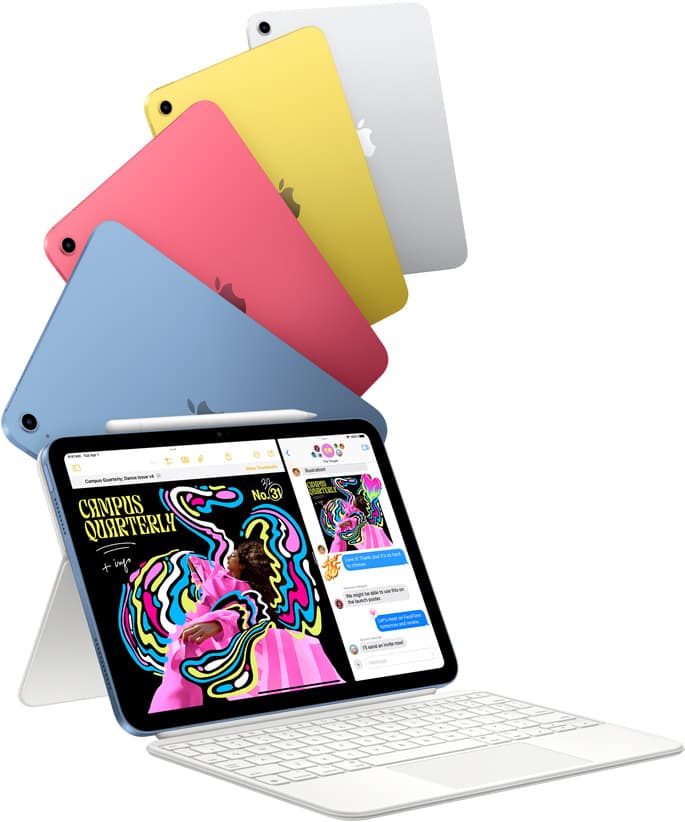
The standard iPad (A16, 11th gen) is the best entry point for students on a tight budget who primarily want a digital companion for note-taking and introductory sketching [1]. It works with the Apple Pencil (USB-C), giving you tilt support and low latency, but it lacks pressure sensitivity [2], [3]. Skip the standard iPad if your major centers on digital painting, comic inking, or fine art illustration, because the absence of pressure sensitivity on Apple Pencil (USB-C) limits expressive stroke dynamics [2].
The iPad Air (M4) is the sweet spot for art students [1]. It supports Apple Pencil Pro, giving you pressure sensitivity, barrel roll, squeeze shortcuts, and haptic feedback [1], [2]. The M4 processor delivers plenty of headroom for large multi-layer canvases in Procreate without forcing you to pay top dollar [1], [4]. It is the best balance of price, performance, and modern stylus support for student workloads [1].
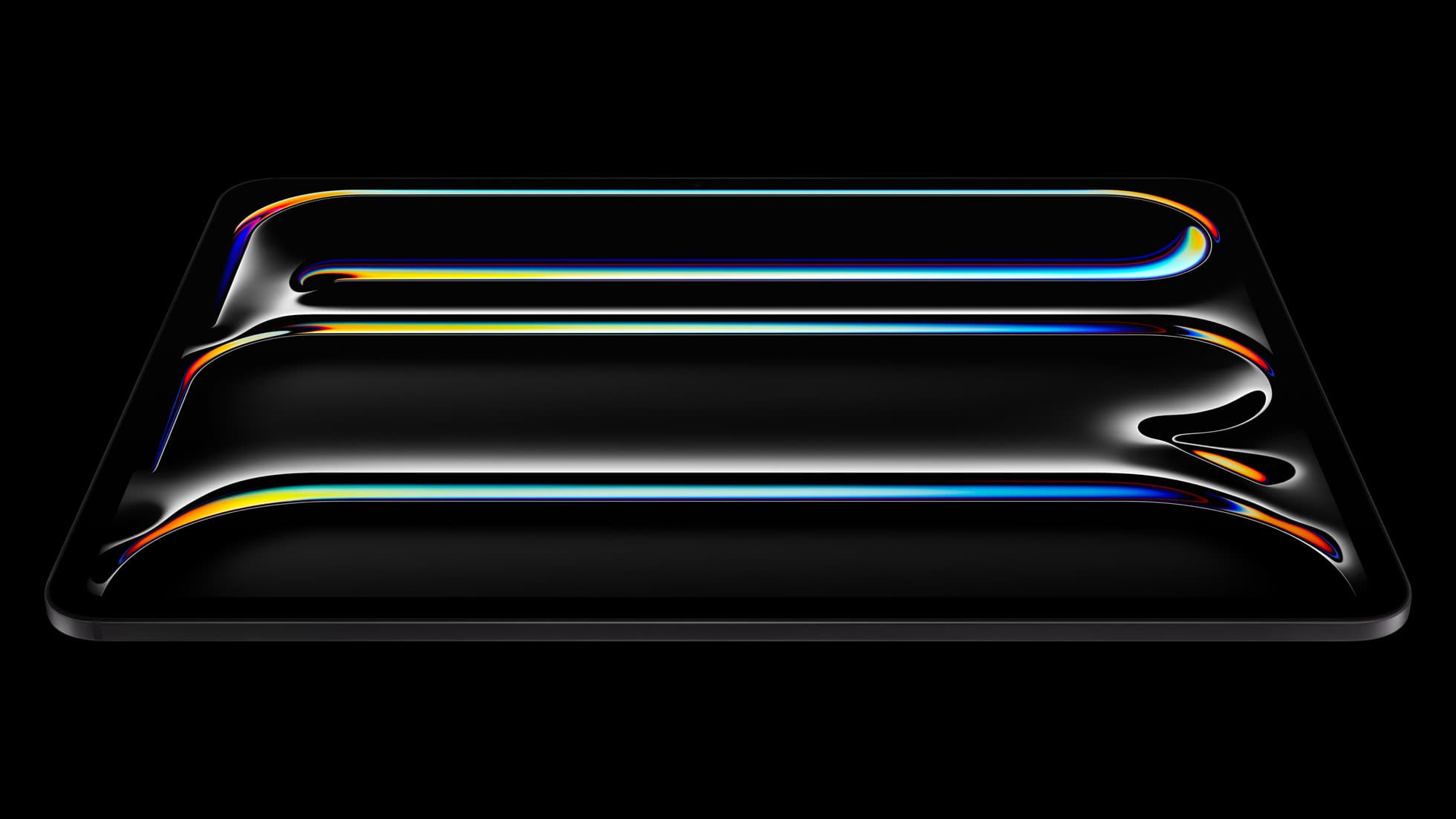
The iPad Pro (M5) is designed for students working in commercial illustration, animation, or advanced graphic design where maximum hardware capability is mandatory [1], [4]. It features Apple's ProMotion display technology and the highest processing tier, delivering the smoothest pencil responsiveness in the lineup [1], [2]. Skip the Pro if you are taking foundation art classes where basic drawing and standard resolution painting are all that your syllabus demands [1], [4].
Bottom line
Do not abandon your paper sketchbook, because cheap physical paper remains the best medium for developing gesture speed, raw mark-making confidence, and observational drawing fundamentals without digital distractions [6]. However, when coursework requires digital production, color iteration, and exportable assignment files, an iPad becomes an indispensable studio workstation [4], [5].
Buy the iPad Air (M4) paired with Apple Pencil Pro to get the ideal blend of pressure control, barrel rotation, and layer capacity at a sensible price point [1], [2], [4]. Choose the entry iPad (A16) only if total kit cost is your primary constraint, and reserve the iPad Pro (M5) for specialized, high-demand commercial workloads [1], [4].
Sources
[1] https://www.apple.com/ipad/compare/ [2] https://www.apple.com/apple-pencil/ [3] https://support.apple.com/en-us/108937 [4] https://help.procreate.com/articles/zlexav-ipad-compatibility [5] https://apps.apple.com/us/app/procreate/id425073498 [6] https://support.apple.com/guide/ipad/draw-with-apple-pencil-ipadc55b6c7a/ipados [7] https://help.procreate.com/procreate/handbook/5.2/interface-gestures/pencil
Recommended gear

iPad Air (M4)
apple.comThe clean current Air recommendation for most serious hobby artists. Stronger buy logic than old-stock M3 when pricing is close.
Pro: Best current balance of price, headroom, and Pencil support
Con: Still 60Hz
Current Air lineup. Choose size, storage, and keyboard path before checkout.
iPad (A16, 11th gen)
amazon.comThe best entry iPad for most artists on a budget. It is not premium, but it is very hard to beat on value.
Pro: Best value iPad right now
Con: No ProMotion display
Search opens with the exact model keywords. Verify size and storage before checkout.
iPad Pro (M5)
amazon.comThe best iPad for drawing feel and premium workflow comfort, but many buyers still overpay for it.
Pro: Best iPad display and ProMotion feel
Con: Highest price in the lineup
Search opens with iPad Pro terms. Check year, chip, and screen size.

Apple Pencil Pro
amazon.comThe best Apple stylus for serious digital art workflows. Expensive, but the control upgrades are real.
Pro: Best brush-control and hover workflow
Con: Highest price in the lineup
Works only with newer iPad models. Check compatibility.
Apple Pencil (USB-C)
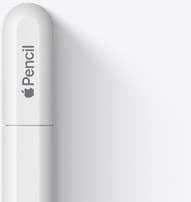
amazon.comA practical low-cost Apple stylus with broad compatibility, but limited for advanced art control.
Pro: Lowest official Apple Pencil cost
Con: No pressure sensitivity for brush work
Compatible with many recent iPads. No pressure support.
Related buying picks
More in this collectionBuyer guide
Best iPad for digital art beginners
Get the iPad Air (M4) if you want the Apple Pencil Pro toolset, or pick the base iPad (A16) if you want a capable digital sketchpad at the lowest entry cost.
Buyer guide
Best drawing tablet for webtoon artists: iPad picks and pen setups
Compare the best iPad options for webtoon creation based on screen size, Apple Pencil support, and layer capacity.
Buyer guide
Best iPad for nail art designs: Salon desk picks
Compare the best iPads for nail art sketch planning, client lookbooks, and hand drawn nail sets.
Buyer guide
Is iPad 10th gen good for Procreate?
The iPad 10th gen handles Procreate well for everyday digital art, but stylus pairing limits and base hardware shape how far you can push large files.