





If your Apple Pencil pressure is not working in Procreate, first verify your stylus model. The Apple Pencil (USB-C) does not possess pressure sensitivity hardware at all [1]. If you own an Apple Pencil (USB-C) and require dynamic line width or opacity via hand pressure, you should skip that model and replace it with the Apple Pencil (2nd generation) or Apple Pencil Pro depending on which iPad you own [1], [2]. If you already own an Apple Pencil (2nd generation) or Apple Pencil Pro, keep your stylus and adjust Procreate's pressure curve and brush dynamics before spending money on repairs [1], [3].
Pressure sensitivity issues fall into two broad buckets: hardware incompatibility and internal software configuration. Diagnosing the issue systematically saves you from buying replacement styluses or tips unnecessarily, while pointing out exactly when a hardware upgrade is mandatory [1], [4].
Confirm your Apple Pencil model supports pressure
The most frequent cause of missing pressure response on newer iPads is using the Apple Pencil (USB-C). Apple designs the Apple Pencil (USB-C) with tilt sensitivity, low latency, and magnetic storage, but omits pressure sensitivity entirely from its internal hardware [1]. If you draw a stroke with the Apple Pencil (USB-C) in Procreate, the line thickness remains uniform regardless of how firmly you press down against the display glass [1], [3]. No software update, brush setting, or pressure curve adjustment can generate pressure sensitivity on an Apple Pencil (USB-C) [1], [4].
Artists who need dynamic pressure response must select a stylus that includes pressure sensors in its technical specification [1]. The Apple Pencil (2nd generation) provides full pressure sensitivity alongside tilt and double-tap gestures, making it the proper pick for supported older and mid-generation iPad Air and iPad Pro models [1], [2]. The Apple Pencil Pro provides pressure sensitivity, barrel roll, squeeze interactions, and haptic feedback, but it pairs exclusively with newer iPad hardware [1], [2]. Before adjusting digital canvas settings, inspect the physical barrel of your stylus to verify whether you have an Apple Pencil (USB-C) or a pressure-capable model [1], [2].
If you discover that you bought the Apple Pencil (USB-C) for portraiture, calligraphy, or comic inking, you should return or replace it [1]. Buying a stylus without pressure sensitivity removes expressive line control in digital drawing applications [1], [3].
Adjust the global pressure curve and brush dynamics in Procreate
If you own an Apple Pencil (2nd generation) or Apple Pencil Pro and still experience flat line weights, the issue often lives inside the Procreate pressure settings [1], [3]. Procreate provides a centralized tool called the App Pressure and Smoothing panel [3], [5]. This panel contains a global pressure curve that translates physical force on the glass into digital stroke values [3].
To inspect this setting, tap the Actions wrench icon in Procreate, select the Prefs menu, and open the Pressure and Smoothing submenu [3], [5]. Procreate displays a square graph with a diagonal response line [3]. If the curve line has been flattened against the top or bottom edge of the box, your stylus will deliver either maximum opacity instantly or zero pressure variation across your strokes [3]. You can tap the graph to reset the curve back to a default diagonal line running from the bottom left corner to the top right corner [3].
Individual brushes in Procreate also feature isolated pressure controls inside the Brush Studio [3], [5]. If only one specific brush fails to respond to heavy or light pressure, tap the brush name in your brush library to open the Brush Studio editor [3], [5]. Navigate to the Apple Pencil tab on the left navigation column [3]. Check the Pressure sliders for Size, Opacity, Flow, and Bleed [3]. If all of these sliders are set to zero percent, that specific brush will not alter its visual marks when you alter your hand pressure [3]. Increase the Size or Opacity slider to restore stroke variation for that tool [3].
Verify iPad pairing, Bluetooth, and hardware connections
Physical connection faults between your Apple Pencil and your iPad can temporarily disable advanced sensor transmission [1], [2]. The Apple Pencil transmits pressure telemetry to iPadOS over a Bluetooth wireless data connection [1], [4]. If Bluetooth synchronization degrades, the iPad may still register the stylus tip as a standard capacitive touch point without interpreting pressure gradations [1], [4].
To repair this communication link, navigate to iPad Settings, select Bluetooth, locate your Apple Pencil, tap the information icon, and choose Forget This Device [2], [4]. Once disconnected, snap your Apple Pencil (2nd generation) or Apple Pencil Pro onto the magnetic connector on the long edge of your iPad [1], [2]. The pairing prompt will reappear on your screen [2]. Re-establishing this clean link forces iPadOS to renegotiate stylus data protocols [2], [4].
A loose or worn stylus tip can also disrupt pressure detection [4]. The Apple Pencil tip threads directly onto a small metallic transducer rod inside the pencil barrel [1], [4]. If the plastic tip becomes unscrewed by half a turn, physical force from your hand will not transfer efficiently to the internal sensor [4]. Gently turn the plastic tip clockwise to ensure it sits firmly against the pencil housing, taking care not to overtighten [4]. If the tip shows visible flat spots or exposes inner metal components, replace the tip [4].
When to keep your stylus and when to upgrade
Understanding whether to keep your present hardware or purchase an upgrade depends entirely on your iPad model and your creative workload [1], [2]. Owners of compatible iPads who currently draw with an Apple Pencil (2nd generation) should keep their existing setup [1], [2]. The Apple Pencil (2nd generation) features robust pressure sensitivity and reliable responsiveness across all standard Procreate illustration workflows [1], [3]. There is no technical need to upgrade your tablet just to gain different stylus sensors if your 2nd generation pencil operates correctly [1], [2].
Artists who recently bought an Apple Pencil (USB-C) under the assumption that all Apple Pencils support pressure drawing should skip keeping that stylus for serious drawing [1]. Because the Apple Pencil (USB-C) lacks physical pressure hardware, it is intended primarily for note-taking, basic navigation, and markup where uniform stroke width is acceptable [1]. Upgrading to an Apple Pencil (2nd generation) or Apple Pencil Pro requires confirming your exact iPad model name first, because Apple Pencil models are strictly tied to specific tablet generations [1], [2].
The Apple Pencil Pro is the recommended purchase for creators buying current-generation iPad models [1], [2]. Alongside responsive pressure tracking, the Apple Pencil Pro introduces squeeze gestures, haptic feedback, and barrel roll orientation detection [1]. These additions allow artists to rotate shaped brush nibs and trigger tool palettes directly from the stylus barrel without leaving the canvas [1], [3].
Bottom line
Do not replace your drawing hardware until you verify the exact model of your stylus and test Procreate's internal settings [1], [3]. If your stylus is an Apple Pencil (USB-C), pressure sensitivity will never function because the hardware does not support it, meaning you must upgrade to a pressure-sensitive model to unlock dynamic strokes [1]. If you own an Apple Pencil (2nd generation) or Apple Pencil Pro, your hardware supports pressure, and your solution lies in resetting the global pressure curve in Procreate's settings, tightening the stylus tip, or repairing the Bluetooth connection [1], [3], [4].
Sources
[1] https://www.apple.com/apple-pencil/ [2] https://support.apple.com/en-us/108937 [3] https://help.procreate.com/procreate/handbook/5.2/interface-gestures/pencil [4] https://help.procreate.com/articles/dbgjal-procreate-faq [5] https://help.procreate.com/procreate/handbook
Recommended gear

Apple Pencil Pro
amazon.comThe best Apple stylus for serious digital art workflows. Expensive, but the control upgrades are real.
Pro: Best brush-control and hover workflow
Con: Highest price in the lineup
Works only with newer iPad models. Check compatibility.
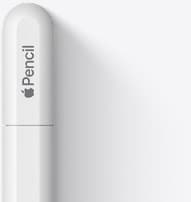
Apple Pencil (USB-C)
amazon.comA practical low-cost Apple stylus with broad compatibility, but limited for advanced art control.
Pro: Lowest official Apple Pencil cost
Con: No pressure sensitivity for brush work
Compatible with many recent iPads. No pressure support.
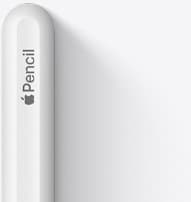
Apple Pencil (2nd generation)
amazon.comStill a strong stylus on compatible iPads. Good pressure control, but compatibility is the main trap.
Pro: Pressure support without Pro pricing
Con: Not compatible with newest Pro-only iPads
Only for iPads that support 2nd generation pairing.
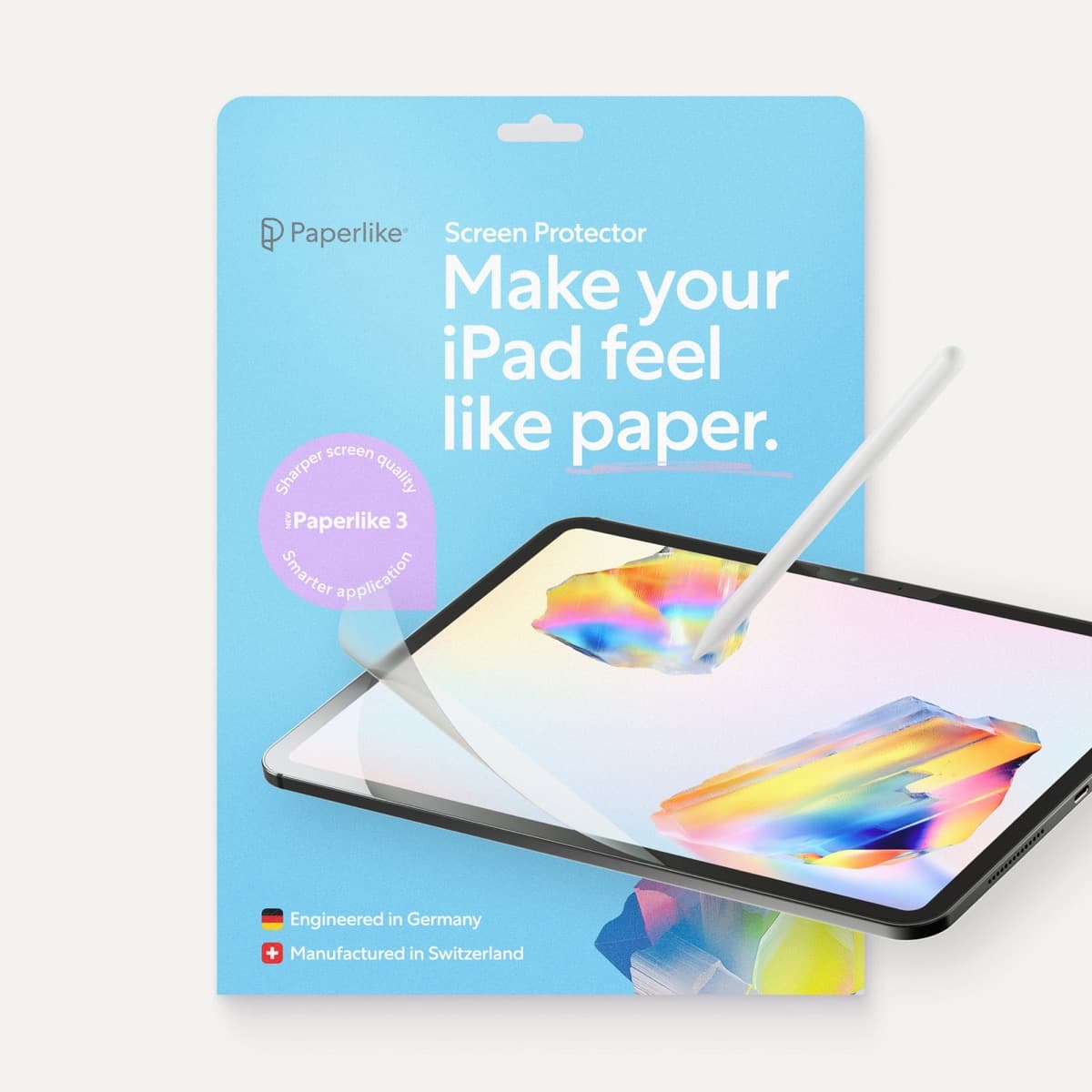
Paperlike 3 (11-inch, 2-pack)
amazon.comA strong surface-feel upgrade for drawing control. Clarity tradeoff is real and should be expected.
Pro: Adds controlled paper-feel friction
Con: Slightly reduces perceived display sharpness
11-inch fit only. Confirm generation before checkout.
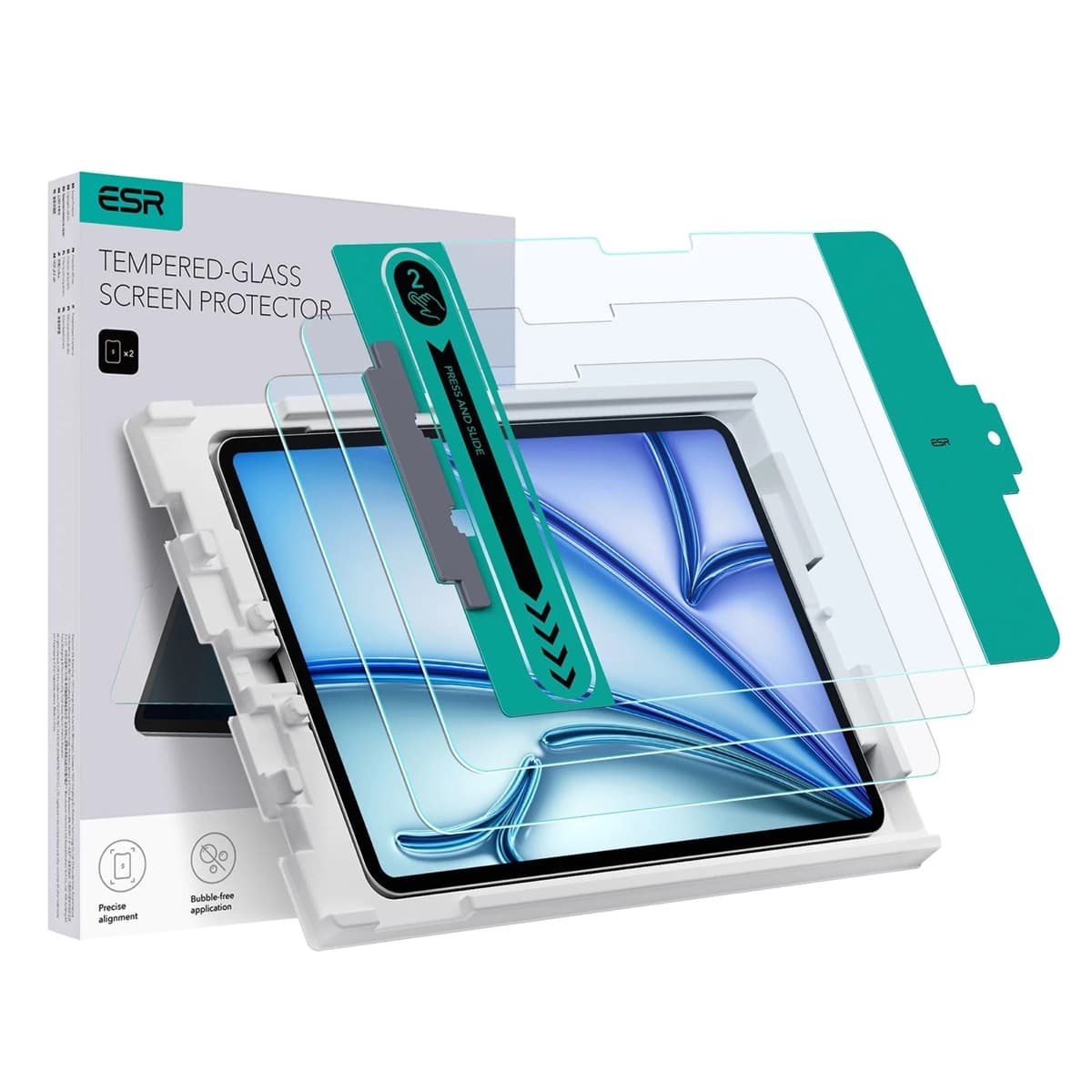
ESR Armorite Tempered Glass (11-inch)
amazon.comHigh-clarity protector with strong value. Great for visibility, less ideal for friction-seeking artists.
Pro: Very clear image with strong scratch resistance
Con: Minimal drawing friction compared with matte films
11-inch fit only. Verify exact iPad generation.
Related buying picks
More in this collectionBuyer guide
Best Apple Pencil for manga drawing
Choose an Apple Pencil with pressure sensitivity for manga inking, matching the stylus directly to your iPad model.
Buyer guide
Best Apple Pencil for portrait drawing: choosing the right stylus
Portrait artists need pressure sensitivity for tonal rendering, making Apple Pencil Pro or Apple Pencil 2nd generation the right choice over the entry model.
Buyer guide
Choosing the best Apple Pencil for medical illustration
Medical illustrators need pressure sensitivity and precise hardware compatibility, making the Apple Pencil Pro or 2nd generation pencil essential over the USB-C model.
Buyer guide
Choosing the best Apple Pencil for anime drawing
Anime line art demands pressure sensitivity, making Apple Pencil Pro or the 2nd generation model essential over the USB-C option.