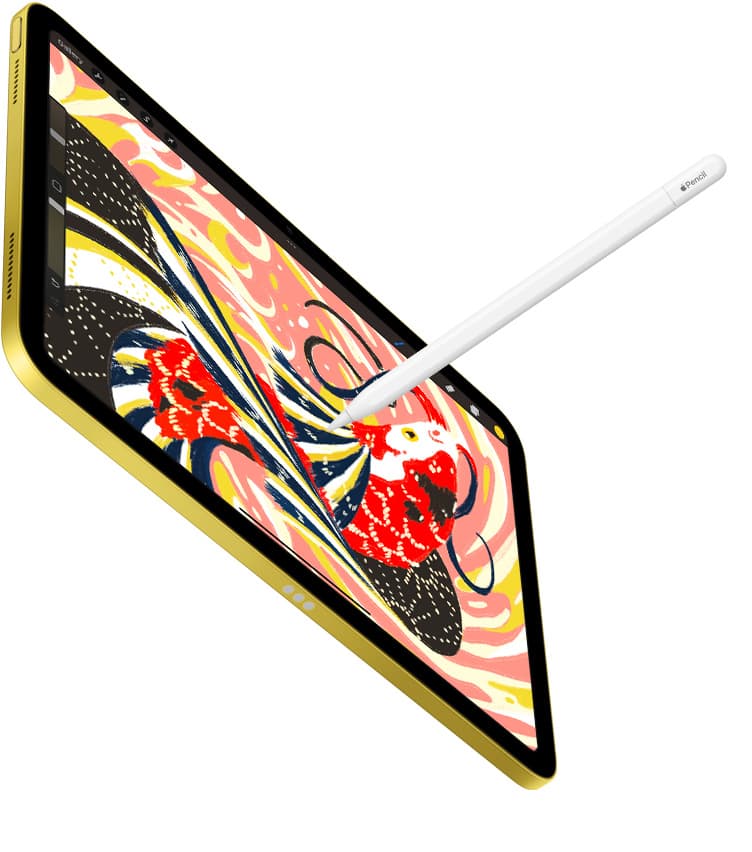
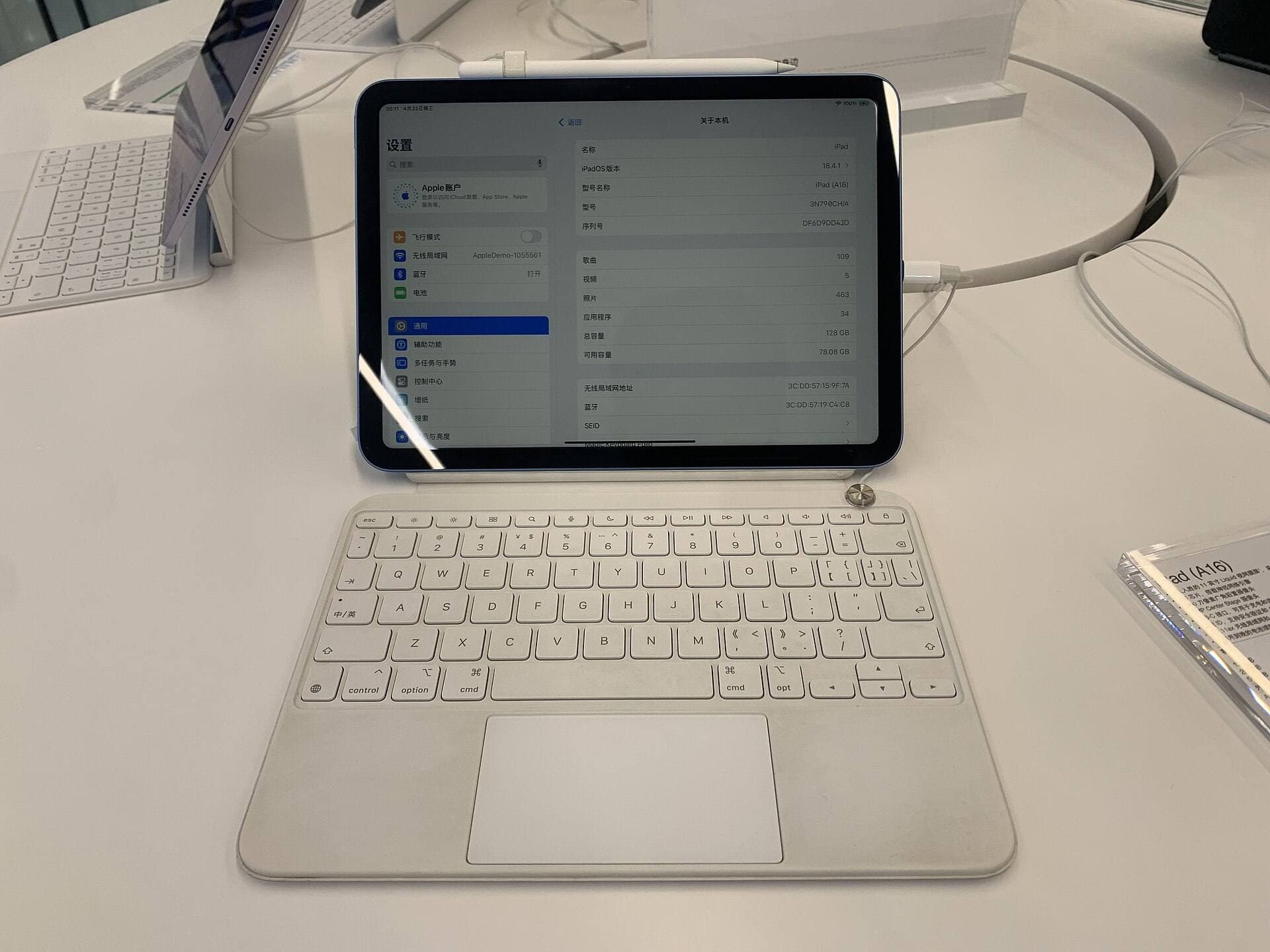
You don't need a desktop or laptop computer to create digital drawings [4]. Standalone tablets like the iPad run dedicated creative applications directly on device hardware without tethering to a secondary machine [1], [5]. If you're building a new drawing setup from scratch, skip the traditional computer and buy the iPad Air (M4) paired with the Apple Pencil Pro [1], [3]. It gives you full pressure sensitivity and current accessory features without the high price of a desktop setup [1], [2]. If you're on a tighter budget, choose the iPad (A16) instead [1].
For decades, digital art required a personal computer paired with a graphics tablet that lacked a screen or a heavy display tablet plugged into wall power [1]. Today, self-contained tablets handle stylus tracking, image processing, and file management on one pane of glass [1], [5]. Understanding how standalone hardware functions helps you decide whether you can skip the computer entirely [4].
Standalone tablet versus traditional computer setup
A traditional computer setup requires multiple separate purchases: a desktop or laptop, a monitor, an external drawing tablet or pen display, and software licenses [1]. In contrast, an iPad consolidates the display, processor, storage, and active touch digitizer into a single portable enclosure [1]. You can sketch directly on the screen wherever you sit, which eliminates the cable clutter of external pen displays [1], [3].
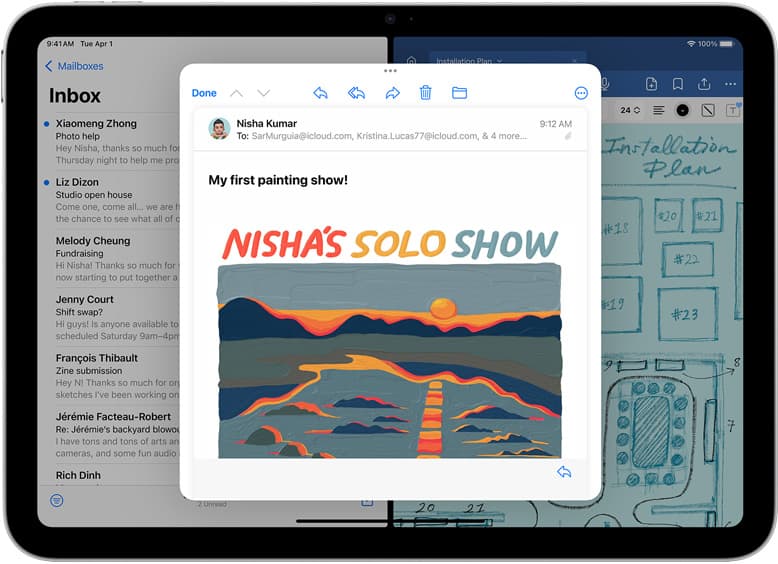
Artists who choose a traditional computer often do so for niche desktop applications or large monitor displays [1]. But mainstream digital illustration does not require desktop operating systems [4], [5]. Applications like Procreate are built specifically for iPadOS and run completely within the tablet environment [4], [5]. You don't need an external tower or laptop running in the background to open a canvas, adjust brushes, or export completed work [4], [5].
Buying an iPad means you get a complete digital sketchbook in one purchase [1]. If you don't already own a modern computer, buying a standalone iPad is usually more straightforward than buying both a computer and a display tablet [1]. You also avoid dealing with third-party driver installations and multiple video cables that desktop graphics tablets require [1], [3].
How iPad hardware handles digital illustration
Digital art files depend on device memory and processor capabilities to handle high canvas resolutions and multiple layers [4]. When you draw in Procreate on an iPad, the app ties maximum layer counts directly to the physical memory of the specific iPad model [4]. Because the operating system and drawing software communicate directly with onboard tablet memory, the iPad organizes canvas allocation without desktop operating system overhead [4], [5].
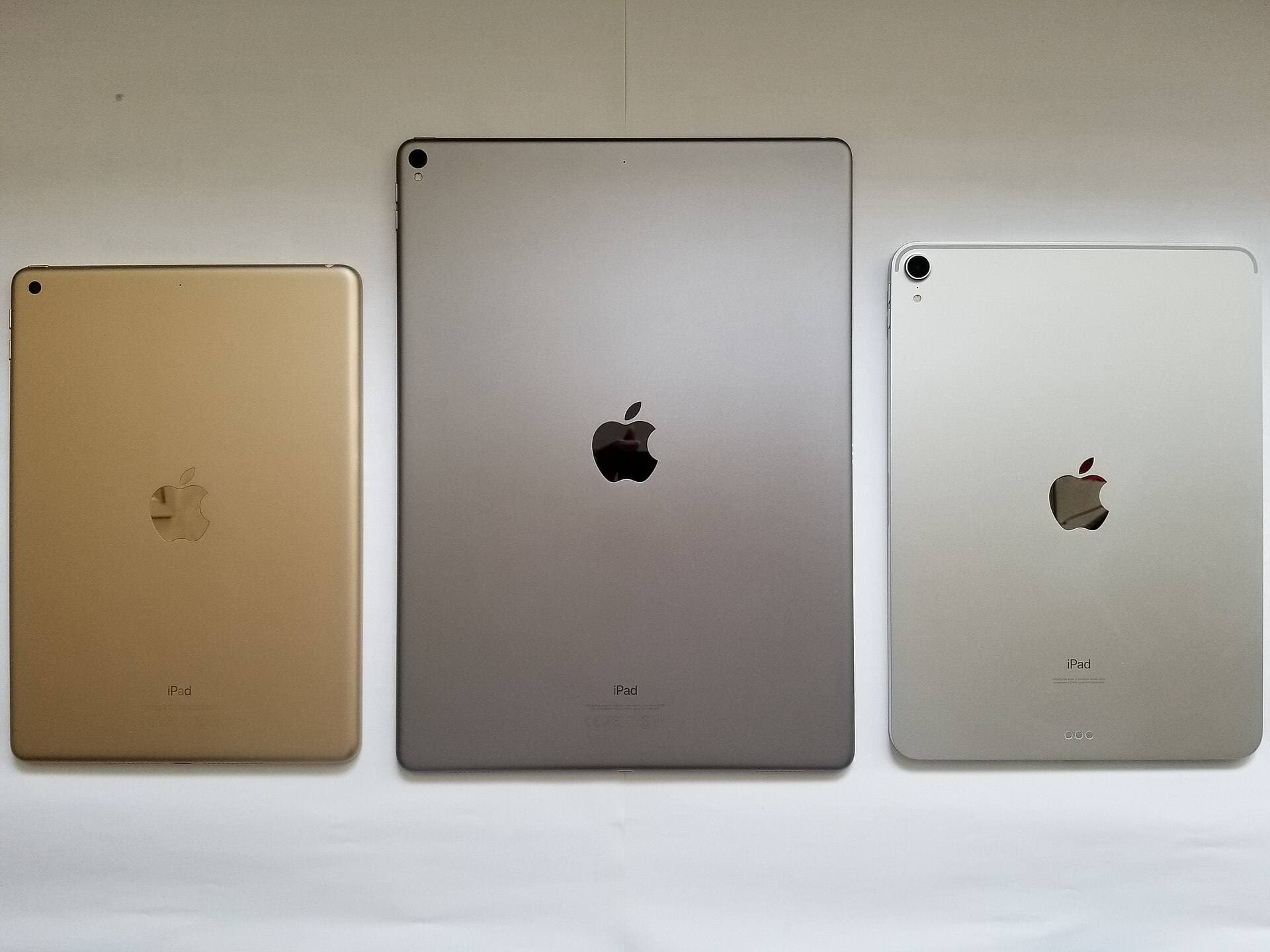
Apple's current lineup splits memory and processing tiers across several chips [1]. The entry-level iPad (A16) features an A16 chip, which supports baseline canvas tasks and standard sketch workflows [1], [4]. As you move up the lineup to the iPad Air (M4) or the iPad Pro (M5), the processors feature Apple's M-series architecture [1]. These chips deliver higher system headroom for complex projects with elevated layer caps [1], [4].
Screen technology is another area where standalone iPads stand out [1]. Traditional pen monitors often have thick glass gaps between the pen nib and the pixels [1]. Modern iPads, including the iPad Air (M4) and iPad Pro (M5), feature fully laminated displays with anti-reflective coatings that keep the stylus tip close to the underlying artwork [1]. The iPad Pro (M5) also includes ProMotion technology with adaptive refresh rates up to 120Hz, while the iPad (A16) and iPad Air (M4) utilize standard 60Hz displays [1].
Apple Pencil tools without a desktop workstation
A common misconception is that standalone tablets lack the stylus nuance found on professional computer peripherals [2]. The Apple Pencil line provides hardware features that rival desktop styluses, including precise pressure sensitivity, tilt detection, and low latency tracking [2]. These input signals feed directly into iPadOS drawing software to alter line thickness and opacity as you draw [2], [5].
The Apple Pencil Pro works with the iPad Air (M4) and iPad Pro (M5) [1], [3]. It includes advanced input options like barrel roll, which uses an internal gyroscope to rotate shaped brush strokes as you twist the barrel [2]. It also includes squeeze sensors that trigger shortcut palettes, haptic feedback pulses that confirm actions, and Apple Pencil hover [2]. Hover lets the screen preview your brush cursor location before the tip touches the glass [2].
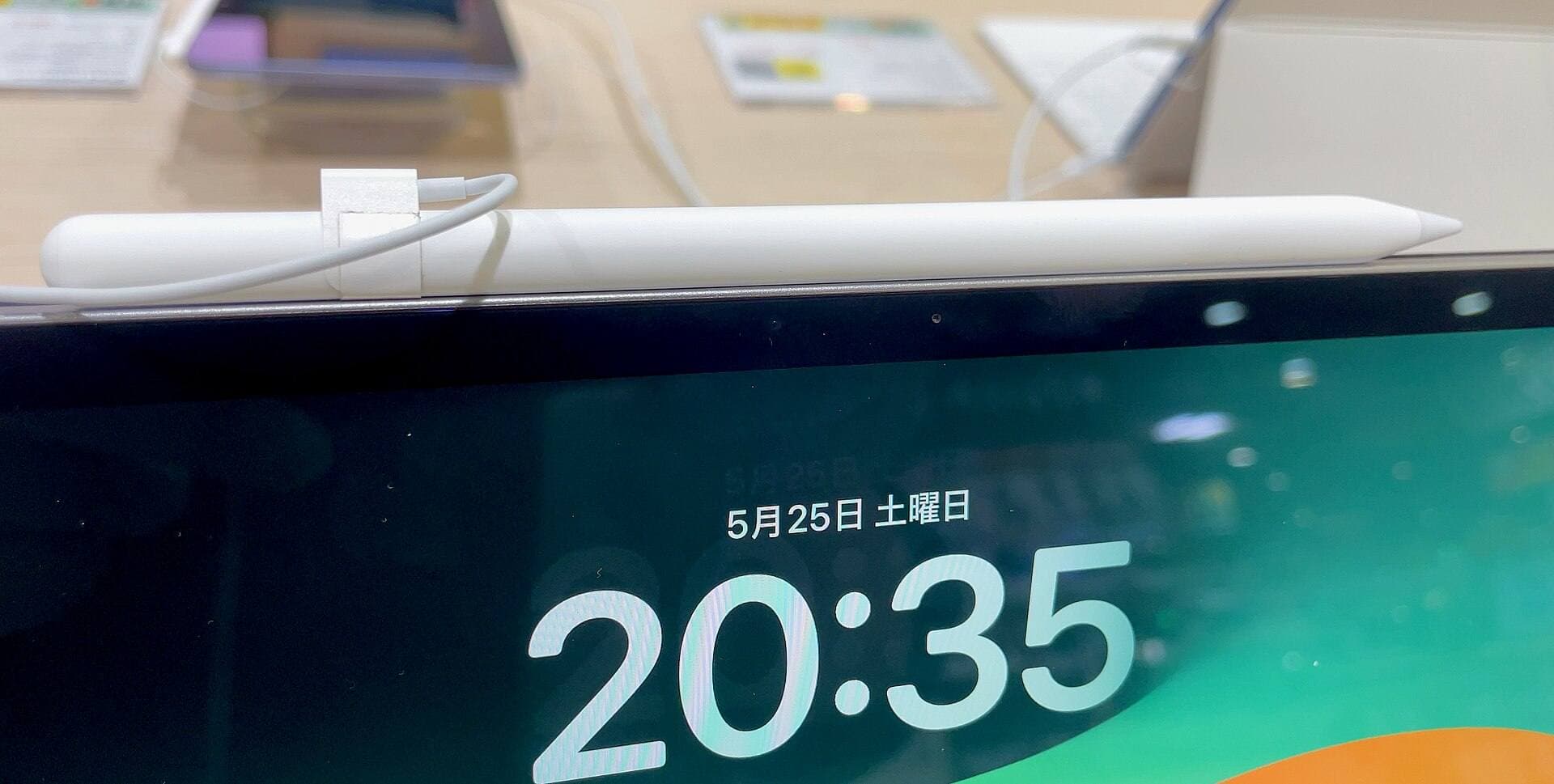
If you choose the baseline iPad (A16), it supports the Apple Pencil (USB-C) and the first-generation Apple Pencil [1], [3]. The Apple Pencil (USB-C) offers tilt sensitivity and magnetic storage, but it omits pressure sensitivity [2]. If pressure dynamics are critical to your inking and painting style on the baseline iPad, pairing with the original pressure-sensitive Apple Pencil is necessary [2], [3].
Matching an iPad model to your creative needs
Choosing the right iPad depends on your budget, canvas layer requirements, and display preferences [1], [4]. Not every illustrator needs the top-tier hardware, but choosing an incompatible pairing can limit your stylus features [2], [3].
Who should buy the iPad Air (M4): Buy this model if you want the best balance of system longevity and modern drawing features [1]. It pairs with the Apple Pencil Pro, giving you squeeze controls, barrel roll, and pressure sensitivity without forcing you to pay for the top-end Pro tablet [1], [2], [3]. It's the ideal standalone choice for intermediate artists and hobbyists who don't want a computer [1], [4].
Who should skip the iPad Air (M4): Skip it if you must have a 120Hz refresh rate, or if you want to keep your initial investment as low as possible [1].
Who should buy the iPad (A16): Buy the baseline iPad if your primary goal is affordable sketching and everyday art creation [1]. It runs modern illustration software like Procreate and handles standard digital drawings easily [1], [4], [5]. It's a great purchase for beginners who want to test digital art without buying a computer rig [1].
Who should skip the iPad (A16): Skip it if you want native Apple Pencil Pro support, advanced haptic controls, or seamless magnetic charging [1], [2], [3].
Who should buy the iPad Pro (M5): Buy the iPad Pro if you want Apple's premier tablet screen and highest memory options [1], [4]. Its ProMotion display updates at 120Hz for immediate visual feedback, and its M5 processor supports high layer counts in Procreate [1], [4]. Choose this if illustration is your daily career and you want top-tier hardware [1].
Who should skip the iPad Pro (M5): Skip it if you are watching your budget, because the iPad Air (M4) delivers the same Apple Pencil Pro tools for less money [1], [2].
Bottom line
You do not need a computer to draw digitally, because current iPad models provide everything you need to create, paint, and export finished artwork [1], [4], [5]. For most artists, buying the iPad Air (M4) with the Apple Pencil Pro delivers the ideal balance of hardware capability and stylus control [1], [2], [3]. If you want the lowest financial commitment, start with the iPad (A16) [1]. Reserve the iPad Pro (M5) for moments when you require a 120Hz ProMotion display and maximum memory headroom [1], [4].
Sources
[1] https://www.apple.com/ipad/compare/ [2] https://www.apple.com/apple-pencil/ [3] https://support.apple.com/en-us/108937 [4] https://help.procreate.com/articles/zlexav-ipad-compatibility [5] https://apps.apple.com/us/app/procreate/id425073498
Recommended gear
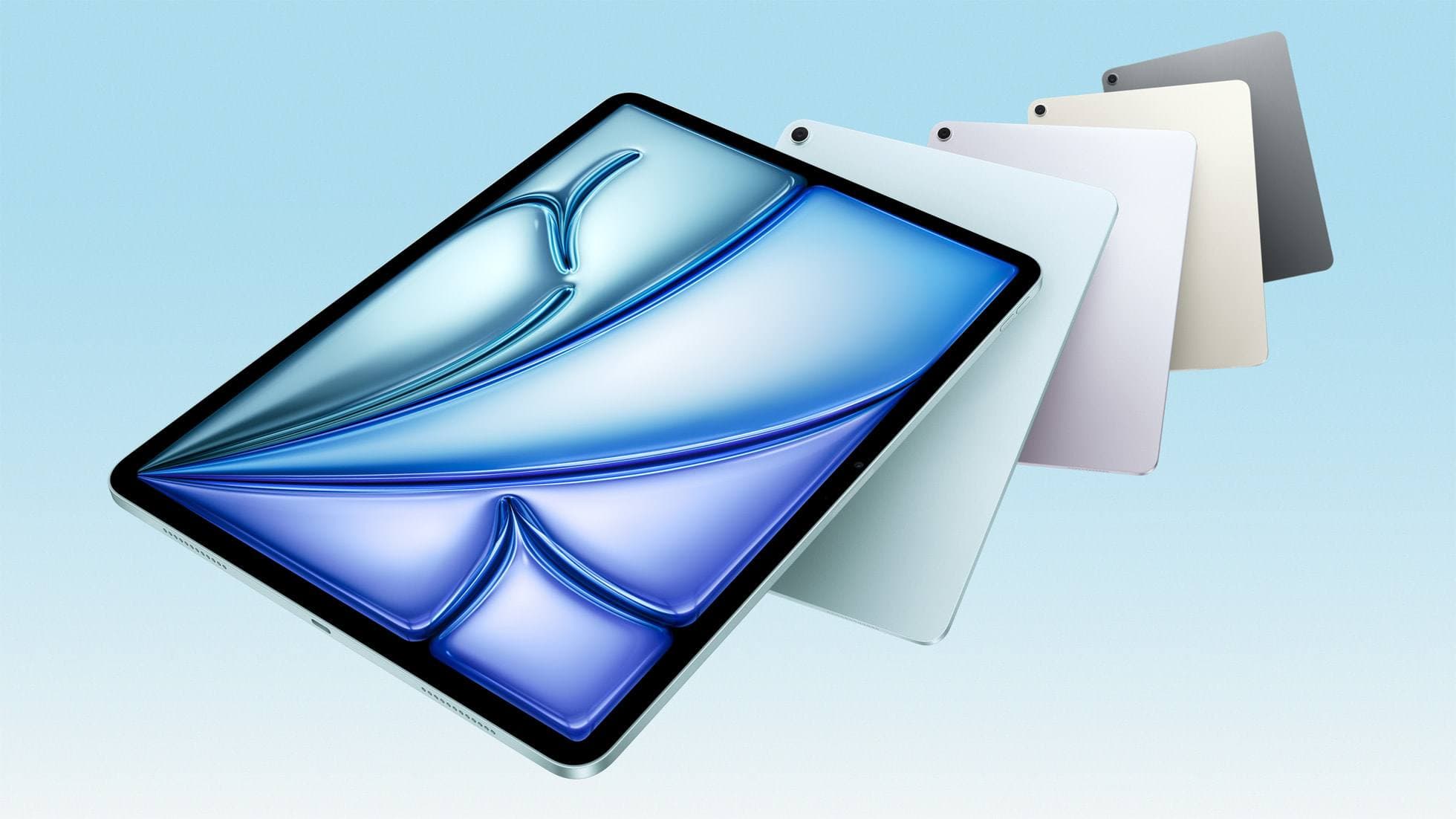
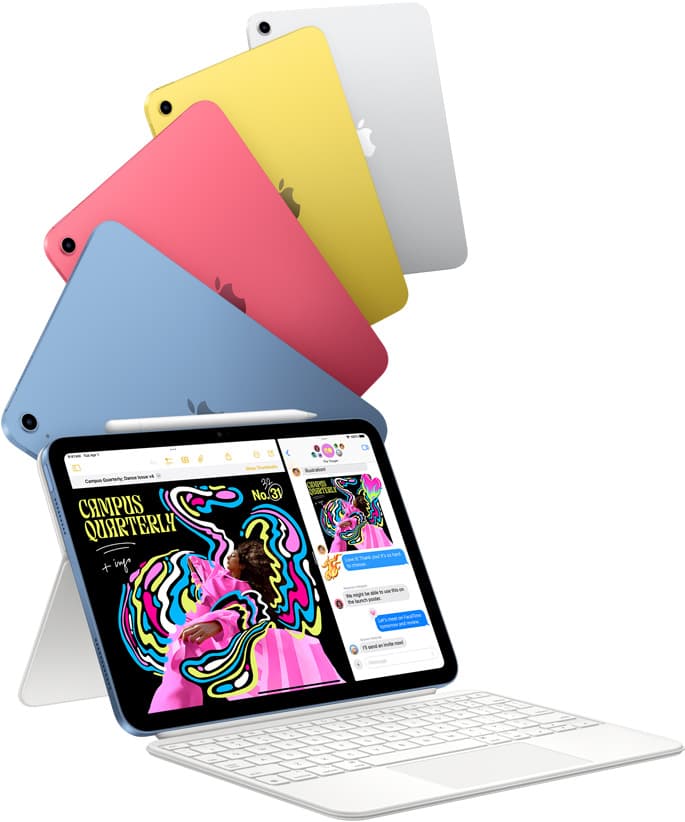
iPad Air (M4)
apple.comThe clean current Air recommendation for most serious hobby artists. Stronger buy logic than old-stock M3 when pricing is close.
Pro: Best current balance of price, headroom, and Pencil support
Con: Still 60Hz
Current Air lineup. Choose size, storage, and keyboard path before checkout.
iPad (A16, 11th gen)
amazon.comThe best entry iPad for most artists on a budget. It is not premium, but it is very hard to beat on value.
Pro: Best value iPad right now
Con: No ProMotion display
Search opens with the exact model keywords. Verify size and storage before checkout.
iPad Pro (M5)
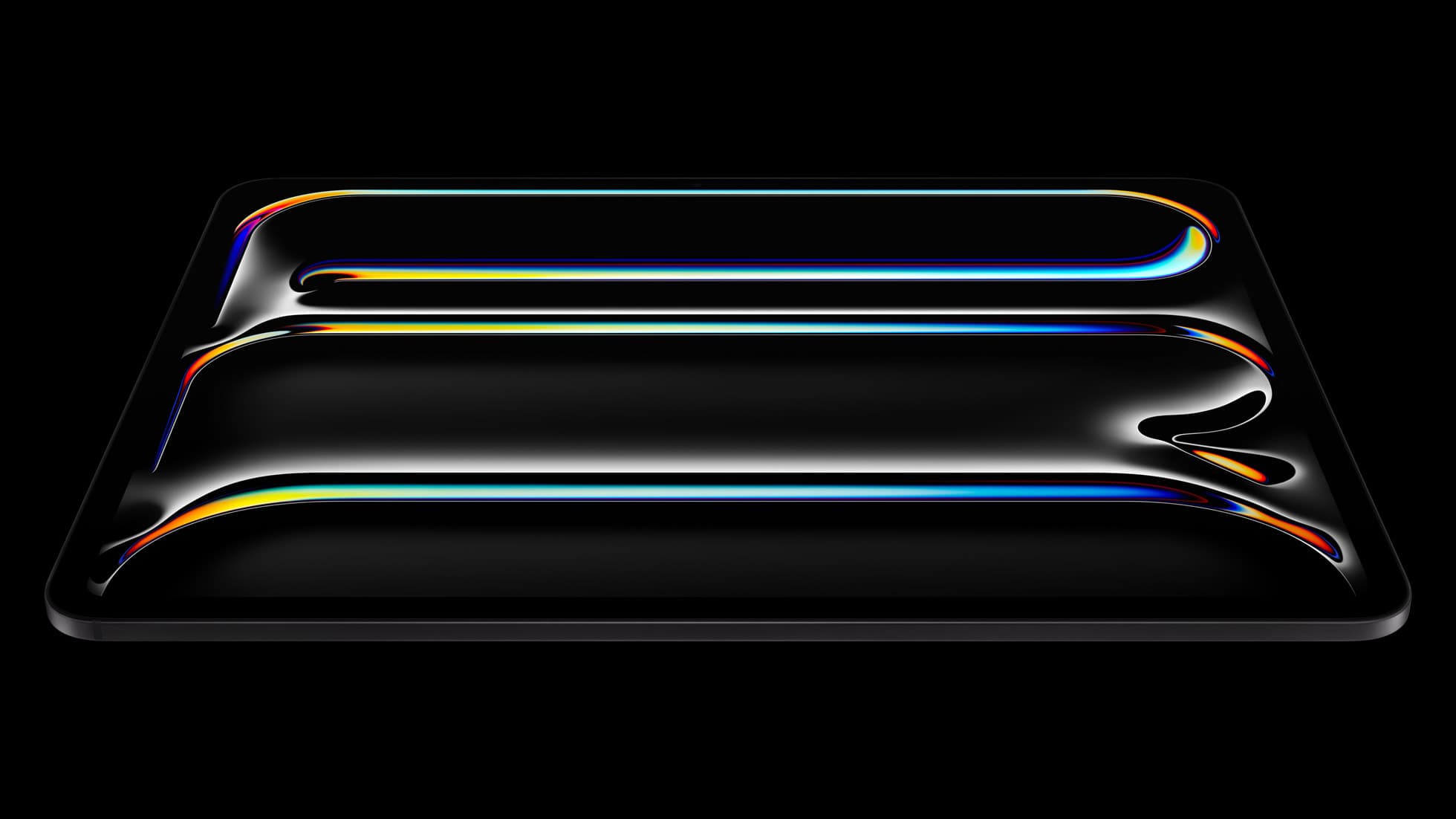
amazon.comThe best iPad for drawing feel and premium workflow comfort, but many buyers still overpay for it.
Pro: Best iPad display and ProMotion feel
Con: Highest price in the lineup
Search opens with iPad Pro terms. Check year, chip, and screen size.
Apple Pencil Pro
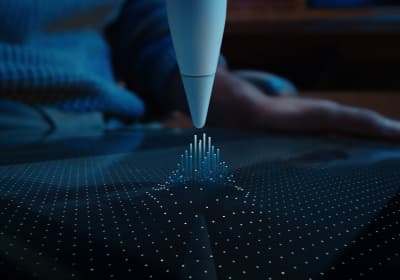
amazon.comThe best Apple stylus for serious digital art workflows. Expensive, but the control upgrades are real.
Pro: Best brush-control and hover workflow
Con: Highest price in the lineup
Works only with newer iPad models. Check compatibility.
Apple Pencil (USB-C)
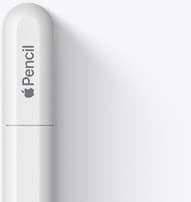
amazon.comA practical low-cost Apple stylus with broad compatibility, but limited for advanced art control.
Pro: Lowest official Apple Pencil cost
Con: No pressure sensitivity for brush work
Compatible with many recent iPads. No pressure support.
Related buying picks
More in this collectionBuyer guide
Best iPad for comic artists: Which model to choose for drawing comics
The iPad Air (M4) offers the ideal balance of Apple Pencil Pro features, processing power, and screen space for comic and manga creators.
Buyer guide
Best iPad for animation: How to choose your creative setup
Compare the best iPads for 2D animation, timeline performance, and stylus responsiveness to match your workflow and budget.
Buyer guide
What's the best iPad for artists?
iPad Air with the M4 chip hits the best balance of stylus features and price for most digital artists.
Buyer guide
Best iPad for architecture drawing: picking your drafting setup
Compare the top iPads for architectural drawing, plan markups, and Apple Pencil support to find the right fit for your desk and site work.