





If you are choosing between an iPad and a reMarkable for daily notes, buy the iPad Air (M4) with an Apple Pencil Pro if your work involves color markup, diagrams, or visual sketching [1], [2]. The iPad gives you a complete computing environment with advanced stylus sensors, while a dedicated paper slate limits you strictly to monochrome writing. You should only choose a reMarkable if your goal is an isolated e-paper pad with zero app distractions. For everyone else needing multimedia review, layered notes, and broader software flexibility, an iPad remains the far more capable investment [1], [3].
Input tools and stylus features across workflows
When evaluating a writing slate against a tablet, the stylus hardware defines how your daily notes feel. The Apple Pencil lineup spans multiple tiers that pair with specific iPad hardware to give you varying levels of input control [2], [3]. Apple Pencil Pro offers advanced input controls such as barrel roll, squeeze gestures, and haptic feedback, alongside standard tilt sensitivity [2]. These hardware controls let you switch pens, adjust stroke geometry, or trigger software palettes without lifting your hand away from the screen surface [2].
Simpler styluses in the Apple ecosystem offer a more straightforward writing experience. The Apple Pencil (USB-C) pairs with contemporary models like the iPad Air and standard iPad, delivering tilt sensitivity and magnetic storage while omitting pressure sensitivity [1], [2]. If your notes consist purely of uniform ballpoint-style lines, a USB-C stylus handles that task without excess features [2]. However, if your visual notes rely on expressive pen widths, shading, or pressure-driven brush responses, pairing an Apple Pencil Pro with an iPad Air (M4) or iPad Pro (M5) provides those deeper physical sensors [1], [2].
Dedicated paper slates typically use passive styluses designed to mimic standard graphite or ink pens on friction-heavy textured screens. While that approach feels tactile for straight text transcription, it lacks the secondary hardware controls built into Apple's stylus range [2]. The ability to squeeze a stylus to surface tool wheels or rotate the barrel to change line direction expands what you can record during a fast meeting or lecture [2].
Display hardware and screen capabilities
Display technology forms the biggest operational divide between an iPad and an e-ink device like the reMarkable. Apple's lineup features high-resolution backlit screens across all sizes, from standard Liquid Retina displays on the iPad Air to Ultra Retina XDR displays on the iPad Pro [1]. The iPad Pro (M5) incorporates ProMotion technology, allowing refresh rates up to 120Hz, whereas the iPad Air (M4) and standard iPad (A16) run at 60Hz [1]. That higher refresh rate translates to tighter tracking between the stylus tip and the visible stroke on the glass [1], [2].
In contrast, e-paper devices prioritize outdoor readability and reduced power consumption over raw screen performance. Monochrome e-ink screens refresh at much lower rates, which can introduce ghosting and sluggish page turns when managing large, complex files. An iPad display gives you full color across the P3 wide color gamut on iPad Air and iPad Pro models, making color-coded study notes, highlighted legal briefs, and annotated architectural plans easy to read [1].
Screen dimensions also dictate your note-taking comfort. Apple builds the iPad Air and iPad Pro in both 11-inch and 13-inch configurations [1]. A 13-inch display provides a near letter-sized writing area, allowing you to annotate full-scale PDF documents without constantly zooming or panning across margins [1]. Devices limited to fixed ten-inch monochrome screens cannot offer that level of layout flexibility.
Software ecosystems and canvas versatility
Note taking rarely lives in isolation from the rest of your daily workload. The iPadOS ecosystem lets you combine handwritten notes with typed research, imported web references, and high-resolution image assets in real time [1], [3]. Apps like Procreate transform the iPad from a simple notepad into an unbounded visual production tool [4], [5]. Procreate relies on the iPad's system memory to manage canvas resolutions and maximum layer counts, letting you build layered diagrams directly under your handwritten annotations [4].
Dedicated digital notebooks intentionally exclude these broad computing workflows. They lack access to full graphics suites, multi-window split views, and rich media playback. On a reMarkable, you are largely confined to standard notebook pages, basic folder structures, and simple PDF exports. While that restriction helps eliminate social media interruptions, it prevents you from dropping reference photos into your notes, recording lecture audio alongside your strokes, or opening browser tabs alongside your legal pads [1].
Creative software matters too if your notes evolve into client presentations or published illustrations. With Procreate on iPad, you have access to brush customization, advanced selection tools, and layer blend modes that an e-paper device simply cannot run [4], [5]. Choosing an iPad ensures that your device remains capable when simple bullet points turn into complete concept drawings.
Choosing the right iPad model for your notes
If you decide an iPad matches your workflow better than a dedicated writing slate, picking the right hardware configuration ensures you do not overspend [1]. The entry-level iPad (A16) represents the most economical path, supporting the Apple Pencil (USB-C) for straightforward linear notes and daily to-do lists [1], [3]. However, it lacks support for the Apple Pencil Pro and does not feature a fully laminated display, meaning a small air gap remains between the glass surface and the digital ink [1], [3].
For most buyers, the iPad Air (M4) represents the ideal sweet spot. The iPad Air supports the Apple Pencil Pro, giving you squeeze gestures, barrel roll, and haptic feedback without forcing you to pay for Pro-level hardware [1], [2]. It is available in both 11-inch and 13-inch sizes, letting you pick between a light carry notebook and an expansive desk canvas [1]. It provides ample processing headroom via the M4 chip to handle sprawling visual canvases without compromise [1], [4].
Reserve the iPad Pro (M5) for setups where the ultimate display quality is mandatory. The Ultra Retina XDR panel and ProMotion 120Hz refresh rate make stylus strokes feel exceptionally immediate against the screen [1], [2]. However, if your day consists primarily of meeting minutes, book summaries, and structural diagrams, the iPad Air delivers the exact same Apple Pencil Pro feature set at a more accessible tier [1], [2].
Bottom line
Choose the iPad Air (M4) if you need a versatile, long-term workstation that handles colorful notes, complex diagrams, and creative sketching alongside daily writing tasks [1], [2]. The combination of Apple Pencil Pro support, modern screen sizes, and access to deep visual apps like Procreate makes the iPad far more functional than a dedicated paper slate [1], [2], [4]. Skip the iPad and buy a reMarkable only if your sole requirement is distraction-free, black-and-white drafting on a screen that feels like physical stationery.
Sources
[1] https://www.apple.com/ipad/compare/ [2] https://www.apple.com/apple-pencil/ [3] https://support.apple.com/en-us/108937 [4] https://help.procreate.com/articles/zlexav-ipad-compatibility [5] https://apps.apple.com/us/app/procreate/id425073498
Recommended gear
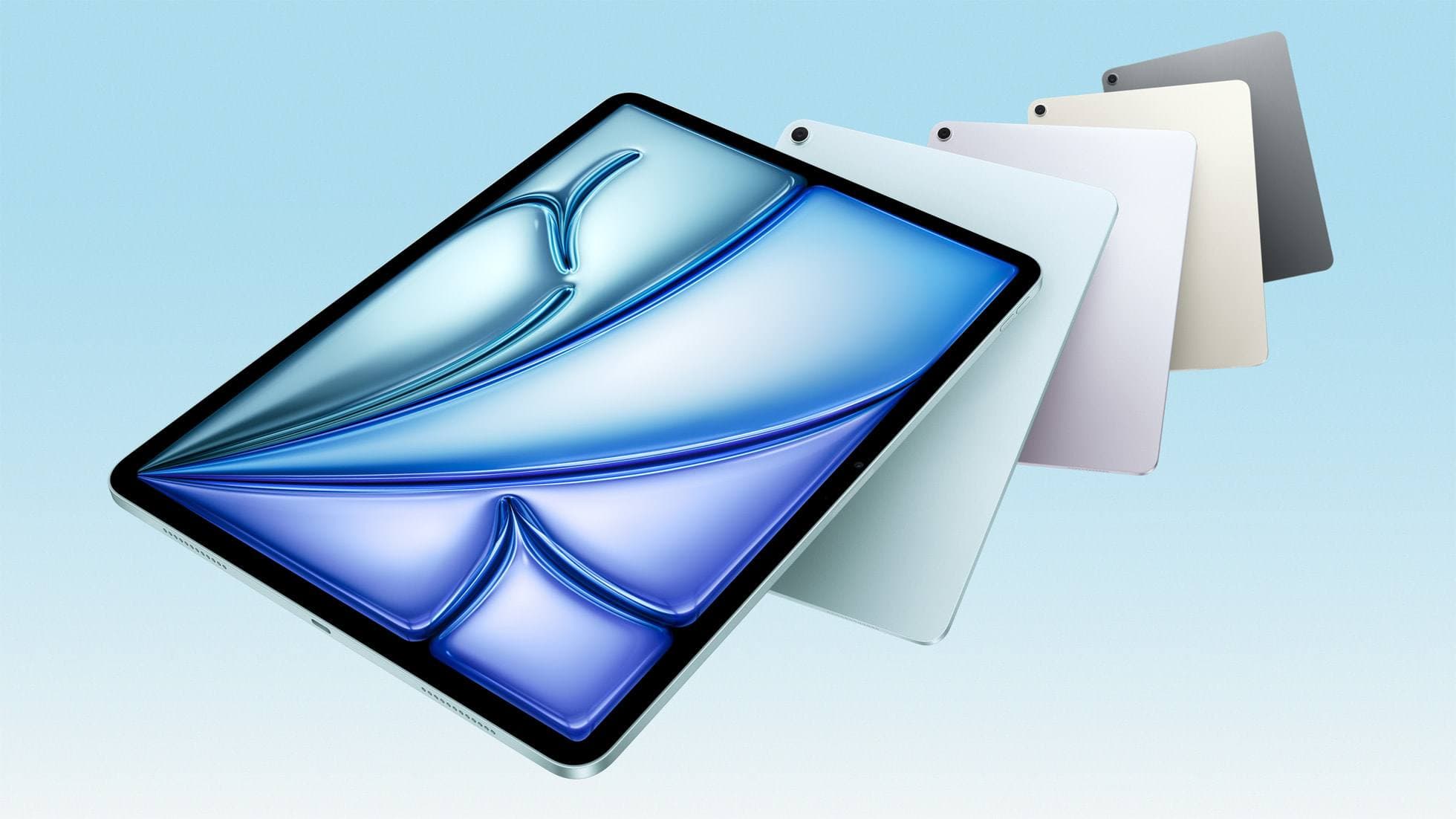
iPad Air (M4)
apple.comThe clean current Air recommendation for most serious hobby artists. Stronger buy logic than old-stock M3 when pricing is close.
Pro: Best current balance of price, headroom, and Pencil support
Con: Still 60Hz
Current Air lineup. Choose size, storage, and keyboard path before checkout.
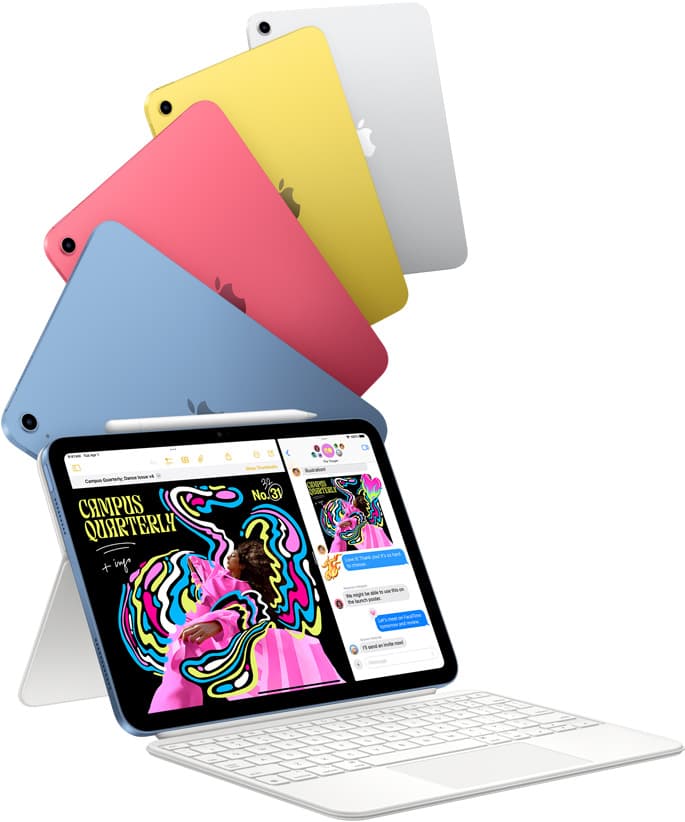
iPad (A16, 11th gen)
amazon.comThe best entry iPad for most artists on a budget. It is not premium, but it is very hard to beat on value.
Pro: Best value iPad right now
Con: No ProMotion display
Search opens with the exact model keywords. Verify size and storage before checkout.
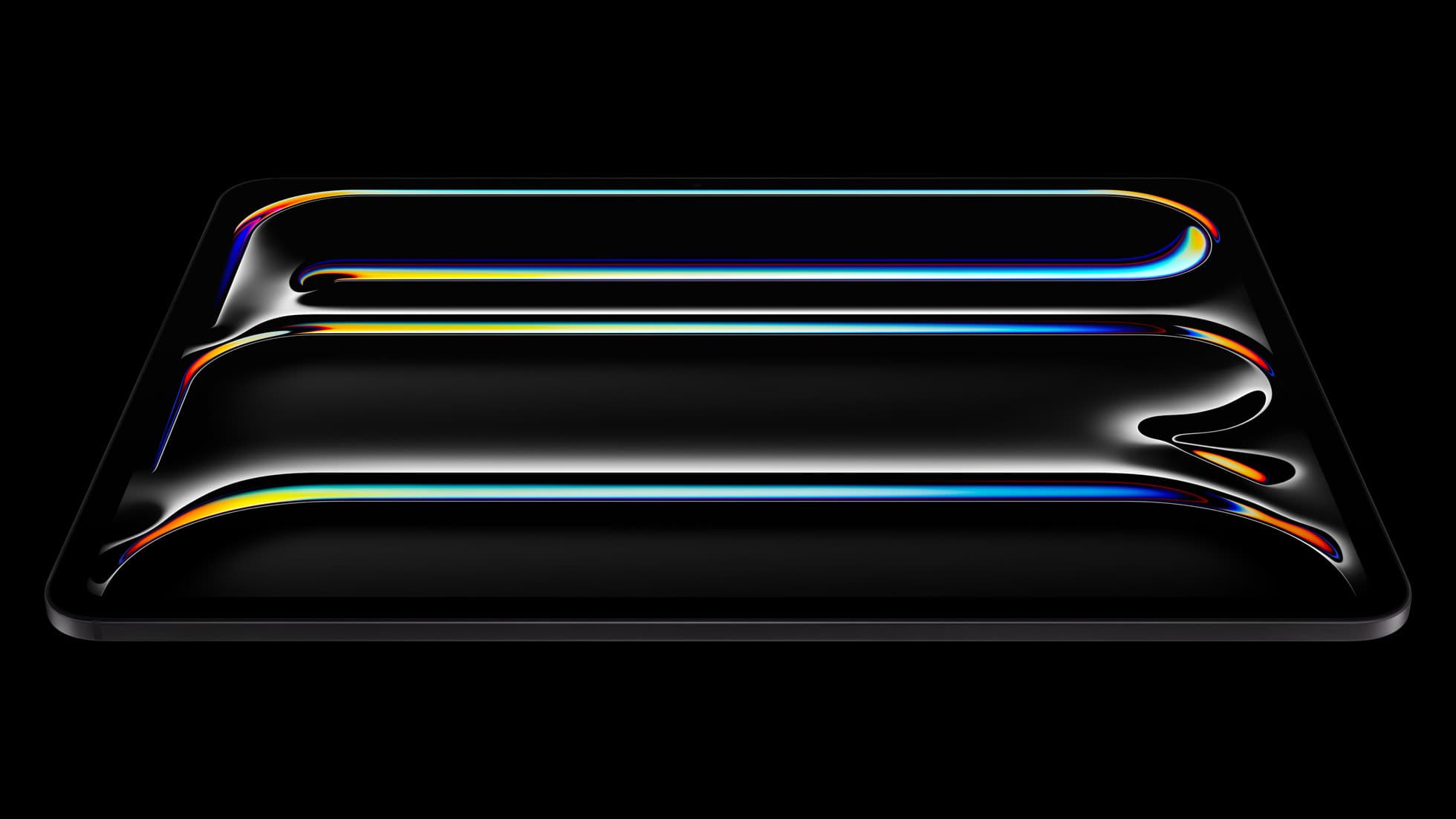
iPad Pro (M5)
amazon.comThe best iPad for drawing feel and premium workflow comfort, but many buyers still overpay for it.
Pro: Best iPad display and ProMotion feel
Con: Highest price in the lineup
Search opens with iPad Pro terms. Check year, chip, and screen size.

Apple Pencil Pro
amazon.comThe best Apple stylus for serious digital art workflows. Expensive, but the control upgrades are real.
Pro: Best brush-control and hover workflow
Con: Highest price in the lineup
Works only with newer iPad models. Check compatibility.
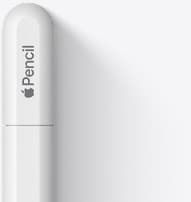
Apple Pencil (USB-C)
amazon.comA practical low-cost Apple stylus with broad compatibility, but limited for advanced art control.
Pro: Lowest official Apple Pencil cost
Con: No pressure sensitivity for brush work
Compatible with many recent iPads. No pressure support.
Related buying picks
More in this collectionBuyer guide
Best tablet for 3d sculpting: how to choose your iPad setup
Compare the best iPads for digital 3D sculpting based on Apple Pencil Pro features, screen hardware, and memory ceilings.
Buyer guide
Best iPad for interior design
The iPad Air (M4) is the best overall iPad for interior designers needing Apple Pencil Pro support without paying Pro tier prices.
Buyer guide
Best iPad for CAD: How to choose your drafting setup
Compare the best iPad models for CAD and drafting based on display room, Apple Pencil support, and processing headroom.
Buyer guide
Best drawing tablet for surface pattern design: iPad Air vs iPad Pro
Choose the iPad Air with Apple Pencil Pro for repeat pattern design, or step up to the iPad Pro if high-resolution layer limits dictate your production.