





If you want a portable setup for craft cutting, you can run cutting utility apps on iPad and iPad Pro models alongside dedicated illustration software [1], [4]. If you only need to open existing files, organize mats, and send cuts to a machine, buy the baseline iPad (A16, 11th gen) [1]. It delivers the lowest entry price while handling standard tablet software [1]. If you plan to hand-draw custom decals, lettering, or multi-layered stickers from scratch, buy the iPad Air (M4) instead [1]. The Air unlocks the Apple Pencil Pro with tool rotation and squeeze gestures, giving you a significantly better digital art studio [1], [2].
Choosing the right iPad for craft cutting and layout
When you set up a craft station, your tablet handles two distinct jobs: running companion software to communicate with cutting plotters, and creating original artwork in graphic apps like Procreate [1], [5]. Every modern tablet in Apple's current lineup, from the entry iPad (A16, 11th gen) to the iPad Air (M4) and iPad Pro, runs modern iPadOS software distributed through the App Store [1], [5]. That means you don't need the most expensive tablet just to queue cutting jobs or adjust basic shapes on a digital canvas [1].
The real decision centers on how much drawing you plan to do on the tablet itself [1], [2]. The baseline iPad (A16, 11th gen) uses the A16 chip and features a standard 60Hz display [1]. It gives you all the core touch controls you need to position artwork, adjust bounding boxes, and manage cutting settings [1]. Crafters who prepare their files on a desktop computer and just want an untethered screen by their cutting machine will find the A16 iPad more than adequate [1].
If your tablet is also your primary design studio, the iPad Air (M4) is the smarter long-term buy [1]. Powered by the M4 chip, the iPad Air offers higher processing headroom and comes in both 11-inch and 13-inch display sizes [1]. The larger 13-inch screen gives you substantially more physical canvas area to view complex cut paths and small, fine weeding lines without constantly zooming in and out [1].
Apple Pencil options and stylus precision
Stylus compatibility is the biggest functional split across the current iPad lineup [1], [3]. If you plan to hand-letter quotes, sketch botanical cutouts, or clean up bitmap vector traces, your stylus controls how smoothly you work [2], [3].
The base iPad (A16, 11th gen) does not support the advanced Apple Pencil Pro [1], [3]. Instead, it pairs with the Apple Pencil (USB-C) or the older first-generation Apple Pencil [1], [3]. The Apple Pencil (USB-C) provides precise point accuracy and tilt detection, but it lacks pressure sensitivity [2], [3]. That means pressing down harder on the glass will not produce a thicker stroke unless the software offers an artificial simulation [2]. If you don't care about variable calligraphic brush strokes and only need to tap small vector anchor points, the USB-C pencil paired with the A16 iPad works fine [1], [2], [3].
The iPad Air (M4) changes the equation by supporting the Apple Pencil Pro [1], [3]. The Apple Pencil Pro incorporates pressure sensitivity, tilt detection, haptic feedback, a squeeze sensor, and barrel roll via an internal gyroscope [2], [3]. Barrel roll lets you rotate shaped brush tips simply by twisting the stylus barrel in your fingers, which is ideal for calligraphy and custom cut files [2]. Squeeze lets you trigger tool palettes right under your fingertips without reaching across the display [2]. Crafters who want an expressive drawing experience should skip the base model and buy the iPad Air (M4) with the Apple Pencil Pro [1], [3].
Managing design layers and canvas memory
Craft projects often involve complex files with dozens of elements: cut lines, score lines, registration marks, and individual vinyl color layers [4], [5]. Many crafters prefer illustrating their base designs inside dedicated raster drawing apps before converting them into cut files [4], [5]. Procreate is a popular choice for iPad lettering and illustration because it provides an extensive brush library and layered workspace [4], [5].
Canvas constraints inside drawing applications depend directly on your iPad's available system memory [4]. Procreate dynamically caps maximum layer limits based on the amount of RAM installed in your specific iPad model and the pixel dimensions of your canvas [4]. A high-resolution canvas on an entry-level iPad with lower memory offers fewer simultaneous layers before you have to merge your work [1], [4].
On the iPad Air (M4), Apple includes greater memory capacity to support demanding desktop-class chips [1], [4]. That higher ceiling lets you maintain more independent layers at high print and cut resolutions [1], [4]. If you design multi-colored vinyl decals, having separate layers for each vinyl color saves you from tedious manual separations later [4], [5]. The iPad Air (M4) gives you that breathing room, whereas the base A16 iPad requires stricter layer management [1], [4].
Screen size and workspace ergonomics
Cutting software interfaces rely heavily on dense sidebars, tool palettes, layers panels, and canvas rulers [1], [5]. When you work on a standard 10-inch or 11-inch screen, those interface panels take up valuable visual real estate [1]. Both the iPad (A16, 11th gen) and the smaller iPad Air (M4) feature displays around 11 inches diagonally [1]. These sizes are easy to carry around the house or place on a crowded crafting desk next to your vinyl rolls and heat press [1].
However, if you do multi-mat planning or detailed node editing, you should consider the 13-inch iPad Air (M4) [1]. Apple's compare specifications show that the 13-inch Air provides a noticeably larger active surface area than the standard 11-inch form factor [1]. Having that extra space means you can keep tool panels open without covering your actual artwork [1]. It also makes aligning fine registration marks and checking small cut lines far easier on your eyes [1].
If you travel often to craft fairs or work in a cramped space, the 11-inch footprint remains the practical favorite [1]. But if your tablet sits on a dedicated workbench, the 13-inch iPad Air (M4) delivers a significantly more productive canvas for complex crafting files [1].
Bottom line
Your iPad choice comes down to whether your tablet is merely a machine controller or your primary illustration desk [1], [4]. If you only need an intuitive touch screen to open ready-made templates, position shapes on virtual mats, and send cut commands, buy the iPad (A16, 11th gen) [1]. It keeps your hardware investment low while providing all the necessary app compatibility [1], [5].
If you want to draw custom designs, create your own lettering, and utilize advanced stylus tools, buy the iPad Air (M4) paired with the Apple Pencil Pro [1], [2], [3]. The Air's M4 chip and memory architecture handle layered artwork with fewer layer constraints in creative apps like Procreate [1], [4]. Add the Apple Pencil Pro for pressure control, squeeze shortcuts, and barrel roll rotation, and you have an exceptionally capable digital studio for any craft cutting project [1], [2], [3].
Sources
[1] https://www.apple.com/ipad/compare/ [2] https://www.apple.com/apple-pencil/ [3] https://support.apple.com/en-us/108937 [4] https://help.procreate.com/articles/zlexav-ipad-compatibility [5] https://apps.apple.com/us/app/procreate/id425073498
Recommended gear
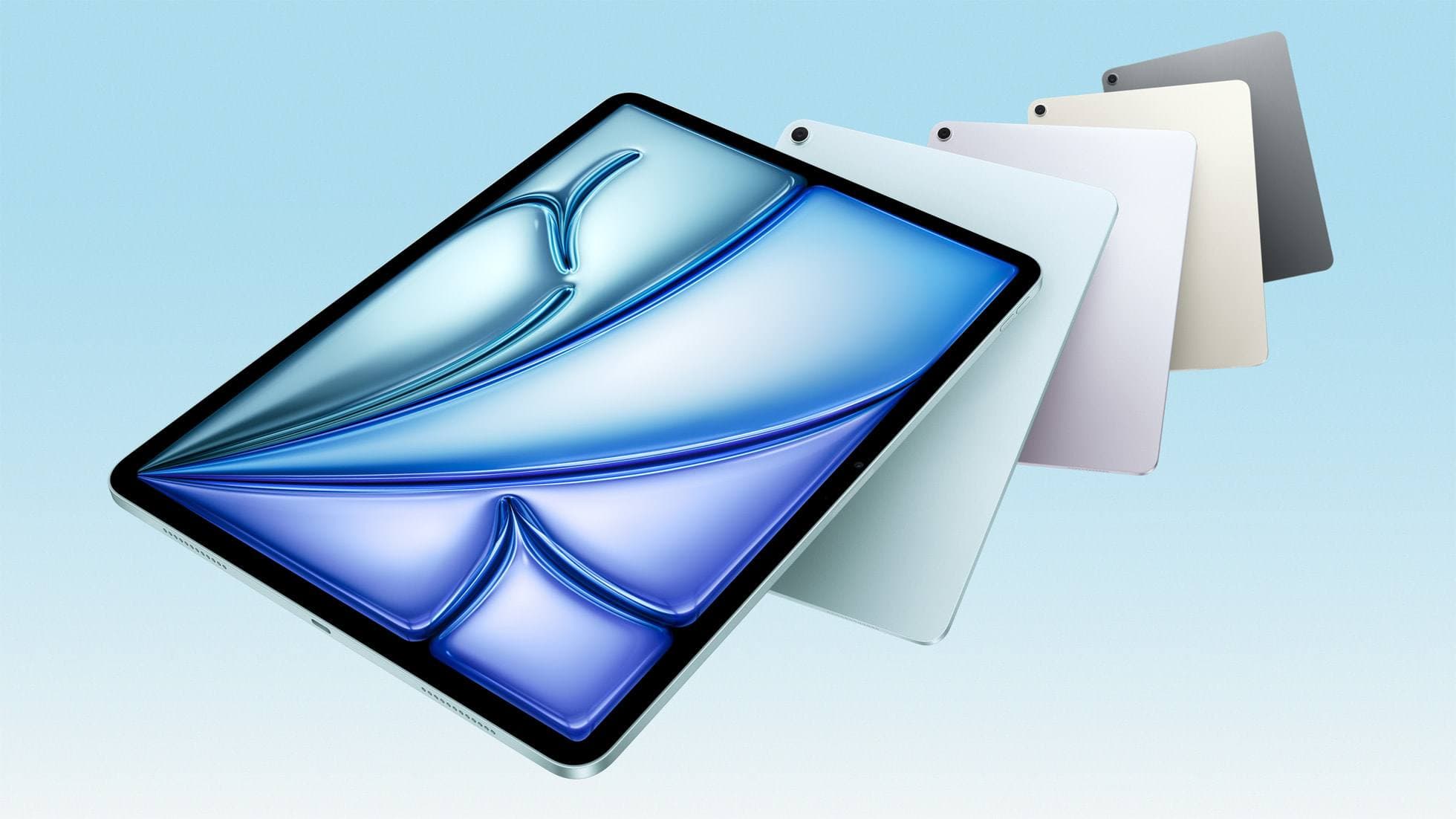
iPad Air (M4)
apple.comThe clean current Air recommendation for most serious hobby artists. Stronger buy logic than old-stock M3 when pricing is close.
Pro: Best current balance of price, headroom, and Pencil support
Con: Still 60Hz
Current Air lineup. Choose size, storage, and keyboard path before checkout.
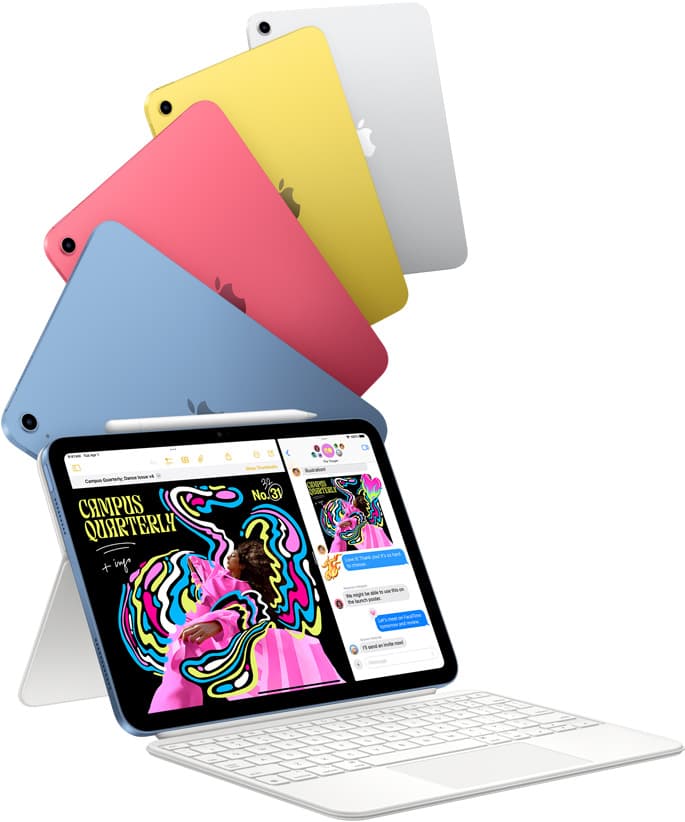
iPad (A16, 11th gen)
amazon.comThe best entry iPad for most artists on a budget. It is not premium, but it is very hard to beat on value.
Pro: Best value iPad right now
Con: No ProMotion display
Search opens with the exact model keywords. Verify size and storage before checkout.

Apple Pencil Pro
amazon.comThe best Apple stylus for serious digital art workflows. Expensive, but the control upgrades are real.
Pro: Best brush-control and hover workflow
Con: Highest price in the lineup
Works only with newer iPad models. Check compatibility.
Procreate
apps.apple.comPro: One-time purchase
Con: iPad-only
Related buying picks
More in this collectionBuyer guide
What's the best iPad for artists?
iPad Air with the M4 chip hits the best balance of stylus features and price for most digital artists.
Buyer guide
Best iPad for interior design
The iPad Air (M4) is the best overall iPad for interior designers needing Apple Pencil Pro support without paying Pro tier prices.
Buyer guide
The best iPad for graphic design students: Air, Pro, and budget picks compared
Graphic design students should buy the iPad Air (M4) for its balance of Apple Pencil Pro support, screen options, and practical value.
Comparison
iPad vs Samsung tablet for drawing: which setup to choose
Choose an iPad if your art workflow relies on Procreate and Apple Pencil tools, and pick the iPad Air for the best balance of features.