





If your Apple Pencil Pro Scribble handwriting conversion or scribble-to-erase gesture stops responding, you don't need to replace your stylus [1]. In almost every case, the fix is toggling the iPadOS Scribble setting, selecting the dedicated handwriting tool instead of a sketching brush, or reconnecting the stylus to clear a paired connection glitch [1], [2]. If you're using an Apple Pencil Pro on an unsupported older tablet, or using an Apple Pencil (USB-C) and wondering why pressure-based gestures don't trigger, the limitation comes down to hardware compatibility rather than broken parts [2], [3]. Here is how to isolate the problem, restore your handwriting input, and pick the right stylus setup if your hardware isn't compatible.
Check system settings and keyboard language
The most frequent reason Scribble fails across iPadOS text fields is that the feature is turned off in system settings [1]. Apple integrates Scribble into iPadOS so you can write by hand directly into any text box, Safari address bar, or document field, converting your strokes into typed text automatically [1]. When iPadOS updates or resets specific preferences, that toggle can switch off without an alert [1].
To verify this setting, open Settings on your iPad, select Apple Pencil, and check the Scribble toggle [1]. If the toggle is green, switch it off, wait five seconds, and switch it back on [1]. Apple's settings menu also includes a Scribble practice area where you can test stroke recognition, word joining, and deletion without opening a separate document [1].
Language settings also dictate whether Scribble accepts your input [1]. Scribble relies on supported keyboard languages installed on your iPad [1]. If your active iPadOS keyboard isn't set to a supported language region, Scribble won't process handwriting into typed words [1]. Navigate to Settings, tap General, open Keyboard, and make sure an eligible language keyboard is listed and active [1]. Once the correct keyboard is present, test writing in a native search field to confirm recognition [1].
Select the handwriting tool in Notes
Many people run into problems when handwriting inside the Apple Notes app specifically [1]. Notes separates freehand drawing from text-converted handwriting by offering two distinct tool modes [1]. If you select a pencil, pen, or watercolor brush from the Markup palette, the app treats every stroke as a drawing rather than text [1]. You can fill an entire page with handwritten words in drawing mode, and Notes won't turn any of it into typed characters [1].
To turn your writing into typed text inside Notes, open the Markup toolbar and tap the Handwriting tool, marked with the letter A [1]. When that tool is active, the app converts strokes into typed text as you write across the canvas [1]. If you want to convert existing drawings or past handwriting sketches instead, you must select the strokes using the lasso selection tool and choose the text conversion option manually [1]. Selecting the right tool ahead of time prevents the confusion between raw sketching and dynamic conversion [1].
Master scribble-to-erase and editing gestures
When users report that scribble-to-erase isn't working, the issue is often gesture technique rather than hardware failure [1]. Apple includes specific editing gestures built directly into the Scribble system [1]. Scratching out a word horizontally or vertically deletes it instantly [1]. Drawing a vertical line through a word or between two letters inserts or removes a space [1]. Circling a word selects it so you can copy, cut, or replace it [1].
For scratch-out deletion to register, your stroke must cover the text completely with continuous zig-zag or wavy motion [1]. If you make a single tentative strike-through line, iPadOS interprets the mark as punctuation or a stray letter rather than an erase command [1]. The erase gesture also works only on text converted through Scribble or typed into a text container [1]. If you're working on a raw sketch layer with a standard drawing brush, scratching across a line will simply add more ink marks over your drawing [1]. Switch back to the Handwriting tool or use the native eraser tool to manage standard drawing strokes [1].
Reconnect the stylus and inspect the tip
If the Scribble settings are configured correctly but the stylus registers zero input anywhere on the glass, check your physical hardware connection [2]. Apple Pencil models rely on Bluetooth pairing and physical capacitive contact through the tip [2]. A loose tip prevents the tablet from sensing pressure, contact angle, and stroke coordinates accurately [2].
Gently turn the pencil tip clockwise to confirm it is threaded securely onto the base [2]. If the tip is worn down or loose, the iPad can drop stroke recognition intermittently, interrupting handwriting mid-word [2]. If tightening the tip doesn't solve dropped strokes, reset the wireless link [2]. Open Settings, select Bluetooth, locate your Apple Pencil, tap the info icon, and choose Forget This Device [2]. Snap your Apple Pencil Pro or Apple Pencil (2nd generation) onto the magnetic connector of your iPad, or plug in your Apple Pencil (USB-C) with a cable, to re-pair the accessory cleanly [2], [3].
Hardware pairing and stylus choices
If you recently bought a new pencil and Scribble won't work at all, check your model compatibility [3]. Apple Pencil Pro is only compatible with newer iPad models, including designated M4 iPad Pro and M2 iPad Air tablets [2], [3]. If you attempt to use Apple Pencil Pro with an older iPad Pro or standard base iPad, it won't pair, charge, or register handwriting [2], [3].
For buyers using iPads that don't support Apple Pencil Pro, the Apple Pencil (2nd generation) or Apple Pencil (USB-C) are the correct choices [2], [3]. Apple Pencil (2nd generation) supports pressure sensitivity, tilt, and double-tap gestures on compatible iPad Air and older iPad Pro models [2], [3]. Apple Pencil (USB-C) pairs with a broader range of recent USB-C iPads, offering tilt detection and full Scribble support for handwriting conversion, but it does not include pressure sensitivity [2], [3]. Scribble text conversion doesn't require pressure sensitivity, so Apple Pencil (USB-C) handles note-taking, scratching out words, and form filling at a lower price point [2], [3].
Who should buy Apple Pencil Pro:
- Owners of compatible M4 iPad Pro or M2 iPad Air tablets who need advanced tool control, barrel roll, squeeze gestures, and pressure sensitivity [2], [3].
- Artists and note-takers who want haptic feedback and hover previews alongside standard Scribble handwriting tools [2].
Who should skip Apple Pencil Pro:
- Anyone using an older iPad Air, base iPad, or iPad mini that lacks magnetic pairing support for the Pro model [2], [3].
- Note-takers who only need basic Scribble handwriting conversion and don't require squeeze gestures, haptics, or pressure sensitivity [2].
Who should choose Apple Pencil (USB-C):
- Students and general note-takers who write across standard text fields and need an affordable, fully compatible stylus for recent iPads [2], [3].
- Users who don't need pressure-sensitive drawing brushes and want reliable Scribble conversion [2], [3].
Who should choose Apple Pencil (2nd generation):
- Users with supported previous-generation iPad Pro and iPad Air tablets who want magnetic wireless charging and full pressure control [2], [3].
Bottom line
You don't need to purchase a replacement Apple Pencil if Scribble stops converting your handwriting [1]. Verify your iPadOS Scribble toggle under Settings, confirm that your active keyboard language is supported, and pick the dedicated Handwriting tool instead of a sketch brush in Notes [1]. Check that your pencil tip is firmly screwed into place and that your stylus model is fully compatible with your specific iPad [2], [3].
Sources
[1] https://support.apple.com/guide/ipad/draw-with-apple-pencil-ipadc55b6c7a/ipados [2] https://www.apple.com/apple-pencil/ [3] https://support.apple.com/en-us/108937
Recommended gear

Apple Pencil Pro
amazon.comThe best Apple stylus for serious digital art workflows. Expensive, but the control upgrades are real.
Pro: Best brush-control and hover workflow
Con: Highest price in the lineup
Works only with newer iPad models. Check compatibility.
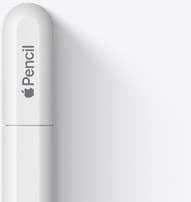
Apple Pencil (USB-C)
amazon.comA practical low-cost Apple stylus with broad compatibility, but limited for advanced art control.
Pro: Lowest official Apple Pencil cost
Con: No pressure sensitivity for brush work
Compatible with many recent iPads. No pressure support.
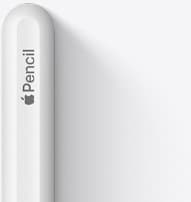
Apple Pencil (2nd generation)
amazon.comStill a strong stylus on compatible iPads. Good pressure control, but compatibility is the main trap.
Pro: Pressure support without Pro pricing
Con: Not compatible with newest Pro-only iPads
Only for iPads that support 2nd generation pairing.
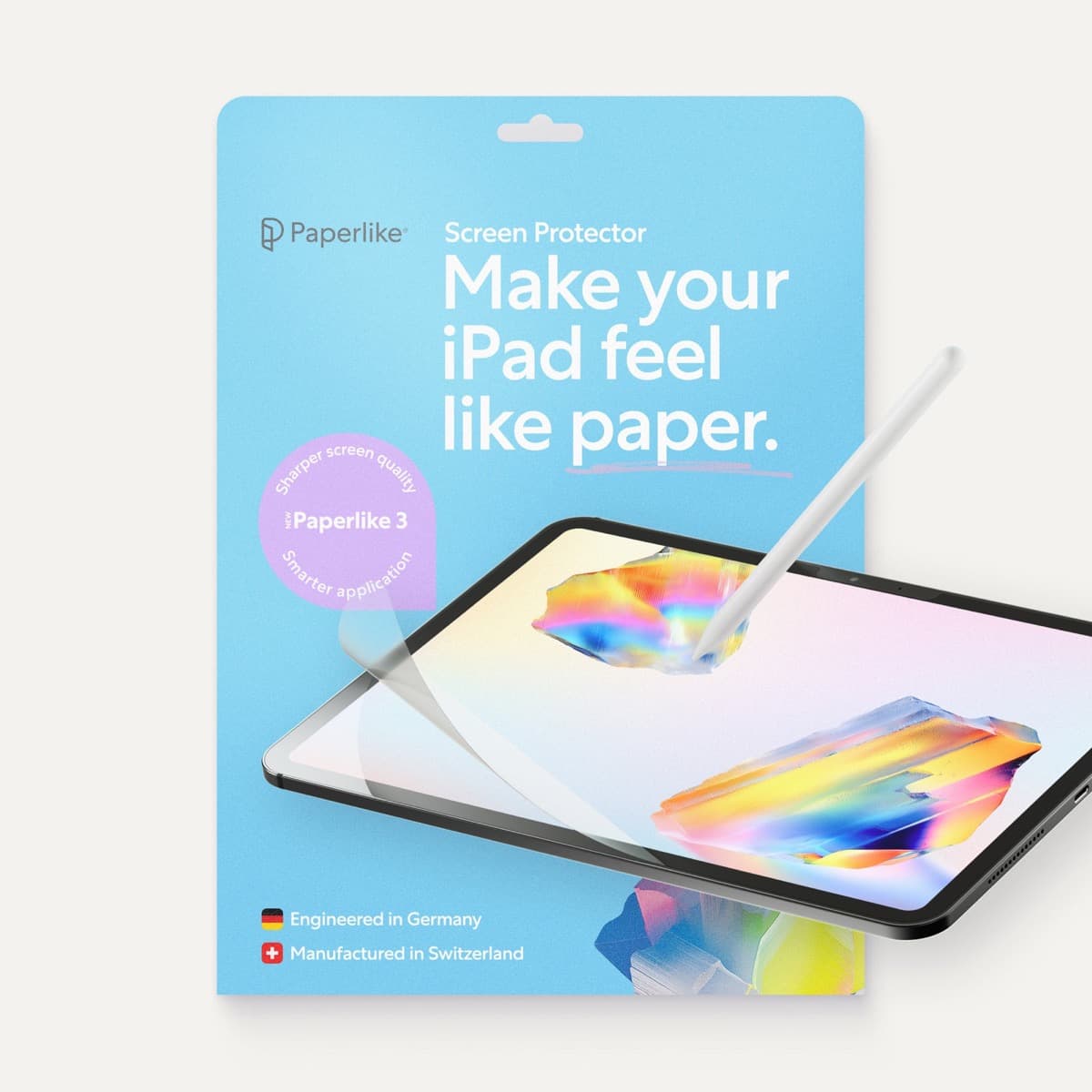
Paperlike 3 (11-inch, 2-pack)
amazon.comA strong surface-feel upgrade for drawing control. Clarity tradeoff is real and should be expected.
Pro: Adds controlled paper-feel friction
Con: Slightly reduces perceived display sharpness
11-inch fit only. Confirm generation before checkout.
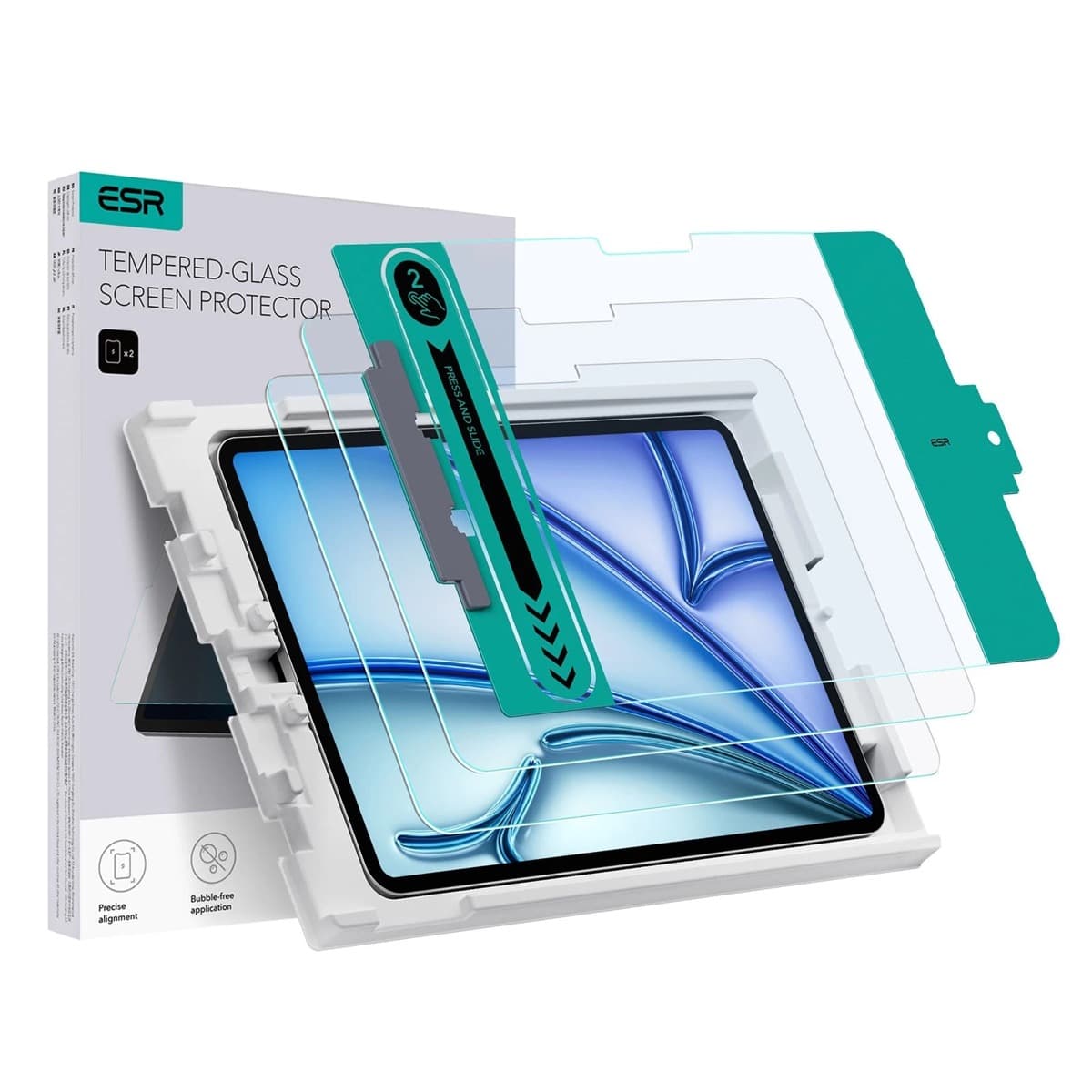
ESR Armorite Tempered Glass (11-inch)
amazon.comHigh-clarity protector with strong value. Great for visibility, less ideal for friction-seeking artists.
Pro: Very clear image with strong scratch resistance
Con: Minimal drawing friction compared with matte films
11-inch fit only. Verify exact iPad generation.
Related buying picks
More in this collectionBuyer guide
Best Apple Pencil for animation: Pro, 2nd generation, or USB-C?
Choose the best Apple Pencil for animation based on pressure sensitivity, tool switching gestures, and your specific iPad model.
Buyer guide
Best Apple Pencil for UI design: wireframing, markup, and layout on iPad
Choose the Apple Pencil (USB-C) for wireframing and interface sketches, or pick the Apple Pencil Pro if your iPad supports its squeeze and haptic shortcuts.
Buyer guide
Best Apple Pencil for manga drawing
Choose an Apple Pencil with pressure sensitivity for manga inking, matching the stylus directly to your iPad model.
Buyer guide
Choosing an Apple Pencil for logo design
Compare Apple Pencil models and drawing surfaces to find the right stylus setup for drafting logos and brand marks.