If your external SSD or flash drive isn't mounting in the iPadOS Files app, you don't need to replace your tablet right away. When you connect a supported external storage device to an iPad, iPadOS lets you view and organize files directly inside Files [1]. For most illustrators, the fix comes down to drive formatting, connection cables, or power delivery. Buy the Samsung T7 Portable SSD if you want a reliable backup drive for exporting artwork files, or pick the SanDisk Extreme Portable SSD if you need rugged protection for travel. Skip buying a costly higher-tier tablet just for storage if an external drive fits your desk routine [1], [2].
Why your external drive fails to mount in the Files app
When you plug an external SSD into an iPad, the Files app should list the device in the sidebar under Locations [1]. If the drive fails to appear, the most common culprit is an unsupported file system format or an unpowered connection that draws more current than the iPad port supplies [1]. You can inspect iPad storage usage and review recommendations directly in iPadOS settings to see how local space is allocated [2].
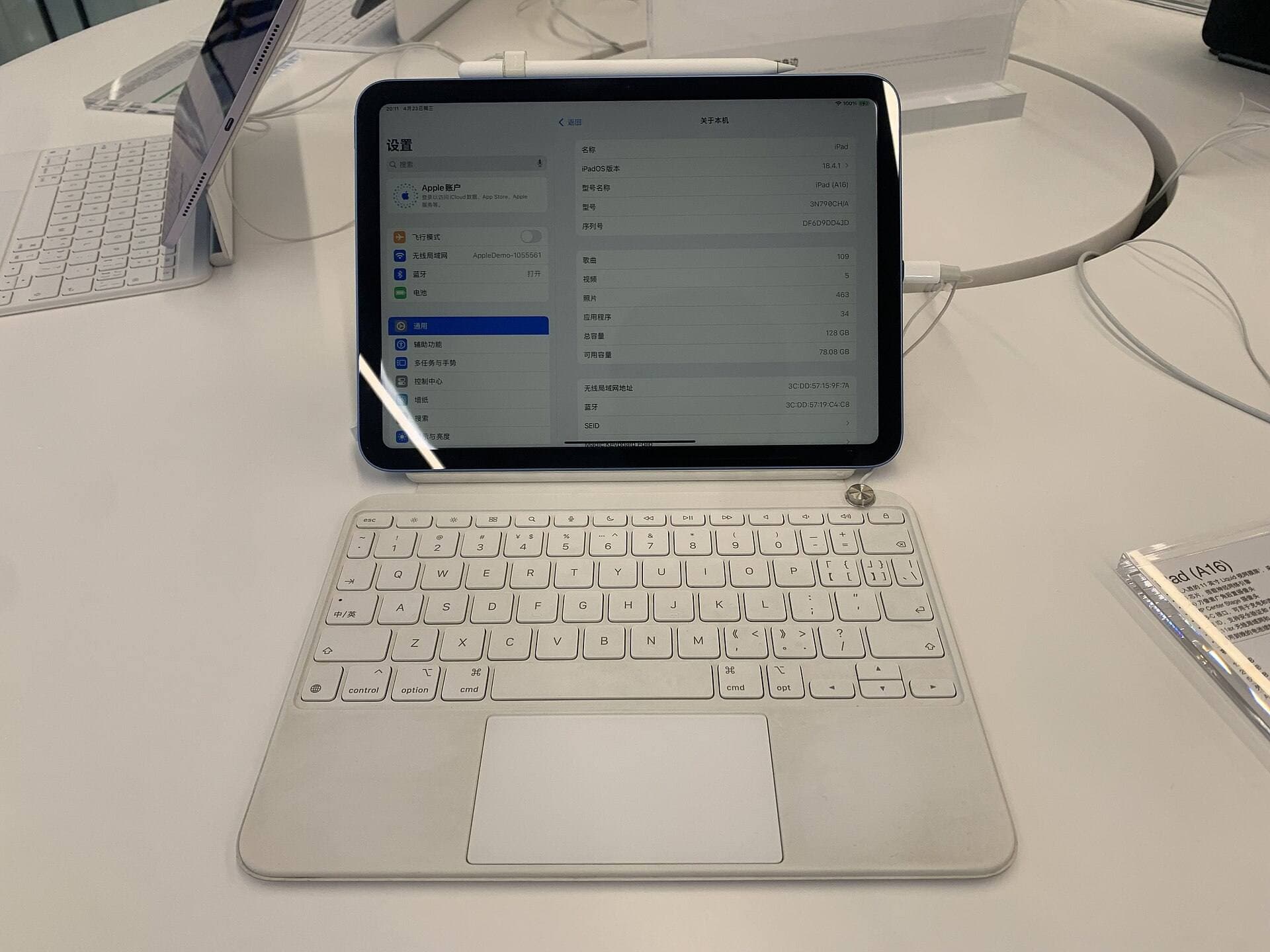
Power delivery issues happen frequently on base hardware models like the iPad (A16, 11th gen) when running power-heavy accessories [1], [3]. If the drive blinks or fails to spin up, the USB port isn't providing enough electrical current to mount the disk volume [1]. In those cases, connecting the SSD through a powered USB-C hub allows the Files app to discover the drive immediately [1].
Another frequent cause is drive formatting. The Files app reads specific file systems, so a drive formatted with a proprietary desktop setup won't mount properly on iPadOS [1]. Reformatting the external drive on a computer to a widely supported format like exFAT solves detection failures so you can move files between platforms [1].
How to troubleshoot and test your connection
You can isolate the issue through a few straightforward steps before spending money on replacement hardware [1]. First, unplug the drive and restart your iPad, because restarting clears hung background processes in the Files app [1], [2]. Next, verify whether the drive works by plugging it into another computer or tablet to rule out cable failure [1].
Inspect the physical cable you use between the SSD and your iPad port [1], [3]. Many USB-C cables designed strictly for charging phones do not support reliable data transfer channels [1]. Testing with the high-bandwidth USB-C cable included with drives like the Samsung T7 Portable SSD ensures proper signal routing directly into iPadOS [1].
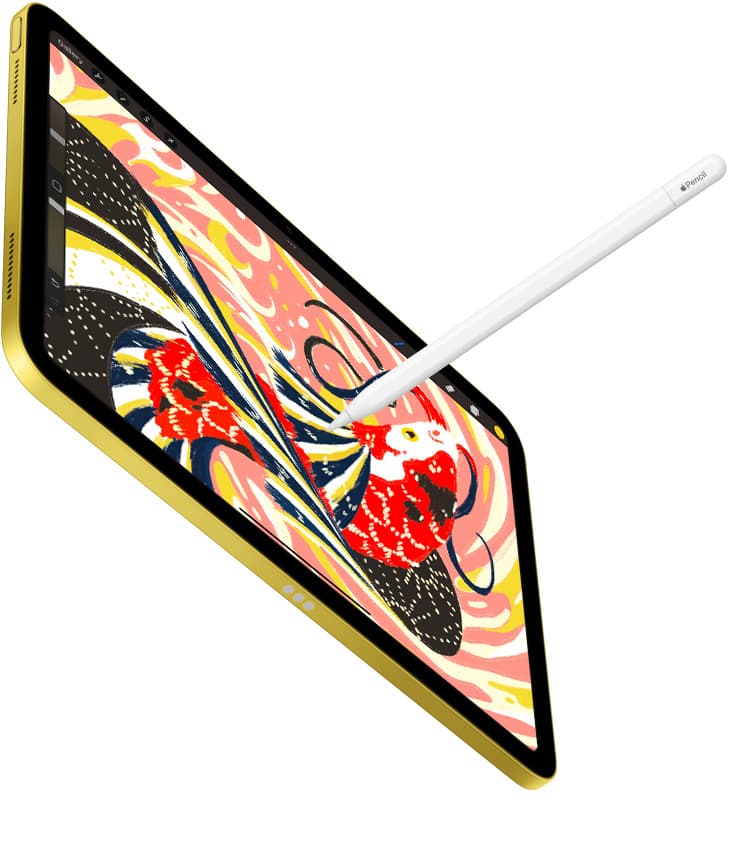
If you use drawing apps like Procreate, external storage helps you archive large .procreate canvas files directly from the gallery [1], [4]. You can export artwork to the Files app and save it onto an external drive to preserve internal disk space [1], [4]. Verifying your connection with small test exports inside the Files app confirms the drive is stable before moving large batches [1].
Choosing between the Samsung T7 and SanDisk Extreme for art backups
If you decide your current flash drive is unreliable, buying a dedicated portable SSD provides dependable storage for your canvas files [1]. The Samsung T7 Portable SSD is a fast and reliable backup drive that connects directly to modern USB-C iPads [1], [3]. It's an ideal choice for artists who work at a studio desk or coffee shop and want simple, consistent file transfers without carrying bulky power adapters [1]. Buy the Samsung T7 if you prioritize a slim aluminum enclosure that slips neatly into a pencil case [1]. Skip it if you need water-resistant drop protection in harsh outdoor drawing environments.
For outdoor sketchers and field painters, the SanDisk Extreme Portable SSD provides a rugged and compact alternative [1]. It features a reinforced shell with a carabiner loop, making it convenient to clip onto an art gear bag [1]. Buy the SanDisk Extreme if you regularly draw outdoors and need a tough drive for field backups [1]. Skip the SanDisk Extreme if you run sustained multi-gigabyte transfers continuously at your desk, because it can run hot under heavy copy loads [1].
Both SSD options support capacities like 1TB and 2TB, giving you ample room to back up layered artwork, custom brush sets, and color palettes away from local iPad flash memory [1], [2], [4].
Matching your storage setup to the right iPad hardware
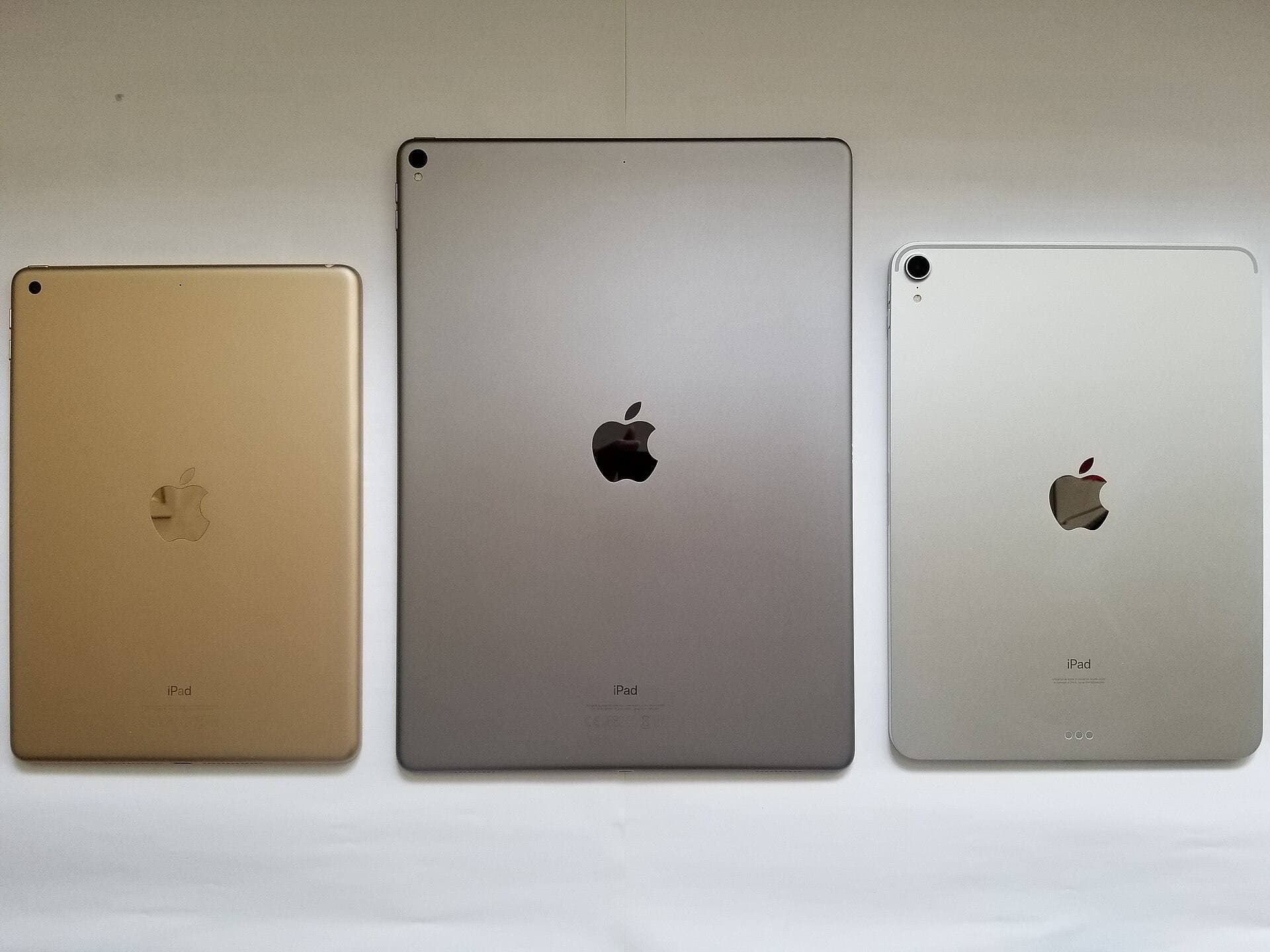
Your tablet choice also shapes how you handle external storage and creative workflows [1], [3]. The iPad (A16, 11th gen) represents the current mainstream iPad lineup and is the best default when your total kit cost matters more than prestige [3]. It runs Procreate and connects to external drives through its USB-C port, making it a great budget choice for students and hobbyists [1], [3], [5]. Buy the iPad (A16, 11th gen) if you want a capable drawing tablet at the lowest entry price [3], [5]. Skip it if you want Apple Pencil Pro support or higher display performance [3], [6].
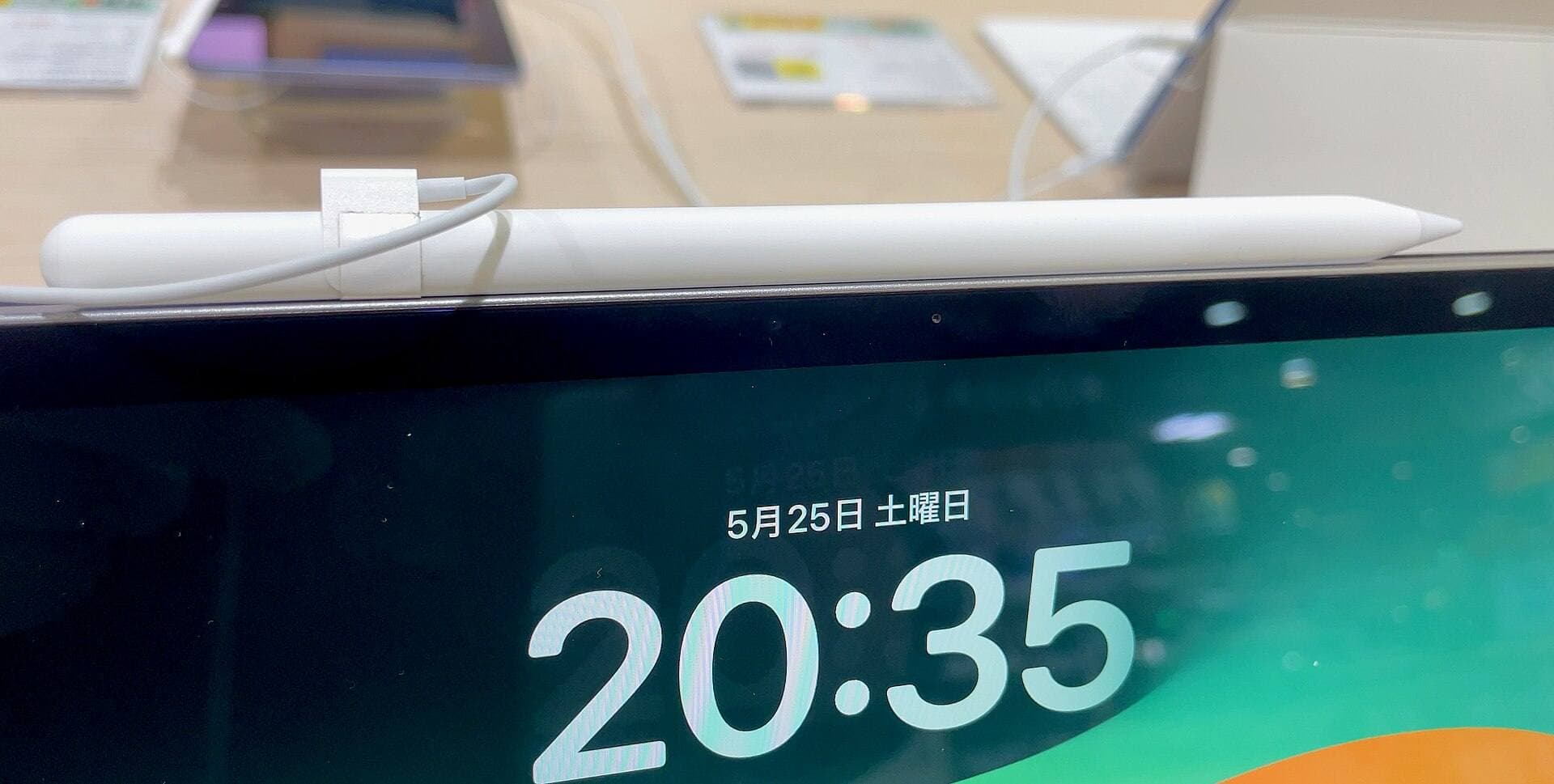
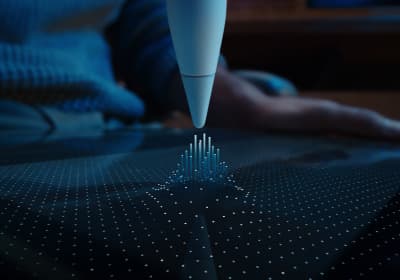
If you want more hardware headroom, the iPad Air (M4) is the current Air lineup with the M4 chip [3]. It's the best step-up choice when you want Apple Pencil Pro support without paying Pro pricing [3], [6]. The iPad Air (M4) supports advanced stylus features like barrel roll, squeeze, and haptic feedback when paired with Apple Pencil Pro [6], [7]. Buy the iPad Air (M4) if you want the best current balance of price, processing headroom, and Pencil support for serious art creation [3], [6]. Skip the iPad Air (M4) if you cannot compromise on display refresh rate, because the screen is still 60Hz [3].
Because both tablets feature USB-C connectivity, you don't need to overpay for internal storage tiers at checkout [1], [3]. Selecting a baseline internal storage capacity and pairing it with a Samsung T7 Portable SSD keeps your overall hardware expense low while keeping your archive organized [1], [3].
Managing Procreate canvases and layer limits with external storage
Digital art files consume memory quickly, making offload routines essential for active illustrators [2], [4]. In Procreate, maximum canvas dimensions and layer limits depend directly on your iPad model's available hardware memory [5], [8]. The amount of device RAM dictates how many layers you can create at higher pixel dimensions [5], [8]. Using an external drive doesn't increase your active working layer limits inside Procreate, but it keeps your internal iPad storage free from clutter [1], [2], [8].
When your iPad storage fills up, iOS can restrict background processes or prevent saving new projects [2]. Archiving completed canvases to an external SSD using the Files app lets you clear projects from your local Procreate gallery safely [1], [4]. You can drag exported .procreate files straight to your external SSD folder inside the Files app interface [1], [4].
If you ever need to revise an older piece, you simply tap the file on your external drive inside the Files app, and Procreate imports it right back into your gallery [1], [4]. This storage routine protects your working library while ensuring your iPad always has plenty of operating room for new canvases [1], [2], [4].
Bottom line
When an external drive won't open in the Files app, fix the issue by checking your cable, reformatting to exFAT, or adding hub power before buying new tablet hardware [1]. If your current drive is failing or slow, buy the Samsung T7 Portable SSD for a dependable studio backup solution, or buy the SanDisk Extreme Portable SSD if you need rugged protection on the go [1]. Pair your external drive with the iPad Air (M4) if you want Apple Pencil Pro features, or keep the iPad (A16, 11th gen) for unbeatable value on a budget [3], [6], [7].
Sources
[1] https://support.apple.com/guide/ipad/connect-external-storage-devices-ipad75b7b23f/ipados [2] https://support.apple.com/en-euro/guide/ipad/ipadf1f1b3f3/ipados [3] https://www.apple.com/ipad/compare/ [4] https://help.procreate.com/procreate/handbook [5] https://apps.apple.com/us/app/procreate/id425073498 [6] https://www.apple.com/apple-pencil/ [7] https://support.apple.com/en-us/108937 [8] https://help.procreate.com/articles/zlexav-ipad-compatibility
Recommended gear
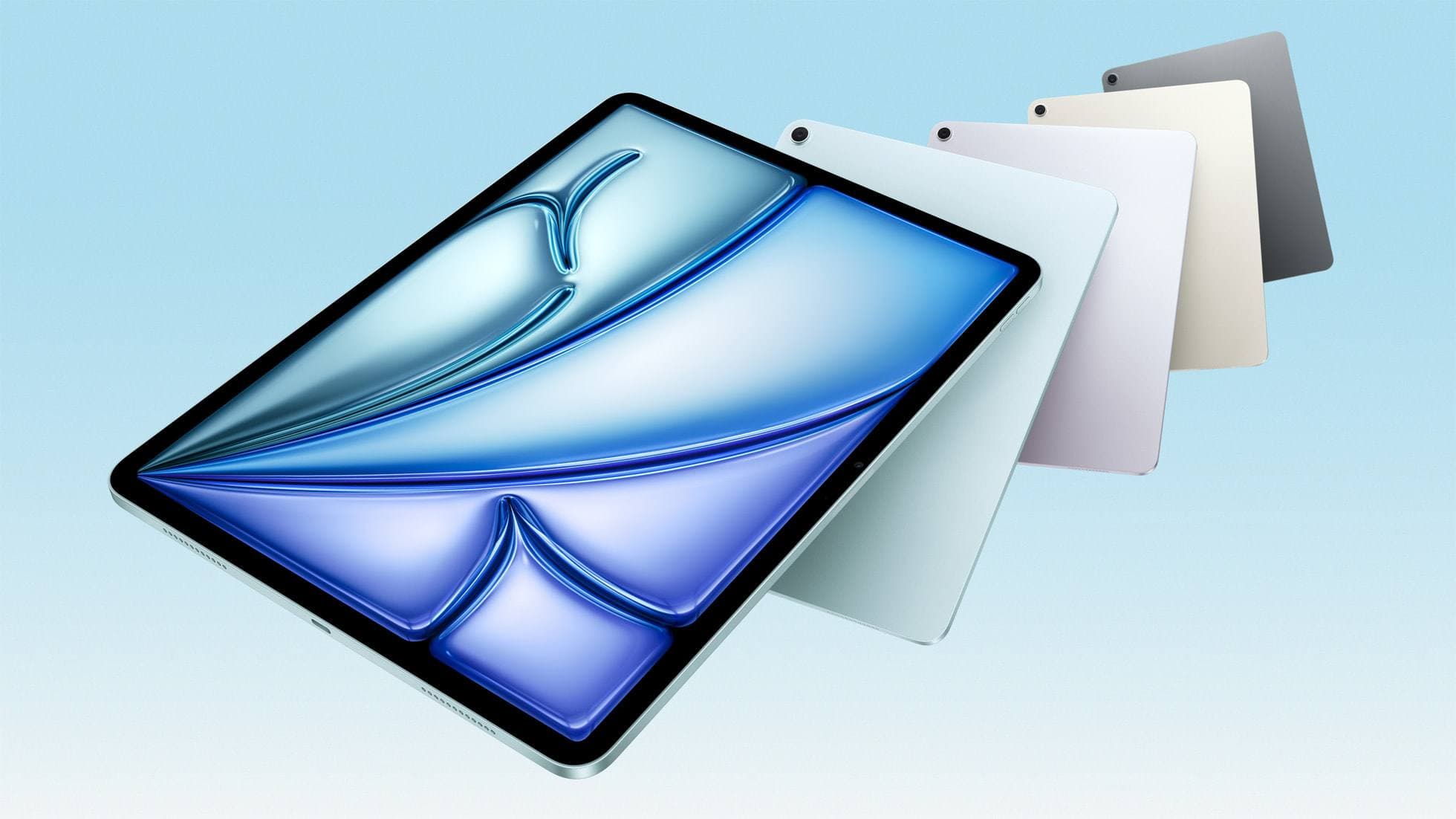
iPad Air (M4)
apple.comThe clean current Air recommendation for most serious hobby artists. Stronger buy logic than old-stock M3 when pricing is close.
Pro: Best current balance of price, headroom, and Pencil support
Con: Still 60Hz
Current Air lineup. Choose size, storage, and keyboard path before checkout.
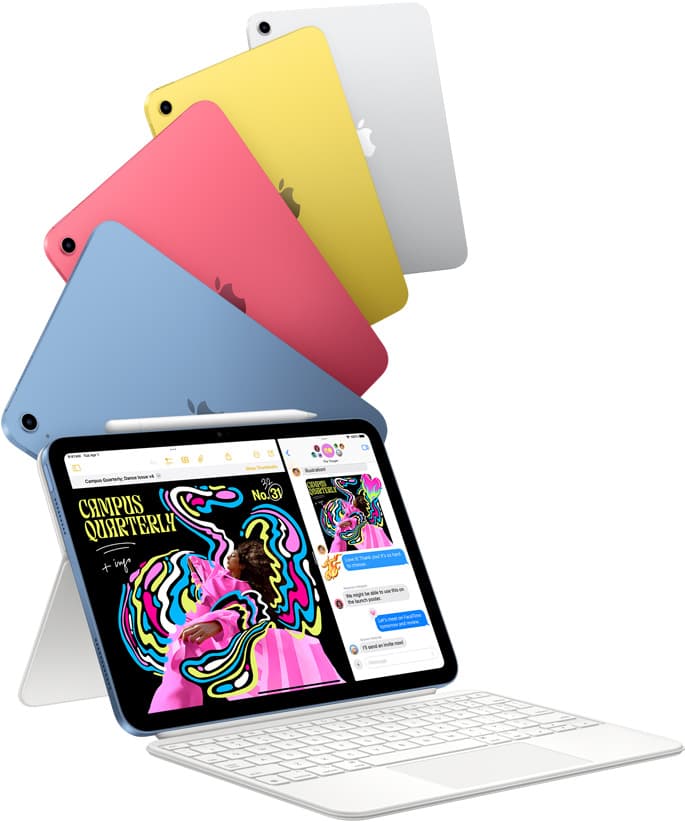
iPad (A16, 11th gen)
amazon.comThe best entry iPad for most artists on a budget. It is not premium, but it is very hard to beat on value.
Pro: Best value iPad right now
Con: No ProMotion display
Search opens with the exact model keywords. Verify size and storage before checkout.
Samsung T7 Portable SSD
amazon.comOne of the safest SSD buys for iPad creators. Fast, stable, and easy to trust for backup routines.
Pro: Fast and reliable backup drive
Con: Extra cable to carry
Choose capacity (1TB/2TB) based on project size.
SanDisk Extreme Portable SSD
amazon.comPro: Rugged and compact
Con: Can run hot under heavy copy
Good for large Procreate backup workflows.
Related buying picks
More in this collectionBuyer guide
Is 128GB iPad Enough for Procreate in 2026?
A 128GB iPad can be enough for Procreate if you draw casually and export finished work, but 256GB is the low-stress choice for frequent art, large canvases, timelapse, and client files.
Buyer guide
Is iPad 10th gen good for Procreate?
The iPad 10th gen handles Procreate well for everyday digital art, but stylus pairing limits and base hardware shape how far you can push large files.
Buyer guide
Best iPad for storyboard artists: our buyer guide
Choose the right iPad for storyboarding based on screen size, Apple Pencil Pro features, and canvas layer limits.
Buyer guide
Best iPad for medical illustration
Choose the right iPad and Apple Pencil setup for medical illustration based on stylus precision, canvas size, and layer limits.