






If your pen pressure isn't working in Clip Studio Paint on iPad, don't replace your tablet yet. The fastest fix is confirming your stylus hardware: if you bought an Apple Pencil with USB-C, it lacks pressure sensitivity entirely, so strokes stay uniform regardless of your settings [2]. If you use an Apple Pencil 1st generation, 2nd generation, or Apple Pencil Pro, keep your iPad and stylus, because your pressure loss comes from sub-tool dynamics or app permissions inside iPadOS [2], [3], [6]. Creators who need comics, animation, and multi-page tools should keep Clip Studio Paint [6], [7]. If subscription overhead bothers you and you only need standalone illustration, switch to Procreate [4], [5].
Stylus hardware and pairing compatibility
The primary reason pen pressure fails on an iPad is hardware mismatch. Apple sells multiple stylus models, but they don't share the same feature set [2]. Apple Pencil (1st generation), Apple Pencil (2nd generation), and Apple Pencil Pro feature pressure sensitivity [2]. In contrast, Apple Pencil (USB-C) offers tilt sensitivity and hover on select iPads, but it does not support pressure sensitivity [2]. If you draw with Apple Pencil (USB-C) in Clip Studio Paint, every stroke registers at a static width because the physical sensor isn't there [2], [6].
You must also match the right Pencil to your iPad model [3]. The iPad Air (M4) pairs with Apple Pencil Pro and Apple Pencil (USB-C), but it doesn't work with Apple Pencil (2nd generation) [1], [3]. The current iPad Pro lineup with M-series chips follows the same pairing boundary [1], [3]. If you use an older iPad Pro or previous-generation Air, it pairs with the second-generation stylus instead [1], [3]. When a stylus isn't fully paired through the magnetic connector or lightning adapter, iPadOS may treat the tip as standard capacitive touch input, stripping away dynamic pressure data [2], [3].
Sub-tool dynamics inside Clip Studio Paint
If you own a pressure-capable stylus like Apple Pencil Pro, the breakdown often lives within brush properties in Clip Studio Paint [2], [6]. The software lets users customize pressure response across individual sub tools or globally across the app [6], [7]. Open the Clip Studio Paint menu, navigate to Tool Property, and locate Brush Size [6]. Next to the size slider sits a small dynamics icon [6], [7]. Clicking this opens the dynamic options window, where pen pressure must be checked [6].
Inside that dynamic panel, you can adjust the pressure response curve [6], [7]. If the curve is set completely horizontal or the minimum value is locked at one hundred percent, line weight won't fluctuate no matter how firmly you press [6]. Clip Studio Paint also includes a global command titled Adjust Pen Pressure [6], [7]. Running through this calibration dialog lets you draw sample strokes so the engine maps your natural hand pressure across the canvas [6], [7]. If someone else tested your workspace or you loaded imported desktop brushes, the brush settings might have mapped size to velocity or tilt rather than stylus pressure [6], [7].
System permissions and touch input settings
When tool settings appear correct, iPadOS system settings can still block pressure data from reaching the canvas [6]. Clip Studio Paint requires specific interaction settings to differentiate between your drawing tip and your hand [6], [7]. Under the app preferences menu, look for Touch Gestures and Stylus input [6]. Ensure that Clip Studio Paint is set to recognize the Apple Pencil separately from single-finger gestures [6], [7]. If touch drawing is set to share tool actions with the pencil tip, input conflicts can flatten pressure curves [6].
Hardware connection stability matters just as much [2], [3]. Bluetooth dropouts or a loose nib on an Apple Pencil can disrupt the continuous pressure stream [2]. Unscrew the pencil nib slightly, inspect it for wear, and tighten it back into place [2]. In iPadOS Settings under Bluetooth, unpair the Apple Pencil and reattach it to the magnetic charging connector to re-establish a clean handshake [2], [3]. This step restores proper sensor polling before you relaunch the software [2], [6].
Choosing between Clip Studio Paint and alternative apps
If you regularly encounter workflow friction, look at whether Clip Studio Paint matches your production style [6], [7]. Clip Studio Paint is the right choice for illustrators, manga creators, and animators who rely on vector layers, frame borders, specialized rulers, and multi-page projects [6], [7]. Its iPad app brings desktop-grade tool parity, making it ideal if you balance mobile sketching with desktop publishing [6], [7]. However, it relies on monthly or annual usage plans on iPadOS, which some users prefer to avoid [6].
If you want a one-time purchase without recurring subscription fees, consider Procreate [5], [9]. Procreate handles digital painting with native Apple Pencil pressure, tilt, and barrel roll support [2], [5], [10]. It runs cleanly across many iPad models, managing layer caps based on available device memory and canvas dimensions [4], [10]. For artists focusing purely on motion graphics and timeline animation, Procreate Dreams provides another standalone purchase path [8]. However, Procreate lacks the multi-page comic publishing tools, perspective rulers, and deep vector inking engines standard in Clip Studio Paint [6], [7], [10]. Keep Clip Studio Paint if your work depends on structural page production, and switch to Procreate if you want a simplified raster painting environment [5], [6], [7].
Bottom line
Do not purchase a new iPad if your lines lack variation [1]. First, verify that your stylus is not an Apple Pencil (USB-C), which lacks pressure sensors by design [2]. If you use an Apple Pencil Pro or Apple Pencil (2nd generation), calibrate your pen pressure curve and inspect sub-tool size dynamics inside Clip Studio Paint [2], [6], [7]. Keep your subscription if you build comics, multi-page books, or complex animations with vector tools [6], [7]. Skip the subscription and choose Procreate or Procreate Dreams if you only need a standalone raster canvas with one-time pricing [5], [8], [9].
Sources
[1] https://www.apple.com/ipad/compare/ [2] https://www.apple.com/apple-pencil/ [3] https://support.apple.com/en-us/108937 [4] https://help.procreate.com/articles/zlexav-ipad-compatibility [5] https://apps.apple.com/us/app/procreate/id425073498 [6] https://apps.apple.com/us/app/clip-studio-paint/id1262985592 [7] https://www.clipstudio.net/en/ [8] https://apps.apple.com/us/app/procreate-dreams/id1595520602 [9] https://help.procreate.com/articles/dbgjal-procreate-faq [10] https://help.procreate.com/procreate/handbook
Recommended gear
Clip Studio Paint
apps.apple.comPro: Deep comics, vector, ruler, and animation toolset
Con: iPad plan model is less simple than Procreate
Procreate
apps.apple.comPro: One-time purchase
Con: iPad-only
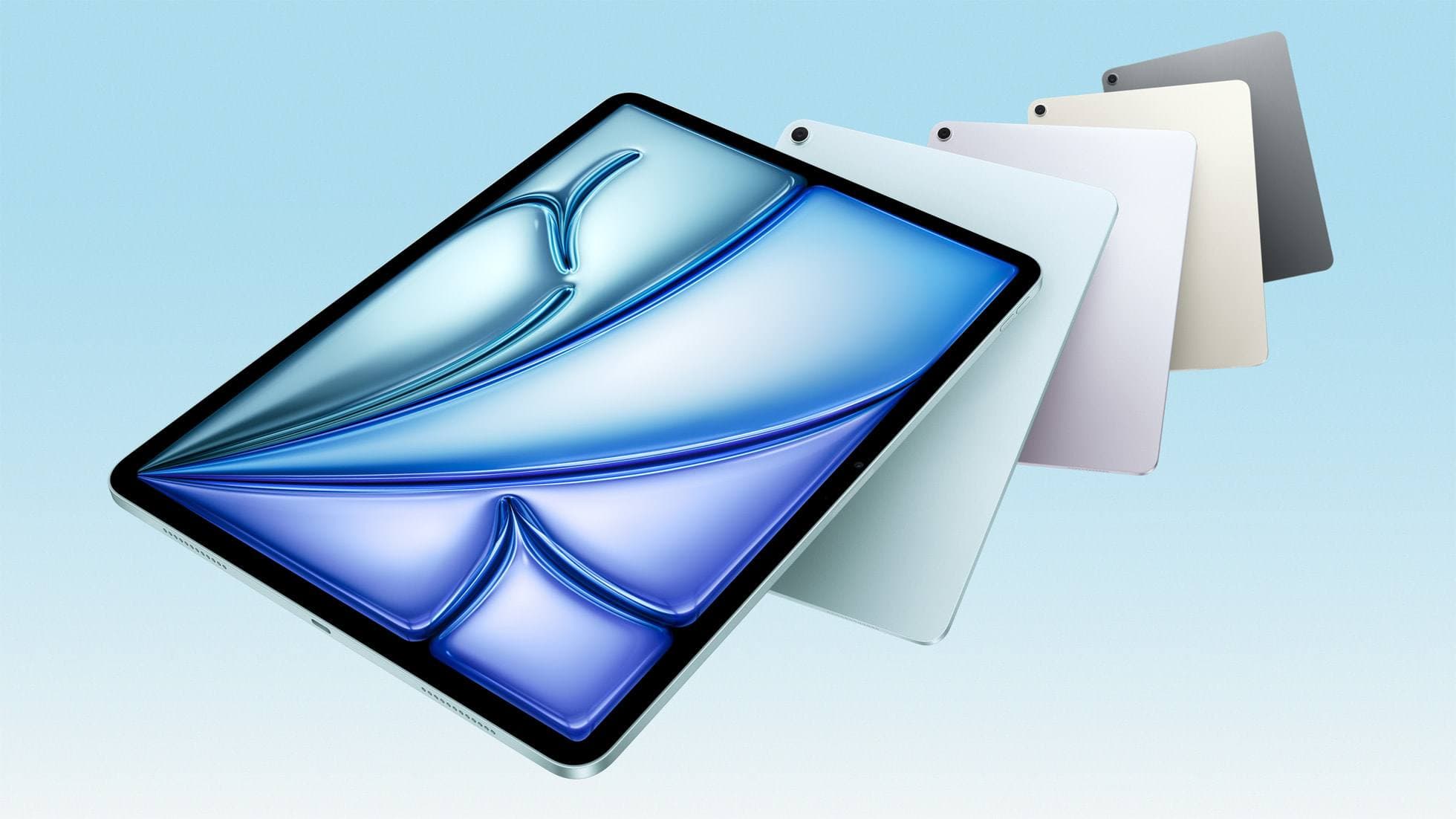
iPad Air (M4)
apple.comThe clean current Air recommendation for most serious hobby artists. Stronger buy logic than old-stock M3 when pricing is close.
Pro: Best current balance of price, headroom, and Pencil support
Con: Still 60Hz
Current Air lineup. Choose size, storage, and keyboard path before checkout.
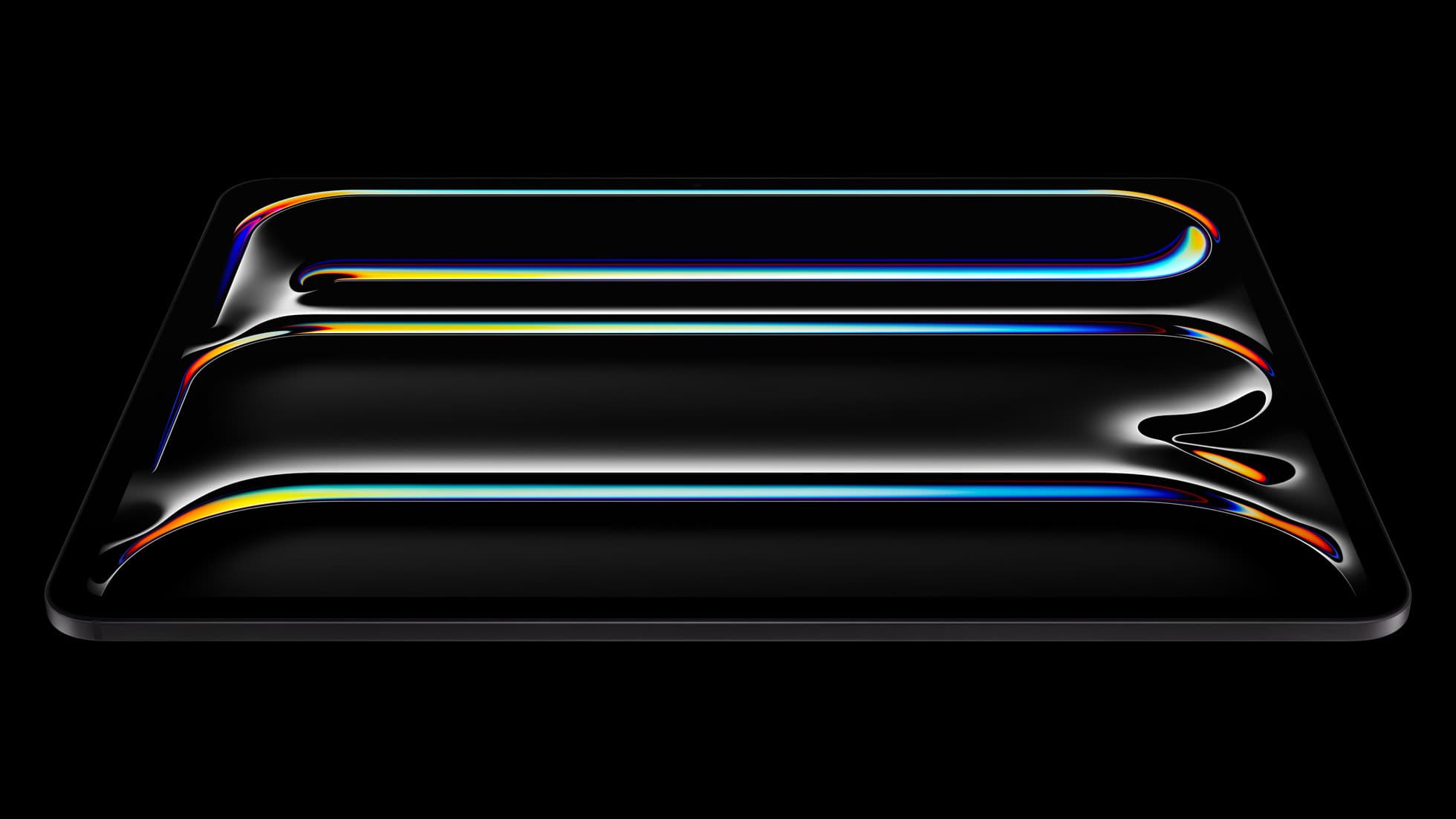
iPad Pro (M5)
amazon.comThe best iPad for drawing feel and premium workflow comfort, but many buyers still overpay for it.
Pro: Best iPad display and ProMotion feel
Con: Highest price in the lineup
Search opens with iPad Pro terms. Check year, chip, and screen size.
Related buying picks
More in this collectionBuyer guide
Best iPad app for children's book illustration
Compare Procreate, Clip Studio Paint, and top sketching tools to pick the right iPad app for children's book artwork.
Buyer guide
Best iPad app for manga: Clip Studio Paint versus Procreate and free alternatives
Clip Studio Paint is the best overall iPad app for serialized manga and multi-page comics, while Procreate remains the top one-time purchase for single illustrations.
Buyer guide
Best iPad app for 3d sculpting
Nomad Sculpt is the clear choice for direct 3D clay sculpting on iPad, while CAD and architectural modeling apps serve different design goals.
Buyer guide
Best iPad app for surface pattern design: Procreate versus Clip Studio Paint
Choose Procreate for standalone raster pattern motifs or pick Clip Studio Paint for vector assets and complex pattern tile structures.