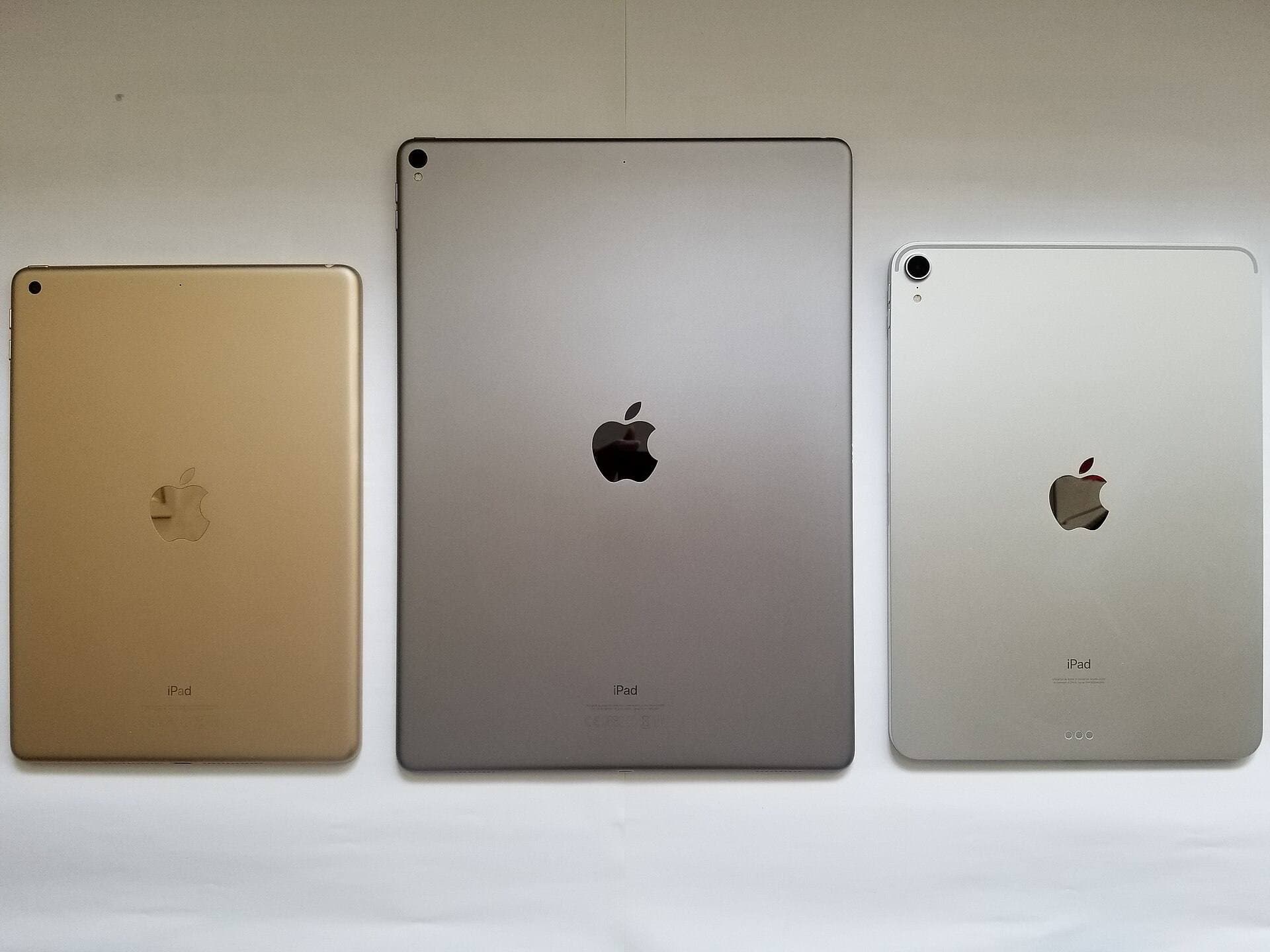
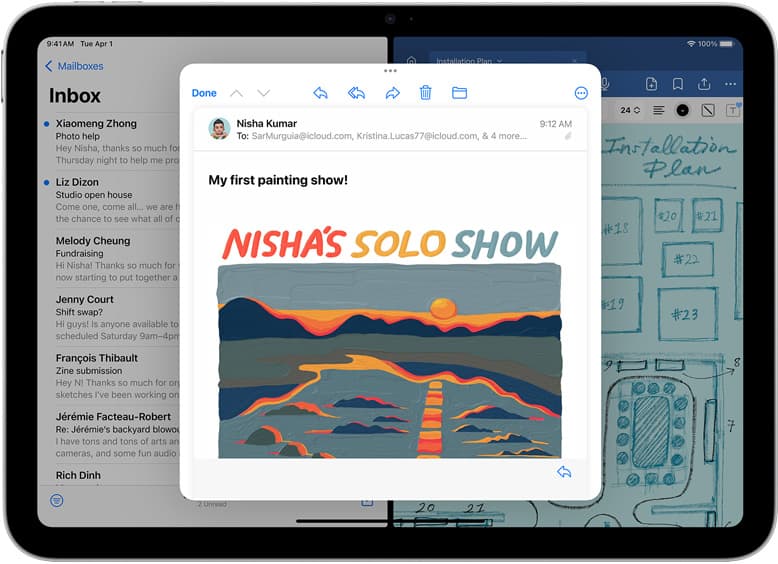
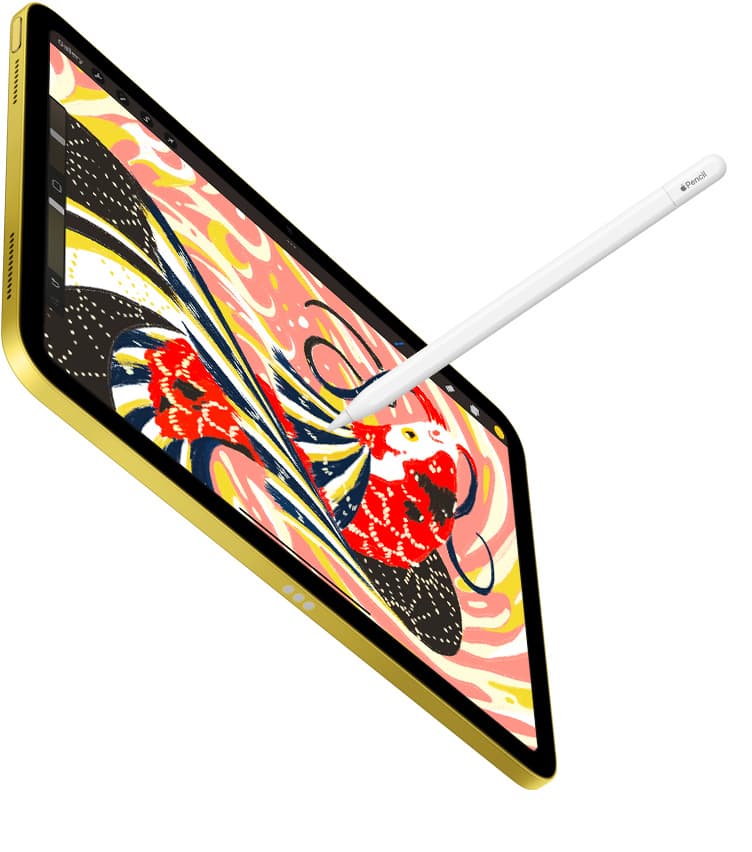
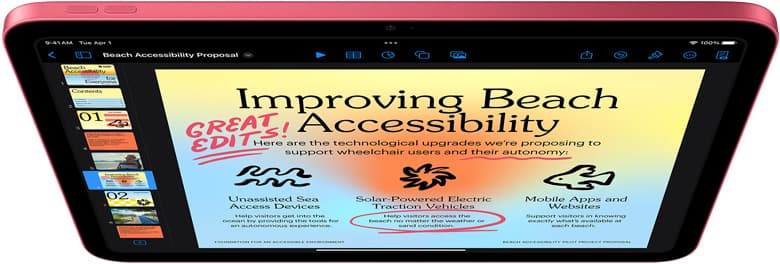
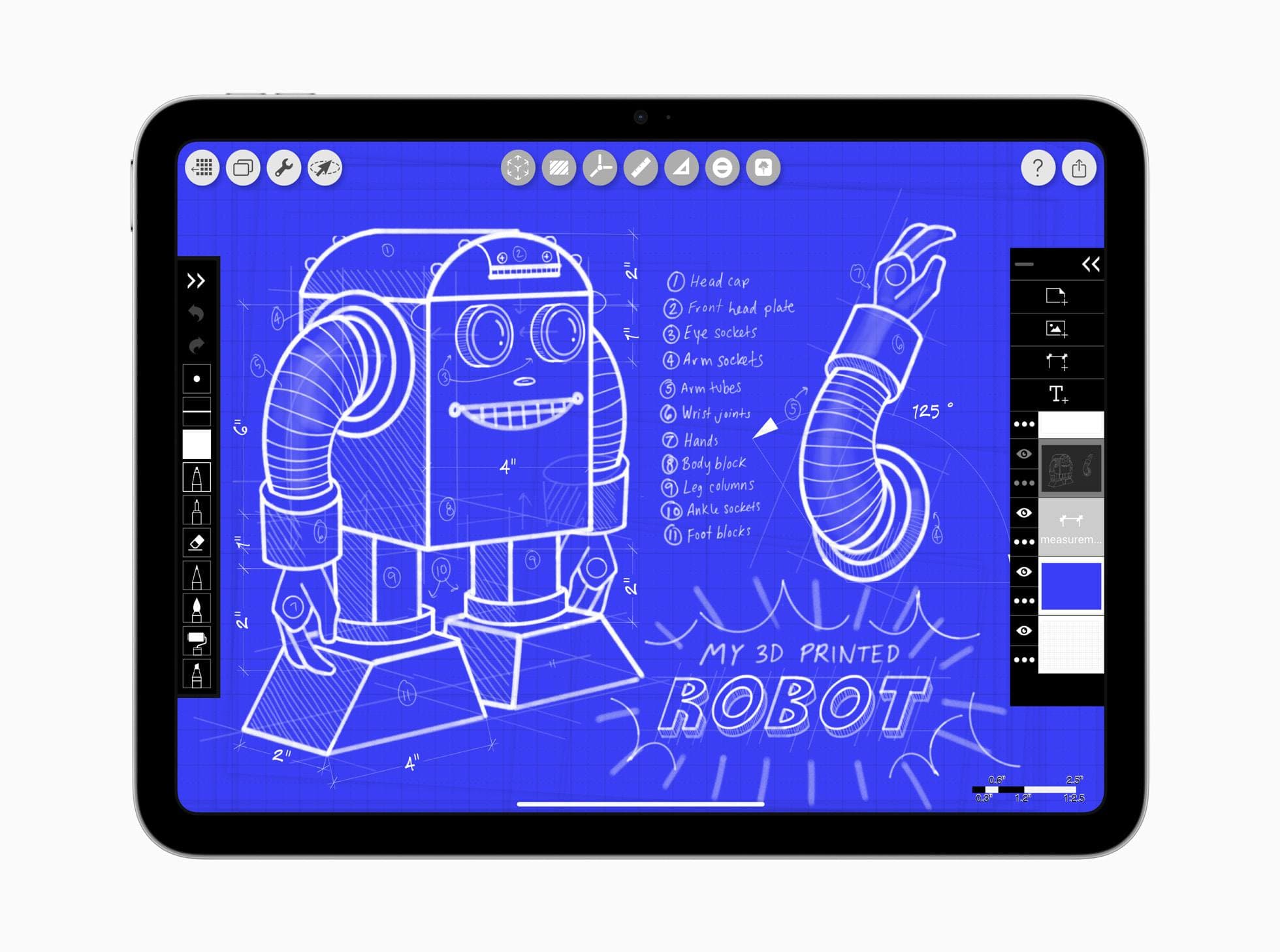
iPad Air is already strong enough for most drawing and mixed creative workflows.
The money leak is not the tablet. The leak is buying random accessories without a system. This guide gives a compact accessory bundle that improves drawing comfort, export reliability, and mobile productivity without turning your bag into a brick.
The best 3-piece iPad Air bundle
For most artists, the highest-ROI setup is:
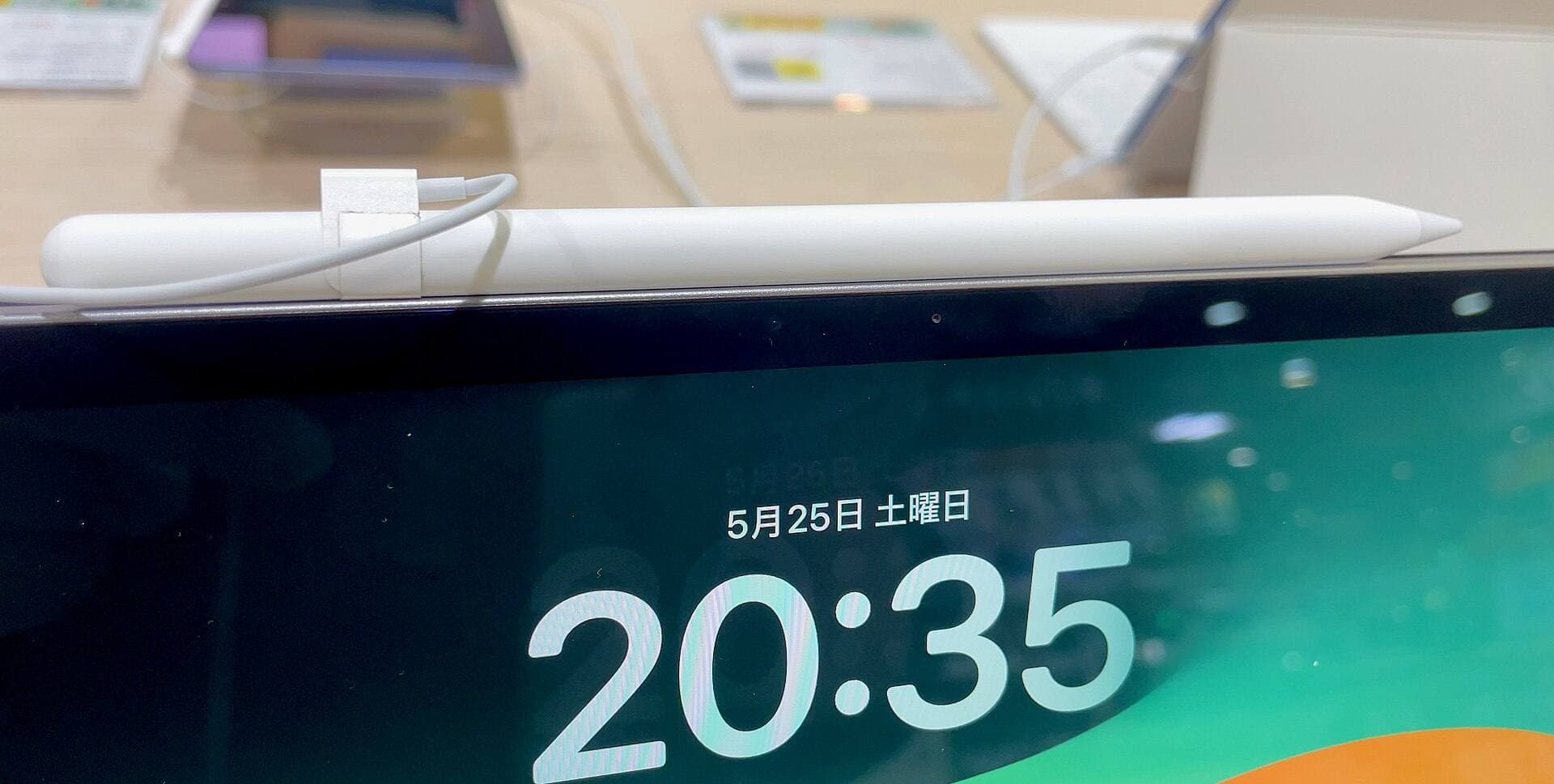
- Apple Pencil Pro for drawing control and better brush interaction.
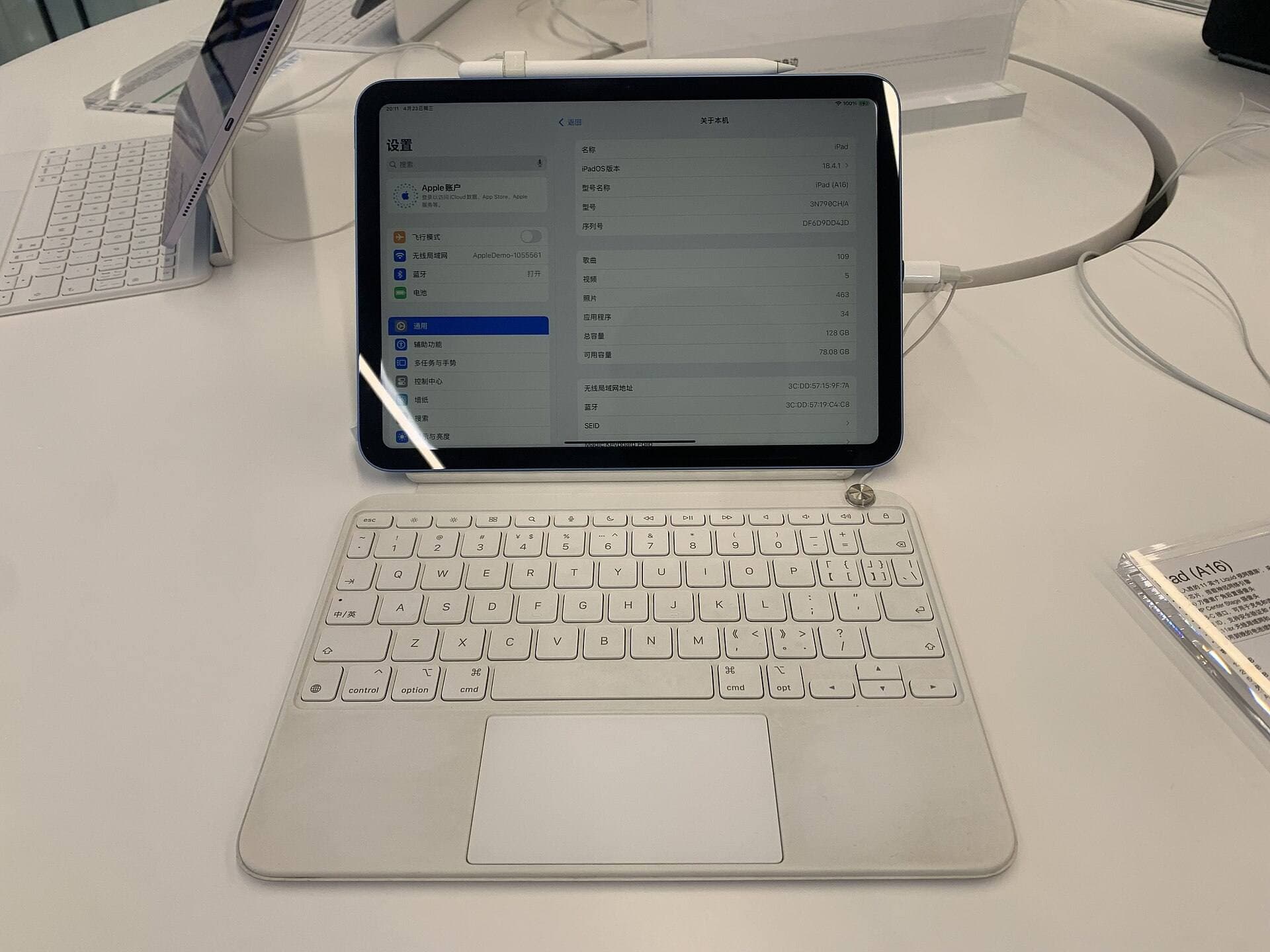
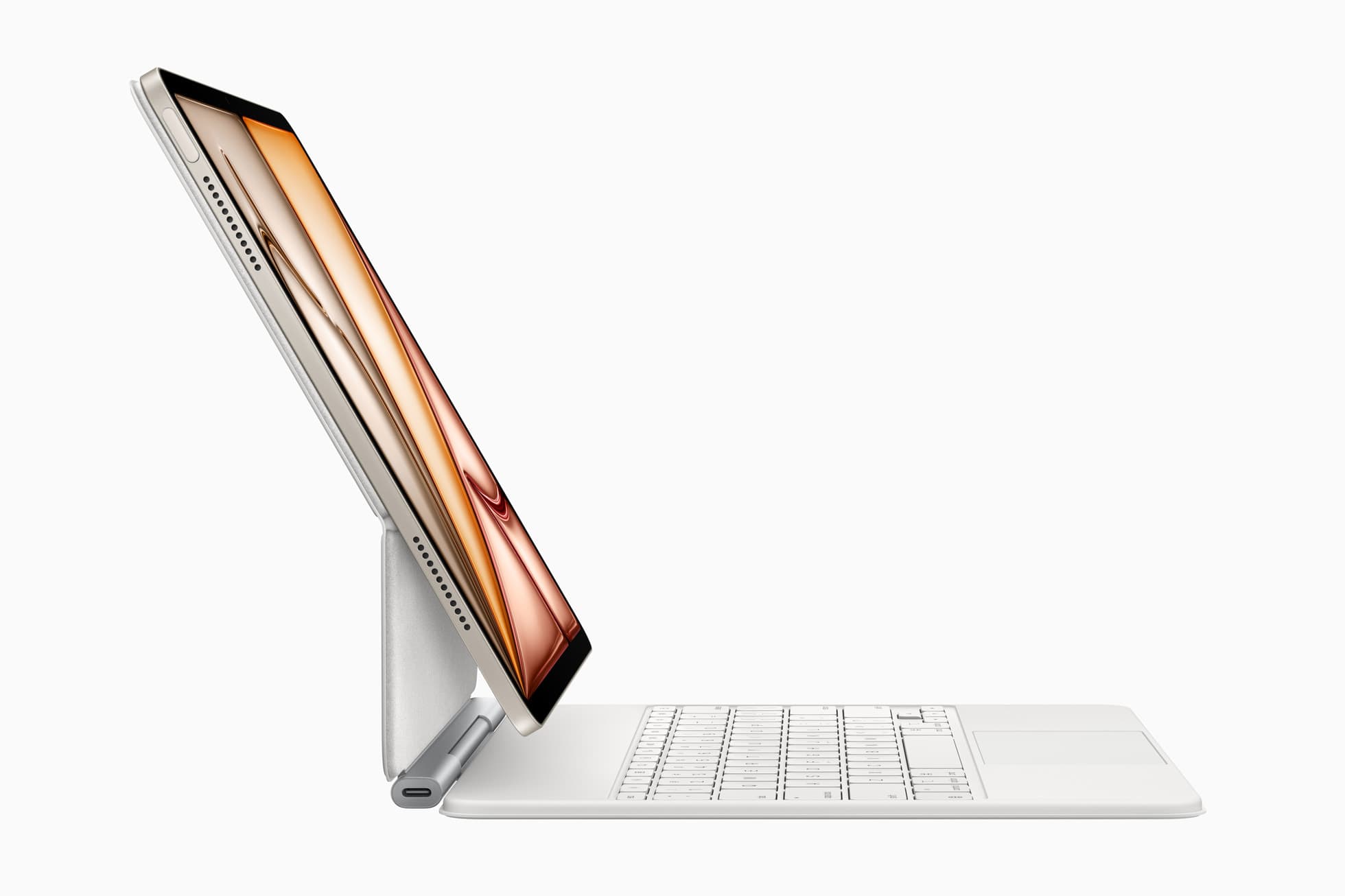
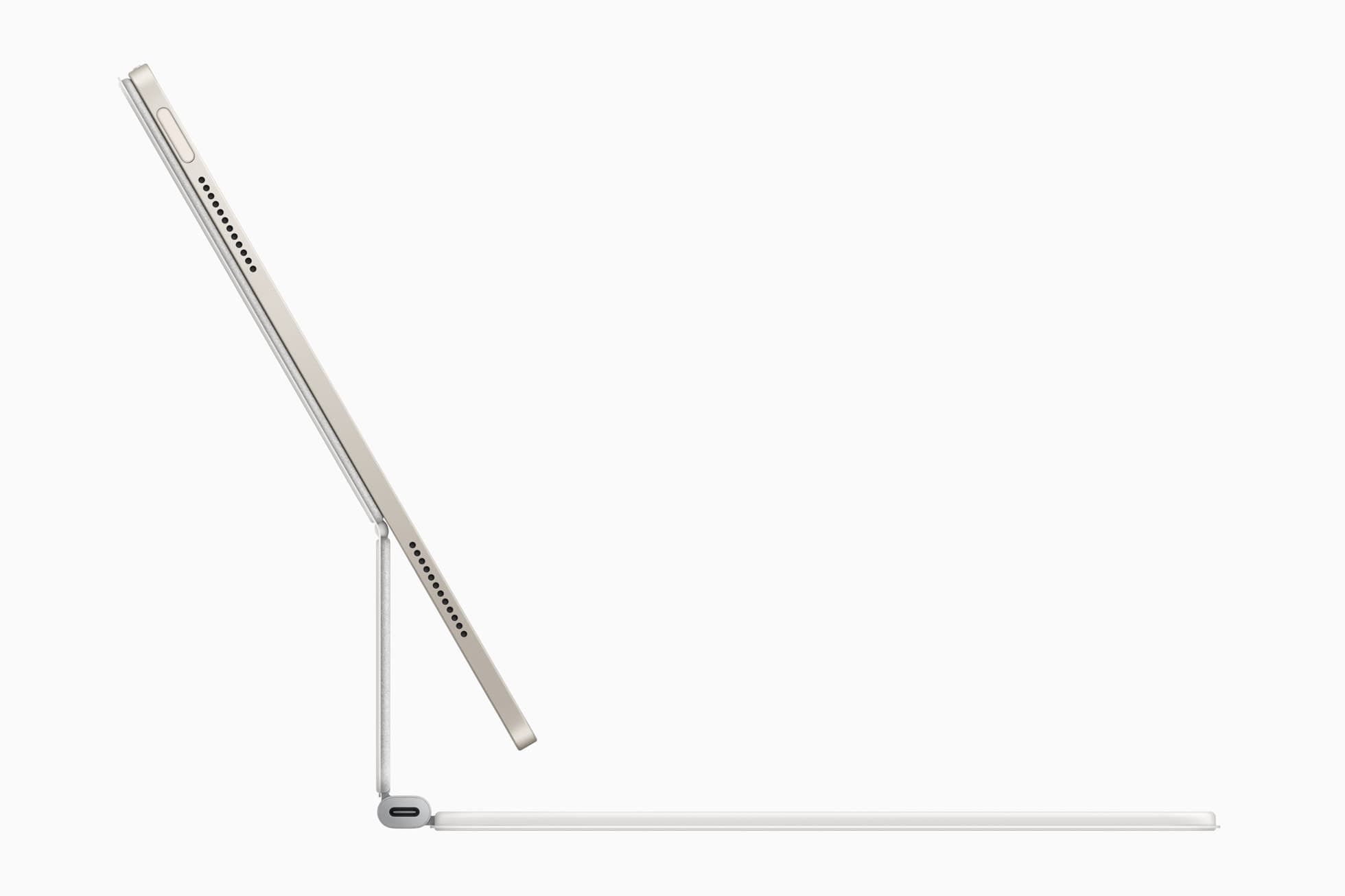
- Logitech Combo Touch (iPad Air 11") for writing, planning, and stable angle control.
- Anker 341 USB-C hub for practical expansion when you need ports.
This stack covers input, ergonomics, and connectivity with minimal overlap.
Why this bundle beats bigger setups
Most overbuilt bundles fail for three reasons:
- they duplicate function instead of solving bottlenecks,
- they add weight faster than they add useful capability,
- they increase setup friction before every drawing session.
The goal of a good bundle is simple: fewer interruptions between "I want to draw" and actual output.
Accessory role breakdown
Apple Pencil Pro: precision and confidence
If drawing is a core use case, Pencil quality is not optional.
What it improves:
- tighter line confidence on detailed work,
- faster brush and tool switching behavior,
- less input hesitation on long sessions.
Before buying, confirm exact compatibility for your iPad Air model on Apple documentation.[1][2]
Combo Touch: typing and posture stability
Many artists underestimate planning and admin workload. Notes, briefs, exports, and client edits are easier with a stable keyboard case.
What it improves:
- better screen angle control in cafes and shared spaces,
- faster writing and project organization,
- fewer posture compromises vs balancing iPad flat on tables.
If you write, plan, or revise for more than 20 minutes per session, this is high-value.
USB-C hub: expansion only when needed
A hub is not a daily hero item. It is a workflow unlock for specific jobs:
- SD and microSD imports,
- SSD export and backup,
- external display sessions,
- charging and accessory coordination.
If you only sketch and share to cloud apps, keep the hub in desk kit mode. If you move media often, keep it in daily carry.
Buy order to minimize wasted spend
Step 1: input first
Buy Pencil first if drawing is your primary output. Input quality affects every session.
Step 2: posture and writing second
Add keyboard case when your bottleneck is planning, writing, and screen positioning.
Step 3: connectivity third
Add hub when your weekly workflow repeatedly needs ports.
This order keeps costs aligned with proven constraints.
Decision matrix by workflow type
Drawing-first freelancer
Priority order:
- Pencil
- hub
- keyboard case
Reason: drawing and file transfer are core, writing load is moderate.
Student or hybrid creator
Priority order:
- Pencil
- keyboard case
- hub
Reason: note-taking and planning volume is high, connectivity needs are periodic.
Mobile content team member
Priority order:
- hub
- Pencil
- keyboard case
Reason: file movement and output handoff happen constantly.
What to skip at first
You can avoid major budget waste by delaying these until a clear bottleneck appears:
- premium niche adapters with rare use,
- duplicate chargers in multiple bags,
- extra stands if keyboard case angle already solves posture,
- multiple grip experiments before baseline hand fatigue is measured.
Use the two-week rule: if the same friction appears in at least two weeks of normal use, buy one targeted fix.
30-day rollout plan
Week 1: baseline behavior
Use your existing setup and track only three issues:
- input consistency,
- posture discomfort,
- file transfer friction.
Week 2: add first accessory
Add the highest-priority item from your bottleneck list. Do not change anything else.
Week 3: add second accessory only if needed
If one major bottleneck remains, add one more accessory. Keep variables controlled.
Week 4: lock the stable kit
Freeze your setup for 30 days. Resist impulse upgrades. Stability creates better output than constant gear changes.
Typical mistakes and faster fixes
Mistake 1: buying for imagined future needs
Fix: buy for current weekly tasks, not speculative edge cases.
Mistake 2: overpacking travel kit
Fix: maintain two modes, desk kit and mobile kit. Carry only what you use at least three days per week.
Mistake 3: skipping compatibility checks
Fix: verify model support before every purchase from official pages.[1][2]
Mistake 4: treating accessories as performance substitutes
Fix: accessories remove friction. They do not replace practice, file discipline, or workflow routine.
Practical setup templates
Lightweight daily kit
- iPad Air
- Pencil
- one cable
Use when sketching and note capture are primary tasks.
Production travel kit
- iPad Air
- Pencil
- keyboard case
- hub
- short cable + one backup cable
Use when you know you will export, ingest media, or present.
Desk-focused creator kit
- iPad Air
- Pencil
- keyboard case
- hub stays at desk full-time
Use when mobility is secondary and repeatability is the priority.
Final buying rules
Before adding any new accessory, answer these four questions:
- What specific recurring bottleneck does this solve?
- Will I use it at least three times per week?
- Does it replace another item or only add bulk?
- Can I measure workflow improvement in time or output quality?
If you cannot answer clearly, delay the purchase.
Bottom line
The best iPad Air accessory bundle is intentionally small and role-based.
Start with Pencil for input quality, add keyboard case for posture and writing stability, and add a USB-C hub only when your real workflow demands expansion. That sequence gives higher ROI than building a large accessory stack up front.
For official iPad Air and Apple Pencil compatibility details, use Apple resources directly.[1][2]
Product visuals
Sources
Recommended gear
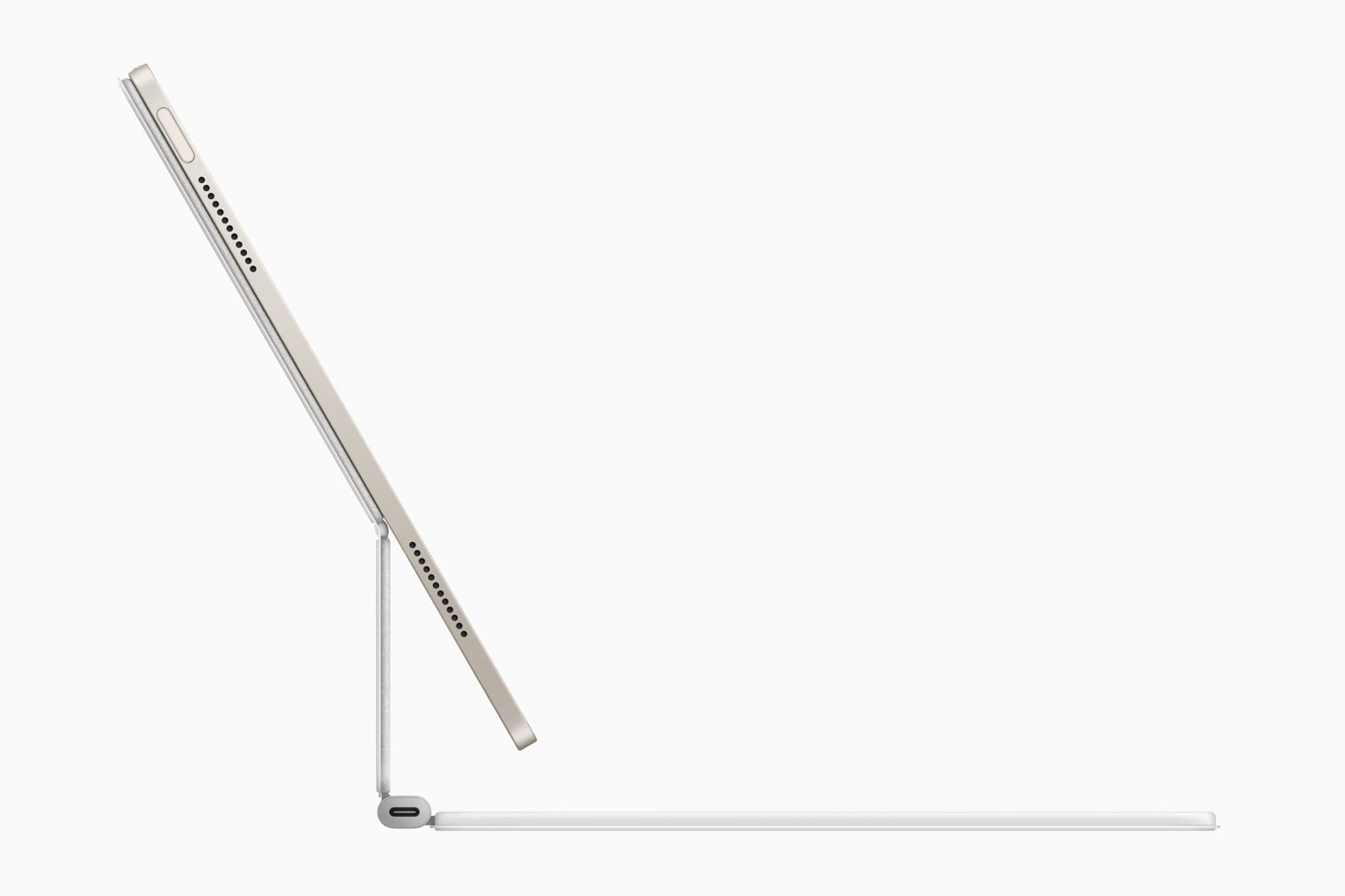
Logitech Combo Touch for iPad Air 11
apple.comThe best hybrid case when notes, planning, and drawing all happen on one iPad. Great utility, but more weight than draw-first buyers need.
Pro: Flexible kickstand plus detachable keyboard
Con: Bulkier than a simple folio
Confirm exact 11-inch iPad Air generation compatibility before purchase.

Apple Pencil Pro
amazon.comThe best Apple stylus for serious digital art workflows. Expensive, but the control upgrades are real.
Pro: Best brush-control and hover workflow
Con: Highest price in the lineup
Works only with newer iPad models. Check compatibility.
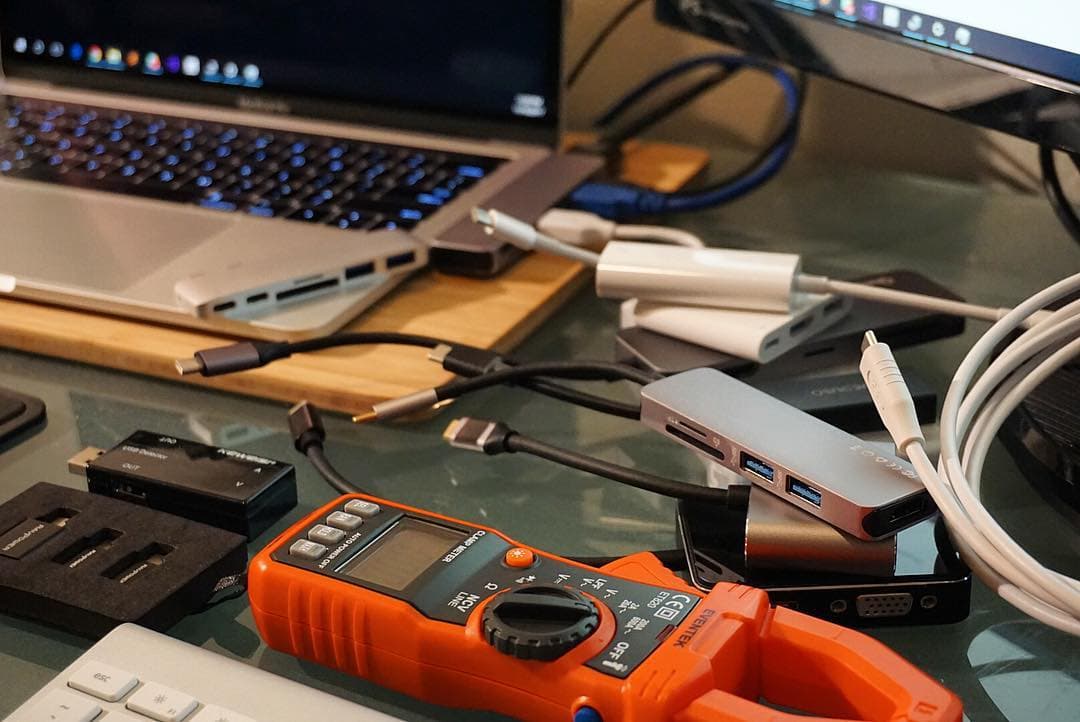
Anker 341 USB-C Hub (7-in-1)
amazon.comA strong everyday port hub for iPad workflows. Good value and layout, with expected bandwidth limits.
Pro: Solid all-around port mix for iPad setups
Con: Not Thunderbolt bandwidth
Check host power pass-through and display output before buying.
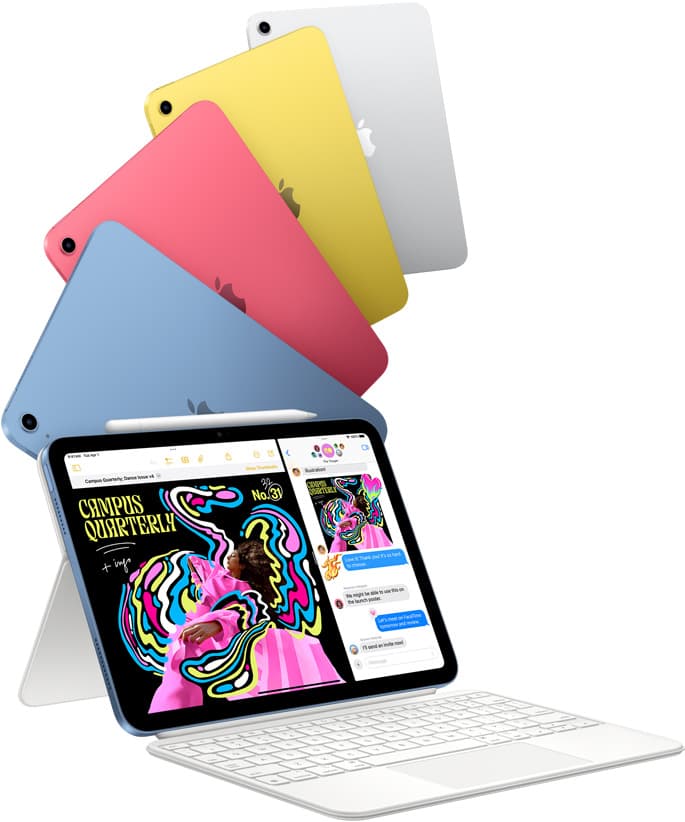
iPad (A16, 11th gen)
amazon.comThe best entry iPad for most artists on a budget. It is not premium, but it is very hard to beat on value.
Pro: Best value iPad right now
Con: No ProMotion display
Search opens with the exact model keywords. Verify size and storage before checkout.
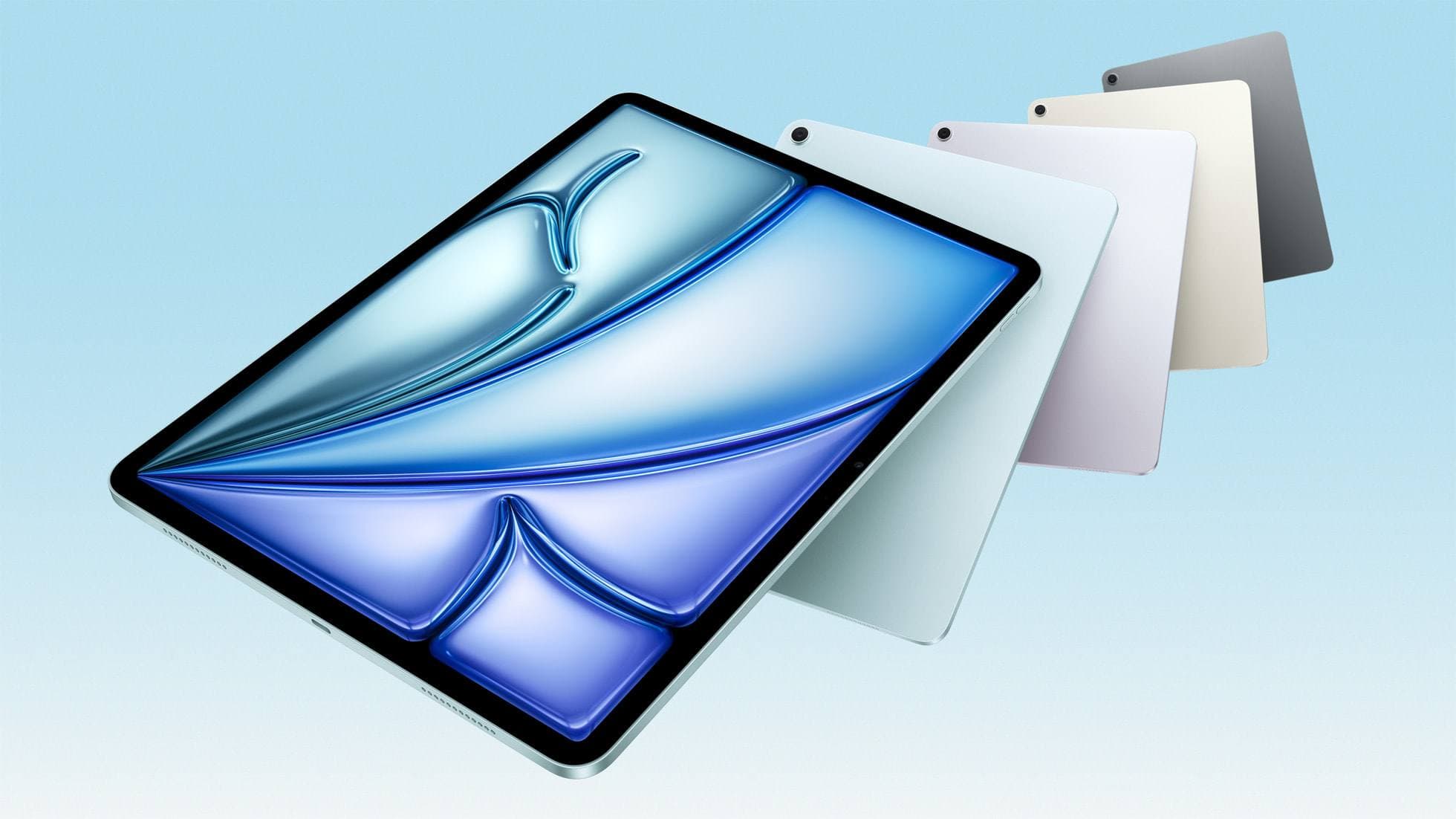
iPad Air (M4)
apple.comThe clean current Air recommendation for most serious hobby artists. Stronger buy logic than old-stock M3 when pricing is close.
Pro: Best current balance of price, headroom, and Pencil support
Con: Still 60Hz
Current Air lineup. Choose size, storage, and keyboard path before checkout.
Related buying picks
More in this collectionBuyer guide
Best iPad mini Accessory Bundle for Drawing (2026)
iPad mini is strongest when you keep the setup light. This buyer guide picks three pieces that add utility without killing portability.
Buyer guide
Best USB-C Chargers for iPad Artists (2026): Wattage, Heat, and Real Speed
For iPad artists, charger quality matters more than max wattage marketing. Buy by single-port output, heat behavior, and split-power rules.
Buyer guide
Best iPad Cases for Artists (2026): Protection, Weight, and Draw-Angle Tradeoffs
The right iPad case for art is a balance between corner protection, bag weight, and a stand angle that does not wobble while you draw.
Buyer guide
Best Travel Power Kit for iPad Artists (2026 Buyer Guide)
Pack one three-piece travel charging kit for iPad drawing: a 100W wall charger, a high-output power bank, and a 2m USB-C cable.