





Buy the iPad Air (M4) if you want modern Apple Pencil Pro support without paying the premium tier price, or pick the iPad Pro (M5) if your drafting setup requires the top display technology and ProMotion feel [1], [2]. The baseline iPad (A16) works if you only need a secondary digital clipboard for quick PDF redlines, but its input options are more limited [1], [3].
Drafting on an iPad changes depending on whether you review floor plans on site or sketch complex geometry by hand. You must choose the right mix of screen area, chip architecture, and stylus features to avoid buying hardware that restricts your drafting habits [1], [2].
Display size and precision drafting needs
When you work with technical drawings, floor plans, and vector linework, screen size directly affects your field of view [1]. CAD interfaces use toolbars, coordinate inputs, layer palettes, and property inspectors that crowd smaller displays. Working on a larger screen leaves more active canvas space for zooming into detailed joins, snaps, and dimension lines [1].
The iPad lineup splits between compact designs and larger work surfaces [1]. If your CAD tasks involve reviewing large blueprint sets or running dense split-screen apps, larger screens reduce how often you need to zoom and pan across drawing extents [1]. While smaller tablets remain easy to carry around job sites, dense technical layouts feel cramped quickly [1].
Display refresh rate also shapes the drafting experience. Apple's ProMotion technology on the iPad Pro updates at higher refresh frequencies than the standard 60Hz panels used on the iPad Air and baseline iPad [1]. When you drag crosshairs, orbit 3D solids, or pan across dense vector blueprints, ProMotion delivers a smoother visual response [1].
Apple Pencil selection for technical input
Stylus support is critical when choosing an iPad for drawing, drafting, and markup [2], [3]. Apple offers distinct stylus options, including the Apple Pencil Pro, the Apple Pencil (USB-C), and older generation models, each with specific pairing rules across the tablet catalog [2], [3].
The Apple Pencil Pro pairs with the iPad Air (M4) and iPad Pro (M5), bringing features like barrel roll, squeeze gestures, haptic feedback, and hover [1], [2], [3]. Barrel roll uses a gyroscope so you can rotate shaped drafting brushes or line orientation as you sketch [2]. Squeeze lets you summon quick tool menus right at the tip without hunting through palettes [2]. It also includes pressure sensitivity for varying line weight in conceptual sketches [2].
The Apple Pencil (USB-C) pairs across multiple tablets, including the iPad (A16), iPad Air (M4), and iPad Pro (M5) [1], [3]. While it supports tilt detection and low latency, it lacks pressure sensitivity, squeeze, and barrel roll [2]. For rigid drafting where line weights rely strictly on assigned software layers rather than hand force, the USB-C model provides clean vector tracking [2]. However, if your CAD process starts with freehand conceptual designs or expressive line sketches, missing pressure sensitivity limits natural drawing nuance [2].
Apple Pencil hover is another valuable drafting tool, available when pairing compatible pencils with supported M-series iPad models [2], [3]. Hover shows you exact cursor coordinates and tool preview points before the tip touches the glass [2]. That preview helps you locate precise snap points, endpoints, and intersections in technical applications [2].
iPad Pro (M5) for intensive drafting
The iPad Pro (M5) represents the top hardware tier in the catalog [1]. It features an advanced display with ProMotion and supports the Apple Pencil Pro [1], [2], [3]. Drafters working with high-density vector files, deep CAD assembly structures, and extensive multi-layer documents benefit from this hardware platform [1].
Buy the iPad Pro (M5) if:
- You want the smoothest display tracking and ProMotion feel when panning dense drawings [1].
- You need the Apple Pencil Pro toolset, including barrel roll, squeeze, and hover previews [1], [2].
- You regularly handle large, multi-sheet project packages and want maximum system headroom [1].
Skip the iPad Pro (M5) if:
- Your budget cannot justify top-tier hardware costs [1].
- Your CAD tasks consist primarily of viewing export PDFs and marking redlines without intensive 3D modeling [1].
iPad Air (M4) as the balanced choice
The iPad Air (M4) brings modern M-series computing power and Apple Pencil Pro compatibility into a more accessible configuration [1], [3]. It gives you the precision gestures of the Apple Pencil Pro, including hover and squeeze, while bypassing the steeper cost of the Pro model [1], [2].
The trade-off on the iPad Air is the screen panel, which runs at a standard 60Hz refresh rate rather than ProMotion [1]. While high-speed panning does not look quite as fluid, vector precision and snap tracking remain identical because the underlying Apple Pencil Pro input pipeline is unchanged [1], [2].
Buy the iPad Air (M4) if:
- You want the toolset of the Apple Pencil Pro without paying for a Pro tablet [1], [2].
- You need strong processing headroom for multi-app drafting routines [1].
- You split your time between technical drafting, office tasks, and creative sketches [1], [2].
Skip the iPad Air (M4) if:
- You require a 120Hz ProMotion screen for your drafting work [1].
- You only need basic viewing tools and want to minimize hardware expenses [1].
iPad (A16) for markups and budget workflows
The iPad (A16) is the entry model in the current iPad line [1]. It handles routine digital drawing, cloud markups, plan inspections, and baseline mobile tasks [1], [3]. However, its hardware options impose specific trade-offs for drafting professionals [1], [2].
The iPad (A16) pairs with the Apple Pencil (USB-C) and the older first-generation Apple Pencil, but it cannot pair with the Apple Pencil Pro [1], [3]. That means you miss out on hover coordinate previews, squeeze shortcuts, and barrel roll manipulation [2]. Furthermore, if you choose the Apple Pencil (USB-C), you work without pressure sensitivity [2].
Buy the iPad (A16) if:
- You want a dedicated field tablet strictly for viewing documents and marking up plans [1].
- You need to keep your total hardware outlay as low as possible [1].
- Your drafting work does not rely on pressure-sensitive sketching or stylus shortcut gestures [2].
Skip the iPad (A16) if:
- You want Apple Pencil Pro features like hover, squeeze, or barrel roll [1], [2].
- You need a larger screen size option to review expansive drawings without constant zoom adjustments [1].
- You want ProMotion display technology [1].
Memory considerations for layer-dense projects
Drafting packages and layered design software track extensive data structures, from vector coordinates and line styles to text labels and embedded raster images [4], [5]. In creative and technical drawing apps alike, hardware memory capacity directly governs canvas dimensions and maximum usable layers [4].
Apps that run on devices with higher unified memory can allocate more simultaneous drawing layers while preserving full resolution [4]. If your drafting style relies on stacking separate sheets for electrical, plumbing, structural, and architectural revisions, having adequate system memory prevents you from reaching artificial layer caps [4]. Choosing an M-series tablet ensures your hardware meets modern software requirements across professional drafting catalogs [1], [4], [5].
Chip selection and hardware specifications across the lineup
Processing complex CAD assemblies and dense meshes depends directly on the tablet's processor. Apple equips the entry-level iPad with an A16 chip, whereas the iPad Air features the M4 processor and the iPad Pro runs the M5 processor [1]. These chip tiers establish how each device handles intensive computation within tablet software [1].
When preparing models for 3D printing, 3D software must calculate boolean cuts, fillets, and geometry lofts. The M4 chip in the iPad Air and the M5 chip in the iPad Pro provide the computational overhead needed for demanding vector calculations and geometry processing [1]. While the base iPad with the A16 chip can handle light sketching and basic object placement, it lacks the broader computational scale offered by M-series silicon [1].
Storage configuration also plays an important role when managing extensive 3D model libraries. The iPad Air (M4) starts at 128GB of storage and offers configurations up to 1TB, matching the needs of users storing large file archives [1]. The iPad Pro (M5) scales from 256GB up to 2TB for extensive storage demands, whereas the entry iPad (A16) starts at lower storage tiers that fill up quickly once you accumulate mesh files and reference photos [1].
Bottom line
For most people drafting on iPadOS, the iPad Air (M4) is the smart pick [1]. It pairs with the Apple Pencil Pro, giving you squeeze shortcuts, barrel roll rotation, and hover targeting without the cost of the Pro line [1], [2], [3]. If you insist on a 120Hz ProMotion display for fluid panning across fine linework, purchase the iPad Pro (M5) [1]. Reserve the iPad (A16) for lightweight field inspections and budget-conscious plan markups [1], [3].
Sources
[1] https://www.apple.com/ipad/compare/ [2] https://www.apple.com/apple-pencil/ [3] https://support.apple.com/en-us/108937 [4] https://help.procreate.com/articles/zlexav-ipad-compatibility [5] https://apps.apple.com/us/app/procreate/id425073498
Recommended gear
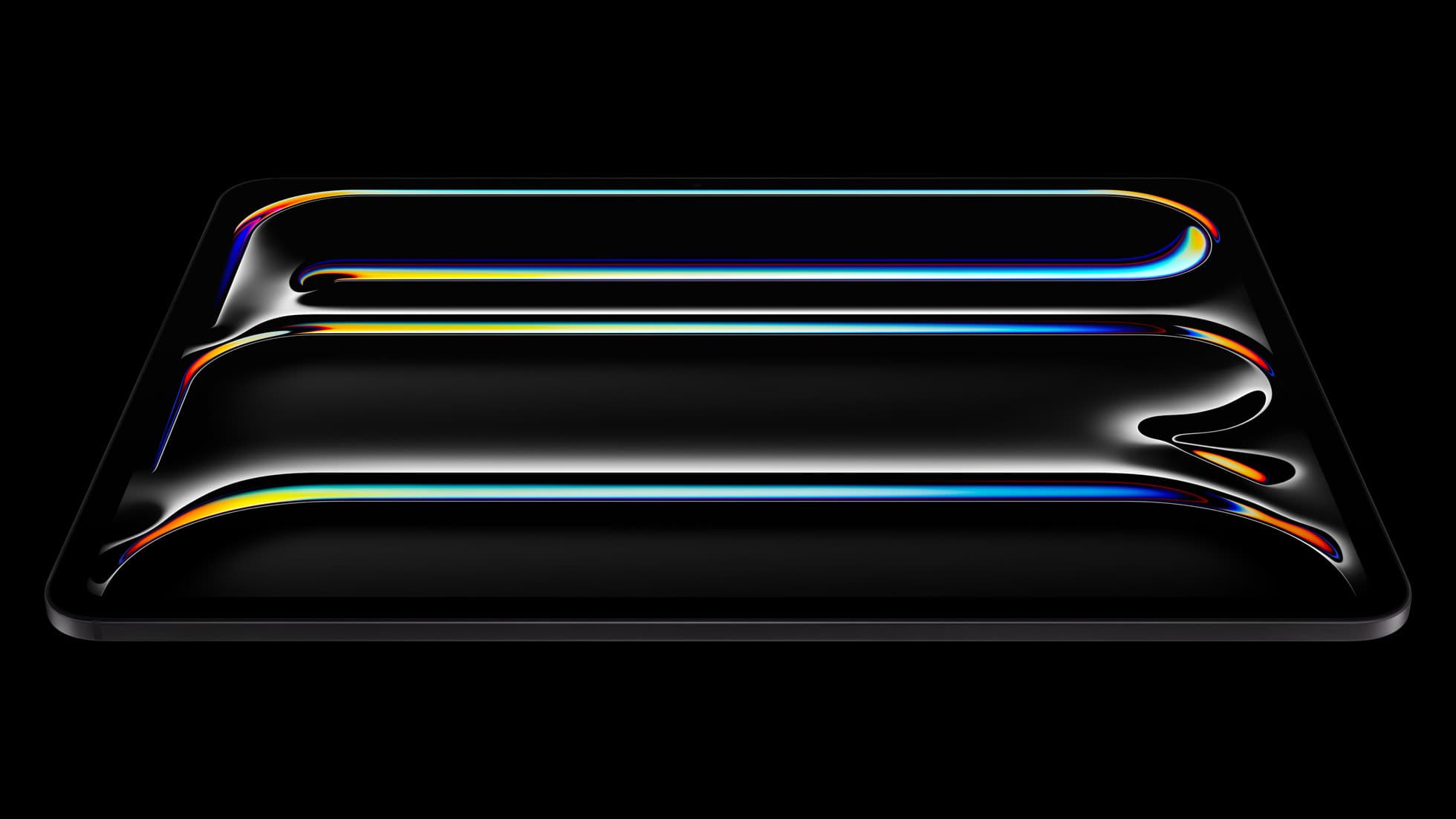
iPad Pro (M5)
amazon.comThe best iPad for drawing feel and premium workflow comfort, but many buyers still overpay for it.
Pro: Best iPad display and ProMotion feel
Con: Highest price in the lineup
Search opens with iPad Pro terms. Check year, chip, and screen size.
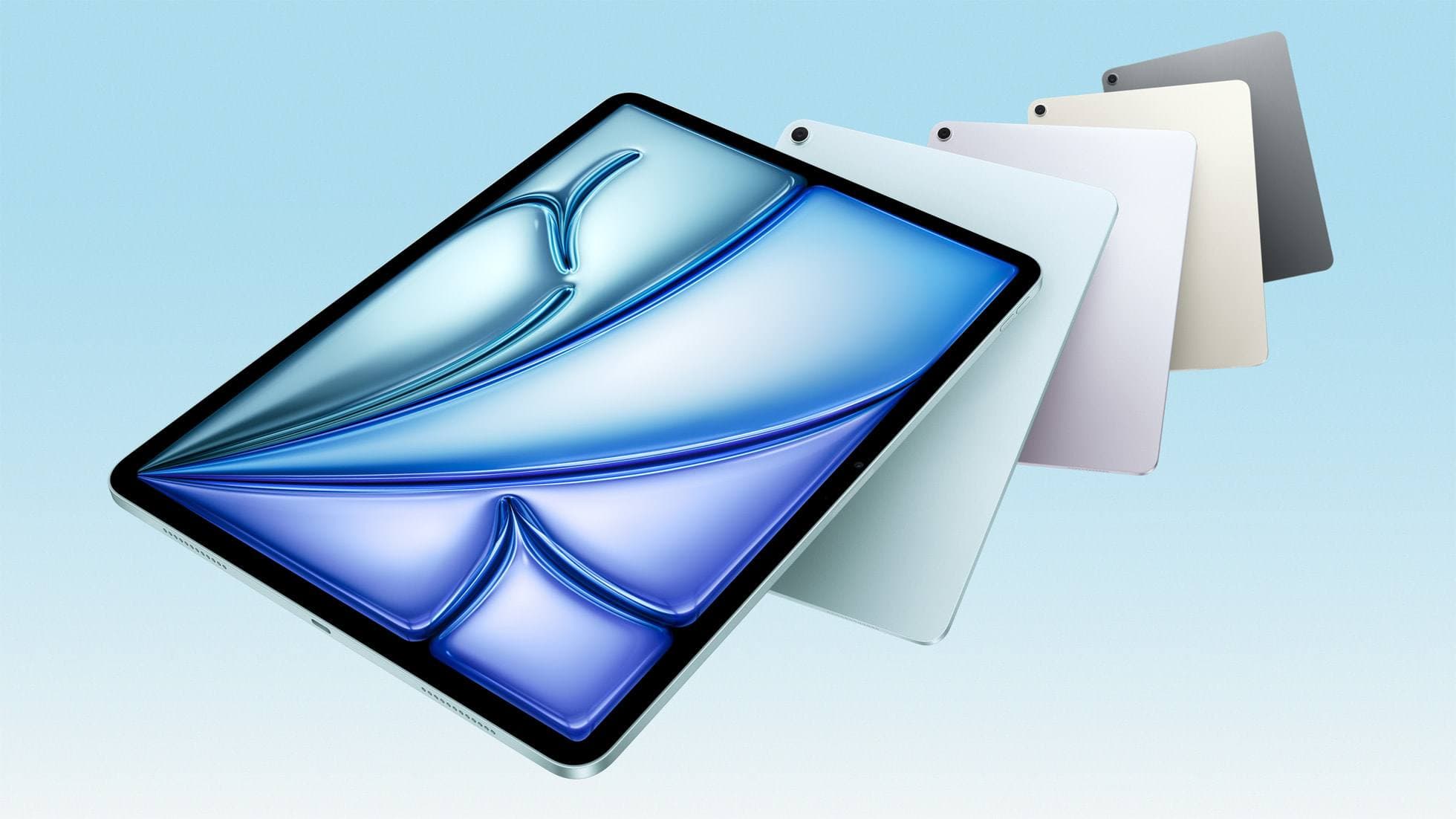
iPad Air (M4)
apple.comThe clean current Air recommendation for most serious hobby artists. Stronger buy logic than old-stock M3 when pricing is close.
Pro: Best current balance of price, headroom, and Pencil support
Con: Still 60Hz
Current Air lineup. Choose size, storage, and keyboard path before checkout.
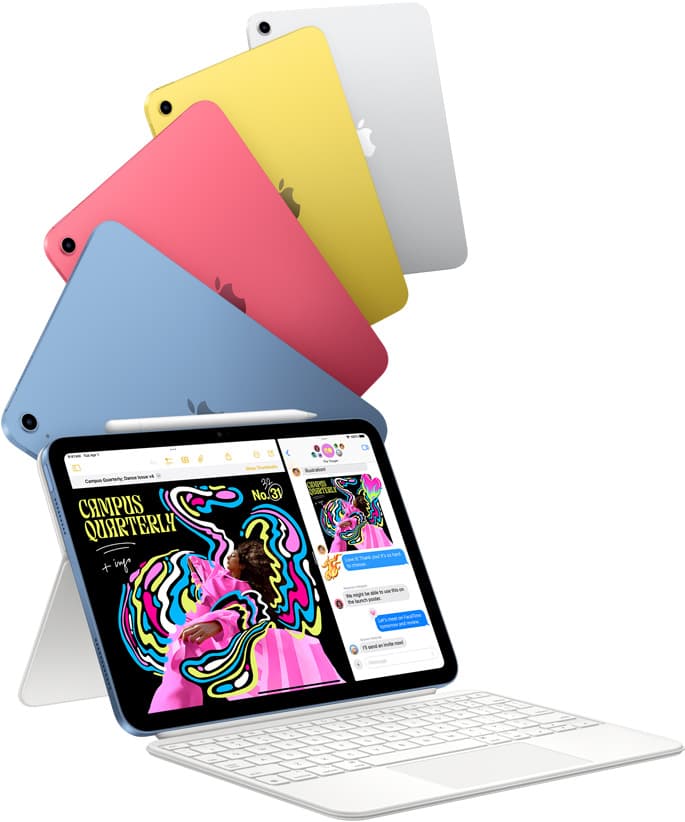
iPad (A16, 11th gen)
amazon.comThe best entry iPad for most artists on a budget. It is not premium, but it is very hard to beat on value.
Pro: Best value iPad right now
Con: No ProMotion display
Search opens with the exact model keywords. Verify size and storage before checkout.

Apple Pencil Pro
amazon.comThe best Apple stylus for serious digital art workflows. Expensive, but the control upgrades are real.
Pro: Best brush-control and hover workflow
Con: Highest price in the lineup
Works only with newer iPad models. Check compatibility.
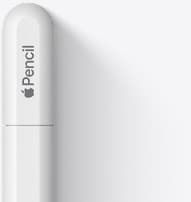
Apple Pencil (USB-C)
amazon.comA practical low-cost Apple stylus with broad compatibility, but limited for advanced art control.
Pro: Lowest official Apple Pencil cost
Con: No pressure sensitivity for brush work
Compatible with many recent iPads. No pressure support.
Related buying picks
More in this collectionBuyer guide
Best iPad for interior design
The iPad Air (M4) is the best overall iPad for interior designers needing Apple Pencil Pro support without paying Pro tier prices.
Comparison
iPad vs reMarkable for note taking: which device belongs in your bag
Choose an iPad Air or iPad Pro if you need color, layered sketches, and active stylus tools, but skip the iPad if you only want a distraction-free monochrome notebook.
Buyer guide
Does Cricut Design Space work on iPad, and which model should you buy?
Cricut cut workflows run on iPad hardware, but choosing between a base iPad and an iPad Air depends on your stylus and illustration needs.
Buyer guide
Best tablet for 3d sculpting: how to choose your iPad setup
Compare the best iPads for digital 3D sculpting based on Apple Pencil Pro features, screen hardware, and memory ceilings.